

How to Manage Documents on a Booking
As an admin, track missing documents on a booking, upload files for travelers, request one more document and send reminders.
Every booking has a Documents tab where you see what each traveler still owes, what you shared with them, and what they sent you. From there you can upload a file for a traveler, ask for one more document, send a reminder, or take a shared file off one booking. This page is part of the Documents add-on.
Available from Documents 2.2.0, with WP Travel Engine 6.9.0.
Opening a Booking's Documents Tab
- Go to WP Travel Engine > Bookings and open the booking.
- Click the Documents tab, next to Trip Details.
An orange dot on the tab means documents are still missing. The tab shows on every booking, even when nothing is shared or requested yet.
The tab has 3 sections:
| Section | What it shows |
|---|---|
| Requested Documents | Every document the travelers must upload, and who has sent theirs. |
| Shared with the Traveler | Files you give the travelers. They see these under Shared with you. |
| Shared by Traveler | Files travelers sent on their own, without a request. They see these under Uploaded by you. |
Administrators and other users who can edit bookings can use this tab.

Checking Which Documents Are Still Missing
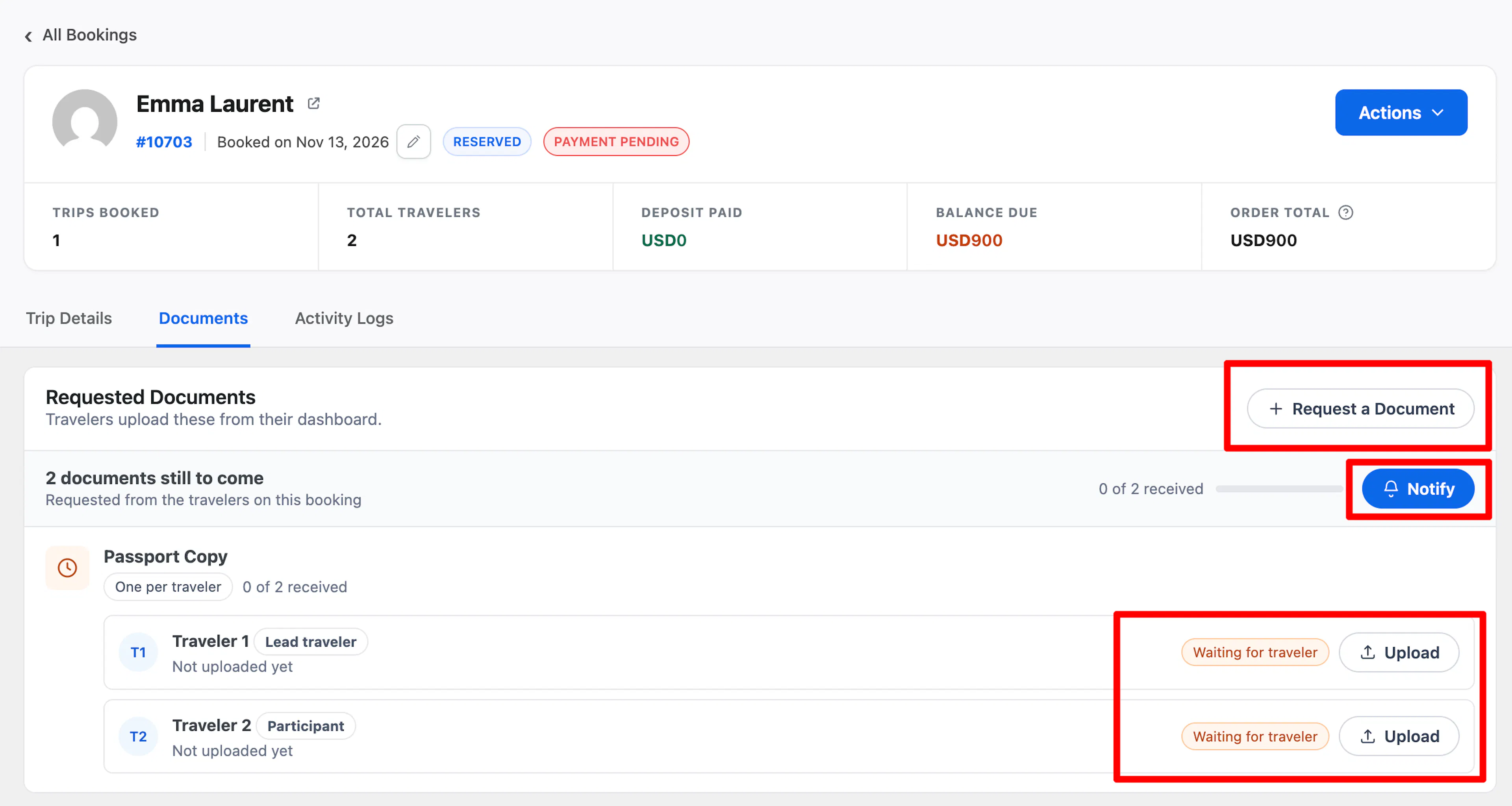
The top of Requested Documents shows the progress for the whole booking, for example "2 documents still to come" and "0 of 2 received". When everything is in, it says Every requested document is in.
Each request shows One per booking or One per traveler. A per-traveler request lists every traveler on the booking with one of these statuses:
- Waiting for traveler: nothing uploaded yet.
- Received: the file is in. Click the eye icon to preview it, or Download to save it.
Travelers are listed by the names on the booking. If traveler details are not filled in yet, they show as "Traveler 1", "Traveler 2," and so on, based on how many people booked. The first traveler has the label Lead traveler.
Uploading a Document for a Traveler
Use this when you already have the file, for example from an email or a manual booking.
- In Requested Documents, find the request and the traveler.
- Click Upload. The Upload [document name] window opens.
- Click to choose a file and pick the file from your Media Library or upload it.
- Click Upload.
The row changes to Received. The traveler sees it as done, with the label Added by your operator, and does not need to upload it. No email is sent to the traveler.
Check the file before you upload. You cannot replace it later.
Requesting a Document From One Booking
Use Request a Document to ask for something only this booking needs, such as a doctor's letter for one traveler. To ask on every booking of a trip, add a policy instead. See Asking Travelers for a Document.
- In Requested Documents, click Request a Document.
- Enter What are you asking for?, for example, "Doctor's letter for high altitude".
- Enter a Short description to tell the traveler what a good file looks like.
- Under Who does it belong to?, select The booking or Each traveler.
- Click Request document. A message says Document requested.
The request appears at once in Requested Documents and in the traveler's account. You do not need to save the booking. No email is sent. To tell the traveler, send a reminder.
Sending a Document Reminder
The Notify button appears when documents are still missing. It sends the Document Reminder email to the traveler.
- In Requested Documents, click Notify. The Send Document Reminder window opens.
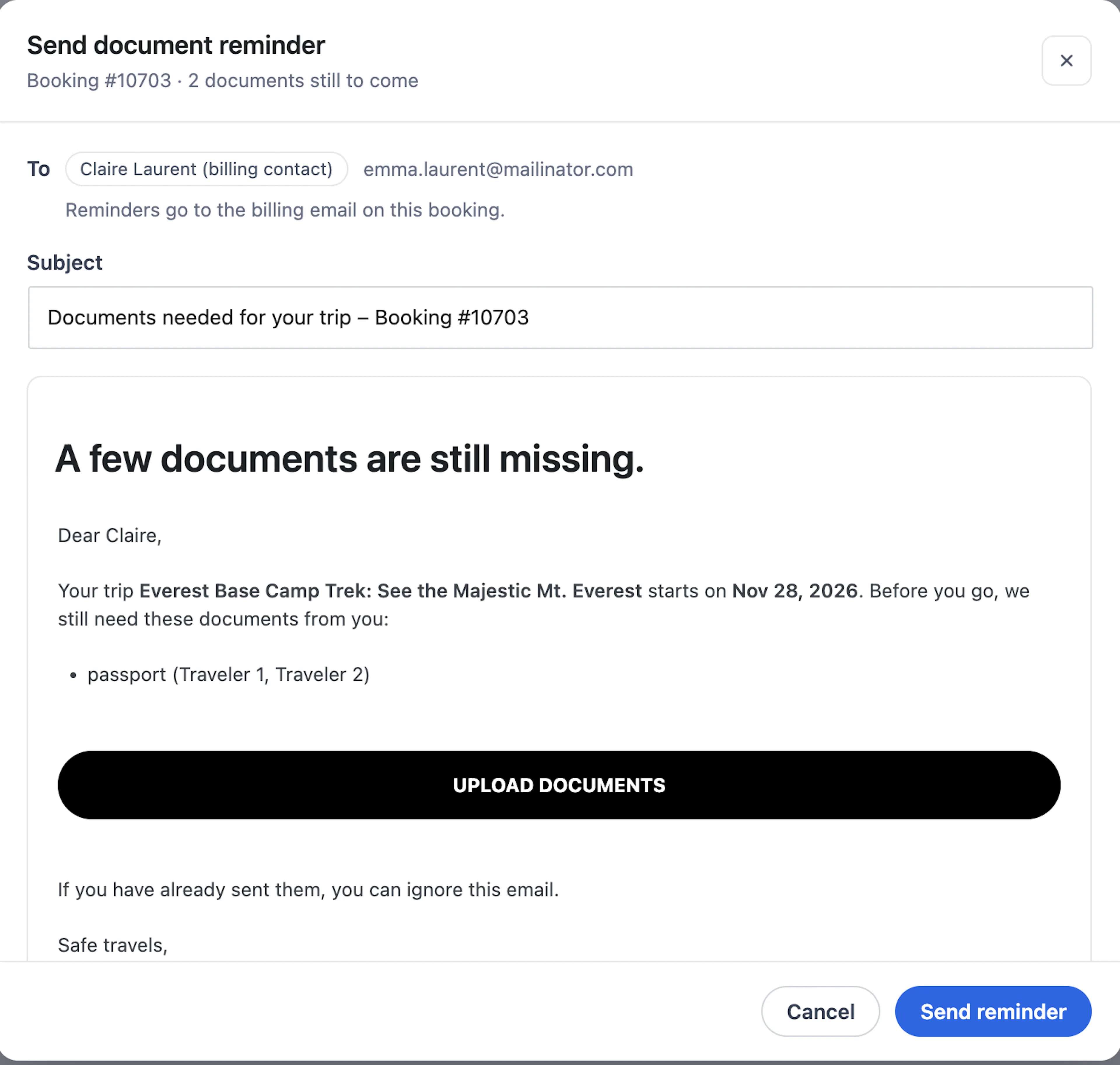
- Check To. Reminders go to the billing email on this booking.
- Change the Subject if you like. The change applies to this email only.
- Read the preview. It lists the missing documents and the travelers who still owe them.
- Click Send reminder. A message says Reminder sent to and the email address.
To change the reminder text for all bookings, click Edit template.
The Document Reminder email must be turned on before Notify works. See Turning On the Document Emails. A booking with no payment record cannot send a reminder. The window shows: This booking has no payment on file to send a reminder from
Removing a Shared Document From One Booking
Use this when one booking should not get a file that the policy gives everyone, for example an itinerary that does not match a private departure.
- In Shared with the Traveler, click the bin icon next to the document.
- Confirm Remove "[name]" from this booking? The traveler will no longer see it.
A message confirms the traveler no longer sees it. The policy is not changed, and other bookings keep the document.
You cannot add the document back to this booking from the screen. Think before you remove it.
Viewing a Customer's Documents
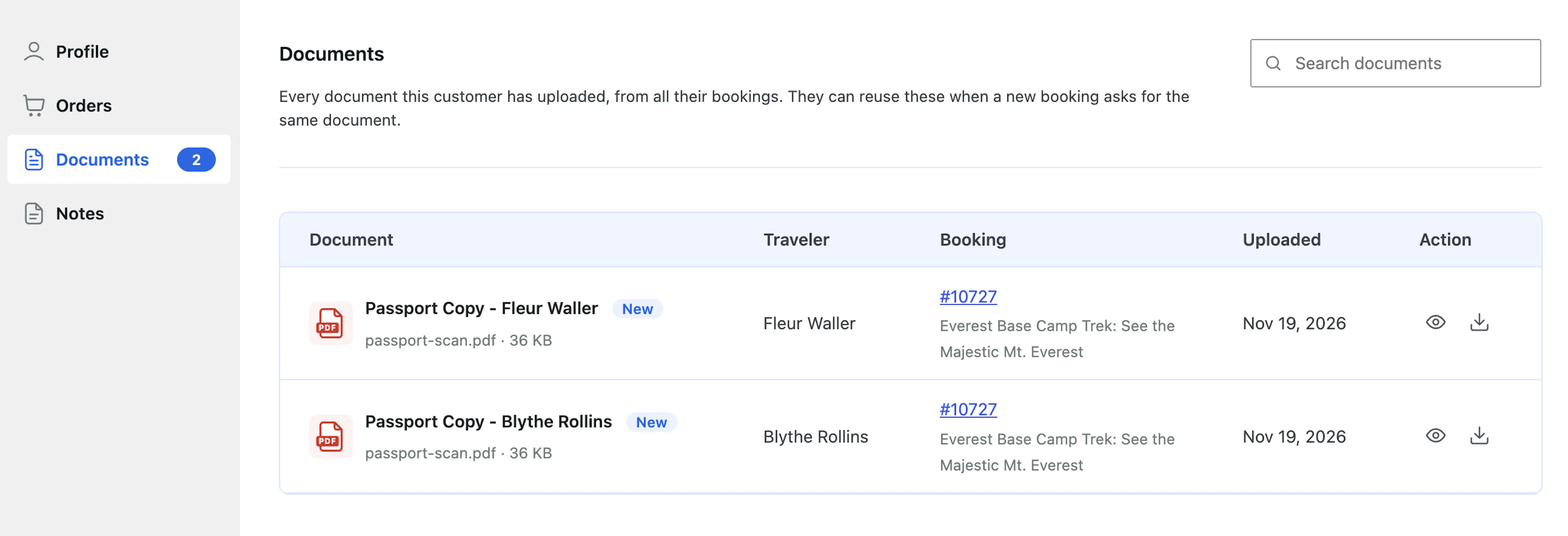
The customer screen lists every file a customer uploaded across all their bookings.
- Go to WP Travel Engine > Customers and open the customer.
- Click Documents in the left menu.
The table shows Document, Traveler, Booking, Uploaded and Action. Use Search documents to find a file by name, traveler, booking number or trip. Click the eye icon to preview a file or the download icon to save it. Files you have not seen yet in this browser have a New label.
A file the traveler reused on several bookings shows once.
Use Cases
Collecting passports for a group of 4
The Lee family books the 14-Day Everest Base Camp trek for 4 travelers. The "Passport photo page" policy asks for one per traveler, so the booking shows "0 of 4 received". 3 weeks before departure, 2 scans are in. You click Notify, and the email lists "Passport photo page (Daniel Lee, Mia Lee)".
A traveler who emailed the waiver
Hayden Sloan emails you a signed waiver instead of uploading it. You open the booking, click Upload next to "Signed liability waiver," and pick the PDF. The booking shows Received, and Hayden sees it as done.
What Happens When...
If a traveler uploads a document
- Traveler: The request shows Uploaded in their account.
- Record: "Uploaded [document name]" is added to the booking's Activity Logs.
- What to do: Nothing. You get an email only if the traveler clicks Notify operator and the Document Uploaded email is turned on.
If you upload a document for a traveler
- Traveler: The request shows as done, added by your operator. No email is sent.
- Record: The upload is added to Activity Logs.
If a traveler sends the wrong file
- Traveler: Neither you nor the traveler can replace or delete the file from the website.
- What to do: Contact the traveler and collect the correct file by email or another channel.
If traveler details change after booking
- Traveler: Per-traveler requests, follow the new traveler list. A new traveler gets a new upload row.
- What to do: Check the progress again, then send a reminder if needed.
If you change the booking's trip
- Traveler: Documents from the new trip are added. Documents already given stay.
If you remove a shared document from the booking
- Traveler: The file disappears from Shared with you at once. No email is sent.
- Record: Not recorded in Activity Logs.
If the policy behind a request is deleted
- Traveler: If nothing was uploaded, the request disappears. If a file was uploaded, it stays.
- Record: You see the closed request with the label Policy deleted.
What You Cannot Do
- You cannot delete or replace a file a traveler uploaded.
- You cannot edit or delete a request made with Request a Document.
[verify] - You cannot add a different file for one booking. Add a trip-only document or a policy instead.
- Requests, reminders, and removed documents are not recorded in Activity Logs. Only uploads are.
FAQs
Why is the Notify button not working?
The Document Reminder email is off by default. Go to WP Travel Engine > Settings > Emails > Notifications, open the Customer tab, select Document Reminder and turn on Enable Notification. See Document Emails and Automatic Reminders.
Why don't I see the Notify button?
Notify shows only when the booking still has missing documents. When everything is received, the button is hidden.
Can I delete a document a traveler uploaded?
No. Neither you nor the traveler can delete or replace an upload. If the file is wrong, contact the traveler and collect the correct one by email.
Who receives the reminder email?
The billing contact on the booking. The To line in the Send document reminder window shows the name and email.
Does the traveler get an email when I request a document?
No. Request a Document only adds the request to the booking. Click Notify to send a reminder that lists it.
Where are the files I upload for a traveler stored?
The file is copied into the private documents folder, like a traveler upload. Only the traveler and users who can edit the booking can open it.
Why does the booking say "Traveler 1" instead of a name?
The traveler details are not filled in yet. The names appear when the details are added to the booking.
If you're still stuck or have a question we didn't cover, our support team is happy to help. Reach out at our support page and we'll get you sorted.