

How to Add PayPal Standard
Set up PayPal Standard as a payment gateway in WP Travel Engine so travelers can pay for trips with their merchant account.
Add PayPal Standard to your checkout
PayPal Standard lets you accept trip payments through WP Travel Engine. A payment gateway is the service that collects money from your traveler at checkout. Once you turn it on, travelers will see PayPal Standard as a payment option when they book a trip on your site.
If you run guided hikes, day tours, or multi-day packages, this gives your customers another way to pay. For example, someone booking a two-day trekking package could choose PayPal Standard instead of another payment method at checkout. You only need to set it up once. Then you can move on to taking bookings.
Before you start, make sure WP Travel Engine is active on your WordPress site and you have your PayPal or merchant account ID ready. Your WordPress dashboard is the main admin area of your website. The menu you need is in the left sidebar.
Set up PayPal Standard
What you'll need before you start: WP Travel Engine must already be active on your site, and you need your PayPal or merchant account ID ready.
Log in to your WordPress dashboard
This gets you into the part of your website where you change settings. In WordPress, the dashboard is the main admin area you see after you log in.
Log in to your WordPress dashboard.
Once you are in, you are ready to open the payment settings.
Navigate to PayPal Standard settings
This is where you connect your site to your PayPal account. The sidebar is the menu on the left side of your screen.
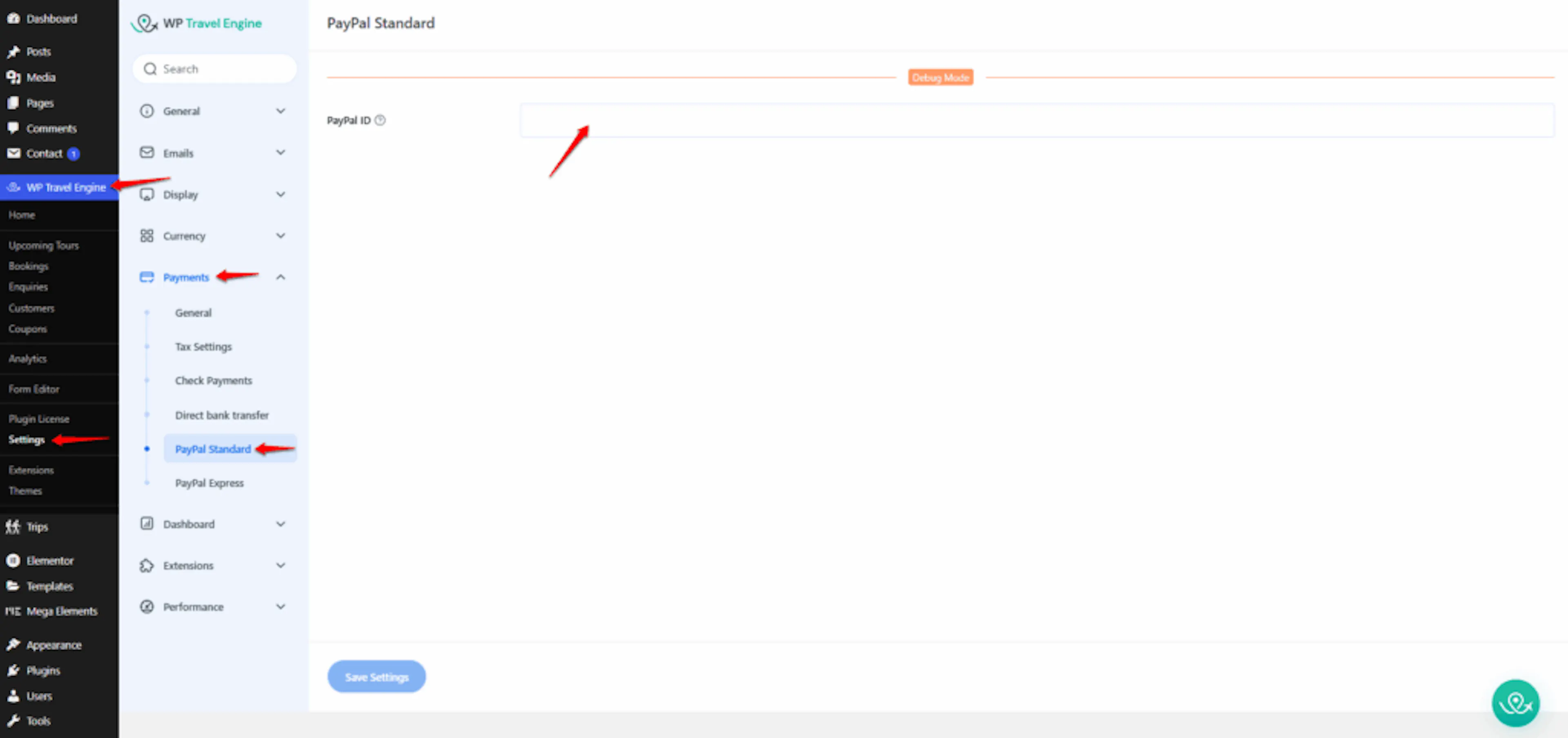
From the left sidebar in your dashboard, go to WP Travel Engine > Settings > Payments > PayPal Standard.
The settings area is where plugin options are stored. When you reach the PayPal Standard page, you are in the right place to add your account details.
Enter your PayPal or merchant account ID
This step makes sure booking payments go to the right account.
Enter your PayPal or merchant account ID.
Use a valid ID. WP Travel Engine uses this ID to process payments for your trips.
If you offer a trekking package or a city day tour, the payment from that booking will be sent through this PayPal account. That is why the account ID needs to be correct before you continue.
Save your changes
This keeps the PayPal Standard details you just entered.
Click Save Changes.
After you save, you can move on to turning PayPal Standard on for checkout.
Enable PayPal Standard as a payment option
This is the step that makes PayPal Standard visible to travelers during booking.
Go to WP Travel Engine > Settings > Payments > General. Then check the box to enable PayPal Standard, so it appears as a payment option during checkout.
For example, when someone books a weekend rafting trip on your site, they will be able to choose PayPal Standard while paying if this box is enabled.
Once that box is checked, your setup is nearly done.
Save your changes again
This final save makes the payment option show on your booking form.
Click Save Changes.
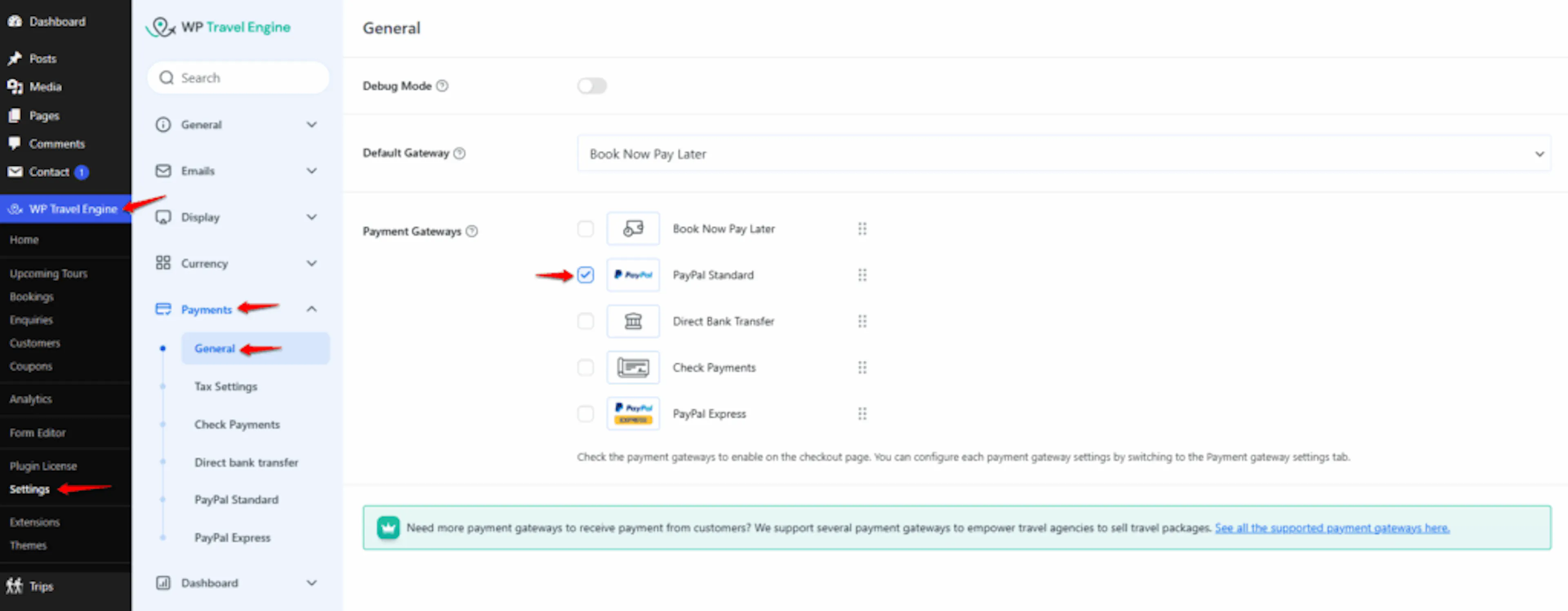
After that, PayPal Standard should be ready for travelers to use.
Confirm the setup
After you finish these steps, PayPal Standard is available as a payment gateway for travelers booking trips on your site.
That means your customers can choose it during checkout when they book with you. You are now ready to test a booking or continue setting up the rest of your payment options.
PayPal Standard currently supports transactions only in USD (United States Dollar). Other currencies will not work for receiving payments through this integration.
If you're still stuck or have a question we didn't cover, our support team is happy to help. Reach out at our support page and we'll get you sorted.