

Extra Services
Offer add-ons like insurance, airport pickup, and gear rental so travelers can customize their trip and you can increase each booking value.
Extra Services lets you offer helpful add-ons alongside the main trip booking. Instead of selling only the trip itself, you can also offer extras such as travel insurance, airport pickup, meal upgrades, or equipment rentals.
An add-on is a small extension that adds extra features to WP Travel Engine. In this case, the add-on gives you a way to sell extra services during booking.
This helps you earn more from each booking. It also gives travelers more choice, which is useful for treks, day tours, and multi-day packages where guests often want a few extras before they check out.
Benefits
Extra Services gives you a clear way to offer add-ons without changing your main trip price.
- Create simple or advanced add-ons for your trips.
- Offer optional or required services for travelers.
- Assign multiple service options under one category (for example, Basic or Standard Insurance).
- Choose different pricing models such as per traveler or per unit.
- Show extra services in the booking pop-up (the small window that appears when a traveler clicks Book Now) so customers clearly see add-ons before checkout.
- Include service details in booking confirmation emails automatically.
Prerequisites
Before using this add-on, make sure:
- You have WP Travel Engine installed and activated on your WordPress site (Version 6.5.0 or higher).
- You have installed and activated the Extra Services add-on.
- You have added at least one trip.
See how to activate a Pro add-on license key for the full installation and activation walkthrough.
General settings for Extra Services
These settings control what the extra services section looks like to your customers. You only need to do this once.
Open Extra Services settings
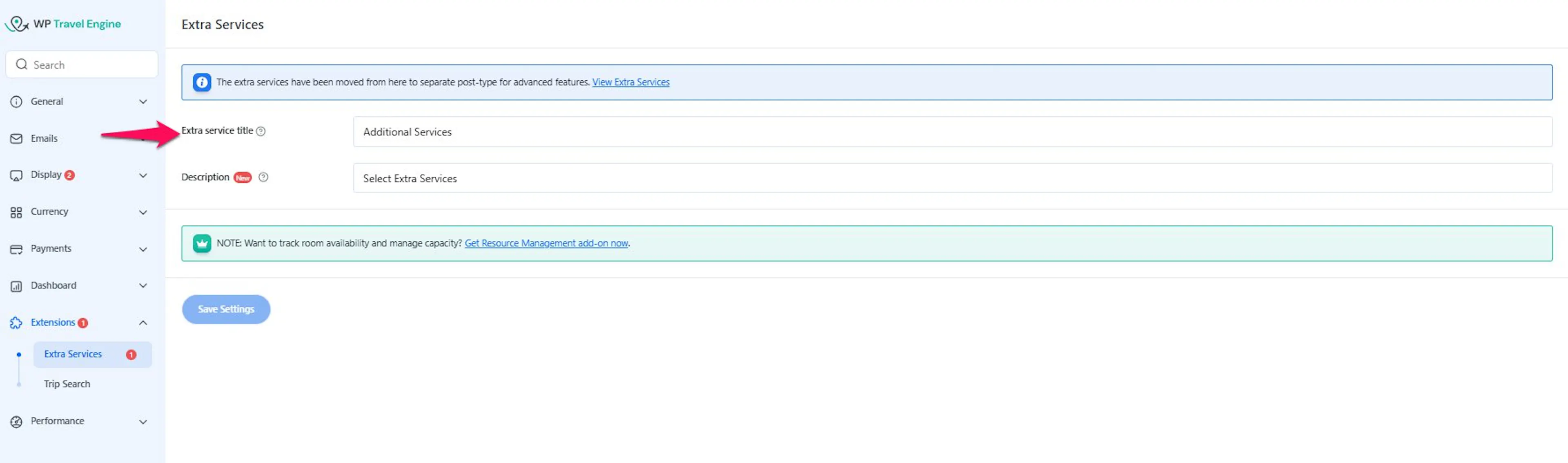
Go to Dashboard → WP Travel Engine → Settings → Extensions → Extra Services. Your dashboard is the main WordPress admin area you see when you log in to WordPress.
Add a section title
Add a title for the extra services section, which appears above the list of services in the booking pop-up. For example, "Additional Services" or "Trip Add-ons."
Description
Add a description for the extra services title, which appears in the top of booking pop-up.
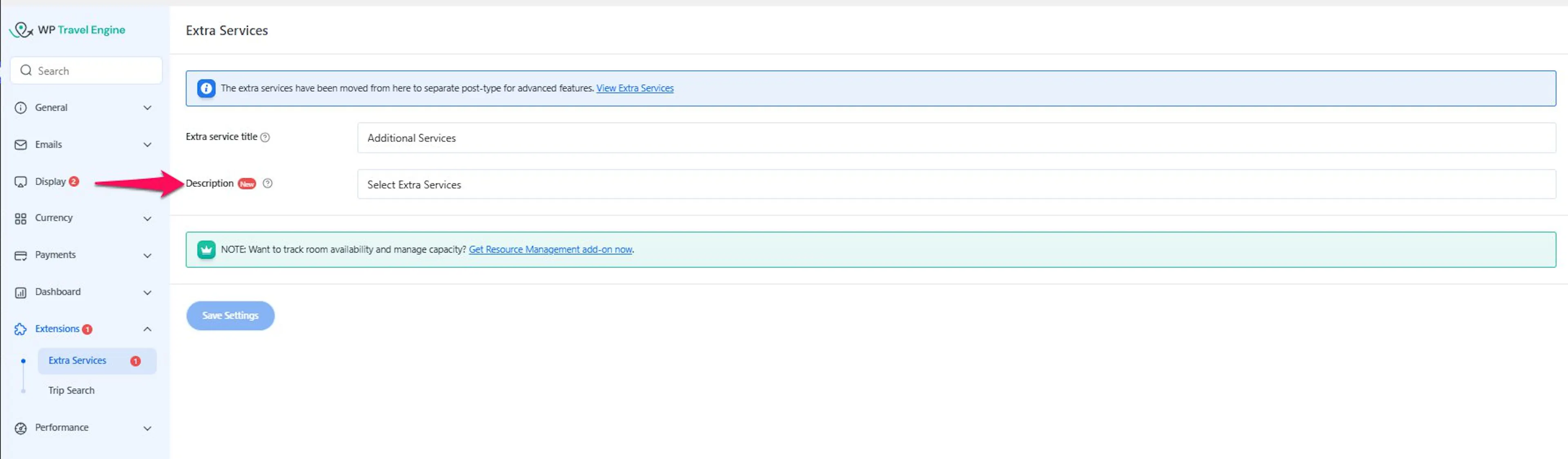
Once you've set this title, you're ready to create your first extra service.
Creating Extra Services
This is where you create the actual services travelers can add to their booking. You can create as many as you need.
Open Extra Services
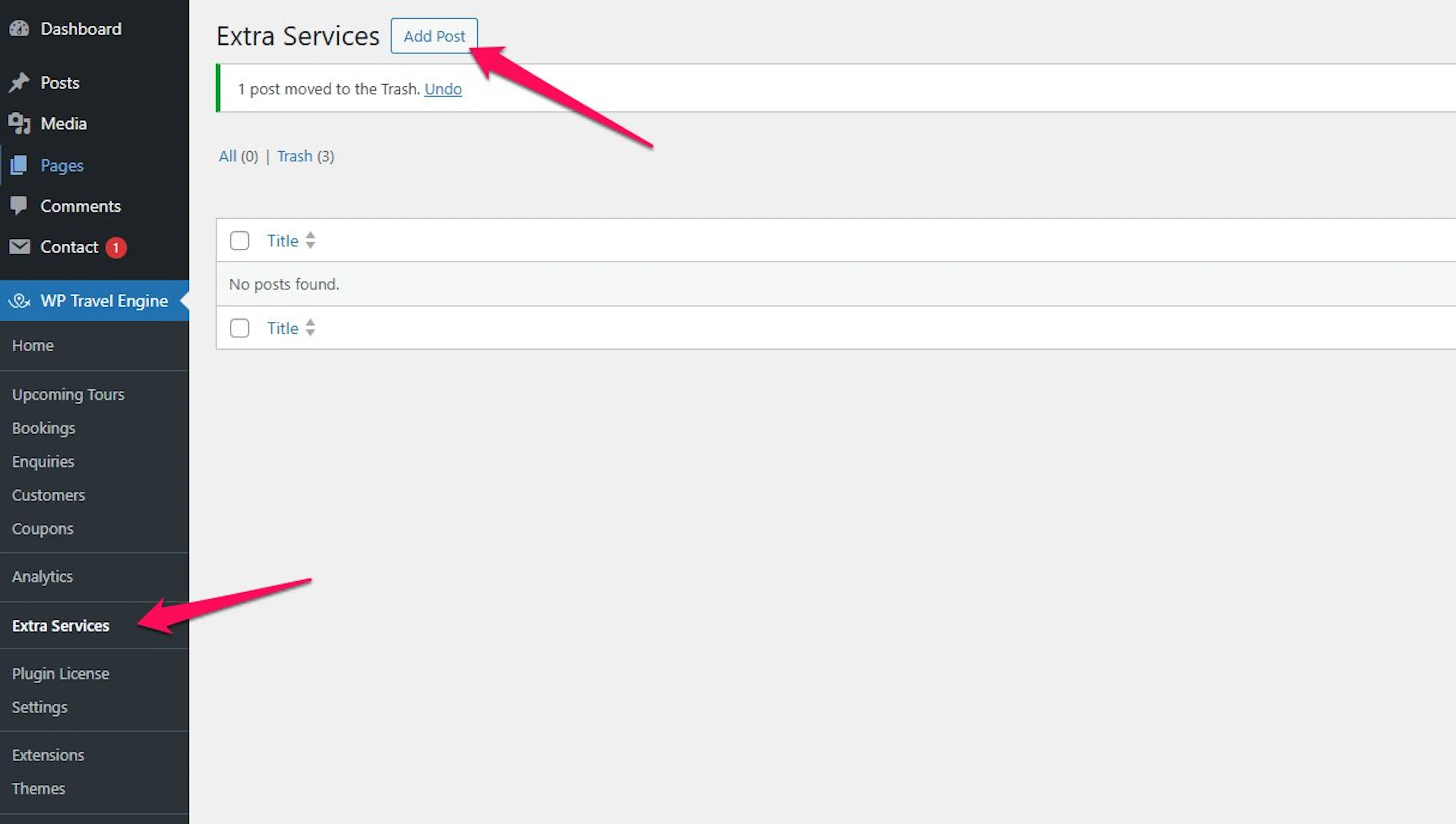
Go to Dashboard → WP Travel Engine → Extra Services.
Add a new service
Click Add Post to create a new service.
Name the service
Enter the name of the service. For example, "Travel Insurance" or "Airport Pickup and Drop-off."
Configure the service settings
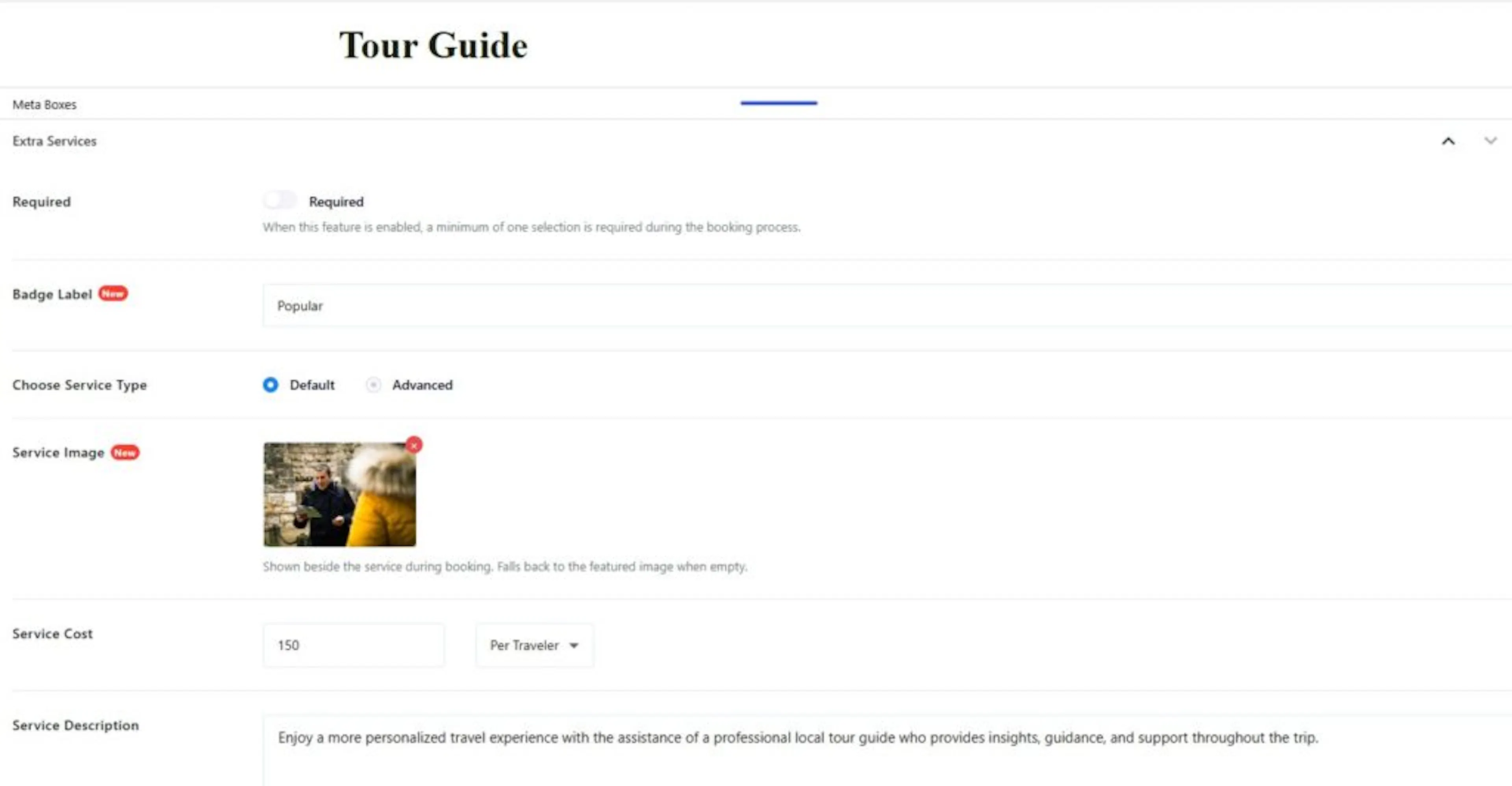
Set up the service using the options described below. This is where you decide the price, description, and whether the service is required.
Take your time with these settings. They control exactly what travelers see when they book.
Service settings options
- Required: Turn this on if the service must be selected (example: mandatory insurance).
- Badge label: Enter a badge label to highlight or emphasize this extra service to customers.
- Choose Service Type:
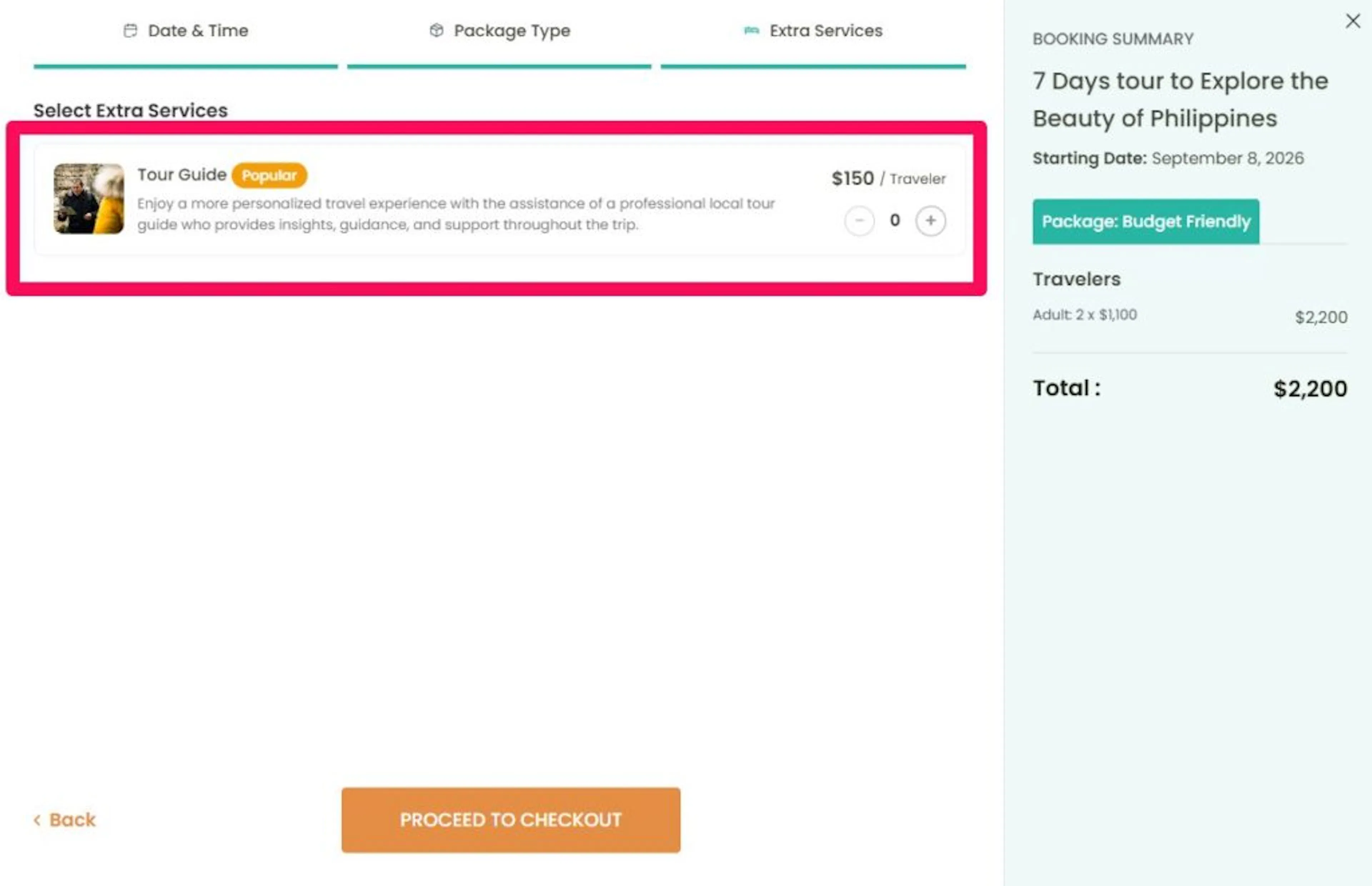
Default: Create a simple extra service with a single price and a short description. Best suited for services that don't require multiple variations. Once selected, you'll see:
- Service Image: Upload an image to visually represent this extra service to customers.
- Service Cost: Enter the price of the service, based on one of two pricing models:
Model Description Example Per Unit A fixed price that doesn't change with the number of travelers. $50 for airport pickup (applies to the whole booking). Per Traveler The price is multiplied by the number of travelers. $15 per traveler for a lunch package. - Description: A short description explaining what the service covers. For example, "Includes hotel pickup and drop-off within the city limits."
Advanced Service
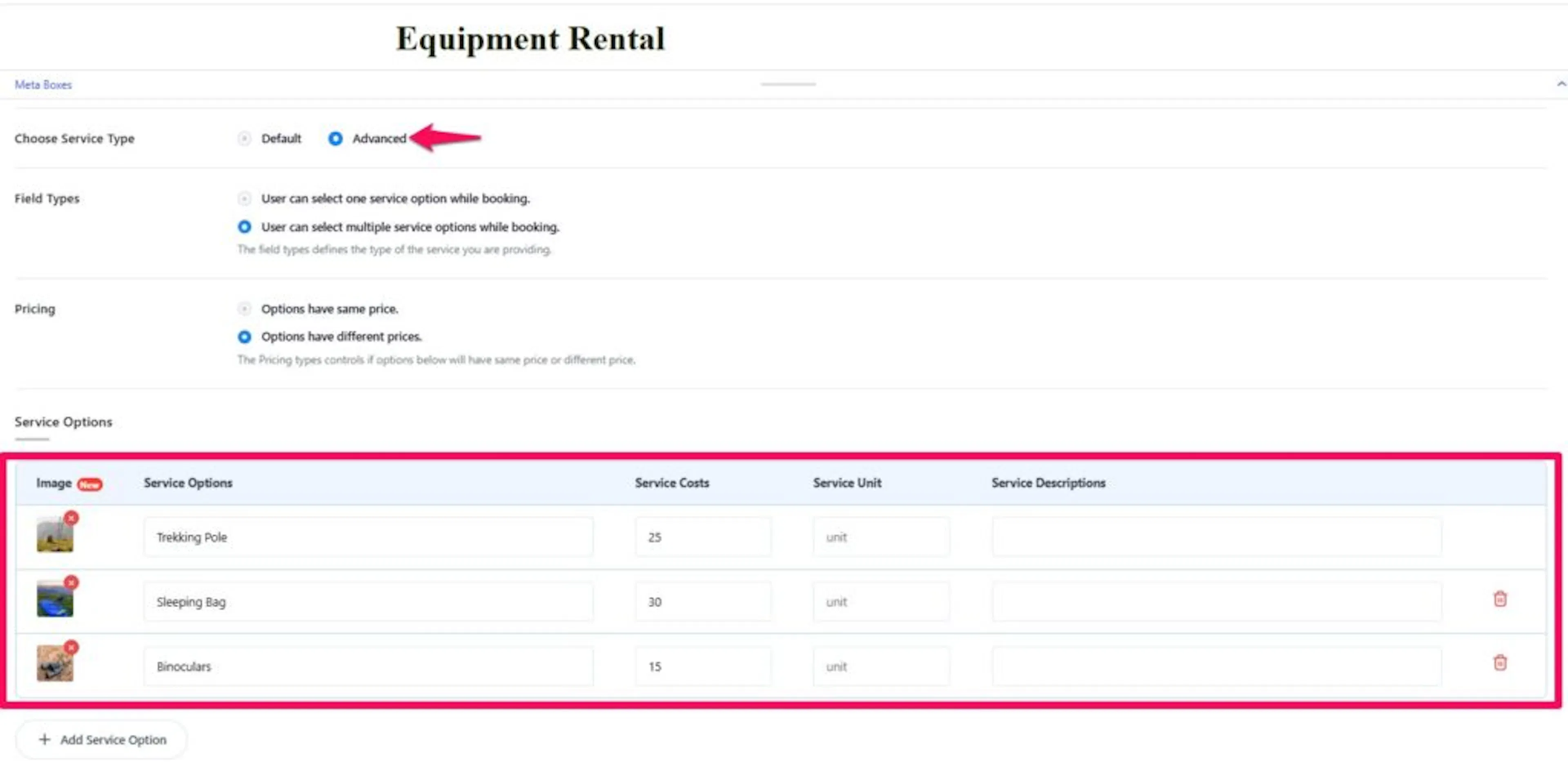
Create a complex extra service with multiple variations. Each option can have its own price, description, and service unit. This gives customers the flexibility to choose the option that suits them.
Once selected, you'll see:
- Field Type:
- Single selection: Only one option can be selected.
- Multiple selection: Customers can choose more than one.
- Pricing:
- Same Price for All Options: Every option shares the same cost.
- Individual Pricing: Each option can have a different price.
- Add Service Options: Add multiple service options, defining for each:
- Image: Upload an image to visually represent the extra service.
- Service Name: the name of the option (for example, Basic Coverage, Standard Coverage).
- Cost: the price of the service option.
- Service Unit: pricing model (per unit or per traveler).
- Description: a short explanation of what the option includes. Repeat the process to add another option by clicking Add Service Option.
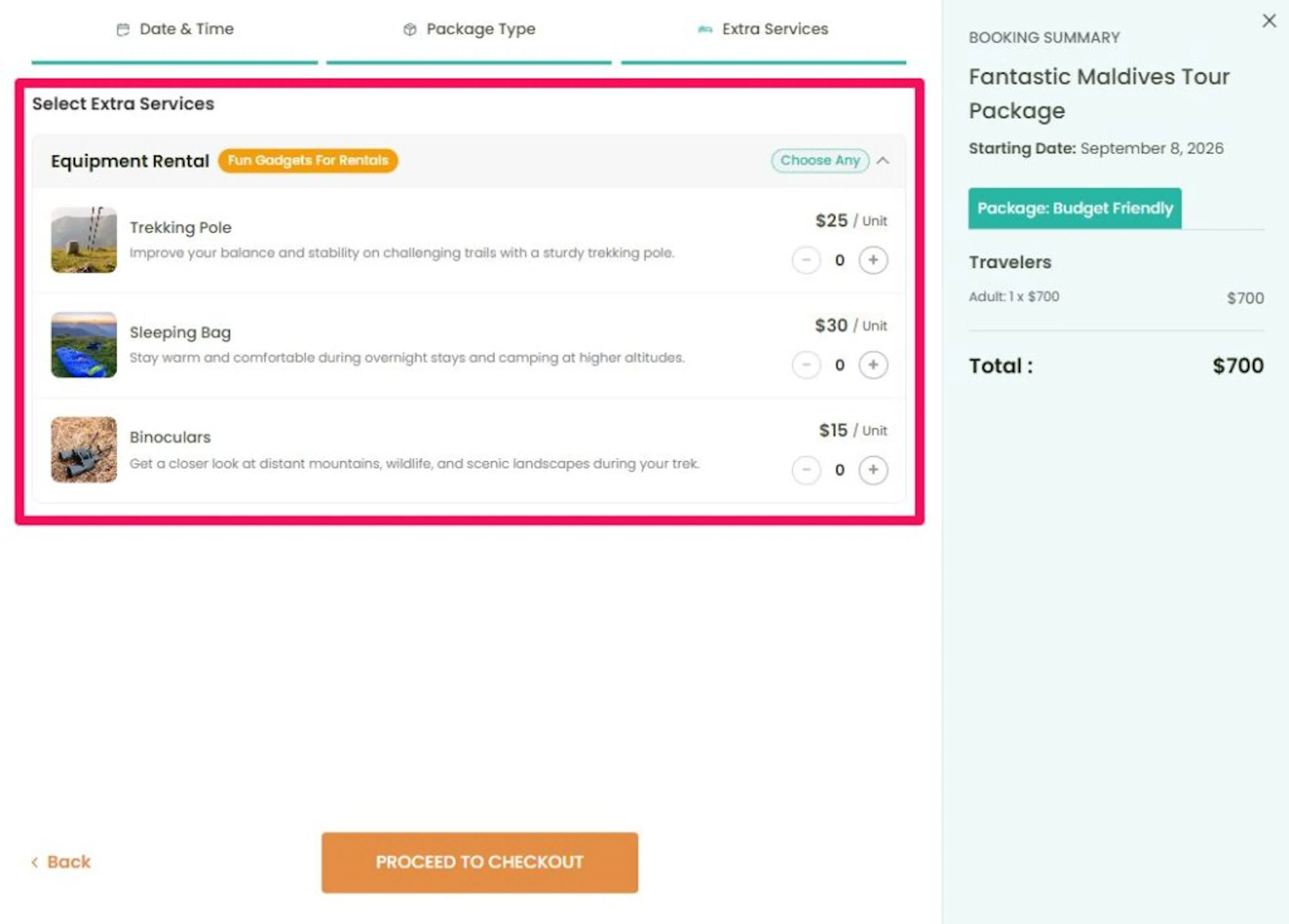
Example of service variations:
- Equipment Rental
- Option 1:Trekking Pole – $25
- Option 2: Sleeping Bag – $30
- Option 2: Binoculars – $15
- Porter/Guides:
- Option 1: Local Guide – $50
- Option 2: Expert Mountain Guide – $100
- Local Food or Dining Experiences:
- Option 1: Street Food Tour – $20
- Option 2: Fine Dining Experience – $100
Assigning Extra Services to a trip
Services only show up on trips you assign them to. This step connects the services you created to the trips where travelers can pick them.
Open the trip
Go to Dashboard → Trips → Edit Trip.
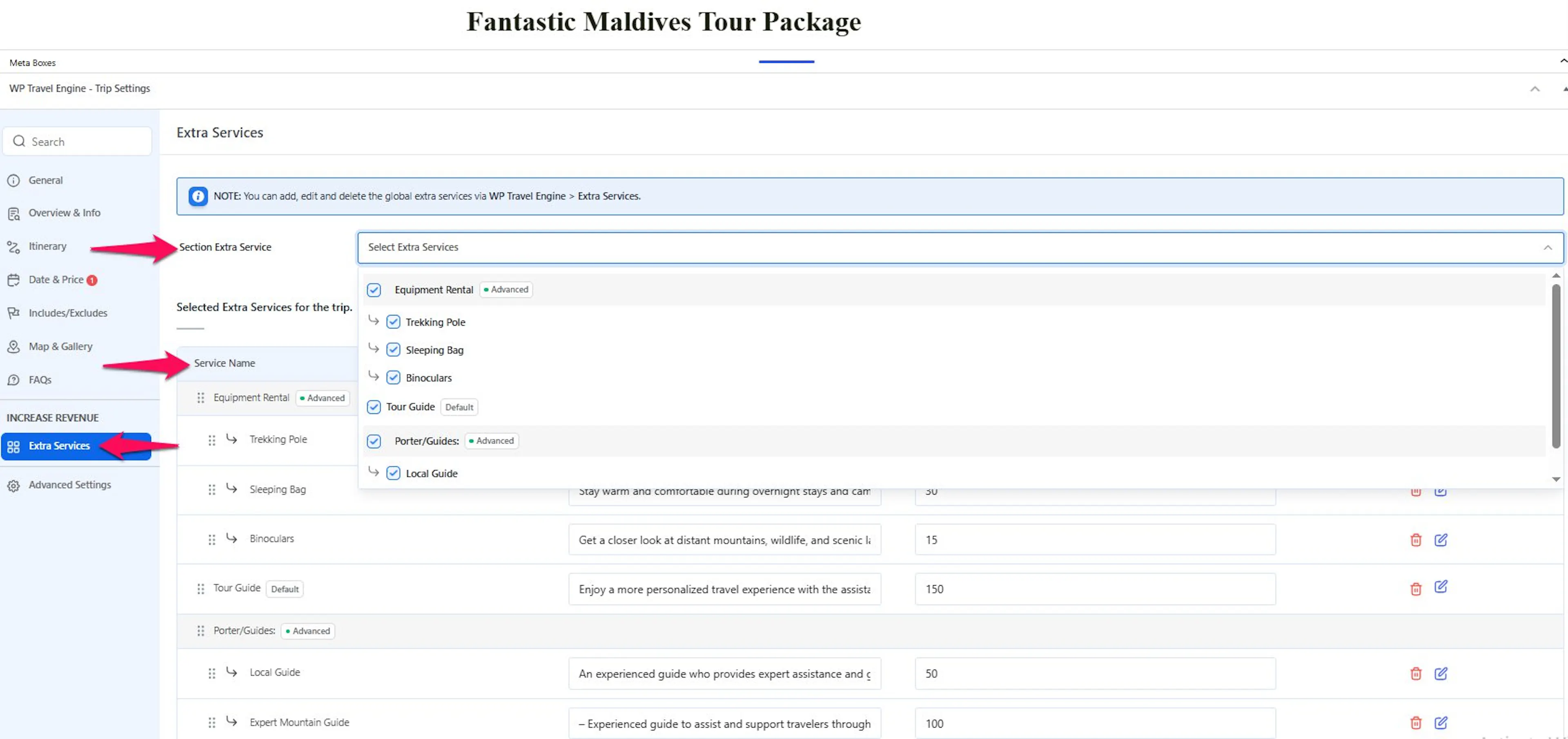
Open the Extra Services tab
Click on the Extra Services tab. A tab is a labeled section you click to see different settings on the trip editing page.
Select services
Select the services you want to assign from the dropdown list. A dropdown is a list that opens when you click it. You can also customize the service description or price for each trip. This lets you set a different price than the original cost defined in the extra service settings.
Save your changes
Click Update to save your changes. The services are now live on that trip's booking page.
That's it. The services will now appear when travelers book this trip.
How Extra Services display in booking
When a traveler clicks Book Now, the extra services appear in the booking pop-up.
- Default services appear as single add-ons with a set price.
- Advanced services appear as grouped options under one service.
- Travelers can adjust the quantity of each service before checkout.
- The cost of selected services is automatically added to the booking total.
For example, a traveler booking a trekking package might add insurance and a sleeping bag rental at the same time. A family booking an airport transfer could choose the van option that fits their group size.
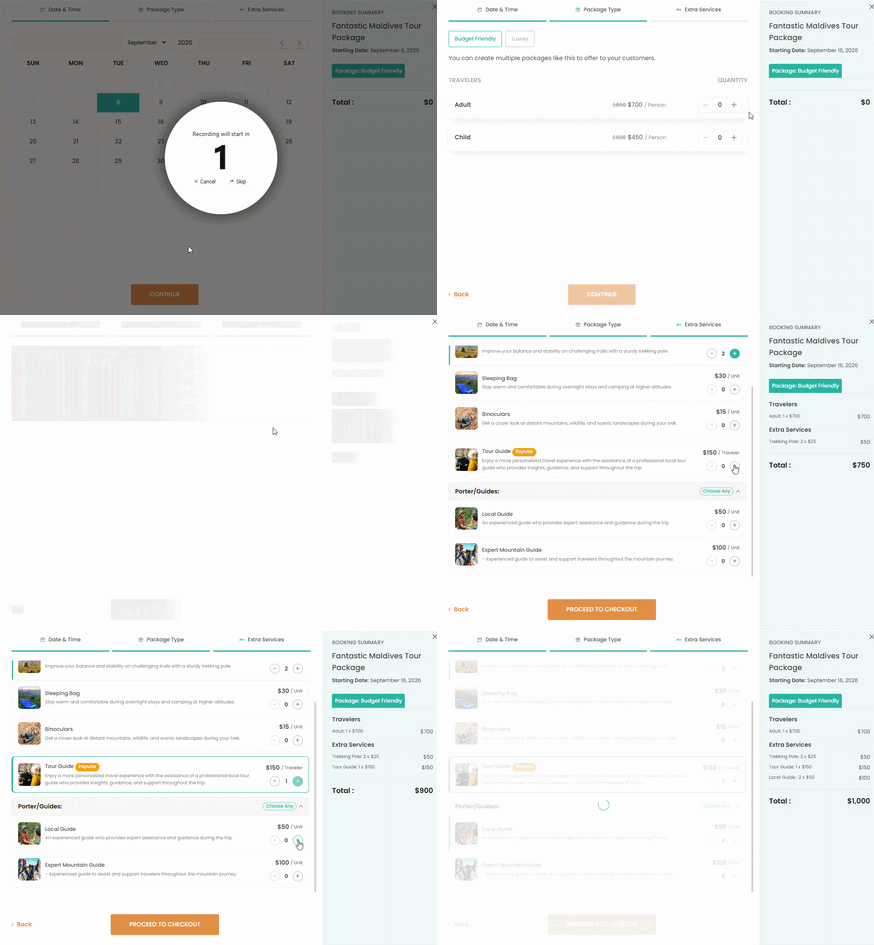
Once you see this on the booking side, you know the setup is working. If something does not look right, check the fixes below.
Troubleshooting
My extra service isn't showing up on the booking page
First, check whether you assigned the service to the trip in the Extra Services tab.
Then check the service status. Draft means customers cannot see it yet. Published means it is live on your site.
If the service is still in draft, publish it and test the booking page again.
The price looks wrong
Check whether you chose Per Unit or Per Traveler pricing.
Per Unit stays the same for the whole booking. Per Traveler multiplies by the number of travelers.
If you are using an Advanced Service, also make sure each option has the correct price entered.
A required service is not being enforced
Open the service settings and make sure the Required option is turned on.
If it is off, travelers can skip that service during booking.
This is especially important for things like mandatory insurance or required local transport fees.
I created a service, but I still cannot find it while editing a trip
Go back to Dashboard → WP Travel Engine → Extra Services and confirm the service was saved properly.
Then make sure you are editing the correct trip and checking inside the Extra Services tab.
If you have many services, look carefully through the dropdown list to find the one you named.
Frequently asked questions
Yes. You create the service once, then assign it to as many trips as you want.
That is useful for common add-ons like insurance, airport pickup, or sleeping bag rental.
If you're still stuck or have a question we didn't cover, our support team is happy to help. Reach out at our support page and we'll get you sorted.