

Import Starter Site
Bring a ready-made website design into your WordPress site so you can start with a professional-looking tour site instead of a blank page.
Before you begin
Both the Travel Monster theme and the Travel Monster Pro plugin come with ready-made website designs called starter templates. A starter template is a complete, pre-designed site. It includes the layout, colors, fonts, sample pages, and settings all set up for you.
Importing a template brings all of that into your WordPress site at once. Instead of building every page from scratch, you get a fully styled site that looks professional right away. You can then replace the sample content with your own trips, photos, and text.
Think of it like a furnished apartment. Everything is already in place and arranged. All that's left is swapping in your own belongings.
You need the Demo Importer Plus plugin installed and activated before you can import a starter template. A plugin is a small add-on that gives WordPress an extra feature. In this case, Demo Importer Plus is the tool that copies the template's content into your site.
Import a starter template
You'll need the Travel Monster theme installed and activated on your WordPress site before starting. If you haven't done that yet, start with the Install Travel Monster Theme guide first.
Open Demo Importer Plus
This is where all the starter templates live.
Log in to your WordPress admin dashboard (usually found at yourwebsite.com/wp-admin). On the left sidebar of your dashboard, click Appearance, then click Demo Importer Plus. You'll see a list of available starter templates.
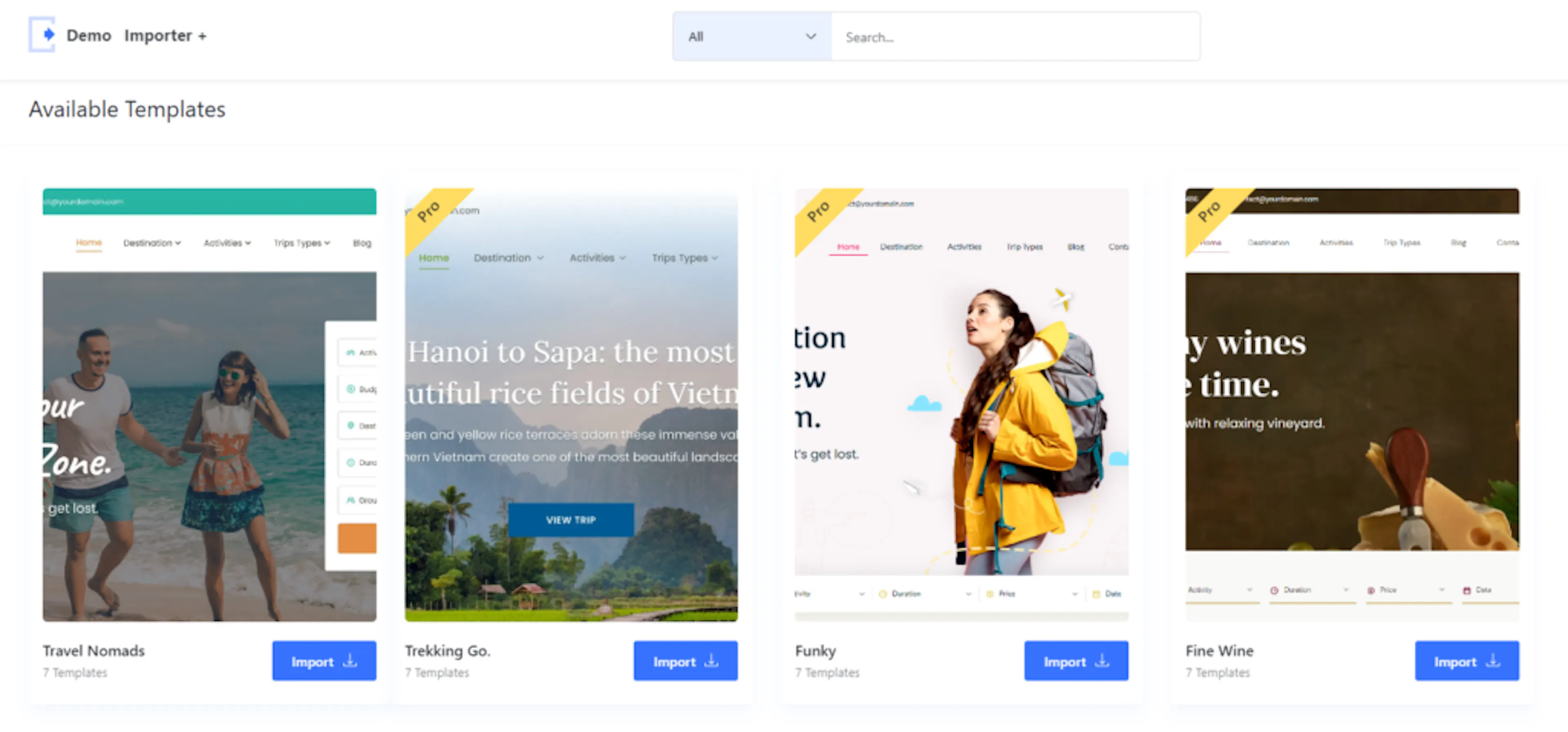
Choose a template
Take a moment to browse the templates. Each one is designed for a different style of travel site. When you find one that fits your tour business, you're ready to import it.
You can import the entire site at once. Or you can import individual pages or sections one at a time.
If you're starting a brand-new site, import the complete site rather than importing page by page. This brings in all the styles, settings, and sample content together, so your site matches the template's design from the start.
Import the complete site
This is the step that copies the template into your WordPress site.
Click Import Complete Site and follow the prompts on screen.
Wait for the import to finish
The import copies images, pages, and settings from the template into your site. This takes a few minutes, depending on how many images the template includes.
Stay on the page while it runs. Don't navigate away or close the tab. You'll see a message when the import is done.
Once it finishes, your site will have the template's design and sample content ready to edit.
Server requirements for a smooth import
Starter templates include a lot of images. The more images a template has, the longer the import takes. If an import stops partway through, it's usually because your web server has a limit on how long a task can run.
These limits are set in PHP. PHP is the programming language that WordPress runs on. Your hosting company controls these settings.
Say your template includes 30 high-resolution photos of trekking destinations. That's a lot of data for your server to copy over in one go. If the time limit is too low, the server stops before it finishes the job.
Ask your hosting provider to confirm the following values before you import:
| Setting | Recommended value |
|---|---|
upload_max_filesize | 128M |
post_max_size | 128M |
max_execution_time | 300 |
max_input_time | 300 |
These settings tell your server how large a file can be and how long a task can run before it times out. The recommended values give the import enough room to finish without getting cut off.
If you're not sure how to change these settings yourself, your hosting company can do it for you. Reach out to their support team and share the table above.
Verify the import
Once the import finishes, it's a good idea to check that everything came through correctly.
Open your website in a new browser tab (go to yourwebsite.com). Look for the demo pages, the styling, and the menus from the template you chose. Everything should look like the template preview you saw earlier.
If the pages or images look incomplete, the import may have been interrupted. Try running it again, or check the server settings in the section above.
If you're still stuck or have a question we didn't cover, our support team is happy to help. Reach out at our support page and we'll get you sorted.
Next step
Your starter site is in place. The next thing to do is make it yours, starting with your site name and logo.
Configure Site Identity
Set your site title, tagline, and logo now that your starter content is in place.