

How to Add a Trip Location Map
Show travelers exactly where your trip takes place by adding a static map image or an interactive map to your trip page.
What the Map section does
The Map section is part of the trip editor where you add location information for a trip. You can show travelers where the trip starts, where it takes place, or how the route travels from one place to another.
You have two options:
- Add a static image, such as a map screenshot or a custom route graphic.
- Add an interactive map using an iframe embed.
An iframe is a small window on your web page that displays another website inside it. In this case, it displays a live, interactive map from Google Maps.
Say you run a 3-day Annapurna trek. You could add a static map image showing the route. You could also embed a live Google Map where travelers can zoom in and explore the trail towns before they book.
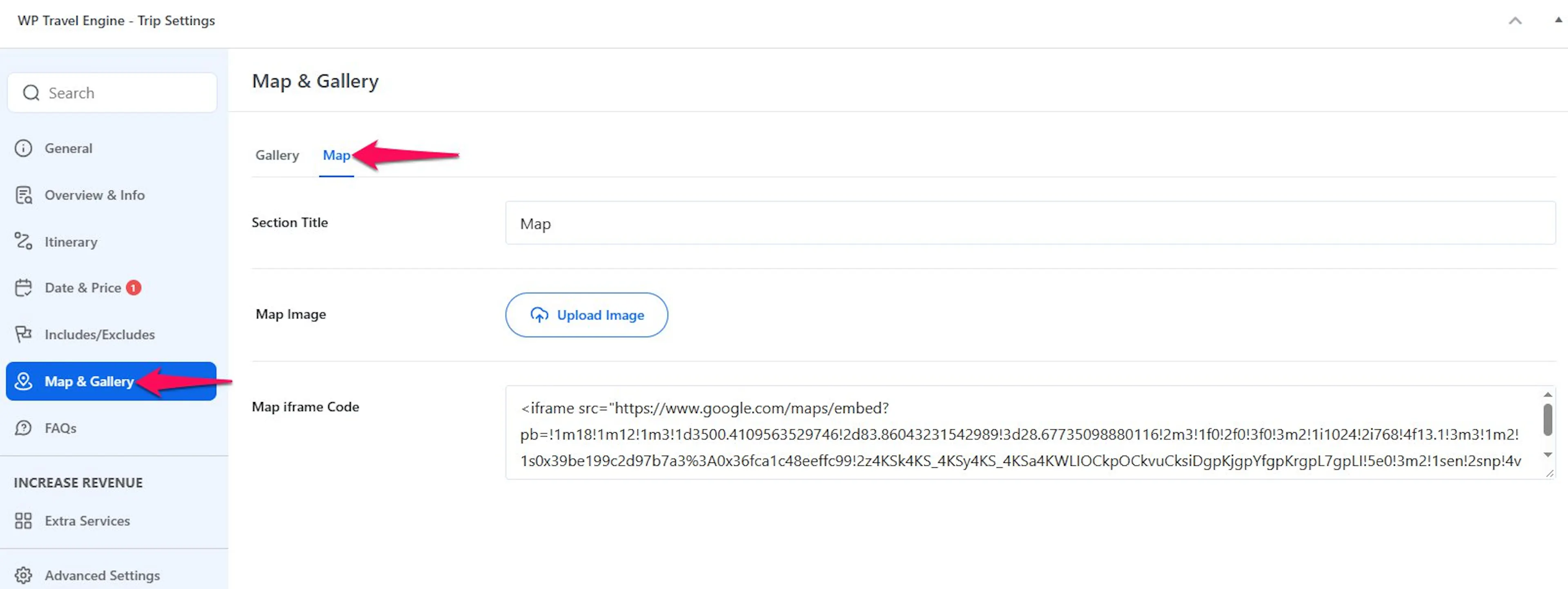
Before you start, create at least one trip in WP Travel Engine and log in to your WordPress dashboard. The WordPress dashboard is the admin area of your website. You can usually open it by adding /wp-admin to your website address, such as https://yourwebsite.com/wp-admin.
Add a static map image
A static image works well when you have a custom route map or a designed graphic. Travelers can see the full route at a glance without opening another map.
Open the trip you want to edit
Opening the correct trip makes sure the map appears on the right trip page.
In your WordPress dashboard, go to Trips in the left sidebar. Click the trip where you want to add a map.
Find the Map section
Finding the Map section gives you access to the fields used for the location display.
Scroll down the trip editor until you see the Map section. It has fields for a title, an image, and an iframe embed.
Upload your map image
Adding a route image helps travelers understand the trip area before they book.
Click the image upload area or button in the Map section. A media window opens. Upload a new image or choose an image from your media library. Select the map image you want to use.
Add a section title
A clear title tells travelers what the map shows.
Type a title such as Trip Location or Where we meet. The title appears above the map on your trip page.
Save the trip
Saving the trip publishes the map image on the trip page.
Click Update or Save at the top right of the page. Open the trip page to confirm that the map image appears below its title.
Your static map is ready. If travelers need to zoom in or explore several locations, use an interactive map instead.
Embed an interactive map
An interactive map lets travelers zoom in, move around, and explore the area themselves. You will copy the map from Google Maps and paste it into the Map section in your trip editor.
Find your trip location in Google Maps
Choosing the right location ensures travelers see the place where your trip starts or takes place.
Open maps.google.com in a new browser tab. Search for the place where your trip starts or the area covered by the trip.
Get the embed code
Copying the embed code creates the connection between Google Maps and your trip page.
Click Share in the left panel of Google Maps. In the window that opens, click Embed a map. Click Copy HTML to copy the entire code.
Paste the code in the iframe field
Pasting the code adds the live map to your trip page.
Return to your trip editor in WordPress. Find the iframe field in the Map section. Paste the code you copied from Google Maps into that field.
Save the trip
Saving the trip makes the interactive map visible to travelers.
Click Update or Save at the top right of the page. Open the trip page and check that the interactive map appears in the Map section.
Use a static image if you have a custom route map or a designed graphic. Use an interactive map if you want travelers to zoom in, pan around, and explore the area on their own. An interactive map works well for multi-day treks where the route passes through several towns.
If you are still stuck or have a question we did not cover, our support team is happy to help. Reach out at our support page and we will get you sorted.