

How to Add Trip Overview Info
Write a clear trip description and highlight what makes your tour special so travelers know what to expect before they book.
What goes in the Overview section
The Overview section is where you introduce the trip in plain language. It helps travelers quickly understand what the tour is about and why they should keep reading.
This section often shapes a traveler's first impression of the trip page. A clear description and strong highlights can help someone decide whether your trek, day tour, or multi-day package fits what they want.
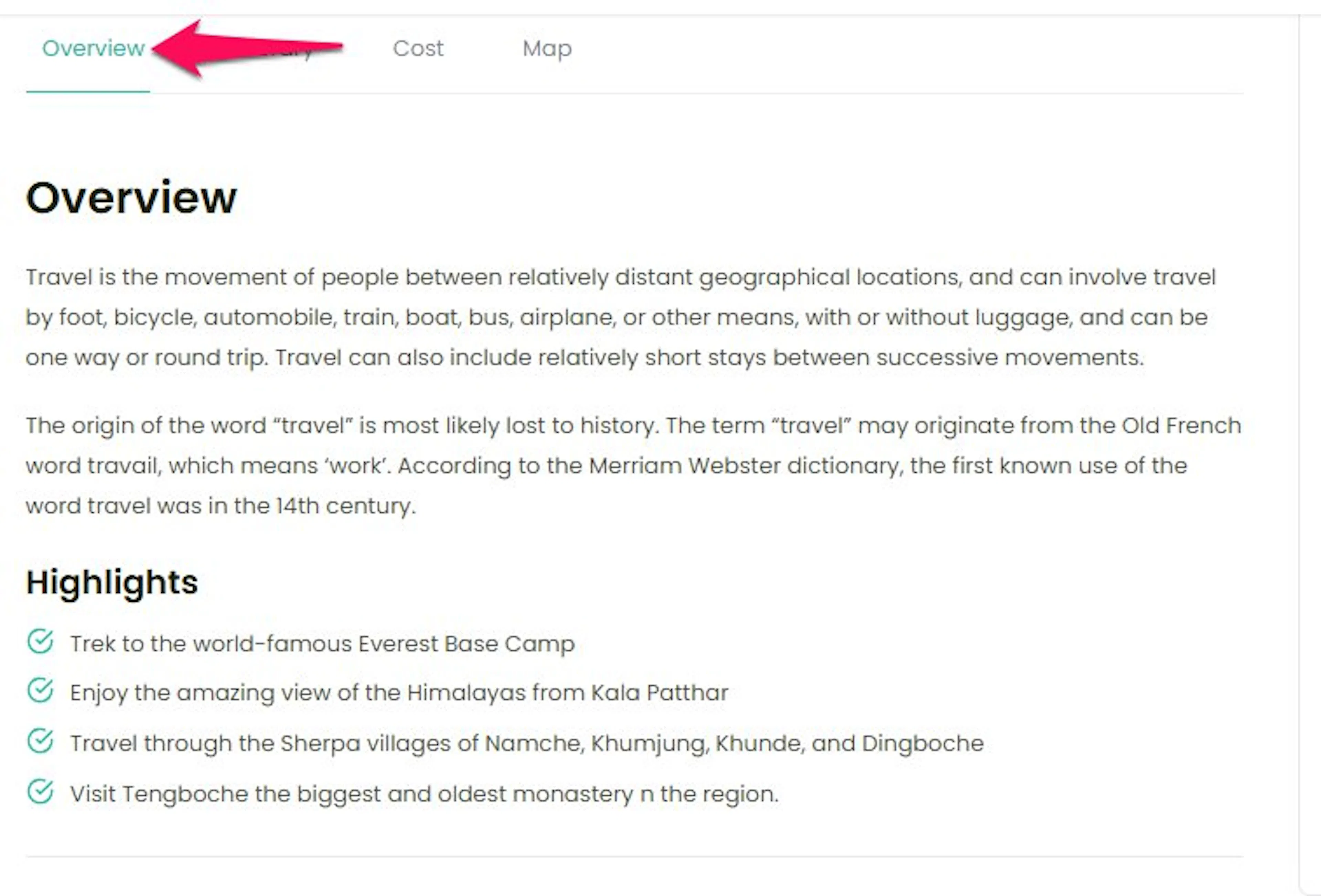
You will add two main things here. You will write a short overview of the trip. You will also add key highlights that stand out at a glance.
Now you can fill it in step by step.
How to fill in the Overview section
You'll need a trip already created before you start. If you haven't made one yet, begin with the General Info tab first.
Open your trip in WordPress
WordPress is the system that runs your website. The dashboard is the control panel where you manage your trips, pages, and settings.
On the left sidebar of your WordPress dashboard, go to Trips. Then click the trip you want to edit.
Once the trip opens, you are in the right place to update its content.
Scroll down to the Overview section
You may need to scroll down past the General section to find it. If the Overview section is closed, click the section title or the small arrow to expand it.
This matters because the trip description and highlights both live here.
Add an overview title
The title gives this section a clear heading on the trip page. Keep it short and focused.
In the Overview Title field, type a heading that fits the trip. For an Annapurna trek, a good example could be What makes this trek special.
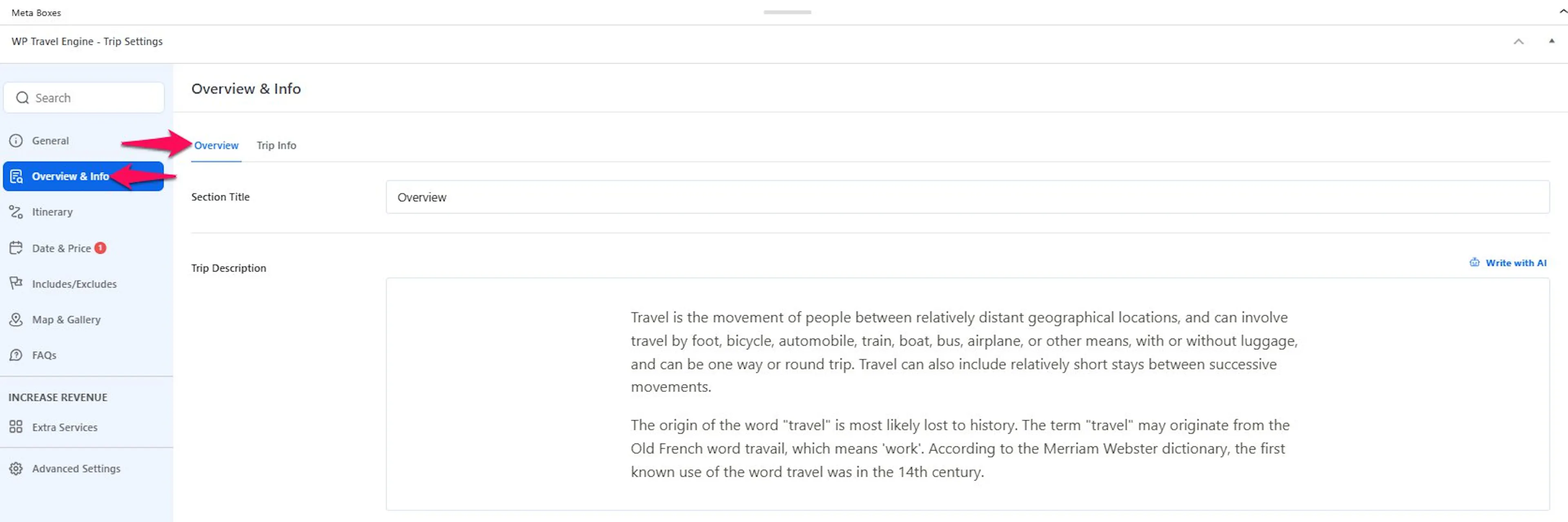
A clear heading helps travelers know what they are about to read.
Write the trip description
This is where you explain the trip in a way that helps someone picture the experience.
In the description box, write a paragraph or two about the tour. You can talk about the scenery, the pace, the type of traveler it suits, what meals are included, how big the group usually is, or what makes the package different from similar trips.
For example, if you run a mountain trek, you might mention quiet trail sections, tea house stays, a licensed guide, and sunrise views along the route. If you run a day tour, you might mention hotel pickup, small group size, and time at each stop.
A strong description gives travelers more confidence to book.
Add your first highlight
Highlights are short points that stand out fast on the trip page. They work well for the details people often scan first.
Under Highlights, click Add New. Then enter one short highlight.
Good examples include Sunrise view from Poon Hill, All meals included, or Licensed mountain guide.
Short and specific highlights are easier for travelers to understand.
Add the rest of your highlights
Keep going until you have covered the main selling points of the trip.
A good range is 5 to 7 highlights. You can add more if the trip needs them, but most trip pages read better when the list stays focused.
If you offer seasonal pricing, group discounts, or gear rental add-ons, include those only if they are a real reason someone would choose this trip.
Reorder the highlights
The order of highlights here is the order travelers will see on the trip page. Put the strongest points first.
Use the drag handle on the left side of each highlight. It looks like a small grid icon. Drag each highlight up or down until the order feels right.
Start with the details that matter most to your customers. That could be the main view, included meals, guide support, or group size. When the list looks right, your Overview section is ready.
If you want to add extra details that are not core highlights, keep them in the main description instead of making the highlight list too long. A shorter list is usually easier to scan.
Related settings
Trip Itinerary
Add day-by-day activities and timings for the trip.
Trip Includes/Excludes
Clarify what the trip cost covers and what it doesn't.
Need a hand?
If you're still stuck or have a question we didn't cover, our support team is happy to help. Reach out at our support page and we'll get you sorted.