

Legal Documents
Show your business certificates, licenses, and policies on your website so travelers can trust your tour company before they book.
Build trust with your documents
Legal Documents lets you upload important business papers to your website and show them to travelers in one place. This helps people feel more confident about booking with you.
For example, you might upload your tourism board registration certificate, VAT certificate, or insurance document. If a traveler wants to check whether your company is registered or insured, you can send them to that page on your site.
Legal Documents requires WP Travel Engine v5.0+ installed and activated on your website.
Installing the Legal Documents add-on
Install and activate the add-on first so the document settings appear inside your WordPress dashboard.
Need help with setup first? See how to activate a Pro add-on license key for the full installation and activation walkthrough.
Once the add-on is active, you are ready to upload your first document.
How it works
You can upload legal and business documents that help travelers understand your company is real and properly set up. This is useful for treks, day tours, multi-day packages, and any trip where travelers want to check your business details before they pay.
You can upload documents such as a PAN Registration Certificate, Company Registration Certificate, Certificate of Tourism Industry Division, Sales Commission Agreement, Certificate of Value Added Tax (VAT), Service Contract, Liability Waiver, Privacy Policy, Insurance Requirements, Commercial Real Estate Lease, or Non-Disclosure Agreement.
These documents can be in any of the following file formats:
- JPEG
- PNG
After you upload the documents, you can show them on any page, post, or widget with a shortcode. A shortcode is a small piece of text you paste into WordPress to tell it to display a specific feature.
You will use this shortcode to show your document list on the front end of your site. The cols argument controls how many columns are used to display the documents. If you set it to 3, visitors will see the documents arranged in three columns.
If you offer group tours or high-value adventure trips, this page can answer common trust questions before a traveler contacts you. For example, you can upload your insurance certificate or business registration and link that page in emails or booking pages.
Now that you know what the add-on does, you can start adding your documents.
Uploading a document
What you will need before you start: the Legal Documents add-on must be active, and the document file should be saved on your computer in JPEG, PNG, or PDF format.
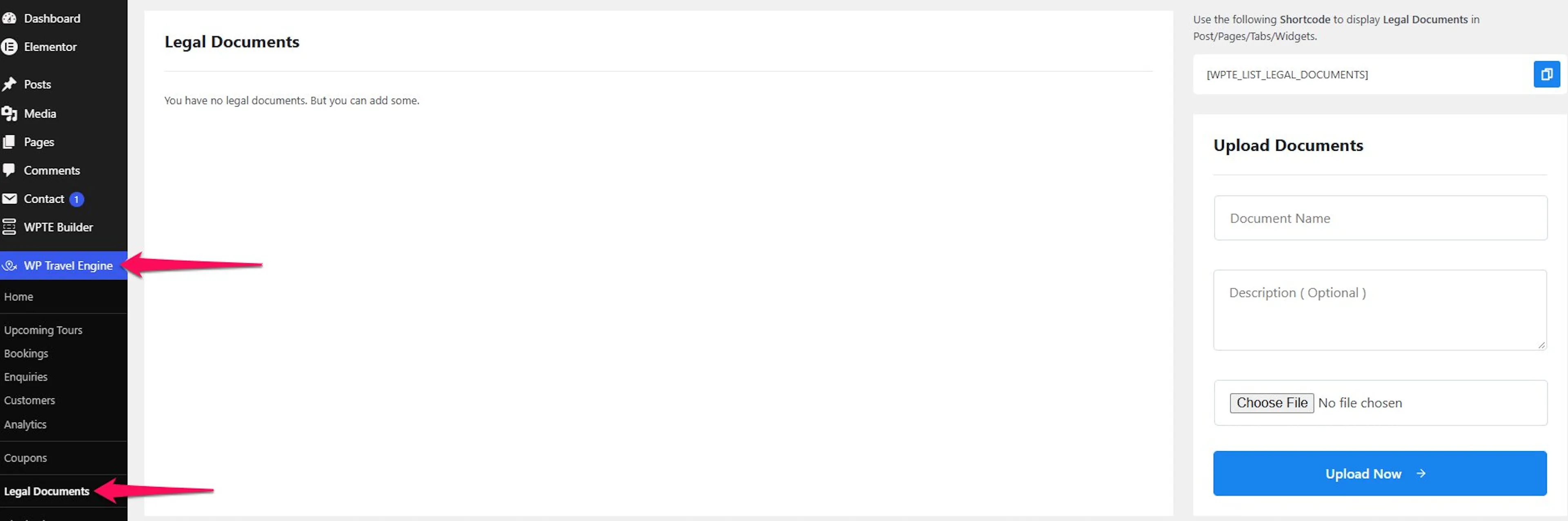
Open Legal Documents
First, go to the place where all uploaded documents are managed.
Go to Dashboard on the left sidebar of your WordPress admin area. Then go to WP Travel Engine and click Legal Documents.
Enter the document details
This helps travelers understand what they are looking at before they open the file.
In the Upload Documents form, enter the document name and description. For example, you might write "Company Registration Certificate" as the name and add a short note saying it confirms your trekking company is registered.
Choose the file
Now you will attach the actual document from your computer.
Click the Choose File button and select the file you want to upload.
Upload the document
This saves the document to your website so you can display it later.
Click Upload Now.
If the upload works, your document will appear in the list on the same screen. You can then add more documents if needed.
Once your documents are uploaded, the next step is to place them on a page that travelers can visit.
Showing documents on a page
What you will need before you start: at least one document should already be uploaded, and you should be logged in to your WordPress dashboard.
Add a new page
You need a page where visitors can view your certificates and policies.
Go to Dashboard on the left sidebar. Then go to Pages and click Add New. Enter a clear title for the page, such as "Legal Documents", "Company Certificates", or "Business Licenses".
Add a Shortcode block
WordPress uses blocks to build pages. The Shortcode block is the place where you paste the text that tells WordPress what to display.
Click the Add block + icon and select the Shortcode block.
Enter the shortcode
This step tells WordPress to show your uploaded documents on the page.
Paste the following shortcode into the Shortcode block. The cols argument sets the number of columns used to display the documents.
[WPTE_LIST_LEGAL_DOCUMENTS cols="3"]
If you keep cols="3", your documents will appear in three columns. This can work well if you want to show several items at once, such as a registration certificate, insurance document, and VAT certificate.
Publish the page
Publishing makes the page live on your website.
Click Publish in the top right of the page. Then click Publish again if WordPress asks for confirmation.
After publishing, open the page on your site and check that your documents appear.
Your document page is now ready to share with travelers, partners, or anyone who needs to verify your business details.
Features
The Legal Documents add-on also gives you a few tools to manage the documents after upload. These are helpful when business details change over time.
Edit document
Use Edit when the file is correct but the title or description needs to change. For example, if you wrote the wrong certificate name, you can update the text without uploading the file again.
Preview document
Use Preview when you want to check the file before sending the page to travelers. This is useful if you uploaded a PDF and want to confirm it opens properly.
Delete document
Use Delete when a file should no longer appear on your website. For example, if an old insurance document has expired, remove it and upload the new one.
Sort documents
Use drag and drop to change the order of your documents. This helps you put the most important items first, such as your tourism registration or company license.
Documents on the live page appear in the same order you set here.
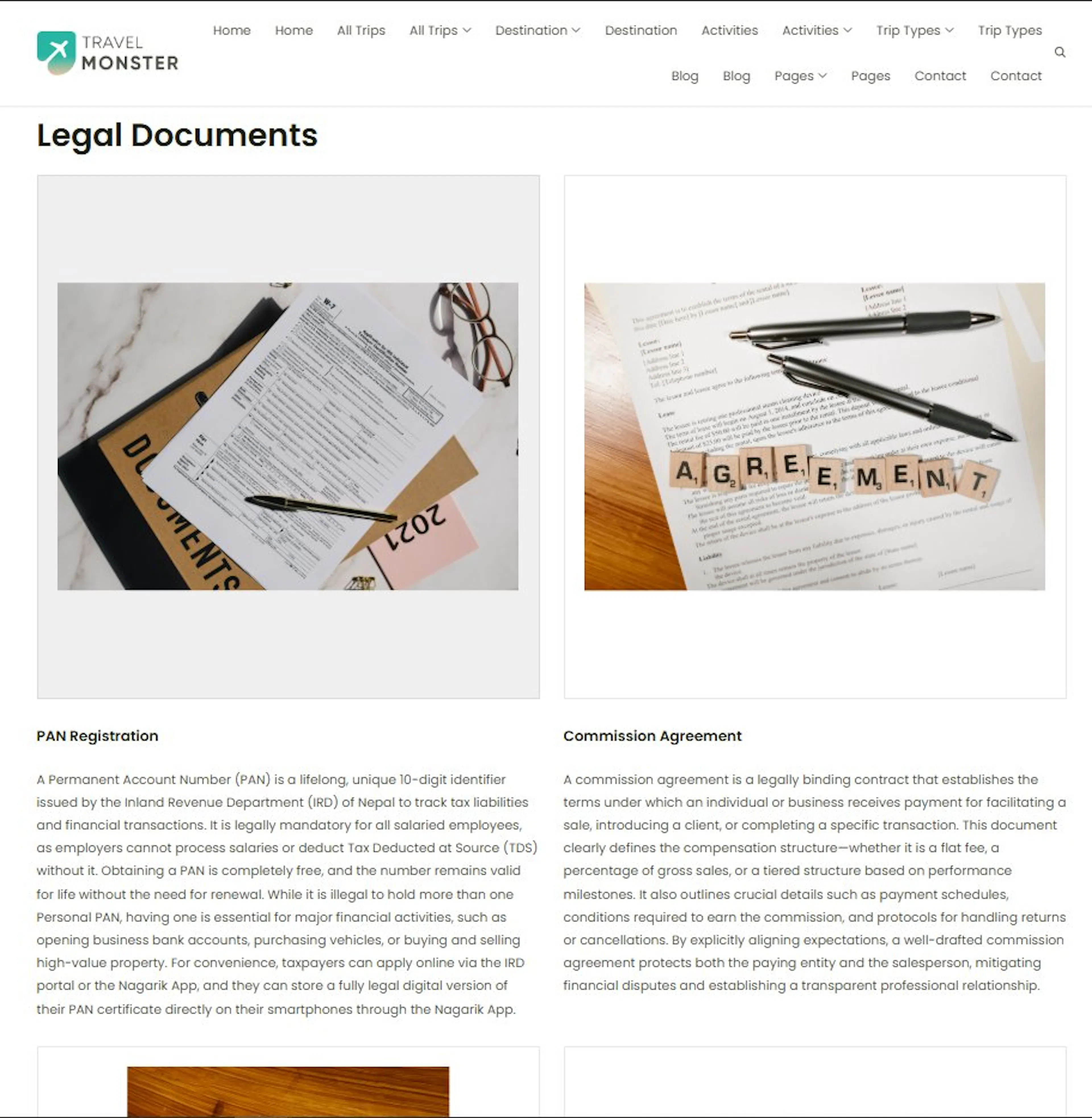
Frontend preview
This is how the document list looks on the front end of your website. Your visitors will be able to open and view the files from this page.
If you're still stuck or have a question we didn't cover, our support team is happy to help. Reach out at our support page and we'll get you sorted.