

Integrate WP Travel Engine with PayLexer
PayLexer connects WP Travel Engine's checkout to 100 payment gateways across every region, so tour operators can accept the payment methods their travelers already use.
PayLexer lets you accept more payment methods at checkout without hiring a developer. It connects your WP Travel Engine booking form to 100 payment services that aren't built into the plugin. Once it's set up, travelers see these extra options right alongside the ones WP Travel Engine already offers.
What is PayLexer?
A plugin is a small add-on that gives your website extra features. A payment gateway is a service that moves money from your customer to your business.
PayLexer is a WordPress plugin that adds payment gateways to plugins that don't support them natively. For example, a trekking business in Nepal can connect Fonepay so travelers can pay with a payment method they already use.
PayLexer does not process or hold your money. Every transaction runs through the gateway account you connect, and your funds settle there, not with PayLexer. Your gateway credentials sit in an encrypted vault that PayLexer itself cannot read.
PayLexer is free to install, and connecting it to up to five WordPress sites costs nothing. You only pay the transaction fees your chosen gateway charges.
Why use PayLexer with WP Travel Engine?
WP Travel Engine supports around a dozen payment gateways on its own, including Stripe, PayPal Express, and Razorpay. Travelers from different countries often expect to pay with the payment method their bank or wallet supports at home.
A checkout is the payment section your customer fills out when booking. PayLexer adds 100 payment gateways across Africa, Asia, Europe, Latin America, the Middle East, North America, and Oceania.
You can add M-Pesa for customers booking from Kenya, Fonepay for travelers in Nepal, or Klarna for buy-now-pay-later shoppers in Europe. You do not need to hire a developer or wait for a custom integration.
PayLexer works inside your existing checkout, so your customers keep using the booking flow they already know. A dashboard is the control panel you log into to manage your account. You can manage every connected gateway and website from one PayLexer dashboard.
Key features and benefits
These features help you offer more payment choices while keeping your existing booking process.
| Feature | Benefit |
|---|---|
| Access to 100 payment gateways | Accept the payment methods travelers already use in their own country instead of losing bookings over unsupported cards or wallets |
| Partial payments | Let customers pay a deposit at booking and settle the balance before the trip departs |
| One dashboard for every gateway and site | Manage gateways across multiple websites from a single PayLexer account instead of juggling separate merchant dashboards |
| Debug Mode testing | Run complete test bookings with no real charges before switching a gateway on for customers |
| Encrypted credential storage | Keep your gateway credentials in a vault that PayLexer itself cannot access |
| Free for up to 5 sites | Add gateways to five WordPress sites at no cost beyond your gateway's own transaction fees |
What you'll need before you start
Before you start, make sure you have:
- WP Travel Engine installed and activated on your WordPress site. Download WP Travel Engine →
- Admin access to your WordPress site.
- An email address for your PayLexer account. If you don't have a PayLexer account yet, one is created for you when you connect.
- An account with the payment gateway you want to offer, such as Stripe or Fonepay. You add its details in PayLexer after you connect.
Check the full gateway list below and PayLexer's setup guide for your chosen gateway before continuing.
How to install and connect PayLexer
These steps connect your website to PayLexer so your payment gateways can appear in WP Travel Engine.
Install the PayLexer plugin in WordPress
Installing the plugin adds PayLexer to your WordPress dashboard, where you manage the connection and your payment gateways.
In your WordPress left sidebar, select Plugins, then Add New Plugin. Search for PayLexer, then select Install Now and Activate.
Open PayLexer in your dashboard
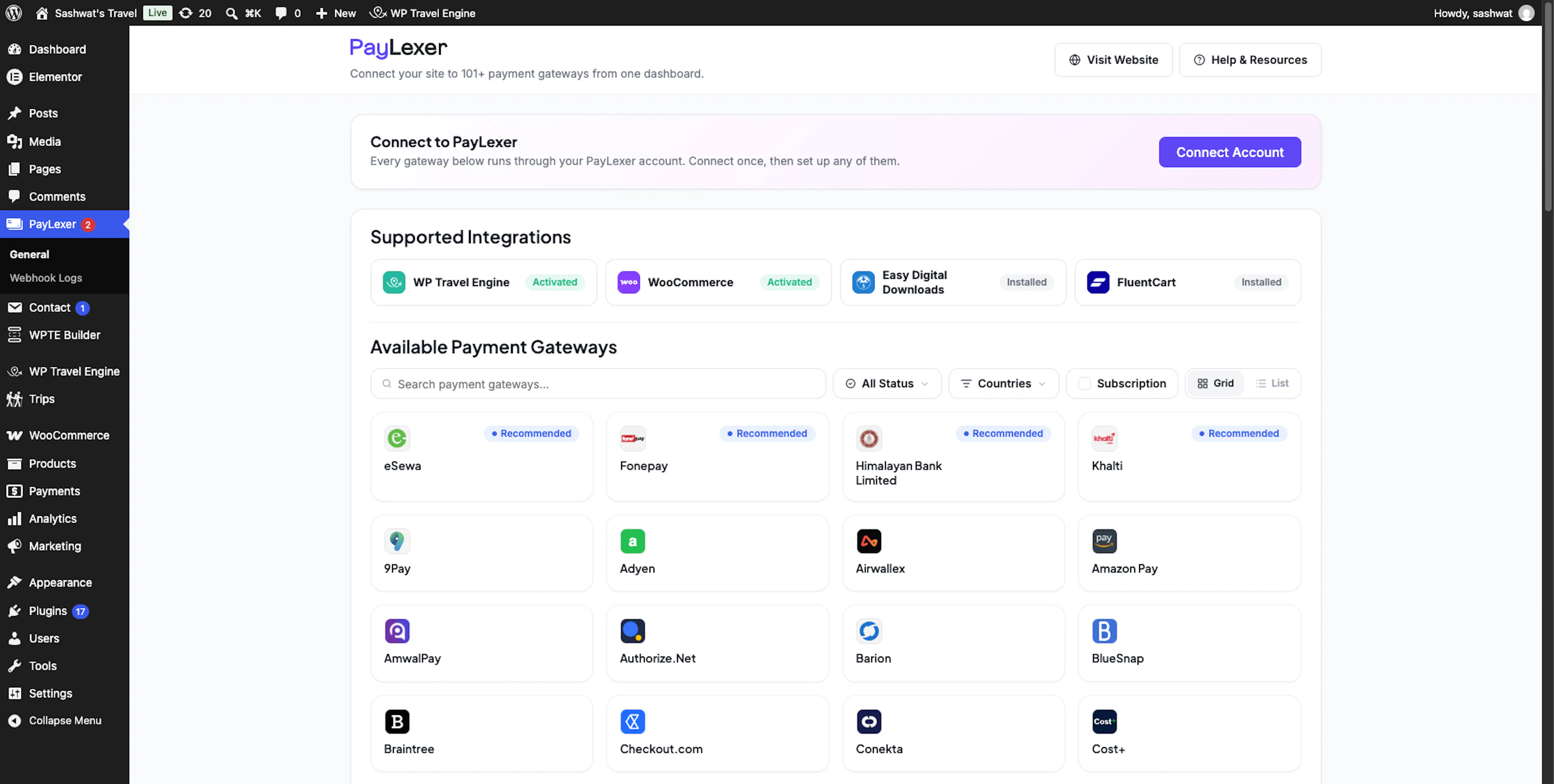
The PayLexer dashboard shows your connection status, your supported integrations, and every payment gateway you can set up.
In the WordPress left sidebar, select PayLexer. The General page opens with the Connect to PayLexer card at the top.
Connect your PayLexer account
Connecting your account links your website to PayLexer. Every gateway on the dashboard runs through this account, so you only need to connect once.
On the Connect to PayLexer card, select Connect Account, then enter your email address. PayLexer checks whether that email already has a PayLexer account.
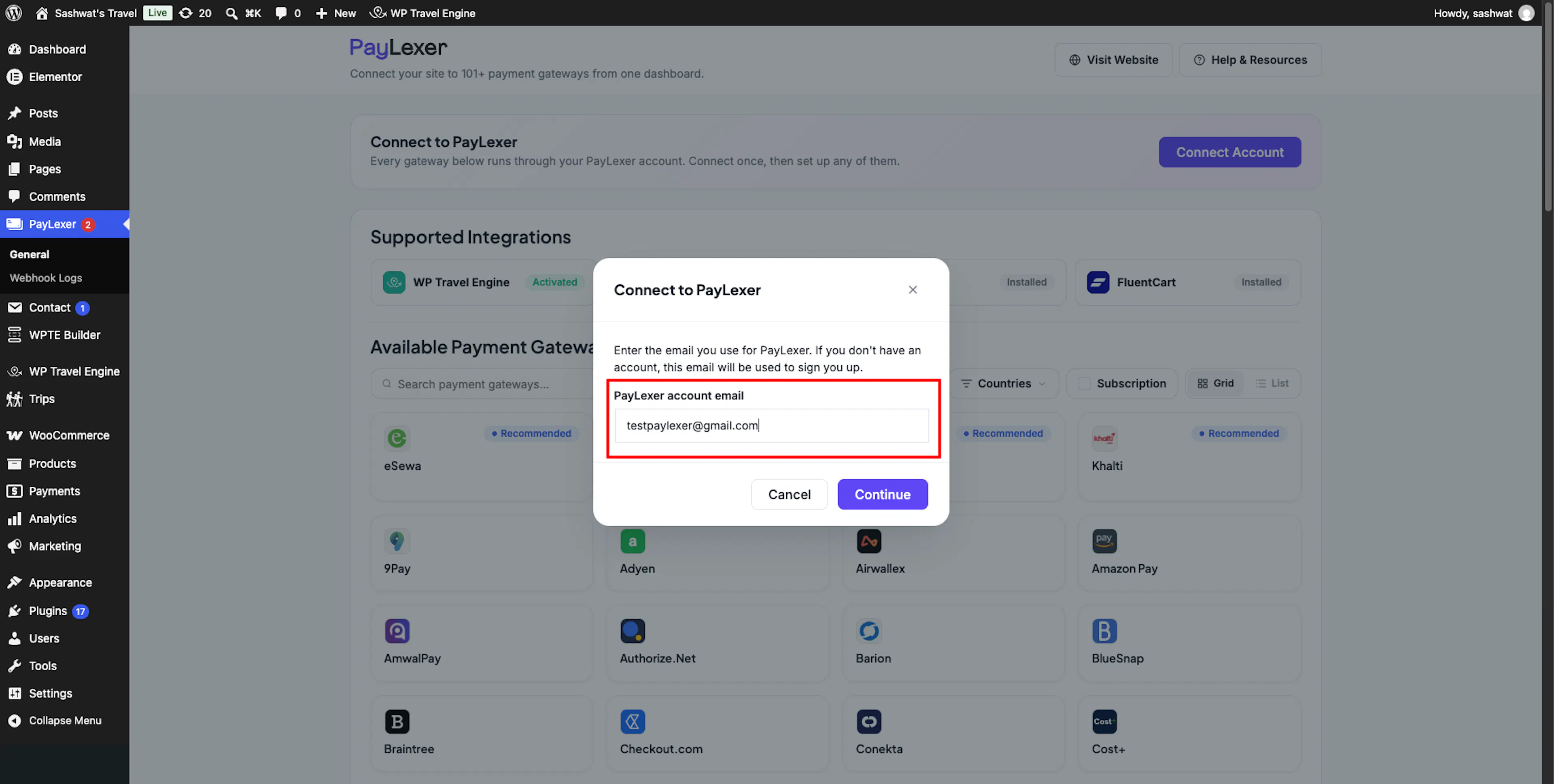
- If you are new to PayLexer, your account is created for you right away, and your website is connected. You do not need to sign up separately.
- If you already have a PayLexer account, enter your password to sign in. Your website is connected as soon as you sign in.
On the Now let's connect your account page:
- Check that the account shown is the PayLexer account you want to use.
- Check that Website to connect shows the right website name and address.
- Read the list of what the connection allows PayLexer to do.
- Select I agree to the Terms and Conditions.
- Select Connect Account and Authorize. Your website is connected.
If the page shows the wrong PayLexer account, select Use a different account and sign in with the one you want. The Connect Account and Authorize button stays disabled until you agree to the Terms and Conditions.
You no longer need to add your website in PayLexer or copy a Client ID and Site Key. The Connect Account flow adds your website to your PayLexer account for you.
Set up your payment gateways
Setting up a gateway adds your gateway account details to PayLexer, so that gateway can take payments on your website.
On the PayLexer page, find the gateway you want under Available Payment Gateways and select it. Enter your gateway account details by following PayLexer's setup guide for that gateway.
Use the Countries filter to find gateways that work in your region. Gateways tagged Recommended are the best match for your website.
Check your connection
Checking your connection confirms that PayLexer is ready to take payments on your website.
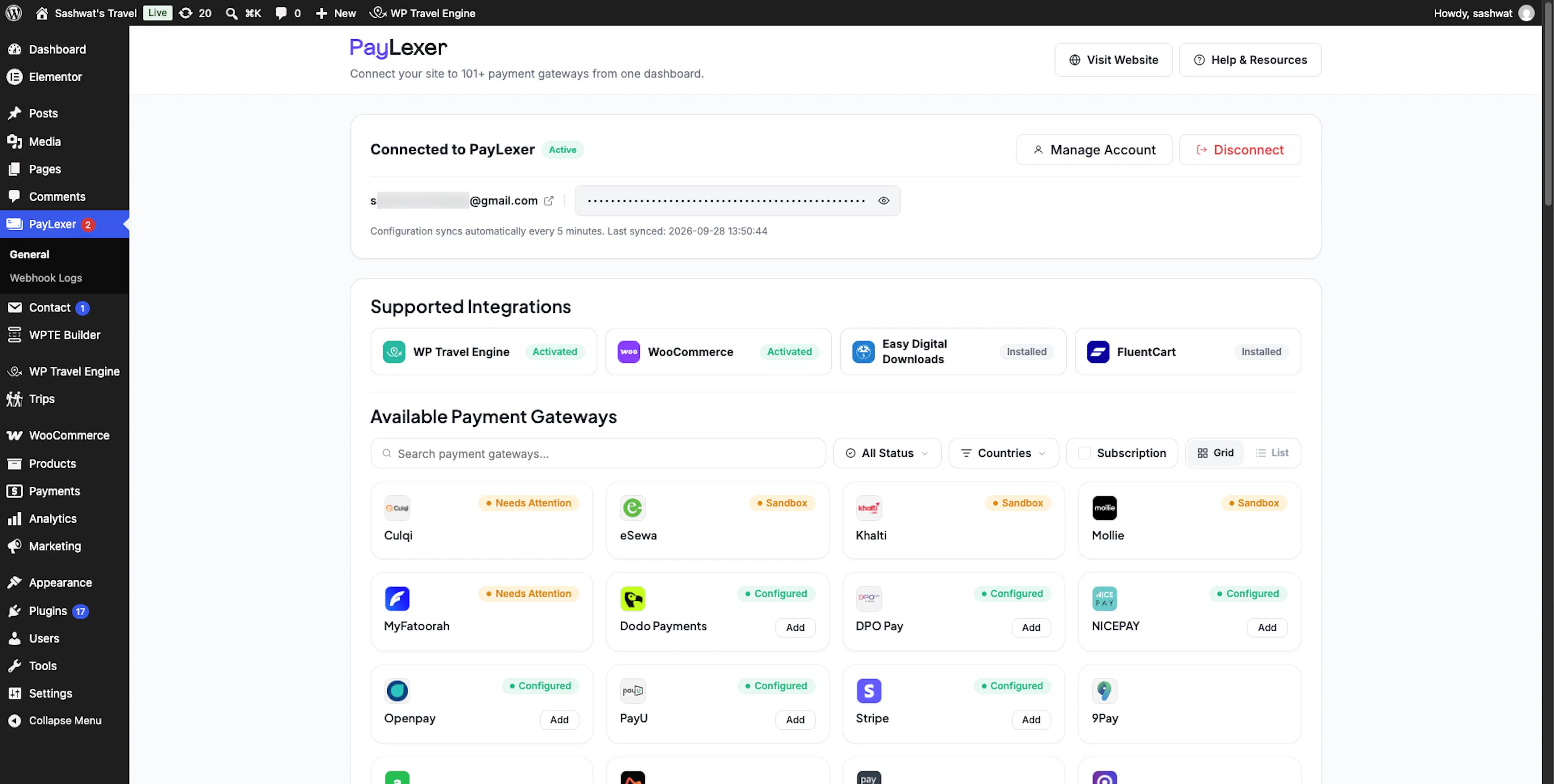
In WordPress, the Supported Integrations section on the PayLexer page shows WP Travel Engine as Activated.
In your PayLexer dashboard, your website appears in the Websites table with the status Connected.
Your PayLexer connection is ready. Next, turn on the payment gateways you want to offer.
Turn on your payment gateways in WP Travel Engine
These steps control which connected payment methods your customers see when they book a trip. You can also follow the WP Travel Engine integration guide.
Open the WP Travel Engine payment settings
Opening these settings lets you control the payment methods shown to customers.
In the WordPress left sidebar, select WP Travel Engine, Settings, Payments, then General.
Choose the gateways you want to offer
Selecting a gateway makes that payment method available at checkout.
Check the box next to each gateway you want to offer. For example, a tour operator in Kenya might select M-Pesa for safari bookings.
Save your changes
Saving your choices makes the selected gateways active.
Select Save Settings. Every booking payment made with a gateway you turned on here goes through PayLexer to your gateway account.
Your selected gateways should now appear in the booking checkout.
All Supported Payment Gateways
PayLexer connects WP Travel Engine to 100 payment gateways, grouped below by region. New gateways get added every month.
Global
| Gateway | Good for |
|---|---|
| Stripe | Cards, wallets, and global payments |
| PayPal | Wallets and international payments |
| Adyen | Enterprise and high-growth businesses |
| Airwallex | Multi-currency payments and cross-border FX |
| Amazon Pay | Checkout using saved Amazon payment details |
| BlueSnap | Payment orchestration across 200+ regions |
| Braintree | Cards, wallets, and subscriptions by PayPal |
| Checkout.com | Cards, wallets, and local payment methods |
| dLocal | Cards, mobile money, and 1,000+ local methods in emerging markets |
| Dodo Payments | Merchant of record for SaaS and digital products |
| FastSpring | Merchant of record for SaaS and digital products |
| Global Payments | Card processing for businesses worldwide |
| GoCardless | Bank-to-bank direct debit for recurring payments |
| Klarna | Buy now, pay later across 45+ countries |
| Lemon Squeezy | Merchant of record for digital products and subscriptions |
| Paddle | Subscriptions and billing for digital businesses |
| Paysafe | Cards, wallets, and digital transactions |
| Rapyd | Card acquiring, online and in-store payments, and payouts |
| Revolut | Multi-currency business payments |
| Shift4 | Online, in-person, and omnichannel payments |
| Square | Online and in-person payments |
| TransFi | Stablecoin rails, bank transfers, and local payment methods |
Africa
| Gateway | Good for |
|---|---|
| DPO Pay | Card, mobile money, and bank payments across Africa |
| Flutterwave | Cards, bank transfers, and mobile money |
| GetPayIn | Cards and digital wallets in Egypt |
| Interswitch | Cards, bank transfers, USSD, and QR payments |
| Kora | Cards, bank transfers, mobile money, and payouts |
| M-Pesa | Mobile money payments across East Africa |
| PayFast | Cards and instant EFT in South Africa |
| Paystack | Cards, bank transfers, and USSD |
| PesaPal | Mobile money, cards, and bank payments in East Africa |
| Squad | Cards and bank transfers in Nigeria |
| XPay | Cards, ValU, and Fawry payments in Egypt |
Asia
| Gateway | Good for |
|---|---|
| 9Pay | Cards, e-wallets, and QR payments in Vietnam |
| DOKU | Cards, bank transfers, and e-wallets in Indonesia |
| eSewa | Digital wallet payments in Nepal |
| Fonepay | QR and mobile payments in Nepal |
| Himalayan Bank Limited | Bank-backed payments in Nepal |
| HitPay | Cards and e-wallets across Southeast Asia |
| Khalti | Digital wallet payments in Nepal |
| KOMOJU | Cards and local payment methods in Japan |
| Maya | Cards, e-wallets, and QR Ph in the Philippines |
| Midtrans | Cards, e-wallets, and bank transfers in Indonesia |
| NICEPAY | Cards, virtual accounts, and e-wallets in Indonesia |
| Omise | Cards and PromptPay across Thailand and Southeast Asia |
| PayHere | Cards and bank transfers in Sri Lanka |
| PAY.JP | Card payments and subscriptions in Japan |
| PayU India | Cards, UPI, and net banking in India |
| Razorpay | Cards, UPI, net banking, and subscriptions in India |
| Safepay | Cards, Raast, Easypaisa, and JazzCash in Pakistan |
| SSLCommerz | Cards and mobile banking in Bangladesh |
| ToyyibPay | FPX bank transfers and cards in Malaysia |
| Xendit | Cards, bank transfers, and e-wallets across Southeast Asia |
Europe
| Gateway | Good for |
|---|---|
| Barion | Cards and e-wallets across the EEA |
| Cost+ | Transparent pricing with cards and Nordic wallets |
| Datatrans | Cards and 40+ alternative payment methods |
| iyzico | Cards and local payment methods in Türkiye |
| Mollie | Payments trusted by 250,000+ European businesses |
| Montonio | Card payments across the Baltics and Finland |
| MultiSafepay | Cards, iDEAL, and local European methods |
| Nets | Cards and digital wallets across the Nordics |
| PAYONE | Multi-currency payments across Europe |
| Paytrail | Online banking and cards in Finland |
| PayVector | Online, phone, and mail order payments in the UK |
| PostFinance | Cards, TWINT, and QR-bill payments in Switzerland |
| Protected Payment Services | Cards and 150+ alternative methods in the UK |
| Quickpay | Cards and MobilePay across Denmark, Norway, and Sweden |
| Redsys | Cards, POS terminals, and online payments in Spain |
| Saferpay | Cards, payment links, and 30+ local payment methods |
| SumUp | Card readers and online payments for small businesses |
| Tpay | BLIK, cards, and local methods in Poland |
| Viva | Card acquiring and localized checkout |
| Worldline | Cards and omnichannel commerce across 40+ countries |
Latin America
| Gateway | Good for |
|---|---|
| Conekta | Cards, SPEI, and OXXO cash payments in Mexico |
| Culqi | Cards and local wallets in Peru |
| Getnet | Cards across Brazil, Mexico, Chile, and beyond |
| Mercado Pago | Cards, cash, and QR payments across Latin America |
| Niubiz | Cards, mobile payments, and in-store POS in Peru |
| ONVO Pay | Cards and SINPE transfers in Costa Rica |
| Openpay | Cards and cash payments in Mexico and Colombia |
| Transbank | Cards and Redcompra debit in Chile |
| TropiPay | Cross-border transfers across Latin America and the Caribbean |
Middle East
| Gateway | Good for |
|---|---|
| AmwalPay | Regional card and payment processing |
| Fatora | Cards and NAPS payments in Qatar |
| Moyasar | Cards, MADA, and Apple Pay in Saudi Arabia |
| MyFatoorah | Cards and KNET across the GCC |
| PayTabs | Cards, mada, and STC Pay across MENA |
| Tap Payments | Cards and digital wallets across the GCC |
| UPayments | Cards and KNET across Kuwait and the Gulf |
North America
| Gateway | Good for |
|---|---|
| Authorize.Net | Card processing trusted by US merchants |
| Elavon | Cards and digital wallets by U.S. Bank |
| Finix | Cards, ACH, digital wallets, and payouts |
| Moneris | Cards and Interac in Canada |
| NMI | Cards, ACH, and in-person POS payments |
| PayFabric | Online payments, tokenization, and hosted billing |
| Tilled | Payment processing and recurring billing for software platforms |
Oceania
| Gateway | Good for |
|---|---|
| Eway | Card processing across Australia and Asia-Pacific |
| Pin Payments | Cards and subscriptions in Australia |
| Westpac PayWay | Card processing for Australian businesses |
| Windcave | Card and digital wallet payments in New Zealand |
Don't see your gateway? Request a payment gateway →
Troubleshooting
My website won't connect to PayLexer
In the WordPress left sidebar, select PayLexer and select Connect Account again. Make sure you enter the email address linked to your PayLexer account. If PayLexer asks for your password, check that you entered it correctly.
If the Now let's connect your account page opens, check that the right account and Website to connect are shown. Select I agree to the Terms and Conditions, then select Connect Account and Authorize. The connection is not made until you select that button.
Then open your PayLexer dashboard and check the Websites table. Your website should appear there with the status Connected. If it is missing or shows a different status, run the Connect Account process again.
My payment gateway isn't showing up at checkout
In your WordPress dashboard, open WP Travel Engine, then Settings, then Payments, then General. Confirm the gateway is checked. Select Save Settings after making any change. Then check the Websites table in your PayLexer dashboard to make sure your website still shows as Connected.
Partial payments aren't working
Partial payment support depends on the gateway you connected. Not all gateways support it. Check PayLexer's setup guide for your specific gateway to confirm it supports partial payments.
Test payments work but real payments don't go through
Check whether Debug Mode is still turned on. In your WordPress dashboard, go to WP Travel Engine, then Settings, then Payments, then General. Debug Mode uses your gateway's test credentials instead of live ones. Turn it off when you are ready to accept real payments.
I installed the PayLexer plugin but don't see it in my WordPress dashboard
Check that the plugin is activated. On the left sidebar of your WordPress dashboard, select Plugins. Find PayLexer in the list. If it is there but not active, select Activate. Once it is active, PayLexer appears in the left sidebar.
My customer paid but the booking still shows unpaid
A gateway may take a few moments to confirm a payment. Open your PayLexer dashboard and check the transaction status. If the transaction shows as completed but the WP Travel Engine booking still shows unpaid, contact WP Travel Engine support with the booking and transaction details.
Do not ask the customer to pay again until you check the transaction. A second attempt could create a duplicate charge.
I connected a gateway in PayLexer but can't find it in WP Travel Engine
Make sure you saved the gateway setup in PayLexer first. Then open WP Travel Engine, then Settings, then Payments, then General in your WordPress dashboard. Refresh the page. The gateway should appear in the list. If it does not, check that your website shows as Connected in the Websites table of your PayLexer dashboard.
Frequently asked questions
Do I need a PayLexer account to integrate with WP Travel Engine?
Yes, but you do not need to create one separately. When you select Connect Account in the PayLexer plugin and enter your email, PayLexer creates an account for you if you do not already have one. If you do have one, you sign in with your password. If you are already signed in to PayLexer in the same browser, you agree to the Terms and Conditions and select Connect Account and Authorize.
Does PayLexer cost anything?
No. The PayLexer plugin is free to install, and connecting up to five WordPress sites is free. You only pay the transaction fees your chosen gateway charges.
Can I accept partial payments through PayLexer?
Yes, if your gateway supports it. WP Travel Engine's partial payment feature works with any connected gateway that PayLexer's setup guide lists as supporting partial payments.
How can I test payments without charging real money?
Turn on Debug Mode under WP Travel Engine > Settings > Payments > General. PayLexer will use your gateway's test credentials until you turn Debug Mode off.
Why isn't my website connecting to PayLexer?
Check that you entered the right email address. If PayLexer asked for your password, check that you entered the right one. If the Now let's connect your account page opened, check that you selected Connect Account and Authorize. Then check the Websites table in your PayLexer dashboard to see whether your website shows as Connected. You can also follow the steps in the Troubleshooting section above.
Can I connect more than one gateway?
Yes. Set up as many gateways as you need from the PayLexer dashboard. Then check the ones you want to offer under WP Travel Engine > Settings > Payments > General.
Will my customers see PayLexer during checkout?
No. Your customers see the payment method name you set up, such as "Credit Card" or "Bank Transfer." PayLexer works behind the scenes.
Can I use the same PayLexer account on more than one website?
Yes. You can connect up to five WordPress sites to one PayLexer account at no cost. Install the plugin on each site and select Connect Account with the same email. Every connected site appears in the Websites table of your PayLexer dashboard.
Does PayLexer charge its own transaction fees?
No. PayLexer does not process payments, so any fees come from your gateway provider, not from PayLexer. Check your gateway's pricing page for exact rates.
What if the gateway I want isn't on the list?
You can submit a gateway request through PayLexer's support page. New gateways are added regularly, but submitting a request does not guarantee it will be added.
Do I need PayLexer if my gateway is already built into WP Travel Engine?
No. If WP Travel Engine already supports your gateway, install it directly as a WP Travel Engine add-on. You only need PayLexer for gateways that are not on the built-in list.
If you're still stuck or have a question we didn't cover, our support team is happy to help. Reach out through the WP Travel Engine support page, and we'll get you sorted.
If you're still stuck or have a question we didn't cover, our support team is happy to help. Reach out at our support page and we'll get you sorted.