

Add FAQs to Your Trips
Cut down on repeat questions from travelers by adding FAQs to your trip pages. Set up reusable global FAQs, add trip-specific ones, and organize everything into categories.
Overview
FAQs are common questions and answers that show on your trip pages. They help travelers find answers on their own before they email or call you.
You can add FAQs one at a time for a single trip. You can also create Global FAQs, which are shared questions you can reuse across many trips. Categories help you group related questions so the page feels clear and organized.
Key features
- Add questions and answers directly to one trip
- Reuse the same Global FAQs across many trips
- Group related questions into categories
- Move questions and categories into the order you want
- Edit a reused FAQ on one trip without changing the original Global FAQ
Benefits at a glance
| Feature | What it means for you |
|---|---|
| Manual & bulk FAQ addition | Add one question at a time or bring in several at once |
| Global FAQs | Write common answers once and use them on many trip pages |
| Categories | Keep your trip page tidy and make answers easier to browse |
| Drag & drop reordering | Put questions and sections in the order that makes sense |
| Flexible editing | Adjust an FAQ for one trip without changing it everywhere |
Setting up Global FAQs
Global FAQs are shared FAQs you can use on more than one trip. This helps when travelers ask the same thing again and again, like "What should I pack?" Instead of typing that answer on every trip page, you type it once as a Global FAQ and reuse it.
What you'll need before you start: WP Travel Engine needs to be installed and activated on your WordPress site. A plugin is an add-on that gives your WordPress site extra features.
Open the FAQs display settings
This is where you turn the FAQ section on and manage the shared questions.
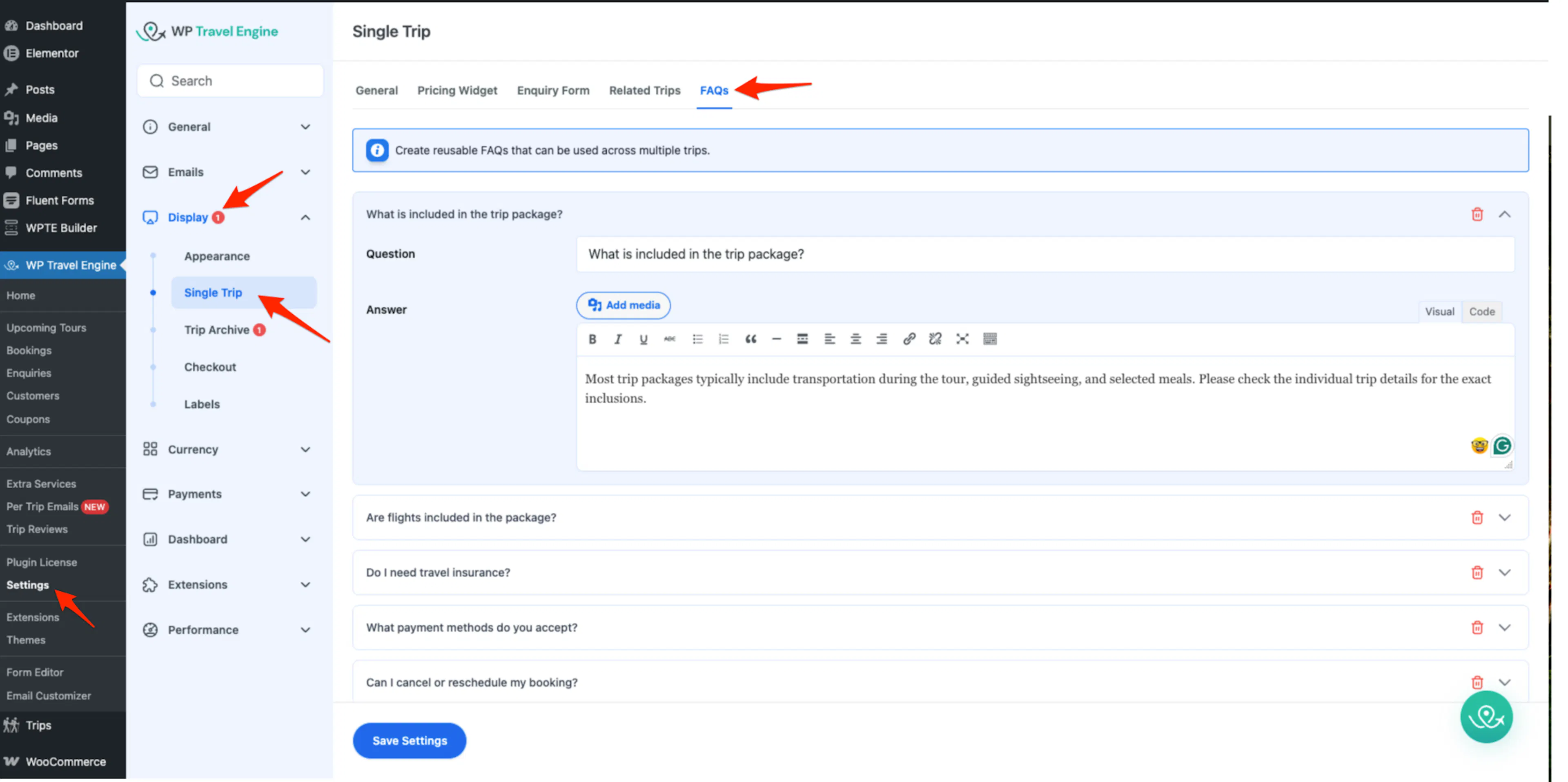
In your WordPress dashboard, look at the left sidebar and go to WP Travel Engine > Settings > Display > Single Trip > FAQs.
Enable the FAQs section
This makes the FAQ section appear on your trip pages. A toggle is the on-off switch for a setting.
Turn on Show FAQs Section.
Add a global FAQ
This saves you from rewriting the same answer for every trip.
Click + Add FAQ. Then enter the Question and Answer. For example, you might add a question about what travelers should bring and list the items they should pack.
Save your changes
Your new Global FAQ will not be stored until you save the page.
Save the settings page.
Good to know: You can come back and change any Global FAQ later. You can update the question, update the answer, or remove it with the red delete icon next to it.
Once your Global FAQs are in place, you can start adding them to individual trips.
Managing FAQs on a single trip
This is where you decide which FAQs belong on a specific trip page. You can bring in Global FAQs, add trip-only FAQs, and group everything so travelers can scan it quickly.
What you'll need before you start: You need at least one trip created in WP Travel Engine.
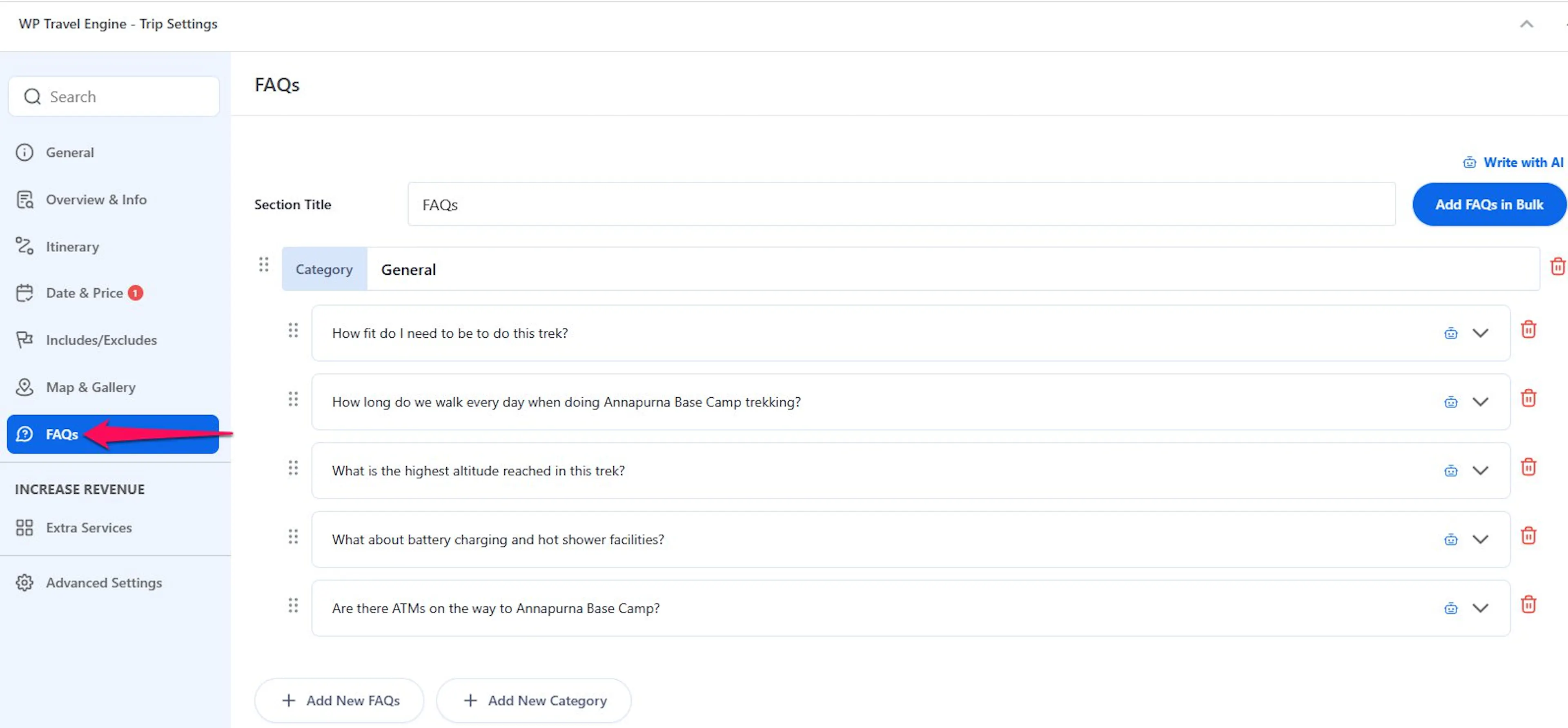
To open a trip, go to Trips on the left sidebar of your WordPress dashboard and click the trip you want to edit. Inside the trip editor, open Trip Settings and then click FAQs.
Adding new FAQs manually
Add a manual FAQ when a question only belongs to one trip. For example, if you run a 5-day trek, you might want to answer a trip-specific question about altitude sickness or how much walking to expect.
Start a new FAQ
This creates a new question and answer for this trip only.
Click + Add New FAQs.
Enter the question
Think about what a traveler might ask before booking or before arriving.
Type the question into the question field.
Enter the answer
This is your chance to give a clear answer before the traveler has to contact you.
Type the answer into the answer field.
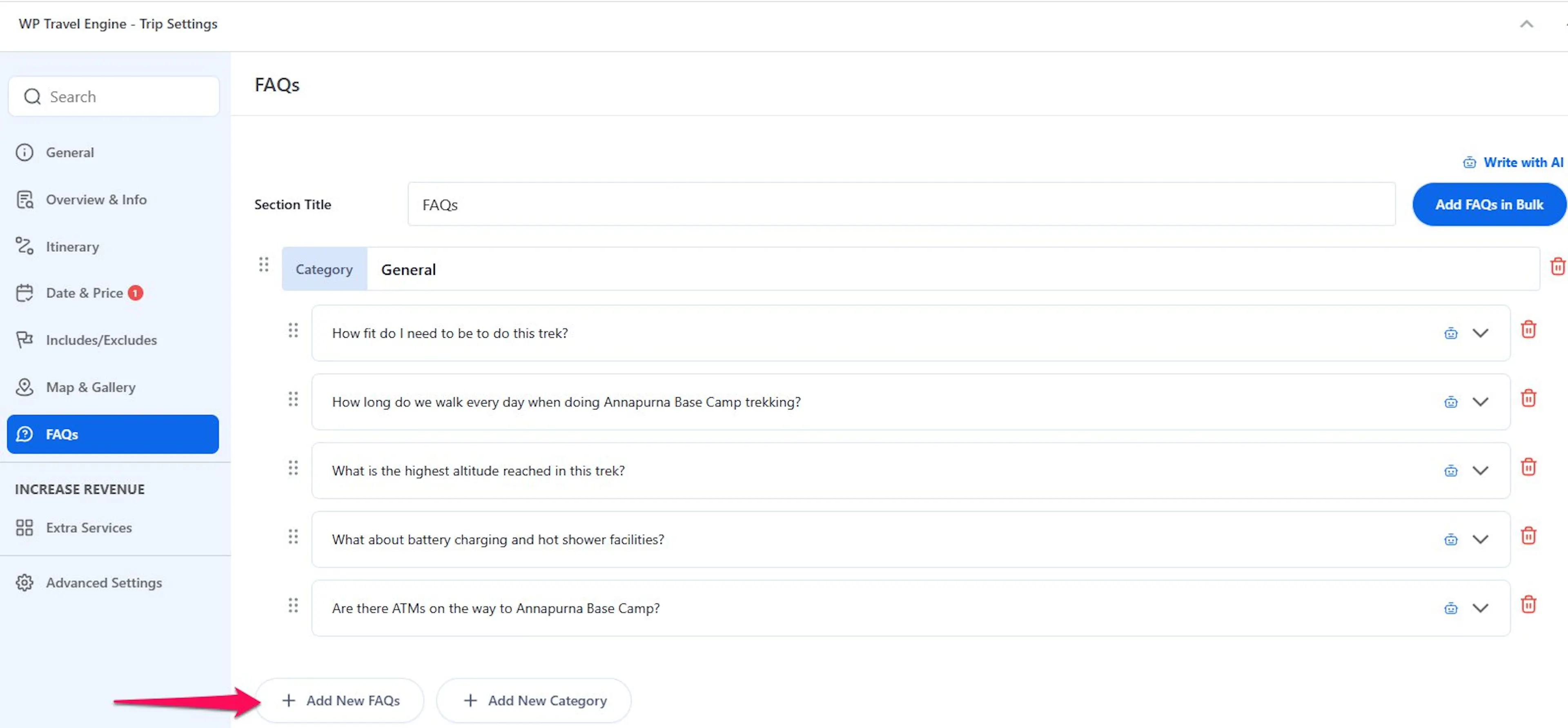
When you add a question this way, it stays tied to the trip you are editing. Next, you can save time by pulling in shared FAQs all at once.
Adding FAQs in bulk
Use bulk import when you already have Global FAQs set up. For example, if you have ten Global FAQs and five apply to your new trek, you can grab all five in one go instead of adding them one at a time.
Open the bulk import window
This lets you choose from the Global FAQs you already created.
Click Add FAQs in Bulk. A window called "FAQs in Bulk" opens.
Find the FAQs you need
Use this when your list is getting long.
Use the search bar in the window to find the Global FAQs you want.
Select the FAQs
This is where you pick the questions that match this trip.
Tick the checkboxes for the FAQs you want to add.
Add the FAQs to the trip
This brings the selected FAQs into the trip you are editing.
Click Add FAQs.
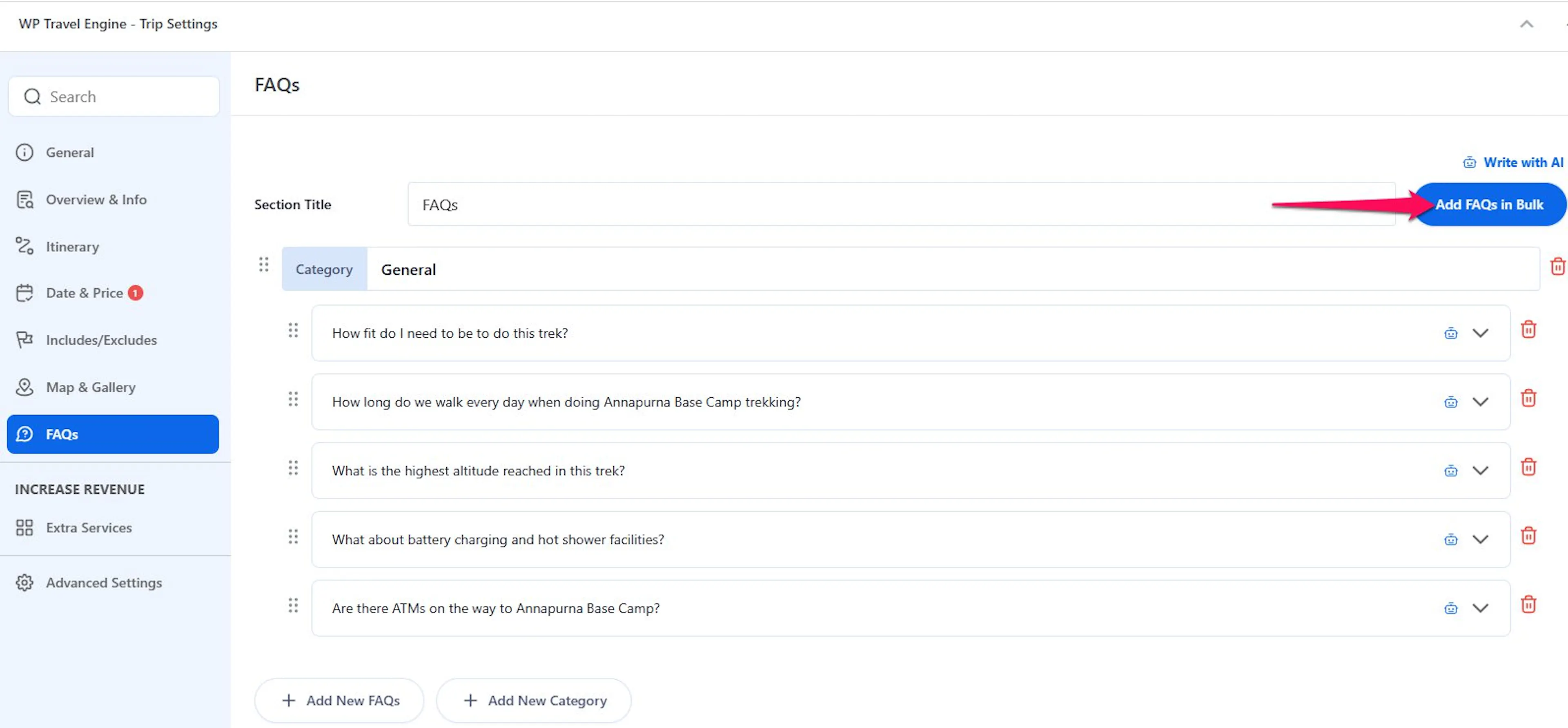
Good to know: If you edit a FAQ that came from Global FAQs, that edited version becomes local to this trip. For example, your Global FAQ might say "Trips run rain or shine," but one trip may have an indoor backup plan. You can change that FAQ on this trip without changing the original Global FAQ for your other trips.
This gives you a fast starting point while still letting you tailor the details for each trip.
Organizing FAQs with categories
Categories help you group similar questions together. You might create a category called "What to Bring" for packing questions and another called "Booking & Payment" for questions about deposits and refunds.
What you'll need before you start: Open the trip you want to organize, then go to Trip Settings > FAQs.
Create a category
Categories make a longer FAQ section feel easier to browse.
Click + Add New Category and type the category name.
Arrange FAQs within the category
This helps you place each question where travelers expect to find it.
Use the order icon to move FAQs under the category you created. The order icon is the small icon you can click and hold to move things around.
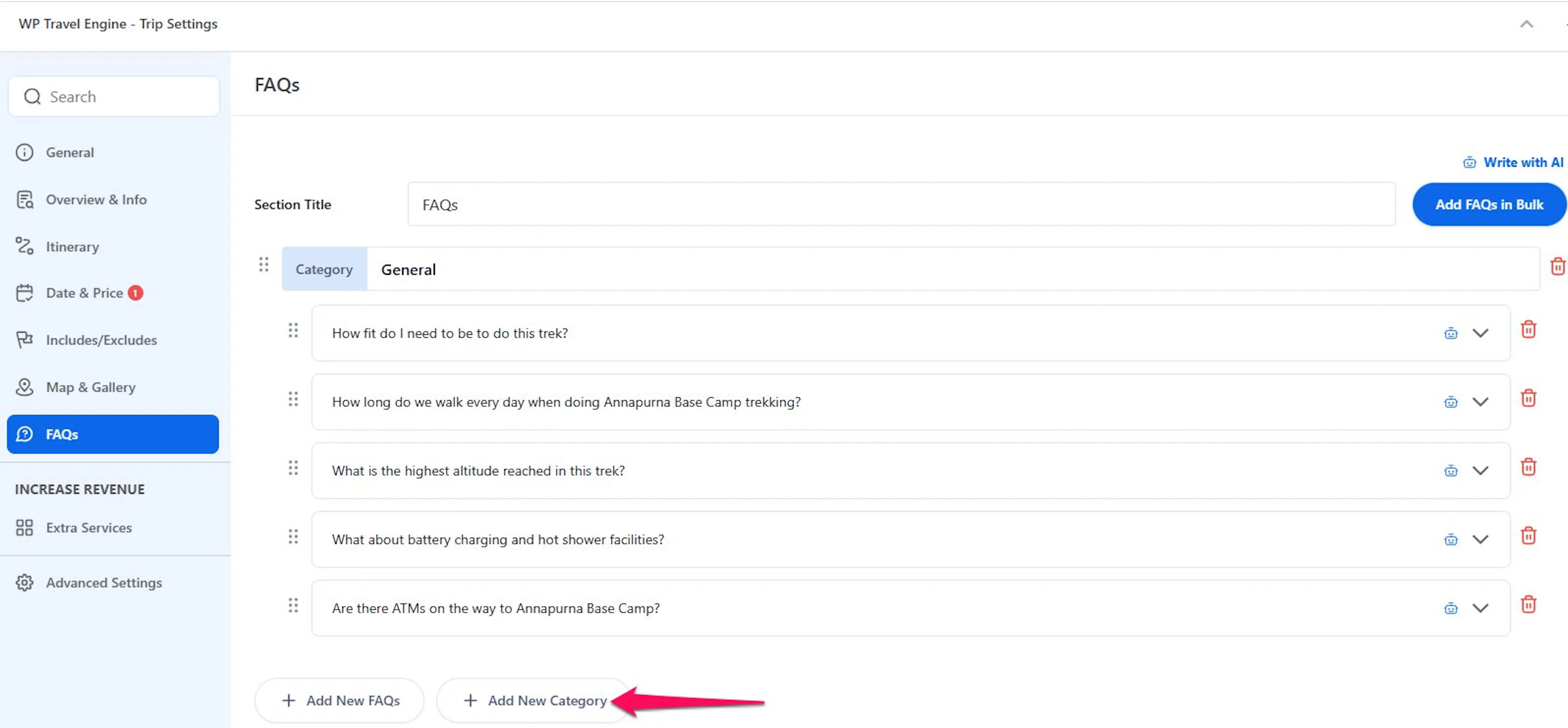
Once your FAQs are grouped and ordered, your trip page will look more professional and travelers will find answers faster.
If you're still stuck or have a question we didn't cover, our support team is happy to help. Reach out at our support page and we'll get you sorted.