

Booking Refunds
Record money you returned to a traveler, choose a full or partial refund, edit or delete a refund, and see what a refund does to the booking.
Introduction
Use Record Refund to log money you returned to a traveler. The refund updates the booking's totals and is added to the payment history and the Activity Logs.
Available from WP Travel Engine 6.9.0.
Recording a refund only tracks it in WP Travel Engine. Send the money back through your payment provider or bank as you normally would.
Record a refund
- Go to WP Travel Engine > Bookings and open the booking.
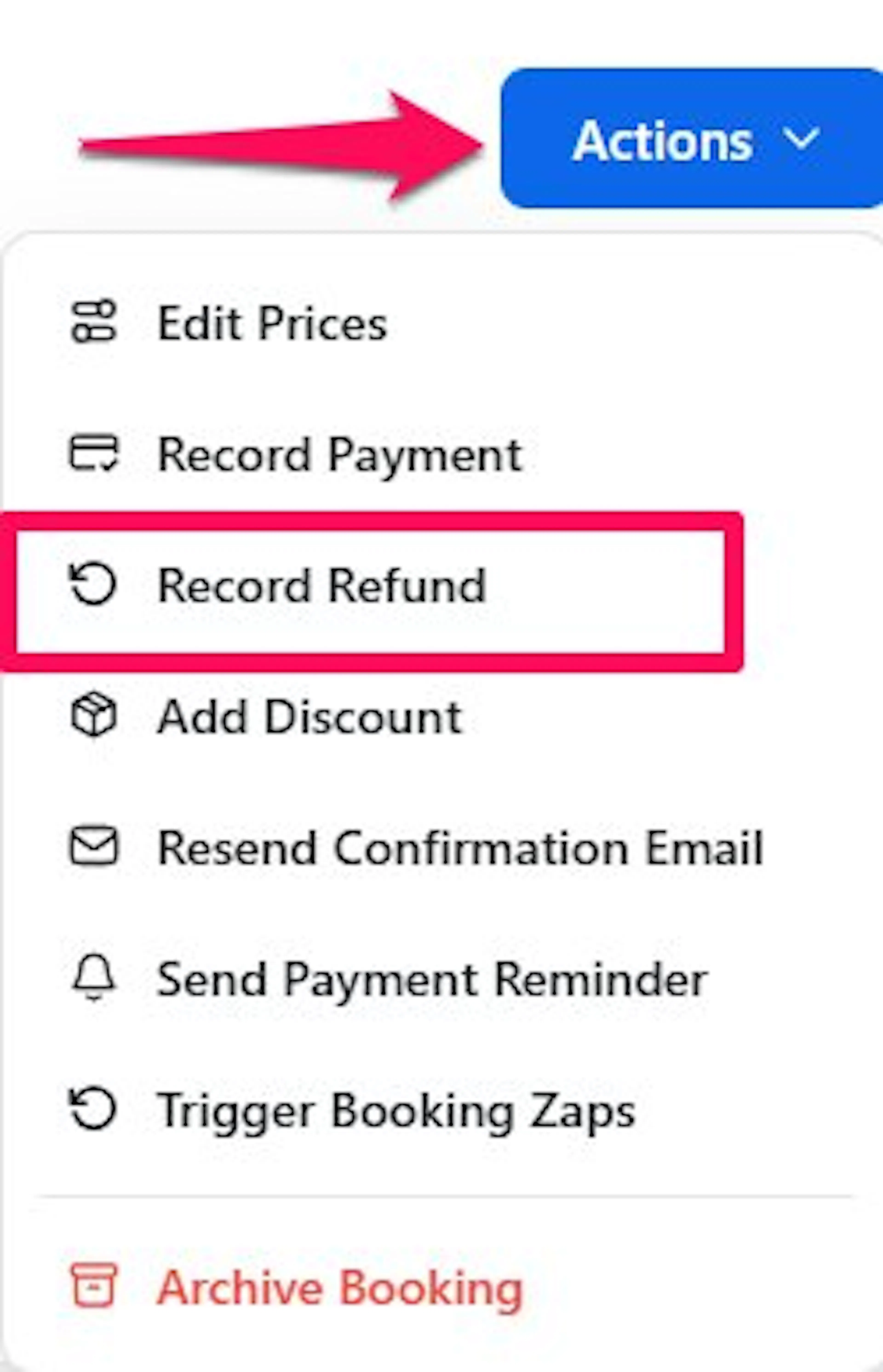
- Click Actions, then Record Refund. The Record a Refund window opens.
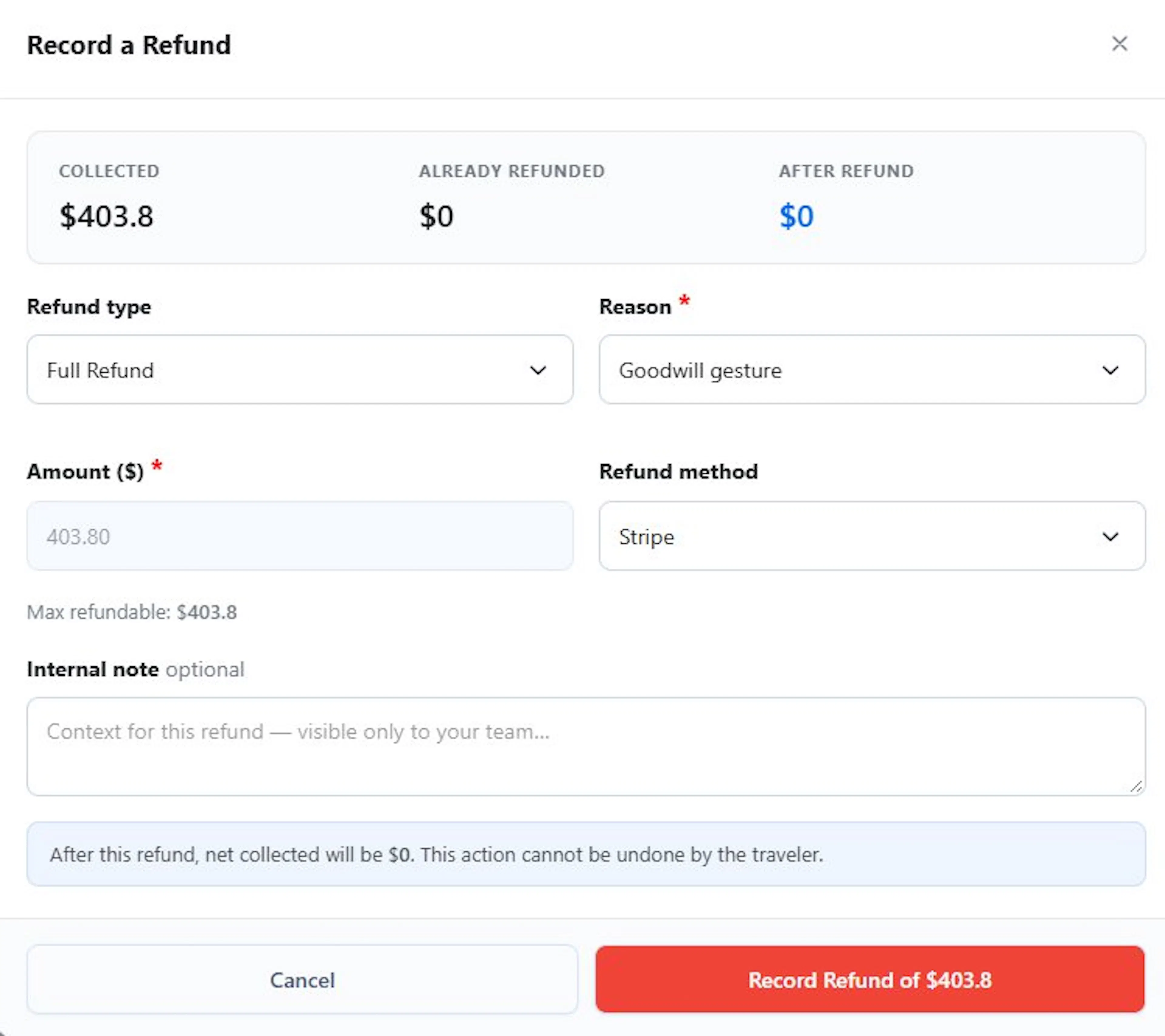
- Check the figures at the top:
- Collected: what you have received on this booking.
- Already Refunded: what you have already returned.
- After Refund: what the booking will have collected after this refund.
- Choose a Refund type:
- Full Refund: refunds everything you can still refund (Collected minus Already Refunded).
- Partial Refund: enter the Amount. The field shows the most you can refund; for example, Max refundable: $1,200.00. If you enter more, you see: This exceeds the maximum refundable amount of [amount].
- Choose a Reason: Goodwill gesture, Service issue, Overpayment, Cancellation, Duplicate charge, or Other.
- Choose the Refund method. The methods come from your active payment gateways.
- Add an Internal note if you want. Only your team can see it.
- Check the line at the bottom: After this refund, net collected will be [amount]. This action cannot be undone by the traveler.
- Click Record Refund of [amount].
Record Refund is grayed out in the Actions menu when nothing has been collected, or when everything collected has already been refunded.
Where the refund appears
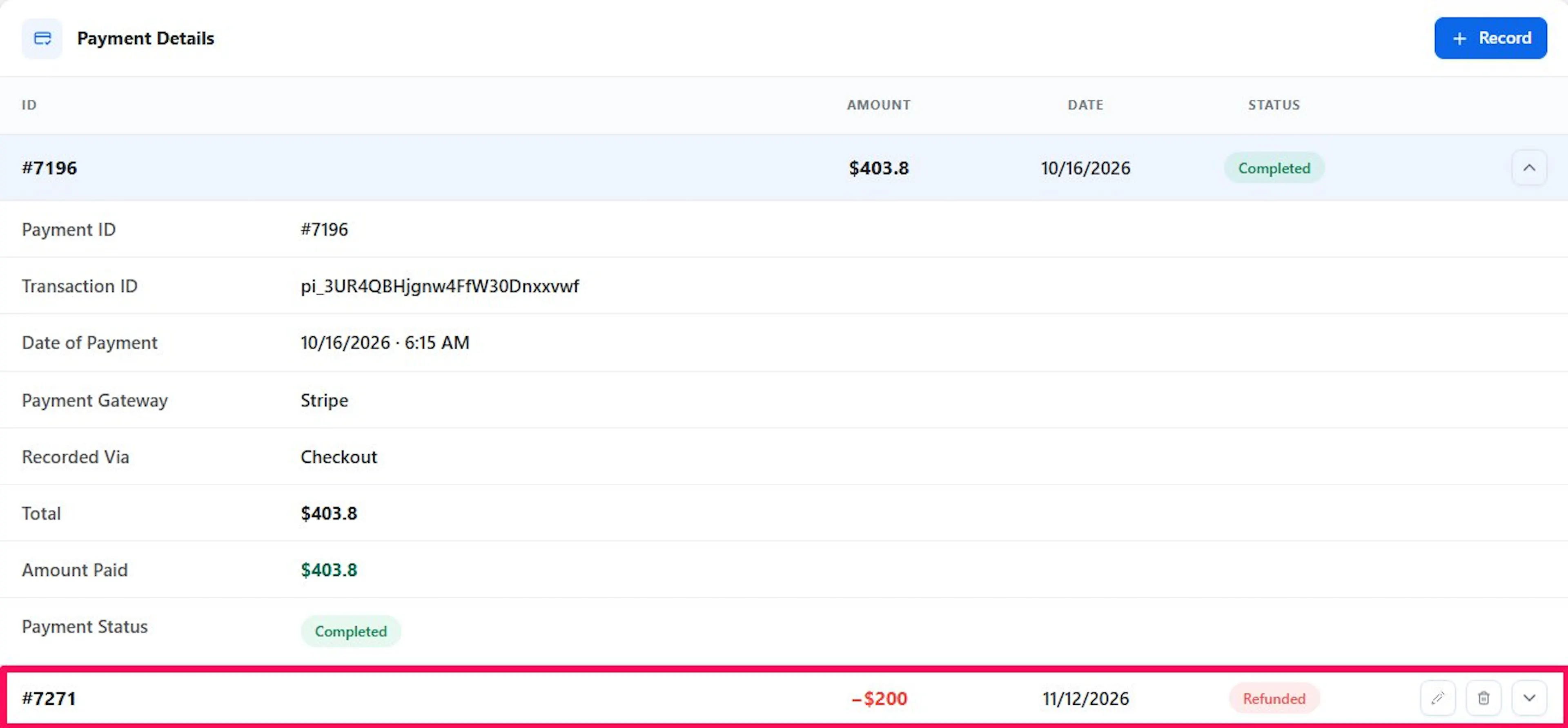
- Payment Details: the refund is listed as its own row with the status Refunded and the amount in red. Open the row to see the Refund ID, Date of Refund, Refund Method, Reason, Amount Refunded, and Internal Note.
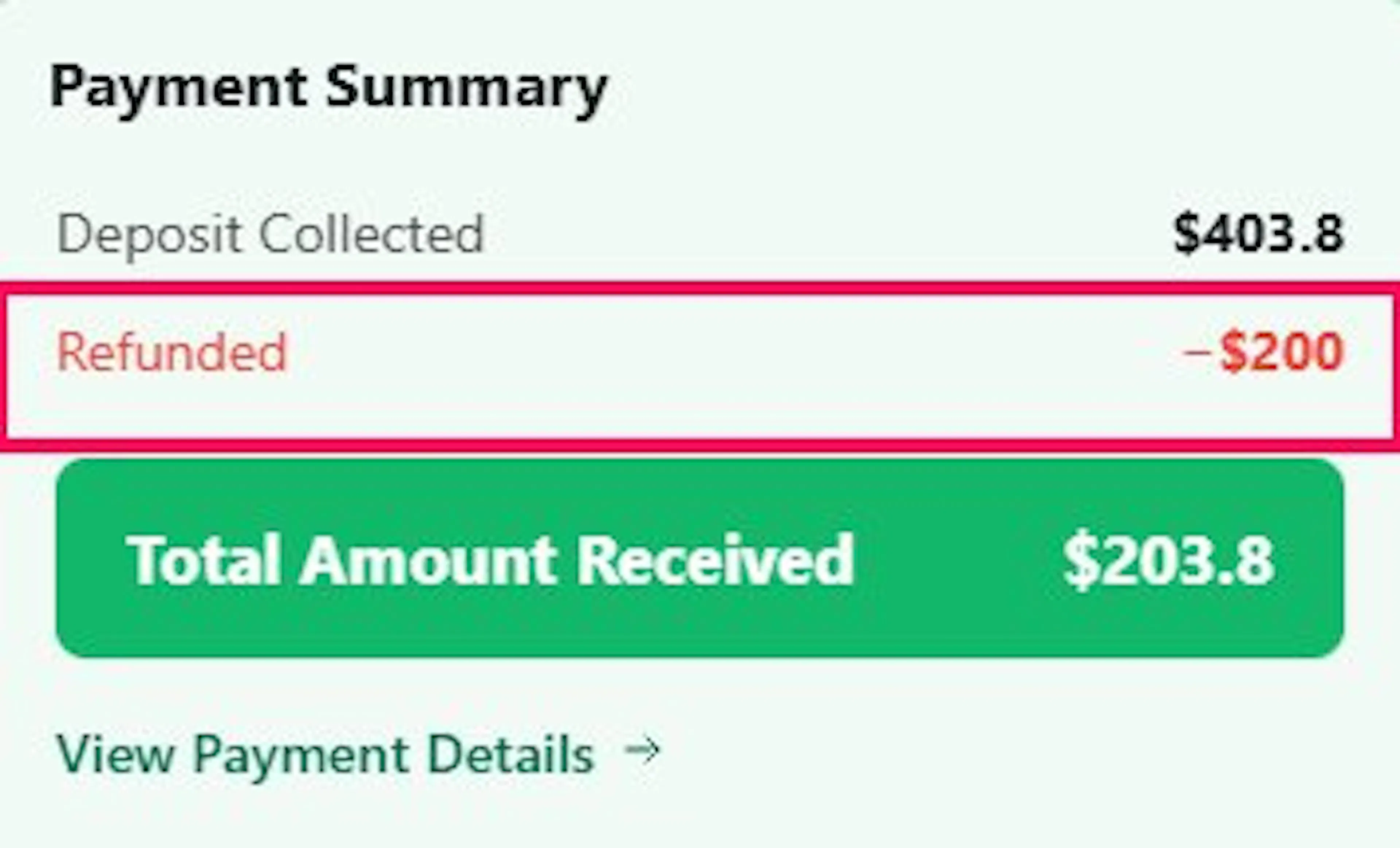
- Payment Summary: the total refunded shows as Refunded, and Total Amount Received goes down.
- Activity Logs: an entry such as Refunded $300.00, taking the booking to $300.00 refunded.
Edit or delete a refund
Edit a refund
- In Payment Details, click the edit icon on the refund row. The Edit Refund window opens.
- Change the amount, reason, method, or note.
- Click Update Refund of [amount].
Delete a refund
- In Payment Details, click the delete icon on the refund row.
- Confirm.
The refund is removed, and the totals go back to what they were. Activity Logs record Deleted refund #[ID]. Delete a refund only if it was entered by mistake.
What a refund changes on the booking
A refund lowers what the booking has collected. It does not change what the booking costs.
| Figure | After a refund |
|---|---|
| Deposit Paid | Goes down by the refund. |
| Total Amount Received | Goes down by the refund. |
| Balance Due | Does not change. |
| Order Total | Does not change. |
| Remaining Payment Link | Still shows while a balance is due. |
| Booking status | Does not change. Change it yourself, for example to Refunded or Canceled. |
Changing the status to Refunded or Canceled frees the booking's seats. A Canceled booking no longer shows a payment link. See Manage a Booking.
What happens when...
- You refund a traveler who will not travel: the balance due and payment link stay. Change the booking status to Canceled or Refunded so the balance is not collected and the seats are freed.
- You make a full refund on a booking with only a deposit: the deposit is refunded, and Deposit Paid goes to zero, but Balance Due stays. Cancel the booking if the trip will not go ahead.
- The booking shows Overpaid: record a refund for the overpaid amount and choose the reason Overpayment.
- Nothing was collected: Record Refund is grayed out. Change the booking status instead.
- The traveler is told about the refund: no email is sent when you record a refund [verify]. Let the traveler know yourself.
If you're still stuck or have a question we didn't cover, our support team is happy to help. Reach out at our support page and we'll get you sorted.