

Booking Dashboard
See every booking at a glance, search, filter and sort the list, understand booking statuses and badges, archive or trash bookings, and export them.
Introduction
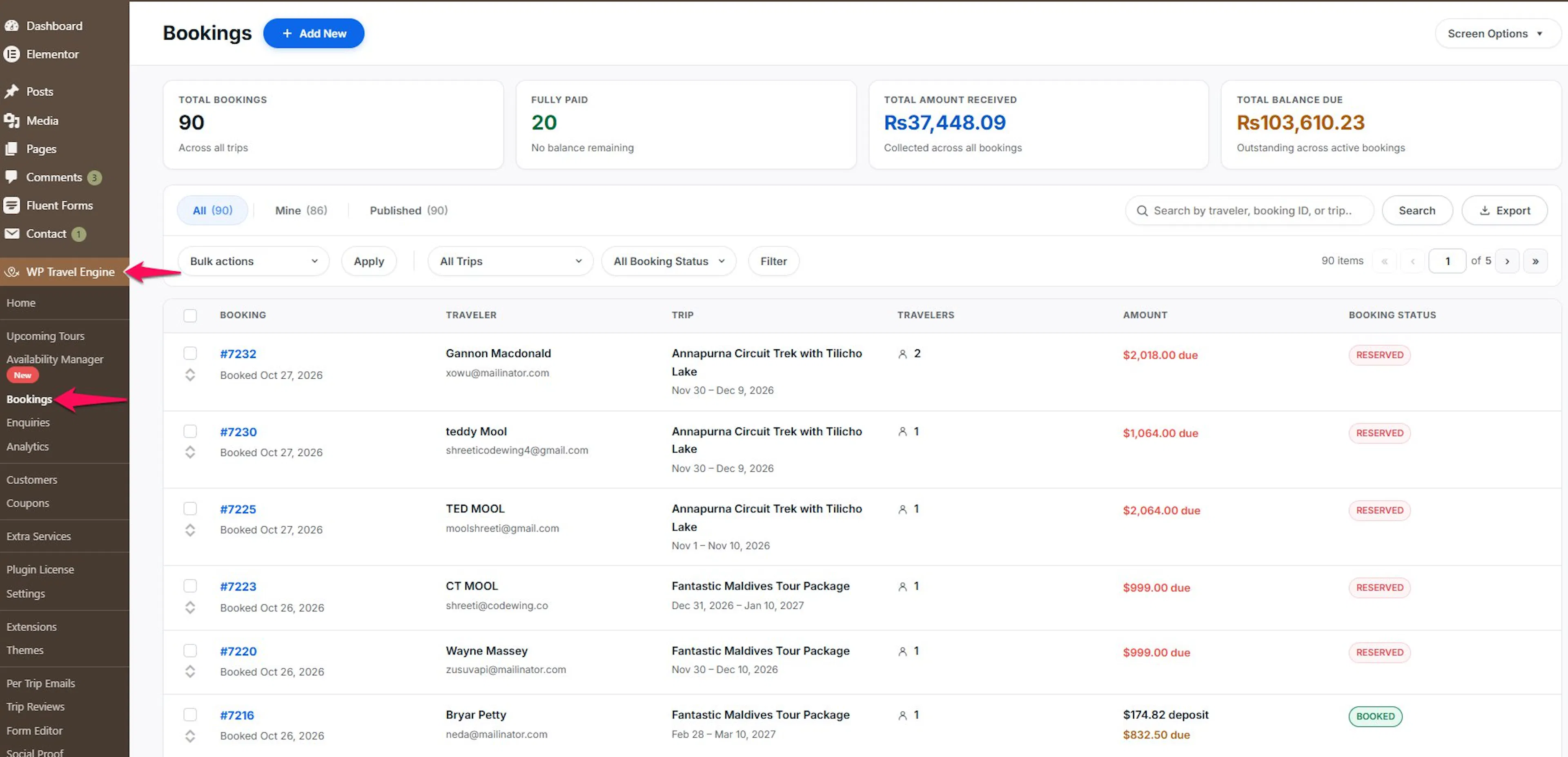
The Booking Dashboard is the Bookings list in your WordPress admin. It shows every booking on your site, along with totals for money collected and money still owed. Start here to find, open, archive, or export any booking.
Available from WP Travel Engine 6.9.0.
Open the Booking Dashboard
- Log in to your WordPress dashboard.
- Go to WP Travel Engine > Bookings.
Summary cards
| Card | What it shows |
|---|---|
| Total Bookings | The number of bookings across all trips. |
| Fully Paid | The number of bookings with no balance remaining. |
| Total Amount Received | The money collected across all bookings, after refunds. |
| Total Balance Due | The money still owed across active bookings. |
Archived bookings are not counted in Fully Paid, Total Amount Received or Total Balance Due. The totals are kept for up to an hour to keep the page fast, and they refresh when a booking is created, updated, archived, trashed or restored.
Status tabs
The tabs below the cards (All, Published, Drafts, Trash) filter the list by WordPress post status, each with a count.
A Deprecated tab appears when some bookings were made with a much older version of the plugin. These bookings are left out of the normal list but still appear when you search.
Search, filter and sort
- Search: find a booking by traveler, booking ID or trip. The placeholder reads Search by traveler, booking ID, or trip...
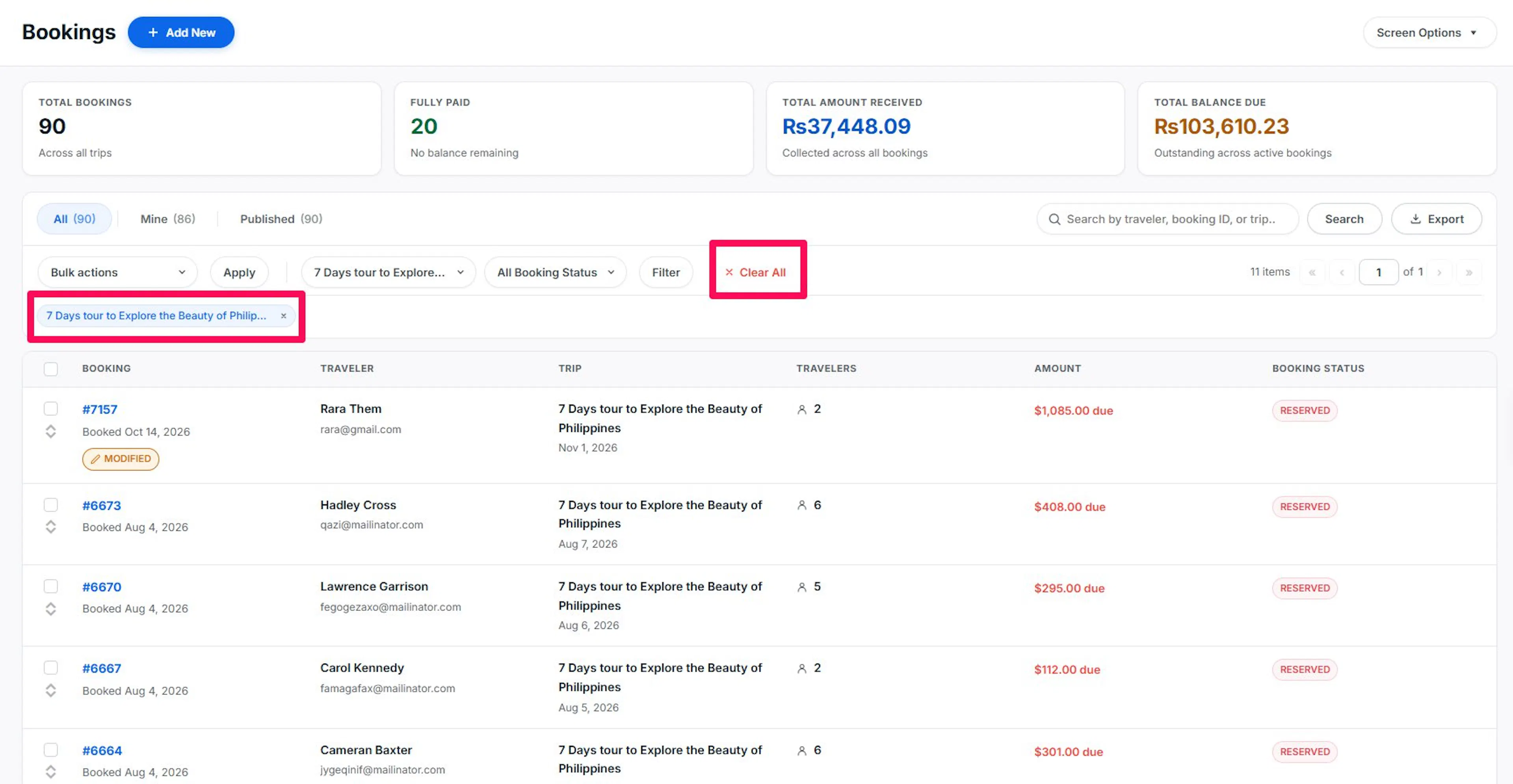
- All Trips: tick one or more trips to show only their bookings. Type in Search trips... to find a trip. With several trips picked, the button reads, for example, 3 trips selected.
- All Booking Status: show only bookings with one status.
- Filter: applies your choices.
- Clear All: appears once a search or filter is active. It clears them and keeps you on the same tab.
- Sort: click the Traveler, Trip, Travelers, Amount, or Booking Status column heading.
Read the bookings table
| Column | What it shows |
|---|---|
| Booking | The booking reference (for example #1482), the date it was placed (Booked Oct 13, 2026), and any badges. |
| Traveler | The billing name with the email underneath. |
| Trip | The trip name as a link, with the departure dates underneath. A booking with more than one trip shows a count such as +1. A deleted trip shows as Trip #215. |
| Travelers | The total number of travelers. |
| Amount | The amount paid and the amount still due. A part payment shows as, for example, a $600.00 deposit with $1,800.00 due underneath. Otherwise, you see Paid in full or No payment. |
| Booking Status | A colored tag with the current status. |
Booking badges
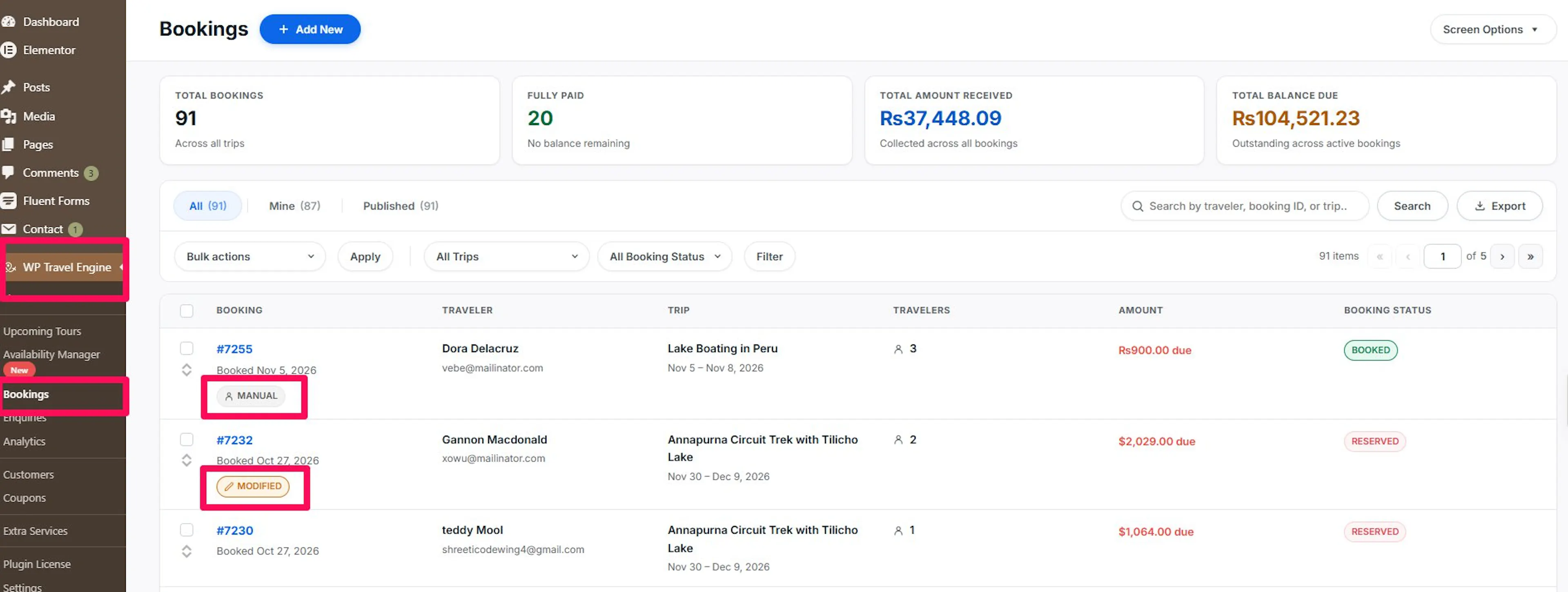
- Manual: an admin created the booking with Add Booking.
- Modified: the booking was changed from the admin booking page after it was made.
- Migrated: the booking was moved from an older booking format. Its booking page shows a See Original Booking button.
- Deprecated: the booking was made with a much older version of the plugin.
Booking statuses
| Status | What it means |
|---|---|
| Reserved | Held but not confirmed. Used for bookings made with the booking-only, bank transfer, and check payment methods. |
| Pending | Created but payment is not complete. This is the default for bookings you add from the admin. |
| Booked | Confirmed. Set when an online payment goes through. |
| Refunded | The booking was refunded. Its seats are freed. |
| Canceled | The booking was canceled. Its seats are freed. |
| Failed | The payment failed. Only WP Travel Engine sets this status. |
| Archived | Kept for your records but hidden from day-to-day work and from the dashboard totals. Seats stay held. |
To change a status, see Manage a Booking.
Archive, trash and delete bookings
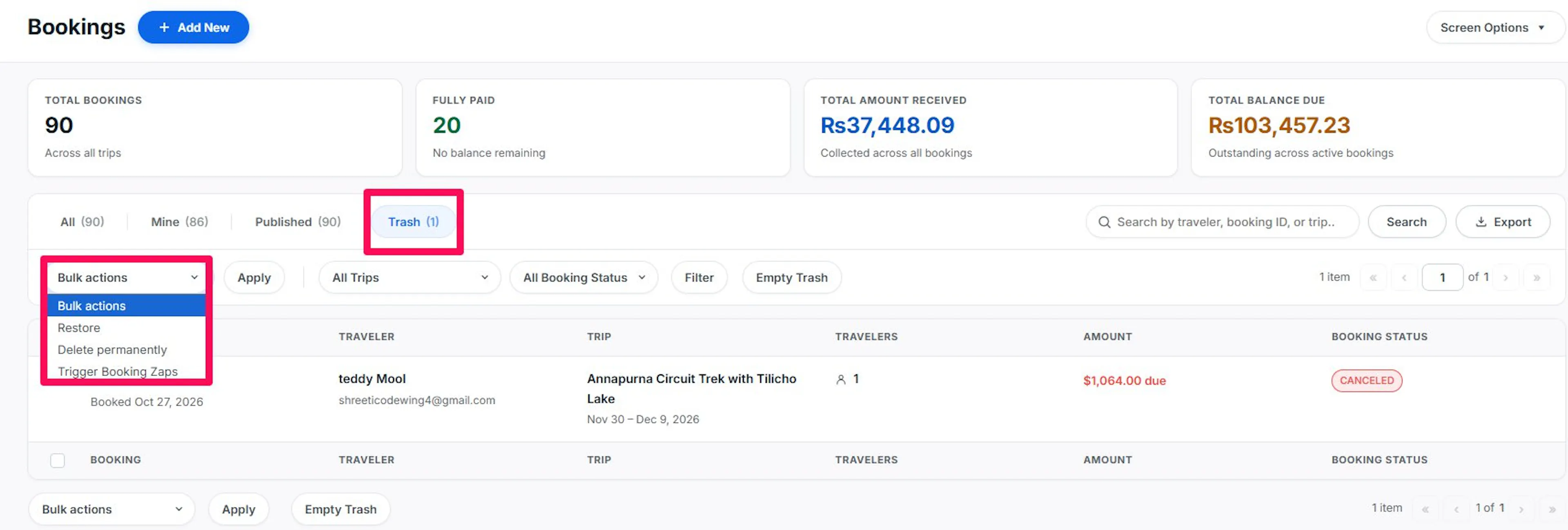
The rows have no hover actions. Tick the bookings, then choose a bulk action and click Apply.
- Archive: sets the bookings to Archived. You see, for example, 3 bookings archived. It is available on every tab except Trash.
- Move to Trash only works on bookings with no money paid. Paid bookings are skipped with the notice: 1 booking has been paid and was not moved to the Trash. Archive it instead.
A trashed booking becomes Canceled, and its seats are freed. Restoring it puts back its previous status. To delete a booking for good, open the Trash tab and use Delete Permanently. A paid booking cannot be trashed or deleted, so archive it instead.
Add a booking
Click Add New at the top of the page to open the Add Booking wizard. See Add Booking.
Export bookings
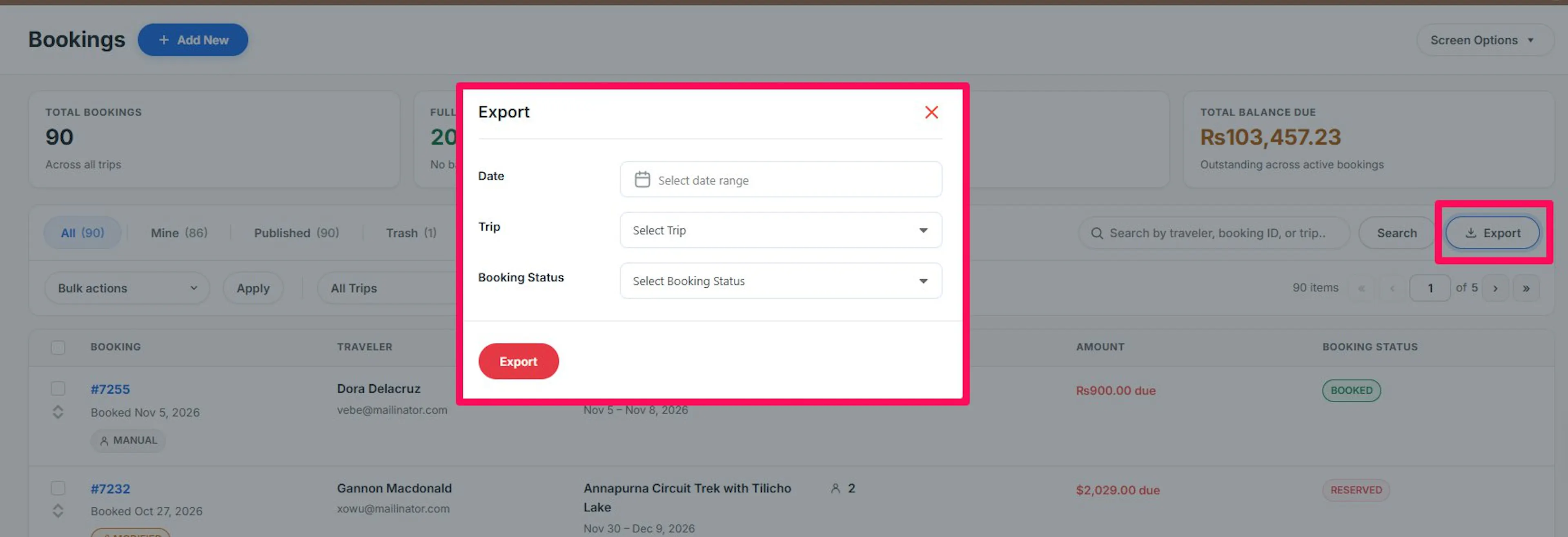
- Click Export on the right of the toolbar.
- Choose a Date range, a trip, and a Booking Status.
- Click Export.
You get a CSV file of your bookings with booking and trip details, totals, payments, billing details, traveler and emergency contact details, discounts, add-ons, and notes.
If you're still stuck or have a question we didn't cover, our support team is happy to help. Reach out at our support page and we'll get you sorted.