

Checkout Booking
What travelers see when they book on your website: the checkout page, payment choices, coupons, the fill later option, the thank-you page, and how travelers add or edit their details from the Traveler Dashboard.
Introduction
This page follows a traveler who books a trip on your website, from checkout to the Traveler Dashboard, and shows what the new booking looks like in your admin. For bookings you create yourself, see Add Booking.
Available from WP Travel Engine 6.9.0.
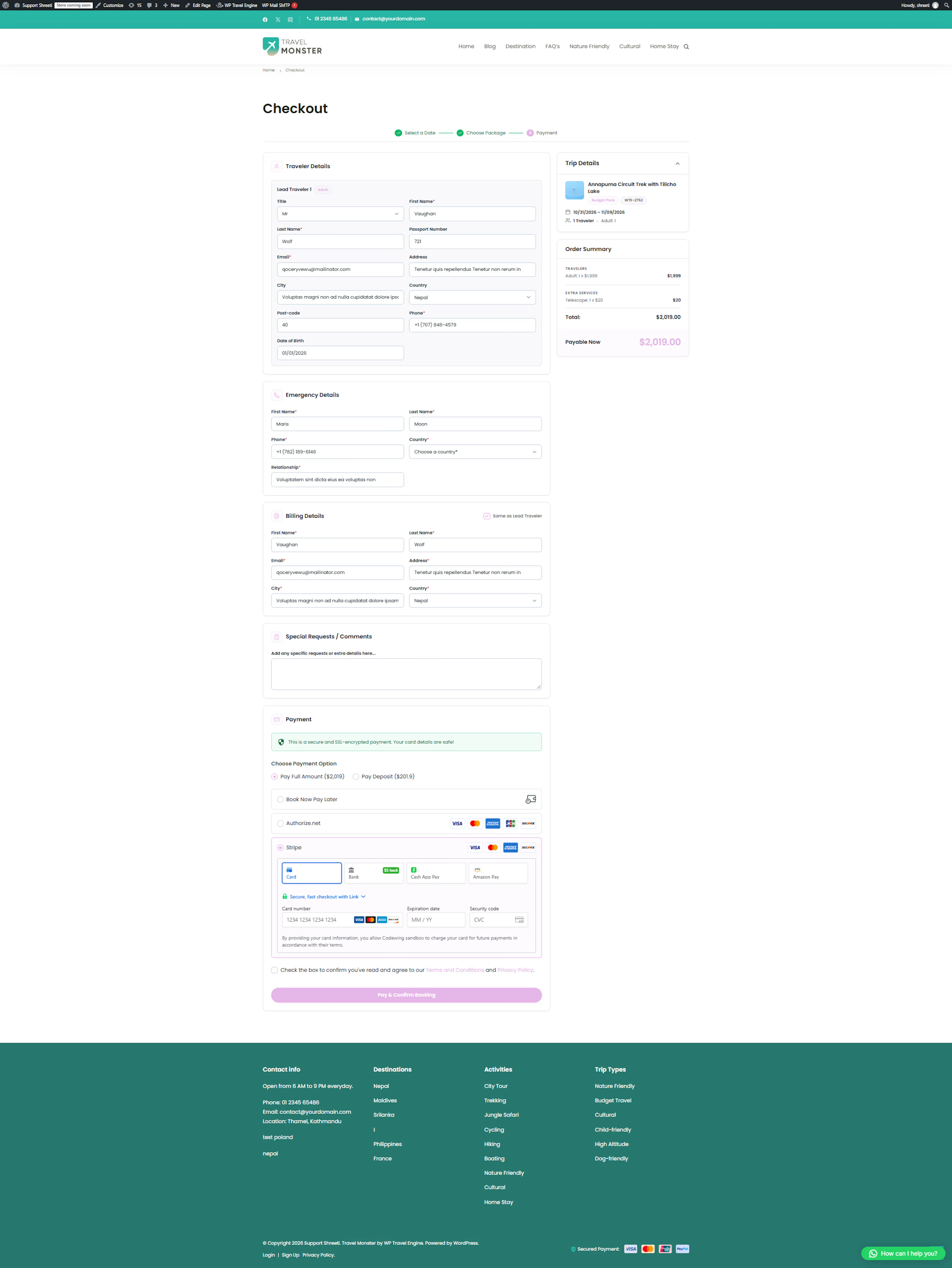
The checkout page
After the traveler picks a date, a package, and the number of travelers on the trip page, they reach the Checkout page. A progress bar at the top shows Select a Date, Choose Package, and Payment. The Order Summary on the side lists the trip, travelers, add-ons, any discount, tax, and the total.
The form has these sections:
- Traveler Details: the lead traveler and, if you collect them, every other traveler. The I'll fill details later checkbox appears here when fill later is on.
- Emergency Details: shown when you ask for an emergency contact.
- Billing Details: tick Same as Lead Traveler to copy the lead traveler's details.
- Special Requests / Comments: shown when the Special Requests/Comment Field setting is on.
- Payment: the payment choice and the payment method.
The traveler agrees to your terms and clicks Complete booking.
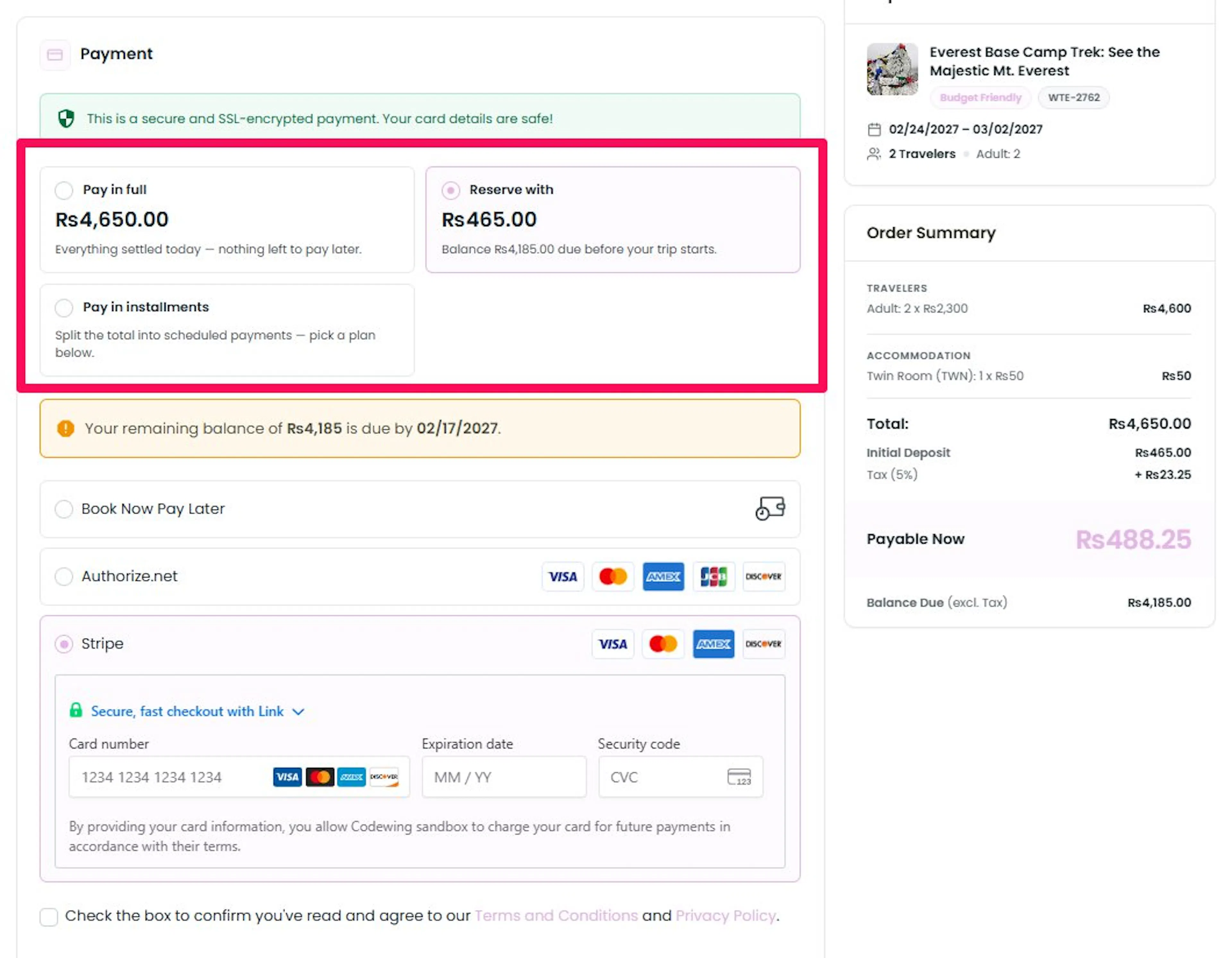
Payment choices
- Pay in full: the traveler pays the whole total today.
- Reserve with [amount] today: the traveler pays a deposit now, and the line underneath shows the balance due before the trip. Requires the Partial Payment add-on.
- [mention installment payment - Installment Payments add-on and Stripe Payment Gateway]
The traveler then picks a payment method from the gateways you turned on in Payment Settings. Book Now Pay Later, bank transfer, and check payments let them book without paying online.
Coupons
When the Show Coupon Field setting is on, and the trip has a coupon, the Order Summary shows Have a coupon code?. The traveler enters the code and clicks Apply. See How to Set Up Coupons.
Fill later
Fill later lets travelers pay now and add traveler details later from their Traveler Dashboard. It helps with group bookings, where the person paying may not have everyone's passport details yet.
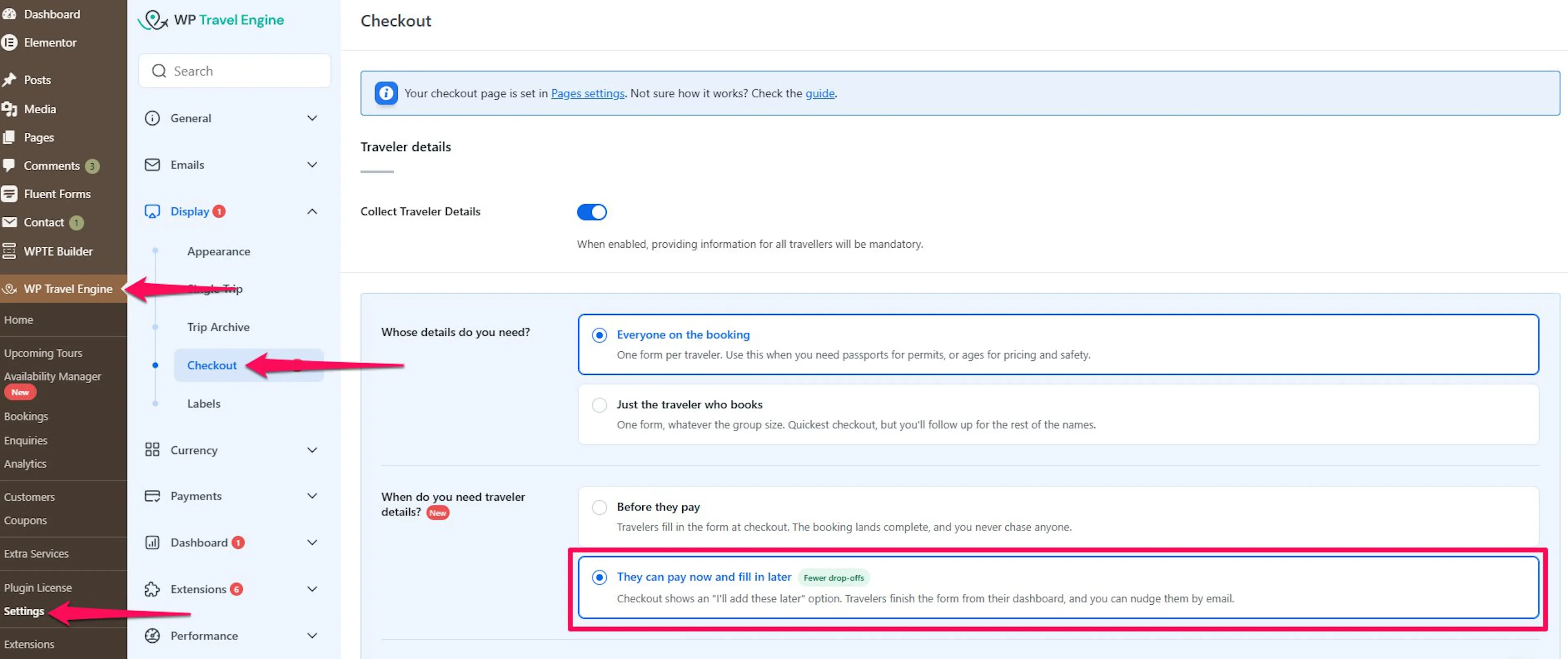
Turn on fill later
- Go to WP Travel Engine Dashboard > Settings > Display > Checkout.
- Turn on Collect Traveler Details.
- Set Whose details do you need? to Everyone on the booking.
- Set When do you need traveler details? to They can pay now and fill in later.
- Optionally, change the Fill Later Message to Travelers.
- Save your settings.
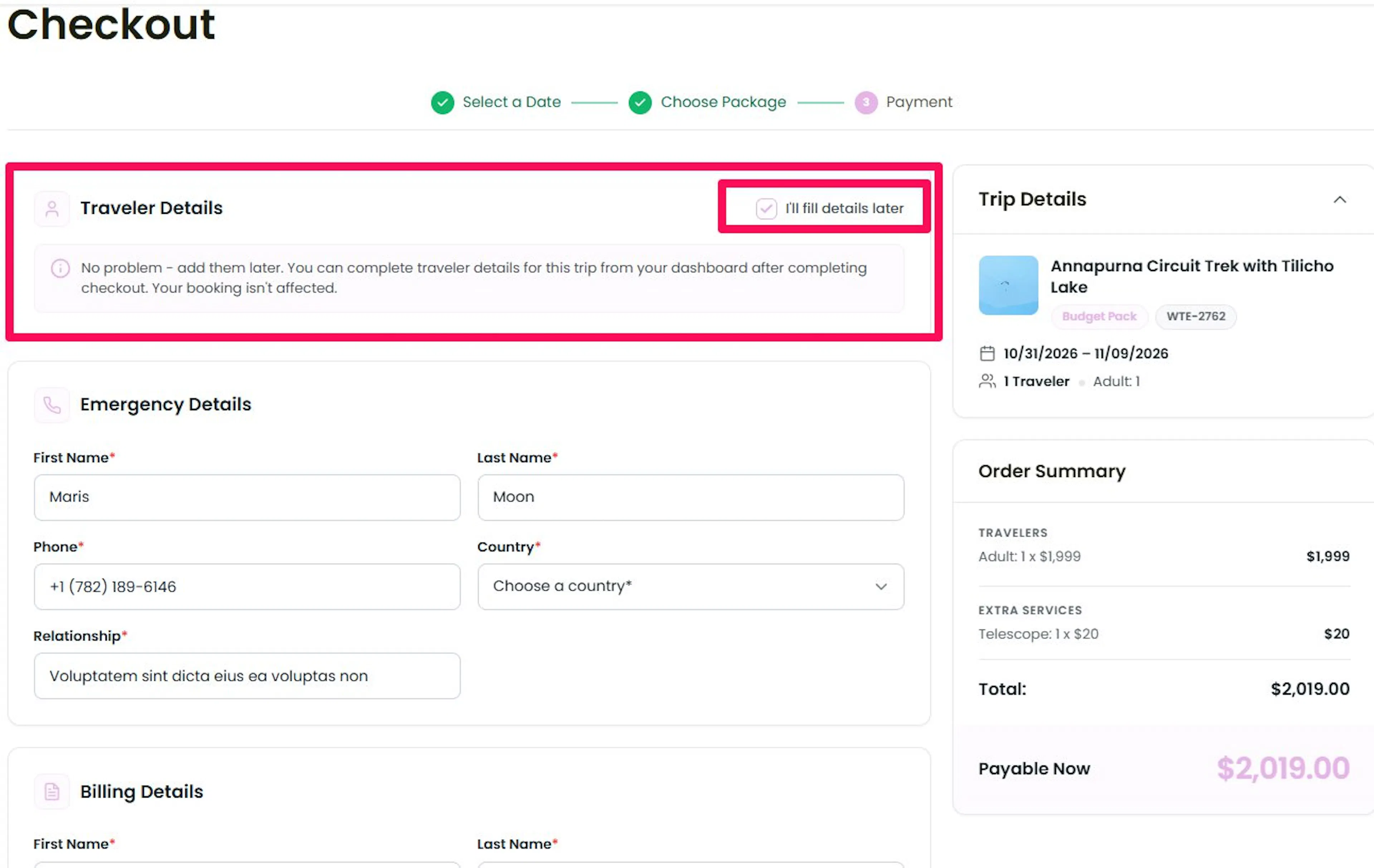
What the traveler sees
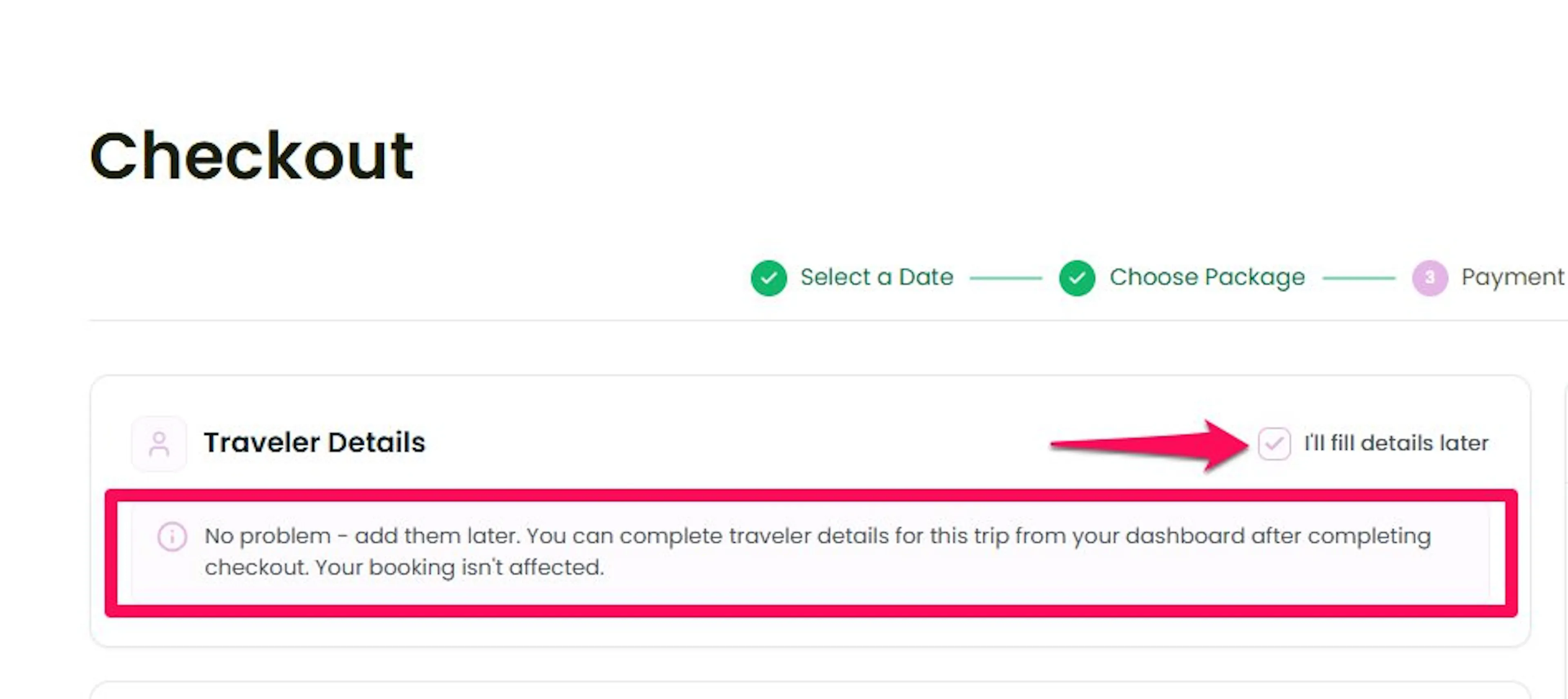
The traveler ticks I'll fill details later. The traveler form is set aside, and your message appears. The default reads: No problem - add them later. You can complete traveler details for this trip from your dashboard after completing checkout. Your booking isn't affected. They still fill in billing details and pay.
What you see on the booking
The booking arrives as normal, with seats held and the same totals. Each traveler without details shows: No details were collected for this traveler. You can fill them in yourself. See Manage a Booking.
The thank-you page
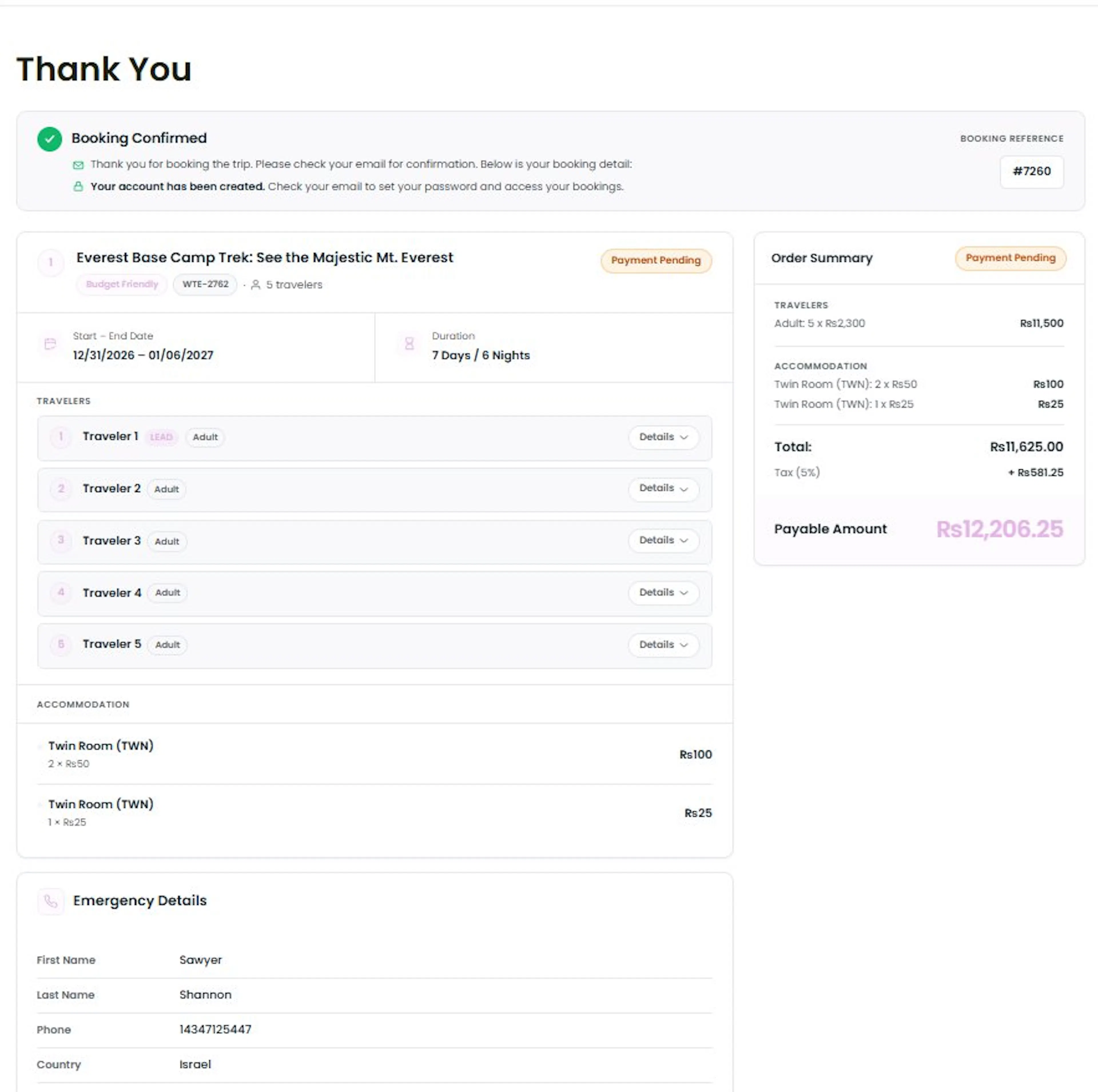
After checkout, the traveler sees a Booking Confirmed banner, the Booking Reference, the trip, the travelers, the Order Summary and Payment Details, with Go to Dashboard and Browse More Trips buttons. If an account was just created, it says Your account has been created. Check your email to set your password and access your bookings.
If details are missing, a warning such as 2 travelers still need details. appears with an Add details now link, and each traveler without details has a Details Missing badge.
WP Travel Engine sends the booking confirmation email to the traveler and you, and the payment confirmation email when the payment goes through. You choose which emails are sent in Email Notifications.
What the booking looks like in your admin
| How the traveler paid | Booking status | What the booking shows |
|---|---|---|
| Paid in full online | Booked | Fully Paid |
| Paid a deposit online | Booked | Deposit Paid, Balance Due and a Remaining Payment Link |
| Booking only, bank transfer or check | Reserved | Nothing collected, and a Remaining Payment Link for the full amount |
When a later payment comes in through the payment link, the booking updates itself.
Travelers add or edit their details
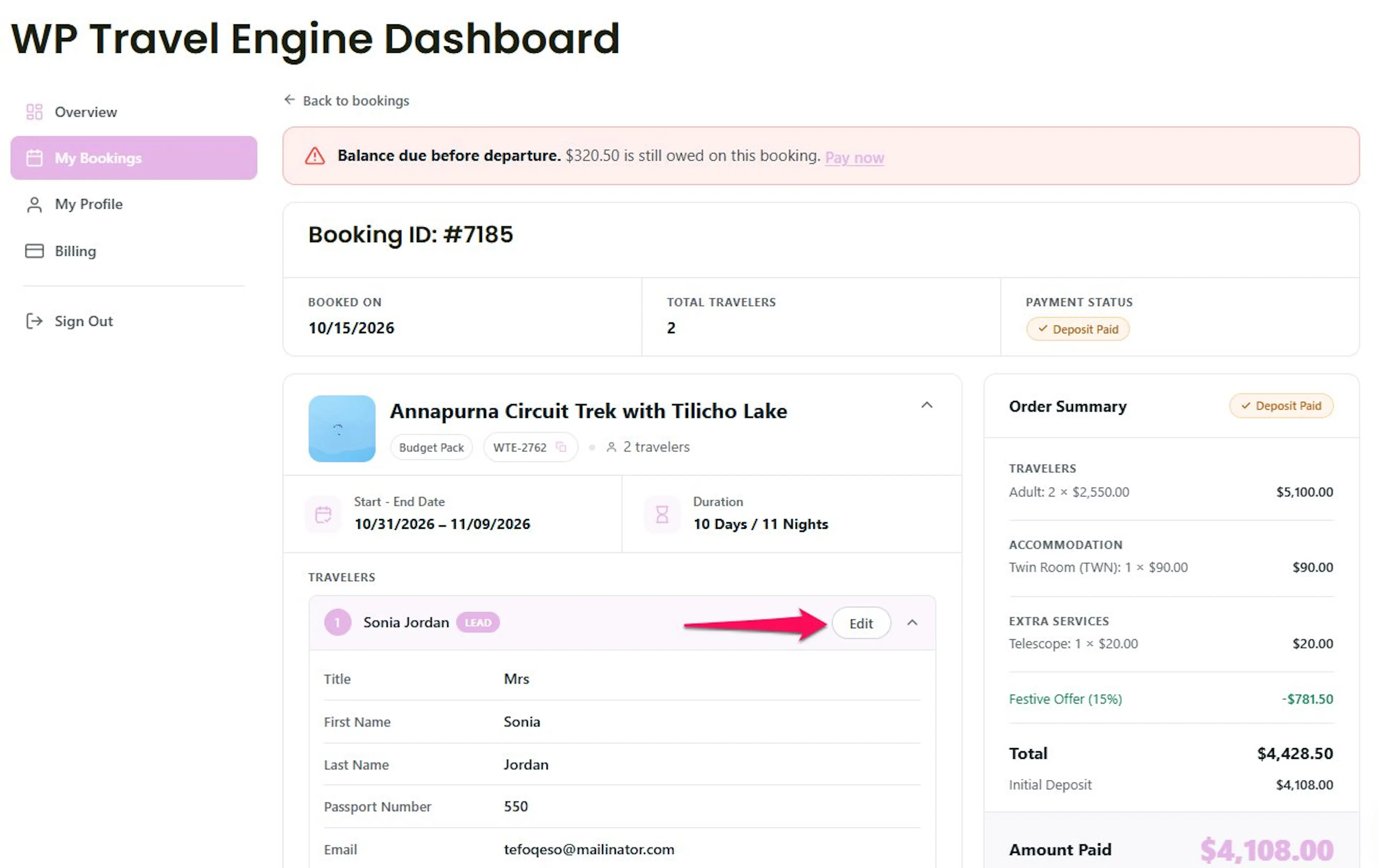
Travelers open their booking from My Bookings in the Traveler Dashboard. Each traveler is listed with a LEAD badge on the lead and a Details Missing badge where details are missing. The traveler clicks Add details or Edit, fills in the form, and clicks Save traveler. They can also pay the balance with Pay now.
- Travelers can always fill in blank fields.
- To let them change details they already gave, turn on Allow travelers to edit their details in the Traveler Dashboard settings. When it is off, saved fields are locked with Already given. Email us to change it.
- Travelers cannot change the trip, dates, number of travelers, add-ons, or payments.
Each traveler change appears in the booking's Activity Logs with the Traveler tag. See Manage a Booking.
What happens when...
- A traveler never completes details after fill later: nothing changes on the booking. The dashboard keeps showing Details Missing. No reminder email is sent, so contact the traveler or fill in the details yourself.
- You turn traveler accounts off while fill later is on: new travelers who are not logged in no longer see the fill later checkbox and must fill in details at checkout.
- You change tax or the booking fee after a booking: existing bookings keep the tax and fees they were made with [verify for bookings made before 6.9.0].
If you're still stuck or have a question we didn't cover, our support team is happy to help. Reach out at our support page and we'll get you sorted.