

Manage a Booking
Open a booking and manage everything on it: header and actions, status and archive, trip dates, travelers, add-ons, billing, emergency contact, notes, traveler requests, commission and the Activity Logs.
Introduction
Each booking has its own page where you see everything about it and make changes. Each change saves as soon as you confirm it, shows Booking updated successfully, and is recorded in the Activity Logs. Changes also update what the traveler sees in their Traveler Dashboard. For payments, discounts, and refunds, see Booking Payments.
Available from WP Travel Engine 6.9.0.
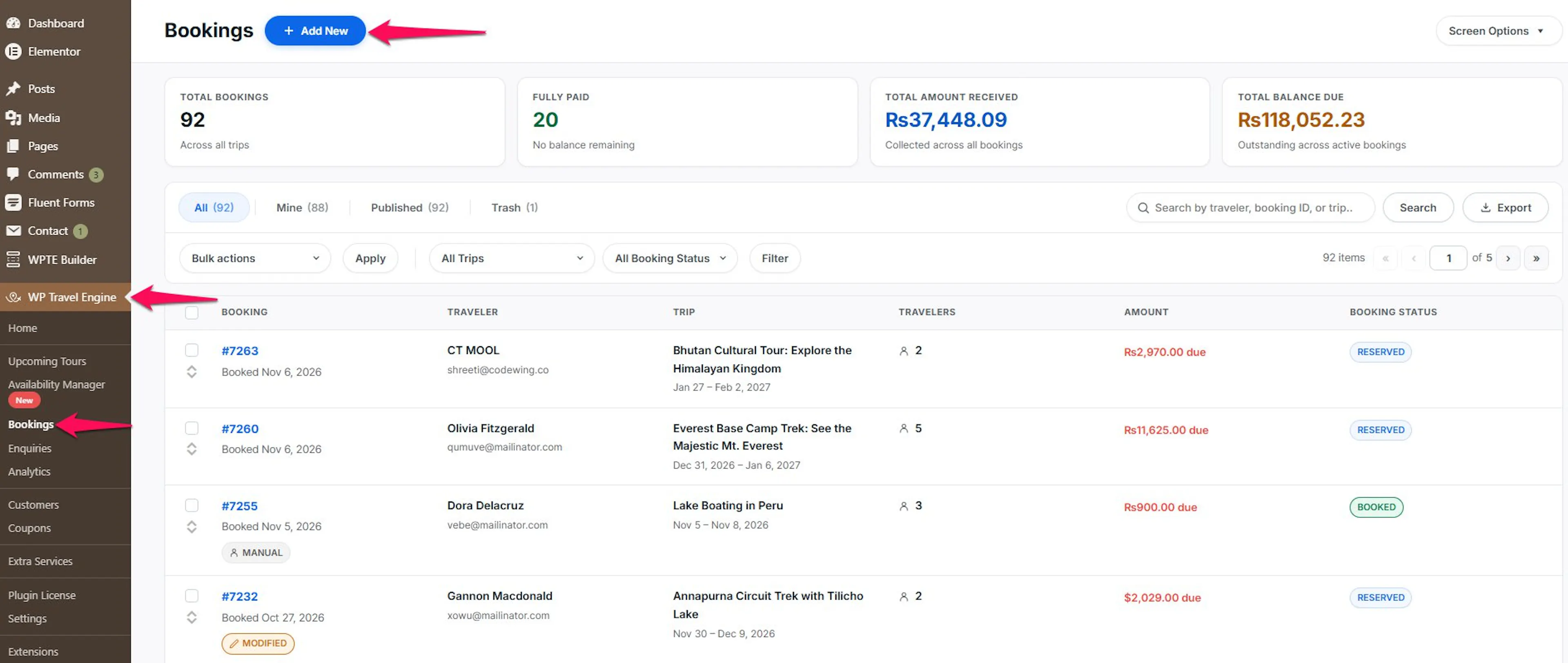
Open a booking
- Go to WP Travel Engine > Bookings.
- Click the booking reference.
To go back, click All Bookings at the top left.
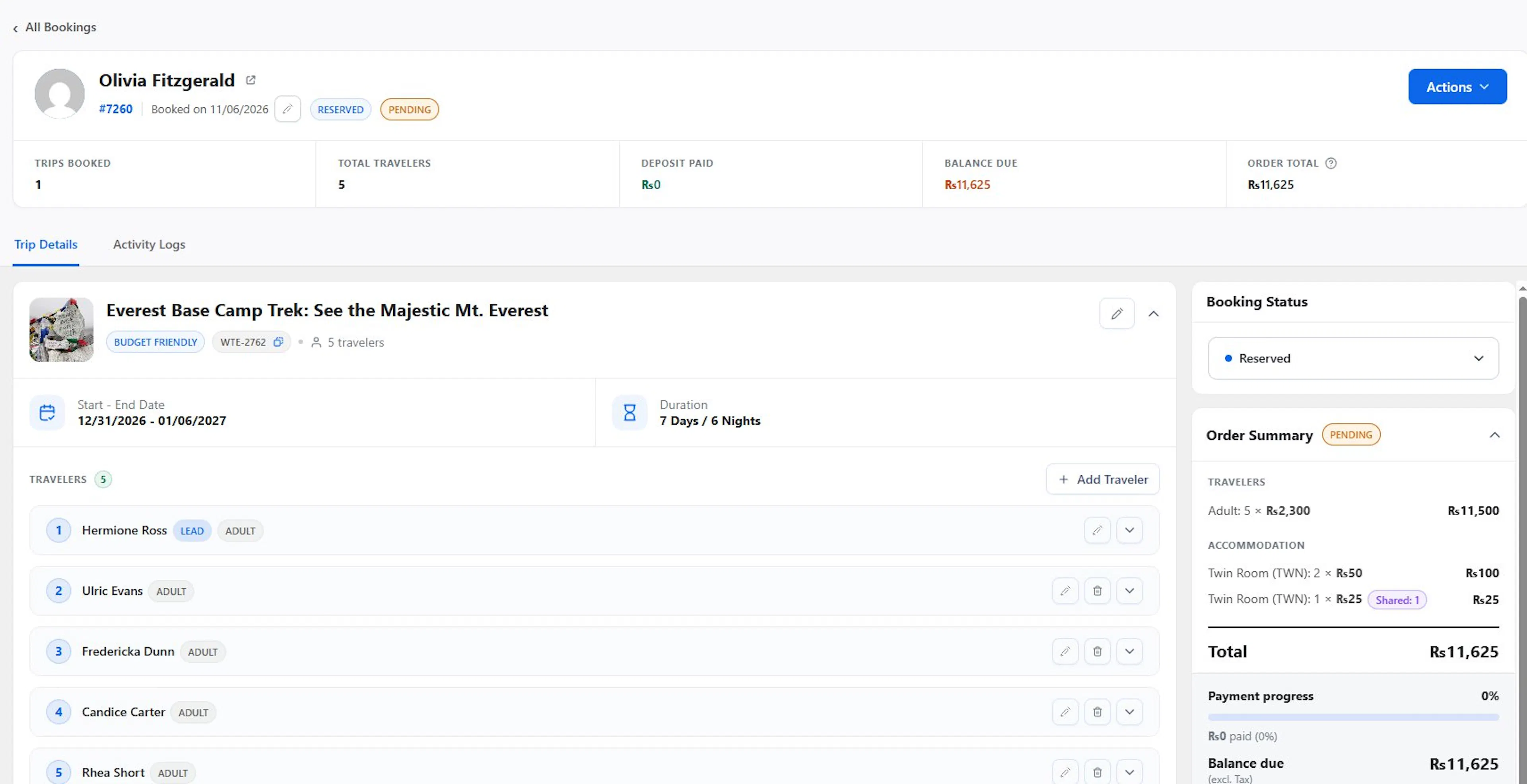
The booking header
- The customer's name (or Unnamed customer) with a link to View customer profile.
- The booking reference and Booked on date. Use Change booking date next to it to change the date the booking was placed (not the trip date), then click Save Date.
- The booking status tag and any badges such as Manual, Modified, or Migrated.
- See Original Booking, on migrated bookings only.
- The Actions menu.
Summary strip
| Figure | What it shows |
|---|---|
| Trips Booked | How many trips are on the booking. |
| Total Travelers | The number of travelers across all trips. |
| Deposit Paid | The amount collected so far, after refunds. |
| Balance Due | The amount still owed. Shown as Overpaid when the traveler paid more than the booking costs. |
| Order Total | The trip total after discounts, excluding the booking fee and tax. |
Tabs
- Trip Details: trips, travelers, add-ons, payments, billing, emergency contact, special requests, and internal notes.
- Activity Logs: a timeline of changes. See Activity Logs.
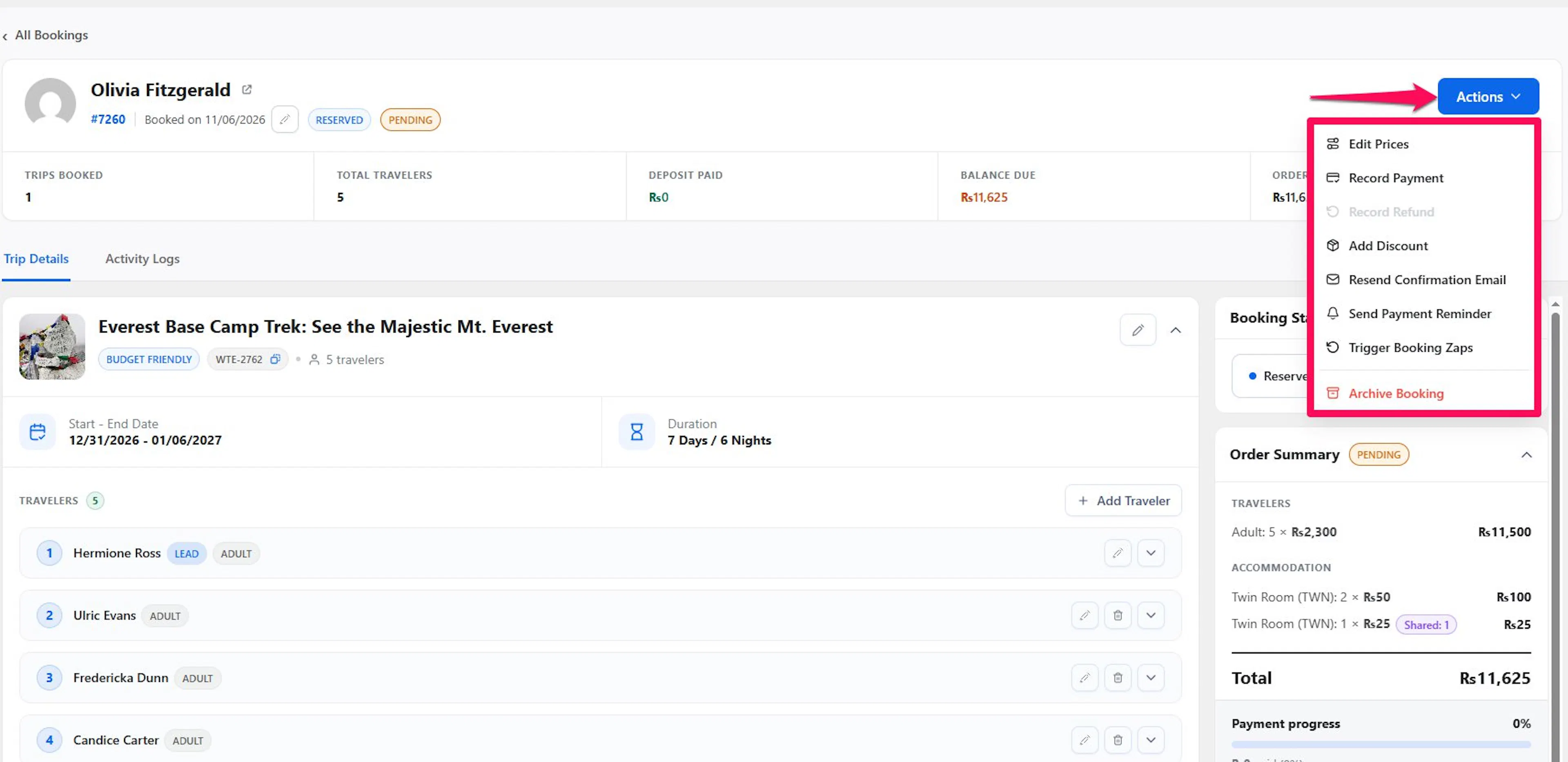
The Actions menu
| Action | What it does |
|---|---|
| Edit Prices | Change the price of each traveler type. |
| Record Payment | Record a payment or create a payment link. Shown only while a balance is due. |
| Record Refund | Record money returned to the traveler. Grayed out when nothing can be refunded. |
| Add Discount | Apply a coupon or custom discount. |
| Resend Confirmation Email | Sends the booking confirmation to the traveler again. The booking needs at least one payment. You see the confirmation email sent. |
| Send Payment Reminder | Emails the traveler a reminder with the payment link. |
| Trigger Booking Zaps | Sends the booking to your Zapier webhooks. Requires the Zapier add-on. |
| Archive Booking | Sets the status to Archived. Shown in red at the bottom. On an archived booking, it reads Unarchive Booking and puts back the previous status. |
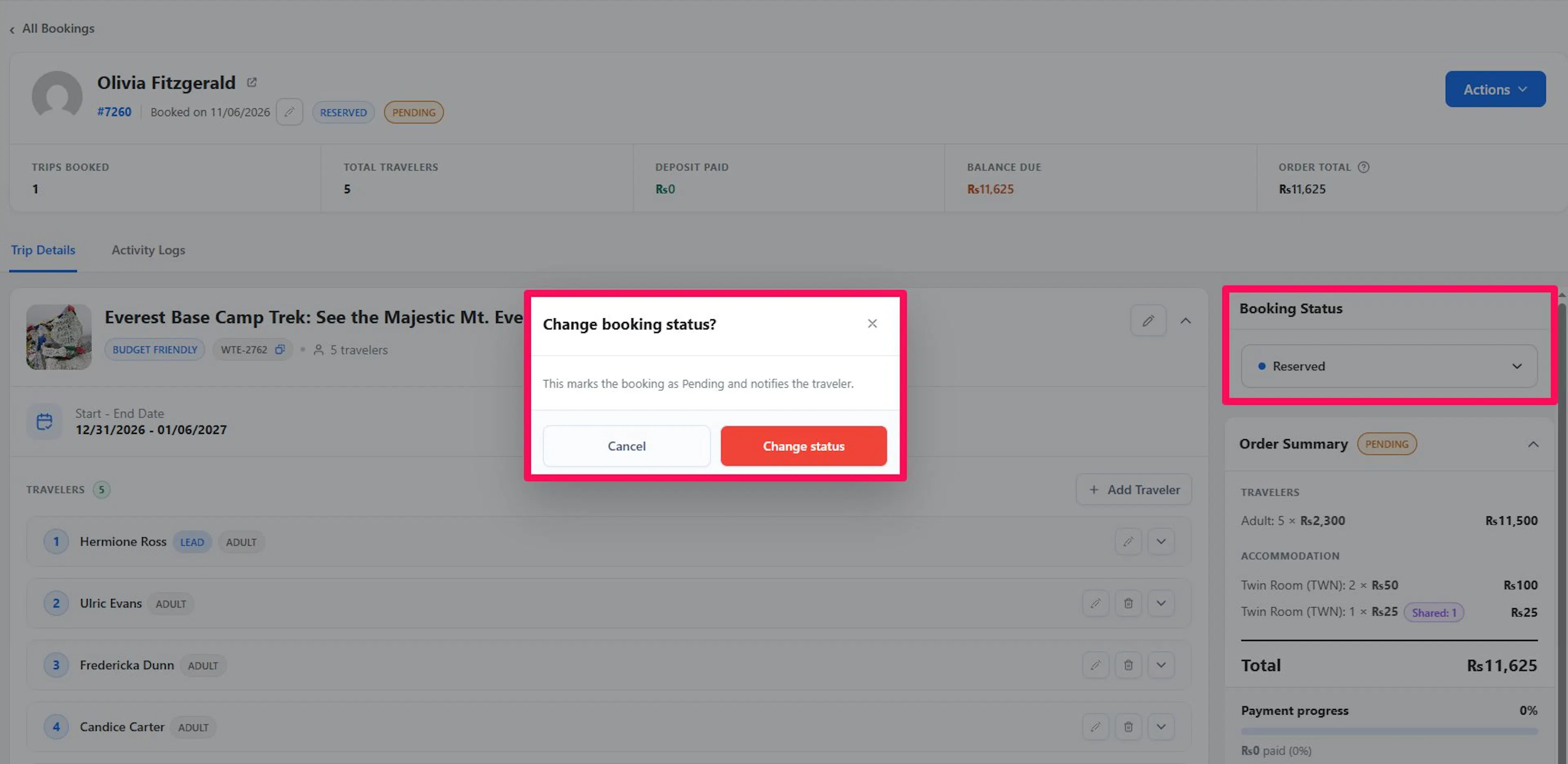
Change the booking status
- In the Booking Status card, pick the new status.
- The Change booking status? window says This marks the booking as [status] and notifies the traveler.
- Click Change status.
Changing the status never records or removes a payment. Canceled and Refunded free the booking's seats, and a canceled booking no longer shows a payment link. Archiving keeps the seats held. See Booking statuses.
Edit the trip
Each trip has a card labeled Trip 1, Trip 2, and so on, with the dates, duration, trip code, and travelers.
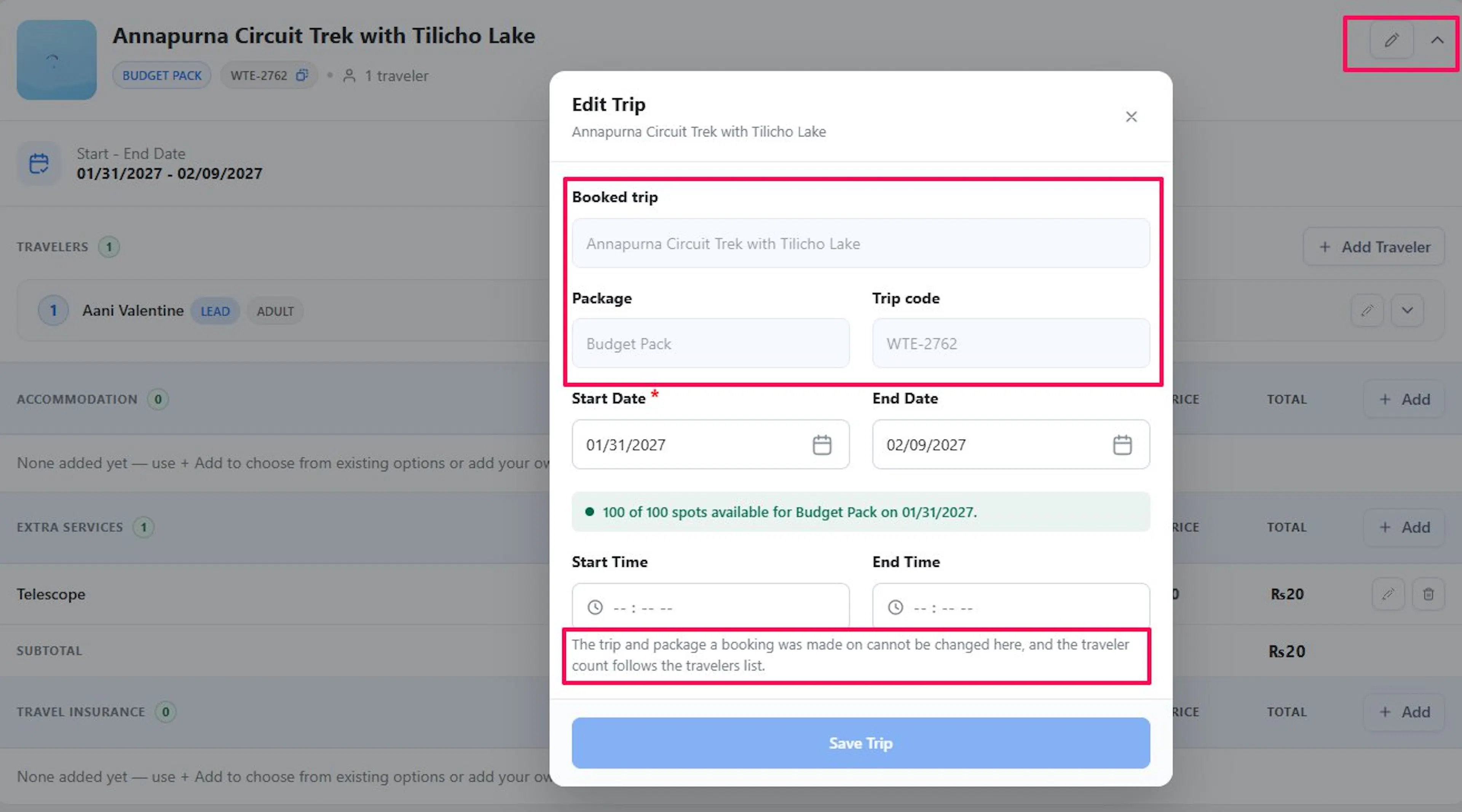
- Click Edit on the trip card.
- Change the Start Date, End Date, Start Time, and End Time as needed.
- If the trip has pickup points, pick a new Pickup location under Select a pickup point (requires the Pickup Points add-on).
- Click Save Trip.
You cannot change the trip or package a booking was made on. Moving to a new date frees the seats on the old date and holds them on the new one.
While you pick a date, the window shows how many seats are left:
- [X] of [Y] spots available for [package] on [date].
- Oversold by [X] spots for [package] on [date].
- This departure has already passed.
- Not a departure date for this package.
These are warnings only. You can still save.
Manage travelers
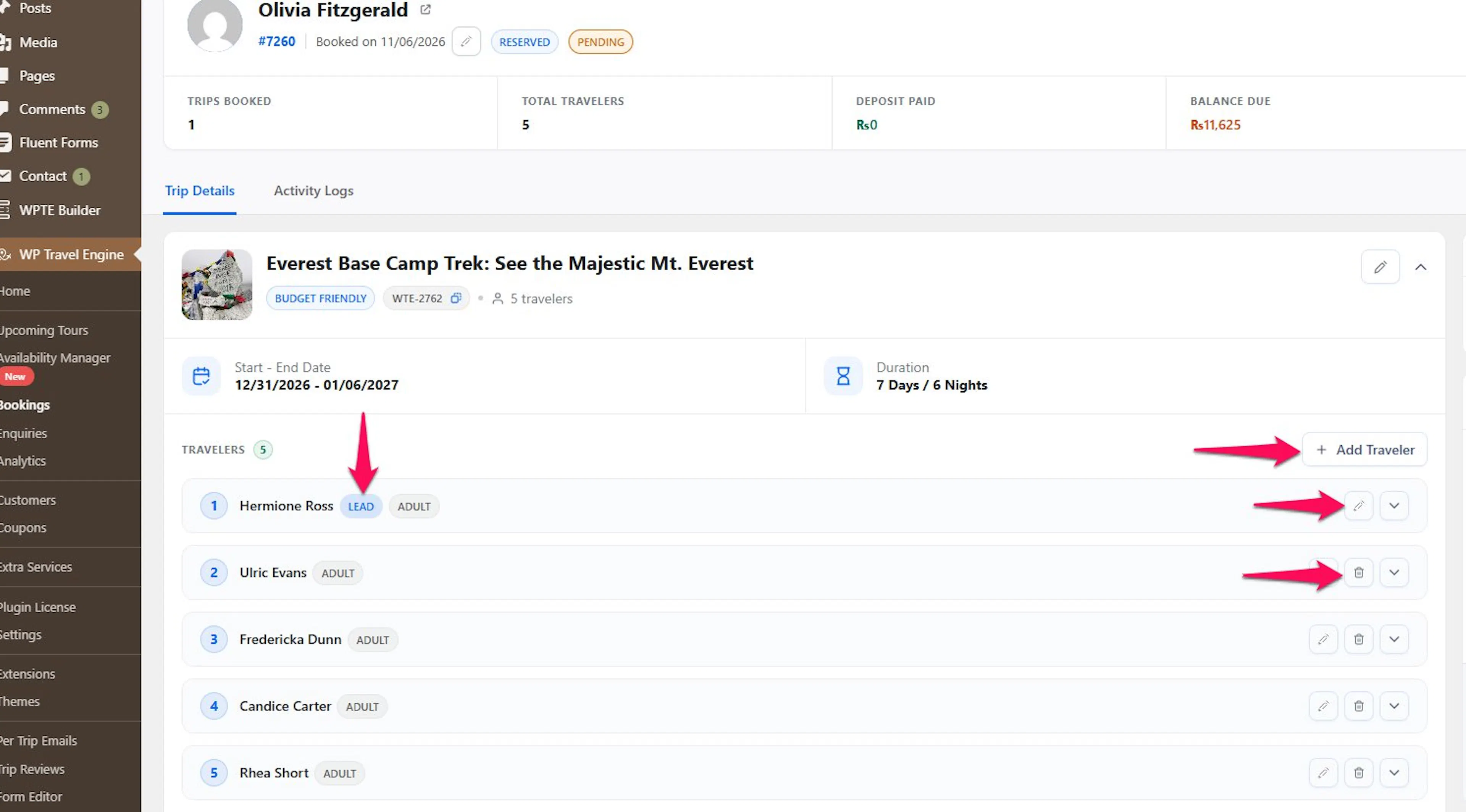
The Travelers section lists everyone on the trip. The first traveler is the lead and has a LEAD badge. A traveler with no name shows as Unnamed traveler, and one with no details shows No details were collected for this traveler.
- Edit a traveler: click the edit icon, update the details, and click Save Traveler.
- Add a traveler: click Add Traveler, choose the traveler type, fill in the details, and click Save Traveler. The window shows the rate added to the trip total.
- Remove a traveler: click the remove icon and confirm. The traveler is dropped, and the totals are recalculated. This cannot be undone.
The lead traveler cannot be removed. To change who the lead is, edit the lead traveler's details. If a traveler type was deleted from the trip after booking, it shows as Category [name] (Deleted).
Add-ons
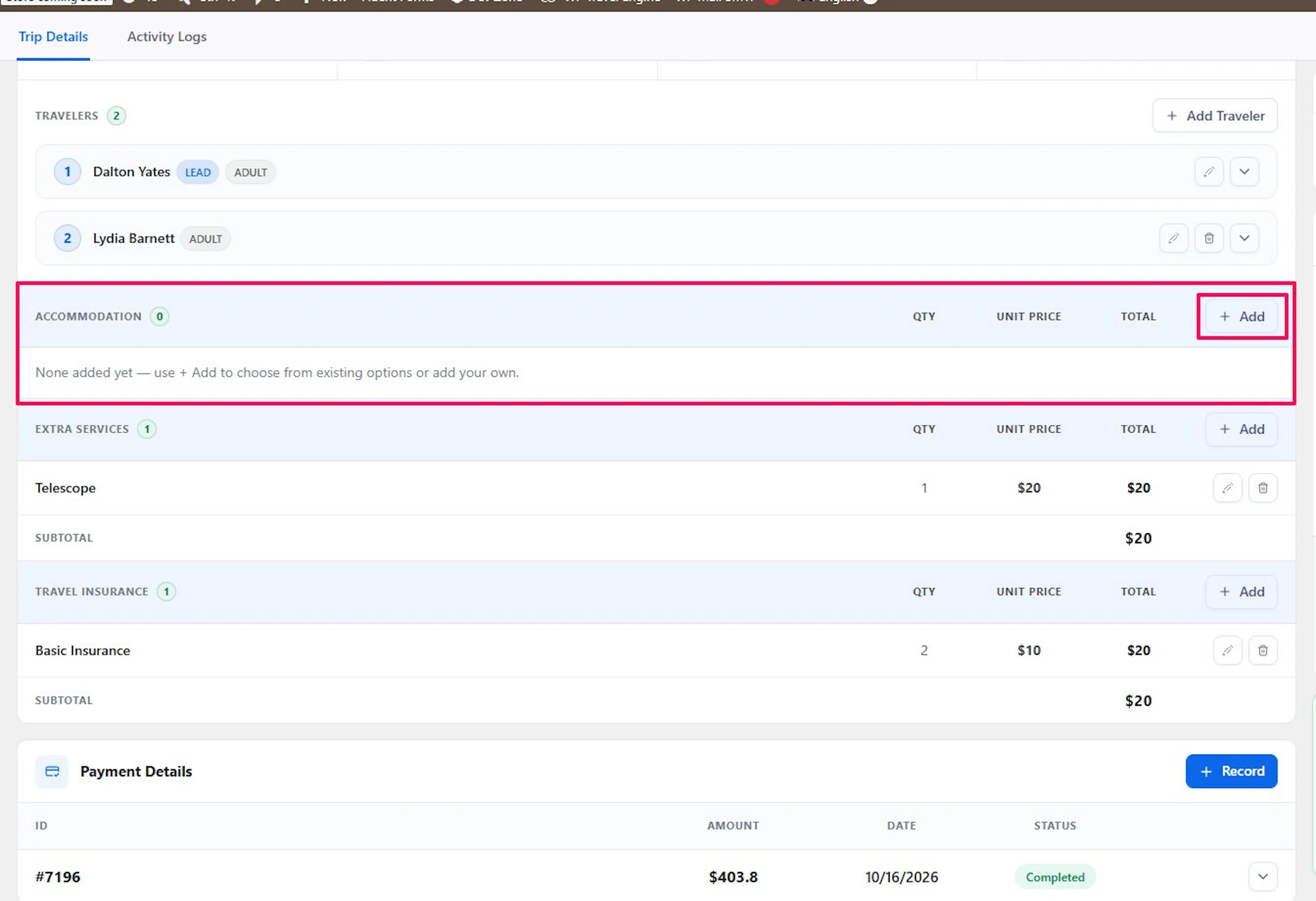
If the Accommodation, Extra Services, or Travel Insurance add-on is active, its section appears on the trip card. For each one, you can:
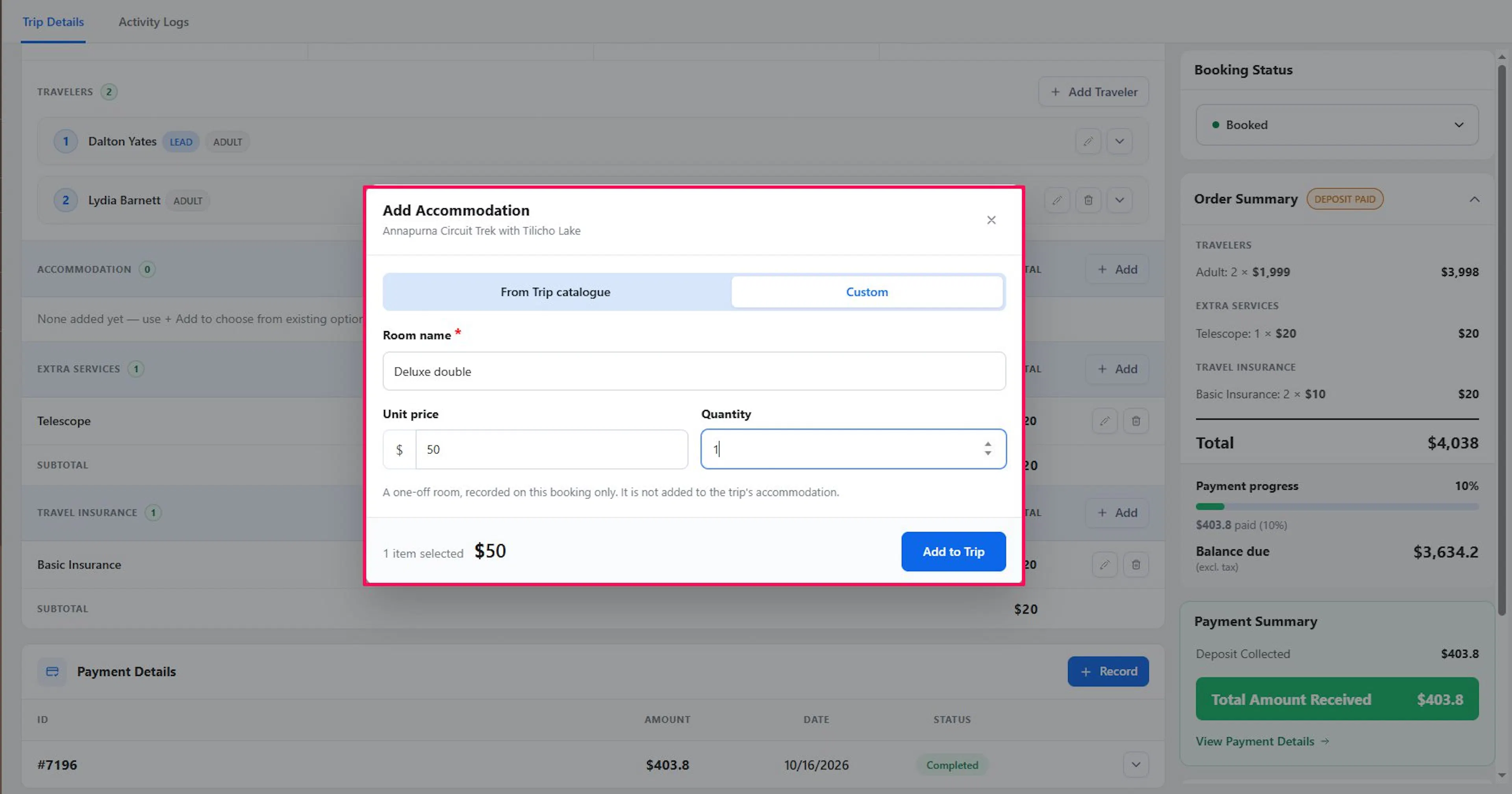
- Pick from the trip's options (From Trip catalogue), or
- Choose Add my own to add a one-off item for this booking only. It is not added to the trip.
- Click Add in the section (for example, Add Accommodation).
- Pick items and set the quantity, or enter a name and Unit price for your own item.
- Click Add to Trip.
To change an item, click its edit icon. To remove it, click its remove icon and confirm. The totals are recalculated each time. Warnings tell you when you go over availability, add more places than travelers, or add a duplicate, but they do not stop you. An add-on turned off after booking shows a Not Active tag.
Billing details and emergency contact
- Billing Details: click the edit icon, update the fields, and click Save Billing Details. Click View Customer Profile to open the customer. If none was collected, you will see No billing details were collected for this booking.
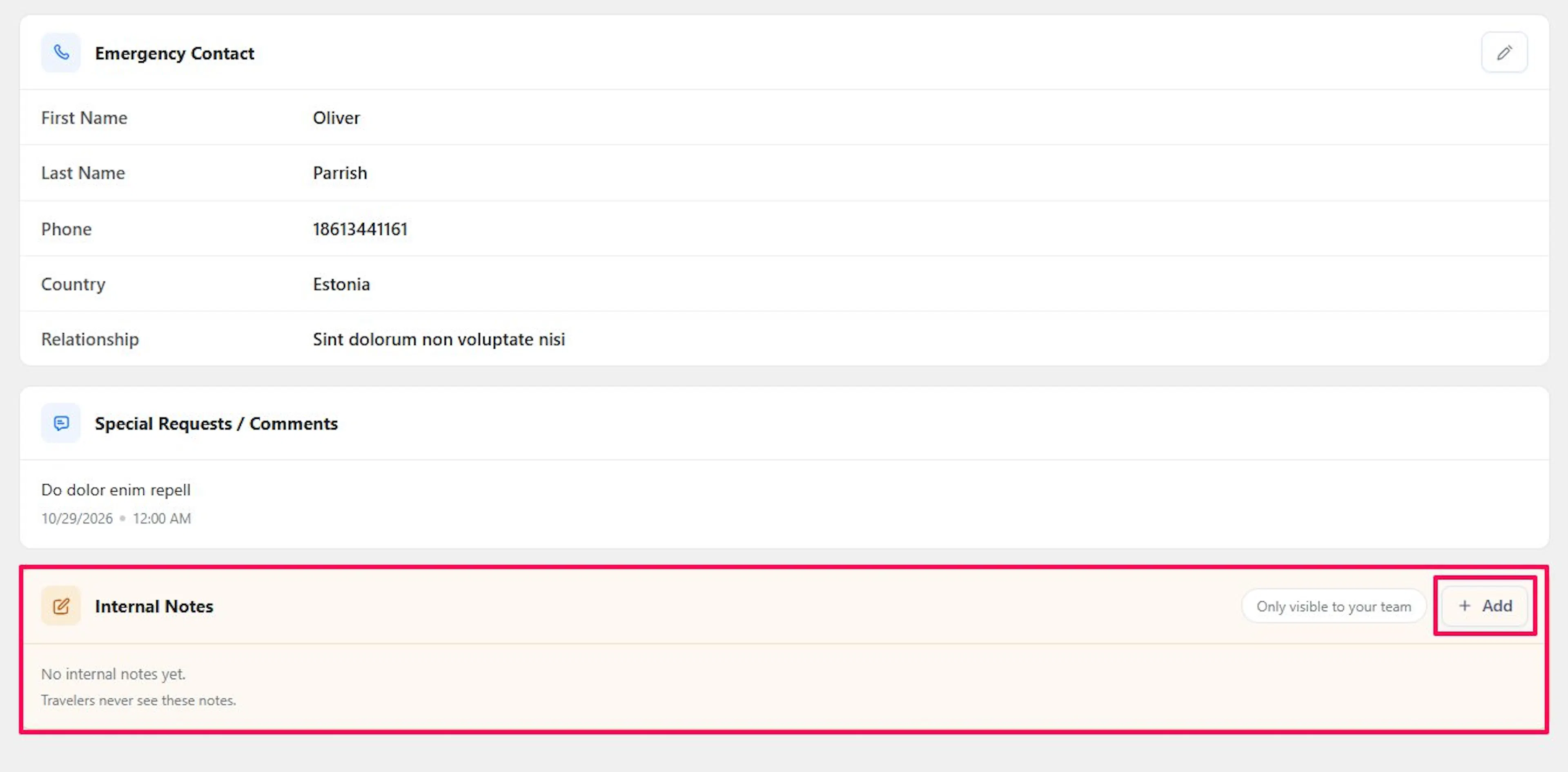
- Emergency Contact: click the edit icon, update the fields, and click Save Contact. The card shows when your checkout asks for an emergency contact or the booking already has one.
The billing email is where payment reminders go.
Special requests and internal notes
Special Requests / Comments shows the note the traveler left at checkout.
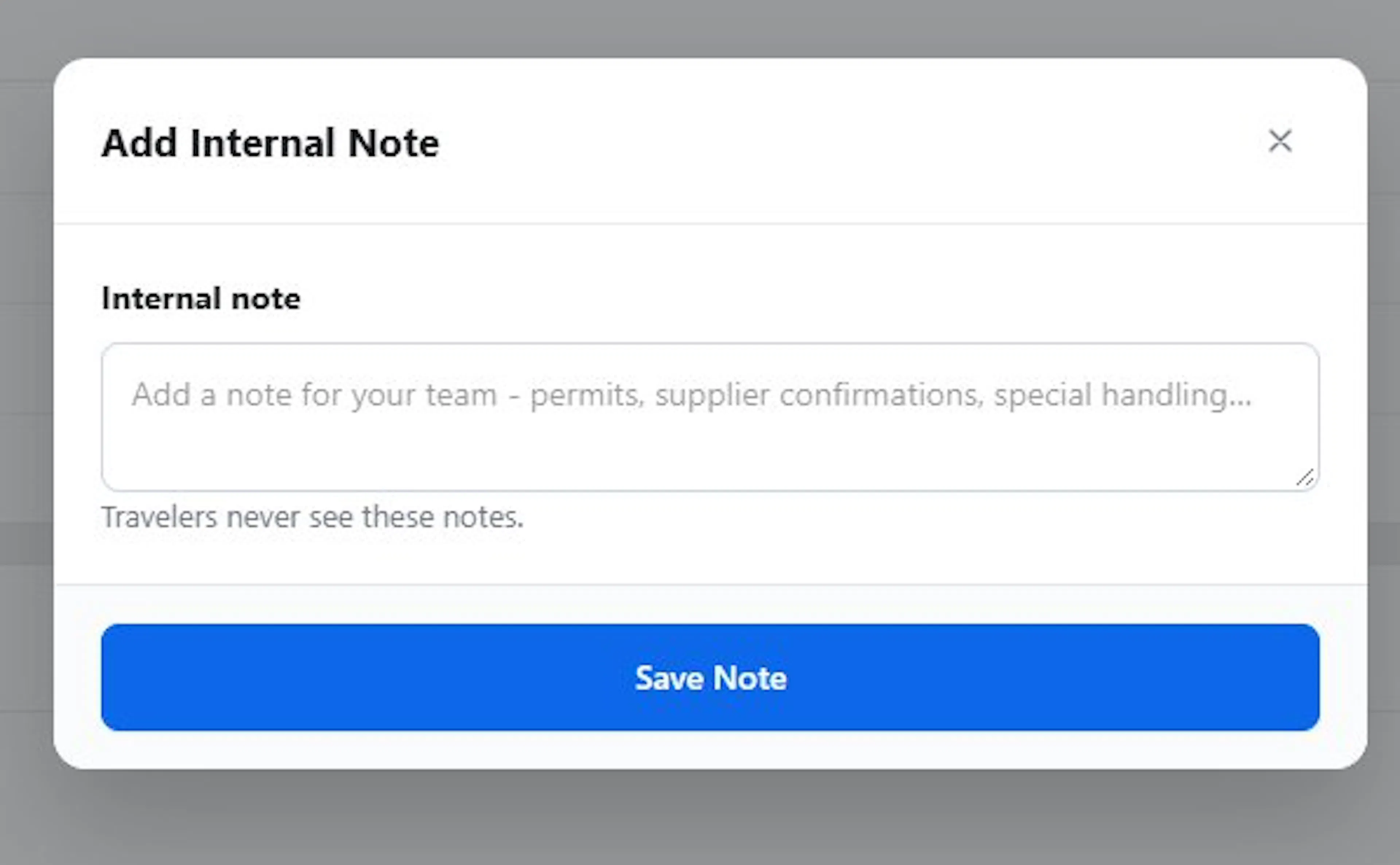
Internal Notes are only for your team. Travelers never see them. You can add as many as you need.
- Click Add under Internal Notes.
- Write the note and click Save Note.
Click the edit icon to change a note, or the delete icon to remove it (Delete this note?). Each note shows who added or updated it, for example, Added by you.
Traveler requests
The Traveler Requests card shows changes a traveler asked for, such as a new date, with a count such as 2 pending. It appears only when an add-on sends requests [verify which add-on]. Open a request to see Request:, Traveler Notes:, and Admin note:. Make the change yourself, then click Mark as Handled.
Commission (SliceWP Integration add-on)
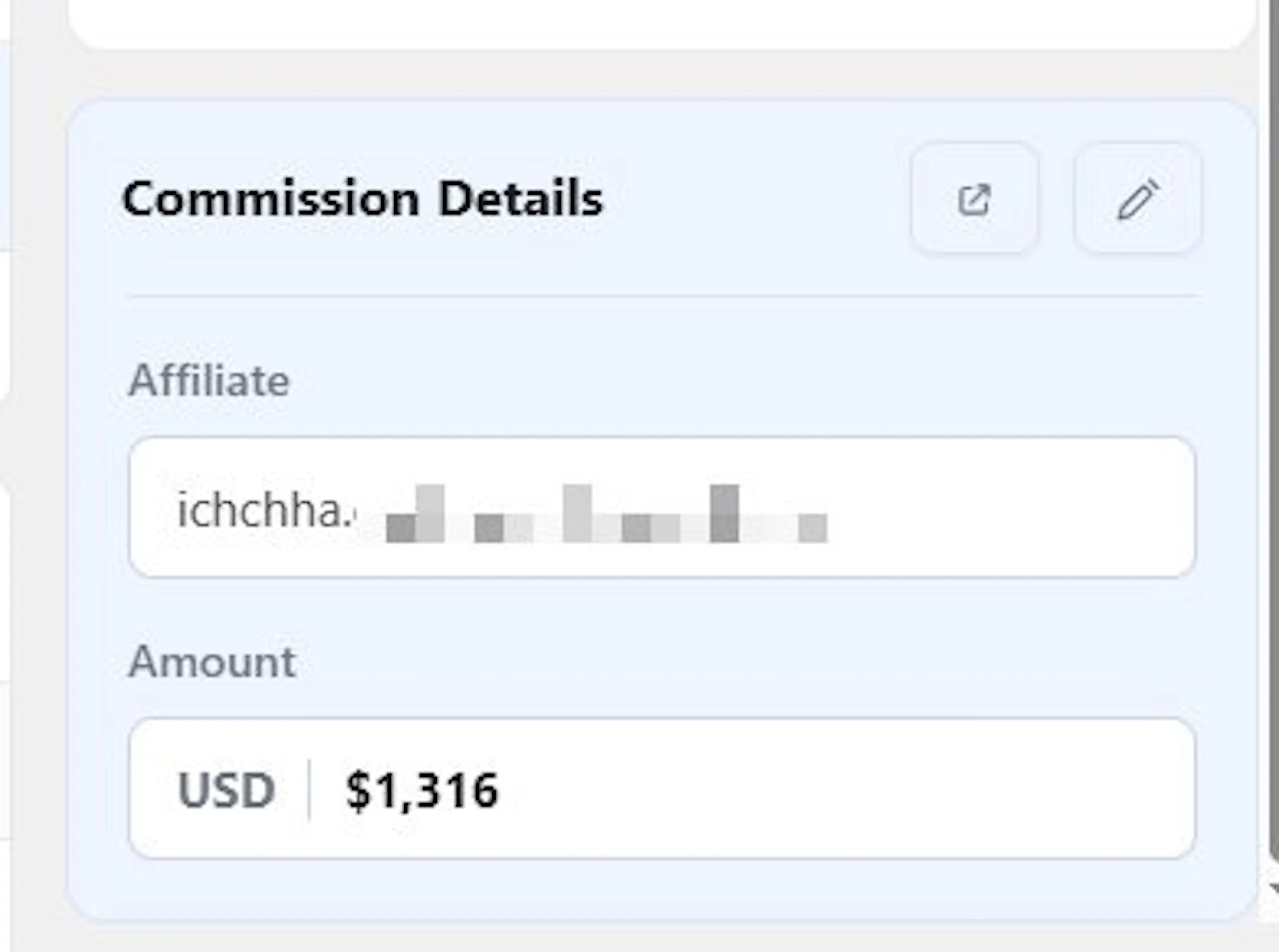
Requires the SliceWP plugin and the SliceWP Integration add-on. A booking that came through an affiliate link shows a Commission Details card with the Affiliate and the commission Amount.
- Click View Details to open the commission in SliceWP.
- Click Edit Commission Amount, enter the amount, and click Save Commission.
The commission does not change by itself when the booking total changes or a refund is issued, and editing it is not recorded in Activity Logs. See SliceWP Integration.
Activity Logs
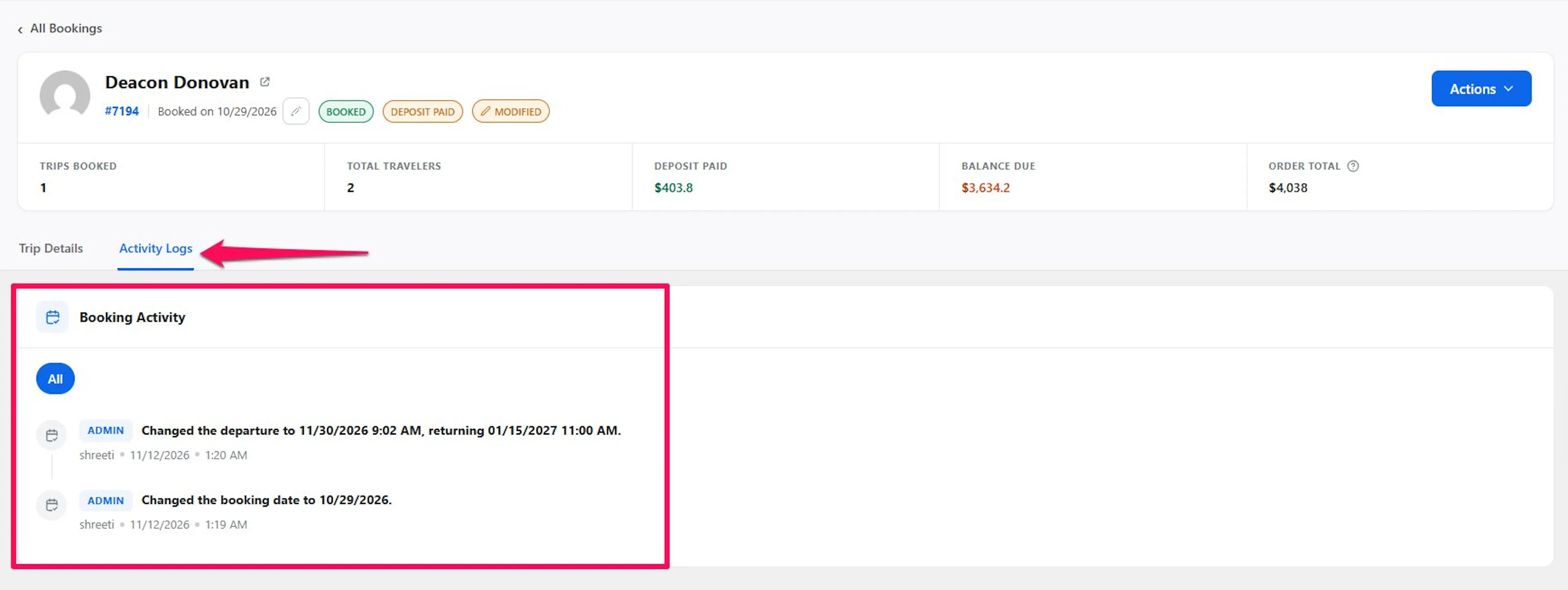
The Activity Logs tab records what happened on the booking. Each entry shows whether a Traveler or an Admin made the change, a description, and who did it and when. Examples:
- Recorded payment #1530 of $1,000.00.
- Changed the booking status from Pending to Booked.
- Changed the departure to 3 March 2027, returning on 17 March 2027.
- Updated Maria Lopez details.
- Applied the discount for returning travelers.
Use the filter buttons, such as All, Payments, and Add-ons, to narrow the list. Only filters with entries appear. Commission edits are not recorded.
What happens when...
- You remove a traveler: the price of one traveler of that type comes off the total. If the booking was already paid, it may show Overpaid, so record a refund for the difference.
- You move the booking to a full date: you can still save. The departure becomes oversold.
- You archive a booking with a balance due: the balance stays on the booking but leaves the dashboard totals. Seats stay held. Cancel instead if the balance should not be collected.
- The trip on the booking was deleted: the booking shows the trip ID without a link, and the payment link cannot be used.
If you're still stuck or have a question we didn't cover, our support team is happy to help. Reach out at our support page and we'll get you sorted.