

Booking Payments
Track and collect money on a booking: payment figures, recording payments, payment links, reminders, editing prices and discounts.
Introduction
Every booking keeps its own record of what it costs, what has been paid, and what is still owed. This page explains those figures and how to collect and adjust money from the booking page. To return money to a traveler, see Booking Refunds.
Available from WP Travel Engine 6.9.0.
WP Travel Engine records payments. Except for online payments through your gateway, the money itself moves through your bank or payment provider.
Payment figures on a booking
Payment figures on a booking
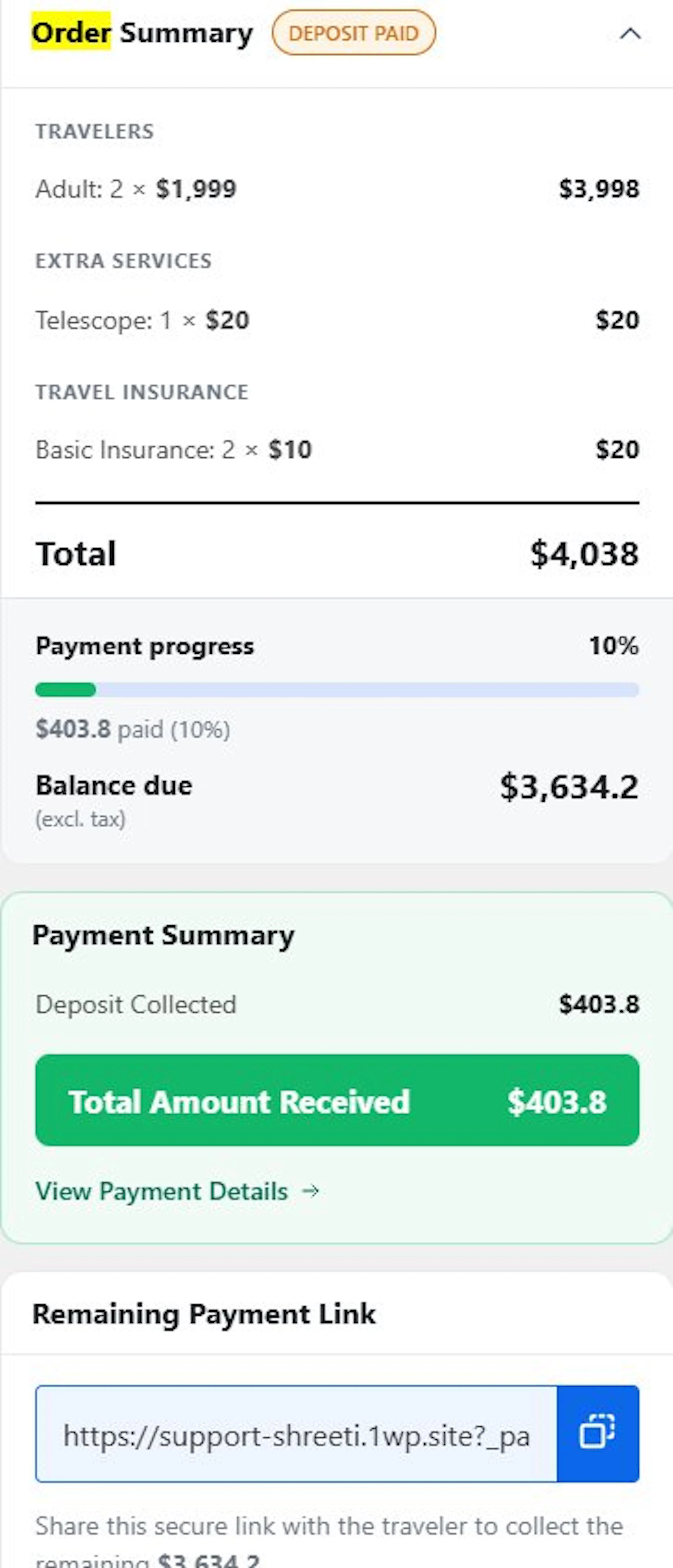
- Order Summary: lists each trip, traveler, and add-on, any discounts (with a remove button), the Total, the Payment progress (for example $720.00 paid (30%)), and the Balance due. Its tag shows Unpaid, Deposit Paid, or Fully Paid.
- Payment Summary: shows Deposit Collected, each fee such as tax, any Refunded amount, and the Total Amount Received. Click View Payment Details to see each payment.
- Overpaid: shown when the traveler paid more than the booking now costs, for example after a discount. Record a refund for the difference. See Booking Refunds.
A refund lowers what was paid but does not raise the Balance Due.
Payment Details
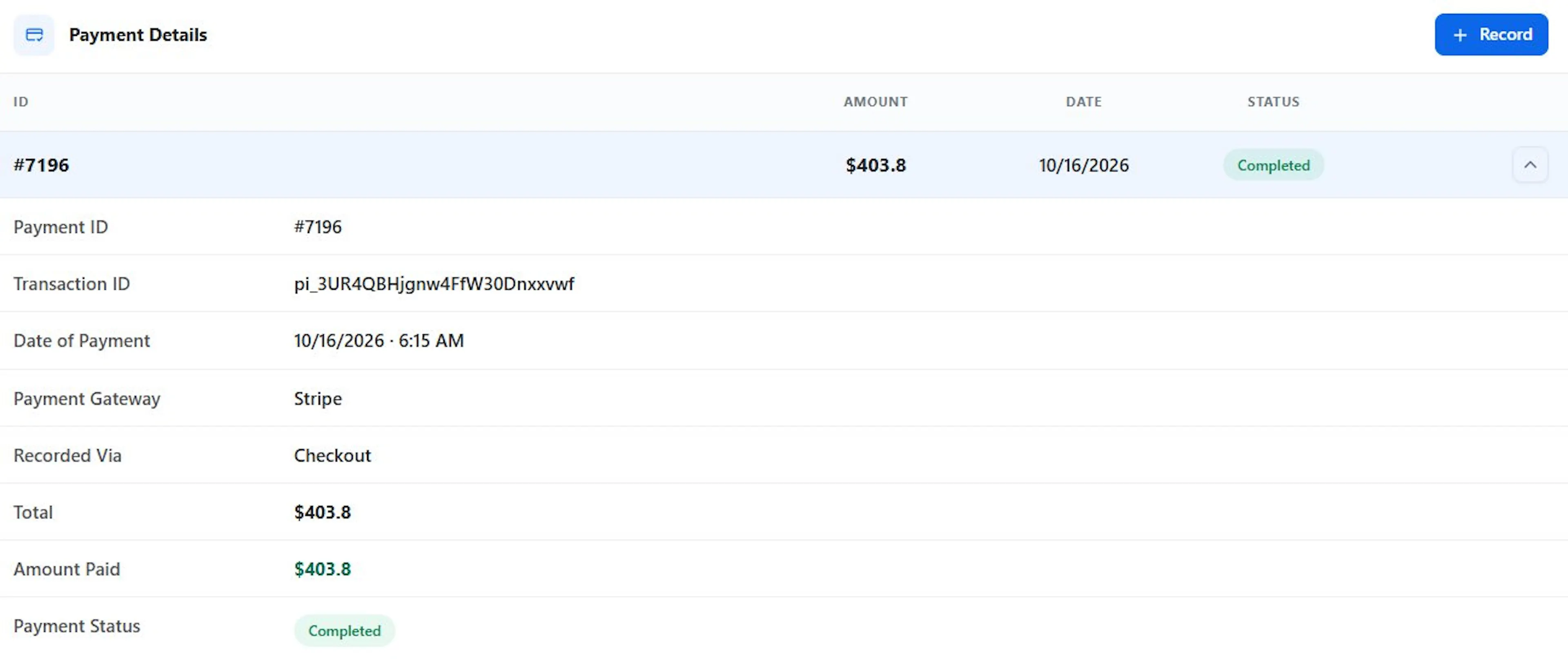
Each payment is listed with its Payment ID, Transaction ID, Date of Payment, Payment Gateway, Recorded Via (Checkout or Admin), Amount Paid, and Payment Status (Completed, Pending, Failed, or Refunded). Settled In shows the currency when it differs from the booking's currency. If there are none, you see No payments have been recorded against this booking.
Record a payment
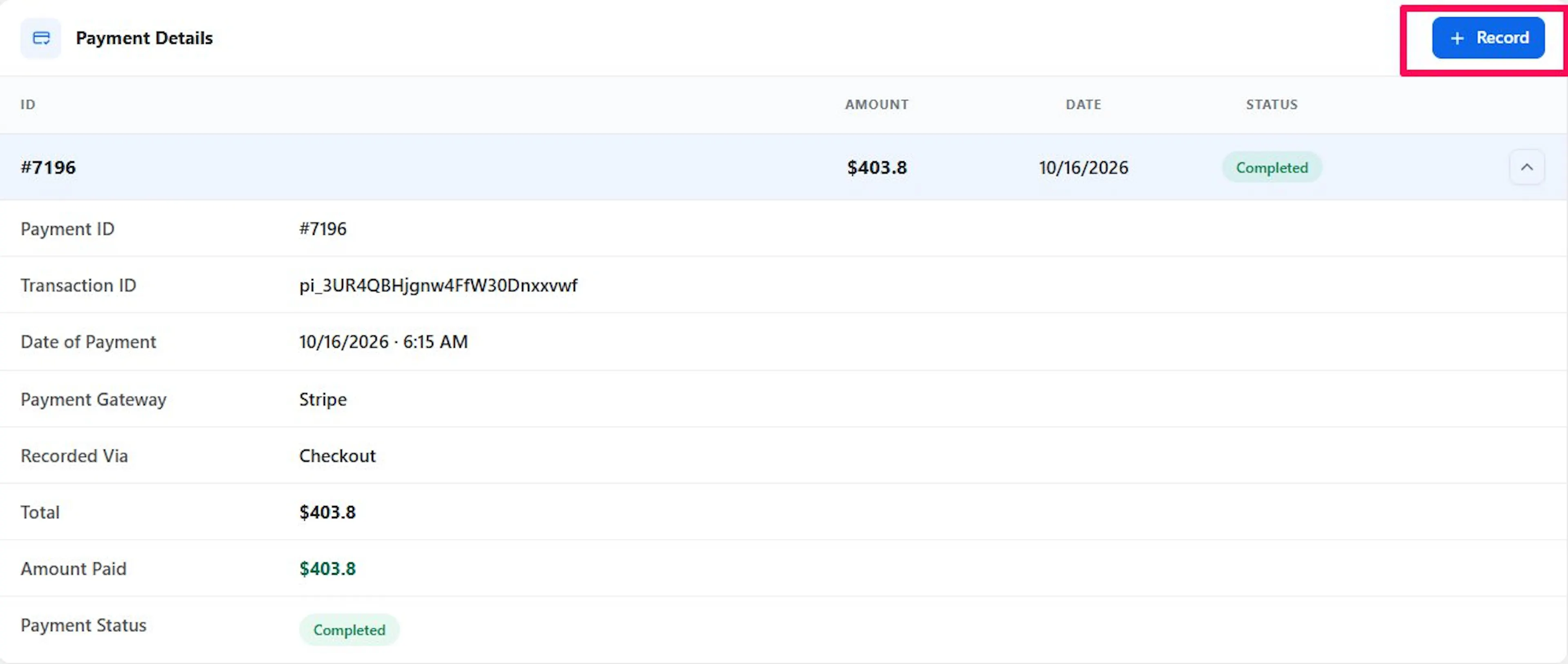
- Open the booking, click Actions, then Record Payment. You can also click Record in Payment Details. Both appear only while a balance is due.
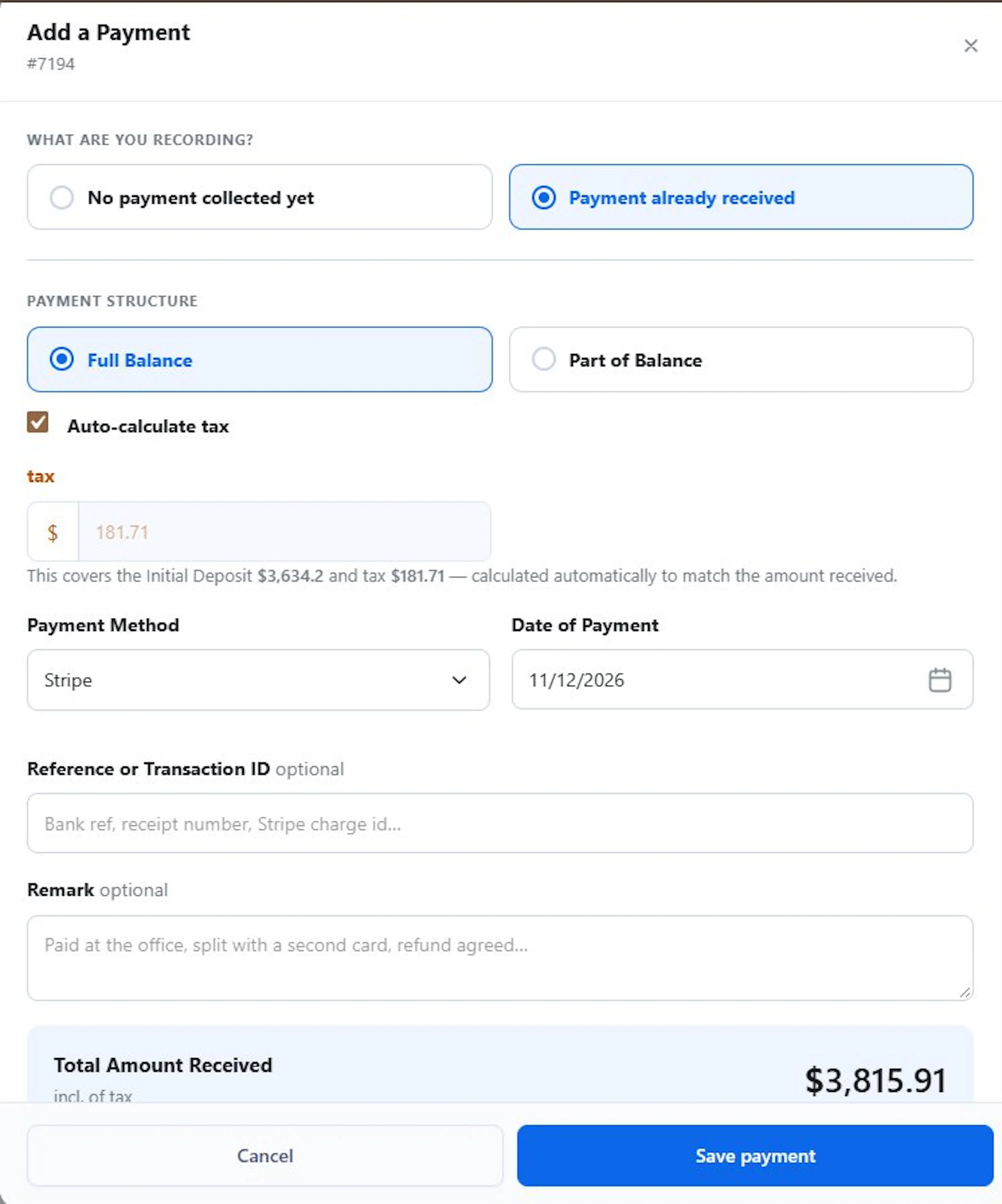
- Under What are you recording? choose Payment already received.
- Choose Full Balance Due or Part of Balance Due.
- Enter the Deposit Received. It cannot be more than the balance due.
- Leave Auto-calculate on to work out tax and fees, or turn it off to type the charges yourself.
- Set the Payment Status, Payment Method, and Date of Payment, and add a Reference or Transaction ID and Remark if needed.
- Click Save payment.
Recording a payment does not change the booking status. Change it to Booked yourself if needed.
Edit or delete a payment
- Edit: click the edit icon on the payment, change the details and click Save payment. A completed checkout payment cannot be edited.
- Delete: click the delete icon and confirm (Delete this payment?). You can delete a payment only if no money was taken on it, such as an unpaid payment link. On bookings you added yourself, any payment can be deleted. To correct a payment that was taken, record a refund instead. See Booking Refunds.
Payment links
Share the Remaining Payment Link
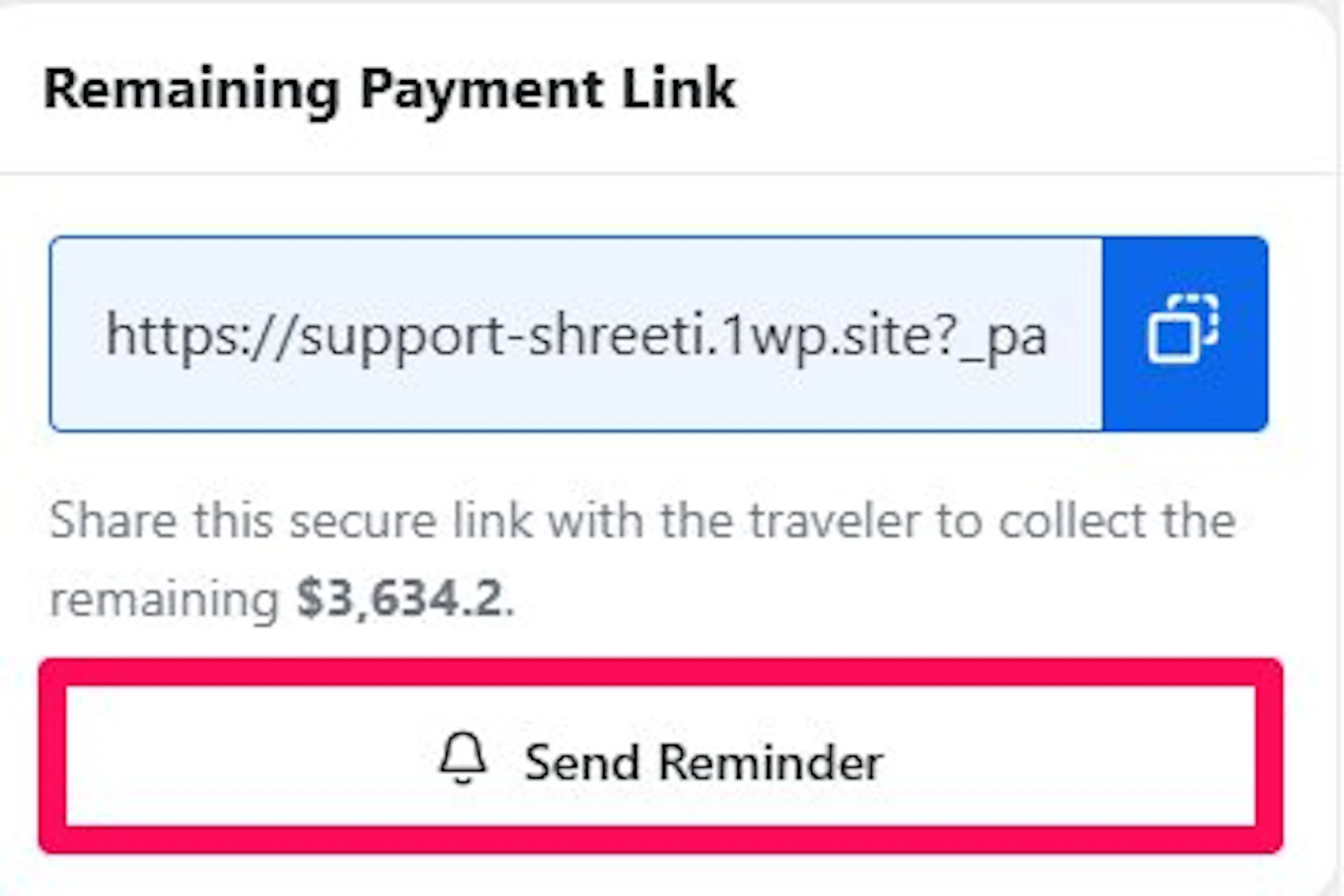
When a balance is due, the booking shows a Remaining Payment Link card: Share this secure link with the traveler to collect the remaining [amount]. Copy the link and send it, or click Send Reminder. The link always asks for the current balance and is hidden when the balance is zero or the booking is Canceled.
Create a link for a custom amount
- Click Actions, then Record Payment.
- Choose No payment collected yet.
- Choose Part of Balance Due, then % of Balance Due or Fixed amount, and enter the Deposit Value.
- Check the Amount on the Payment link. It includes tax but not the booking fee.
- Click Create payment link.
The link appears in Payment Details as a Pending payment. Open it and copy the Payment Link. When the traveler pays, the booking updates itself. If the balance later falls below the link's amount, the link can no longer be used, so delete it and create a new one.
If the trip on the booking was deleted, payment links cannot be used. Record the payment manually once you receive it.
Send a payment reminder
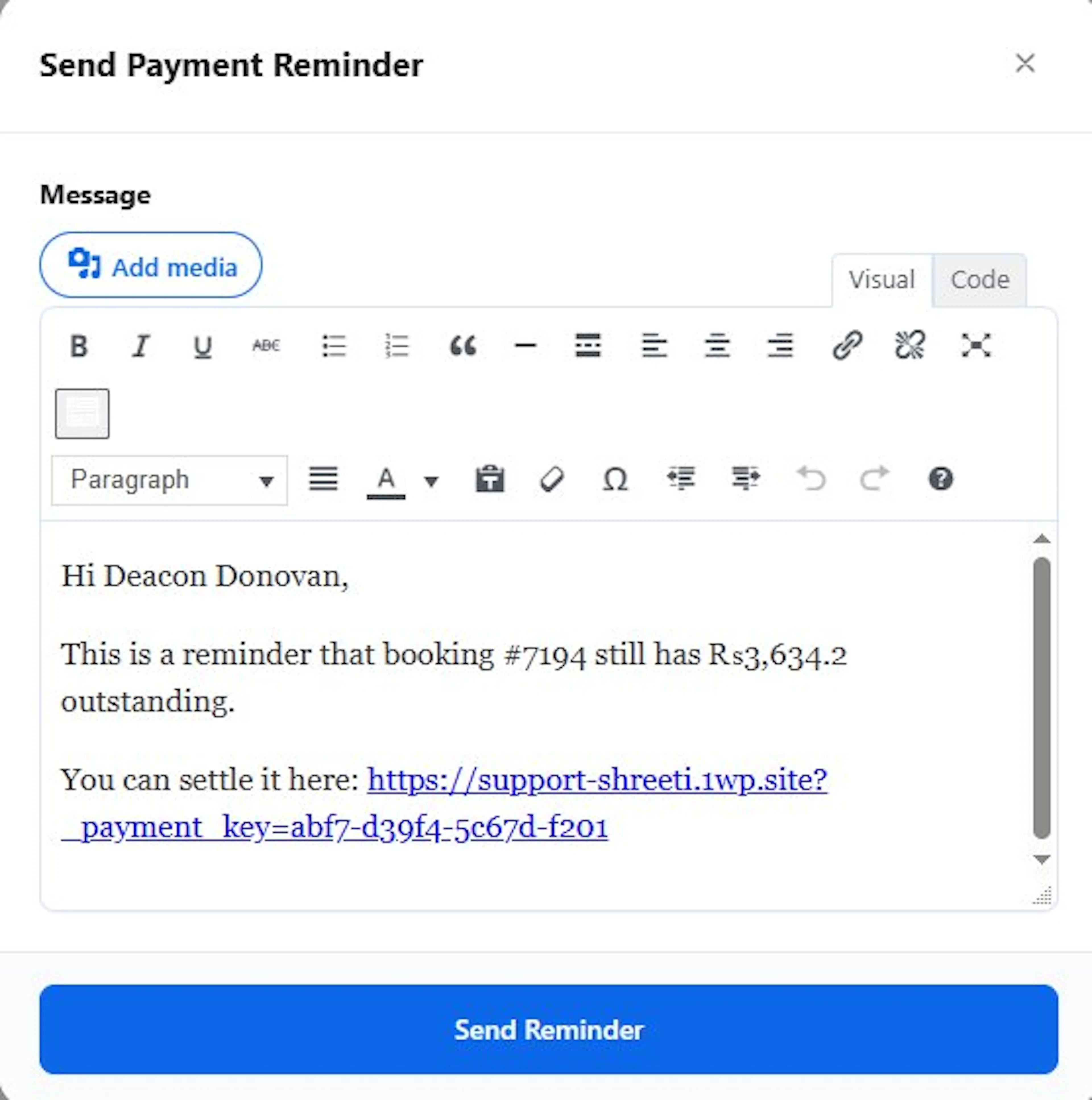
- Click Actions, then Send Payment Reminder.
- Review or edit the Message. It includes the balance due and the payment link.
- Click Send Reminder. You see Payment reminder sent.
The reminder goes to the billing email. It is sent only when you click the button.
Edit prices
- Click Actions, then Edit Prices.
- Change the unit price for each traveler type.
- Click Save Prices.
The new price applies to this booking only. If there are no priced travelers, you see No priced travelers found on this booking.
Add or remove a discount
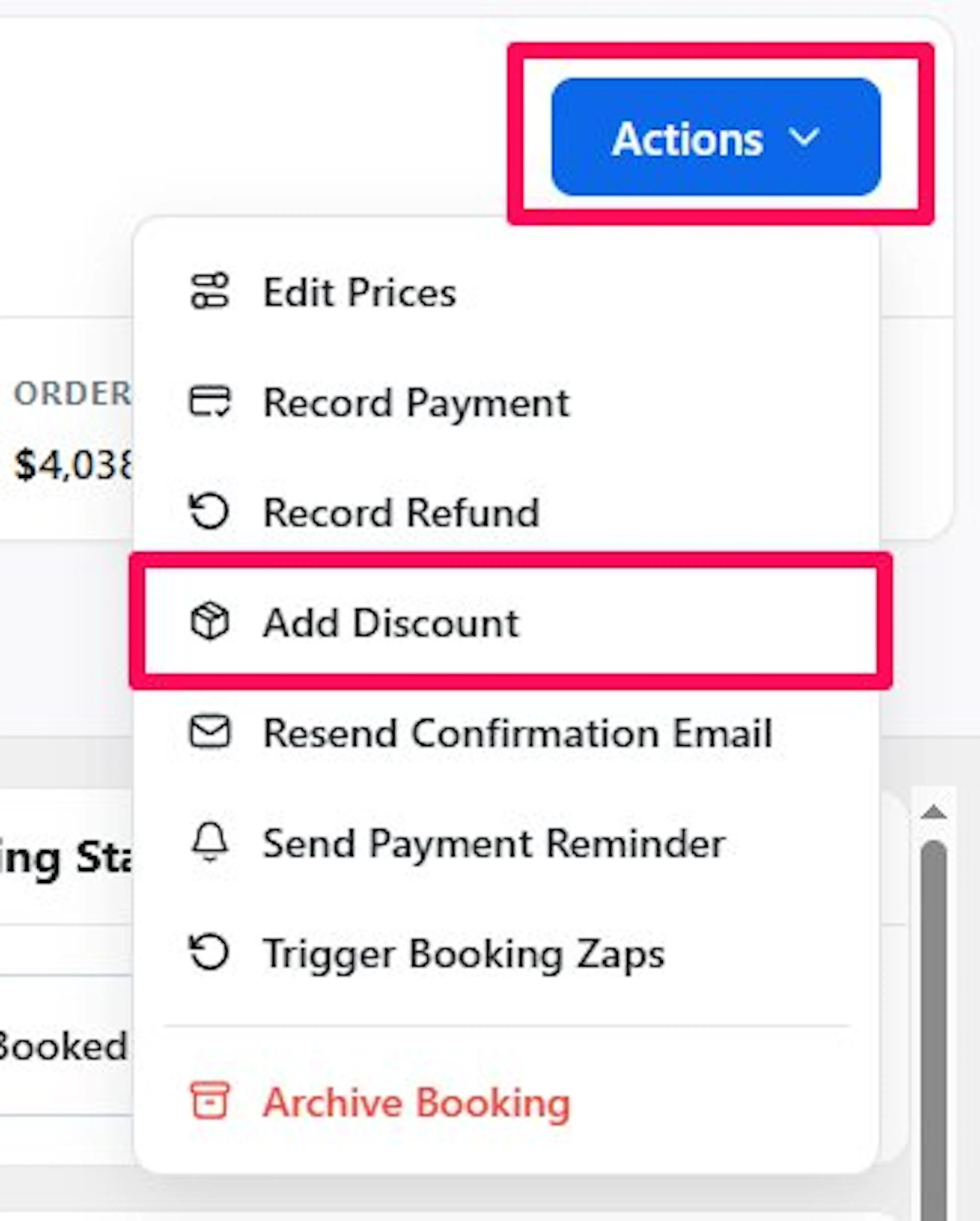
- Click Actions, then Add Discount.
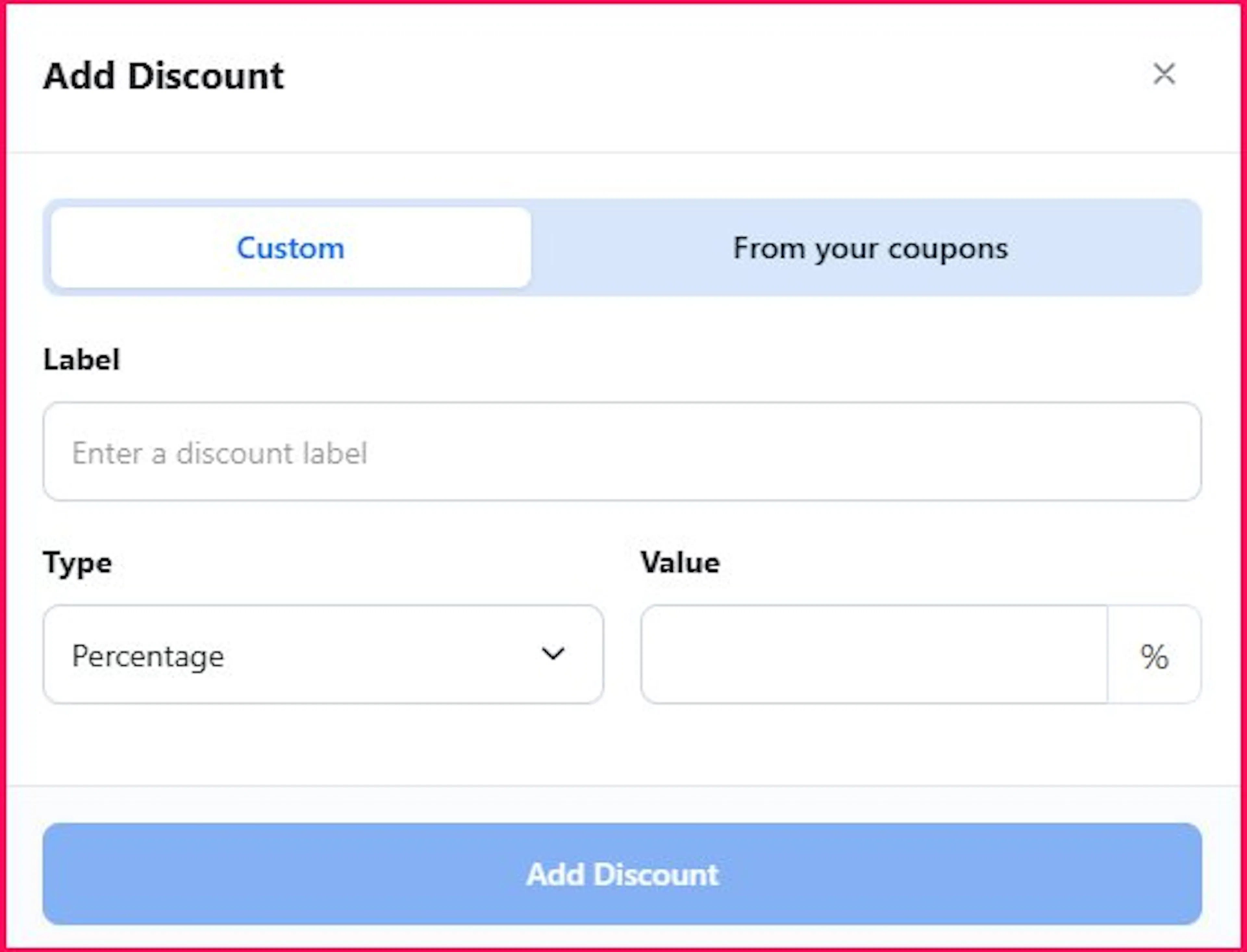
- Choose from your coupons and pick one under Select a Coupon, or choose Custom and enter a Label, a Type (Percentage or Fixed amount), and a Value. A percentage must be less than 100%.
- Click Save Discount.
To remove it, click the remove button next to the discount in the Order Summary and confirm. Deleting a coupon later does not change bookings that already use it.
What happens when...
- You add a discount or lower a price after payment: the balance due goes down. If it goes below zero, the booking shows Overpaid. Record a refund for the difference.
- The traveler pays through the link after you recorded the payment: the link always asks for the current balance, so record payments as soon as they arrive.
- You turn tax off after booking: the booking keeps the tax it was made with [verify for bookings made before 6.9.0].
If you're still stuck or have a question we didn't cover, our support team is happy to help. Reach out at our support page and we'll get you sorted.