

Document Emails and Automatic Reminders
Turn on the Document Reminder and Document Uploaded emails, use the document tags, and send reminders automatically.
The Documents add-on adds 2 email templates: Document Reminder, which asks travelers for missing documents, and Document Uploaded, which tells you a traveler has sent files. With the Advanced Email Automator add-on, you can also send reminders on a schedule. This page is part of the Documents add-on.
Available from Documents 2.2.0, with WP Travel Engine 6.9.0.
Turning On the Document Emails
Both templates are off when you install the add-on. The Notify and Notify operator buttons do not send anything until you turn them on.
- Go to WP Travel Engine > Settings > Emails > Notifications.
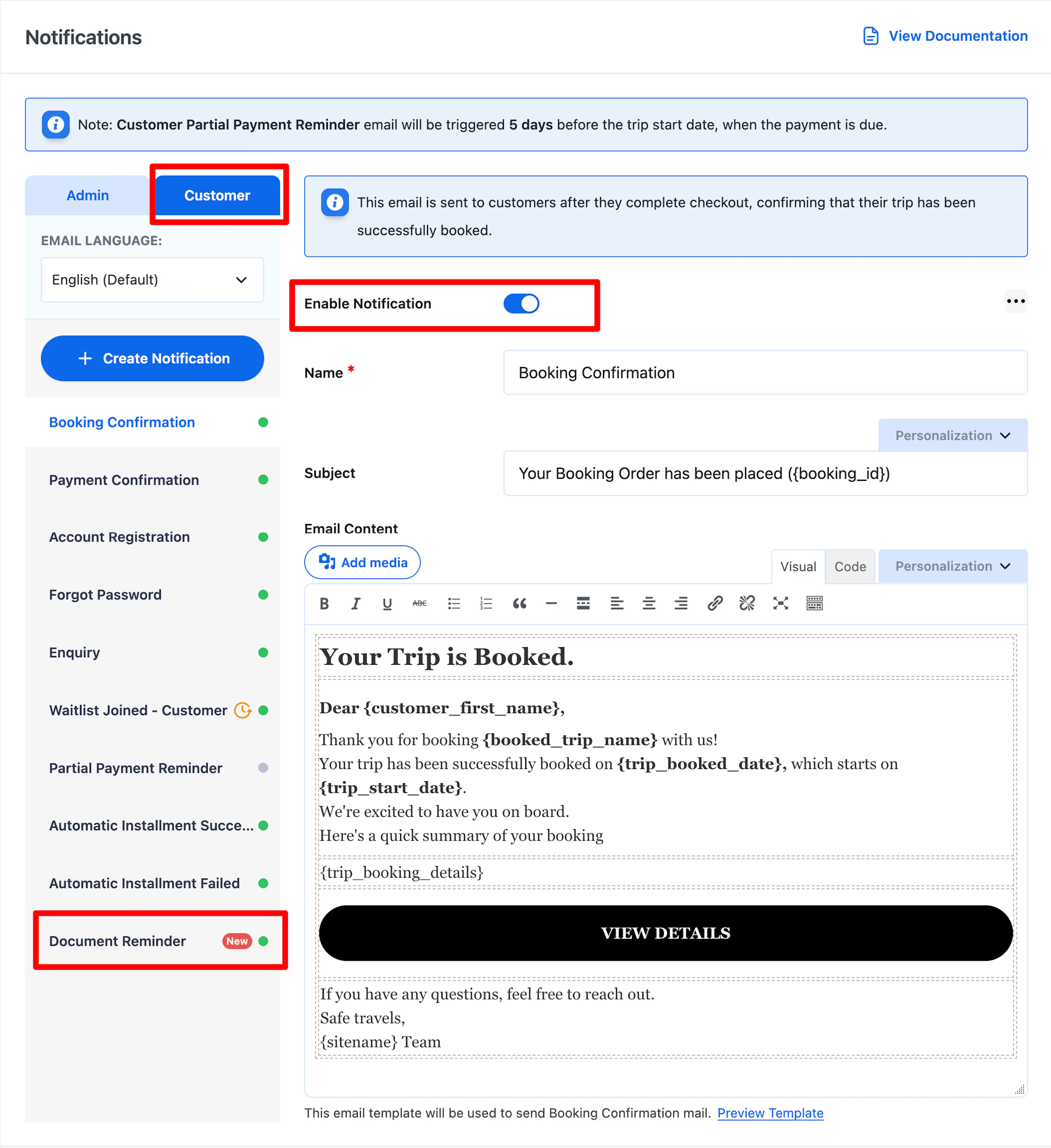
- Open the Customer tab and select Document Reminder.
- Turn on Enable Notification.
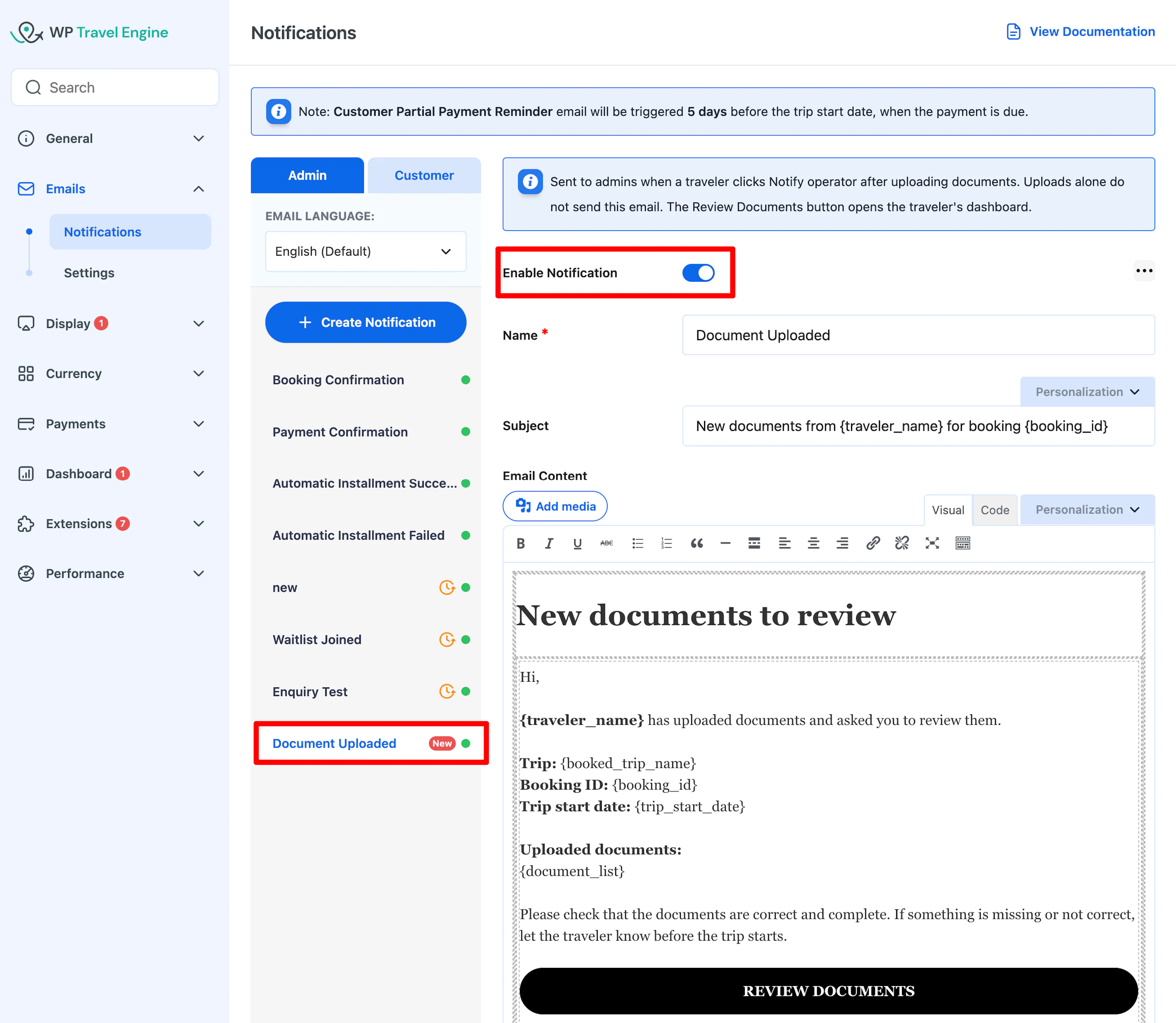
- Open the Admin tab and select Document Uploaded.
- Turn on Enable Notification.
- Click Save Settings.
Editing the Document Reminder Email
The Document Reminder email goes to the traveler's billing email when you click Notify on a booking. It is under WP Travel Engine > Settings > Emails > Notifications > Customer.
The default subject is "Documents needed for your trip – {booking_id}". The default text greets the traveler, names the trip and start date, lists the missing documents, and has an Upload Documents button that opens the booking in My Account.
Change the subject or content or button text, then click Save Settings. When you send a reminder from a booking, you can still change the subject and content for that one email.
Editing the Document Uploaded Email
The Document Uploaded email goes to you, the admin, when a traveler clicks Notify operator. It is under WP Travel Engine > Settings > Emails > Notifications > Admin. Uploads alone do not send this email. The traveler has to notify you to get this email.
Personalization Tags for Documents
The Documents add-on adds 4 tags to the Personalization list in the email editor.
| Tag | What it shows | Where it works |
|---|---|---|
{pending_documents} | The missing documents as a list. Per-traveler requests name who still owes them. | Any booking email |
{upload_documents_url} | A link to the booking in the traveler's My Account. | Any booking email |
{traveler_name} | The traveler who uploaded documents. | Document Uploaded email |
{document_list} | The documents just uploaded, as a list. | Document Uploaded email |
Tip: Add {pending_documents} to your booking confirmation email so travelers see what to upload from day one.
Sending Reminders Automatically With Advanced Email Automator Add-on
With the Advanced Email Automator add-on, you can schedule reminders instead of clicking Notify on each booking.
- Create a new notification in Advanced Email Automator on the Customer tab. See Advanced Email Automator.
- Set the trigger to Documents Pending.
- Set when it sends, for example 7 days after booking.
- Write the email. Use
{pending_documents}and{upload_documents_url}. - Save the notification.
The schedule starts when the booking is made. When the email is due, WP Travel Engine checks the booking first. If all documents are already uploaded, the email is not sent.
Documents Pending works only for customer notifications. An admin notification set to this trigger does not send.
What Happens When...
If the Document Reminder email is off
- Traveler: Nothing is sent.
- What to do: Send reminder shows "The reminder could not be sent. Please try again." Turn on the template.
If the booking has no payment record
- Traveler: No reminder can be sent from that booking.
- What to do: The window shows "This booking has no payment on file to send a reminder from." Contact the traveler another way.
If the traveler uploads everything before a scheduled reminder
- Traveler: The scheduled Documents Pending email is not sent.
If a traveler clicks Notify operator twice
- Record: The second click only reports files uploaded since the first. With nothing new, it says "Nothing new to notify your operator about."
FAQs
Why didn't I get an email when a traveler uploaded?
You get the Document Uploaded email only when the traveler clicks Notify operator, and the template is turned on in Settings > Emails > Notifications > Admin.
Can I change the reminder text for one booking?
You can change the subject in the Send document reminder window. To change the text, edit the Document Reminder template. That changes it for all bookings.
Can reminders go out automatically?
Yes, with the Advanced Email Automator add-on and the Documents Pending trigger.
Who receives the Document Reminder?
The billing email on the booking. Other travelers on the booking do not get a copy.
If you're still stuck or have a question we didn't cover, our support team is happy to help. Reach out at our support page and we'll get you sorted.