

How Travelers Download and Upload Documents
See what travelers see in Traveler Dashboard when they download your files and upload the documents you ask for.
Travelers find every document for their trips in Traveler Dashboard. They download the files you shared, upload the files you asked for, and tell you when they are done. This page shows what travelers see, to help you guide them. It is part of the Documents add-on.
Available from Documents 2.2.0, with WP Travel Engine 6.9.0.
Where Travelers Find Their Documents
Travelers must sign in to their Traveler Dashboard to see documents shared after booking and to upload files. Documents on the trip page are open to everyone.
Travelers have 2 places to work:
| Place | What it shows |
|---|---|
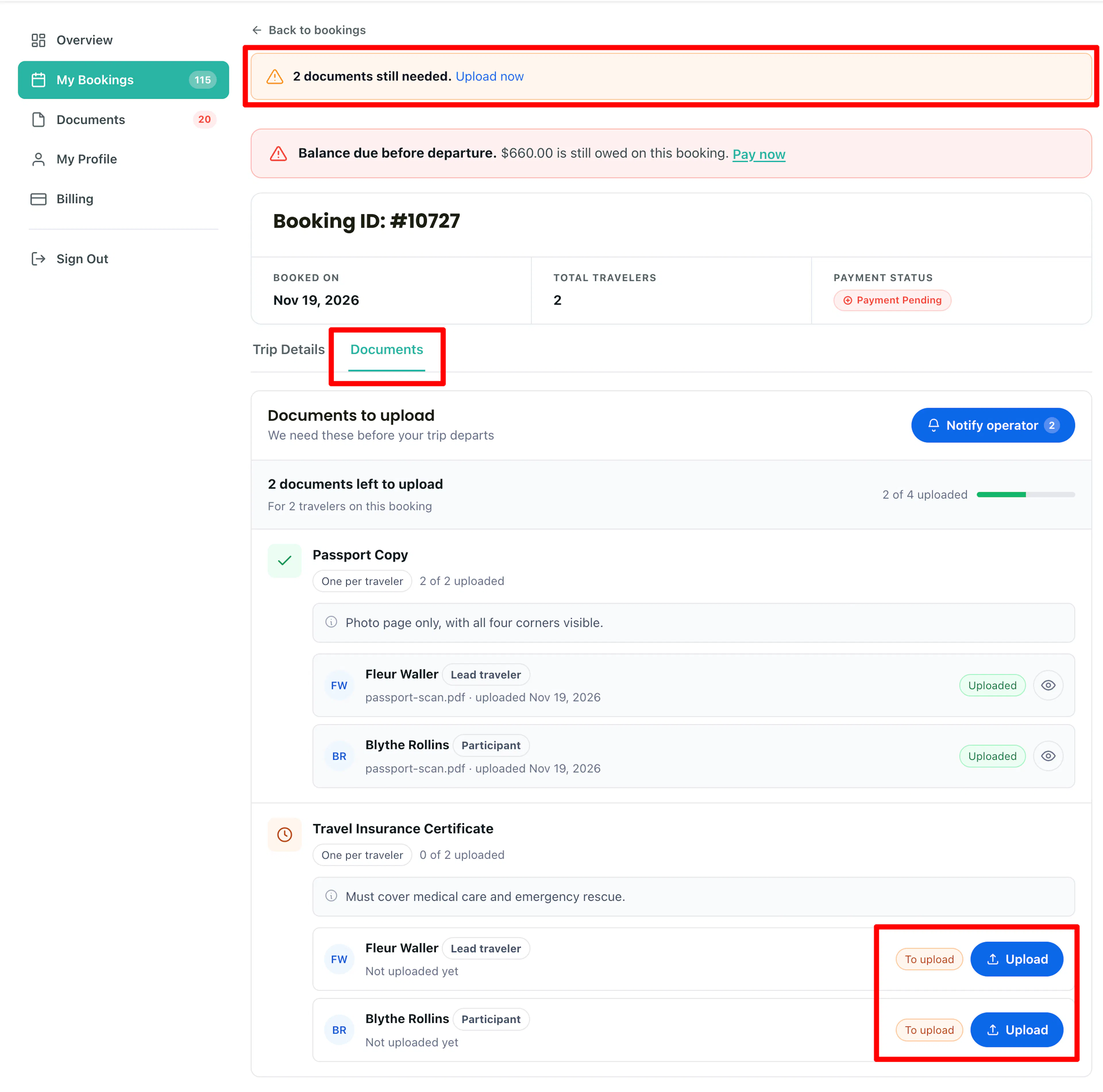
| Documents in theTraveler Dashboard menu | Everything across all their bookings, grouped by booking. A number next to Documents shows how many files are still needed. |
| Documents tab on a booking, next to Trip Details | The documents of that one booking. A dot on the tab means files are still needed. [verify] |
A booking with missing documents also shows a banner: "2 documents still needed." with an Upload now link.
Both places have 3 sections:
- Documents to upload: what you asked for. Subtitle: "We need these before your trip departs".
- Shared with you: files you gave them.
- Uploaded by you: files they sent on their own. These are saved for reuse on later bookings.
[Screenshot: My Account > Documents for Booking #10648, Vietnam Trip, "Documents to upload" with passport for Traveler 1 and Traveler 2]
Downloading Shared Documents
In Shared with you, each document has an eye icon to preview it and a Download button to save it. On the Documents page, documents are grouped under each booking with the trip name, booking number, and departure date.

Uploading a Requested Document
- In Documents to upload, find the document and the traveler.
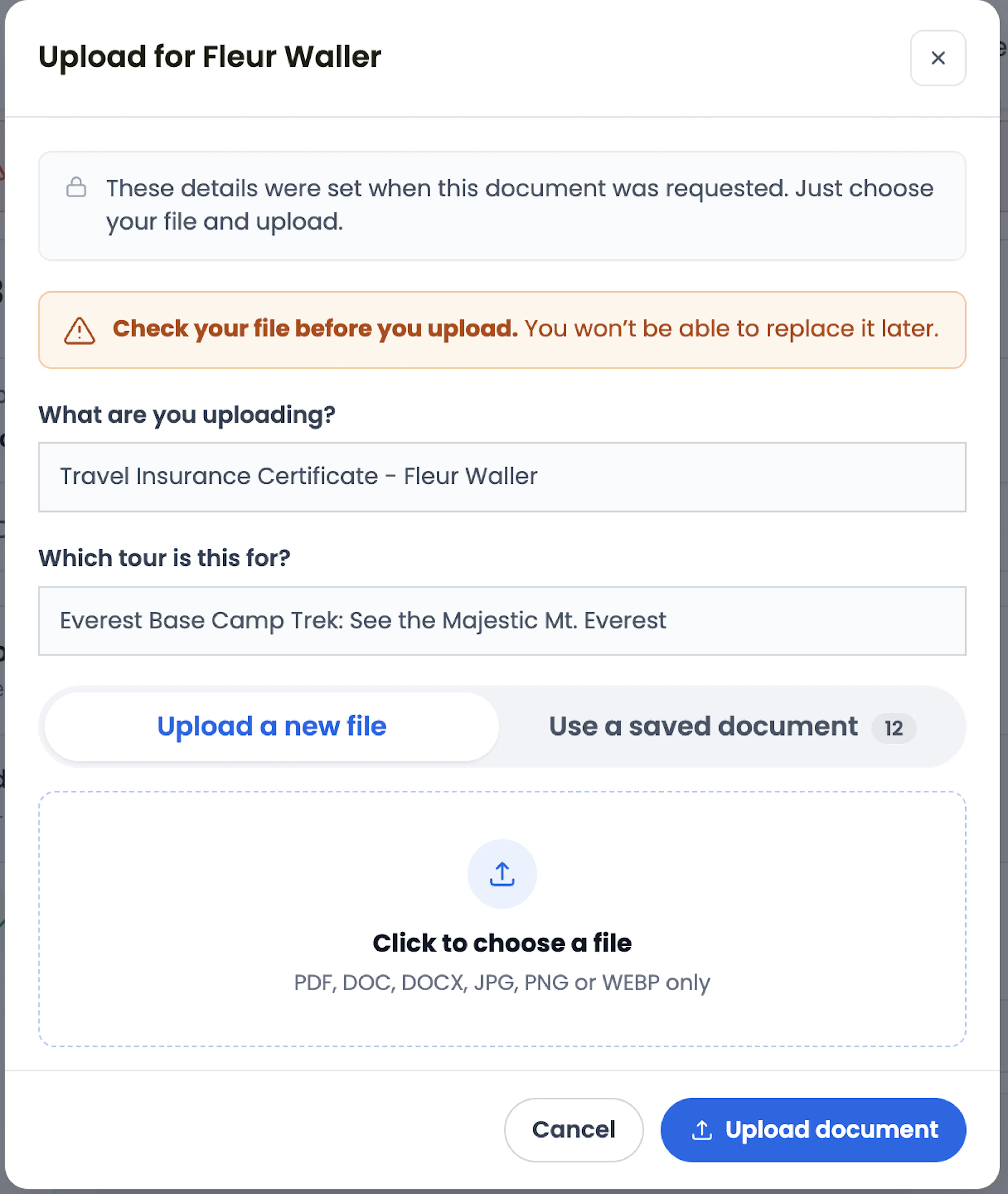
- Click Upload. The upload window opens; for example, Upload for Traveler 1.
- Leave the name as it is. The details were set when the document was requested.
- "Click to choose a file" and select the file. Files can be PDF, DOC, DOCX, JPG, or PNG, up to 20 MB.
- Click Upload document.
Travelers won't be able to replace the document they upload later. If a traveler sends the wrong file, they should contact you.
Reusing a Saved Document
Every file a traveler uploads are saved in their account. On a new booking, they can reuse it instead of finding the file again.
- Click Upload on the request.
- Click Use a saved document. The number shows how many saved documents they have.
- Search or scroll and click the document. Files sent for the same person show Same traveler.
- Click Upload document.
A message says Saved document added. WP Travel Engine copies the file to the new booking. Each booking has its own copy.
Sending a Document Without a Request
A traveler can send you a file you did not ask for, for example, a dietary note.
- Open the booking's Documents tab.
- In Uploaded by you, click Upload document.
- Enter what you are uploading. This is required.
- Choose a new file or click Use a saved document.
- Add a note if needed.
- Click Upload document.
You will see the file on the booking under Shared by Traveler.
Telling the Operator Uploads Are Done
Uploading alone does not send you an email. When a traveler has uploaded, a Notify operator button appears with the number of new uploads.
- Click Notify operator.
- A message says "Your operator has been notified about 2 new uploads."
WP Travel Engine sends you the Document Uploaded email, which lists the new files. On the Documents page, one Notify operator button covers all bookings.
Notify operator works only when the Document Uploaded email is turned on. See Turning On the Document Emails.
What Happens When...
If a traveler uploads a file
- Traveler: The row shows Uploaded and the date.
- Record: The upload appears in the booking's Activity Logs.
- What to do: The traveler clicks Notify operator to tell you.
If you uploaded the file for the traveler
- Traveler: The row shows Uploaded and Added by your operator. They do not need to do anything.
If the traveler has no account or is signed out
- Traveler: They cannot see booked-only documents or upload files.
- What to do: Ask them to sign in to their Traveler Dashboard, or upload the file for them. See Uploading a Document for a Traveler.
If the file is too big or the wrong type
- Traveler: The upload stops with "That file is larger than 20 MB." or "Send a PDF, DOC, DOCX, JPG or PNG."
What You Cannot Do
- Travelers cannot delete or replace a file after upload.
- Travelers cannot change the name of a requested document.
- Travelers cannot upload without signing in.
FAQs
Where does a traveler upload documents?
In Traveler Dashboard > Documents, or in the Documents tab of the booking. Both show the same requests.
A traveler uploaded the wrong file. Can they fix it?
No. Files cannot be replaced or deleted from the website. Ask the traveler to send the correct file to you by email.
Do I get an email when a traveler uploads?
Only when the traveler clicks Notify operator and the Document Uploaded email is turned on. Uploads alone do not send an email.
Can travelers reuse a passport scan from an earlier booking?
Yes. They click Upload, then Use a saved document, and pick the scan.
Can other people see a traveler's files?
No. Only the traveler who owns the booking and users who can edit bookings can open the files.
If you're still stuck or have a question we didn't cover, our support team is happy to help. Reach out at our support page and we'll get you sorted.