

Availability Manager
View, edit, and add trip departures from a single calendar screen in the Fixed Starting Dates add-on, so you can manage availability across all your trips without opening each one individually.
Availability Manager is a calendar screen in the Fixed Starting Dates (FSD) add-on that shows every departure across all your trips in one place. Instead of opening each trip's edit page to check or change a date, you can view, edit, and add departures for any trip from this single screen.
Key Features & Benefits
| Feature | Benefit |
|---|---|
| Centralized calendar across all trips | Check and update availability for any trip without opening its edit page one by one. |
| Per-date overrides on repeating schedules | Change the price or seats for one date inside a daily, weekly, or monthly repeat, without breaking the repeat or creating a separate date entry. |
| Raise seats beyond the general capacity | Add extra seats to a single popular date directly from the calendar. The Trip Edit screen only lets you lower seats once a general capacity is set. |
| One-click date blocking | Close a date to new bookings instantly, without digging through trip settings. |
| Time slot control | Open, close, or adjust seats for individual time slots on the same date. |
| Edit history at a glance | See exactly which dates you've customized and when, so nothing gets lost in a long repeating schedule. |
Prerequisites
- You have WP Travel Engine installed and activated on your WordPress site.
- You have updated WP Travel Engine to its latest version.
- You have installed and activated the Fixed Starting Dates (FSD) add-on, version 2.7.4 or above.
- Optionally, you need the Conditional Price Add-on installed and activated if you want to edit the price on a date.
Navigating to Availability Manager
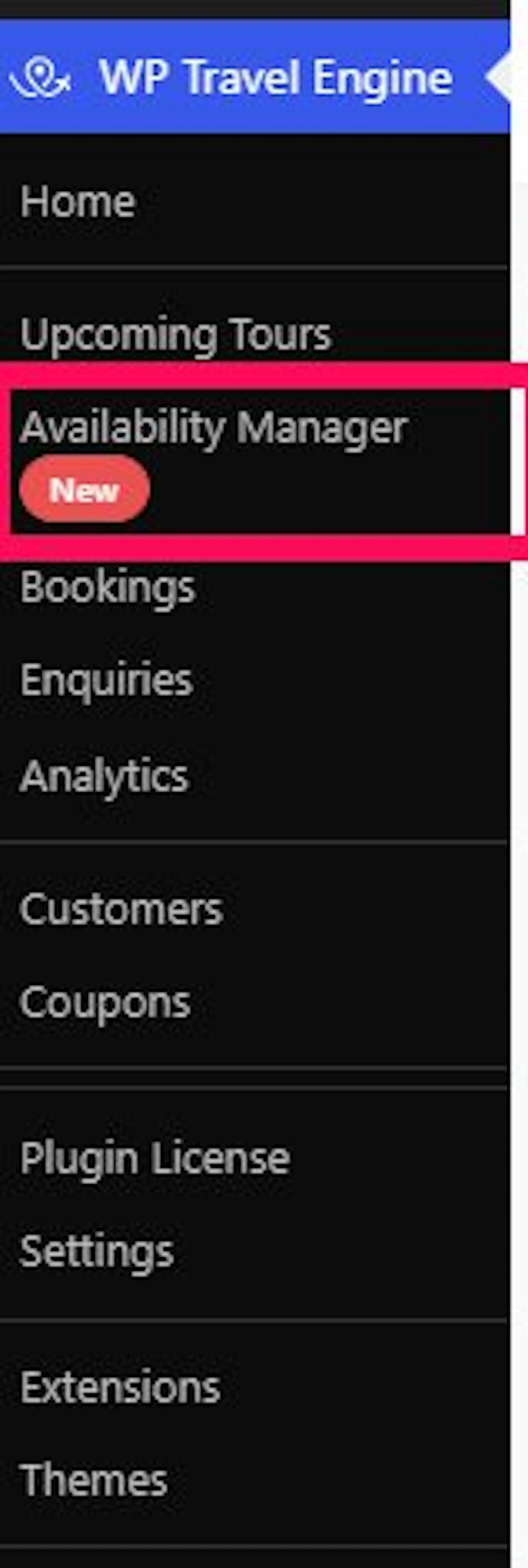
- Go to your WordPress Dashboard.
- Navigate to WP Travel Engine in the left sidebar.
- Click Availability Manager, listed right under Upcoming Tours.
Viewing Departures
At the top of the screen, the Trip dropdown selects which trip's calendar you're looking at. Type in the search box to jump to a different trip.
Once you pick a trip, use All packages to choose which packages show on the calendar. Check or uncheck individual packages, or use Select All and Clear All to switch quickly between a full view and a single package.
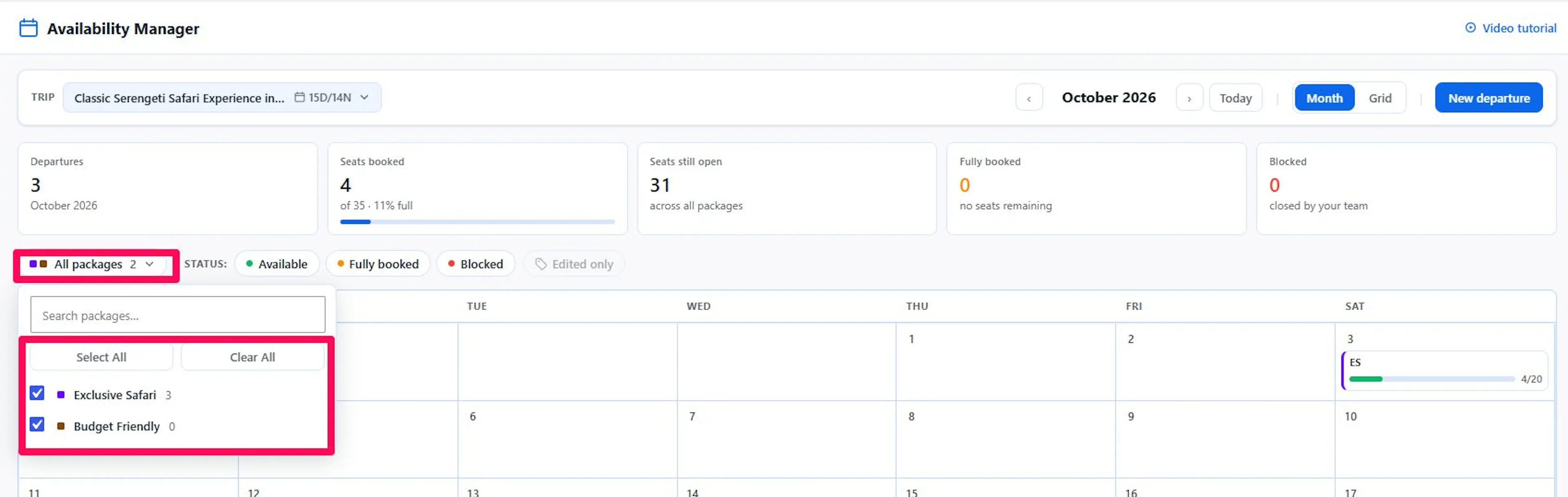
Four stat cards sit above the calendar:
- Departures — how many departures fall in the month shown
- Seats booked — total seats booked across the selected packages, with a fill percentage
- Seats still open — seats left across all packages
- Fully booked and Blocked — counts of dates in each state
Use the Available, Fully booked, and Blocked filters to narrow the calendar to dates in a specific status.
Switch between Month and Grid using the toggle next to the date navigation.
- Month shows a traditional calendar, one card per package per date, with a progress bar for seats booked.
- Grid lists each package as a row and every day of the month as a column, so you can scan a full month of availability for a package at a glance. A day with multiple time slots shows a small tag with that count, for example, 2× for two time slots or 3× for three.
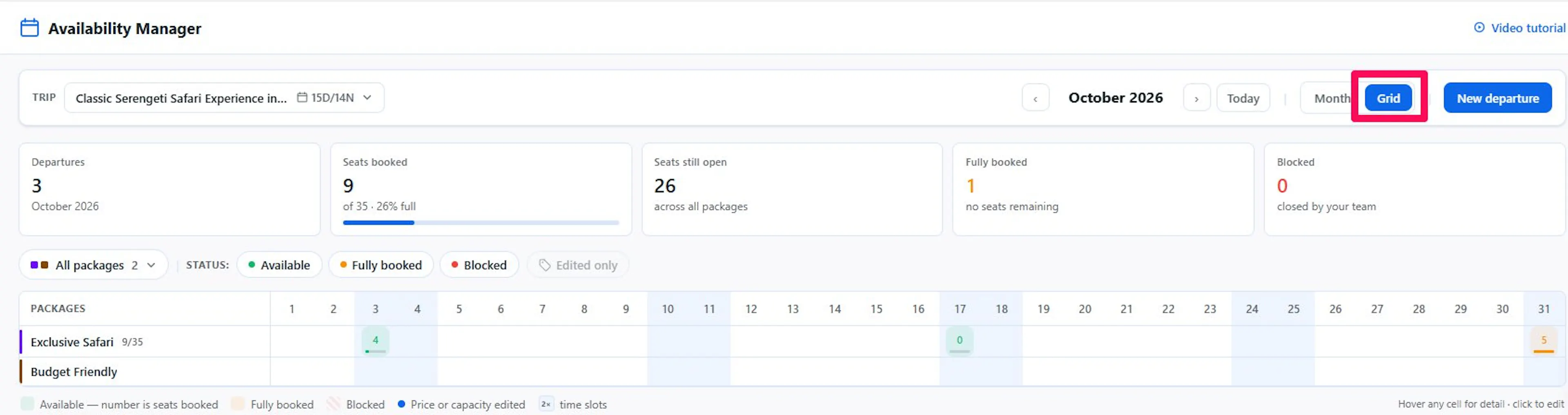
Grid view is the faster way to spot gaps or fully booked stretches across a whole month, since every date's status is visible at once.
Spotting Edited Dates
Once you change a date's seats or price from Availability Manager, the calendar marks it so you can find it again later.
- On the calendar card itself, a small tag icon appears if the price was changed, and a person icon appears if the seats were changed.
- Hovering over a date shows a Price modified or Capacity changed pill, along with a note reading Edited by [your name], [date and time], so you know who made the change from your team and when.
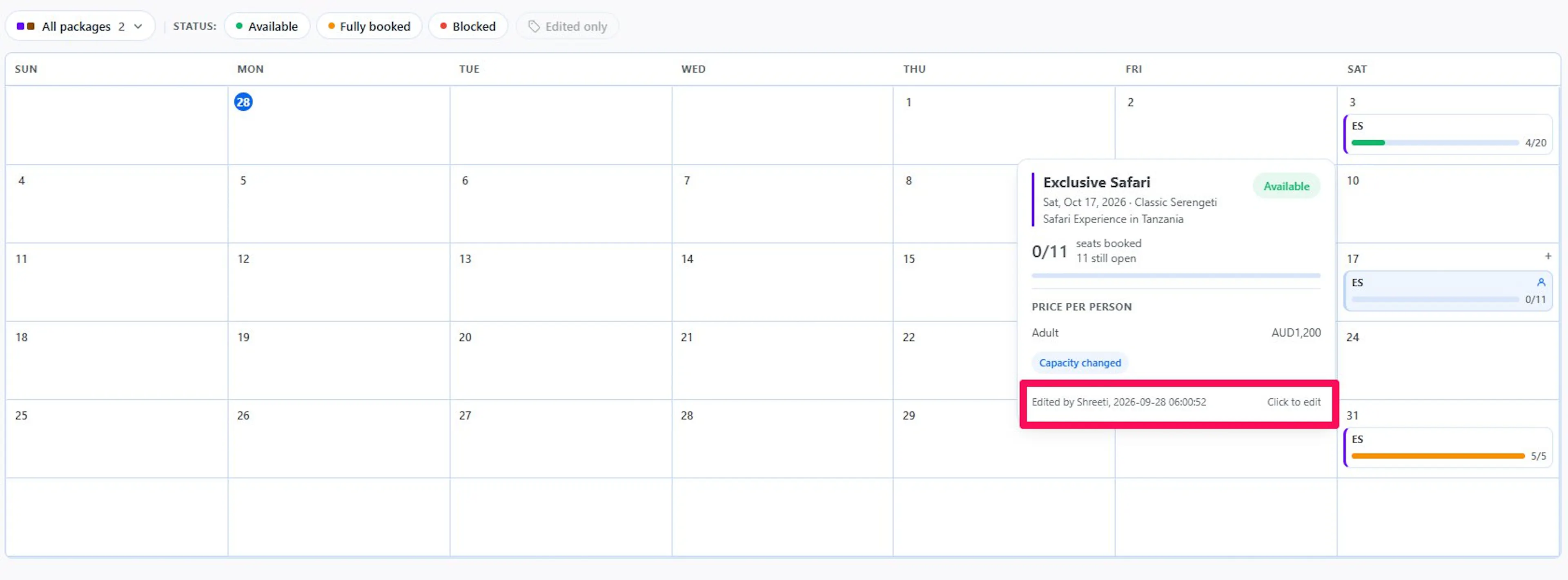
Use the Edited only filter, next to the status filters, to show only the dates you've customized. This is the fastest way to review your overrides across a busy month.
If the edited date is part of a repeating schedule, only that single date carries the edit. The rest of the repeat keeps its original seats and price.
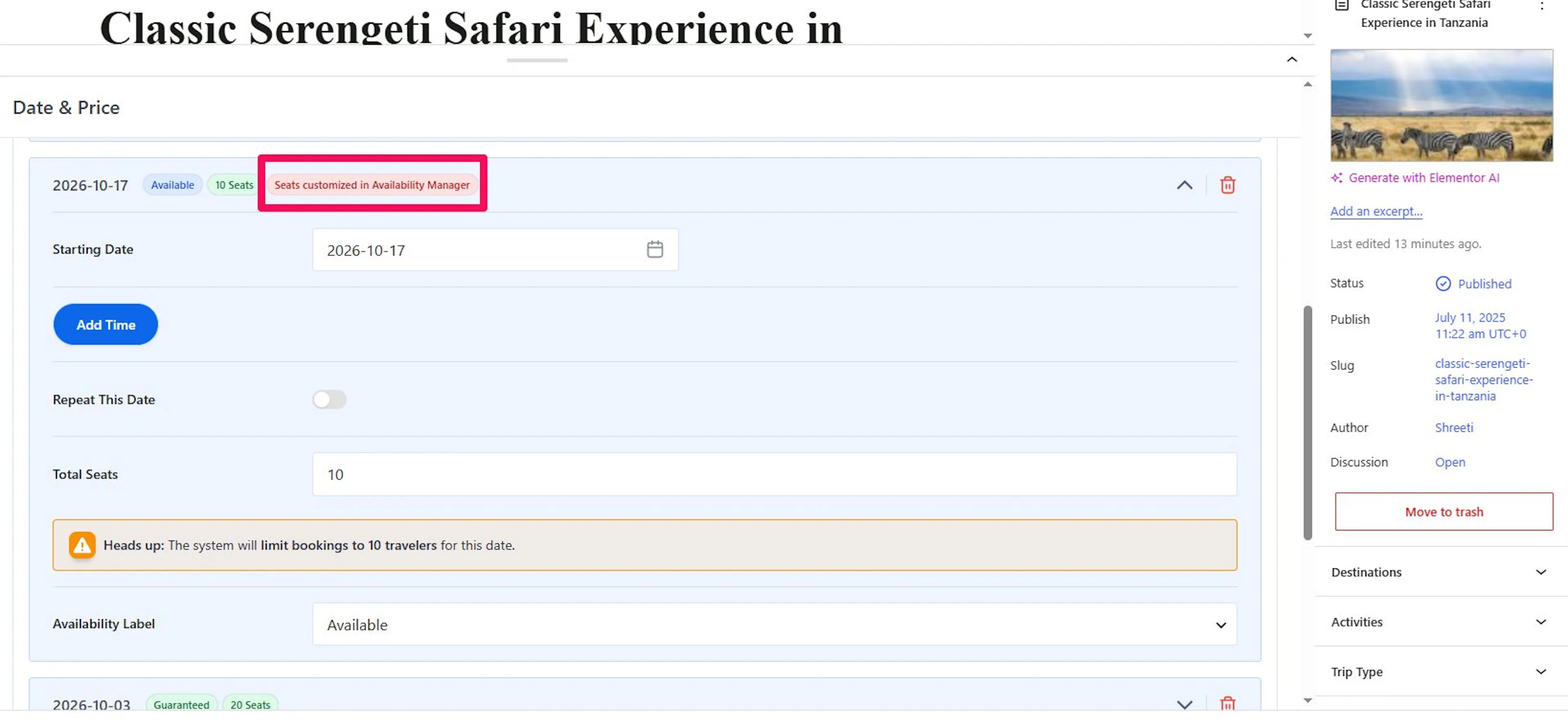
The same edit is visible from the trip's own edit screen. Under Date & Price → Packages → [Package name] → Dates, a repeating date row that has been customized shows a Seats & Price customized in Availability Manager tag alongside its other tags (Guaranteed, Seats, Time Slots, Repeat, Weekly).
Editing a Departure
Click any date on the calendar to open a quick view of that package's availability: seats booked, price per person, and time slots if the package has any.
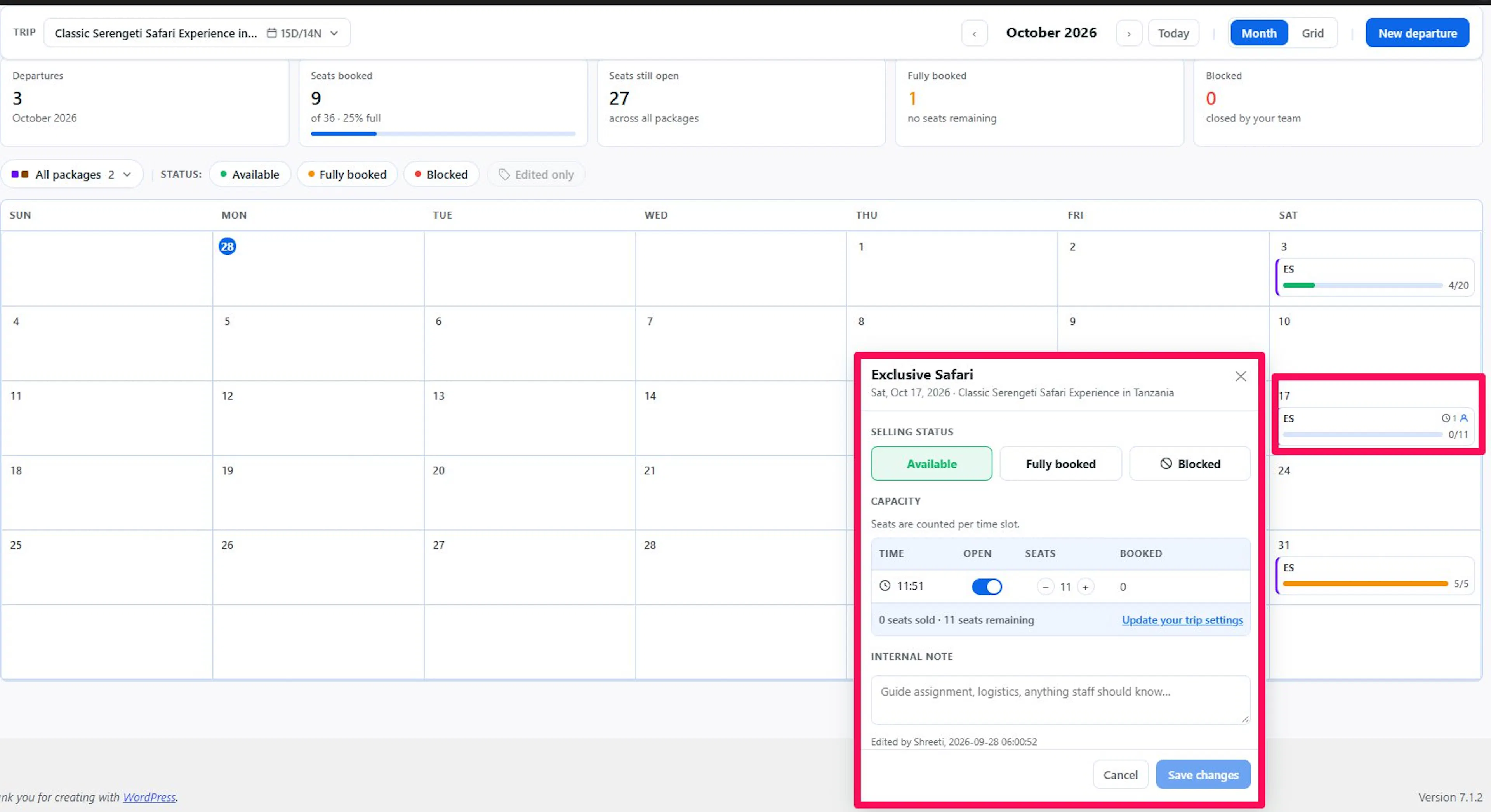
Click to edit (or click the date again) to open the full edit panel.
Selling Status
Choose Available, Fully booked, or Blocked. Setting a date to Blocked closes it to new bookings immediately, without affecting the trip's general settings.
Capacity
For a package with no time slots, use the − and + buttons to set the total seats for that date. The panel shows how many seats are already sold, so you always know how far you can safely lower the number.
For a package with time slots, capacity is set per slot. Toggle a time slot Open or closed, and adjust its seat count separately from other slots on the same date.
Note: You can raise seats above the trip's general capacity setting from here. In Trip Edit, once a general capacity is set, you can only lower seats for a date, not raise them.
Pricing for This Date
Enter an amount under the price categories to override the price for that date only. Leave a field blank to keep the package's global price. This only overrides the one date you're editing - the rest of the repeat schedule keeps its original pricing.
You can also add different prices for group tiers (Group Discount) if you have the Group Discount add-on installed and activated. This add-on lowers the per-person price as more people book together.
Internal Note
Use this field for anything your team needs to know about the date: guide assignments, logistics, or other notes that shouldn't go to travelers.
Click Save changes to apply your edits, or Cancel to discard them.
Adding a New Departure
Click New departure to add a date without leaving Availability Manager.
- Select the Package this departure belongs to.
- Set a Start date and an End date if you want the departure to repeat over a range.
- Under Repeat on, pick the weekdays this departure should recur on. Leave all weekdays unselected for a single, non-repeating departure.
- Check the confirmation message above the buttons — it tells you exactly what will be created, for example, "Creates 10 departures — Sunday, Thursday, Sep 27 → Oct 29."
- Set the Capacity in seats. This is shared across every time slot you add.
- Add Time slots if the departure runs at fixed times during the day. This step is optional.
- Enter pricing under Pricing for This Date, and an Internal Note if needed.
- Click Add departure in Trip Edit (or Add repeating departure in Trip Edit for a repeating schedule).
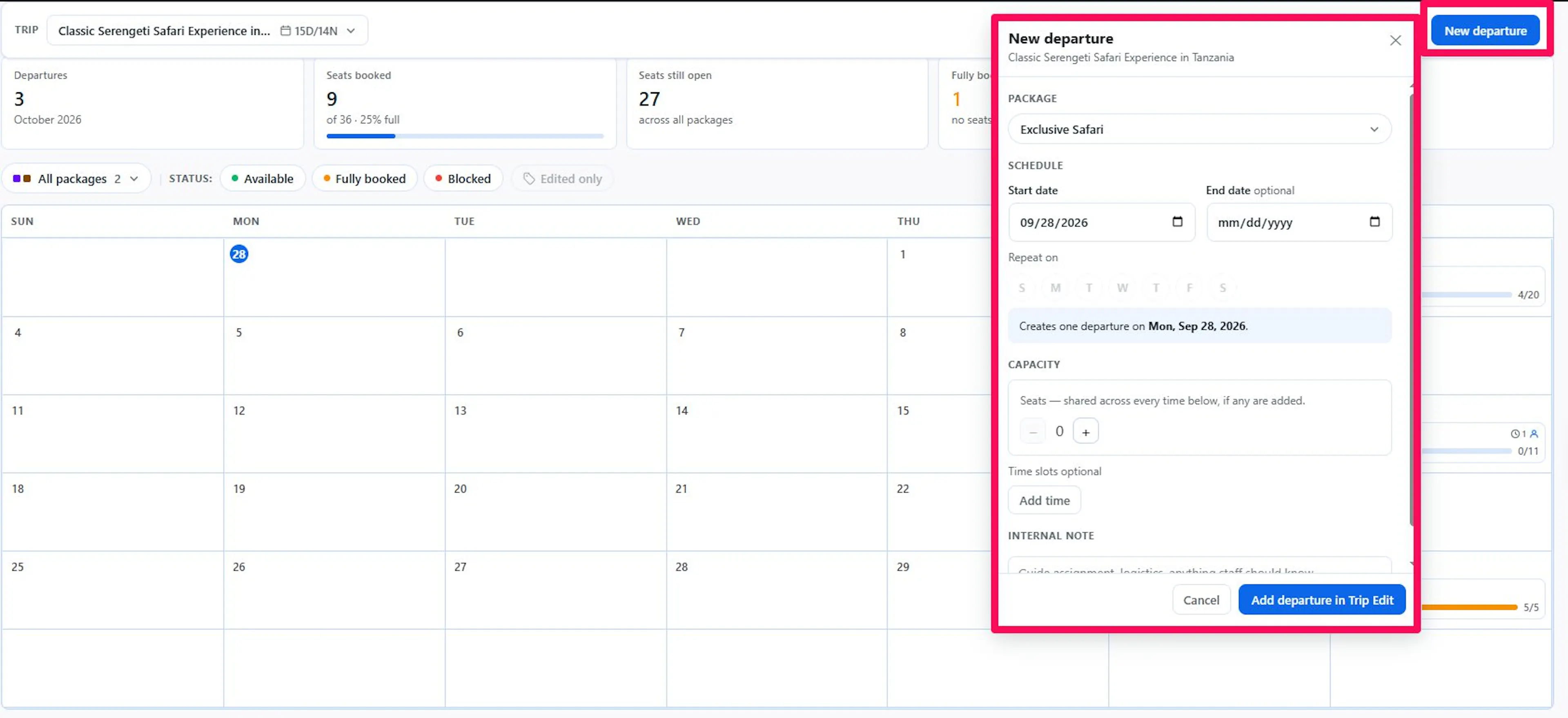
If the date you picked already has a departure for that package, the modal shows an error asking you to choose a different date or time. You can't create two departures for the same package on the same date.
Clicking Add departure in Trip Edit takes you to that trip's edit page to confirm and save the new date. Once saved, reload Availability Manager and the new departure will appear on the calendar.
Managing Availability from Trip Edit
You don't have to leave a trip's edit screen to check its availability. WPTE also embeds Availability Manager directly inside Trip Edit.
- Open the trip and go to Date & Price.
- Click the Availability Manager tab, next to Packages.
- The same calendar, stats cards, and filters appear here, already scoped to this trip.
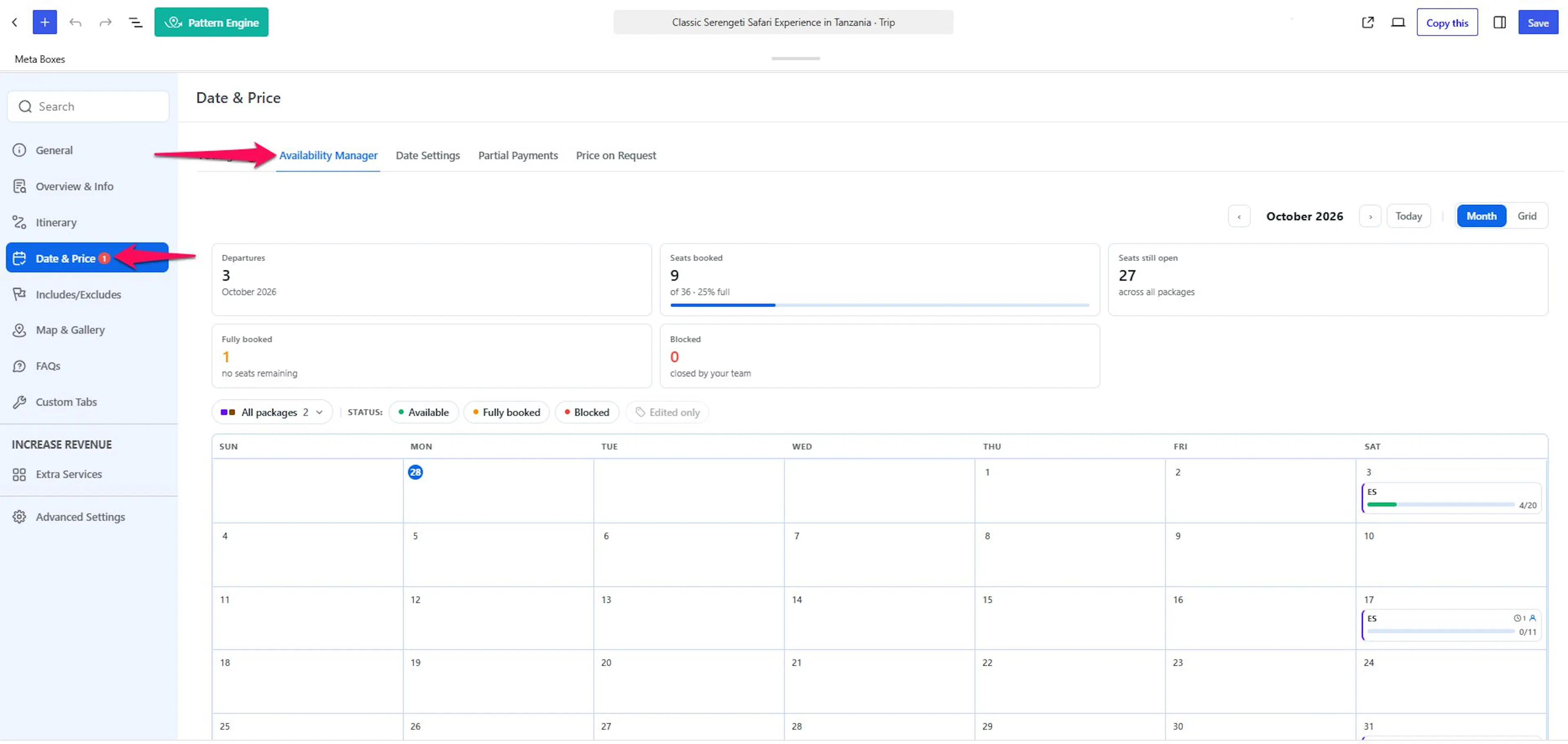
This is the quicker route when you're already making other changes to a trip and just need to check or adjust a date's availability without switching screens.
If you're still stuck or have a question we didn't cover, our support team is happy to help. Reach out at our support page and we'll get you sorted.