

GetYourGuide Integration
Connect your WP Travel Engine trips to GetYourGuide and manage the add-on settings, trip package mapping and logs.
Introduction
GetYourGuide is a travel marketplace where travelers search for and book tours and activities around the world.
The GetYourGuide Integration add-on connects your WP Travel Engine trips to that marketplace. Travelers can book your trips on GetYourGuide while your site sends seat availability and prices to GetYourGuide. GetYourGuide sends bookings and cancellations back to your site, so everything stays in one place.
This page walks you through the settings, trip mapping, and logs. To get your connection approved by GetYourGuide, see How to Get Approved by GetYourGuide.
What You Get
The add-on helps you manage GetYourGuide bookings alongside the bookings from your own website.
| Feature | What it means for your business |
|---|---|
| Sell on GetYourGuide's marketplace | Reach travelers who search GetYourGuide for tours and activities without managing a second booking system. |
| Live seat availability | Seat counts update when someone books on your site or on GetYourGuide. This helps prevent double-booking. |
| One place for every booking | GetYourGuide bookings and cancellations appear on your own site alongside your direct bookings. |
| Control seats and prices for each trip | Choose whether each trip sends both availability and prices, or whether GetYourGuide manages the price. |
| Per-person and per-group tickets | Sell tickets per traveler or per group. Group tickets require the Group Discount add-on. |
| Activity log with full request details | See what GetYourGuide asked for and how your site replied when something does not work. |
| Currency mismatch warning | Find out when your site currency and GetYourGuide listing currency do not match before customers see the wrong price. |
Say you run a 3-day trek with 12 seats. When a traveler books 2 seats on GetYourGuide, your site drops to 10 seats right away. That reduces the risk of double-booking.
What You'll Need Before You Start
Check these items before you begin:
- WP Travel Engine is installed and active on your WordPress site. Use version 6.8.0 or a newer version.
- WP Travel Engine is updated to the latest available version.
- The GetYourGuide Integration add-on is installed and active.
- The Fixed Starting Dates add-on is installed and active.
- The Group Discount add-on is installed and active if you sell tickets priced per group.
- You have a GetYourGuide Integrator Portal account. If you do not have one, follow How to Get Approved by GetYourGuide first.
Installing the Add-on
See how to activate a Pro add-on license key for the full installation and activation walkthrough.
Verification
Check that WordPress recognizes the add-on before you enter your GetYourGuide settings.
Open your WordPress dashboard
Open your WordPress dashboard. This is the admin area you see after logging in to WordPress. The main menu is on the left side.
Open the Extensions page
In the left menu, go to WP Travel Engine > Settings > Extensions.
Check the add-on list
Confirm that Get Your Guide appears in the lis
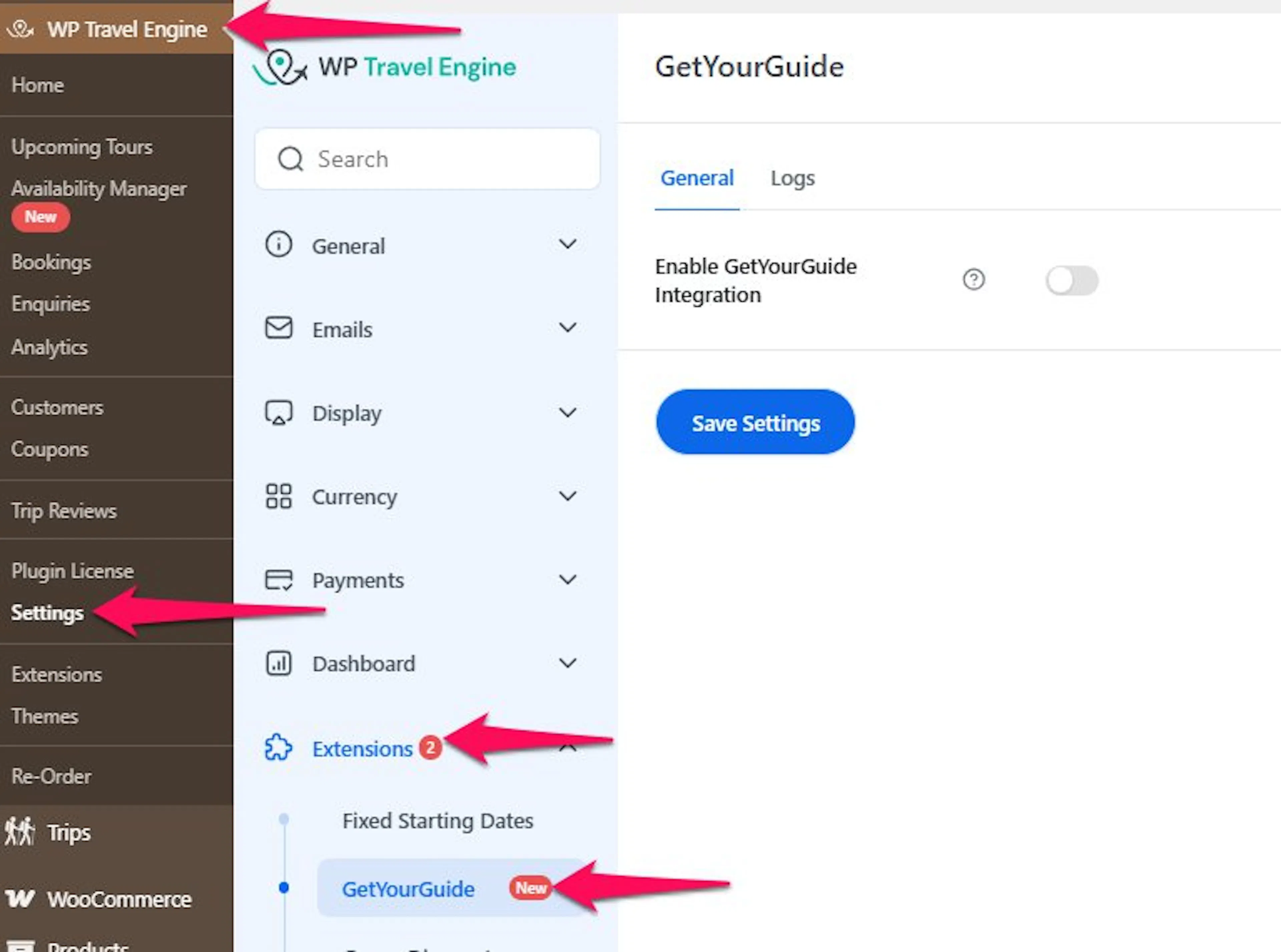
If Get Your Guide does not appear, open the Plugins screen and deactivate the add-on. The Plugins screen is the page in your WordPress dashboard where all your plugins are listed. Activate the add-on again, then check the Extensions page.
Setting Up the General Settings
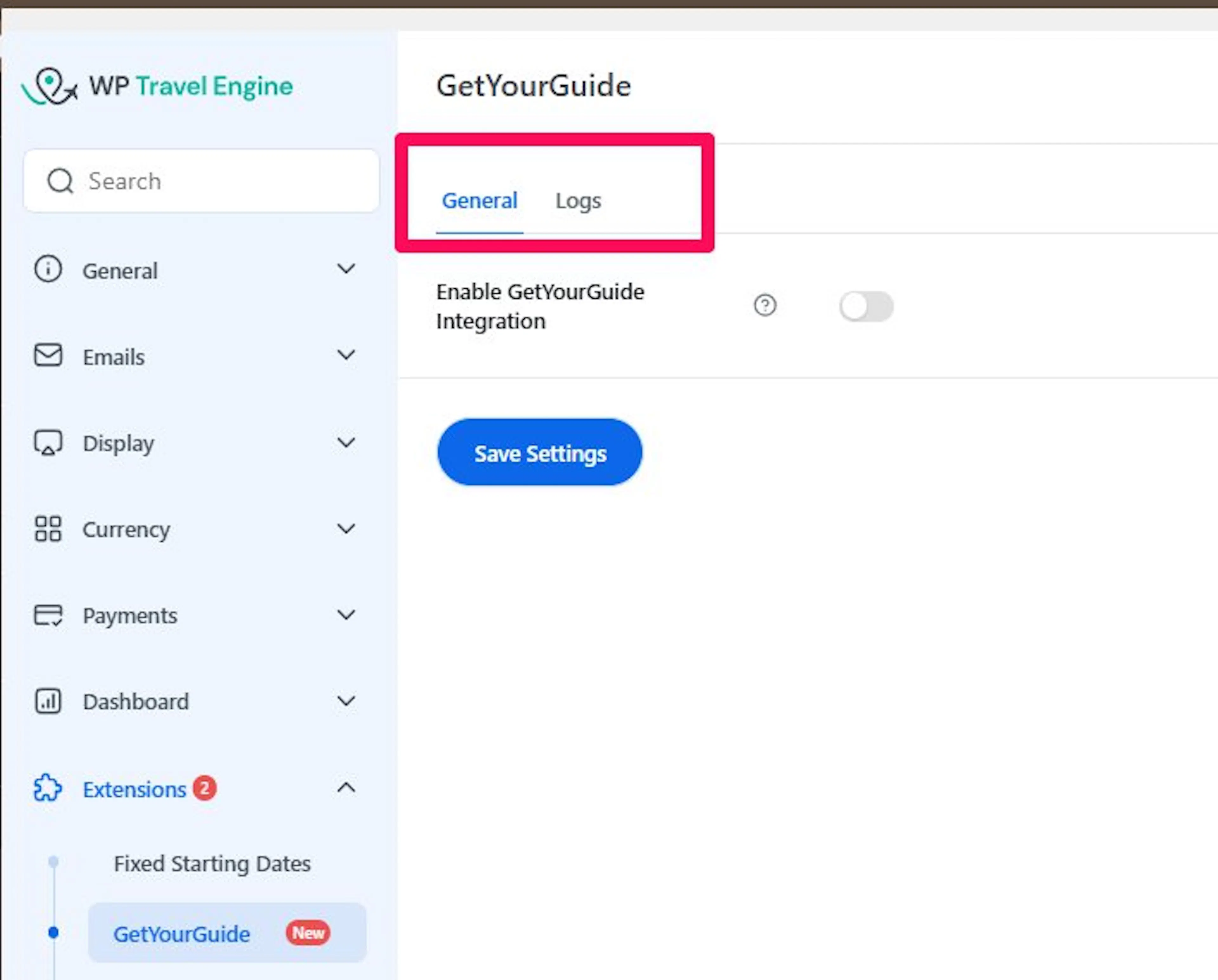
The settings page has three tabs. Use each tab for a different part of the connection.
| Tab | What you use it for |
|---|---|
| General | Turn the connection on, choose the environment, and enter both sets of login details. |
| Logs | Read the recent activity between your site and GetYourGuide. |
If the Fixed Starting Dates add-on is inactive, a warning appears at the top of the settings page. Activate that add-on, and the warning goes away.
Turning On the Connection
Turning on the connection lets GetYourGuide reach your site and lets your site send updates back.
Open the GetYourGuide settings
Go to WP Travel Engine > Settings > Extensions > Get Your Guide.
Turn on the integration
Turn on Enable Get Your Guide Integration.
The rest of the settings page appears after you turn it on

| Setting | What happens |
|---|---|
| On | GetYourGuide can reach your site, and your site sends updates to GetYourGuide. |
| Off | Your site blocks requests from GetYourGuide. Availability becomes outdated, and new bookings cannot come in. |
Turning this off on a live listing stops bookings right away. Turn it off only when you want to take the GetYourGuide channel down.
Two Sets of Credentials
Credentials are the usernames and passwords that let two systems talk to each other.
The connection works in both directions. Each direction has its own login details. Mixing up the two sets is the most common setup mistake.
| Direction | What it does | Credentials | Who creates them |
|---|---|---|---|
| Inbound | GetYourGuide contacts your site to check availability and to book, change, or cancel a reservation. | Inbound Key and Inbound Secret | The add-on |
| Outbound | Your site sends availability and prices to GetYourGuide. | GYG Username and GYG Password | GetYourGuide |
Think of the connection like a two-way phone call. Your site needs GetYourGuide's number to call them. GetYourGuide needs your number to call you. Each direction has its own login.
If GetYourGuide reports an authentication error, check that you pasted the Inbound Key and Inbound Secret into the GetYourGuide portal.
Sandbox Mode
Sandbox mode is a test environment where you can try the connection without changing your live listing.
Turn Sandbox Mode on to send updates to GetYourGuide's test environment. Turn it off to send updates to the live environment

Sandbox Mode changes where your site sends updates. It does not change your Inbound credentials or how GetYourGuide reaches your site. Use it with the checklist in GetYourGuide's Integrator Portal.
| GetYourGuide checklist step | Sandbox Mode |
|---|---|
| Set up your testing configuration | On |
| Test your integration | On |
| Test GetYourGuide endpoints | On |
| Test additional features | On |
| Set up your production configuration | Off |
| Test your integration on production | Off |
| Live testing | Off |
Turn Sandbox Mode off when you reach Set up your production configuration. Do not wait until Live testing. At the production configuration step, GetYourGuide issues production credentials and expects updates to go to the live environment.
If Sandbox Mode stays on after you go live, updates continue going to the test environment. Your live listing does not change, and the settings page may not show an error.
Endpoint Path
An endpoint is the web address on your site that GetYourGuide uses to reach you. The add-on creates this address for you, and you cannot edit it.
Copy the endpoint path
Click the copy button next to Endpoint Path.
Add the path in GetYourGuide
In GetYourGuide's Integrator Portal, paste the path into the Path field of your environment configuration.
Enter your site details
Enter your site's address as the Host. Enter 443 as the Port.

The add-on builds the path from your own WordPress installation. The path is already correct for sites installed in a subfolder or sites without pretty permalinks.
Keep /1/ at the end of the path. GetYourGuide adds the endpoint name after it. Without /1/, requests go to an address that does not exist.
Inbound Key and Inbound Secret
The Inbound Key and Inbound Secret are the username and password GetYourGuide sends with every request to your site. They help prevent anyone else from booking or cancelling seats on your trips.
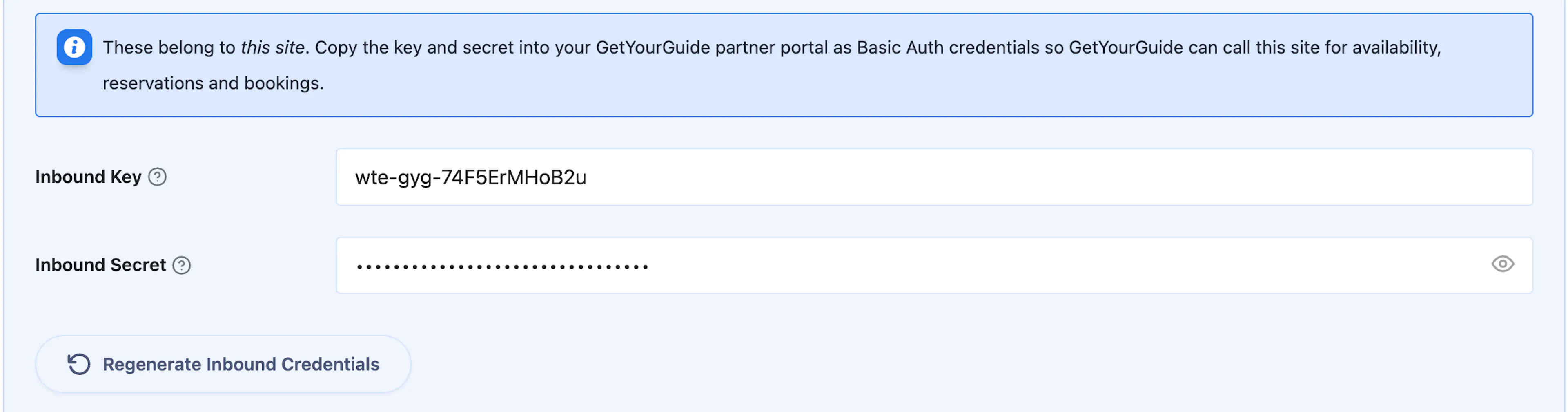
Set them up in both places so GetYourGuide can reach your site.
Copy the two inbound values
Copy the Inbound Key and Inbound Secret. The add-on generates both values for you. You can replace them with your own values.
Open your GetYourGuide environment
In the Integrator Portal, open your environment page and click Update testing credentials. When you reach the production step, use the production equivalent.
Paste the values into GetYourGuide
Paste the Inbound Key into Username. Paste Inbound Secret into New Password. Save the credentials.
Keep these rules in mind:
- Do not use colons or spaces in either value.
- Copy the secret before leaving the portal. GetYourGuide hides it after you save it. The add-on keeps the value, so you can click the eye icon to reveal and copy it later.
- If you leave a field empty and save, the add-on keeps the stored value. Clearing a field does not lock GetYourGuide out.
- The pair does not expire.
- Use a different pair for each site.
Regenerating Your Inbound Credentials
Regenerating replaces both inbound values with new ones. A confirmation dialog appears before the change happens.
Regenerating saves immediately, before you click Save Settings. The old pair is deleted permanently, and Discard Changes does not restore it. GetYourGuide requests fail until you paste the new pair into their portal. Open the GetYourGuide portal first, then regenerate and update both systems in one sitting.
GYG Username and GYG Password
GetYourGuide issues the GYG Username and GYG Password. Your site uses them when it sends availability and prices to GetYourGuide.
Open your GetYourGuide environment
In the Integrator Portal, open your environment page and find GetYourGuide Credentials.
Copy the credentials
Copy the username and password.
Save the credentials on your site
Paste the username into GYG Username. Paste the password into GYG Password. Click Save Settings.
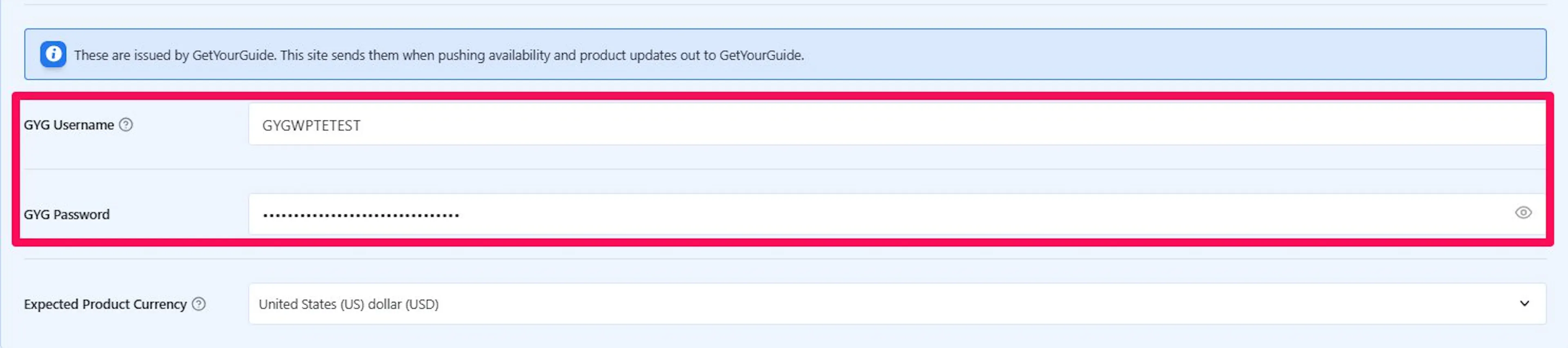
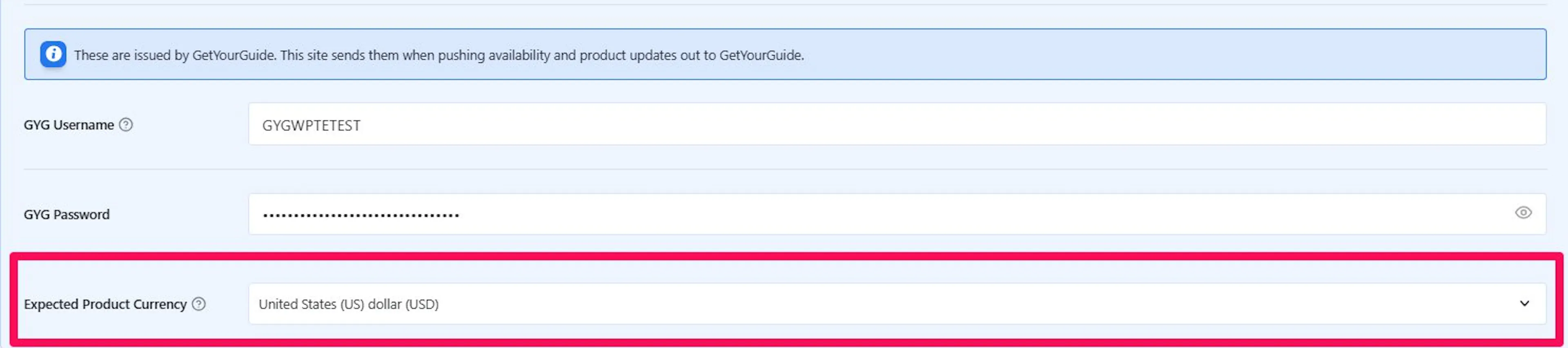
These are issued by GetYourGuide. Your site sends them when it pushes availability and product updates out.
Where to find them: in the partner portal, under GetYourGuide Credentials on your integration's environment page.
Which pair to use: testing and production have separate credentials. Replace these when you move to the production configuration step, at the same time you turn Sandbox Mode off.
If these are wrong, bookings still arrive, but your updates fail. Check the Logs tab.
Expected Product Currency
GetYourGuide does not convert currencies. Each GetYourGuide listing uses one fixed currency. If your site uses a different currency, GetYourGuide displays your price as the wrong kind of money.
| Your site's currency | GetYourGuide listing currency | Trip price | What GetYourGuide shows |
|---|---|---|---|
| NPR | EUR | 15,000 | €15,000, so almost nobody books |
| EUR | NPR | 150 | Rs 150, so you sell a trip for pennies |
Say you run treks in Nepal and your site prices them in Nepali rupees, or NPR. Your GetYourGuide listing uses euros. A 15,000 rupee trek would show as 15,000 euros on GetYourGuide. Nobody would book at that price.
Use Expected Product Currency to tell the add-on which currency your GetYourGuide listing uses. The field does not convert prices or change the currency sent from WP Travel Engine. It compares the two currencies and warns you when they differ.
When the currencies differ, a red banner appears at the top of the settings page. The banner stays until you fix the mismatch.

To fix the mismatch:
- Change your WP Travel Engine currency to match the currency on your GetYourGuide listing.
- Change your GetYourGuide listing currency to match your site's currency.
Changing the dropdown only turns the warning on or off. If you set it to match your site while the listing uses another currency, the banner disappears but the wrong prices remain.
You can leave Expected Product Currency blank, but you will not receive a currency mismatch warning.
Linking Your Trip Packages
A package is one version of a trip with its own dates and prices, such as "Standard" or "Premium". Each GetYourGuide product, which GetYourGuide calls an option, matches one package on your site. A trip with three packages can sell all three on GetYourGuide, each under its own product ID and with its own availability settings.
You link packages on each trip, not on the GetYourGuide settings page. The GetYourGuide Product Mapping section only appears on a trip after you turn on Enable GetYourGuide Integration.
Your site sends only seat availability and prices. Descriptions, photos, and itineraries stay on GetYourGuide. This add-on never overwrites them.
What you'll need before you start: a product ID for each package you want to connect. You type the same ID on your site and in GetYourGuide.
Open the trip's packages
Open the trip and go to Date & Price > Packages.
Find the mapping section
Scroll below Add New Package to GetYourGuide Product Mapping.
Add a package map
Click Add Package Map.
Choose the package and enter its product ID
Pick the package under Package. Type its ID under GYG Product ID. Enter the same ID in that option's connectivity settings on GetYourGuide.
Save the trip
Click Save to save the trip.
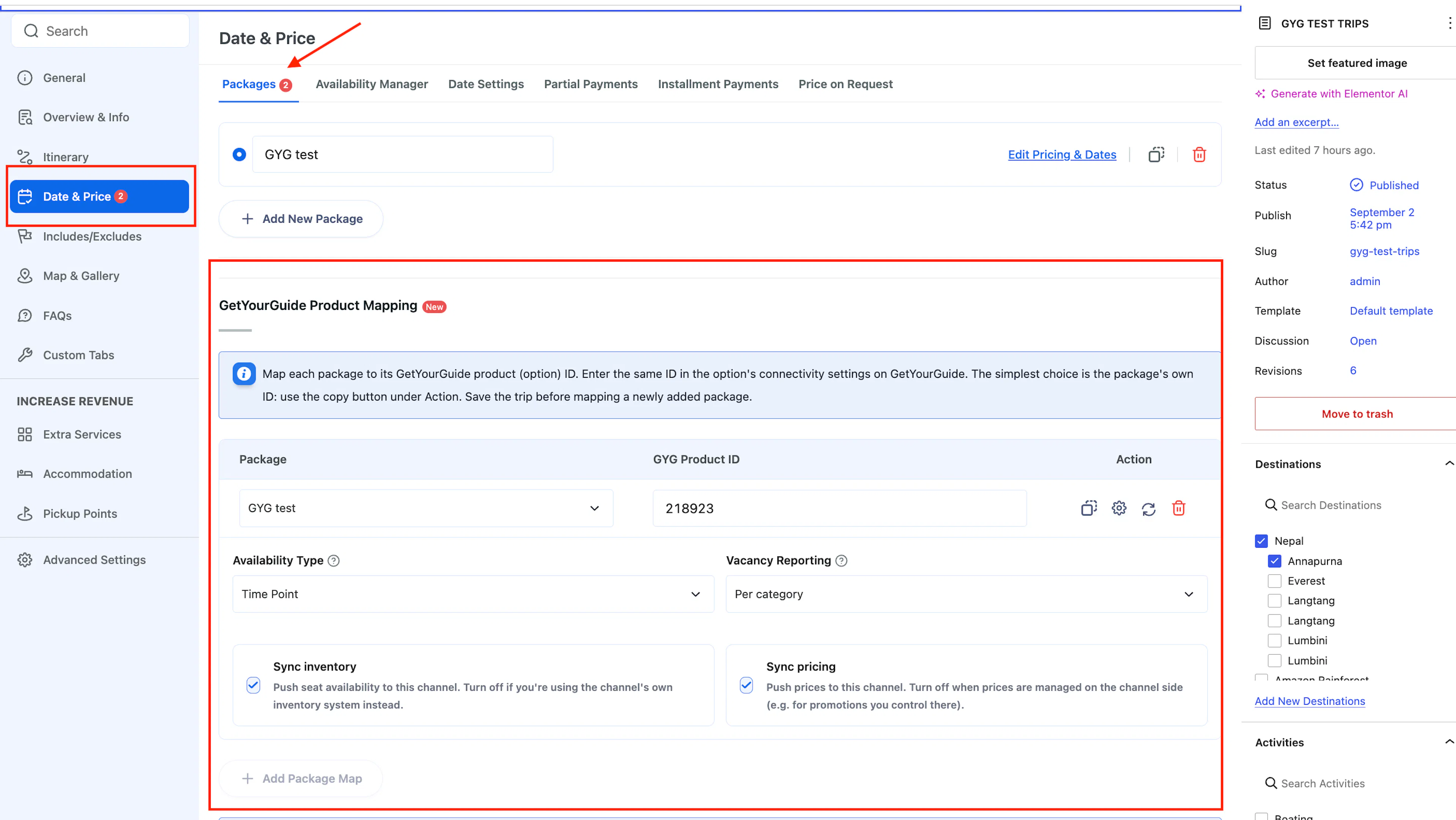
The product ID must match the ID in GetYourGuide exactly, character for character. A typing mistake makes GetYourGuide requests fail because the product cannot be found.
The package's own ID is the easiest product ID to use, because it is already unique. Click the copy icon under Action to copy it. Paste it into GYG Product ID and into GetYourGuide. Until you type something, the GYG Product ID box shows the package ID as a hint.

Keep these rules in mind:
- A product ID can be used on only one package across your whole site. If you save a duplicate, the add-on skips it, and the row disappears after saving. If the other package is on a different trip, the Logs tab says which ID was skipped.
- Save the trip before you map a package you just added. The new package does not appear in the Package list until you do.
- Add Package Map is disabled once every package of the trip has a row.
- Deleting a package stops its product from working. GetYourGuide then gets an
INVALID_PRODUCTerror for it.
Choosing What Each Package Sends
Click the gear icon on a row to open that package's settings. They open in a shaded panel under the row. Each package has its own settings, so one trip can mix fixed departure times and opening hours.
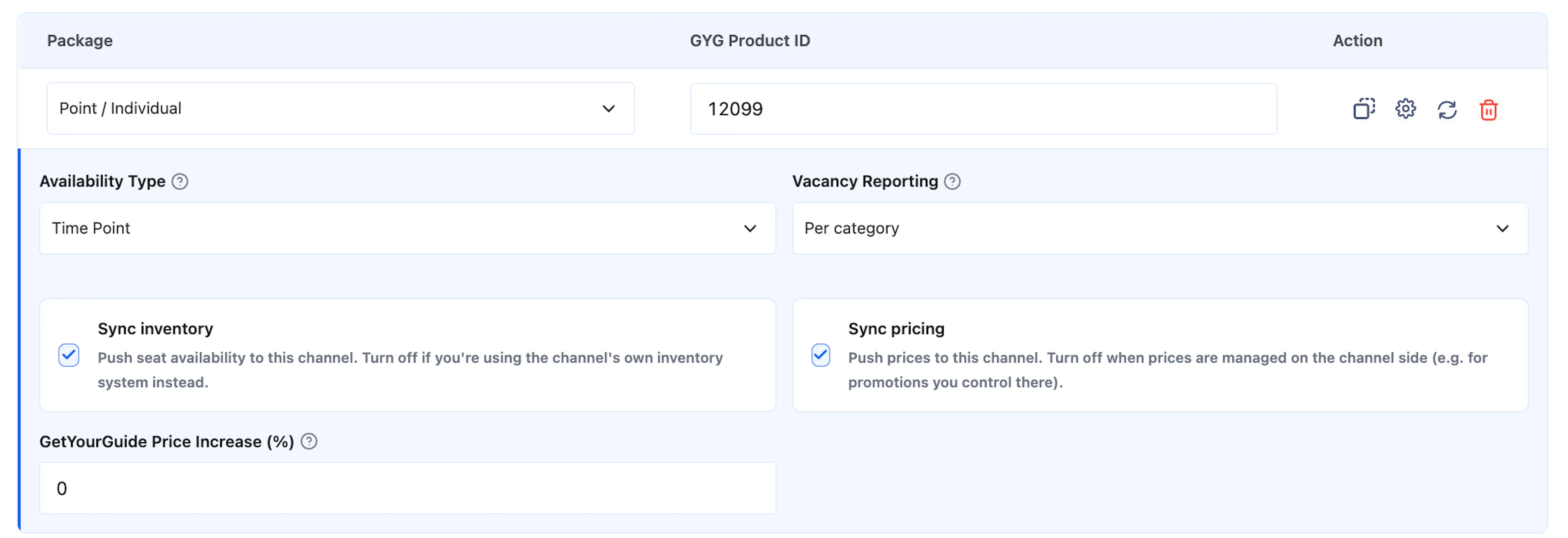
| Setting | What it does |
|---|---|
| Availability Type | Choose Time Point for set departure times. Choose Time Period for an activity guests can start any time within opening hours. It must match the option on GetYourGuide: Time Point goes with Time slots, and Time Period goes with Opening hours. |
| Opens and Closes | Appear only with Time Period. These are the opening hours sent to GetYourGuide. The default is 09:00 to 17:00. |
| Vacancy Reporting | Per category sends separate seat counts for each traveler type, such as adult and child. Switch to Total only if the package has more than one departure a day. Otherwise the per-category counts come out wrong. |
| Sync inventory | Sends seat availability to GetYourGuide. Turn it off if you manage availability on GetYourGuide instead. |
| Sync pricing | Sends prices to GetYourGuide. It is off by default on new mappings, because GetYourGuide prices usually include their commission and are higher than your site's. Turn it on only if your site's prices should be copied to GetYourGuide. |
| GetYourGuide Price Increase (%) | Appears below the sync cards when Sync pricing is on. The default is 0. It adds this percentage to your site's price before the price is sent, so GetYourGuide's commission comes out of the increase. Your site's own price does not change. |
Say you sell a day tour for $100 on your site, and GetYourGuide takes a commission. Turn on Sync pricing and enter 25 under GetYourGuide Price Increase (%). GetYourGuide shows $125, and your site still shows $100.
Say you run a promotion on GetYourGuide for another package. Leave Sync pricing off for that package. GetYourGuide keeps the price you set there, while your site continues sending seat availability.
When Sync pricing is off, GetYourGuide keeps the price set on their side. Changes to your site's price do not reach GetYourGuide. Make sure someone keeps both prices in step.
Save the trip after you change any of these settings.
Sending an Update Right Away
Click the sync icon on a row to send that package's next 90 days to GetYourGuide right away. The sync uses the row as shown on screen, settings included, so you can test a change before you save the trip.
Saving the trip also sends every mapped package automatically.
Viewing GetYourGuide Bookings
When a traveler books your trip on GetYourGuide, the booking appears on your site next to your direct bookings. You do not need to copy anything over.
Finding the Booking in the Bookings List
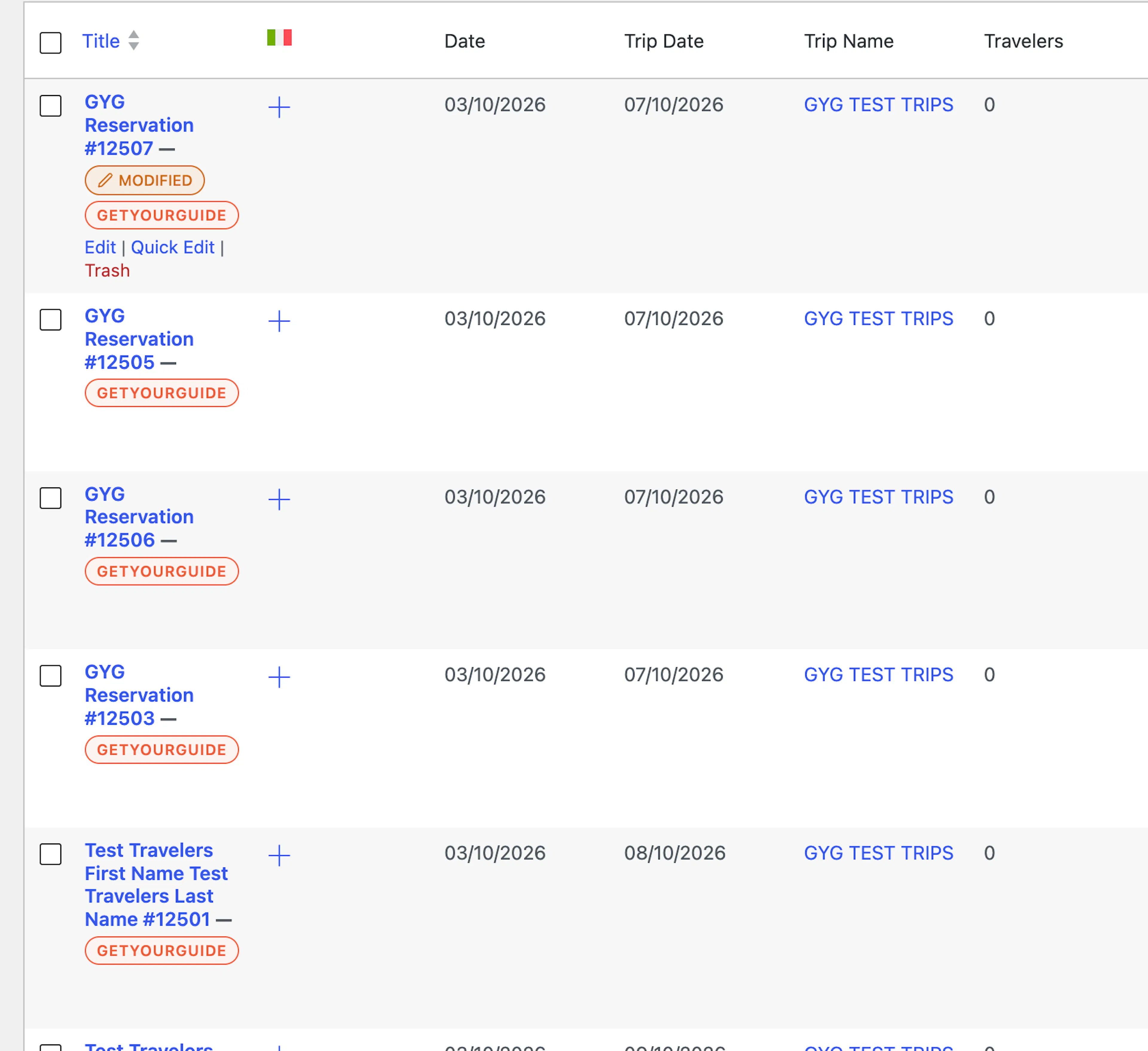
Go to WP Travel Engine Dashboard > Bookings. Every booking that came from GetYourGuide carries a GETYOURGUIDE tag under its title, so you can tell it apart from a booking made on your own site.
The title shows the lead traveler's name and the booking number. Until GetYourGuide sends the traveler's details, the title reads GYG Reservation followed by the number.
Reading the GetYourGuide Details Inside a Booking
Open a booking with the GETYOURGUIDE tag and scroll to the GetYourGuide Booking box. It holds the GetYourGuide information for that booking, and it appears only on bookings that came from GetYourGuide.
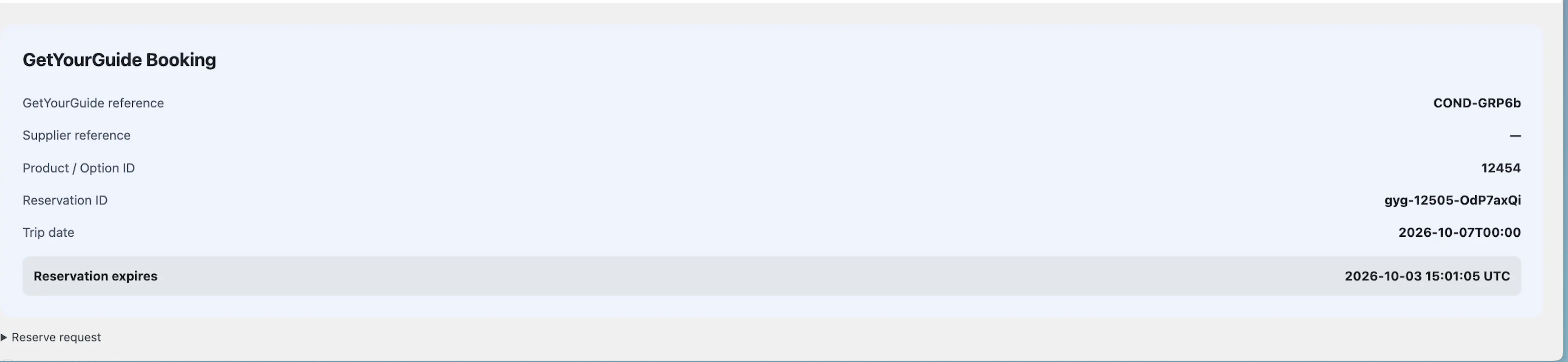
| Field | What it shows |
|---|---|
| GetYourGuide reference | The booking reference GetYourGuide uses. Quote it when you contact GetYourGuide about this booking. |
| Supplier reference | Your own reference for the booking, when GetYourGuide sends one. It shows a dash when there is none. |
| Product / Option ID | The product ID mapped on the package that was booked. |
| Reservation ID | The ID of the seat hold GetYourGuide placed before the booking was confirmed. |
| Trip date | The date and time of the trip the traveler booked. |
| Reservation expires | Appears only while the booking is still an unconfirmed hold. It disappears once GetYourGuide confirms it. |
Under the box, Reserve request and Book request expand to show the full details GetYourGuide sent when it held the seats and when it confirmed the booking. Book request appears after the booking is confirmed.
If a booking looks wrong, check the GetYourGuide Booking box first. Then open the Logs tab and look for the matching Reserve and Book confirmed lines.
Reading the Logs
Logs are a record of every exchange between your site and GetYourGuide. They work like a receipt showing what was asked and what was answered.
The Logs tab is the first place to check when something does not work. It shows the last 200 calls, with the newest call first.
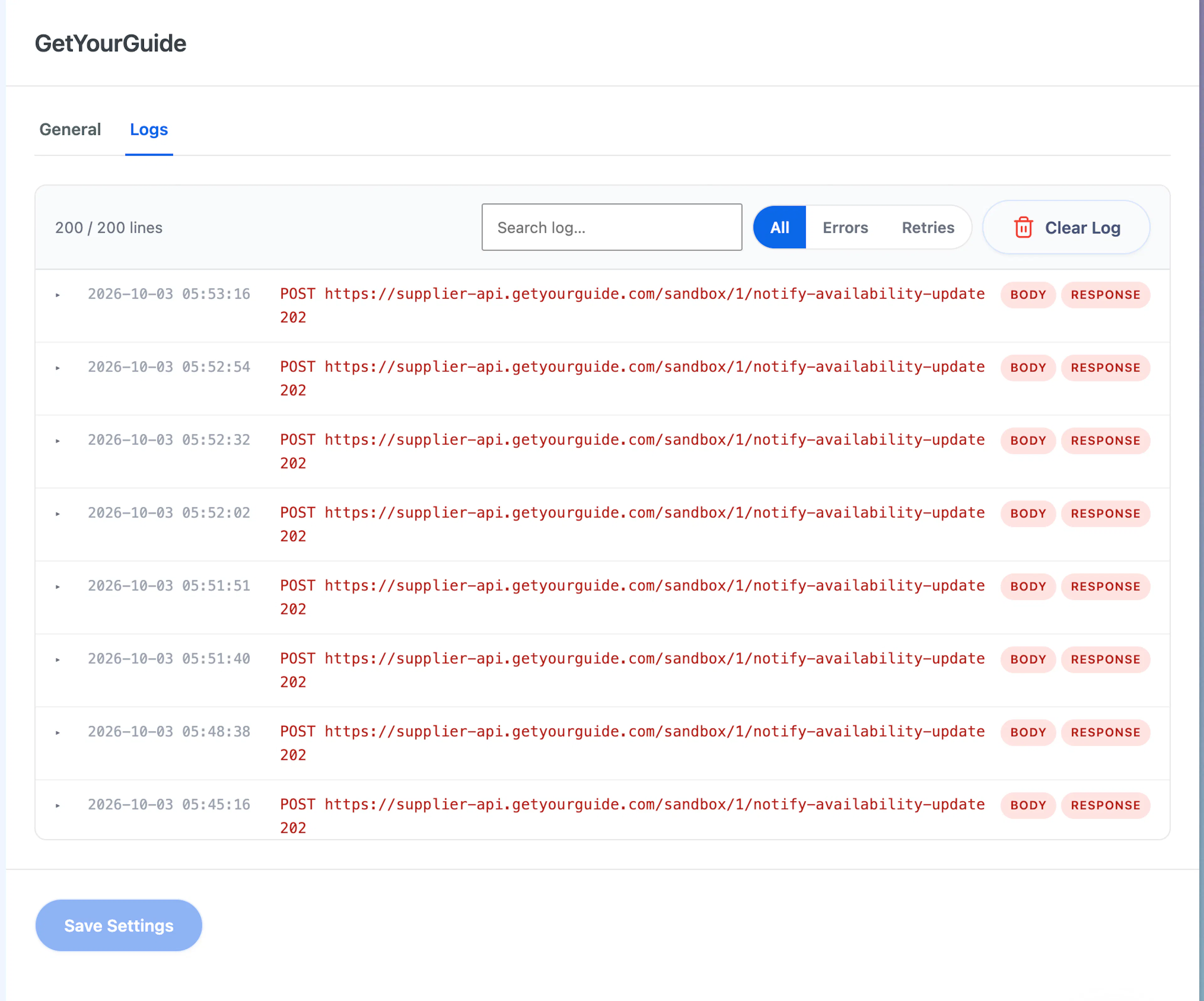
| Line | Meaning |
|---|---|
| Reserve: booking=… trip=… package=… pax=… | GetYourGuide held seats on a trip. |
| Book confirmed: booking=… | The hold became a confirmed booking. |
| Cancel booking: booking=… | A booking was cancelled. |
| POST …/notify-availability-update 202 | Your site sent an availability update. |
| INVALID_PRODUCT: productId=… | The product ID GetYourGuide sent does not have a matching row in Trip Mapping. |
| Package map: productId=… is already mapped on another trip | You saved a product ID another trip's package already uses, so it was skipped |
Errors appear in red. Rows marked BODY and RESPONSE expand to show the full request and reply. Each expanded section has a copy button.
Use the controls above the list to find the information you need:
- Search filters by booking ID, product ID, or any text in a log line.
- All, Errors, and Retries show all entries, failed entries, or retried updates.
- Clear Log empties the list so you can see a fresh test run.
Clearing the log cannot be undone. A confirmation dialog appears before the log is cleared.
Reading a Failure
Most problems appear in one of these three ways:
INVALID_PRODUCT— the product ID is not mapped to any package- A
4xxor5xxonnotify-availability-update— check GYG Username and
GYG Password, and whether Sandbox Mode matches the environment you mean - Nothing at all — GetYourGuide never reached you. Check the Inbound Key/Secret
in their portal, the host, and the Endpoint Path
The logs give you a starting point for almost every connection problem. Check them first, and you can usually find the setting that needs attention.
Troubleshooting
GetYourGuide says my login isn't working
The Inbound Key or Inbound Secret in the GetYourGuide portal does not match the values on your settings page. This often happens after you regenerate your credentials.
Copy both values from your settings page and paste them into the GetYourGuide portal again.
Nothing from GetYourGuide is working at all
Check that Enable GetYourGuide Integration is turned on. When it is off, your site blocks every request from GetYourGuide. Turn it back on and try again.
My updates go through, but nothing changes on my live listing
Sandbox Mode is probably still on. Your updates are going to GetYourGuide's test environment instead of your live listing.
Turn Sandbox Mode off when you reach Set up your production configuration.
Bookings come through, but my price and availability updates don't
Your GYG Username or GYG Password may be wrong. Check the Logs tab for errors.
You may still have the testing credentials instead of the production credentials. Replace them with the production credentials from GetYourGuide.
I see a red banner about currency
Your Expected Product Currency does not match your WP Travel Engine currency. Fix the actual currency on your site or your GetYourGuide listing.
Changing the dropdown only hides the warning. It does not fix the prices.
Prices on GetYourGuide look completely wrong
A currency mismatch may have been hidden instead of fixed. Check that your site's currency and your GetYourGuide listing currency actually match. If they do not, fix the currency itself on one side.
There's a warning about Fixed Starting Dates
The Fixed Starting Dates add-on is not active. Install and activate it, and the warning goes away.
GetYourGuide says the product is not found
The GYG Product ID on the package does not match the ID on GetYourGuide, or you did not save the trip after mapping the package.
Check that both IDs match character for character. Then save the trip again.
A test fails on times or opening hours
The package's Availability Type does not match the option on GetYourGuide. Time Point goes with Time slots, and Time Period goes with Opening hours.
Open the package settings on the trip, change Availability Type to match, and save the trip.
I don't see any log entries at all
GetYourGuide never reached your site. Check the Inbound Key and Inbound Secret in the GetYourGuide portal, your site's host address, and the Endpoint Path.
Any one of these being wrong can block the connection.
The logs show INVALID_PRODUCT
The product ID GetYourGuide sent is not mapped to any package. Open the trip, go to GetYourGuide Product Mapping, and check that the GYG Product ID is typed correctly, character for character. Save the trip afterward.
The logs show an error code like 4xx or 5xx
This usually means the GYG Username or GYG Password is wrong. It can also mean Sandbox Mode does not match the environment you are trying to use. Check both settings.
Every call and every failed update is recorded on the Logs tab. When in doubt, check there first.
Frequently Asked Questions
Can I sell the same trip on my own website and on GetYourGuide at the same time?
Yes. The integration keeps seat counts in sync. When someone books on either side, availability updates on the other side. This helps prevent double-booking.
Can I sell more than one package of a trip on GetYourGuide?
Yes. Map each package on the trip with its own product ID. Each package keeps its own availability type and sync settings, so one trip can mix fixed departure times and opening hours.
Do I need to write my trip descriptions again on GetYourGuide?
Yes. Your site sends only seat availability and prices. You manage descriptions, photos, and itineraries on GetYourGuide. The add-on never overwrites them.
Can I charge a different price on GetYourGuide than on my own website?
Yes. There are two ways:
- Leave Sync pricing off for that package. GetYourGuide keeps the price you set on their side.
- Turn Sync pricing on and enter a percentage under GetYourGuide Price Increase (%). Your site adds it to the price before sending. With the first way, make sure someone keeps the two prices in step, or they can drift apart.
Does the price increase change the price on my own website?
No. The percentage is added only to the price sent to GetYourGuide. A $100 trip with a 25 percent increase shows $125 on GetYourGuide, and $100 on your site.
What happens if someone books through GetYourGuide and then cancels?
The cancellation comes back to your site. The seats open up again on both sides. You can see the cancellation in the Logs tab.
Do I need the Group Discount add-on?
Only if you sell tickets priced per group, where one ticket covers a whole party. If you sell per-person trips, you do not need it.
What currency should I use?
Your WP Travel Engine currency must match your GetYourGuide listing currency. GetYourGuide does not convert currencies. If the currencies differ, customers see incorrect prices and your bookings can suffer.
Can I turn off the connection temporarily?
Yes. Turn off Enable GetYourGuide Integration. This blocks all requests from GetYourGuide, so bookings stop until you turn it back on.
Use this when you need to take the GetYourGuide channel down on purpose.
If you're still stuck or have a question we didn't cover, our support team is happy to help. Reach out at our support page and we'll get you sorted.