

Conversation & People
How the admin can read every chat the assistant has had, see exactly what the AI replied, reply as a human, and see how Trip Assistant records and organizes traveler details.
Introduction
Every chat a traveler has with Trip Assistant lands in two places in your WordPress dashboard: Conversations, where you read the transcript and see exactly what the assistant said, and People, where every traveler who identified themselves gets one record that follows them across every chat they've ever started.
Both are standalone pages, not settings tabs. Go to Altus AI in the left sidebar of your WordPress dashboard, then select Conversations or People.
Conversations
Layout
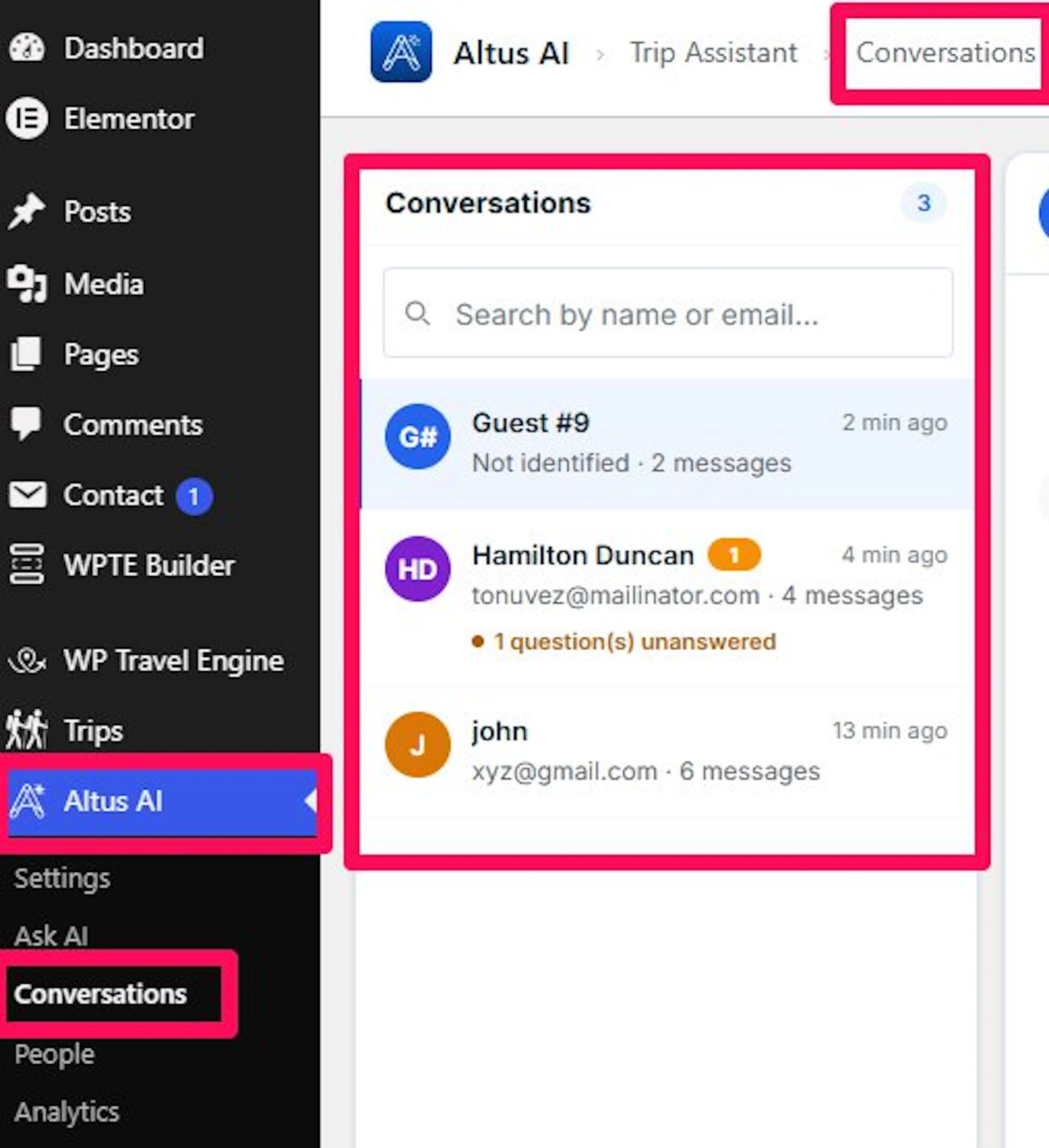
The page is split into two panels: a conversation list on the left, and the selected conversation's transcript on the right. Opening the page for the first time selects the most recent conversation automatically, so the transcript pane is never empty.
The Conversation List
- Count badge: Shows the total number of conversations, next to the "Conversations" heading.
- Search: Type a name or email to filter the list. Search runs after a brief pause in typing, not on every keystroke.
- Each row shows:
- The traveler's avatar and name, or Not identified if they never gave their details.
- A numbered badge if the assistant left one or more of their messages unanswered.
- How long ago the conversation was last active.
- Their email (or Not identified) and the total message count.
- An unanswered flag when the assistant couldn't answer at least one message.
- An Asked to talk to a human or Asked to be emailed flag when the traveler requested a handoff.
- Select a row to load that conversation on the right.
- Paging: Appears at the bottom once there's more than one page. Prev and Next step through pages; the current page and total page count sit between them.
The Transcript
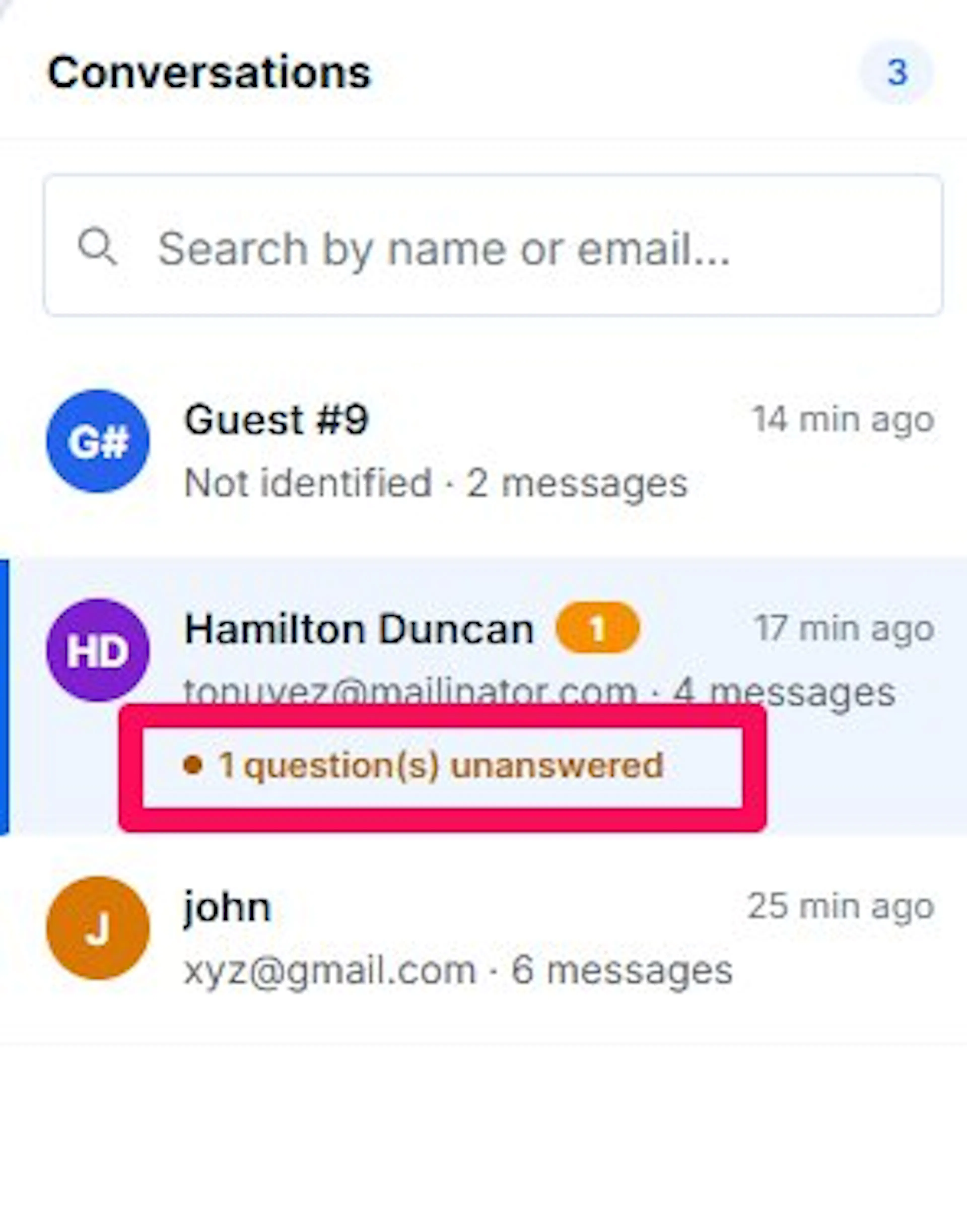
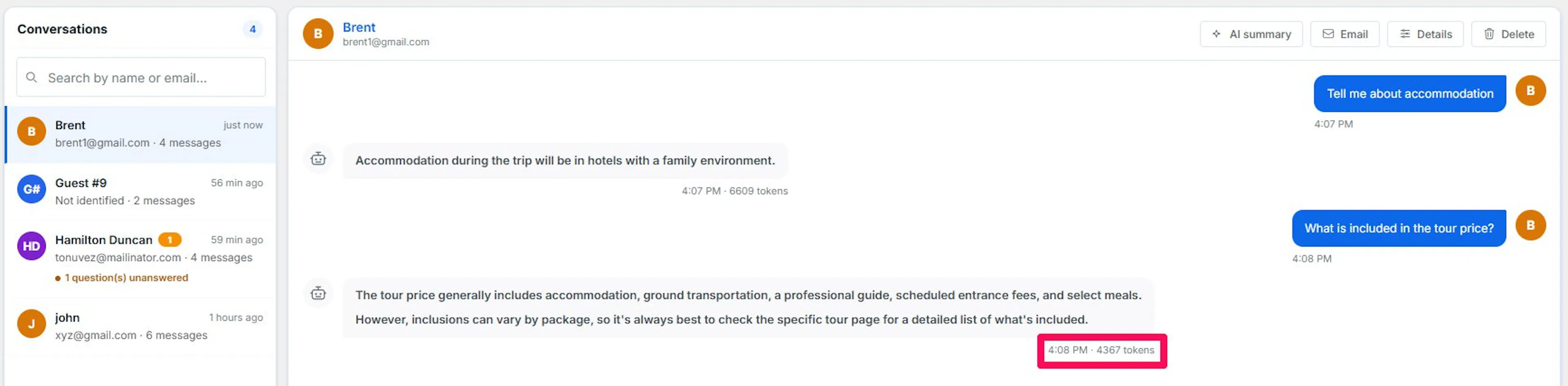
- Traveler messages appear on the right in a solid color; assistant replies appear on the left in a neutral bubble.
- A reply that includes trip or departure cards renders those cards exactly as the traveler saw them on your site, not as raw text.
- A reply the assistant couldn't ground in your Knowledge Base is marked Could not answer, with the reason underneath when one was recorded.
- Each assistant reply shows the time it was sent and how many tokens it used.
AI Summary
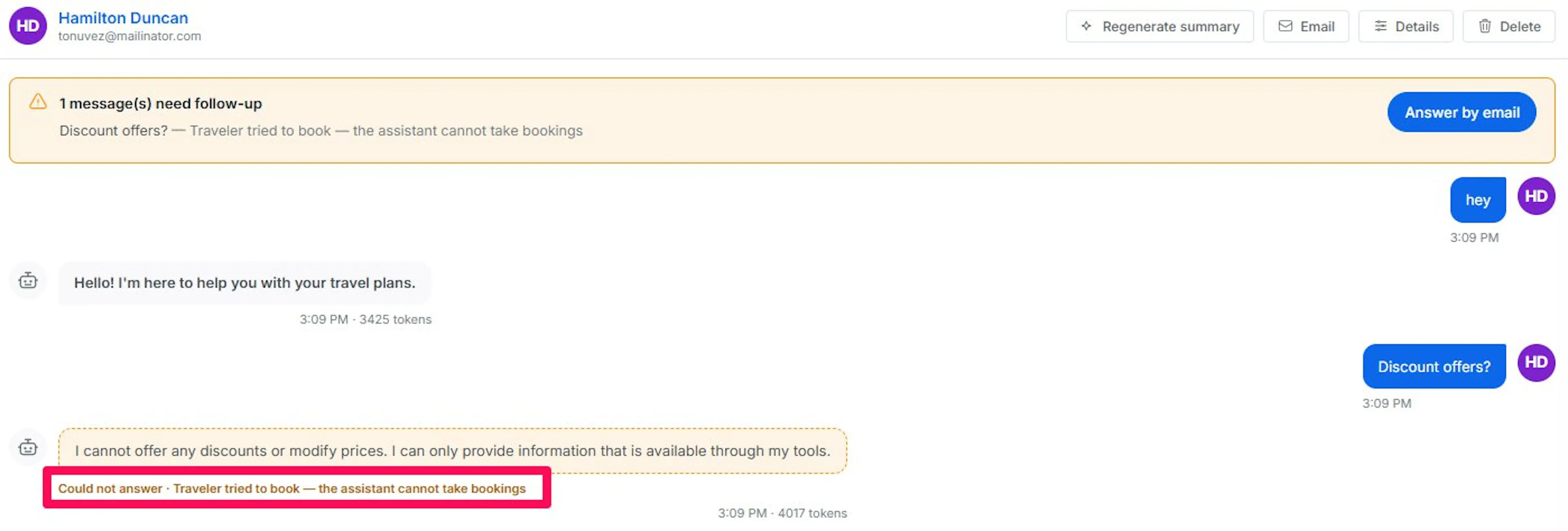
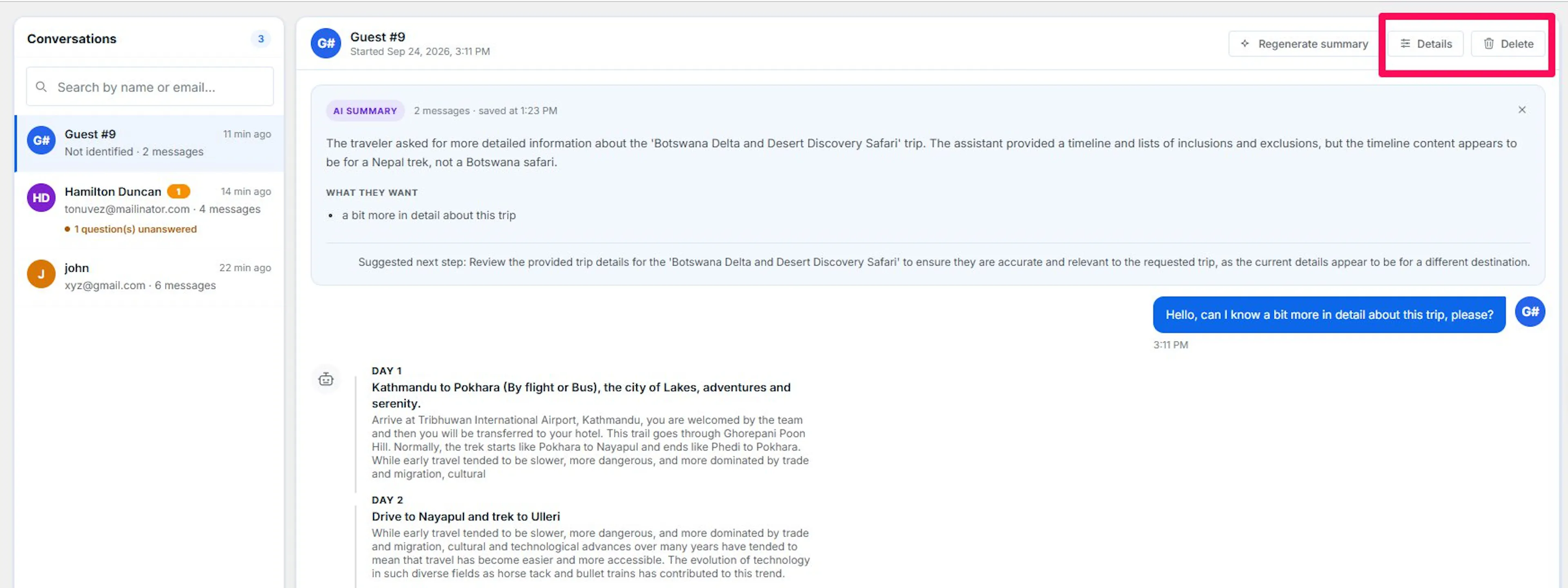
Above the transcript, select AI summary (or Regenerate summary if one already exists) to have the assistant read the whole conversation and produce:
- Overview: A short plain-language description of what happened.
- What they want: A bullet list of what the traveler was after.
- Left unanswered: A bullet list of what the assistant couldn't resolve, with a count badge.
- Suggested next step: One line on what to do next.
- The message count the summary covers and when it was generated.
- Email [name]: Opens the email composer, pre-filled from this conversation, when the traveler has an email on file.
- Close (×): Dismisses the summary card for this conversation. Selecting Regenerate summary brings it back.
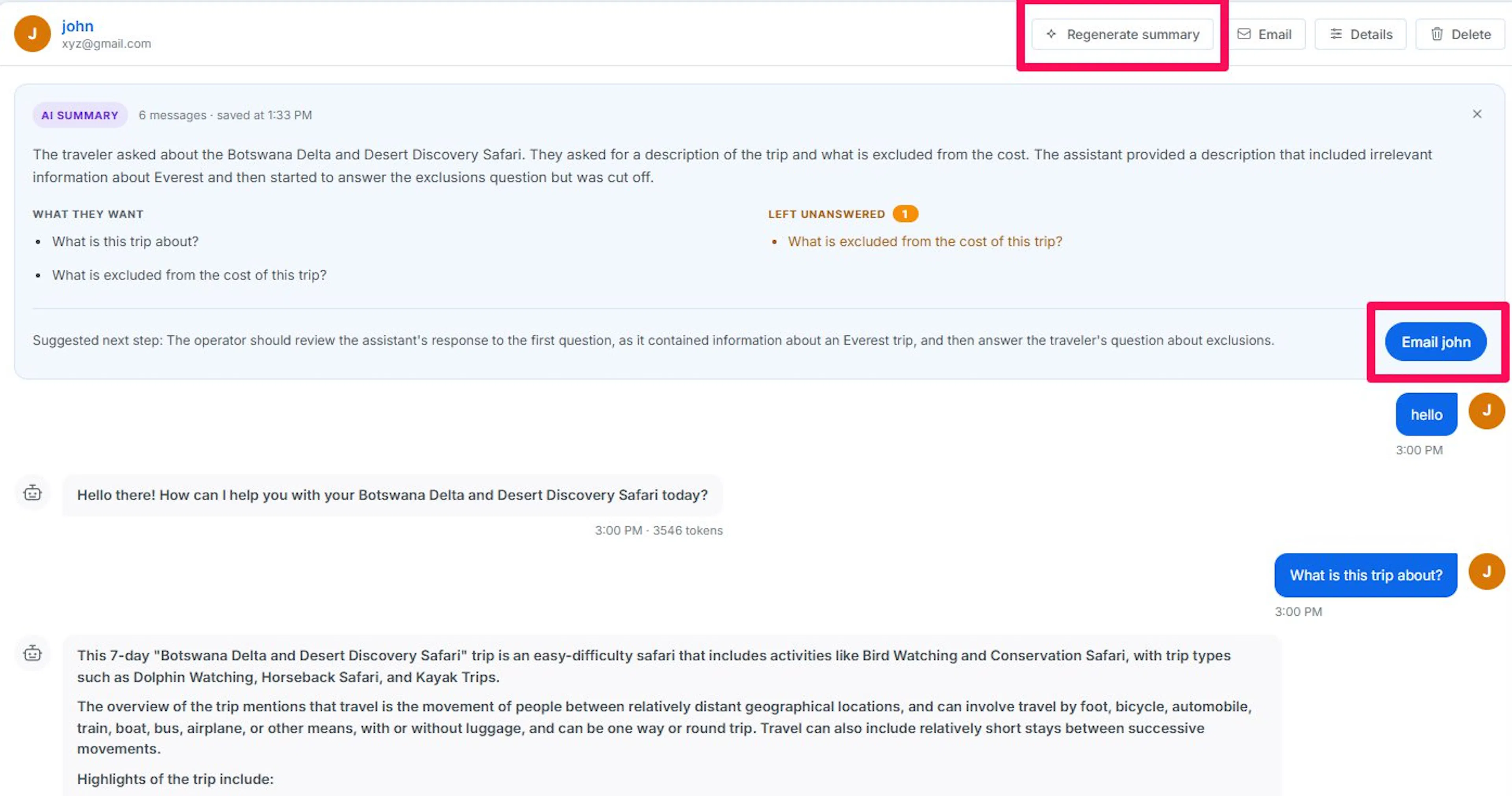
Note: Regenerating replaces the previous summary; there's no way to keep both versions side by side.
Unanswered Messages Banner
When any message in the conversation is unanswered, a banner above the transcript lists each one, with the reason next to it when the assistant recorded one. Select Answer by email to reply to all of them at once through the email composer.
Conversation Actions
Four actions sit at the top of the transcript panel, next to the traveler's name:
- AI summary / Regenerate summary: Described above.
- Email: Opens the email composer for this traveler. Only shows when they have an email on file.
- Details: Opens the details drawer, described below.
- Delete: Permanently deletes the conversation and every message in it, after you confirm. This can't be undone.
If the traveler has a linked People record, their name in the top bar is a link that opens their record.
Emailing a Traveler
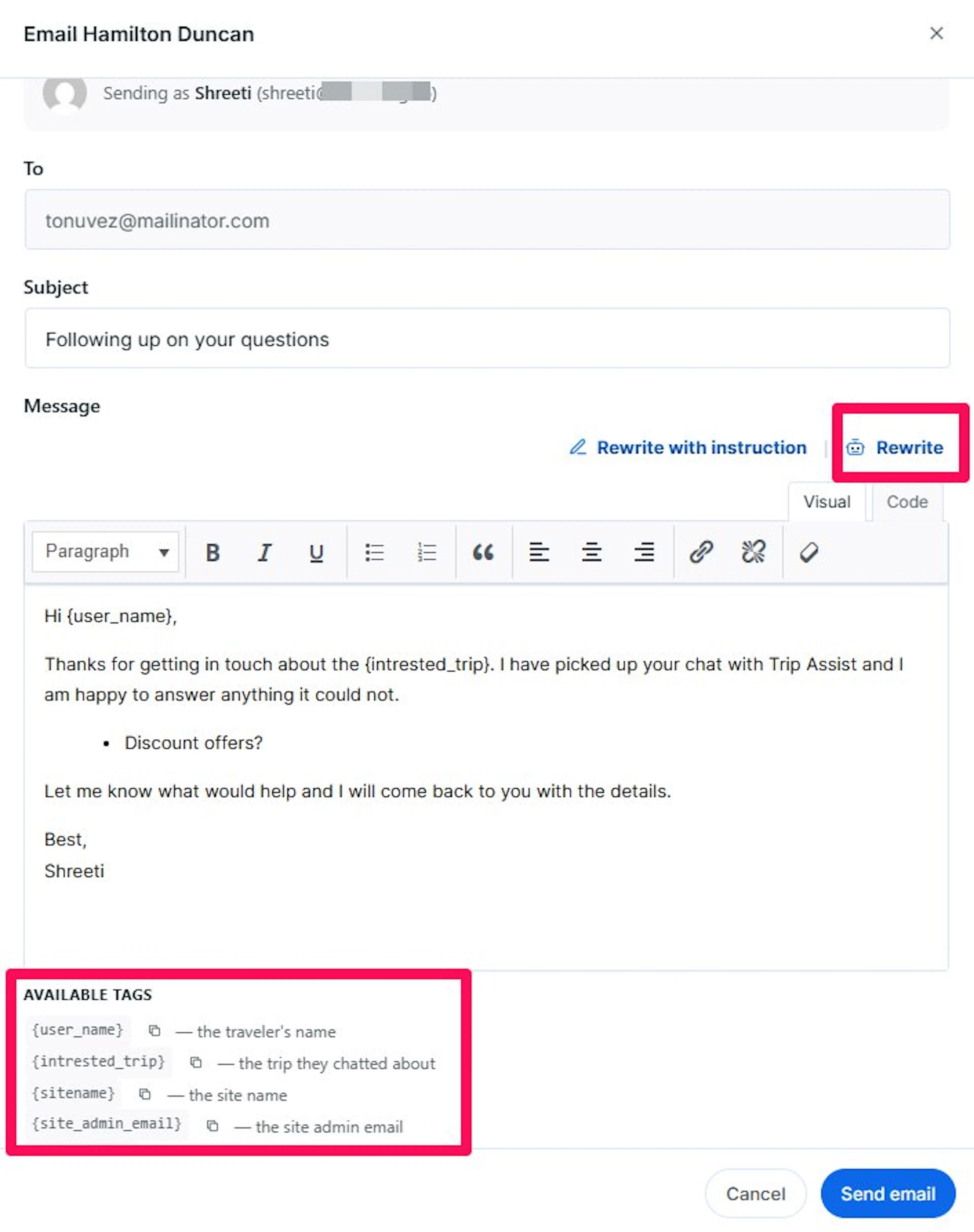
The email composer opens as a dialog, shared between Conversations and People:
- Sending as: Shows the WordPress account you're signed in as, and the address your replies send from.
- To: Pre-filled with the traveler's email. Read-only.
- Subject: Pre-filled with Following up on your questions; edit freely.
- Message: A rich-text editor, pre-filled with a draft that greets the traveler by name, references the trip they chatted about, and lists any unanswered questions as bullet points.
- AI write button (inside the editor): Generates a fresh draft from the conversation's context, or rewrites the current draft when you give it an instruction.
- Available tags:
{user_name},{intrested_trip},{sitename},{site_admin_email}, and{ip_address}, each with a copy button. Leave a tag in the message, and it's filled in automatically when the email is sent. - Send email: Sends the message and records it against the traveler's People record. Cancel closes without sending.
The Subject and To fields aren't cleared when you close and reopen the composer for a different traveler; the whole form redrafts itself each time it opens.
Conversation Details Drawer
Select Details to open a side panel with two sections:
Traveler
- Their status badge (see People below for what each status means), if they have a People record.
- Name, Email, Phone, Country: shown as
—when not on file. - Session ID: the browser session the conversation was tied to.
- Open full record: jumps to their People record when one exists.
Conversation
- Started at and Last message: timestamps.
- Messages: total message count.
- Started on: the page URL the conversation began on, as a clickable link.
- Rating: the star rating the traveler left at the end of the chat, or Not rated.
- Unanswered: how many messages the assistant couldn't answer, or 0.
- Tokens used: total AI tokens spent on this conversation, or 0.
Deleting a Conversation
Select Delete, then confirm. This permanently removes the conversation and every message in it; it cannot be undone. The list automatically selects another conversation afterward.
People
Every traveler who's given their name and email to the assistant, whether through the chat's identify step or a Trip Assistant email you've sent them, has one record here. The same email always resolves to the same person, even across separate chats.
The People Table
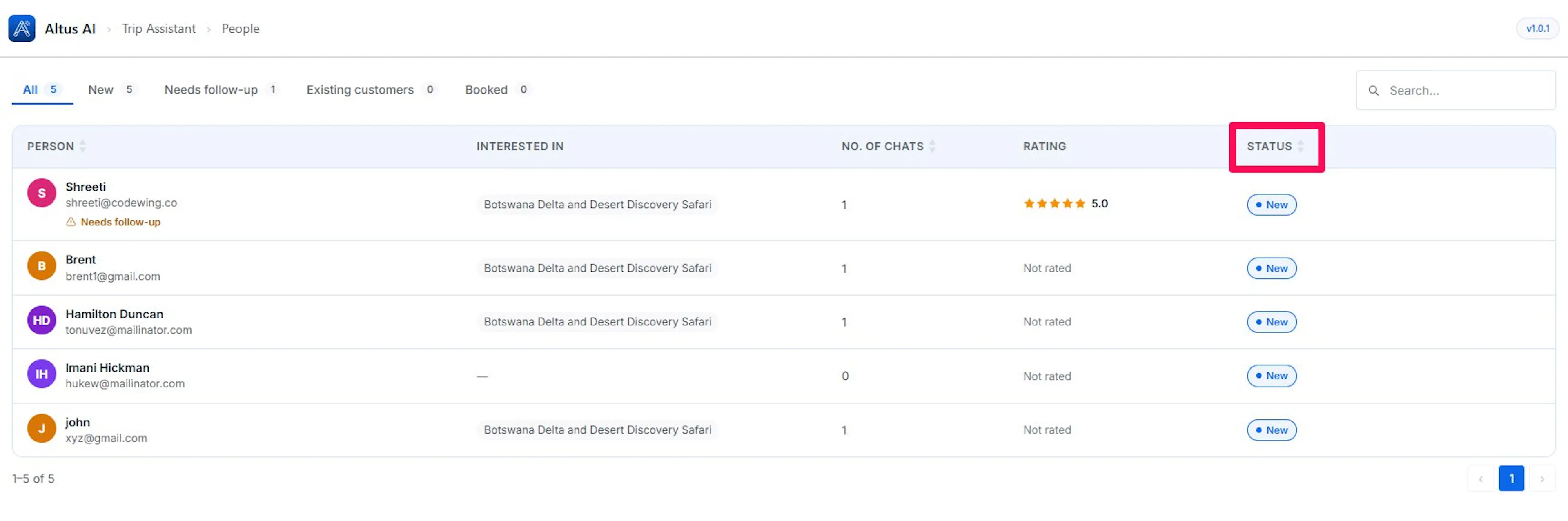
- Search: Type a name or email to filter, above the table.
- Person: avatar, name, email, and a Needs follow-up flag when it applies. Select this cell to open the record.
- Interested in: the first trip they chatted about, with a
+Nbadge for any others. Shows—if none. - No. of chats: their total conversation count.
- Rating: the average star rating across their conversations.
- Status: their status badge, plus a separate Contacted badge once you've emailed them.
- Sorting: select Person, No. of chats, or Status to sort by that column; select again to reverse the order.
- Paging: at the bottom of the table once there's more than one page.
Opening a Record
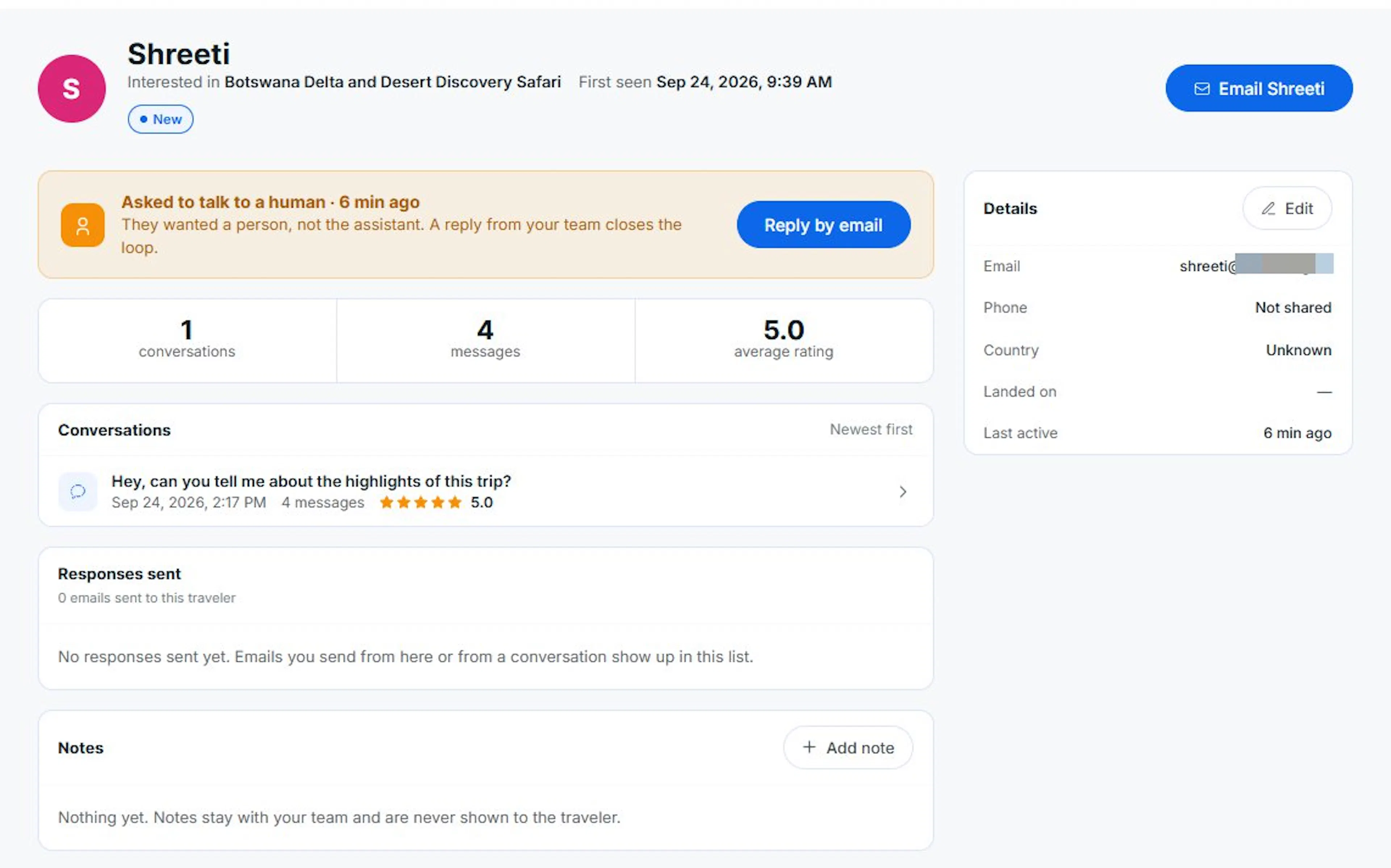
Select any row to open that person's full record. A [N] of [total] counter with previous and next arrows appears at the top, so you can step through every person the table currently shows without going back to the list each time. Select People in the top-left to return to the table.
Record Header
- Avatar and name.
- The trip they're most interested in, their country, and the date they were first seen, shown inline when known.
- Their status badge.
- Email [name]: opens the email composer for this person, identical to the one on the Conversations page, and pre-fills the trip they last chatted about.
Follow-up Alert
Appears only when the person needs follow-up, with the specific reason:
- Asked to talk to a human: they wanted a person, not the assistant.
- Asked to be emailed: they chose email over chat and are expecting a message.
- Rated the chat [x] out of 5: their average rating is 3 or below, which usually means the assistant couldn't answer something.
Reply by email opens the composer directly from this banner. The alert disappears once you've sent them an email; it reappears if a later chat raises the same kind of request again.
How a Person Is Created and How Status Is Set
A record is created the first time someone gives their name and email, either through the chat's identify step or by being emailed directly from Trip Assistant. From then on:
- Status starts at New and is checked against WP Travel Engine automatically: it becomes Existing customer once a matching customer record exists for their email, and Booked once that customer has a completed booking. Status only ever moves forward on its own; a status you set manually in the edit dialog isn't downgraded by a later sync.
- Contacted is a separate badge, not a status. It appears the first time you send that person an email, from either Conversations or People, and stays on their record from then on.
- If the same email starts a new chat on a different device, it's recognized as the same person and adds to their existing record rather than creating a new one; only the name, phone, and country fields left blank on the existing record are filled in from the new chat, so a detail you've corrected by hand is never overwritten.
If you're still stuck or have a question we didn't cover, our support team is happy to help. Reach out at our support page and we'll get you sorted.