

Trip Assistant
Set up an AI chat launcher on your tour website that answers travelers' questions from your own trips, departures, and content, captures leads, and hands off to your team when it can't help.
Introduction
Trip Assistant puts an AI chat launcher on your public site. Visitors open it and ask about your trips the way they'd ask a travel agent, then get an answer right away, drawn from your own trips, departures, and content, not a generic reply.
Why It Exists
Most visitors never finish reading a trip page, and the question they actually have is rarely on it. Without Trip Assistant, their options are a contact form answered the next day, or a generic chatbot that confidently makes something up. Trip Assistant sits between the two. It answers instantly, and only from your own content: your trips, departures, policies, and uploaded documents. When it genuinely doesn't know something, it doesn't guess. It takes the visitor's details and hands the conversation to your team.
What Visitors Get
- Answers grounded in your site: Replies pull from your trips and your knowledge base, not general travel knowledge, so the assistant never invents a price, date, or inclusion.
- Trips shown, not just described: Recommendations appear as trip and departure cards with real prices and dates, so a visitor can go straight from an answer to a booking.
- Tabs for browsing: Alongside chat, the widget can show a Home welcome, past messages, popular trips, and upcoming departures. You choose which tabs appear and in what order.
- A conversation they can return to: Visitors can reopen an earlier conversation instead of starting over.
- A friendly prompt: An optional teaser message invites visitors to ask, instead of waiting for them to notice the launcher.
- A real person when it matters: When the assistant can't help, it introduces your team, with a photo and your own message, and hands the conversation on.
What You Get
- Captured leads: Visitors are asked who they are after they've had a useful answer, not before. Their details are stored with the conversation.
- A people list: Everyone who identified themselves, with their conversations, your private notes, and the ability to email them directly from the admin.
- Full transcripts: Read any conversation in full, or use an AI summary that shows what the visitor wanted, what went unanswered, and the suggested next step. Regenerate a summary with your own guidance.
- Email replies: Follow up from inside the admin, with a draft based on the conversation.
- Feedback signals: Visitors can rate replies, so you can see where the assistant is weak.
Why Use It
- Fewer repetitive enquiries: the assistant handles the questions that would otherwise land in your inbox every day.
- Faster answers at the moment of interest: a visitor gets a reply while they're still on the page, not the next morning.
- Answers stay accurate: because replies are grounded in your own content, the assistant doesn't quote a price or date that's since changed.
- A record of intent: transcripts and summaries show you what visitors actually wanted, not just what they clicked.
- Nothing to babysit: daily conversation and message limits keep usage predictable, and any conversation can be paused at any time.
Teaching It About Your Business
The knowledge base is what makes the answers yours:
- Add question-and-answer pairs for the things people always ask.
- Train it on pages and posts already on your site.
- Upload documents, such as PDFs and policies, with a preview before anything is used.
- Control how closely a piece of content must match before it's used, and how much background each answer draws on.
Making It Yours
Set the assistant's name and logo, your brand color, and the launcher's position and icon. Write the welcome greeting and introduction, choose the response language, and give the assistant instructions about its tone and what it should stick to. Choose which pages it appears on, and preview a change before visitors see it.
Keeping It Sensible
- Daily conversation limits and per-conversation message limits keep usage predictable.
- Pause an individual conversation at any time from the admin.
- Your configuration, instructions, model choice, and limits are never exposed on the public page.
Getting Started
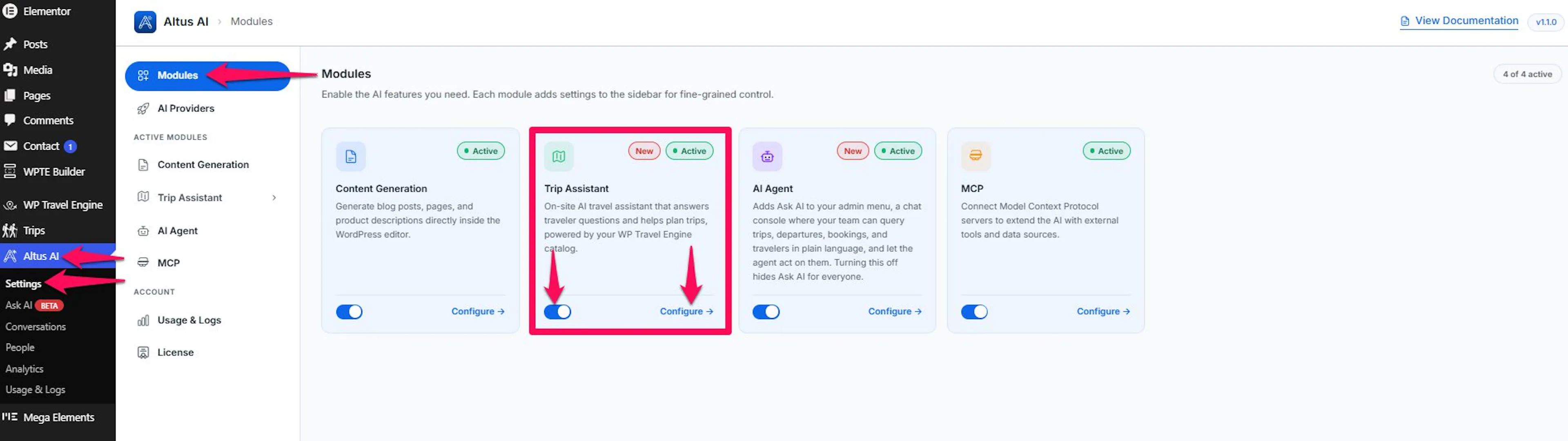
- Go to Altus AI → Settings → Modules and enable Trip Assistant.
- Choose your AI provider and model under Settings → General.
- Add a few question-and-answer pairs and train it on your key pages under Knowledge Base.
- Set the name, logo, brand color, and welcome message under Settings → Configuration.
- Preview it in Playground, choose where it appears under Settings → Visibility, then save.
If you're still stuck or have a question we didn't cover, our support team is happy to help. Reach out at our support page and we'll get you sorted.