

Using AI Agent
Activate your Altus AI license, connect an AI provider, and use the Ask AI chat console to query and manage your store in plain language.
Introduction
Before Ask AI can answer anything, two things need to be in place: an active Altus AI license, and an AI provider with a working API key. This guide covers both, then walks through actually using Ask AI once it's ready.
Activating Your License
Every Altus AI feature, not just AI Agent, is locked behind your license. An inactive license blocks every Altus request except the settings pages themselves, so nothing in AI Agent works until this is done.
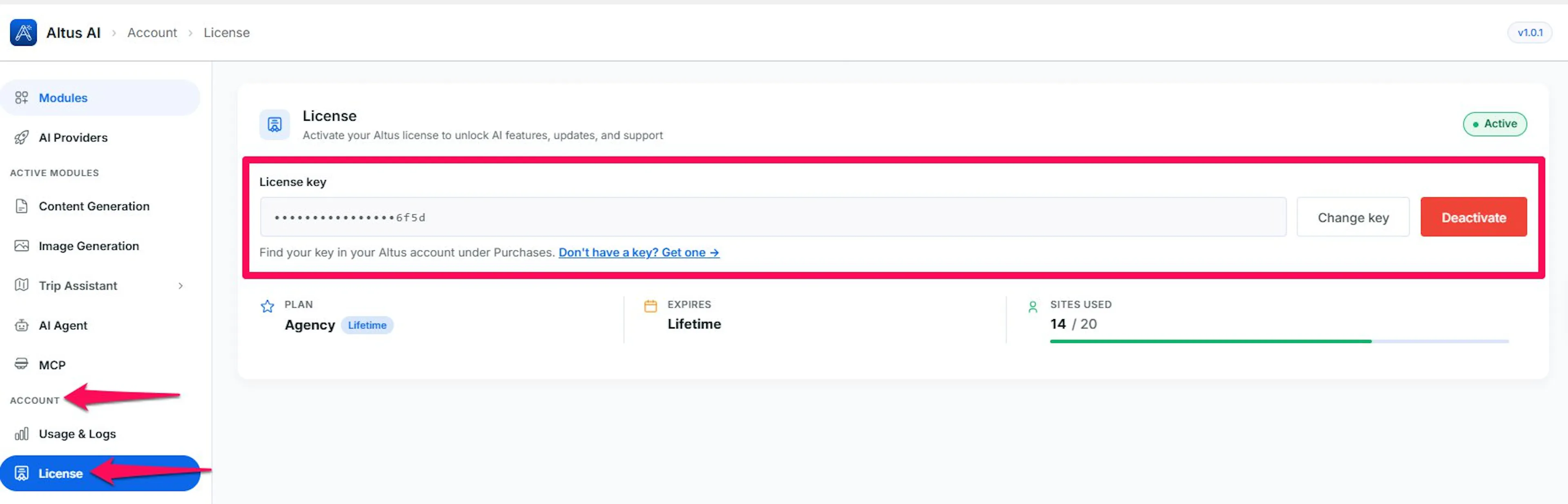
- Go to Altus AI > Settings > Account > License.
- Enter your license key in the License key field. Find it in your Altus account under Purchases.
- Select Activate.
Once active, the page shows:
- Status badge: Active, Expiring soon, Expired, Inactive, or Not connected, next to the page title.
- Plan: your plan name, with an Annual or Lifetime tag.
- Expires: the renewal date, or Lifetime. Turns amber inside 14 days of expiring, red once expired.
- Sites used: how many of your licensed site seats are currently active, with a fill bar.
Change key swaps in a new key; Deactivate frees up this site's seat so the key can be activated elsewhere, after you confirm, since deactivating can't be undone from this side. If your license has expired, an alert with a Renew License button appears above these stats.
Connecting an AI Provider
Ask AI's model comes from a connected AI provider, the same list used across every Altus module.
- Go to Altus AI > Settings > AI Providers.
- Select a provider to expand it: OpenAI, Anthropic, Google, or OpenRouter.
- Paste your key into the API key field, then select Edit key if one is already stored.
- Select Test connection to confirm the key works and see how many models it unlocks.
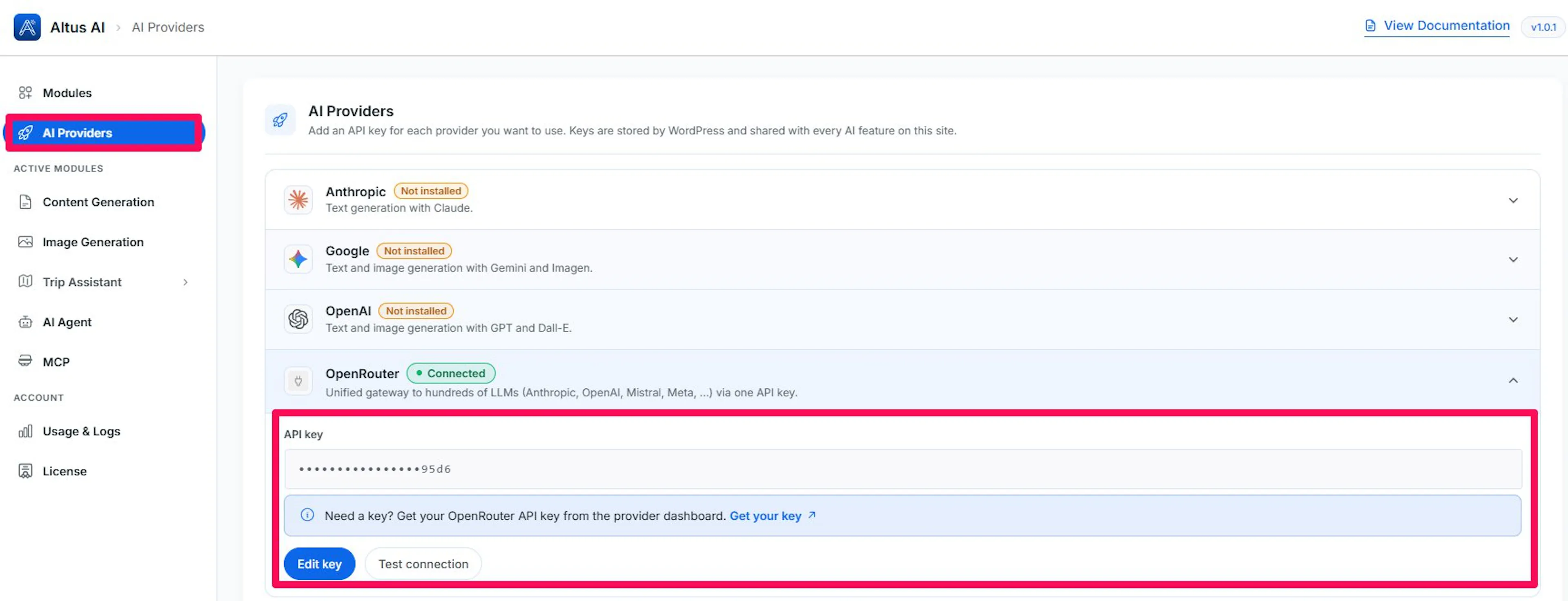
If a provider's connector plugin isn't installed or active, Altus shows a warning with an Install or Activate link instead of the key field; you can't enter a key until the plugin is running. If a key is set through an environment variable or wp-config.php instead, the field shows as read-only with a note on where to change it.
Once a provider is connected, pick it and a tool-calling model under Configuring AI Agent > Agent Model.
Opening Ask AI
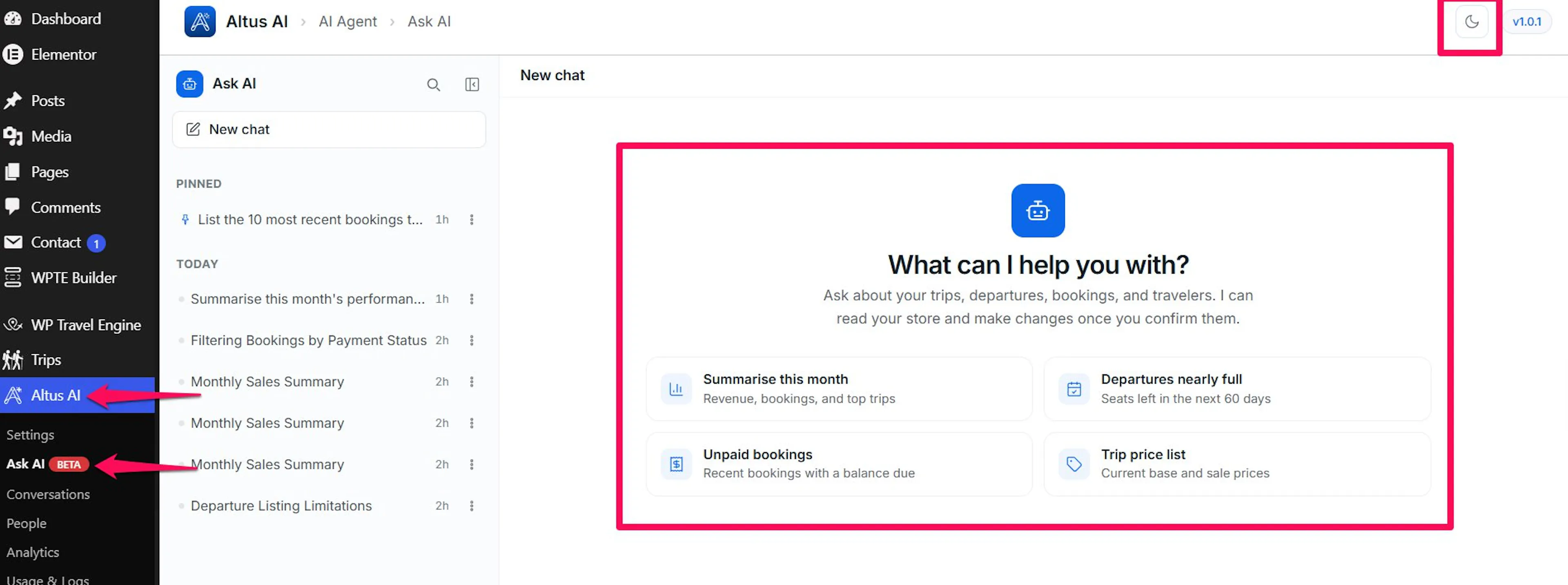
Go to Altus AI > Ask AI in the WordPress admin menu. It only appears for roles you've allowed under Configuring AI Agent > Access, and carries a BETA tag next to its label while the feature is in beta.
If no model is configured yet, a warning banner sits above the chat until you set one.
Dark mode: Select the moon icon in the top-right corner of the page to switch Ask AI between light and dark mode.
The Conversation List
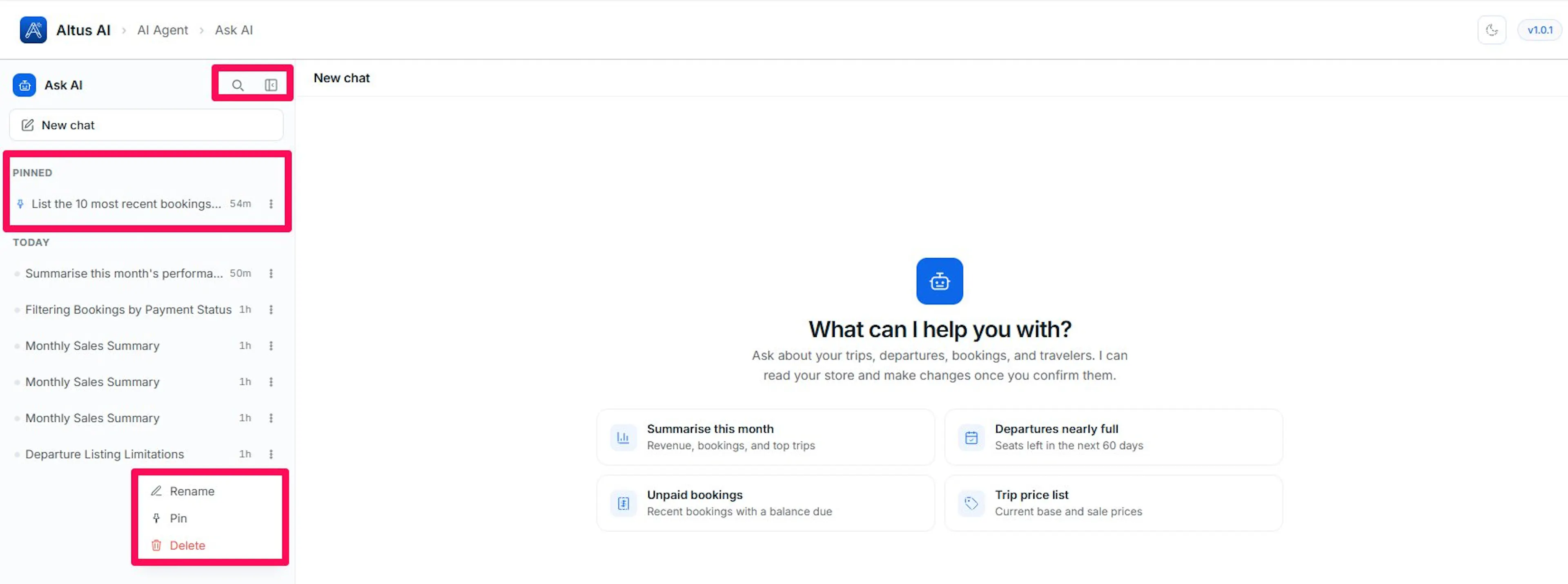
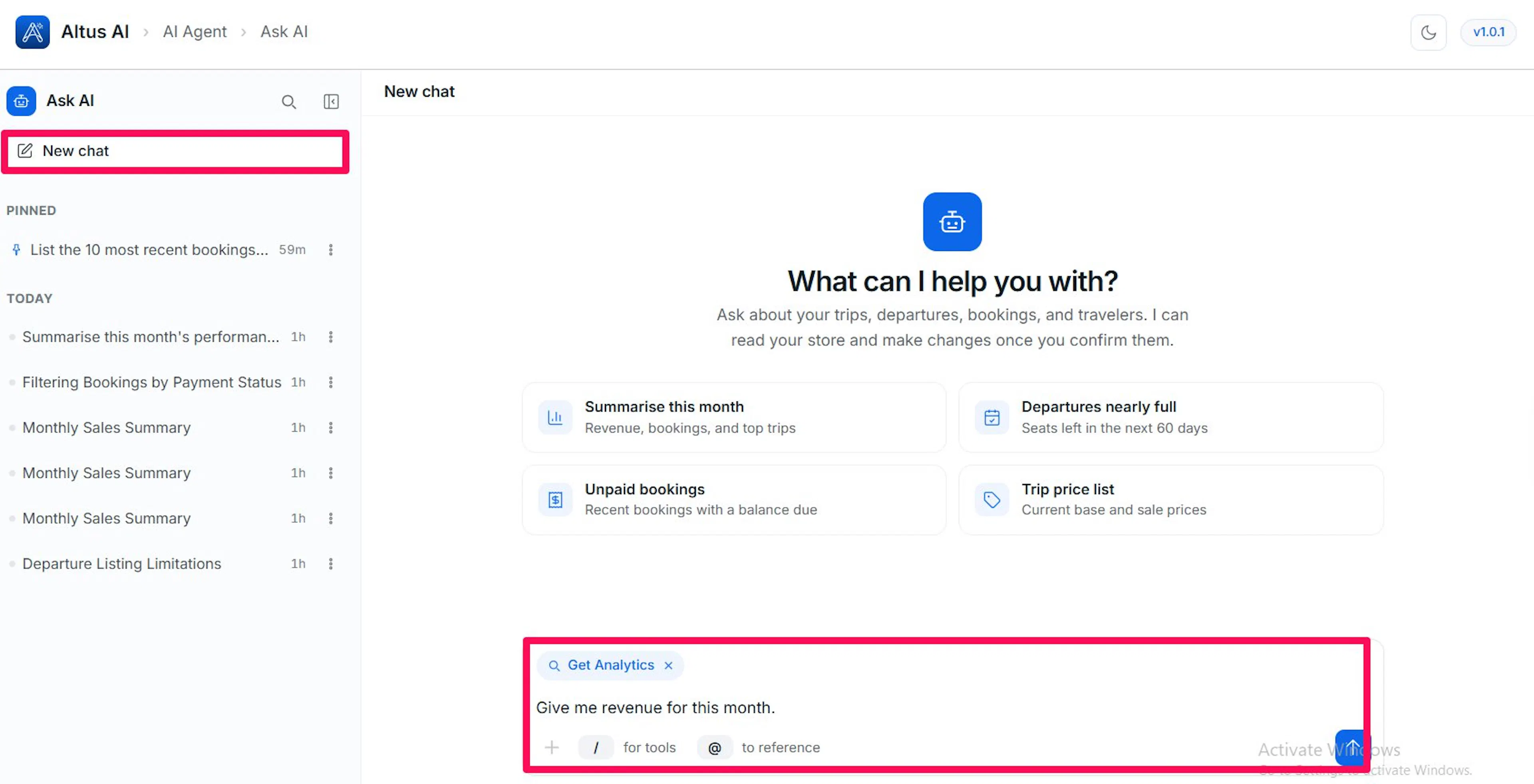
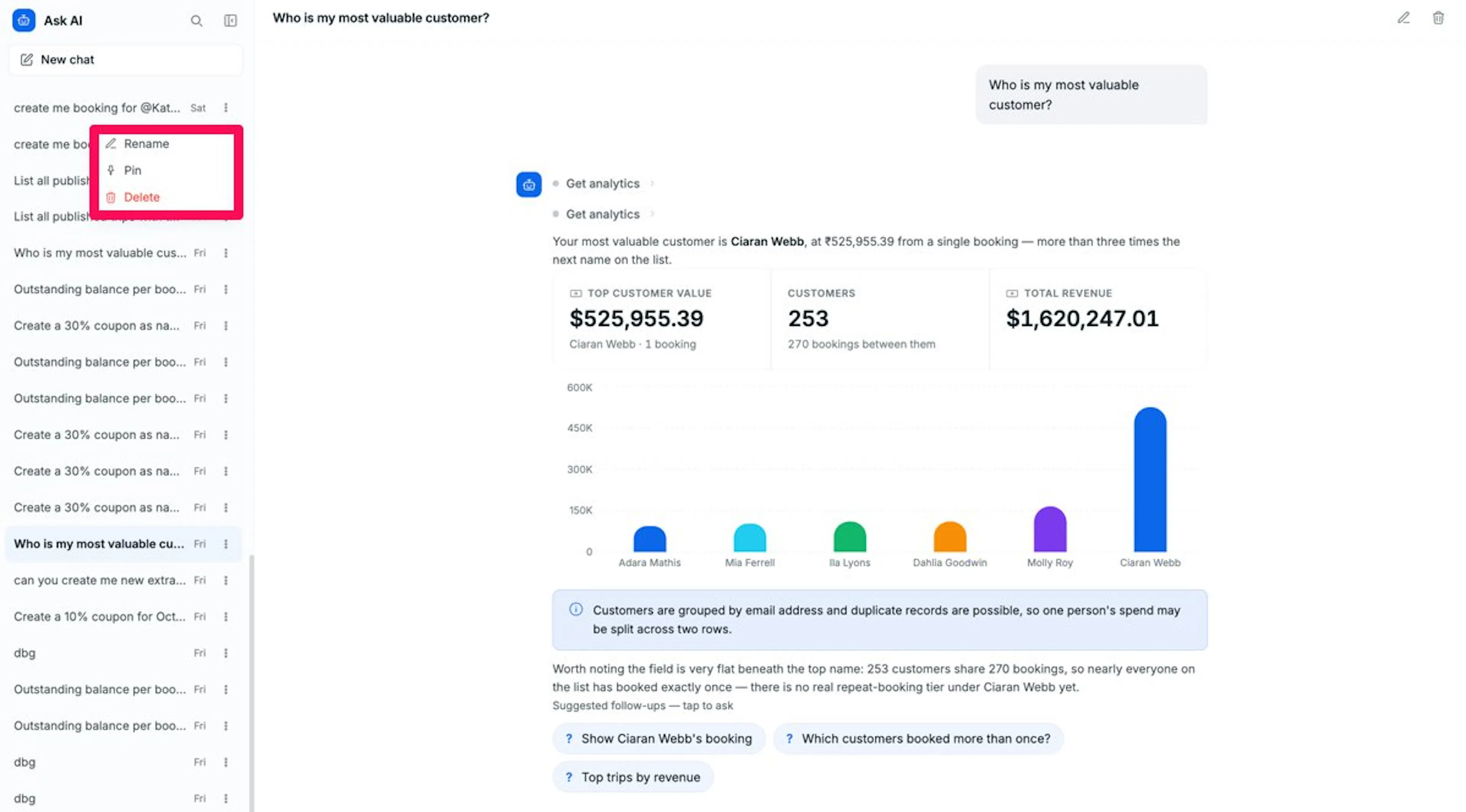
A rail on the left lists every past chat, newest first, grouped as Pinned, Today, Yesterday, Previous 7 days, and Earlier.
- New chat: starts a blank conversation.
- Search (magnifying glass icon): opens a search dialog over the whole rail; type to filter by title.
- Collapse (panel icon): hides the rail to give the conversation more room; a matching icon in the top bar brings it back.
- Resize: drag the rail's right edge, or focus it and use the arrow keys, to widen or narrow it.
- Each conversation row shows its title and how long ago it was last active, and opens a ⋮ menu with Rename, Pin / Unpin, and Delete.
- Pin: also works by dragging a conversation onto the Pinned group; pinned chats stay at the top regardless of when they were last used.
- Delete: removes the conversation and everything in it after you confirm. This can't be undone.
Starting a Conversation
The empty state suggests a few starting points, for example, summarizing the month's sales or finding bookings with an unpaid balance. Selecting one fills the composer with that question so you can edit it before sending.
Type your own question in the composer at the bottom and press Enter to send (Shift + Enter for a new line without sending). While Ask AI is replying, the send button becomes a Stop button; select it, or press Esc, to halt that turn without losing it from the conversation.
Picking a Tool Directly
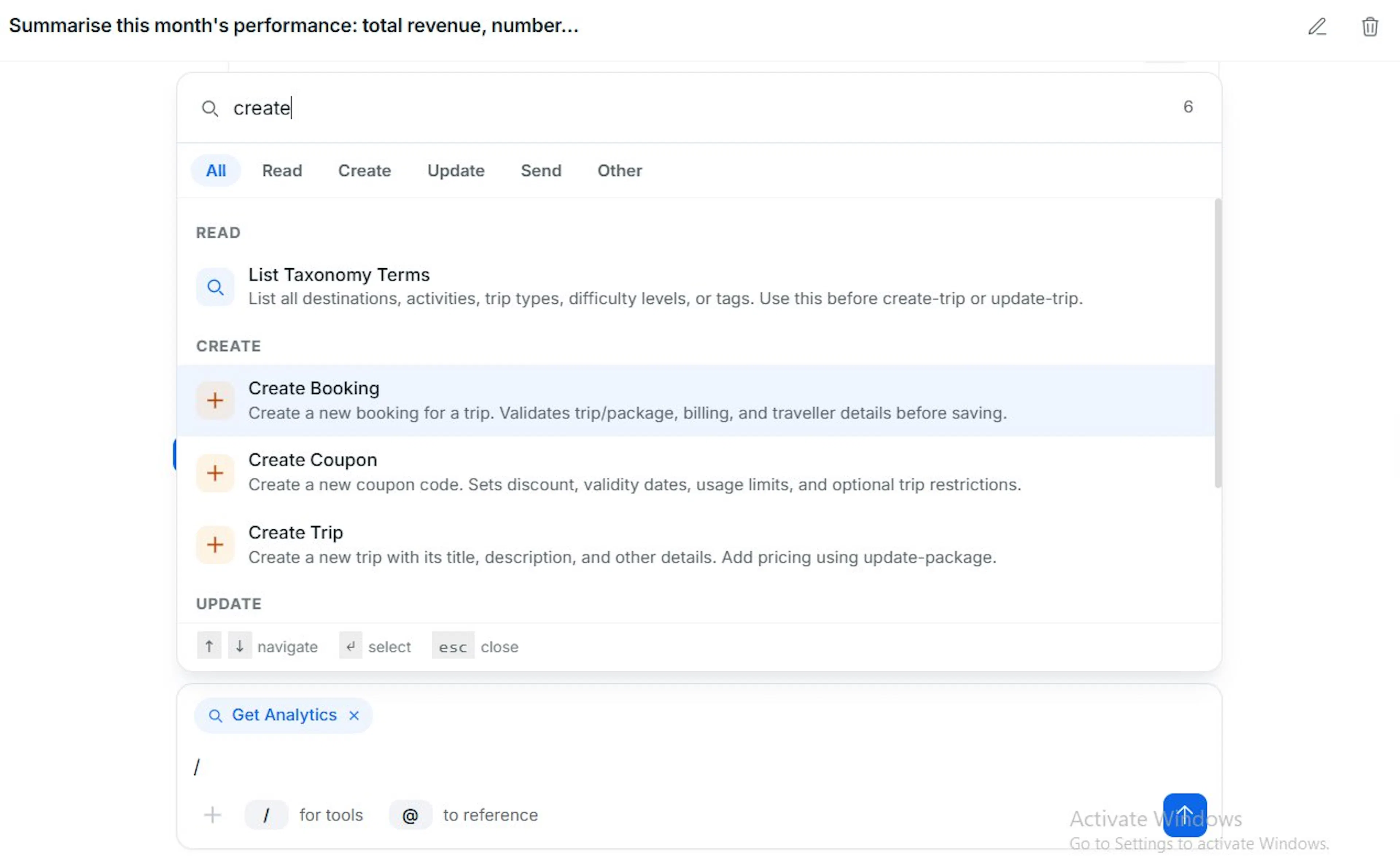
Type / at the start of a message, or select / for tools, to open the tool palette instead of letting Ask AI choose on its own.
- Search tools: filters the list as you type.
- Group tabs: switch between tool categories when there's more than one.
- Each tool's icon is colored to show whether it reads data or changes it.
- Selecting a tool pins it as a chip above the composer; Ask AI uses that specific tool for your next message. Remove the chip with its × to go back to letting Ask AI decide.
- Navigate the palette with the arrow keys, confirm with Enter, or close it with Esc.
Referencing a Record with @
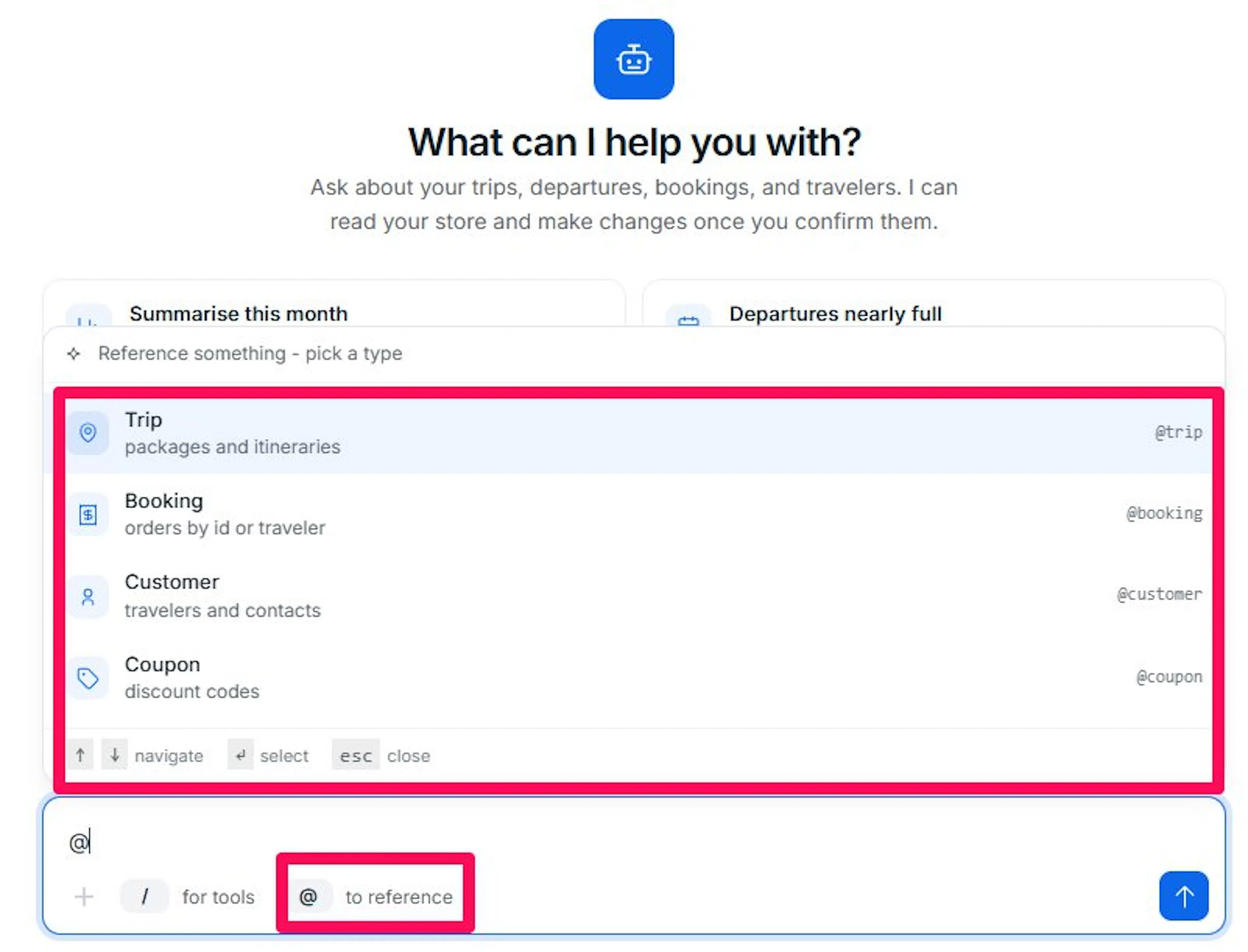
Type @ in a message, or select @ to reference, to point Ask AI at one exact record instead of describing it in words. This removes any guesswork when two trips or travelers have similar names: Ask AI gets the precise record you picked, and you never see or type an ID yourself.
The picker works in two steps.
- Pick a type. The list opens with Reference something — pick a type, and it offers:
- Trip: packages and itineraries.
- Booking: orders by ID or traveler.
- Customer: travelers and contacts.
- Coupon: discount codes.
Typing after the
@filters this list, so@trinarrows it to Trip.
Selecting a record drops its name into your message as @Everest Base Camp Trek and highlights it inside the box so you can see which words are references. Write the rest of your question around it, for example: Show me all October bookings for @Everest Base Camp Trek. You can reference several records in one message.
-
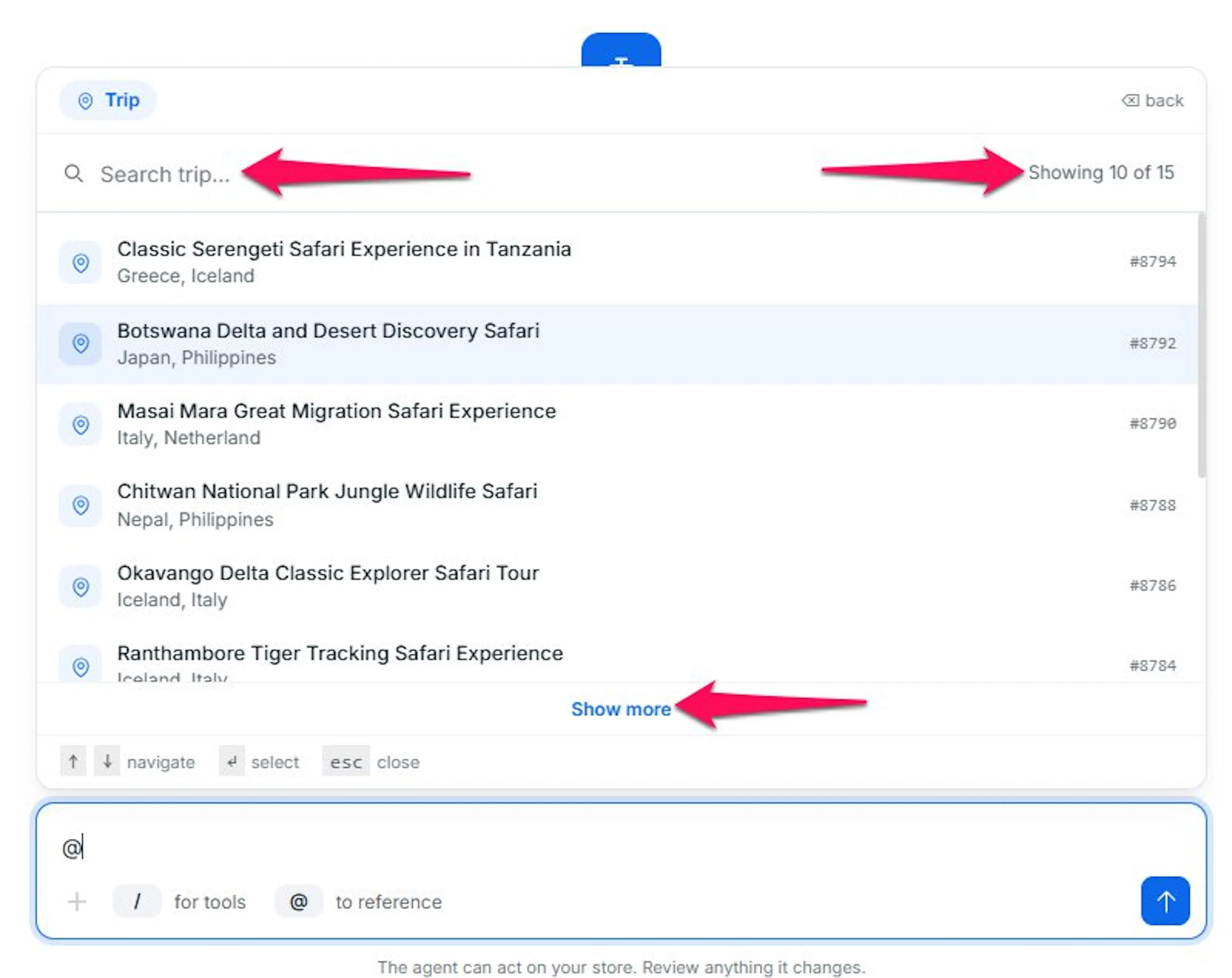
Showing 10 of N: Each search shows ten records at a time, with a count of how many match. Select Show more to load the next ten, and Show less to collapse back to the first ten.
-
Nothing matches that: appears when a search finds no records.
-
Navigate: Use ↑ and ↓ to move through the list, Enter or Tab to select, and Esc to close the picker and keep typing.
-
Go back: On the record step, select Back, or press Backspace with the search field empty, to return to the type list.
-
Removing a reference: Delete the highlighted name from your message. A reference you've deleted isn't sent, so only the records still in the message count.
-
Sending: When you send, Ask AI receives each reference with its exact record type and ID, while your chat shows only the readable name.
-
Sending a message, or starting a new one from a suggestion card, clears any references from the box.\
Two words into a search, the picker assumes you're writing a sentence, not looking something up, and closes. An
@that sits inside a word, such as in an email address, doesn't open the picker; it needs a space or the start of the line before it.
Only records you're allowed to see appear. Trips are listed for anyone who can edit trips. Bookings, customers, and coupons carry traveler details, so they're listed only for administrators and users with WP Travel Engine management access; for everyone else, those types return no results. A type also disappears from the list if WP Travel Engine isn't providing it on your site. Trashed records never appear, and drafts and pending records do.
Reading a Reply
While Ask AI is working, each step it takes appears as a small row with a pulsing dot and how many seconds it's been running. Once a step finishes, select its row to expand a card showing what it returned, or collapse it again; only the step that produced the final answer stays open automatically.
That result card can show:
- Running: the step is still in progress.
- This tool did not run: it's switched off in Tool Permissions.
- I need one more detail: Ask AI needs something from you before it can continue; the question appears in its reply below.
- Already ran this step: Ask AI asked for something it already has; nothing was repeated.
- More than one match: several records fit what you asked for; pick the one you meant from the list in the reply.
- Otherwise, the raw data the step returned, as a table.
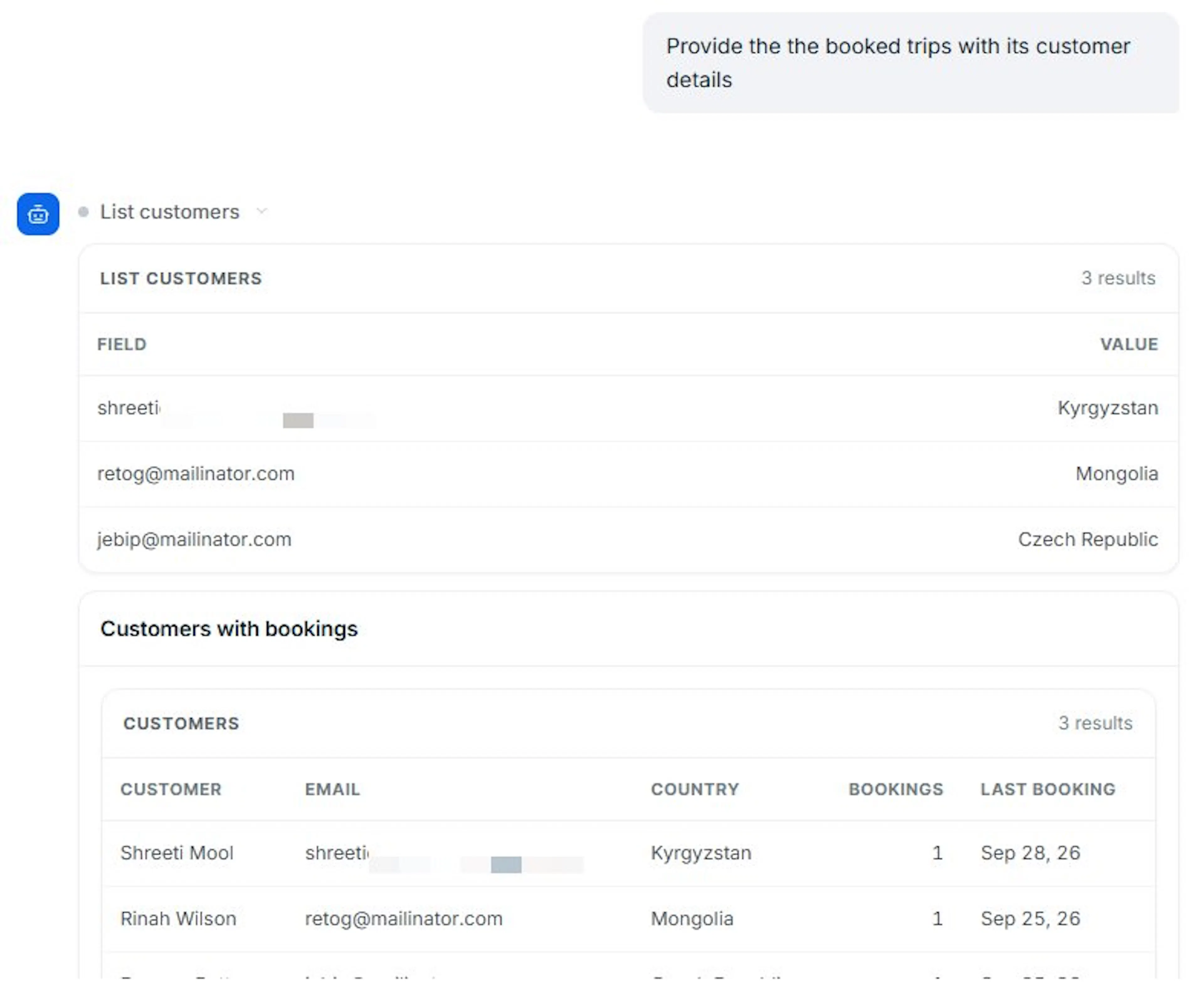
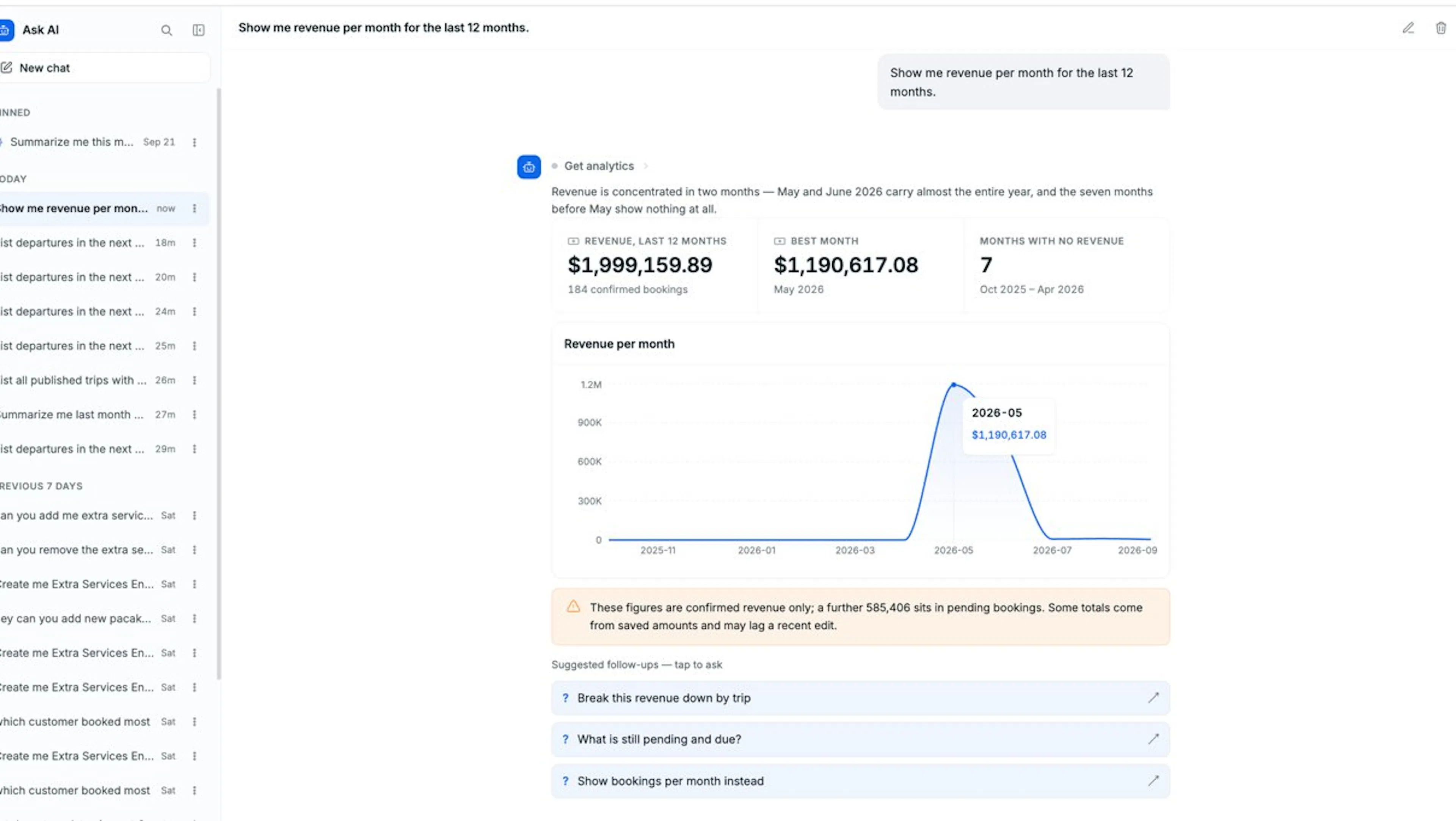
The reply itself, once Ask AI finishes, can include plain text, tables, record cards, fact grids, comparison grids, timelines, step lists, stat tiles, bar lists, or bar, area, and pie charts, whichever shape fits the answer, plus buttons that open or copy a link when relevant. A list of options Ask AI offers you (for example, several trips matching your search) appears as a clickable, numbered list; selecting one fills the composer with that choice rather than sending it immediately.
Confirming an Action
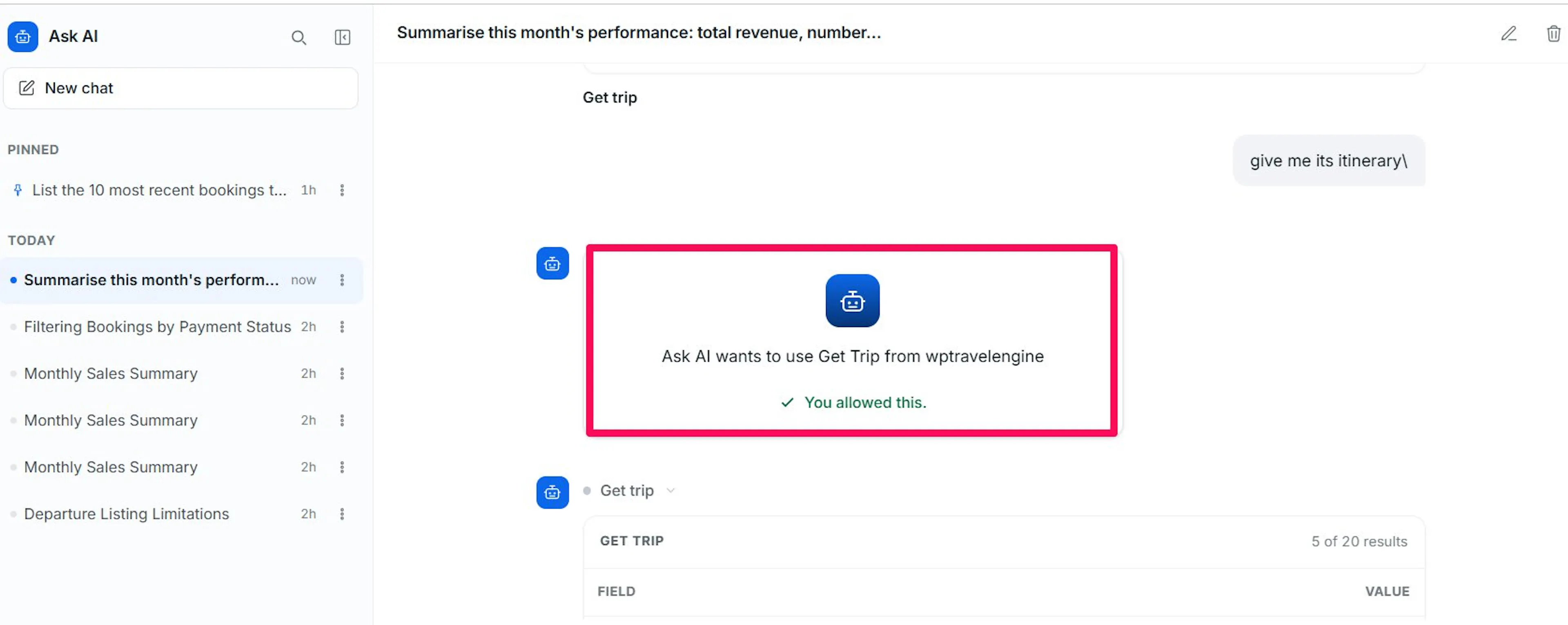
When Ask AI wants to use a tool set to Ask, it stops and shows a confirmation card instead of running it: "Ask AI wants to use [action] from [source]".
- Allow once: runs that specific action with those specific details. Approving doesn't authorize anything beyond this one call; the next matching action asks again.
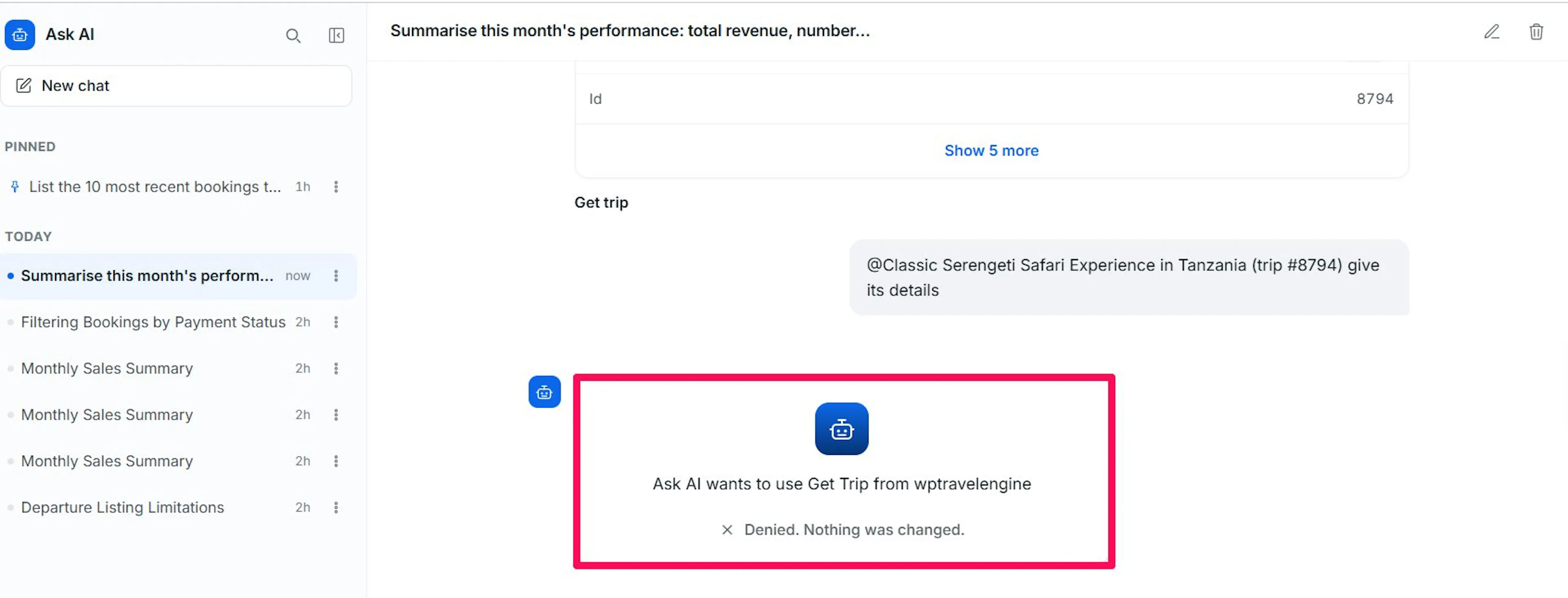
- Deny: the action doesn't run, and nothing on your store changes.
- Keyboard shortcuts: ⌘/Ctrl + Enter to allow, Esc to deny.
Once you decide, the card settles into You allowed this or Denied. Nothing was changed. A card that times out before you answer shows Timed out. Ask again to retry.
Managing a Conversation
- Rename: select the pencil icon next to the conversation title in the top bar, or use a row's ⋮ menu, edit the name, then press Enter or select the checkmark to save, or Esc to cancel.
- Retry a message: hover over your own message and select the refresh icon to resend it as a new turn.
- Copy a message: hover over your own message and select the copy icon.
- Delete: select the trash icon in the top bar, or use a row's ⋮ menu, then confirm. This removes the whole conversation and can't be undone.
If you're still stuck or have a question we didn't cover, our support team is happy to help. Reach out at our support page and we'll get you sorted.