

Configuring AI Agent
Choose the model that powers Ask AI, decide what each tool is allowed to do on its own, and pick which WordPress roles can open it.
Introduction
AI Agent's settings page has three sections: Agent Model, Tool Permissions, and Access. Together, they decide what Ask AI can answer, what it can change without asking, and who on your team can use it at all.
Where to Find It
- Go to your WordPress Dashboard.
- Navigate to Altus AI > Settings > Modules.
- Under Active Modules, find AI Agent and select Configure.
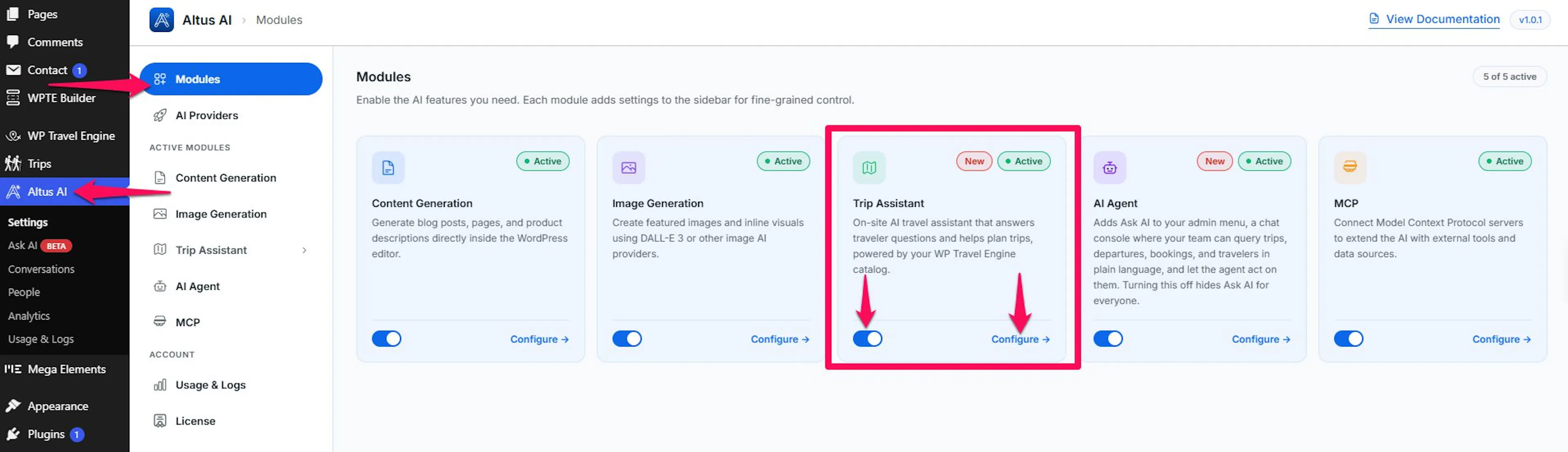
AI Agent needs an active Altus AI license and at least one connected AI provider before it can answer anything. See Using AI Agent for both
Agent Model
- AI Provider: Select the AI service that answers in Ask AI. Pulls from the same connected providers as any other Altus module.
- AI Model: Choose the model from that provider. It must support tool calling, the ability to read from and act on your store, not just hold a conversation.
A model without tool calling can still chat, but it can't read your trips, bookings, or customers, and can't make any changes. Ask AI shows a warning banner until a working model is set.
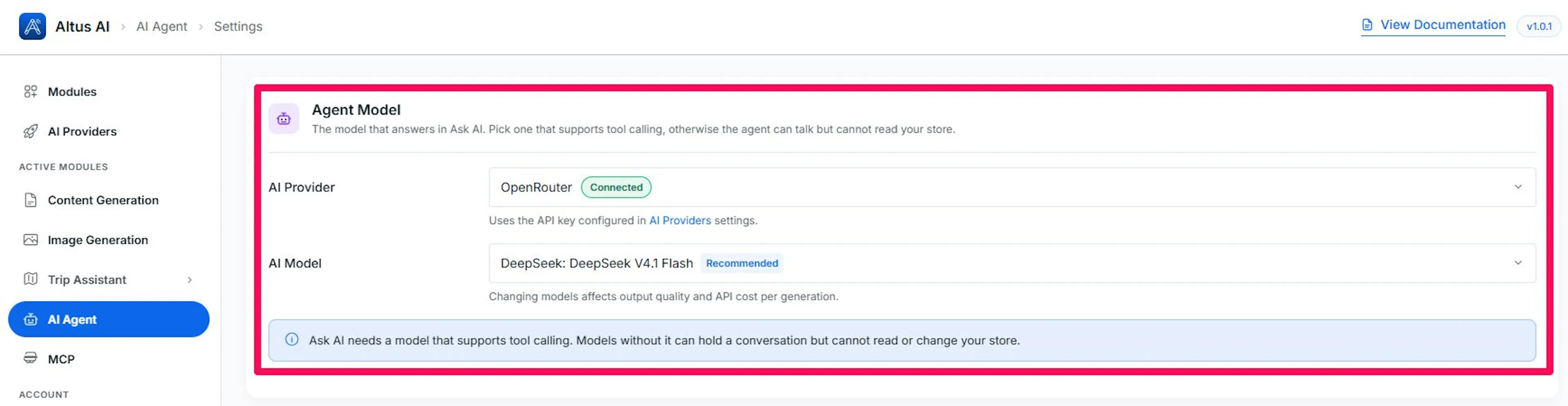
There are recommended AI models in the AI Model dropdown; using the recommended will give more accurate answers.
Tool Permissions
Every action Ask AI can take comes from a registered tool, one per thing WP Travel Engine lets it read or change. This section sets each tool to Allow, Ask, or Disallow.
- Allow: the tool runs the moment Ask AI decides to use it, with no interruption.
- Ask: Ask AI shows exactly what it's about to do and waits for a yes before running it.
- Disallow: The tool is hidden from Ask AI entirely; it can't be used, even if a traveler or staff member asks for it directly.
Managing the List
- Search tools: Enter a keyword to filter by name or description.
- Set all: Select Allow, Ask, or Disallow to apply that verdict to every tool currently shown by your search. A tool that ships disallowed by default is the one exception: bulk-setting it to Allow or Ask is skipped, so a single click can't silently switch on a tool built to stay off.
- Each row shows the tool's name and description, with a three-way switch to set its individual verdict.
- Summary counts: Along the top, how many tools are currently set to allowed, ask first, and disallowed.
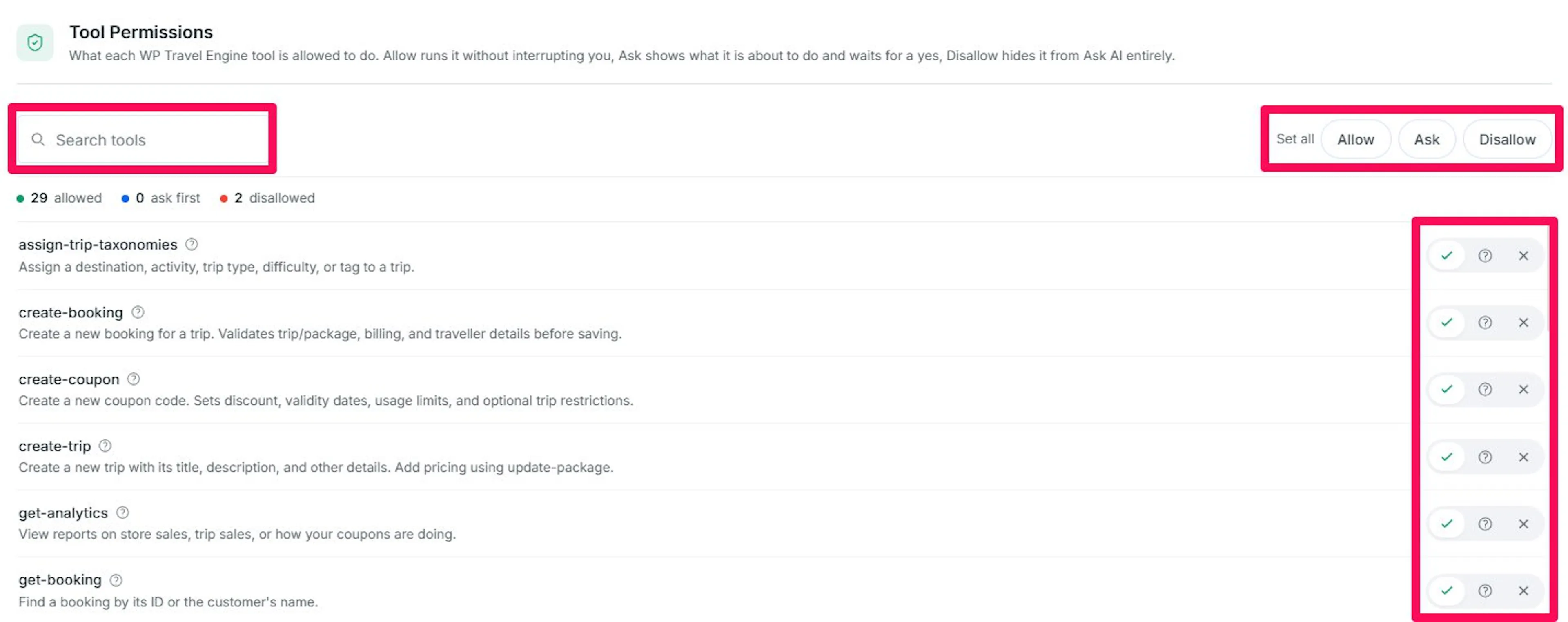
New tools start at a safe default: reads are allowed, changes ask first, and anything touching site-wide settings stays off until you switch it on. A tool you haven't touched always follows its default, so a newly added tool appears with a sensible setting automatically rather than defaulting to fully open.
Access
- Who can use Ask AI: Select every WordPress role that should see Ask AI in the admin menu. Everyone you pick shares the exact same tool permissions set above; there's no per-role permission tier.
Ask AI stays completely hidden from any role not on this list. At least one role has to keep access; you can't save the list empty.

If you're still stuck or have a question we didn't cover, our support team is happy to help. Reach out at our support page and we'll get you sorted.