
The Group Discount add-on allows you to offer tiered pricing based on the number of travelers booking together. Instead of using a fixed per-person price, you can define pricing ranges where the cost per traveler decreases as the group size increases.
This helps you encourage larger bookings while keeping pricing transparent and automatically calculated during checkout.
Key Features #
- Tiered pricing based on group size
- Configure discounts per price category (Adult, Child, etc)
- Automatic price updates in the booking form
- Real-time booking summary recalculation
- Fully integrated with trip packages and pricing
Benefits at a Glance #
| Feature | Benefit |
|---|---|
| Tiered Pricing | Encourage larger group bookings |
| Per Category Configuration | Maintain accurate pricing across traveler types |
| Transparent Pricing | Travelers see all pricing tiers upfront |
| Automatic Calculation | No manual adjustments required |
| Real-Time Updates | Prices update instantly as group size changes |
Prerequisites #
Before using the Group Discount add-on, ensure the following:
- You have WP Travel Engine installed and activated on your WordPress site
- You have purchased and installed the Group Discount add-on
- You have activated the add-on using a valid license key
- You have created at least one trip
How to Install the Group Discount Add-on #
Verification #
To confirm the add-on is active and working:
- Go to WP Travel Engine → Settings.
- Navigate to Extensions → Group Discount.
- Confirm that the Group Discount settings panel is visible.
Configuring Global Settings #
To configure the global settings, go to WP Travel Engine >Settings> Extension> Group Discount and make the following changes:
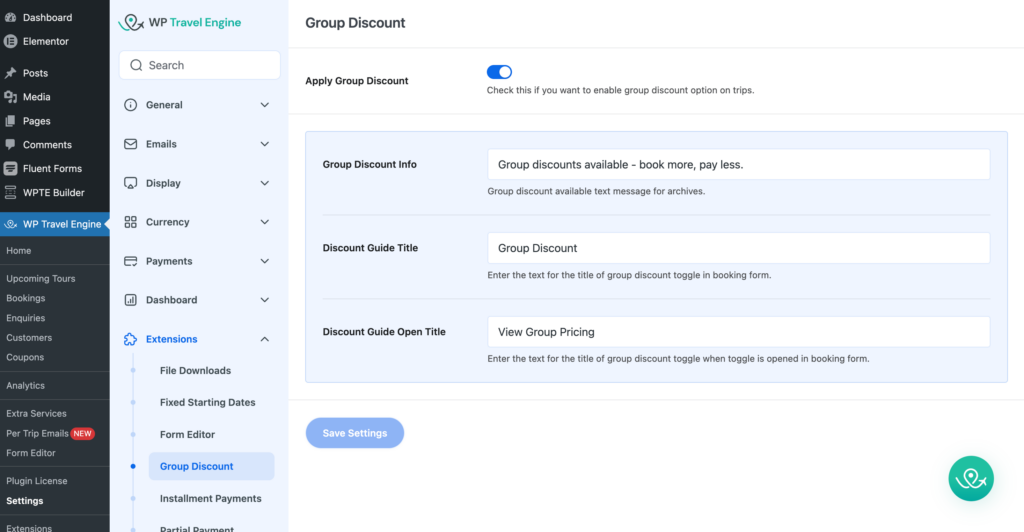
Group Discount Info #
Set the message displayed on trip archive pages.
Example:
Group discounts available – book more, pay less.
Discount Guide Title #
Set the label for the collapsed group discount section in the booking form.
Example:
Group Discount
Discount Guide Open Title #
Set the label shown when the pricing tiers are expanded.
Example:
View Group Pricing
Setting up Group Discounts for Individual Trip #
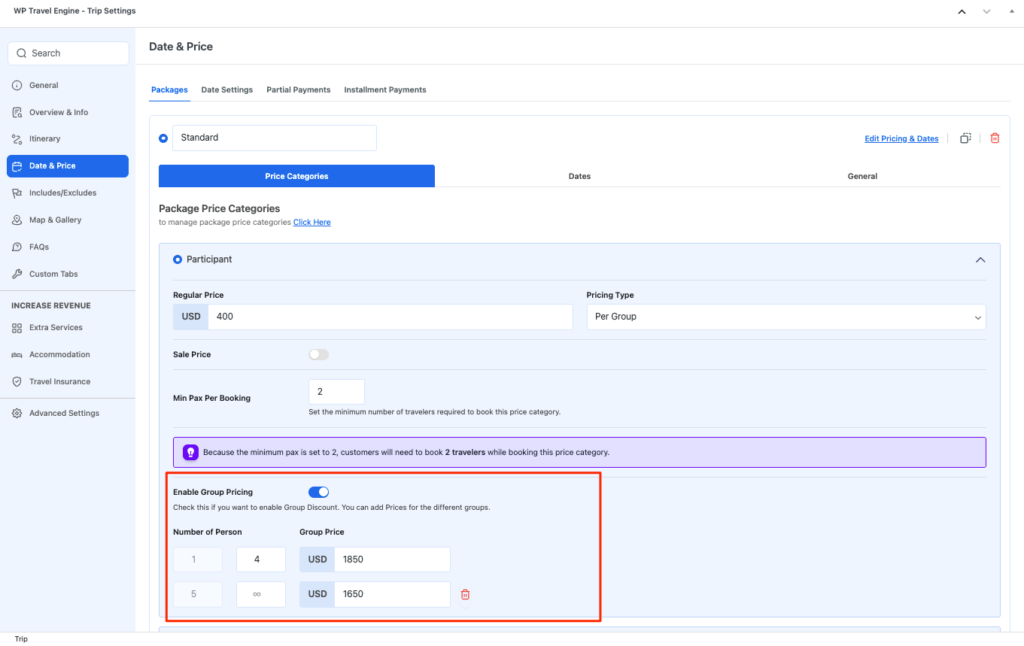
Group discounts are configured per package inside each trip.
To configure group discounts on a trip, open the trip and follow the following steps:
- Navigate to WP Travel Engine-Trip Settings > Date & Price > Packages
- Click Edit Pricing & Rates on your desired package
- Click on a pricing category where you have already set a price
You will see the following settings within the pricing settings:
Enable Group Pricing #
Toggle ON to set up group pricing. Once enabled, a pricing table will appear.
Define Pricing Tiers #
Configure your group pricing using the table:
- Each row includes:
- Number of Persons (range) – Defines the group size range for which the pricing tier applies. The system uses this range to determine how many travelers must be in a booking for this specific group price to be applied.
- Price per Person -Defines the discounted price each traveler will pay when the group size falls within the selected range. This price is applied automatically per person based on the defined group tier.
- Click the delete icon to remove a tier
Repeat this for other categories (e.g., Child) if needed.
FAQ #
Does making group discount affect the booking process? #
No. The booking flow remains the same. Pricing simply updates dynamically based on group size.
Can I set different group discount tiers for different price categories on the same trip? #
Yes. Group pricing is configured per price category within a package.
Does the group discount apply automatically? #
Yes. The price updates automatically based on the number of travelers selected.
Can I enable group discount on some trips but not others? #
Yes. Global settings enable the feature, but it only applies to trips where it is configured.