
Coupons let you offer discounts to travelers by sharing a code they enter at checkout. You can set a fixed or percentage discount, control which trips the coupon applies to, cap how many times it can be used, and restrict it to trips departing within a specific date window. It’s useful for seasonal promotions, referral codes, or limited-time offers.
Prerequisites #
- You have WP Travel Engine installed and activated on your WordPress site.
- You have updated WP Travel Engine to its latest version.
Adding a Coupon #
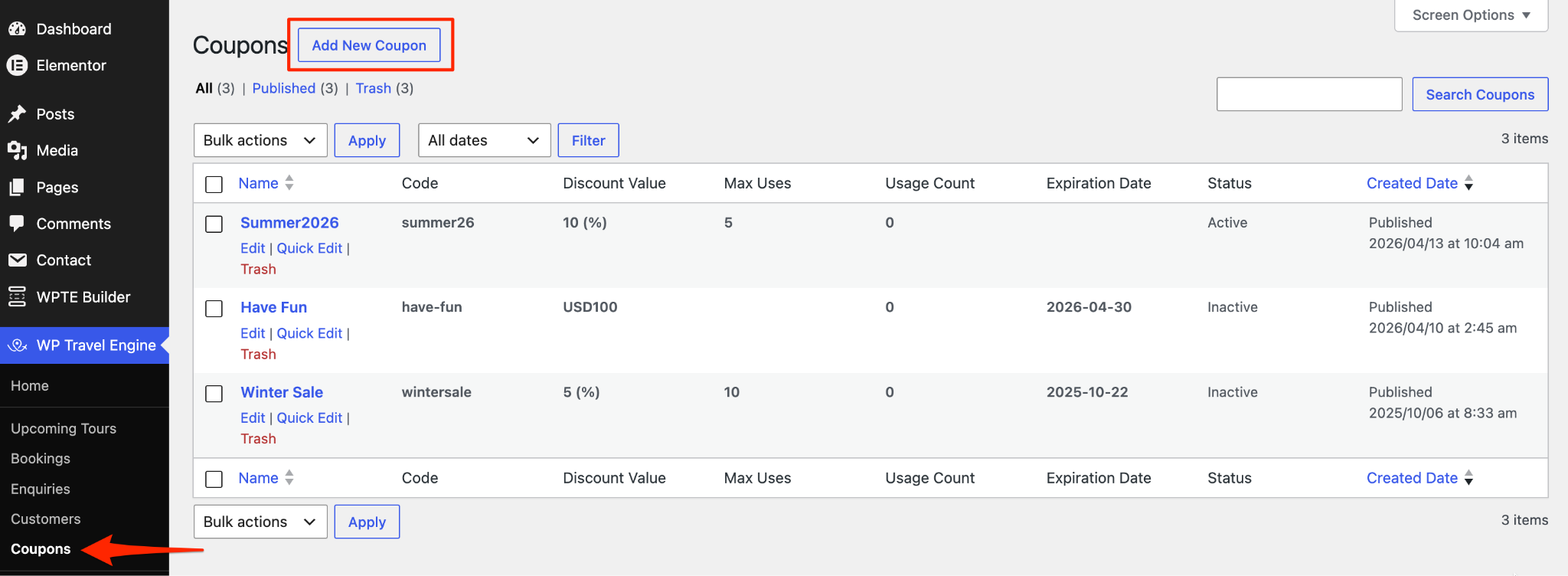
Go to your WordPress dashboard and navigate to WP Travel Engine > Coupons. Click Add New Coupon at the top of the list page.
This opens the coupon creation screen. Fill in the settings below, then publish when done.
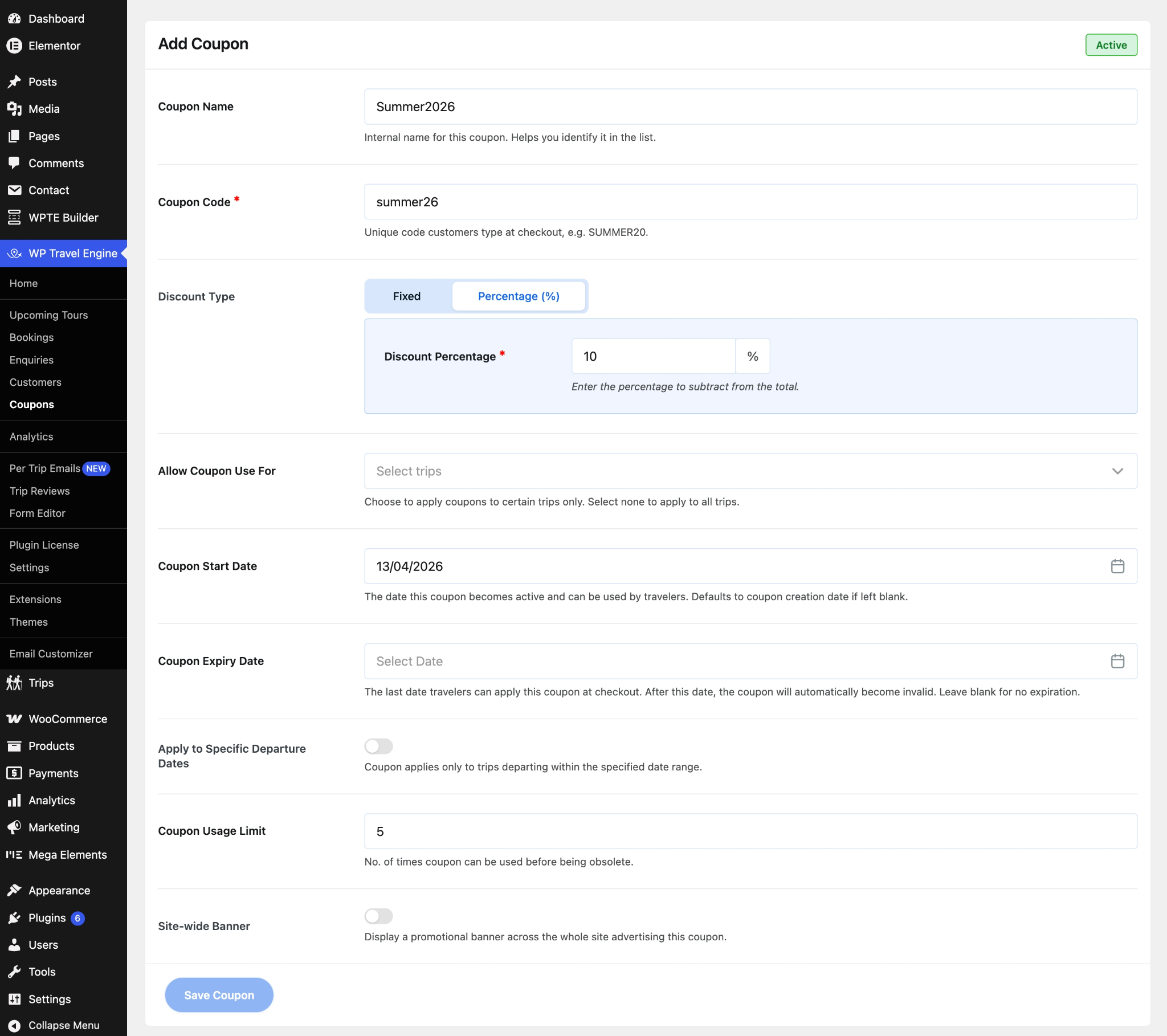
Coupon Name #
Enter an internal name for the coupon, such as “Summer 2026 Promo.” This is for your reference only – travelers never see it. It only helps you identify the coupon on the list page, especially once you have several running at once.
Coupon Code #
Enter the code travelers will type at checkout – for example, SUMMER25 or EARLYBIRD. This must be unique across all your coupons.
Discount Type #
Choose how the discount is calculated:
- Fixed ($) – Subtracts a set amount from the total. Enter the amount in the Discount Amount field that appears below.
- Percentage (%) – Subtracts a percentage of the total. Enter the percentage value in the field that appears below.
Coupon Start Date and Expiry Date #
Coupon Start Date sets the date the coupon becomes usable. If you leave it blank, it defaults to the date the coupon was created.
Coupon Expiry Date sets the date the coupon stops working. Leave it blank if you don’t want the coupon to expire.
Apply For Specific Departure Dates Only #
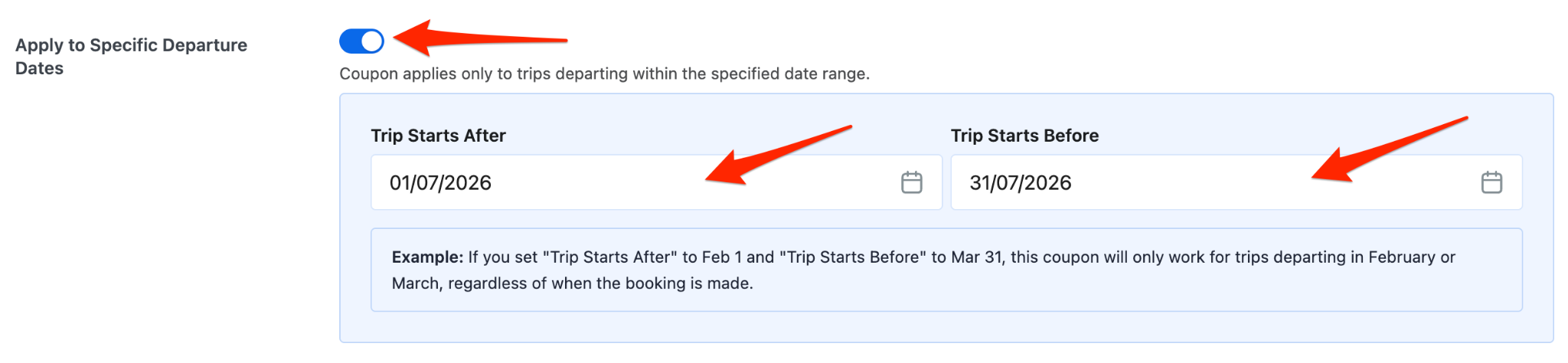
By default, a coupon works regardless of when a trip departs. Enable Trip Date Restriction to limit the coupon to trips departing within a specific window.
Toggle it on, and two date fields appear:
- Trip Starts After – The earliest departure date the coupon applies to.
- Trip Starts Before – The latest departure date the coupon applies to.
For example, if you set Trip Starts After to Feb 1 and Trip Starts Before to Mar 31, the coupon works only for trips departing in February or March – no matter when the booking is made.
Allow Coupon Use For #
By default, a coupon applies to all trips on your site. Use this field to limit it to specific trips. Click the dropdown and select one or more trips by name.
Leave it blank to keep the coupon available across all trips.
Coupon Usage Limit #
Enter a number to cap how many times the coupon can be redeemed in total. Once that limit is reached, the coupon stops working automatically.
Leave this field blank if you don’t want to set a limit.
Site-Wide Banner #
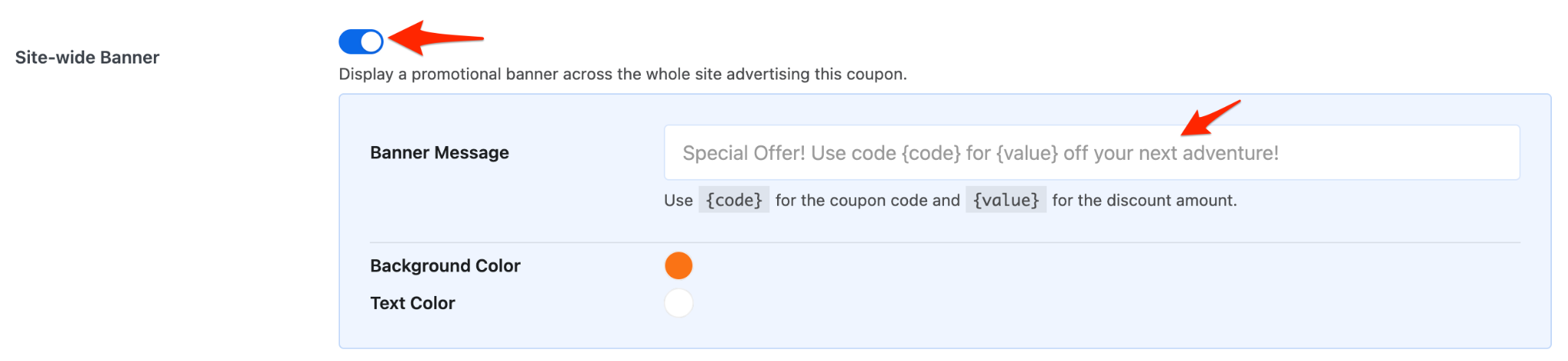
Toggle Site-wide Banner on to display this coupon in a promotional bar across every page of your site.
Enter your message in Banner Message. Use {code} and {value} as placeholders. It will be replaced with the actual coupon code and discount amount when the banner displays on your site.
Pick a Background Color and Text Color for the banner. Choose colors that stand out against your site’s header so travelers notice the offer right away.
Editing a Coupon #
All existing coupons appear on the WP Travel Engine > Coupons list page.
The list shows each coupon’s code, discount value, usage count, expiration date, and current status at a glance. To make changes, hover over a coupon name and click Edit.
FAQ #
Can a traveler use more than one coupon on a single booking? #
No. Only one coupon code can be applied per booking.
What happens when a coupon reaches its usage limit? #
The coupon stops accepting new redemptions automatically. You can raise or remove the limit at any time by editing the coupon.
Can I offer a coupon for a specific departure date rather than a date range? #
Yes. Set the same date in both Trip Starts After and Trip Starts Before to target a single departure date.
Will an expired coupon still show in the list? #
Yes. Expired coupons stay in the list with an Inactive status. You can reactivate or delete them at any time.
Does the usage limit reset if I edit the coupon? #
No. The usage count reflects actual redemptions and does not reset when you edit the coupon settings.