
- Key Features
- Benefit at a Glance
- Prerequisites
- How to Install the Installment Payments Add-on
- Configuring the Global Settings for Installment Payments
- Trip-Specific Settings
- Email Notifications for Installments
- Set up your Retry Policies in Stripe
- Troubleshooting
- FAQ
- Can travelers see the full installment schedule before paying?
- What happens if someone tries to book after the installment cut-off period?
- Is a Stripe webhook required for installment payments?
- How are installment payment amounts calculated?
- How are installment payment dates calculated?
- Can installment plans be changed after a booking is made?
- Does installment payment work with all currencies supported by Stripe?
Installment Payments is a premium add-on that allows travelers to pay for trips in multiple scheduled installments instead of a single upfront payment. This add-on is designed for travel agencies and tour operators who want to provide flexible payment options to their customers while managing payments reliably through Stripe.
With this add-on, you can create multiple installment plans, and your travelers can pay in smaller, manageable parts and enjoy the convenience of automatic payments.
Key Features #
- Global and Trip-Specific Settings: Configure default installment plans for all trips and decide whether to enable or disable them for individual trips.
- Multiple Installment Plans: Provide travelers with flexible payment options using standard plans such as 10, 6, or 4 installments.
- Optional Installment Surcharge: Add an increment percentage for travelers paying in installments.
- Automatic Payment Scheduling: Installment due dates and amounts are calculated automatically.
- Stripe-Powered Payments: Process all installment payments automatically and securely through Stripe.
Benefit at a Glance #
| Feature | Benefit |
| Customizable Installment Plans | Offer installment plans and let your travelers pay in smaller, manageable parts. |
| Final Installment Due In | Ensure all installments are completed before the trip starts. |
| Cut-Off Days Enforcement | Prevent travelers from paying in installments when the booking is too close to the trip start date. |
| Installment Surcharge | Apply a small increment fee to maximize your profit. |
| Automatic Payment Scheduling | The system automatically calculates installment amounts and due dates, reducing manual tracking and errors. |
| Secure Stripe Payments | Automatically charge all scheduled installment payments safely through Stripe. |
| Clear Installment Schedule | Admins and travelers can view a detailed, easy-to-understand breakdown of all payments, due dates, and statuses. |
Prerequisites #
Before installing and using the Installment Payments add-on, ensure your system meets these requirements:
- You have WP Travel Engine installed and activated on your WordPress site (Version 6.7.0 or more).
- You have installed and activated the Stripe Payment Gateway add-on to its latest version.
- You have installed and activated the Installment Payments add-on.
- You have configured your Stripe webhook. Learn how to set up your webhook here.
How to Install the Installment Payments Add-on #
Verification #
To confirm the add-on is active and working:
- Navigate to WP Travel Engine → Settings → Extensions
- You should see the Installment Payments tab under Extensions.
Configuring the Global Settings for Installment Payments #
These settings apply to all trips across your site.
You can configure the global settings for Advanced Itinerary Builder via WP Travel Engine > Settings > Extensions > Installment Payments
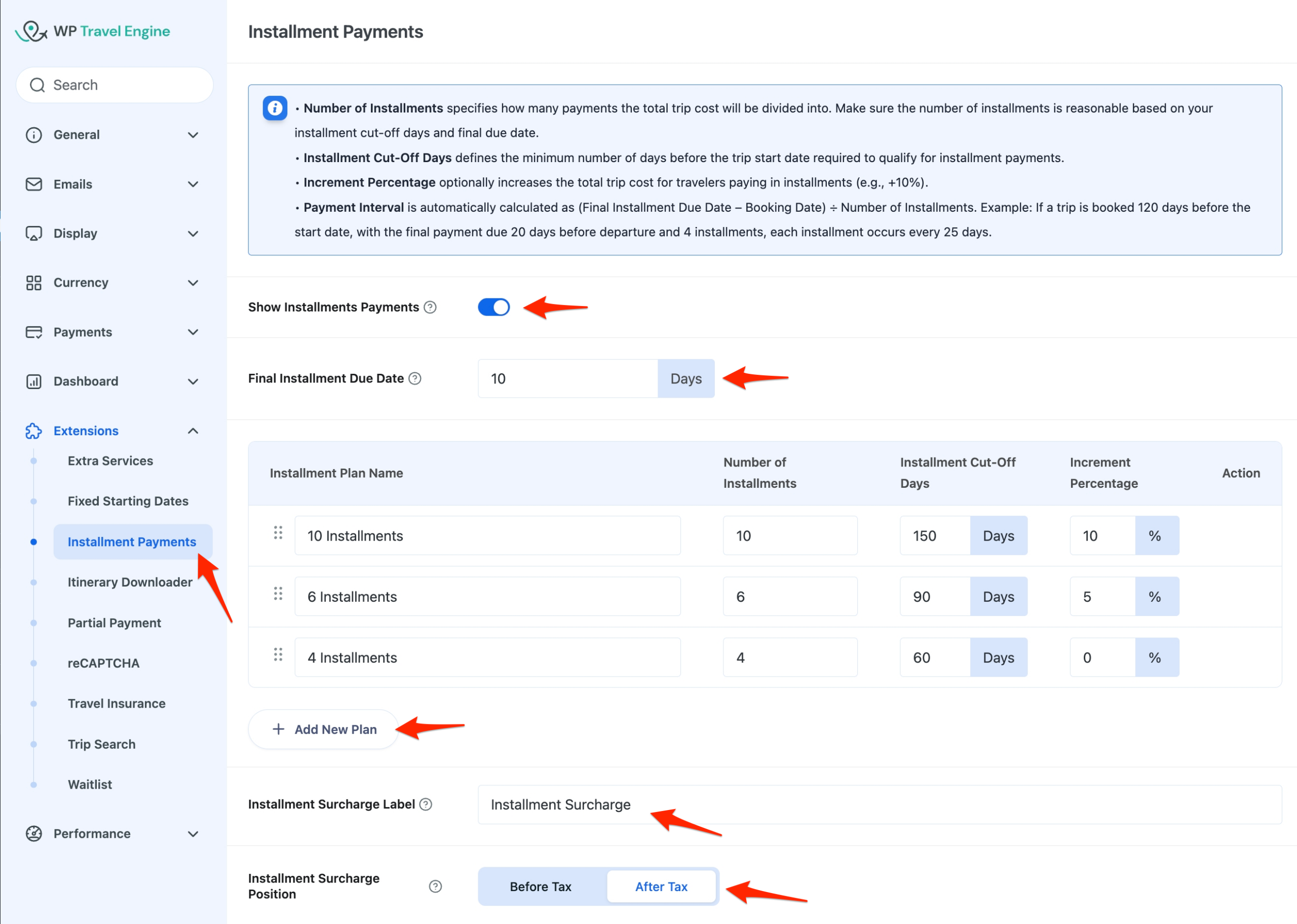
Show Installment Payments #
Turn this toggle ON to enable the installment payment feature for all trips.
Final Installment Due #
Set the number of days before the trip starts that the last installment must be paid.
Add New Plan #
These are what you can set for each plan:
- Number of Installments
Specify the total number of payments that the trip cost will be divided into. Ensure the number of installments is reasonable based on the cut-off and final due dates. - Installment Cut-Off Days
Enter the minimum number of days before the trip start date required for travelers to be eligible for installment payments.
The minimum allowed value is 30 days, ensuring there is enough time to schedule and complete installment payments properly.
- Increment Percentage
Add a percentage markup for travelers paying via installments (e.g., 5%). Leave blank for no surcharge.
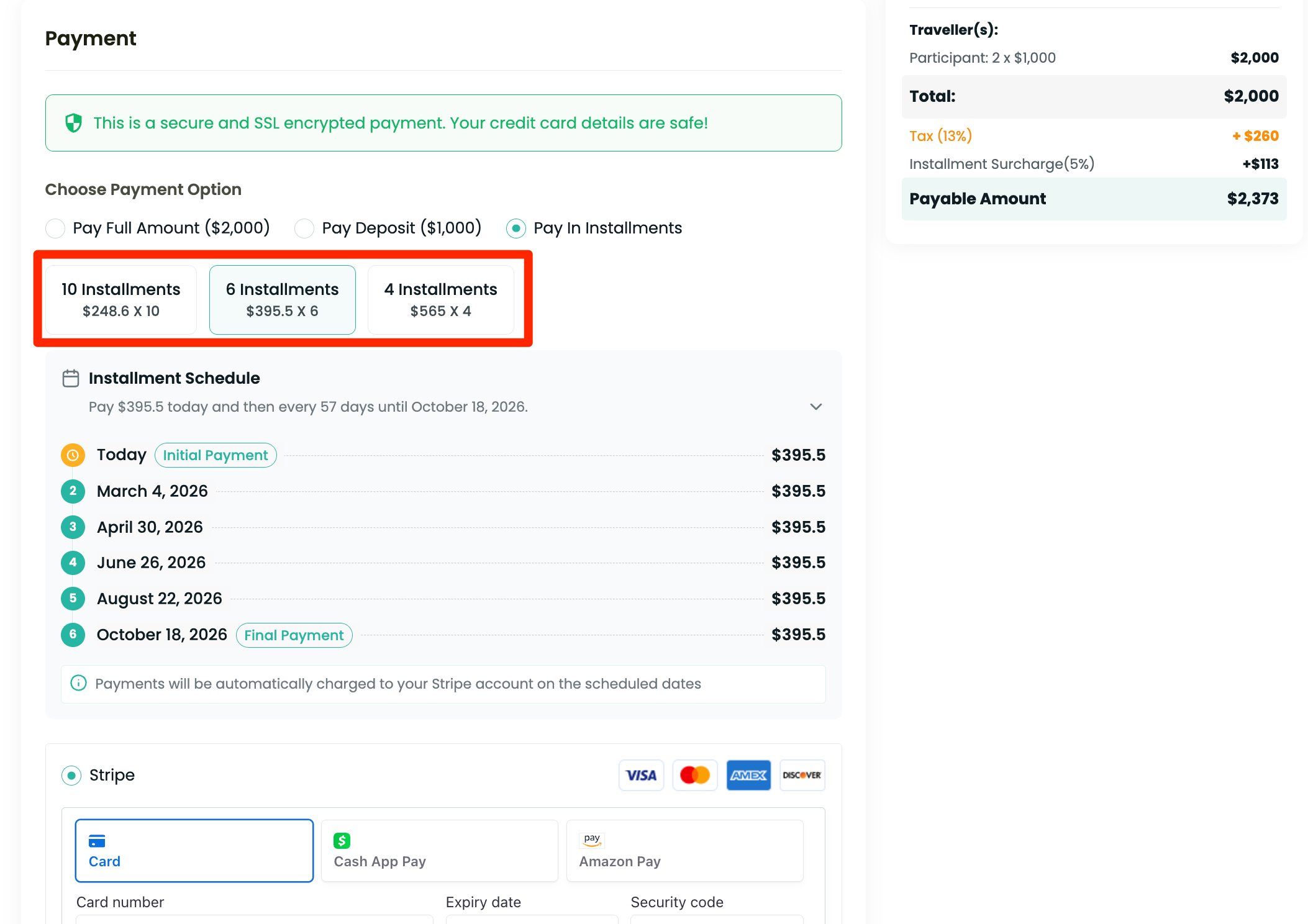
Installment Surcharge Label #
Enter a label for the surcharge displayed at checkout. For example, “Installment Fee.”
Installment Surcharge Position #
Select whether the surcharge should be applied Before Tax or After Tax in the checkout calculations.
- Before Tax: Tax will be applied on the sum of the trip cost plus the installment surcharge amount.
- After Tax: Tax will be applied only on the trip cost, excluding the installment surcharge.
Trip-Specific Settings #
You can set up Installment Payments for individual trips.
On a trip page, navigate to WP Travel Engine – Trip Settings > Date and Price.
Scroll down to find the Installment Payments setting and choose an option:
- Use Global: The trip will follow the installment plan settings configured globally.
- Disabled: Installment payments will be turned off for this trip.
Email Notifications for Installments #
The Installment Payments add-on provides predefined email templates for admins and customers to keep everyone informed about installment payment events. All emails are fully customizable.
Navigate to WP Travel Engine > Settings > Emails > Notifications. Here you will see four key notifications for installment payments:
For Admins:
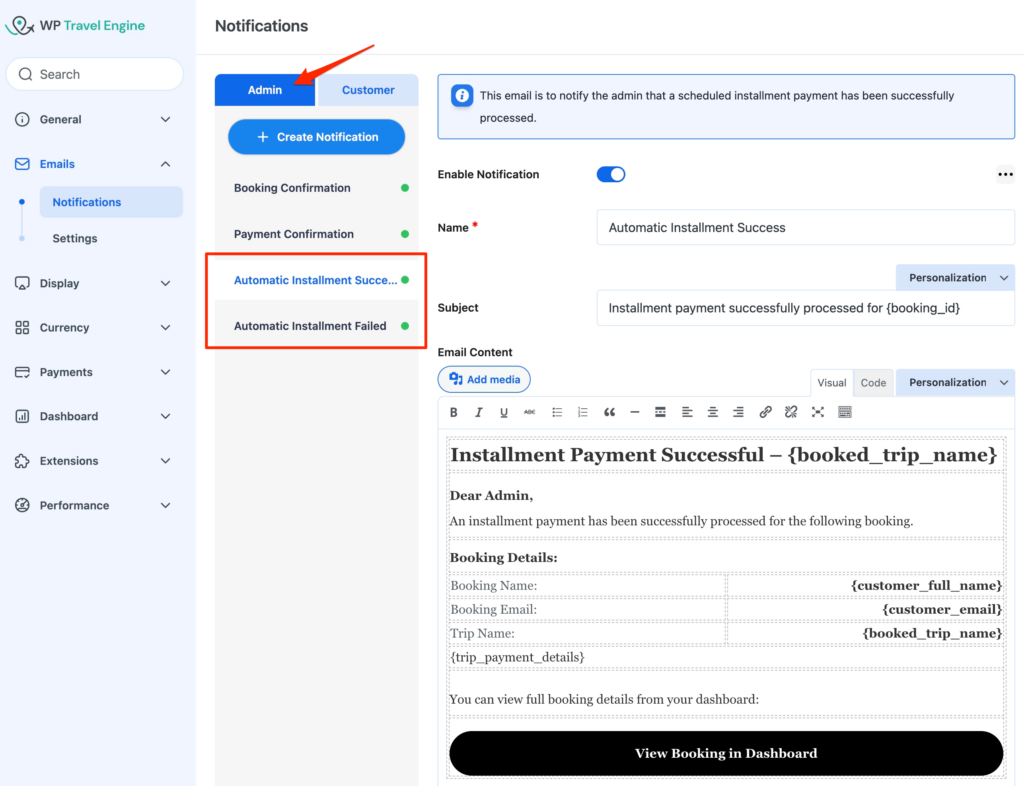
- Automatic Installment Success: Notifies the admin when a scheduled payment is successfully processed.
- Automatic Email Failed: Alerts the admin if a scheduled payment fails.
For Customers:
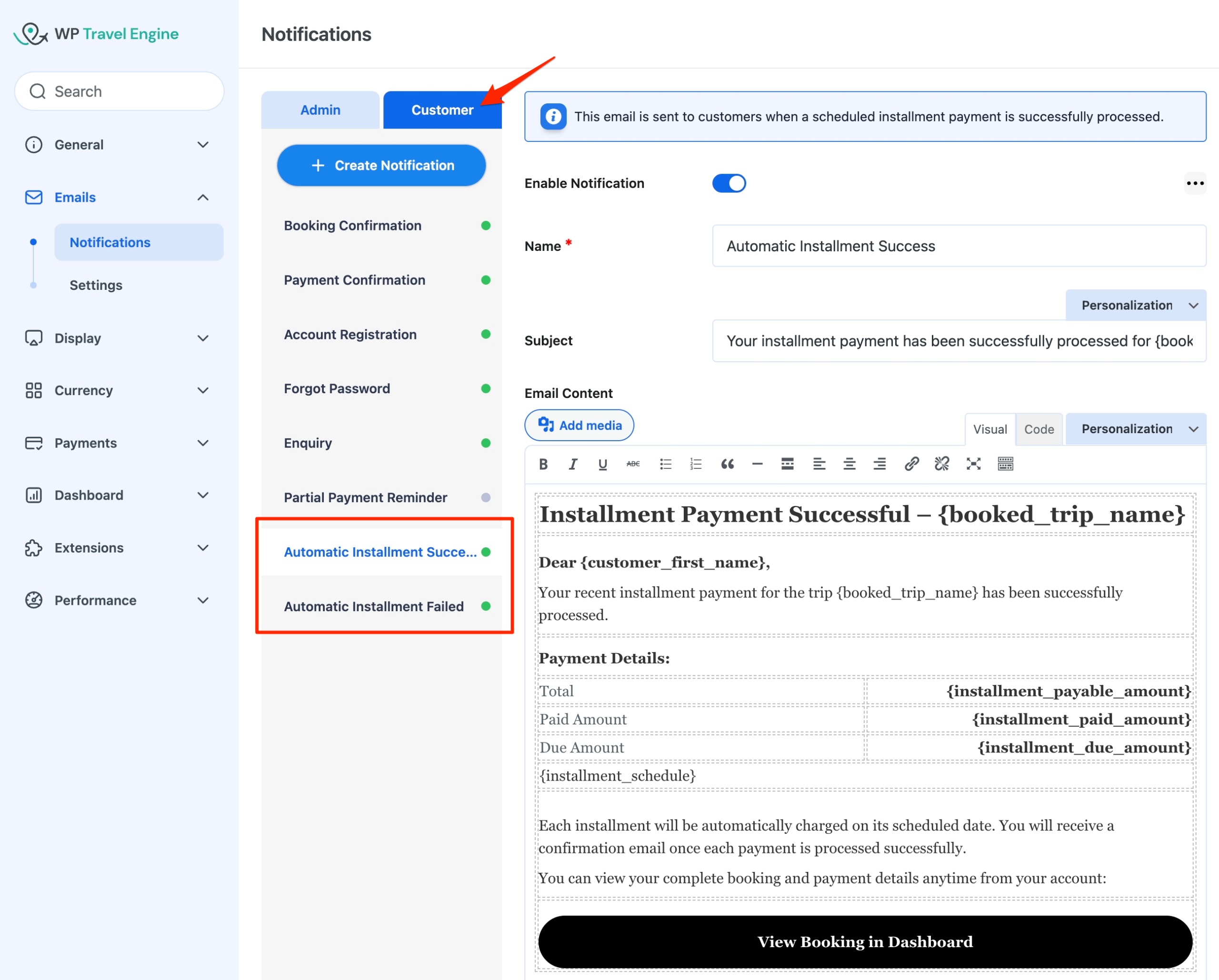
- Automatic Installment Success: Sent when a scheduled payment is successfully processed.
- Automatic Email Failed: Sent if a scheduled payment fails.
Customization:
You can edit both the subject and content of each email to match your brand and communication style.
Set up your Retry Policies in Stripe #
Since installment payments are automated, there may be instances where a traveler’s payment fails (e.g., insufficient funds, expired card, or bank blocks). Stripe allows you to configure “Retry Policies” to automatically attempt the charge again before marking the installment as failed.
How to Configure Retries #
- Log in to your Stripe Dashboard.
- Search for “Revenue recovery” in the top search bar.
- Click on the Retries tab.
Card Payment Retries
In this section, you can control how Stripe handles failed payments. You have two main options:
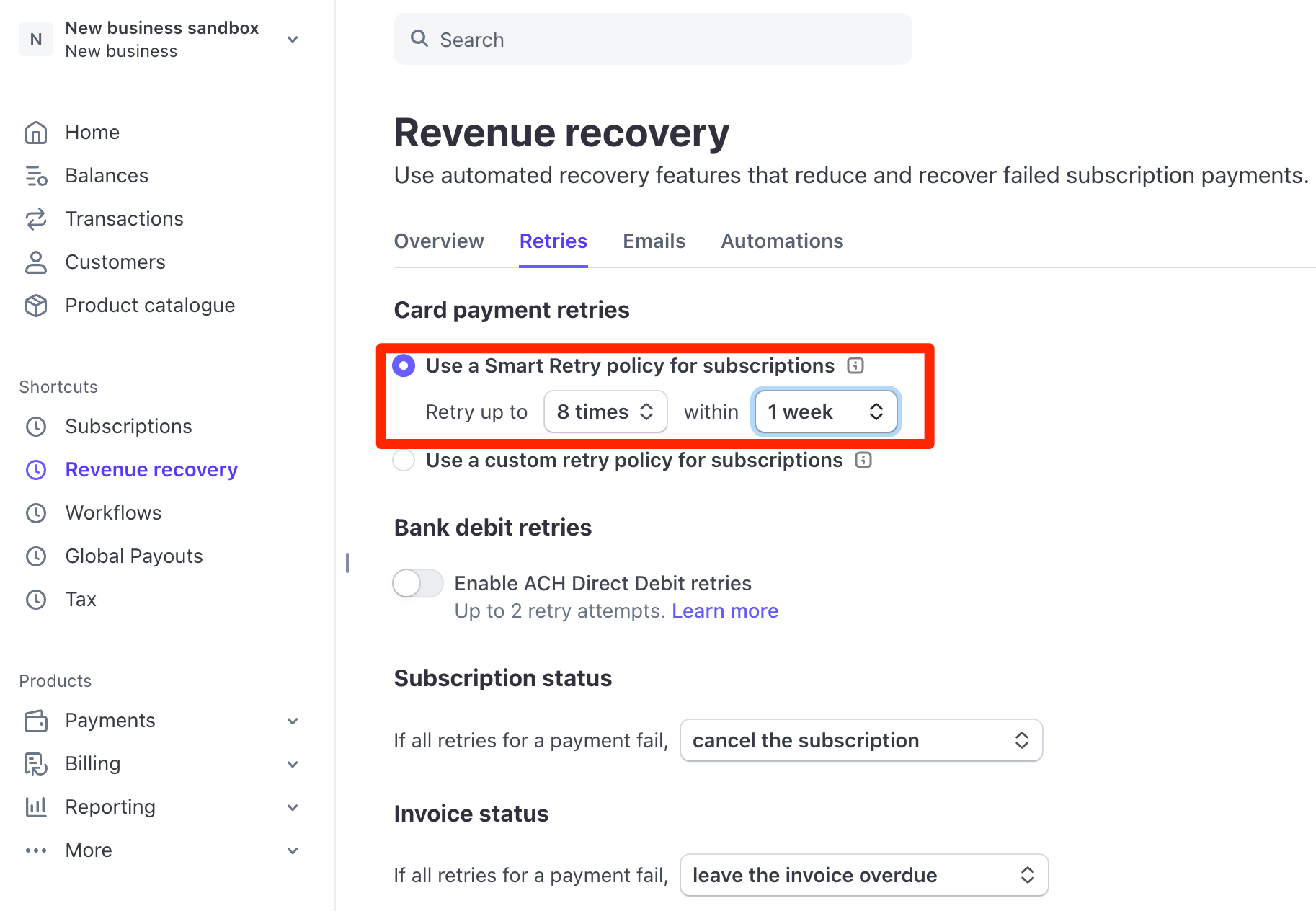
- Use a Smart Retry policy for subscriptions (Recommended)
Select this option to let Stripe automatically find the best time to retry the charge. Stripe looks at success patterns to attempt the payment when it is most likely to go through (for example, waiting until the traveler is likely to have funds available).- Customizing Smart Retries: Even with this automatic setting, you can define limits. You can choose how many times Stripe should attempt the payment and over what duration (e.g., “Retry up to 8 times within 1 week“).
- Use a custom retry policy for subscriptions
Select this option if you prefer to define a strict schedule for when retries happen. You can choose exactly how many days to wait between attempts.- Customizing the Schedule: By default, Stripe may suggest retries at 3, 5, and 7 days after the previous attempt. You can modify these specific days to suit your needs (e.g., changing the first retry to 1 day). You are limited to a maximum of 3 retry attempts.
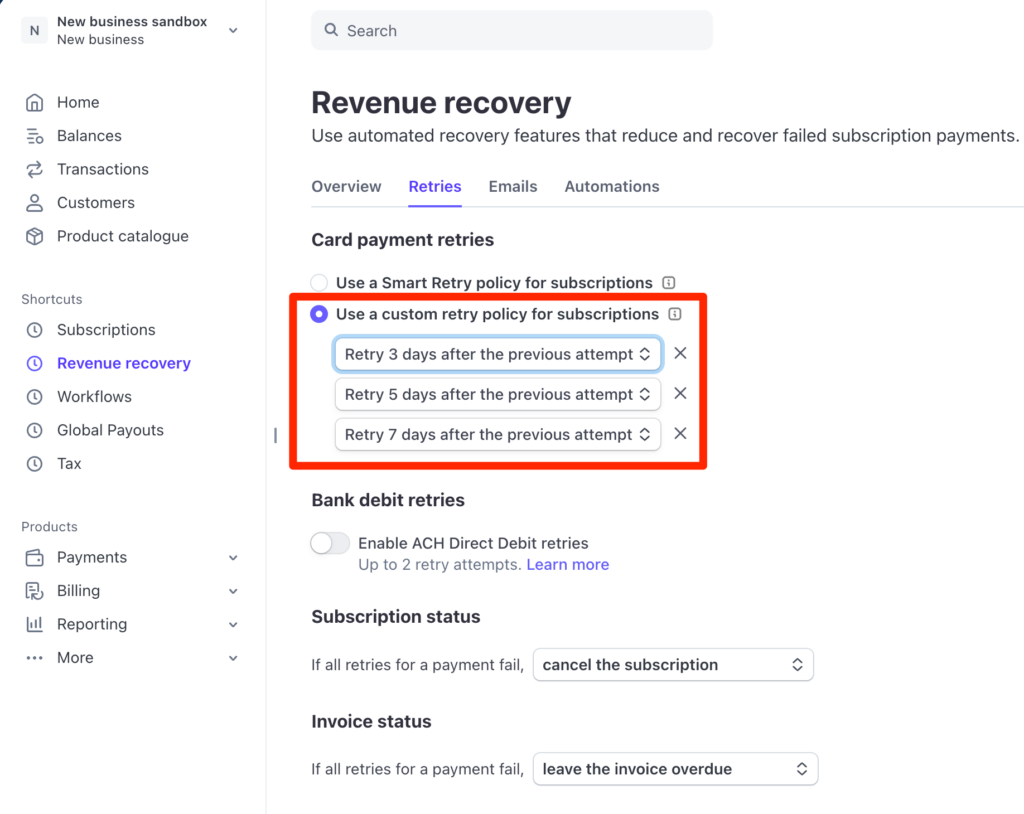
Once configured, these settings work automatically. If a payment fails, Stripe will retry according to your policy.
Subscription Status
This setting determines what happens if the payment still fails after all the retries are finished. You must choose the option that fits your business workflow:
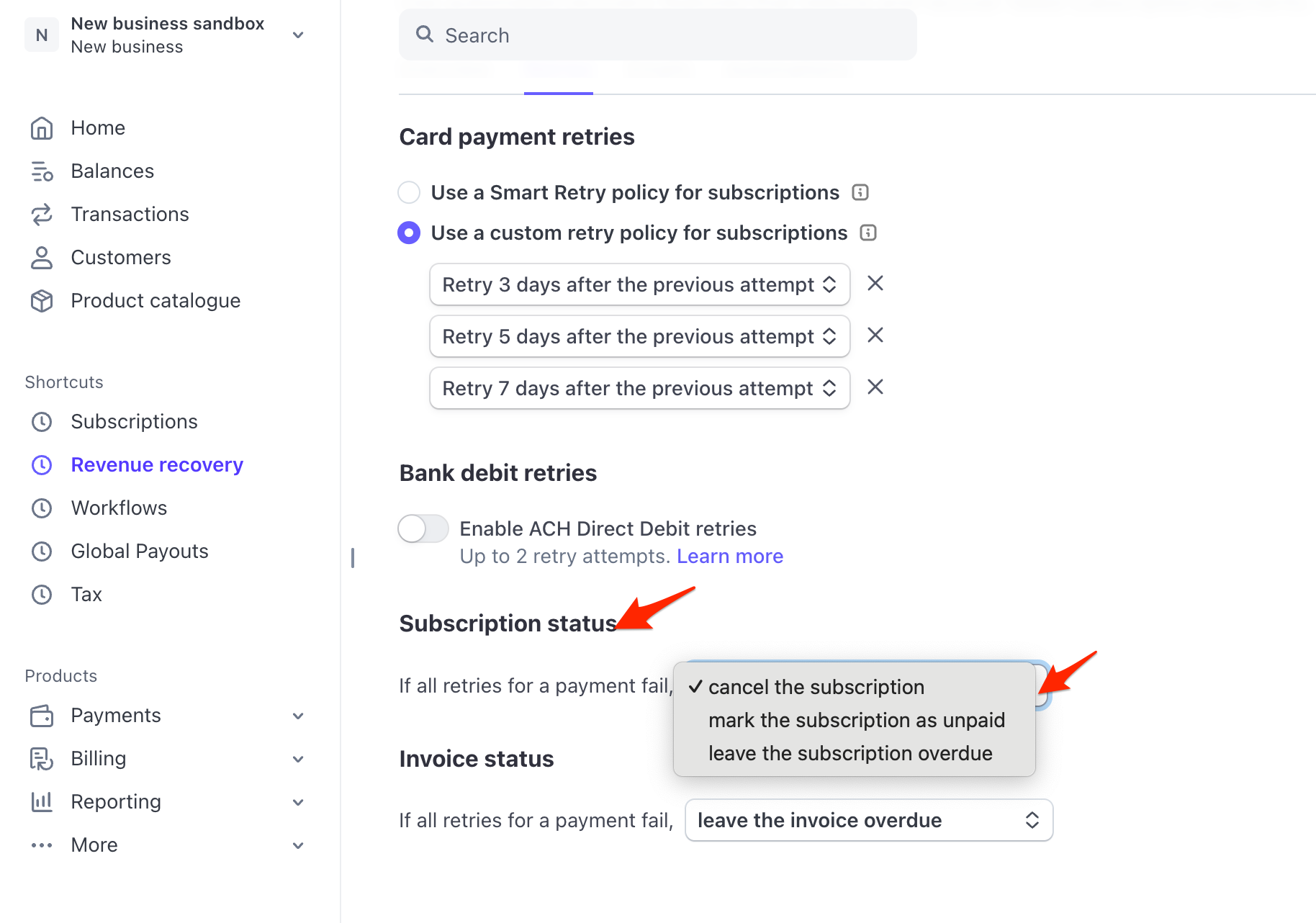
- Option A: cancel the subscription (Strict)
- What it does: The installment plan is permanently cancelled.
- Can it be resumed? No. Once cancelled, it cannot be reactivated. The traveler would need to book again, or you would need to create a new manual order.
- Option B: Mark the subscription as unpaid (Recommended for Flexibility)
- What it does: The plan remains active, but the status changes to “Unpaid.” Stripe stops automatically retrying the card, but the subscription is not deleted.
- Can it be resumed? Yes.
- Option C: Leave the subscription overdue
- What it does: The plan remains active but stays in a “Past Due” state. This is similar to “Unpaid,” but it indicates the payment is simply late rather than definitively failed.
- Can it be resumed? Yes.
Troubleshooting #
Problem: Syncing Mismatched Payment Status
Sometimes, an installment payment is successfully processed by Stripe (the money is deducted), but the status in your WP Travel Engine dashboard still displays as “Pending”.
This generally occurs in one of two situations:
- Deactivation: The Installment Payments add-on was deactivated, and the automatic payment took place during that time.
- Sync Gap: A temporary connection issue caused a gap in records (e.g., Payment 4 shows as “Completed,” but the earlier Payment 3 is still stuck on “Pending”).
How to fix it:
First, ensure that the Installment Payments add-on is currently installed and active on your site. Then, follow these steps:
- Navigate to WP Travel Engine > Bookings.
- Click on the booking details of the affected traveler.
- Scroll to the Installment Schedule section.
- You will see a Sync Button. Click on it.
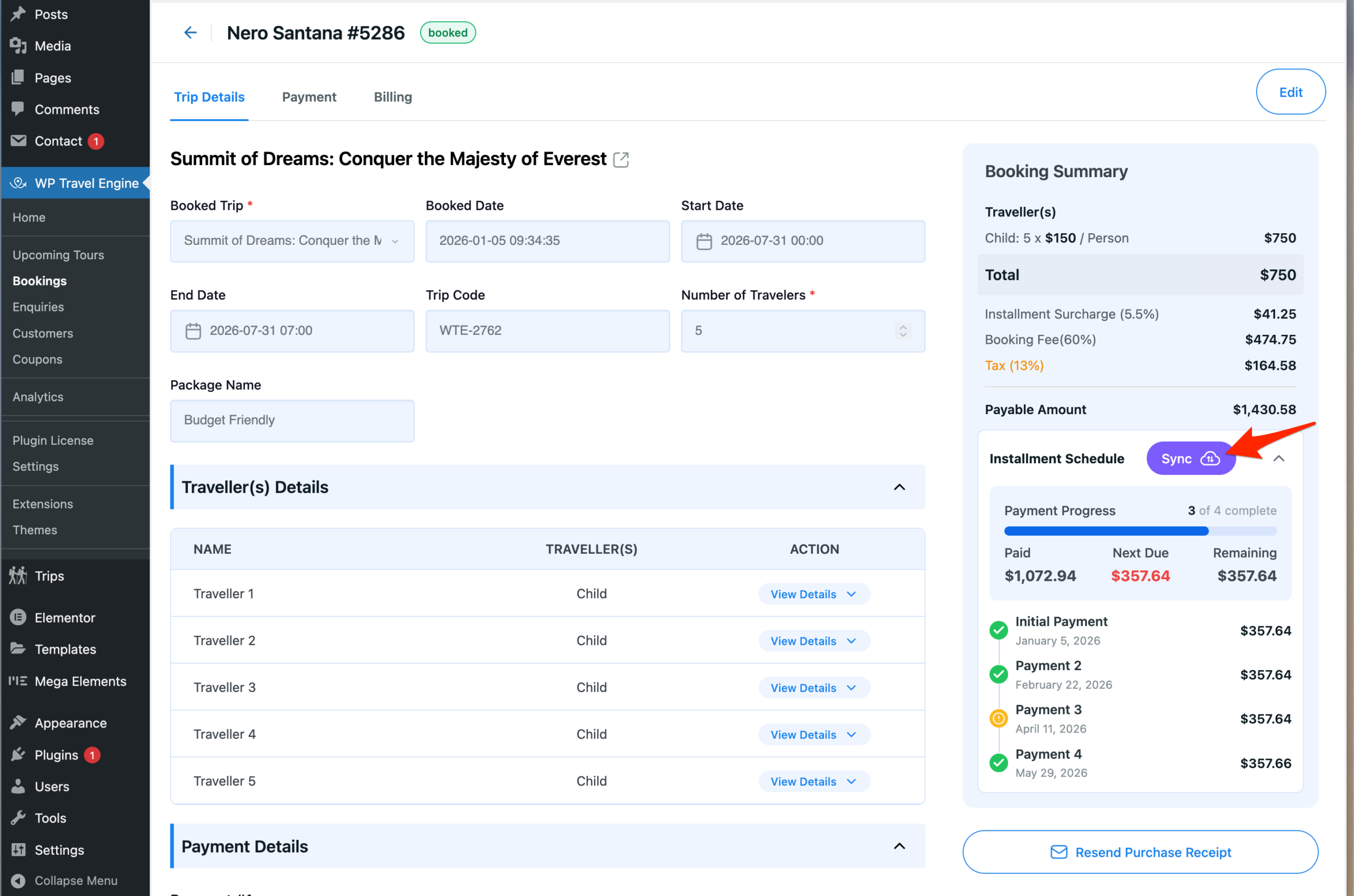
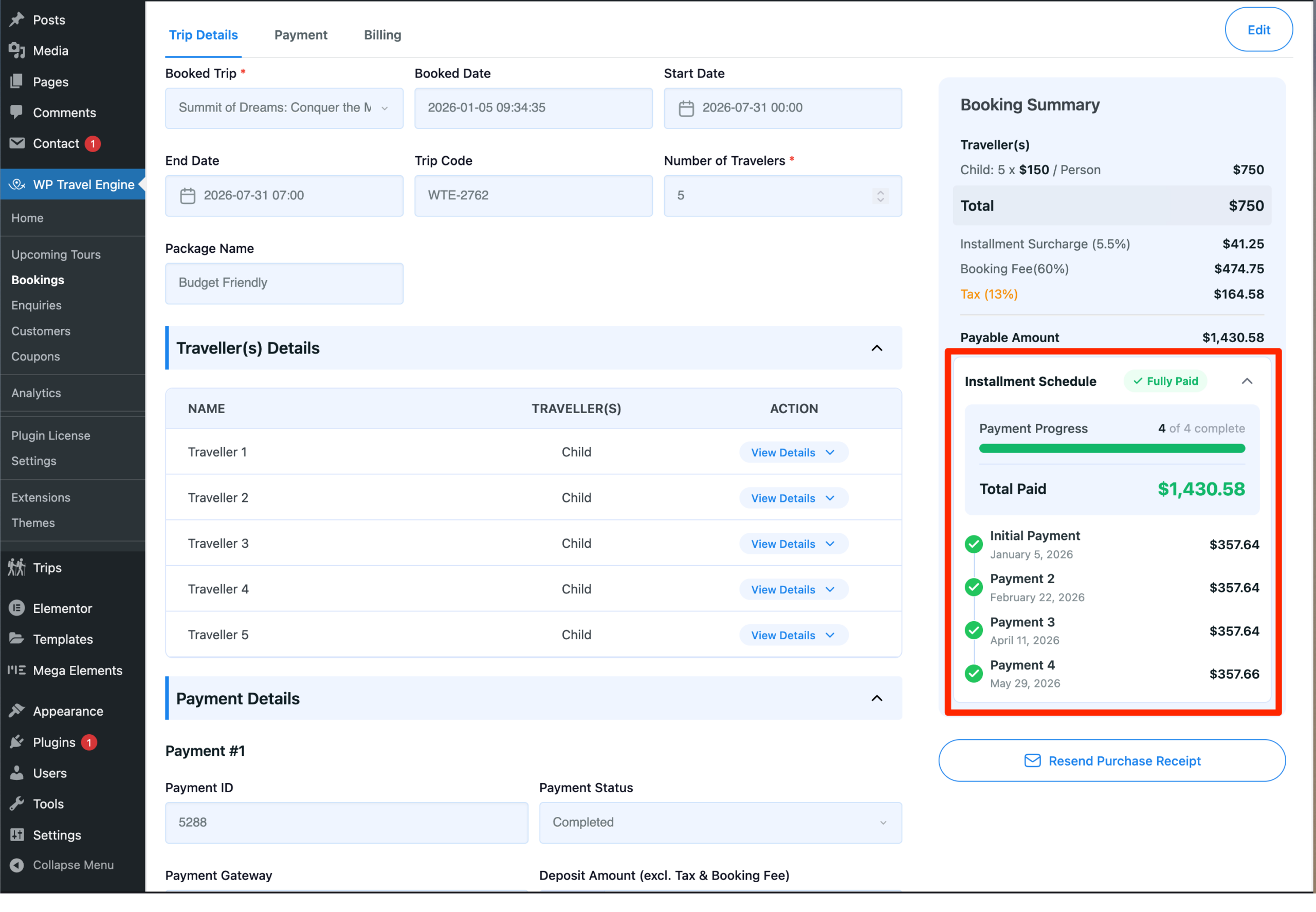
The system will check the actual status with Stripe. If the payment was successful, the status in WP Travel Engine will instantly update to Completed, fixing your records.
FAQ #
Can travelers see the full installment schedule before paying? #
Yes. The complete installment schedule, including payment amounts and due dates, is clearly shown during checkout before the booking is completed.
What happens if someone tries to book after the installment cut-off period? #
Once the cut-off period has passed, the installment payment option is hidden at checkout. Travelers will only see and be able to use standard payment methods to complete their booking.
Is a Stripe webhook required for installment payments? #
Yes, a Stripe webhook is required for installment payments to work correctly. Make sure you have added these two events: invoice.payment_succeeded and invoice.payment_failed, along with other events, so that the system can track successful and failed payments.
How are installment payment amounts calculated? #
The total trip cost (including fees and taxes) is divided by the number of installments in the selected plan.
How are installment payment dates calculated? #
Installment payment dates are automatically scheduled from the day a traveler books until the final payment due date. The total time between these two dates is divided evenly based on the number of installments selected, ensuring that all payments are completed before the trip starts.
Can installment plans be changed after a booking is made? #
No. Once a booking is confirmed, the selected installment plan and its payment schedule cannot be changed.
Does installment payment work with all currencies supported by Stripe? #
Yes. Installment payments support all currencies that are supported by Stripe for your account.