
WP Travel Engine now allows your emails to be automatically sent in your customers’ preferred language using TranslatePress. This guide will walk you through a step-by-step setup so your emails are fully multilingual and professional.
Prerequisites #
Before you begin, make sure you have the following:
- A WordPress website with the WP Travel Engine plugin installed and activated.
- The TranslatePress plugin is installed and activated.
- Any languages you want to support are added in TranslatePress (e.g., French, Spanish, German).
How to Install and Set Up TranslatePress? #
- Go to Plugins → Add New → Upload Plugin
- Upload and install the TranslatePress plugin
- Activate the plugin
- Go to Settings -> TranslatePress
- Add the languages you want to support.
- Configure language switcher if desired (for front-end site use).
- Optional: Enable automatic translations.
Configure Email Translation for WP Travel Engine #
To ensure your booking emails are sent in your customers’ preferred language, you need to configure TranslatePress for WP Travel Engine email templates. Follow these steps carefully.
Step 1: Open Email Notification Settings #
- Go to your WordPress Dashboard.
- Navigate to WP Travel Engine → Settings → Extensions → Emails → Notifications.
- You will see a list of all available email templates categorized under:
- Admin Emails
- Customer Emails
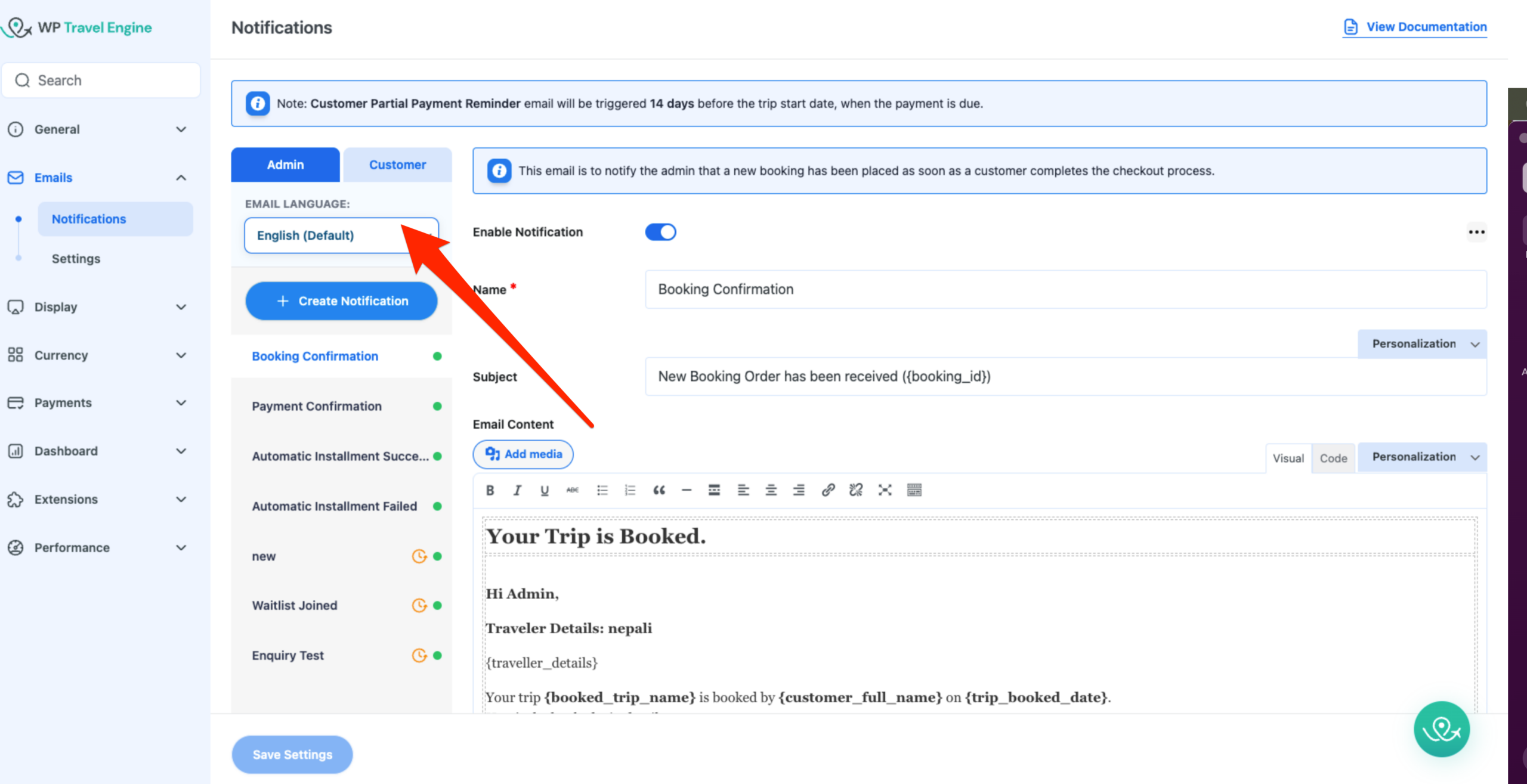
Above the list of templates, you will see an Email Language dropdown.
Step 2: Select the Language #
- Click the Email Language dropdown located above the email templates list.
- Select the language you want to translate the emails into (for example, Nepali, French, Spanish, etc.).
Once you select a language, the email templates will switch to that language mode, allowing you to add translations.
Step 3: Translate Email Templates #
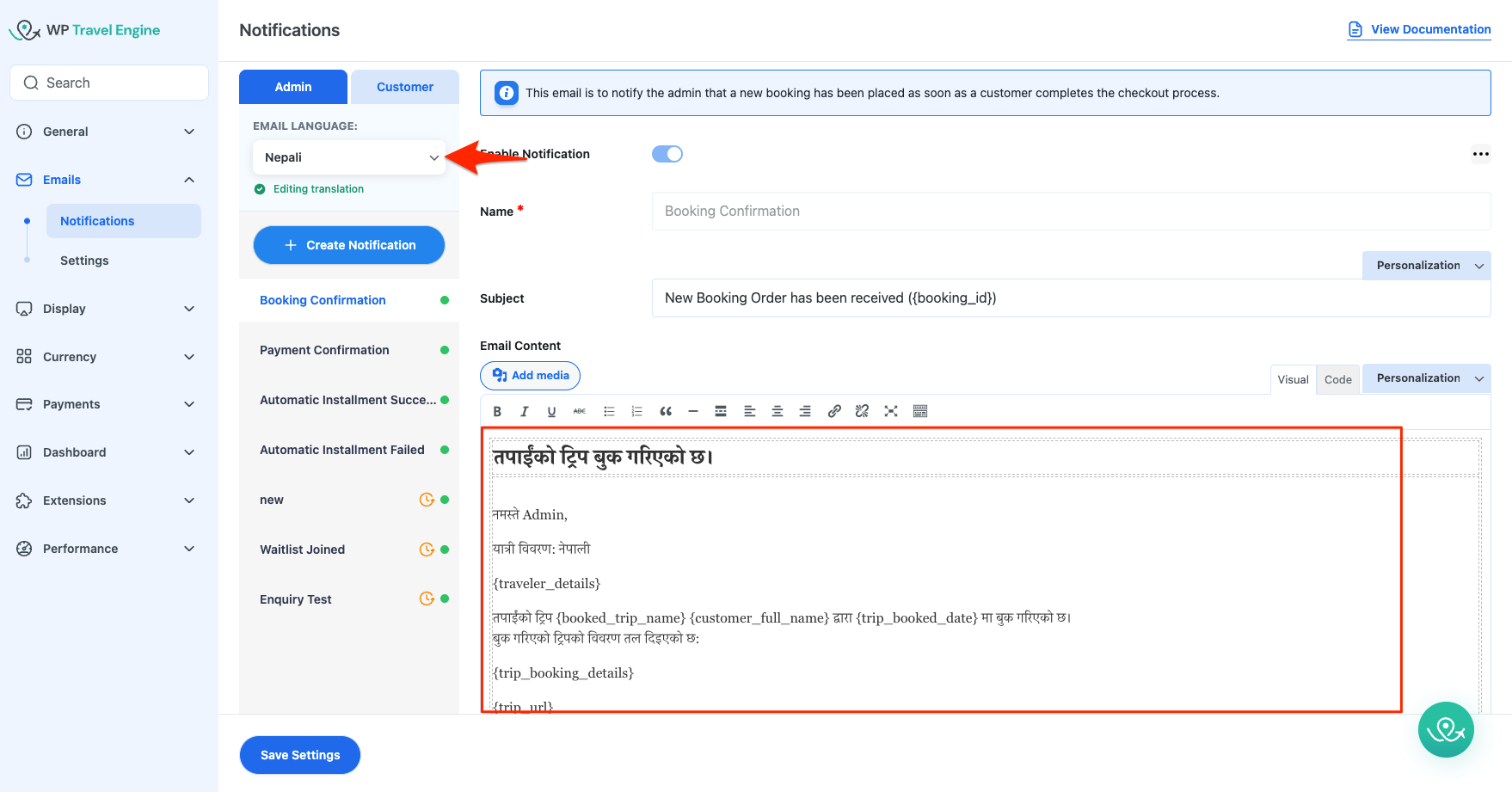
- Choose the email template you want to translate from the list (for example, Booking Confirmation, Payment Confirmation, etc.).
- Open the template and manually translate the subject line and email content into the selected language.
- Save the changes.
You can repeat this process for each email template you want to translate.
Step 4: Test Your Translations #
After translating your email templates:
- Switch your website to the translated language.
- Make a test booking.
- Verify that:
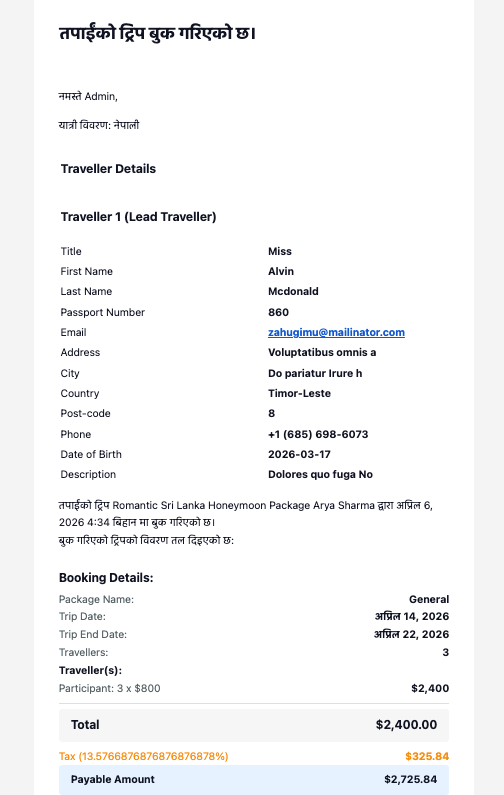
- The email subject and content appear in the selected language.
- Dynamic information such as trip name, customer name, and booking details displays correctly.
- Formatting (bold text, links, etc.) remains intact.
Emails will automatically be sent in the language selected during the booking process.
Translating Emails Using Advanced Email Automator #
Email translations for these automated emails follow the same language selection process.
- Go to WP Travel Engine → Settings → Extensions → Emails → Notifications.
- Use the Email Language dropdown above the template list to select the language you want to translate into.
- Locate the automated email template you created with Advanced Email Automator.
- Translate the email subject and content, then click Save Changes.
Once saved, the automated email will be sent in the selected language when the automation is triggered.
Translating Emails Using Email Customizer #
Email translations for these customized emails follow the same language selection process.
- Go to WP Travel Engine → Email Customizer
- Use the Email Language dropdown next to the template selection drodown to select the language you want to translate into.
- Translate the email content, then click Save Changes.
- Make a test booking and check the email to ensure that the content appears in the selected language.
Emails will be sent automatically in the language selected at the time of the booking.
Translating Emails Using Per Trip Email #
Email translations for these per trip emails follow the same language selection process.
- Go to WP Travel Engine → Per Trip Email
- Open an email template.
- Use the Language dropdown shown right above the Trip Selection.
- Translate the email content, then click Save Changes.
- Make a test booking and check the email to ensure that the content appears in the selected language.
Emails will automatically be sent in the language selected during booking.