
Content Generation writes trip marketing copy for you: the overview, highlights, itinerary, includes/excludes, FAQs, and any custom tab you’ve built into your trip layout. Point it at real trip details and it drafts copy that matches your brand voice, tone, and reading level, ready to review and publish instead of writing from a blank page.
Built for agencies and tour operators who list many trips and don’t have a dedicated copywriter for each one.
Benefits at a Glance #
| Feature | User Benefit |
| Trip Wizard Generation | Fill in trip basics once and generate every section, Overview through custom tab, in a single pass instead of writing each one separately |
| Per-Tab Generation | Regenerate just one section, like the Itinerary, without touching content you’ve already approved elsewhere on the trip |
| Custom Instructions Per Generation | Give a one-off instruction for a specific section, useful when a trip needs something your global settings don’t cover |
| Brand Voice & Tone Controls | Keep every generated trip sounding like your business, not like generic AI copy, without editing each one by hand |
| Custom Tab Support | Generate content for tabs you’ve added yourself, not just the built-in sections |
| Multi-Provider Support | Connect Anthropic, Google, OpenAI, or OpenRouter and switch providers without changing how you write trips |
Before You Start #
- You have Altus AI installed and activated with your active license key.
- You have an AI provider configured in Altus AI > AI Provider.
Configuring Model & Parameters #
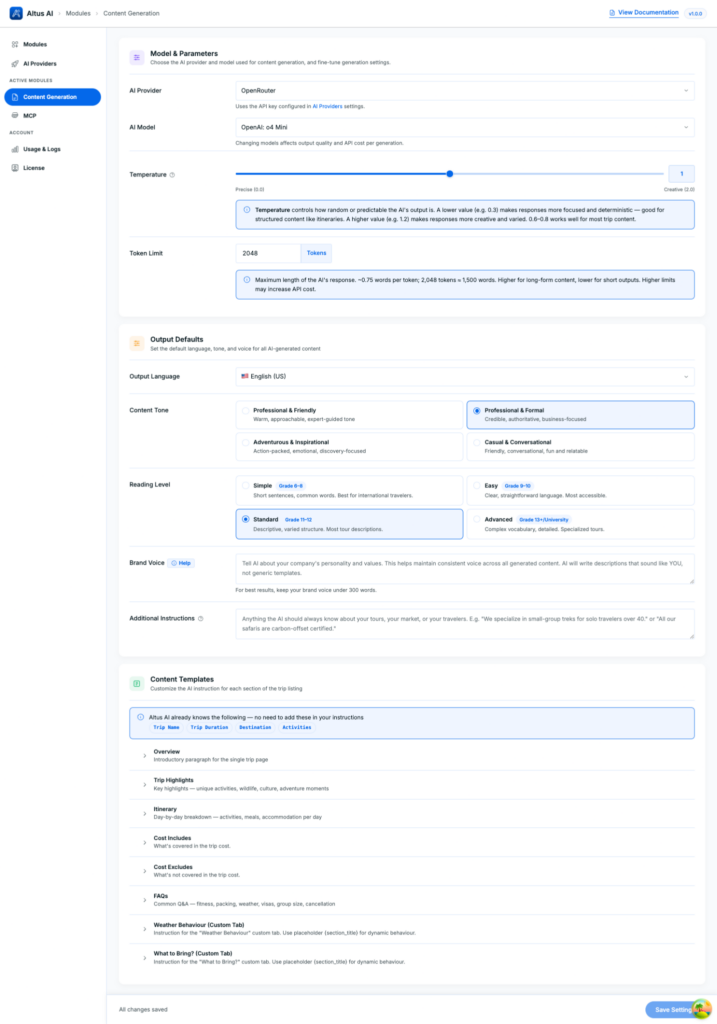
Go to Altus AI > Content Generation. These settings apply site-wide, to every trip you generate, until you change them.
AI Provider #
Choose which connected AI provider (like Anthropic, OpenAI, or OpenRouter) Altus should use to generate content. This list only shows providers you’ve already connected under AI Providers.
AI Model #
Choose which specific model from that provider should do the writing. Different models can affect the quality of the output and how much each generation costs.
Temperature #
Adjust Temperature if needed, from 0.0 (Precise) to 2.0 (Creative). Lower values keep writing literal and structured, which suits itineraries. Most trip content works well between 0.6 and 0.8.
Token Limit #
Adjust Token Limit if longer sections, like a multi-day itinerary, are getting cut off. A higher limit can increase your provider’s API cost.
Setting Your Output Defaults #
Output Language. #
Choose the language the AI should write in, for example English, Spanish, or French.
Content Tone #
Choose how the writing should sound. For example, “Professional & Formal” for a polished, business tone, or “Casual & Conversational” for something friendlier and relaxed.
Reading Level #
Choose how simple or complex the writing should be. Lower levels use shorter sentences and everyday words, higher levels allow more detail and vocabulary.
Brand Voice #
Write a short description of your company’s personality, for example “warm, down-to-earth, a bit cheeky, never salesy”.
Additional Instructions #
Fill in Additional Instructions with anything Altus should always know, for example “We specialize in small-group treks for solo travelers over 40.”
Customizing Content Templates #
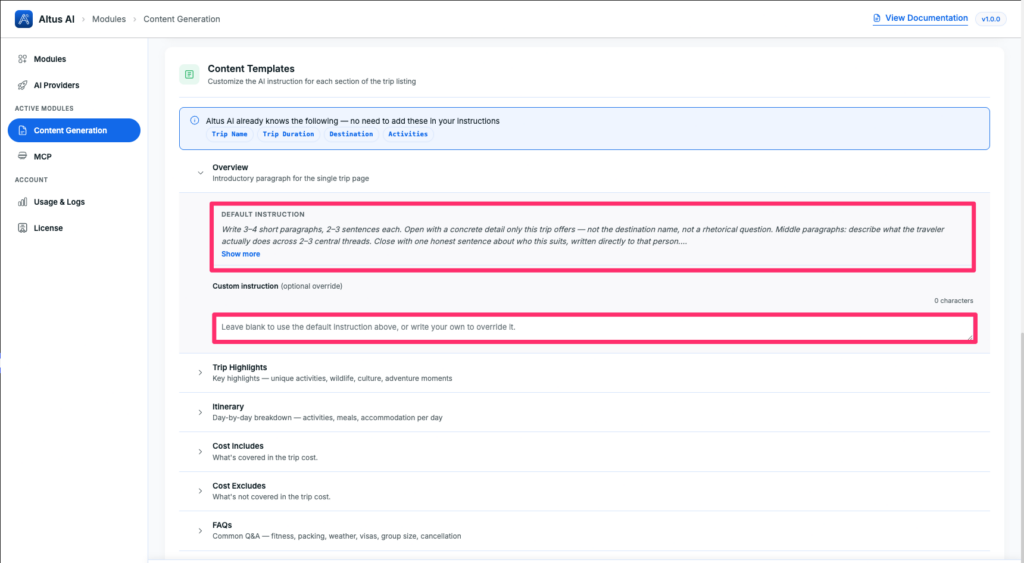
Below the global settings, Content Templates lets you override the instruction Altus uses for each section.
Altus already knows your Trip Name, Trip Duration, Destination, and Activities, you don’t need to repeat these in any instruction.
Each section, Overview, Trip Highlights, Itinerary, Includes/Excludes, and FAQs, shows a Default Instruction (click Show more to read it in full) and a Custom instruction (optional override) field. Leave it blank to keep the default. Fill it in to replace the default entirely, for example telling FAQs to always include a cancellation-policy question.
Generating Content on a Trip Page #
From your dashboard, go to Trips. Open any trip.
There are two ways to generate content once you’re editing a trip.
Method 1: The Trip Wizard #
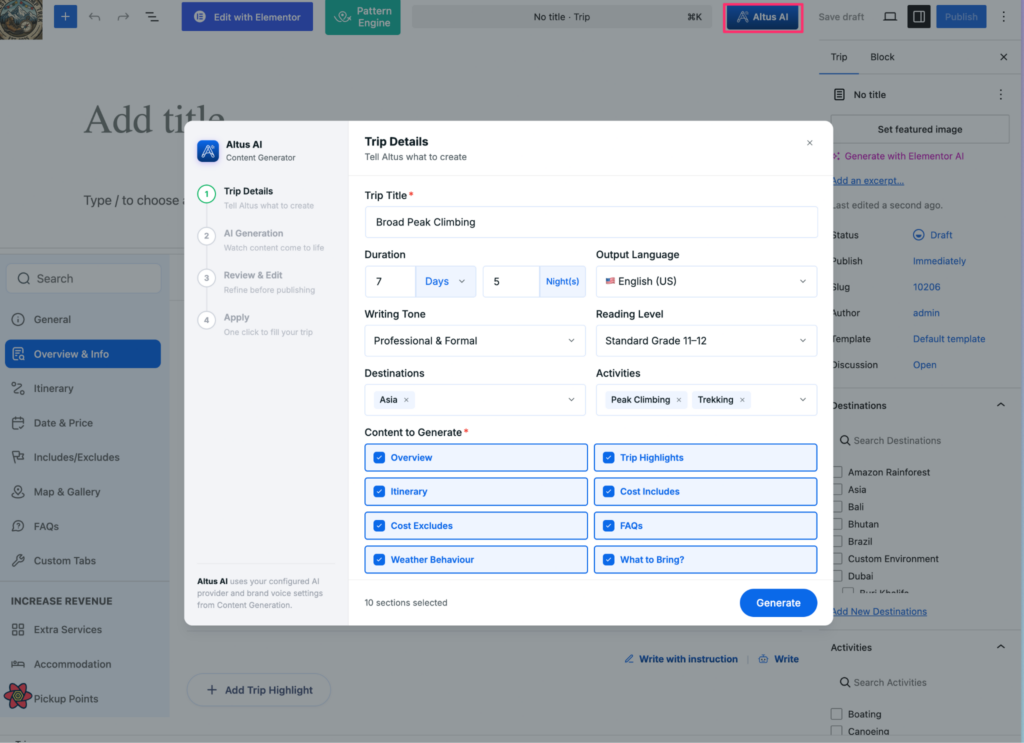
- Open a trip and click the purple Altus AI icon in the top-right corner.
- On Trip Details, confirm or adjust Trip Title, Duration, Output Language, Writing Tone, Reading Level, Destinations, and Activities for this trip only.
- Under Content to Generate, check the sections you want written: Overview, Trip Highlights, Itinerary, Includes/Excludes, FAQs, and any custom tab you’ve added.
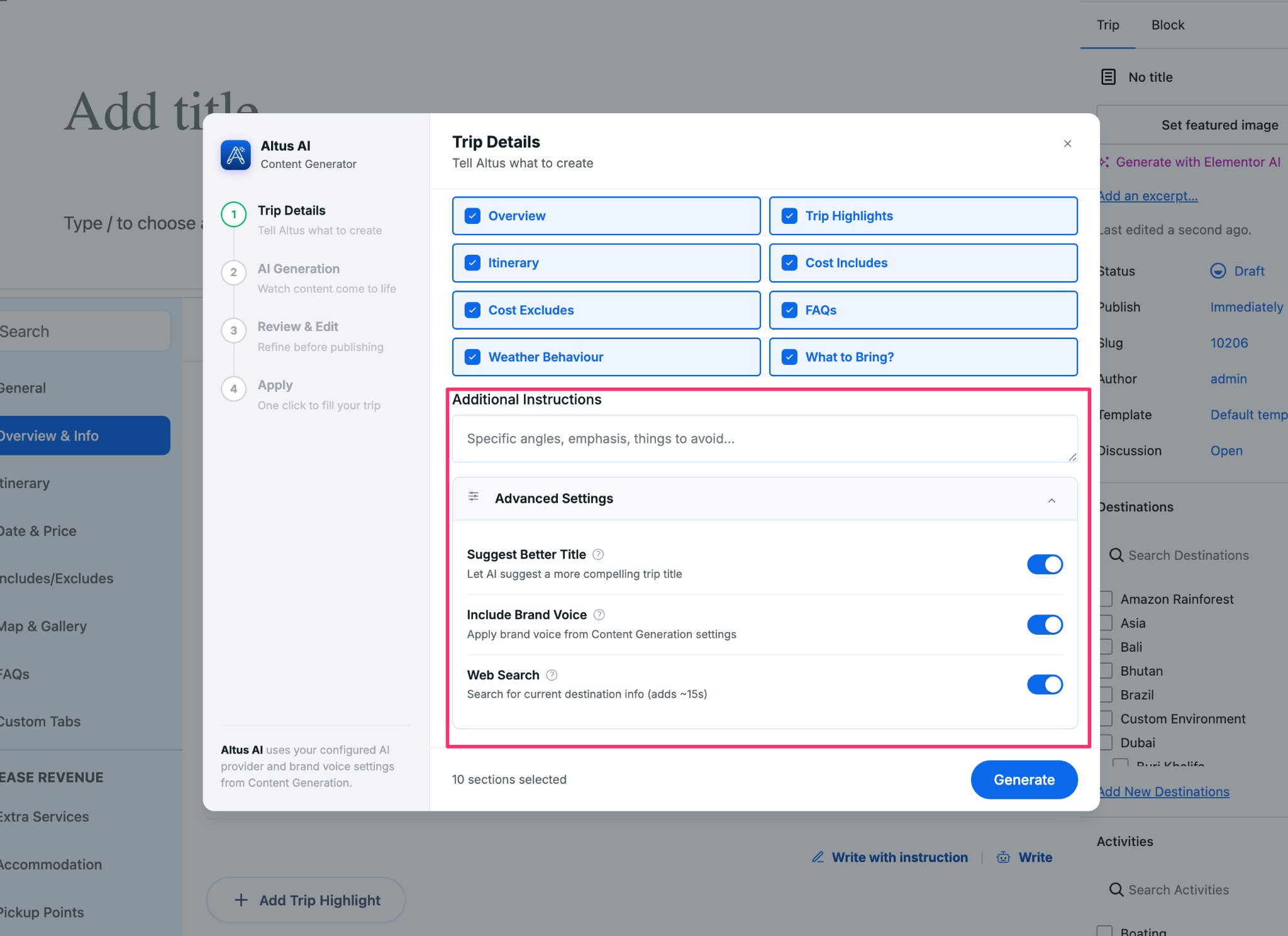
- Add anything specific to this trip under Additional Instructions.
- Open Advanced settings to toggle on suggesting a better title, including brand voice, or web search, if you want any of those for this generation.
- Click Generate.
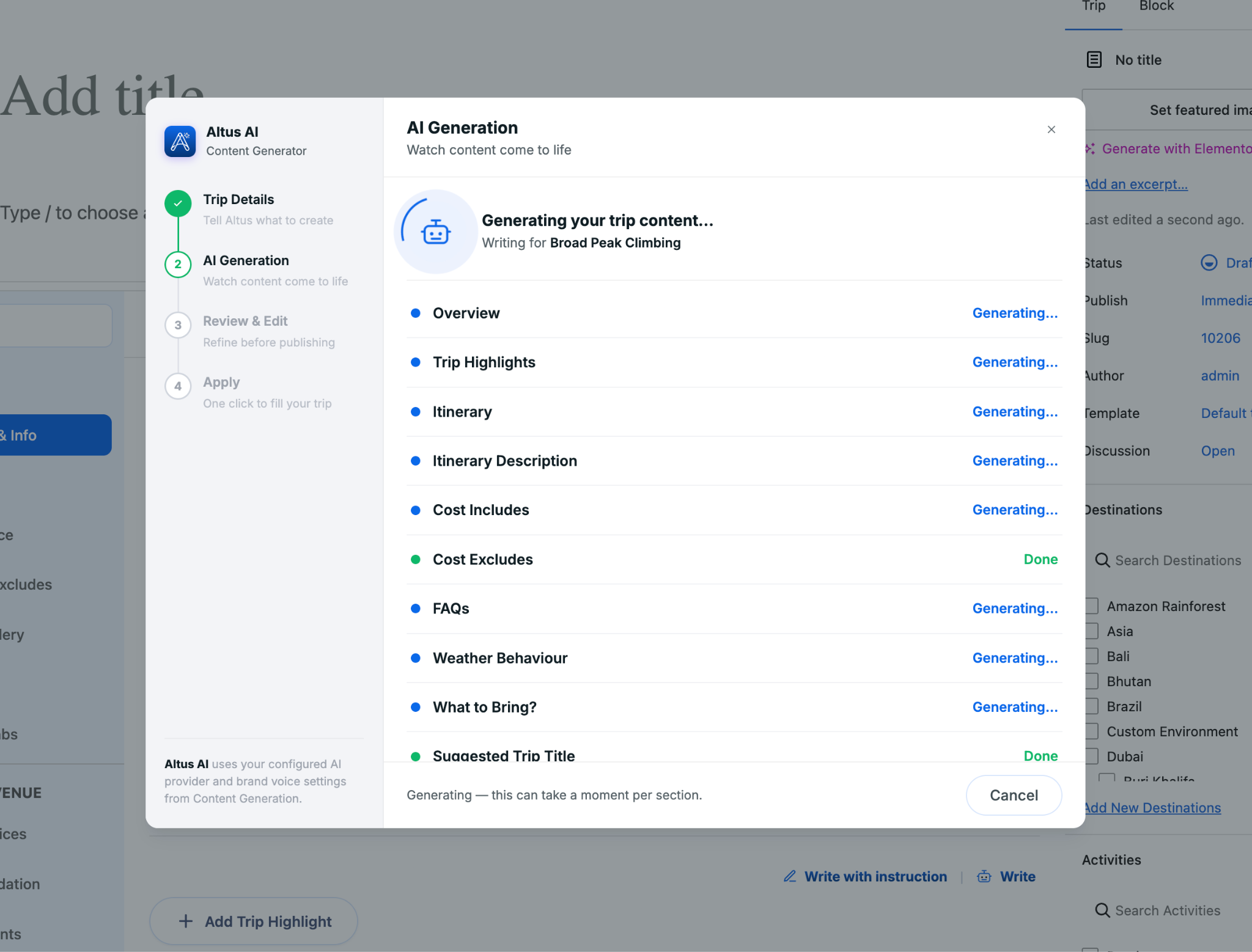
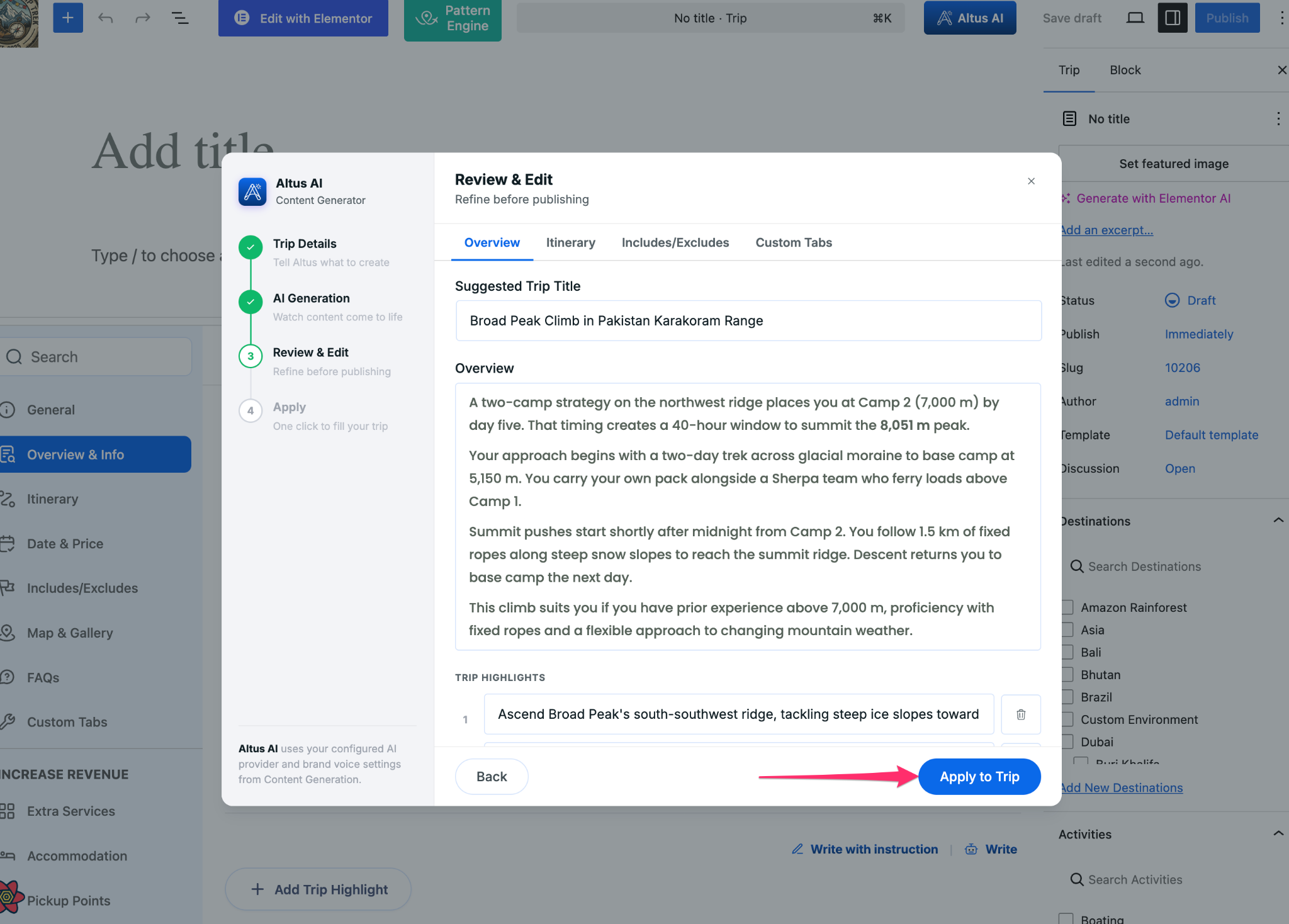
- Review each section, add, delete, or edit anything you want, and click Apply.
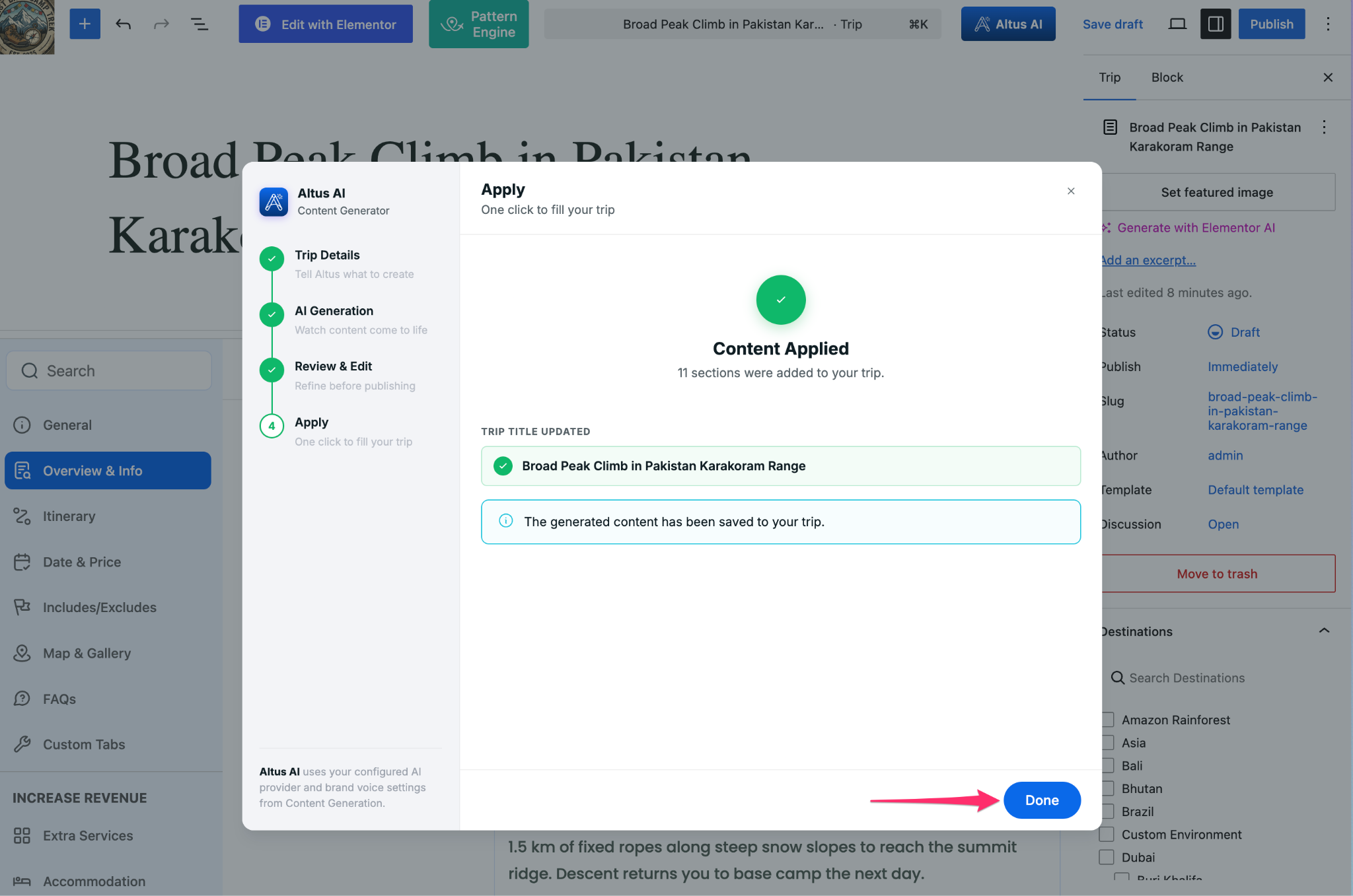
- Now click Done to apply these settings to your trip.
Method 2: Generating From a Specific Tab #
Go directly to a section’s tab, for example itinerary, and look at the top-right corner of its content block:
- Click the Altus AI icon(write/rewrite) to generate using your global Content Generation settings, tone, reading level, and brand voice, without writing a custom instruction.
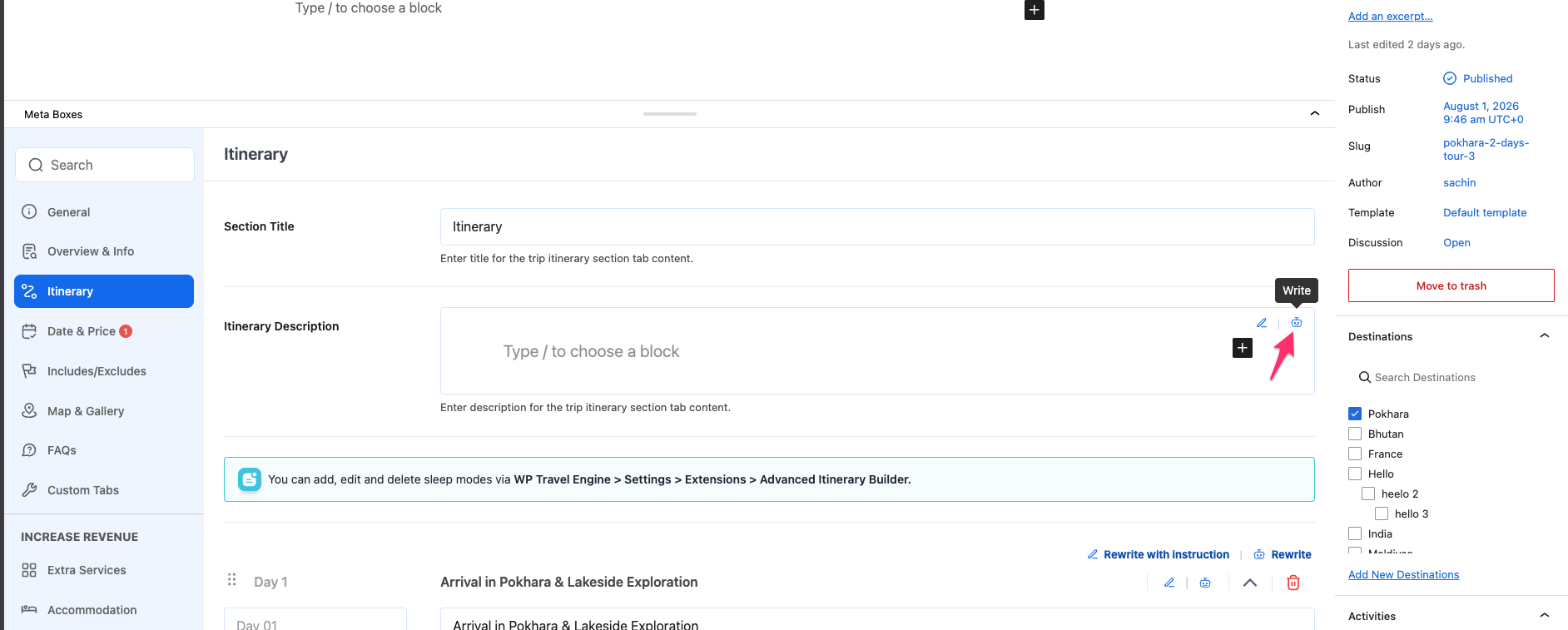
- Click the pencil icon (write/rewrite with instruction) to write your own instruction for that generation, useful for a one-off request specific to this trip.
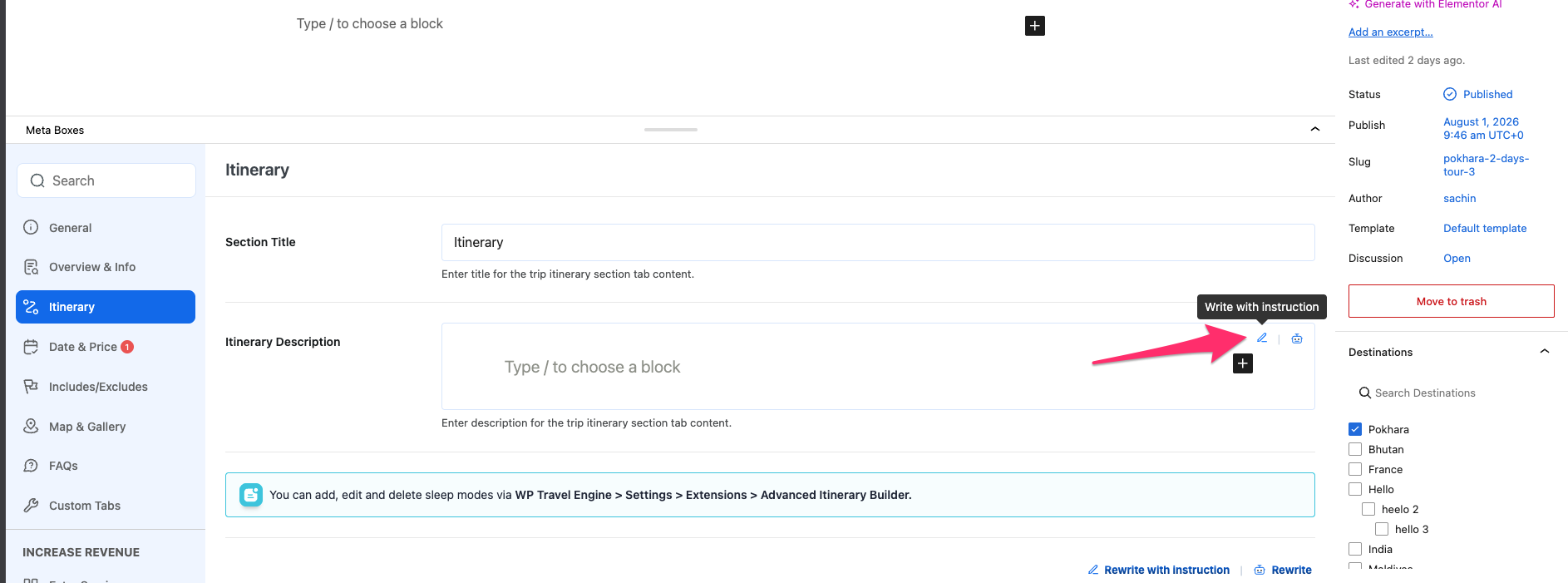
This works the same way on Overview, Itinerary, Includes/Excludes, FAQs, and any custom tab you’ve built. On sections with multiple items, like Itinerary days or FAQs, smaller regenerate buttons also let you rewrite a single day or a single FAQ without touching the rest.
Whichever method you use, review the result before publishing. Generated content lands as normal, fully editable content, not a locked block.If you already like most of a section but want one change, use Rewrite with Instruction and describe the change, for example ‘make this shorter’ or ‘mention the group discount,’ rather than regenerating from scratch.
Use Cases
Use Case 1: Launching a Full Trip Listing From Scratch
Situation: You’re adding a new 12-day trek and want every section drafted at once instead of writing each one manually.
Implementation:
- Fill in Trip Title, Duration, Destinations, and Activities on the Trip Details step.
- Check all sections under Content to Generate: Overview, Trip Highlights, Itinerary, Includes/Excludes, FAQs, Custom tabs.
- Add a line under Additional Instructions noting anything unique to this trip, like a specific base camp route.
Benefit: A complete first draft of the listing is ready to review in one pass, instead of switching between tabs to write each section separately.
Use Case 2: Rewriting One Section After a Trip Change
Situation: You’ve already published a trip, but the itinerary changed after a route update, and the rest of the listing is fine as is.
Implementation:
- Go to the Itinerary tab.
- Click the pencil icon( rewrite with instructions ) and describe the change, for example “day 4 now ends at a different lodge, mention the shorter walking distance.”
Benefit: Only the Itinerary section regenerates. The Overview, Highlights, and FAQs you already approved stay untouched.
Tips for Better Results #
- Fill in real trip details before generating. Altus won’t invent facts it wasn’t given, so accurate destination, activity, and duration details lead to more specific output.
- Set Brand Voice once and mean it. This single field affects every generation more than any other setting.
- Save custom instructions for cases with a specific, recurring need. The built-in defaults are already tuned against generic phrasing.
- Always review before publishing. Treat generated content as a strong draft, not a guaranteed-accurate final copy.
Costs and Usage Tracking #
Content generation is billed by your connected AI provider, based on their token pricing. Altus does not add any extra charge.
FAQs #
- Can I use a different AI provider for different trips?
No. The AI Provider and Model set under Content Generation apply to every trip. Switching providers changes it site-wide. - Does the wizard overwrite sections I’ve already written by hand?
Only the sections you check under Content to Generate are affected. Leave a section unchecked to keep your existing content untouched. - Can I generate content for a custom tab I built myself?
Yes. Custom tabs appear alongside the built-in sections in both the wizard’s Content to Generate list and the per-tab generation icons. - Does Altus charge extra for content generation on top of my AI provider’s fees?
No. You’re billed directly by your connected provider based on their token pricing. Check usage at Altus AI > Account > Usage & Logs.