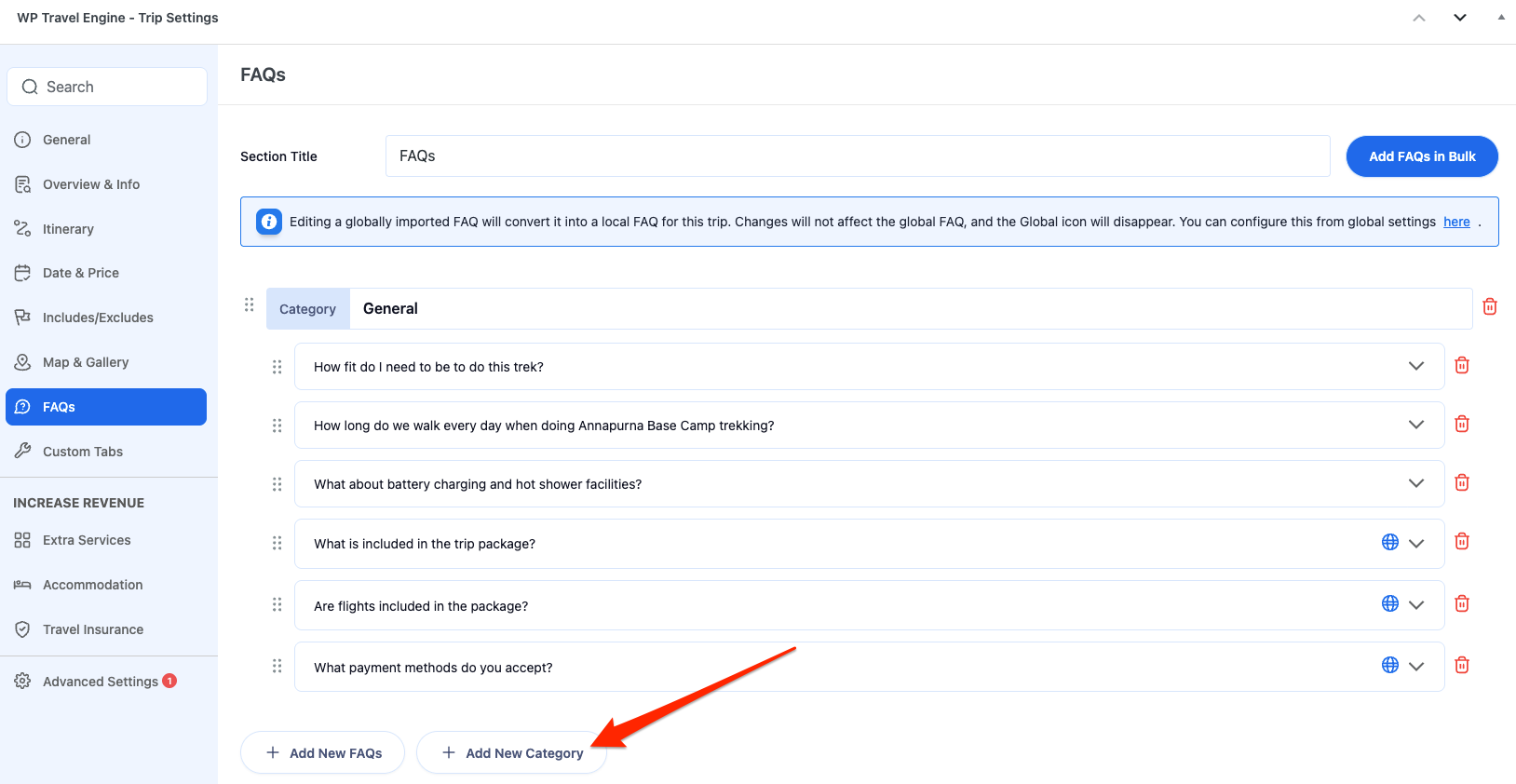
The FAQ feature allows you to add frequently asked questions to your trip pages, helping travelers quickly find answers without contacting you. You can add FAQs manually, import them from Global FAQs, and organize them using categories for better structure.
With this feature, you can manage FAQs efficiently across multiple trips while maintaining a clean and structured layout.
Key Features #
- Add FAQs manually to individual trips
- Import FAQs in bulk from Global Settings
- Organize FAQs using categories
- Drag-and-drop reordering for FAQs and categories
- Global to local FAQ conversion on edit
Benefits at a Glance #
| Feature | Benefit |
| Manual & Bulk FAQ Addition | Quickly add FAQs without repetitive work |
| Global FAQs | Reuse the same FAQs across multiple trips |
| Categories | Keep FAQs structured and easy to navigate |
| Drag & Drop Reordering | Easily organize FAQs and categories |
| Flexible Editing | Customize FAQs per trip without affecting global data |
Global FAQs #
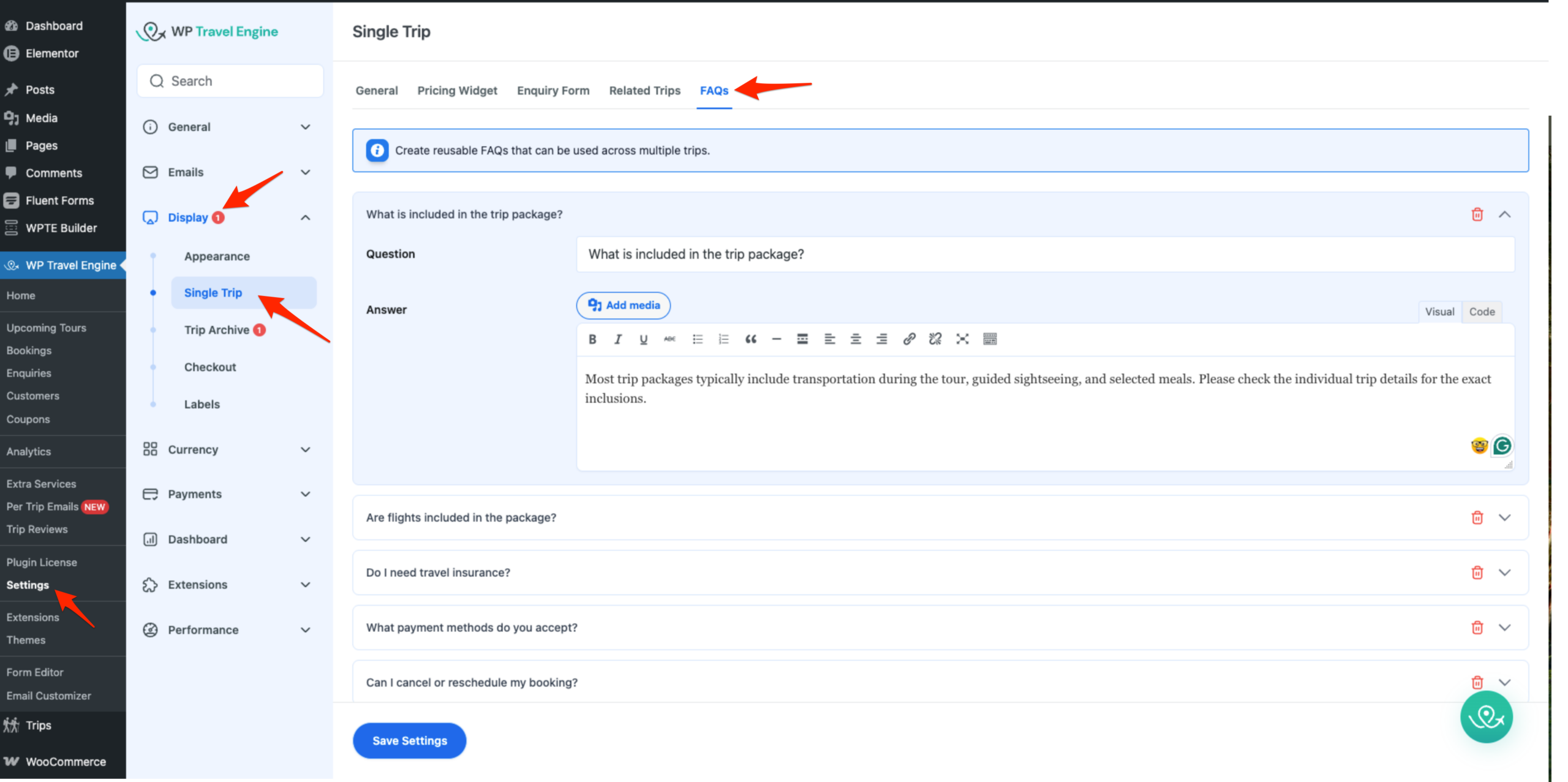
Global FAQs allow you to create a centralized list of FAQs that can be reused across multiple trips.
Navigate to WP Travel Engine > Settings > Display > Single Trip > FAQs
Show FAQs Section #
Enable this toggle to show FAQs on the frontend.
Add Global FAQs #
- Click on + Add FAQ
- Enter the Question and Answer
- Save changes
Note: You can edit any existing FAQ by updating the question or answer fields. You can also delete them using the red delete icon next to it.
FAQs in a Single Trip #
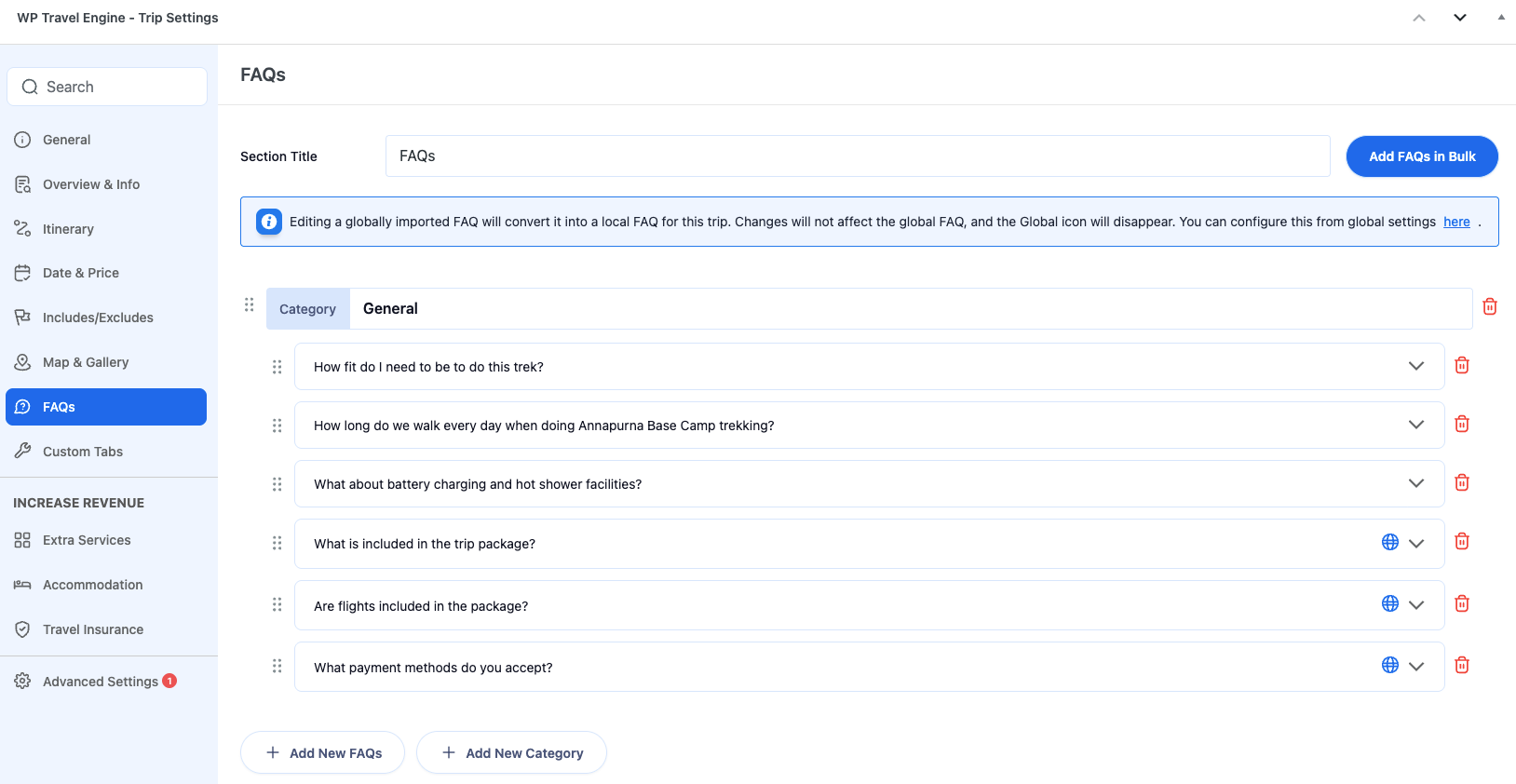
You can manage FAQs individually for each trip, including importing global FAQs, organizing them, and customizing them.
To access, edit any one of your trips where you want to add FAQs. Navigate to WP Travel Engine – Trip Settings > FAQs
Add New FAQs #
Use this option to manually add FAQs to the trip. These FAQs are treated as local FAQs.
- Click on + Add New FAQs.
- Enter the Question.
- Enter the Answer.
Add FAQs in Bulk #
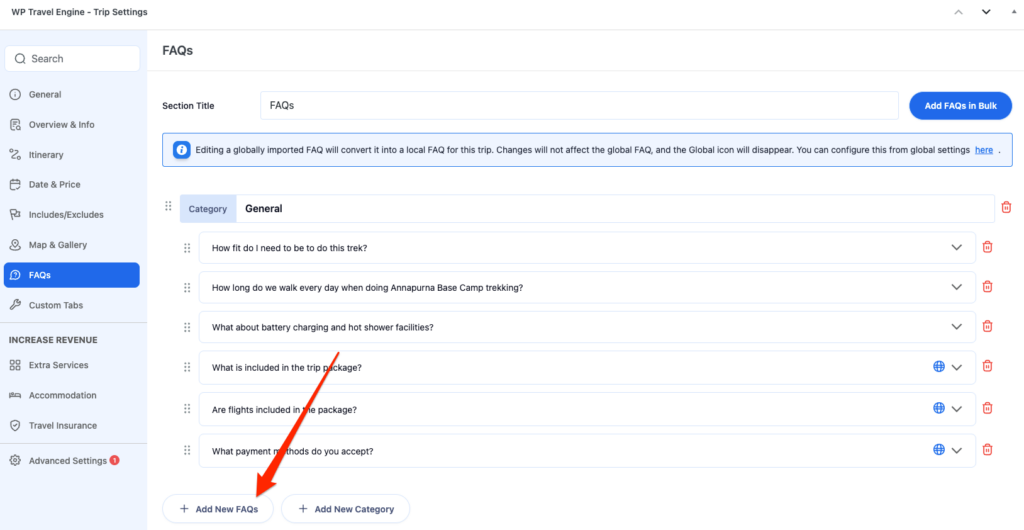
Use this option to import FAQs from Global FAQs.
- Click on Add FAQs in Bulk.
- A pop-up titled “FAQs in Bulk” will open.
- Use the search bar to search for globally created FAQs in the list.
- Select FAQs using the checkboxes.
- Click Add FAQs.
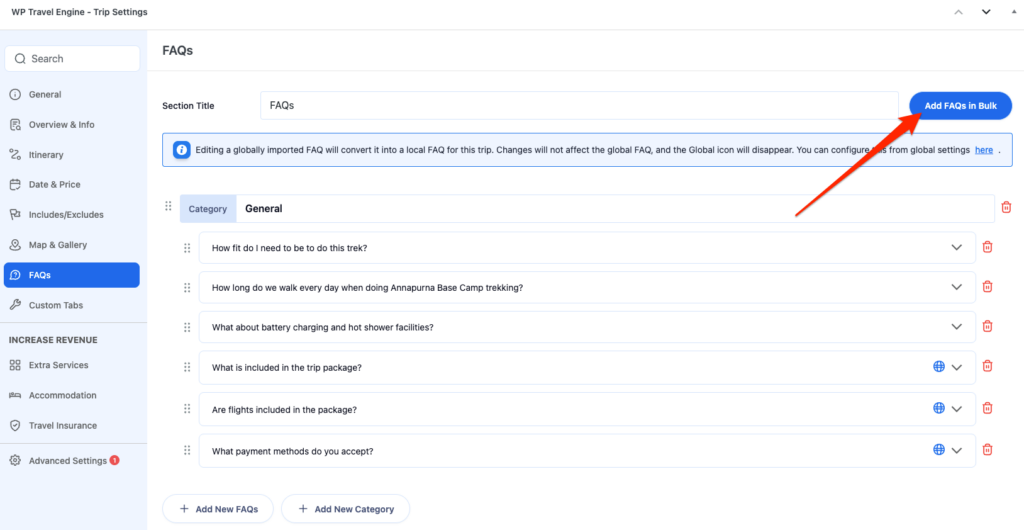
Note: If you edit an FAQ that was added from Global FAQs, it will be converted into a local FAQ. The changes will apply only to this trip and will not affect the global FAQ.
Add New Categories #
Use categories to organize FAQs for better structure.
- Click on + Add New Category.
- Enter a category name.
- Use the order (drag) icon to move and arrange your FAQs under the created category.