
- 1. How Total Seat Capacity Works
- 2. Booking Seat Capacity per Package in the FSD Plugin
- 3. Seat Allocation by Time in the FSD Plugin
- 4. Minimum Traveller Seats in WP Travel Engine
- 5. Maximum Capacity per Price Category
- FAQs
- Why does the booking popup start at a higher number instead of 1?
- Why can’t I book all the seats defined in packages if they add up to more than the General Seats?
- If one package has seats left but the General Seats are full, can I still book that package?
- What happens if two packages share the same date and time?
This documentation explains how seat allocation works in WP Travel Engine and the Trip Fixed Starting Dates (FSD) plugin. It covers General Settings, Package-based capacity, and Time-based allocation with examples for each scenario.
In the old version (before 6.6.7), there were several issues with seat allocation:
- Overbooking risk – Maximum Participants was applied per booking instead of per day, which allowed multiple customers to book more seats than were actually available.
- Package-level reset – In the FSD plugin, seat limits were resetting on every booking attempt, leading to overselling.
- No shared pool logic – Packages and time slots did not share a common seat pool, causing mismatched seat counts.
We’ve introduced major improvements to fix these problems. Please refer to the updated documentation below to learn more about the new system.
1. How Total Seat Capacity Works #
The Total Traveller Seats in General Settings define the maximum number of travellers that can book a trip on any given day.
How to Configure:
- Go to Dashboard > WP Travel Engine > Trips > Add New > General > Total Traveller Seat
- Enter the maximum number of seats available per day or per time slot for Multi-Day Trips. For Activity/Single-Day Trips, set the capacity for each time slot.
Note: The Total Traveller Seat limit is shared across all packages combined.
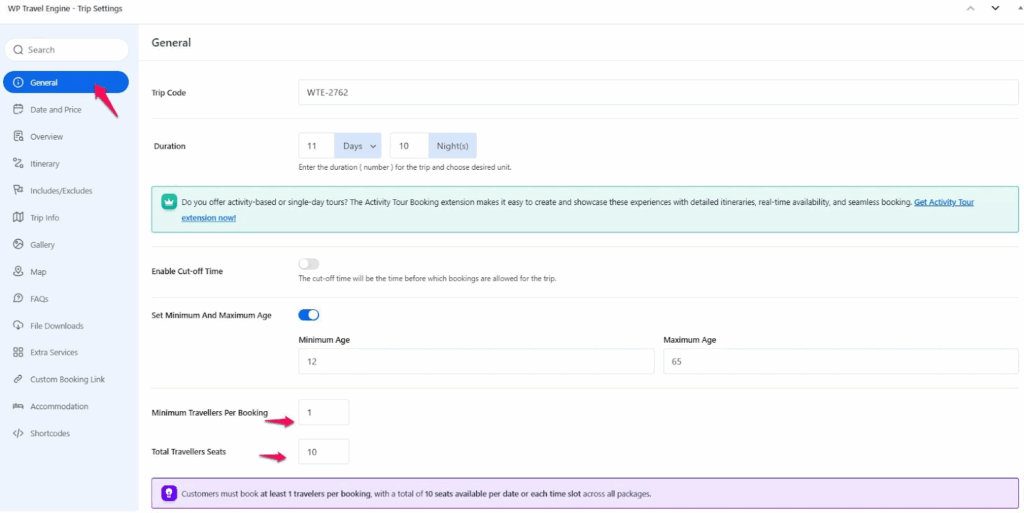
Example #
If you set Total Traveller Seats = 10, then only 10 travellers can book that trip for a day or each time slot of a day. Once all 10 are booked, no additional bookings can be made for that date.
Before and After Working #
Old System (Maximum Participants):
- Applied per booking, not per day.
- If you set 10 maximum participants, each new customer saw 10 seats available, even if others had already booked.
- This caused overbooking.
New System (Total Traveller Seats):
- Seats are counted per day or each time slot of a day.
- If one customer books 6 seats, only 4 remain for others on that day.
- Once the total is reached, the system stops bookings for that date.
- Important: The next day starts fresh with the same seat capacity again.
Example:
- Old: 3 customers booking on the same day could each book 10 → 30 seats sold instead of 10.
- New: Only 10 seats in total can be sold for that day.
2. Booking Seat Capacity per Package in the FSD Plugin #
The Trip Fixed Starting Dates (FSD) plugin is designed to let you add specific dates for your trips. It gives you the flexibility to assign dates to each package (for example, Standard or Premium), so travellers can choose the exact date they want to book.
In earlier versions, this plugin allowed you to set the Maximum Traveller Seats separately. With the new update, the system is improved:
- The Maximum seat capacity you set for a trip in General Settings is now automatically applied as Total Traveller Seats.
- This ensures that all seat calculations are consistent and based on the daily capacity defined in General Settings.
How to Configure: #
- From the Dashboard, go to WP Travel Engine → Trips → Add New → General → Date and Price. Under Packages, select a package and choose a date
- Here you can set the total number of seats available for that package on that date.
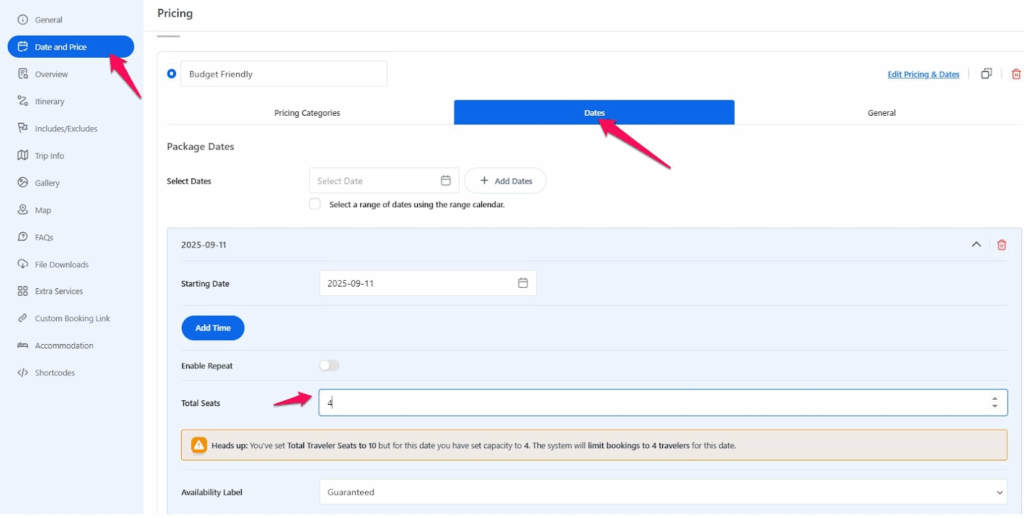
How It Works #
- General Settings set the maximum seats allowed per day in the Total Traveller seat.
- Package Dates in FSD define how many seats can be booked in that package for a date.
- Bookings will continue until the total seat capacity defined across the packages for that date is fully used.
- Example Scenario
Setup
- General Settings → 10 seats per day
- Standard Package → 31 August → 4 seats
- Premium Package → 31 August → 3 seats
How It Works
- The total seats from packages = 4 (Standard) + 3 (Premium) = 7.
- Since this is less than the Total Traveller Seat limit of 10, only 7 seats are available for booking on 31 August.
- Customers can book:
- Up to 4 seats in Standard per booking, or a maximum of 4 seats
- Up to 3 seats in Premium per booking, or a maximum of 3 seats
- Once all 7 seats are booked, the trip is closed for 31 August, even though the Total Traveller seat allows 10.
2. Alternate Case #
If the total seats defined in packages are higher than the Total Traveller Seats (General Settings), the system will still respect the General cap.
Example Setup:
- General Settings → 10 seats (this is the maximum allowed for the trip per day).
- Standard Package → 8 seats.
- Premium Package → 6 seats.
- Total from packages → 14 seats.
Even though packages add up to 14, only 10 seats can be booked in total because the General Settings cap is the ceiling.
How It Works (Step by Step Scenarios) #
Case 1: Booking in Premium Package #
- A customer books 4 seats in the Premium Package.
- Remaining seats in Premium = 2 (6 – 4)
- Standard Package shows 6 available seats (because only 6 seats remain under the 10 cap)
- Total seats left overall = 6 (10 – 4)
Case 2: Booking in Standard Package #
- A customer books 4 seats in the Standard Package.
- Remaining seats in Standard Package = 4 (8 – 4).
- Premium Package now shows 2 available seats, because the overall limit (10) reduces the availability.
- Total remaining seats = 6 (out of the 10 cap).
Case 3: Filling the Cap Across Packages #
- Suppose 8 seats are booked in Standard and 2 seats in Premium.
- Standard Package = 0 seats left.
- Premium Package = 0 seats left.
- Total = 10 seats booked → The system closes booking for that date (even though packages originally had 14).
Case 4: Mixed Bookings #
- A customer books 5 seats in Premium. Remaining Premium seats = 1.
- Another customer books 5 seats in Standard. Remaining Standard seats = 3.
- But total booked = 10 (5 Premium + 5 Standard).
- The system blocks further bookings, even though the Standard package still had 3 in its own pool.
Key Point to Remember #
- The General Settings cap is the ultimate ceiling.
- Package-level seats help you control distribution, but once the daily total is reached, no package can accept new bookings.
- This ensures fair allocation and prevents overselling.
Why This Matters #
- Old System: Package seats reset on every booking attempt, which could oversell.
- New System: Seats are reduced in real time, and all packages share the Maximum Travellers Seat.
3. Seat Allocation by Time in the FSD Plugin #
The Trip Fixed Starting Date (FSD) plugin also allows you to set specific times for bookings within a date. This allows for the same trip to be run multiple times in a single day.
How Time Allocation Works #
- Seats Per Date
- You set a seat limit for the date.
- That same seat limit is applied every time you create for that date.
- Seats Per Time
- Each time slot (morning, evening, night) gets the same seat number as the date.
- Bookings for one time slot do not affect other time slots.
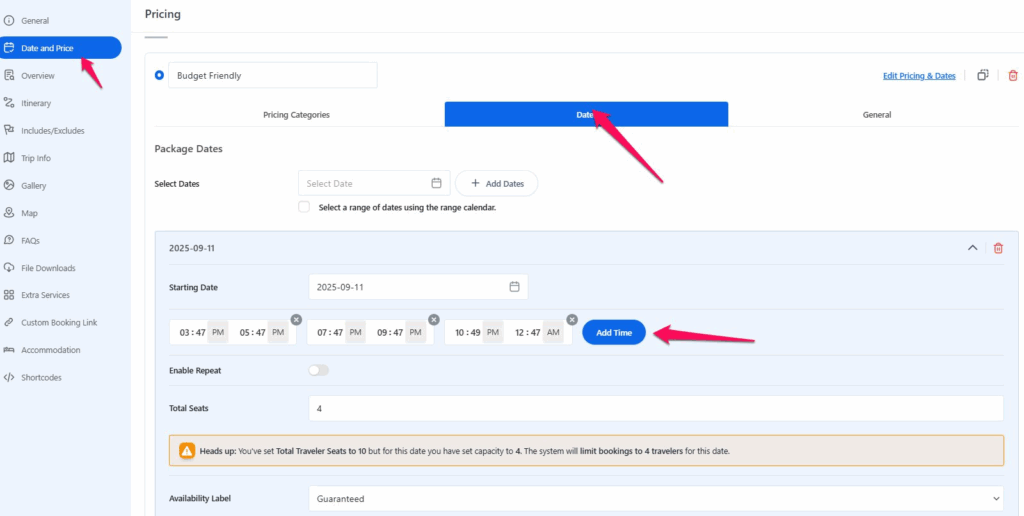
Example 1: One Date with Multiple Times #
- Total Travellers Seats = 12 seats
- Date: 1 August → Seat limit = 10
- Times: Morning, Evening, Night
Result:
- Morning = 10 seats
- Evening = 10 seats
- Night = 10 seats
Example 2: Multiple Packages with Same Date and Time #
- Package A → 1 August (Morning) → 8 seats
- Package B → 1 August (Morning) → 8 seats
- A customer books 5 seats in Package A (Morning).
Result:
- Package A = 3 seats left
- Package B = 3 seats left
Key Points to Remember #
- The seat limit for a date applies to all times created under that date.
- Each time slot is separate; booking in the Morning does not reduce the Evening or Night.
- If multiple packages share the same date and time, they share the seat pool.
- The system always respects the General Settings cap, so the total bookings per day never exceed it.
Notes #
- The shift from per booking Maximum Traveller Seat to Total Traveller Seats prevents overbooking.
- Always remember: General Settings = ceiling, Packages and Times = distribution inside that ceiling.
4. Minimum Traveller Seats in WP Travel Engine #
The Minimum Traveller Seat setting ensures that each booking meets a minimum number of participants. This prevents situations where travellers try to book fewer people than you require for the trip to run.
For example, if you set the minimum to 3, every booking must include at least 3 travellers (whether they are adults, children, or a mix).
How to Set Minimum Traveller Seats #
- Go to your WordPress Dashboard.
- Navigate to Trips → Add New Trip (or Edit Trip).
- Under WP Travel Engine – Trip Settings → General, find Minimum Travellers Per Booking.
- Enter the minimum number of travellers required.
Example: If you enter 4, then no booking can be completed unless at least 4 travellers are selected.
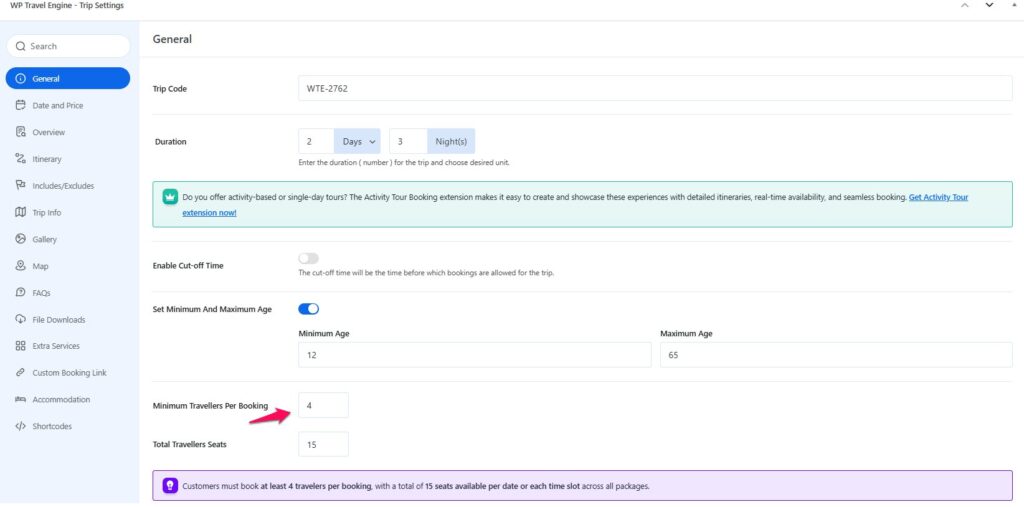
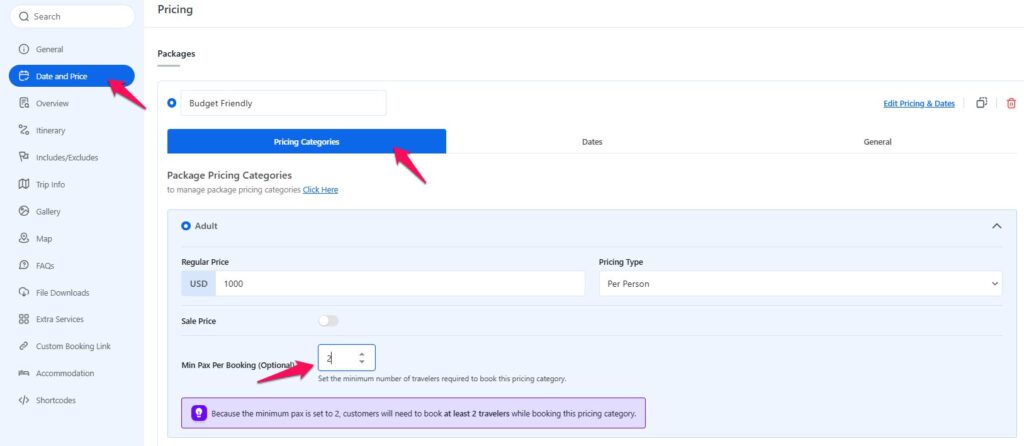
Minimum Seats in Pricing Categories #
In addition to the general minimum, you can also set minimum seats for each pricing category (e.g., Adults, Children).
How to Set:
- Go to Dashboard → Trips → Add/Edit Trip → WP Travel Engine – Trip Settings → Date and Price.
- Select a package (e.g., Budget, Premium).
- Under Package Pricing Categories, set the minimum seats for each category, like Adult and Child.
How It Works with Examples #
Example 1: General Minimum Only #
- Minimum Travellers per Booking (General)= 4
- No category-level minimums set.
A customer must book at least 4 travellers total (any combination of Adult/Child).
- Booking 2 Adults + 2 Children = Allowed
- Booking 3 Adults only = Not Allowed
Example 2: Conflict Between General and Category Minimums #
- Minimum Travellers per Booking (General) = 4
- Adult category = 2 minimum
- Child category = 1 minimum
If a customer selects only 3 travellers total (2 Adults + 1 Child), the booking fails.
Reason: The Minimum Traveller per Booking (General) requires at least 4 travellers, even though category minimums are satisfied.
To complete the booking, at least 4 travellers total must be added.
Notes #
- The General Minimum applies to the trip overall.
- The Category Minimums apply within each pricing group.
- Both rules must be met for a booking to be valid.
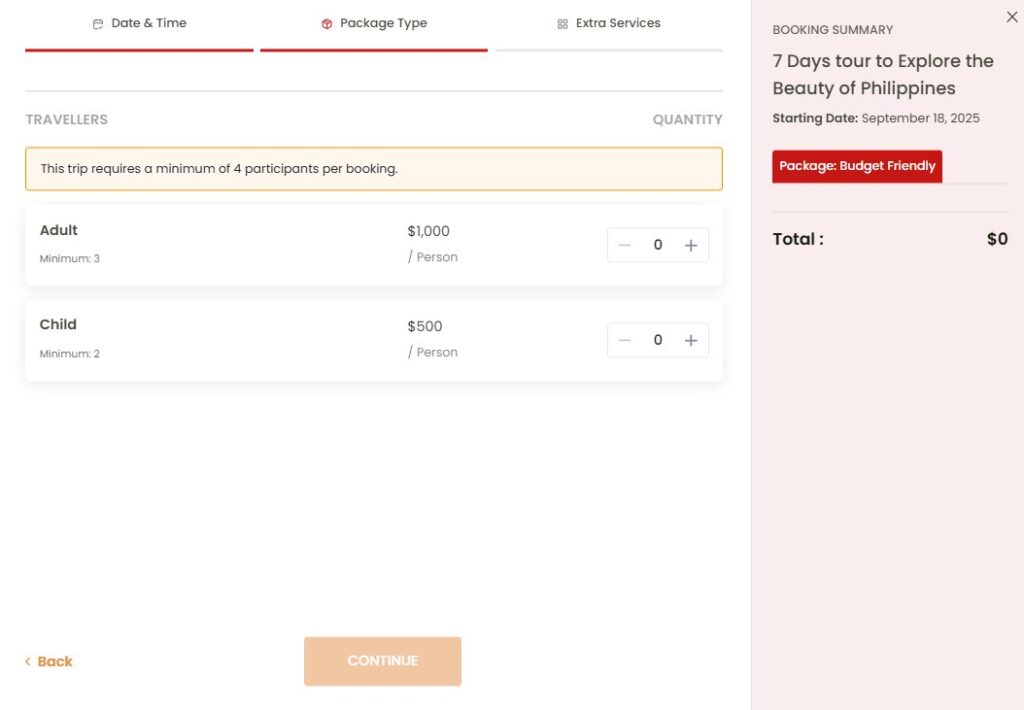
- The booking form automatically shows the defined minimums when selecting travellers (e.g., if Adult = 3, the first selectable number will be 3, not 1).
- Customers can increase the numbers but cannot go below the minimums you’ve defined.
5. Maximum Capacity per Price Category #
Normally, every price category (Adult, Child, Participant, and so on) draws from the same shared seat pool, and any category can use up any number of seats until the trip is full. Maximum Capacity per Price Category lets you put a fixed cap on individual categories, either the same cap across every package, or a different cap for each package.
This is useful when you want to protect seats for a specific traveller type. For example, capping Adult seats at 10 so a family-focused trip doesn’t sell out to Adults before any Child seats are booked.
How to Configure #
- Go to Trips > Add New (or Edit Trip) > WP Travel Engine – Trip Settings > Date & Price > Packages.
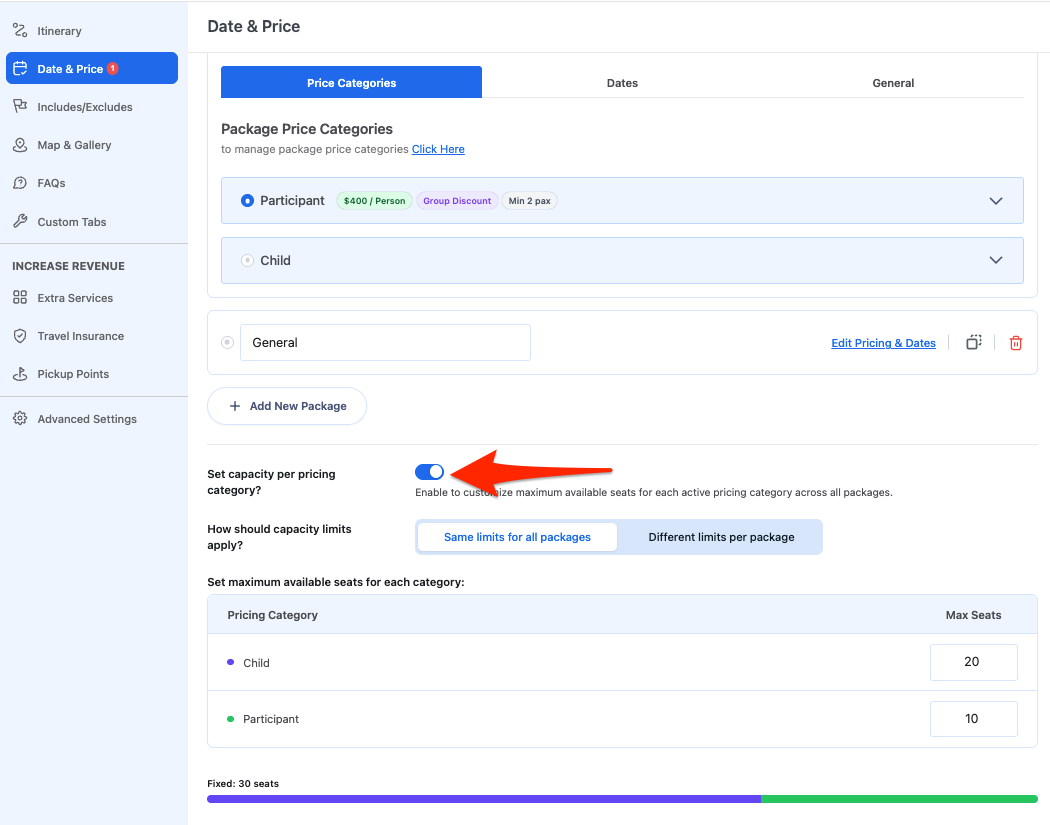
- Below your package list, turn on Set capacity per pricing category?.
- Choose a mode: Same limits for all packages or Different limits per package.
Same Limits for All Packages #
Use this mode when every package on the trip should follow one shared set of category limits.
- The table lists every price category priced in at least one package, each with its assigned colour.
- Enter a Max Seats value for any category you want to cap.
- Leave a category’s field empty to mark it auto. You can set more than one category to auto at the same time.
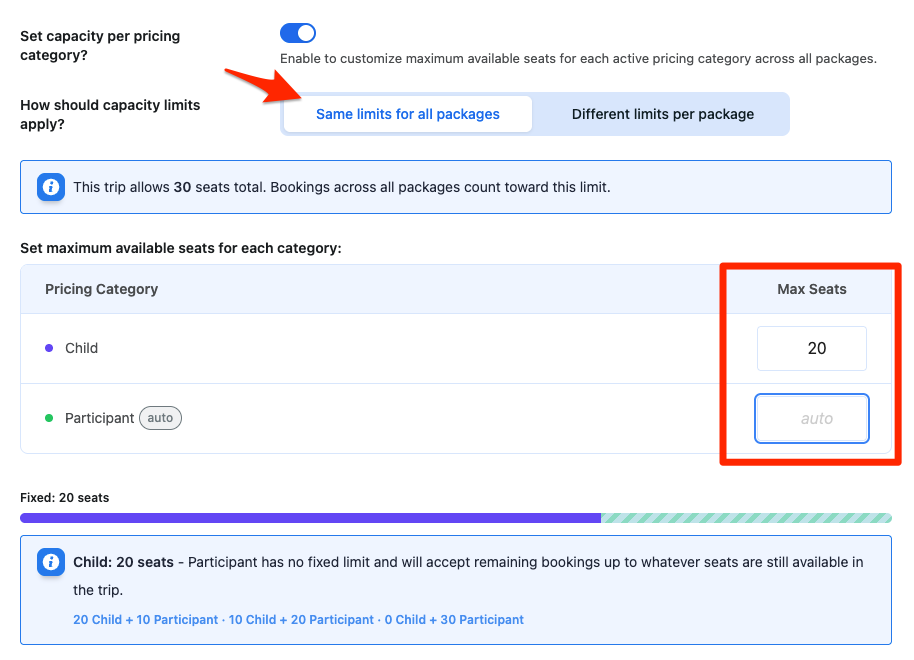
How auto works:
An auto category has no cap of its own. It shares the same seat pool as the fixed categories, and keeps accepting bookings until the trip’s overall seat limit is reached.
Example: Total Traveller Seats = 30. Adult is fixed at 10. Child is set to auto.
This does not mean Child is limited to 20 seats (30 minus Adult’s 10). It means Child has no cap of its own, only the trip’s 30-seat total applies to it.
Case 1: Children Book First #
22 Children book, then 8 Adults book. Total = 30. The trip is now full. Adult’s own limit was 10, but only 8 got used, since the trip closed once the overall cap was hit.
Case 2: Adults Book First #
10 Adults book (using their full limit), then 20 Children book. Total = 30 again, and the trip closes the same way.
Case 3: Adults Fill Up, Children Still Waiting #
10 Adults book right away. Even though Child has no cap and 20 seats are technically still open, only the first Children to book will get through, and the trip stops the moment the 30-seat total is reached.
Key Point to Remember: Seats go to whoever books first, on a first come, first served basis. Neither the fixed category nor the auto category gets a guaranteed number of seats set aside for it.
At the bottom, Unallocated Seats Left shows how many seats haven’t been assigned to any fixed category yet.
Setting category totals above the trip cap:
You can set category limits that add up to more than Total Traveller Seats. This is allowed, and it’s still first come, first served within the trip’s overall cap.
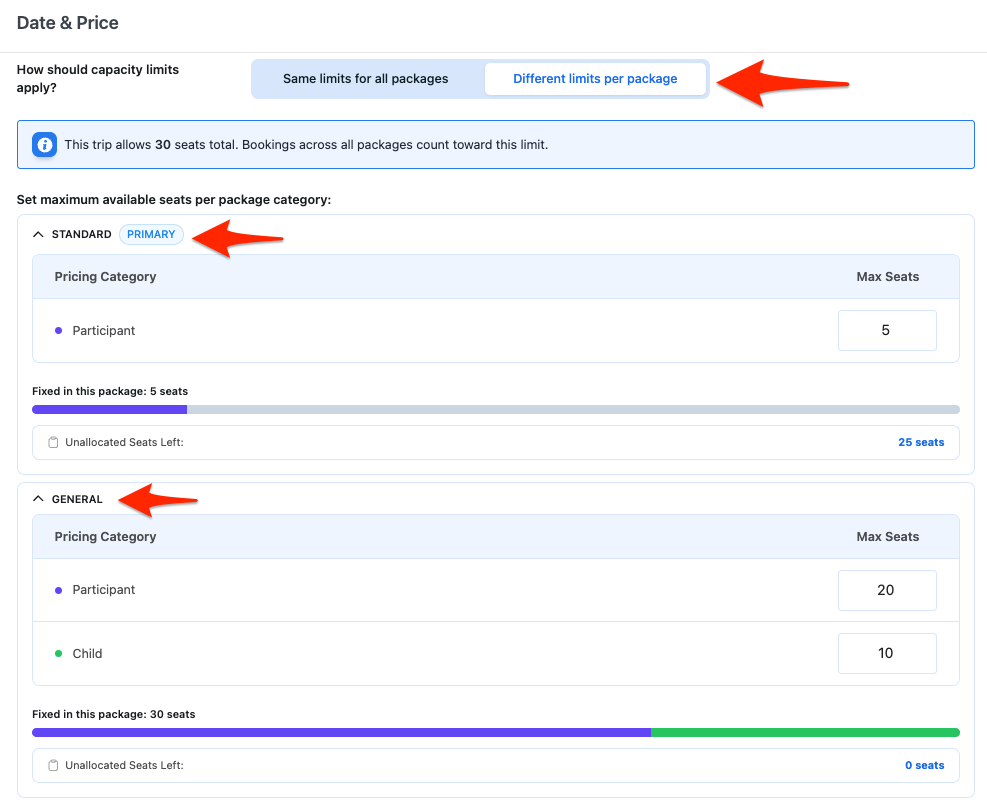
Different Limits per Package #
Use this mode when you want each package to have its own category limits.
- Each package appears as a collapsible block, named in uppercase.
- Click the chevron to collapse or expand a block.
- Inside each block, the table only lists categories priced within that package.
- Enter a Max Seats value per category, or leave a field blank to mark it auto for that package.
How package tables relate to the trip total:
When Total Traveller Seats is set, every package’s table can have category values up to that same number. For example, if Total Traveller Seats is 30, both your Standard and Premium tables can add up to 30 each.
This doesn’t create 30 seats per package. Every package still shares the same 30-seat pool for the trip. Setting values up to 30 in each package’s table only describes the category split within that package; whoever books first, in any package, uses up seats from that shared 30, until the trip is full.
Case: Two Packages, Same Overall Limit #
Total Traveller Seats = 30. Standard package: Adult = 20, Child = 10. Premium package: Adult = 20, Child = 10.
If 25 travellers book through Standard, only 5 seats remain for Premium, even though Premium’s own table still shows room for up to 30. The trip-wide total is what runs out first.
Each package block shows its own Fixed in this package summary, progress bar, and Unallocated Seats Left. These numbers describe that package’s own table, not the shared total across packages.
Category Capacity vs. Total Traveller Seats #
Total Traveller Seats is always the outer limit for the trip. Category limits control distribution inside that limit; they never raise it.
Setup: Total Traveller Seats = 10, Adult Max = 10, Child Max = 5.
Case 1: Adults Fill the Trip #
10 Adults book. The trip is now full. Child still has 5 seats of its own limit unused, but no Child booking can go through, since the overall 10-seat cap has been reached.
Case 2: Child Limit Reached on Its Own #
6 Children try to book. This is blocked immediately, since it exceeds Child’s own cap of 5, regardless of the overall limit.
Case 3: One Category Reduces What’s Left for Another #
5 Children book first, leaving 5 seats out of the 10 total. Adult’s own limit is 10, but only 5 Adults can now book, since that’s all that’s left overall.
When Total Traveller Seats Is Not Set #
Leaving Total Traveller Seats blank removes the trip-wide ceiling. Category limits become the only thing controlling capacity.
Same Limits for All Packages: Categories work independently, with no shared cap tying them together.
Example: Adult Max = 20, Child Max = 10. The trip can take 20 Adults and 10 Children at the same time, 30 travellers total, since nothing stops both categories from filling up side by side.
Different Limits per Package: Capacity is enforced per category, per package, and the trip’s real total becomes the sum of every package’s limits.
Example: Standard package Adult = 5, Premium package Adult = 10. Combined Adult capacity across the trip = 15, since each package only checks its own table.
Category Capacity with FSD Date Overrides #
If you’re using the Trip Fixed Starting Dates (FSD) add-on and a date has its own seat override, bookings on that date must follow two rules at once: the category limits, and the seat ceiling set for that date.
Setup: Adult Max = 8, Child Max = 4.
If Total Traveller Seats Is Set (Global = 10) #
Case: Overridden Date (e.g., April 10, set to 5 seats)
The date override becomes that day’s ceiling. A booking must satisfy all three: Adults ≤ 8, Children ≤ 4, and Adults + Children ≤ 5. Booking 4 Adults leaves room for only 1 Child that day. Booking 2 Adults leaves room for 3 Children.
Case: Standard Date (no override)
The ceiling reverts to the Global limit of 10. A traveller can book 8 Adults and 2 Children, or 6 Adults and 4 Children, but not 8 Adults and 4 Children, since that totals 12 and exceeds the global limit.
If Total Traveller Seats Is Not Set #
Case: Overridden Date (e.g., April 10, set to 5 seats)
With no global limit, the date override itself becomes the absolute ceiling for that day. The same three checks apply: Adults ≤ 8, Children ≤ 4, Adults + Children ≤ 5. Booking 4 Adults still leaves only 1 Child seat that day.
Case: Standard Date (no override)
With no global limit and no date override, only the category limits apply. A traveller can book 8 Adults and 4 Children together, 12 travellers total, since nothing caps the combined sum.
Notes #
- Auto has no fixed number. It means that category can take seats freely, up to whatever overall limit applies. You can set more than one category to auto at once.
- A fixed category’s cap isn’t guaranteed either. Once the trip’s overall seat limit is reached, no category can book further, even one with room left in its own limit.
- Booking works first come, first served. Whichever category books first uses up seats from the shared pool.
- Category totals can add up to more than the trip cap. This is allowed in both modes. Only 30 total seats will ever get booked if the trip cap is 30, no matter how the category tables are set.
- An FSD date override replaces that day’s ceiling, but category limits still apply on top of it.
FAQs #
Why does the booking popup start at a higher number instead of 1? #
Because the system automatically starts from the defined minimums. For example, if you set Adult = 3, the traveller selector begins at 3 Adults by default.
Why can’t I book all the seats defined in packages if they add up to more than the General Seats? #
Because the Total Travellers Seat (General) act as a hard ceiling. Even if your packages add up to 14 seats, if the General setting is 10, only 10 bookings are possible.
If one package has seats left but the General Seats are full, can I still book that package? #
No. Once the Total Travellers Seat (General) limit is reached, all packages for that date close, even if some package numbers still look available.
What happens if two packages share the same date and time? #
They share the same seat pool. For example, if Package A (8 seats) and Package B (8 seats) both run on August 1 (Morning), and someone books 5 in Package A, only 3 remain in both A and B combined.
Feel free to contact our support team for any other assistance.