
The Advanced Email Automator is a premium add-on for the WP Travel Engine plugin. It helps travel businesses send automated emails to customers or site admins based on trip bookings and related activities.
Whether it’s a trip reminder, feedback request, or payment follow-up, this addon makes sure your communication is timely and relevant. No need to send emails manually.
Perfect for tour operators who want to stay connected with their travelers and streamline email communication.
Key Features #
- Automate emails based on key booking or trip events.
- Schedule emails to send before or after trips.
- Customize email subject and content with dynamic placeholders.
- Enable/disable individual notifications easily.
- Seamlessly integrates with the Partial Payment add-on for extended triggers.
Prerequisites #
Before using the Advanced Email Automator, make sure you have:
- WordPress 5.0 or higher
- WP Travel Engine plugin installed and activated
- A valid license for the Advanced Email Automator add-on
How to Install the Advanced Email Automator Add-on #
Feature Configuration #
You can configure notification for the Admin and your customers who makes purchases on your site. The process to configure the notification for both is the same.
Follow the steps below to configure the email notifications:
Creating a New Email Notification #
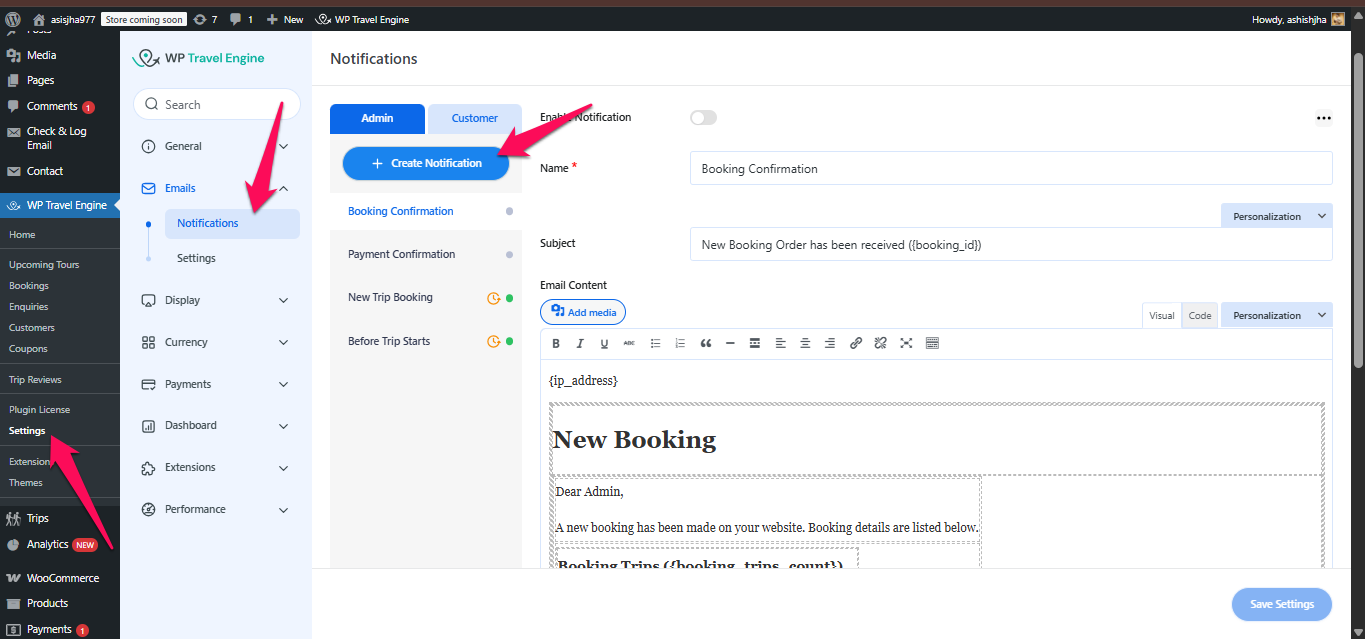
- Navigate to WP Dashboard > WP Travel Engine > Settings > Email > Notifications.
- Click the Create Notification button.
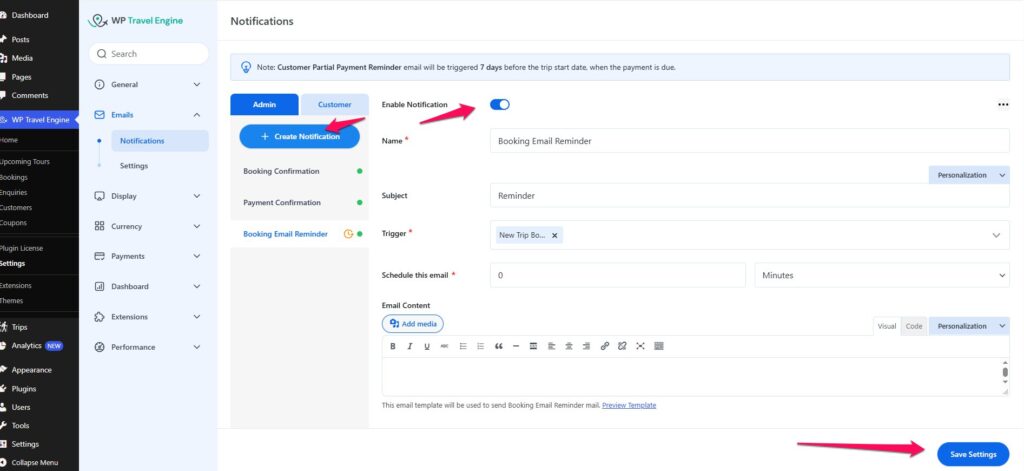
- Configure the notification settings:
- Title: Internal name for your reference (e.g., Trip Reminder Email).
- Trigger Event: Choose from the following:
- New Trip Booked
- Before Trip Starts
- After Trip Ends
- Enquiry Form Submitted
- Review Submitted
- Booking Pending
- Remaining Partial Payment Done (requires Partial Payments Add-on)
- Due Payment Pending (requires Partial Payments Add-on)
- Schedule (for time-based triggers):
- Define how early or late the email should be sent in relation to the event.
(e.g., 1 day before trip starts, 2 hours after trip ends)
- Define how early or late the email should be sent in relation to the event.
- Email Content Setup:
- Subject: The email subject that recipients will see.
- Body: Use the built-in editor to write the email content.
- Placeholders Supported (examples):
- {customer_name}
- {trip_title}
- {booking_date}
- {trip_start_date}
- {trip_end_date}
- {payment_amount} etc.
- Enable or Disable the Notification:
- Use the toggle to turn the automation on or off.
- Save the Notification.
Supported Triggers Explained #
| Trigger Name | Description |
| New Trip Booked | Triggered when a new trip booking is completed. |
| Before Trip Starts | Send email a defined time before the trip start date. |
| After Trip Ends | Send email a defined time after the trip end date. |
| Enquiry Form Submitted | Triggered when a user submits an enquiry form. |
| Review Submitted | Triggered when a customer submits a review for a trip. |
| Booking Pending | Triggered when a booking status is marked as “Pending”. |
| Remaining Partial Payment Done | Works with Partial Payments add-on; triggered when the balance is paid. |
| Due Payment Pending | Works with Partial Payments add-on; triggered when a payment is due. |
Examples of Use #
- Trip Reminder: Send an email 1 day before the trip with itinerary details.
- Post-Trip Feedback: Ask for a review 2 days after the trip ends.
- Follow-up on Enquiries: Send a message to the customer after they submit an enquiry.
- Encourage Pending Payments: Remind users about their pending dues if they haven’t completed payment.
Troubleshooting & Tips #
- Emails Not Sending?
- Ensure your SMTP or transactional email setup (e.g., WP Mail SMTP, SendGrid, etc.) is working.
- Double-check the trigger conditions and schedule settings.
- Ensure the toggle is enabled for the notification.
- Testing Emails
- Create a test trip and booking using a test customer.
- Use a short delay (e.g., 1 minute) to test “Before Trip Starts” emails.
- Placeholders Not Replaced?
- Confirm that the placeholders are valid and match the data available in the booking or trip.
Need Help? #
If you encounter issues or need custom use cases, feel free to contact our support team here.