
Table of Contents
Keeping your payment information up to date ensures that your WP Travel Engine subscription renewals are processed smoothly and without interruption. Updating your credit card details is simple and follows a process similar to managing your subscription.
Step-by-Step Guide to Update Credit Card Details #
- Visit the Account Page
Go to the WP Travel Engine Account Page. - Log In
Log in using your registered email and password.
- If you’ve forgotten your password, click Lost Password to reset it.
- Ensure you use the email associated with your plugin purchase.
- Navigate to the Subscription Tab
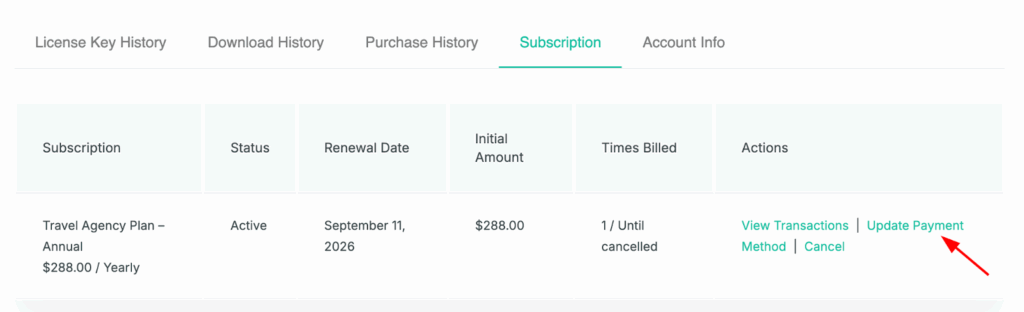
Once logged in, you’ll see your dashboard. Click on the Subscription tab to view all your active subscriptions. - Select Update Payment
- In the Actions column corresponding to your subscription, click the Update Payment option.
- Enter New Credit Card Details
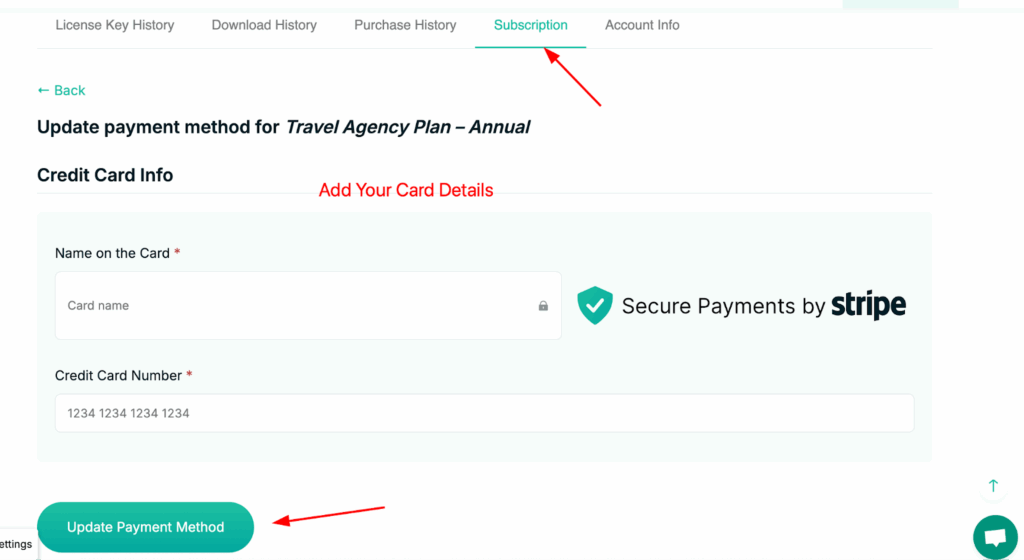
- Fill in the required fields:
- Name on the Card
- Credit Card Number
- Expiration Date and CVV (if required)
- Double-check the information for accuracy.
- Fill in the required fields:
- Submit and Save
- Click Update Payment Method button to apply the changes.
- You will receive a confirmation that your payment details have been successfully updated.
- Click Update Payment Method button to apply the changes.
Important Notes #
- Keeping your credit card details updated prevents failed renewals and ensures uninterrupted access to premium features.
- If your subscription renewal fails due to expired or invalid card details, you will receive an email notification. Updating your card promptly will resolve the issue.
- You can update your card details at any time, even before the subscription renewal date.
Feel free to contact our support team for any other assistance.