
WP Travel Engine now allows your travel website to send all email notifications in the language of the trip booking. With this WPML integration, travelers will receive emails in the language of the trip they booked, and admin notifications will follow the same language.
This guide will show you how to translate your email templates and test them to confirm they are working correctly in multiple languages.
Prerequisites #
Before you begin, make sure you have:
- Installed and activated the latest version WP Travel Engine plugin.
- Installed and configured the newest version of the WPML plugin.
Premium Email-Related Addons (Translatable with WPML) #
- Advanced Email Automator – Create automated email workflows and triggers.
- Per Trip Emails – Send customized emails for each trip.
- Email Customizer – Design and personalize email templates.
How WPML Email Translation Works #
If your site is multilingual, the emails will automatically match the language of the trip that gets booked. So, if someone books a trip in English, the email they receive will be in English. If they book in Spanish, they’ll get the email in Spanish instead.
For example:
- Trip booked in English → The system sends the email in English
- Trip booked in Spanish → The system sends the email in Spanish
The same applies to admin notifications. They’ll also be sent in the language of the booking.
How to Translate Email Notifications #
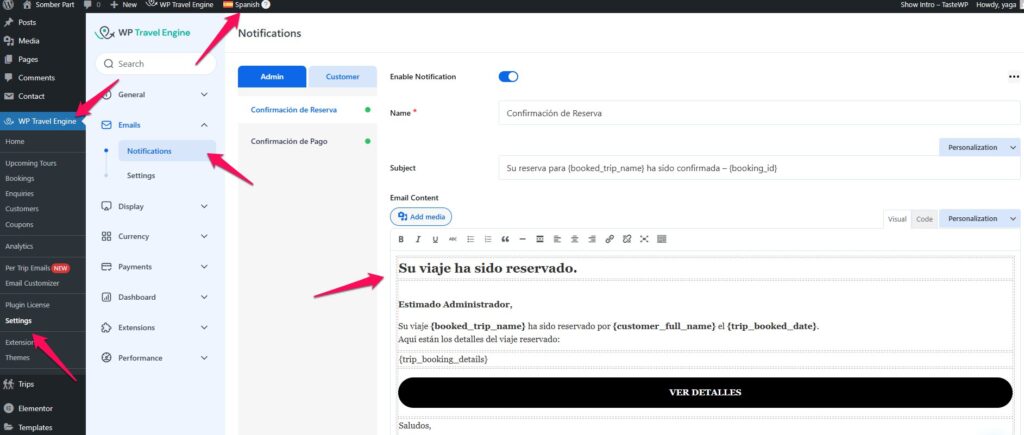
- Go to your WordPress Dashboard.
- Select the language you want to translate from the admin toolbar (e.g., Spanish).
- Navigate to WP Travel Engine > Settings > Emails > Notifications.
- Edit the email template content in the selected language. For example, update the Booking Confirmation or Payment Confirmation to Spanish for both admin and customer email templates. You can also translate the displayed text of predefined tags. Please refer to the instructions here.
- Save your changes.
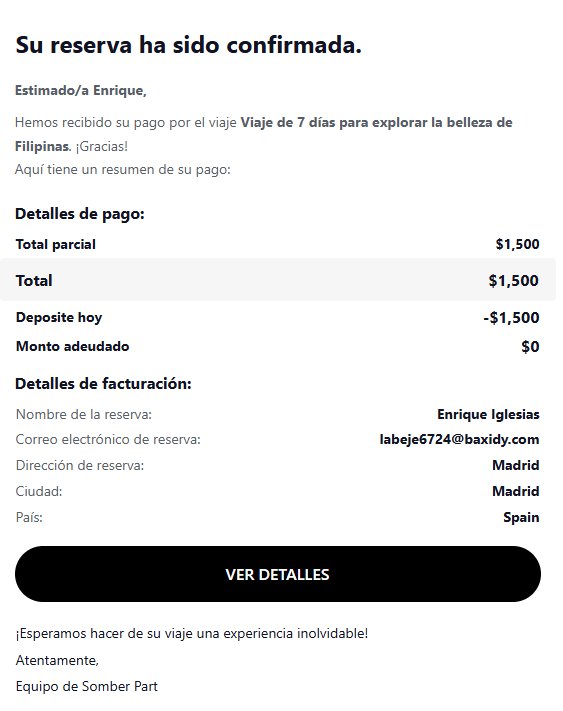
When a traveler books your trip, the confirmation email they receive will automatically be in the same language they used during booking. Here’s a preview of how the email looks.
How to Translate Per-Trip Emails #
The Per Trip Emails addon is a premium feature for WP Travel Engine that allows you to create customized email templates for each trip. With WPML, you can translate these personalized emails into multiple languages, ensuring that travelers receive messages in their preferred language. You can check WPML documentation here.
Sometimes, WPML may not display emails that were created before WPML was installed; in such cases, you can refresh the email templates by going to Dashboard → WPML → Support → Troubleshooting → Set Language Information.
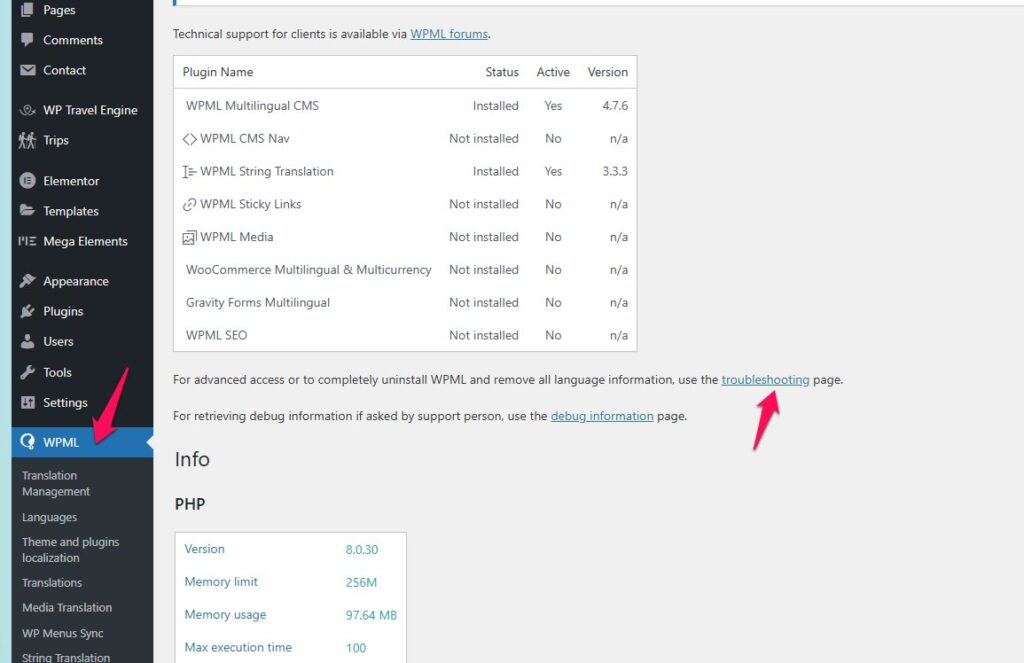
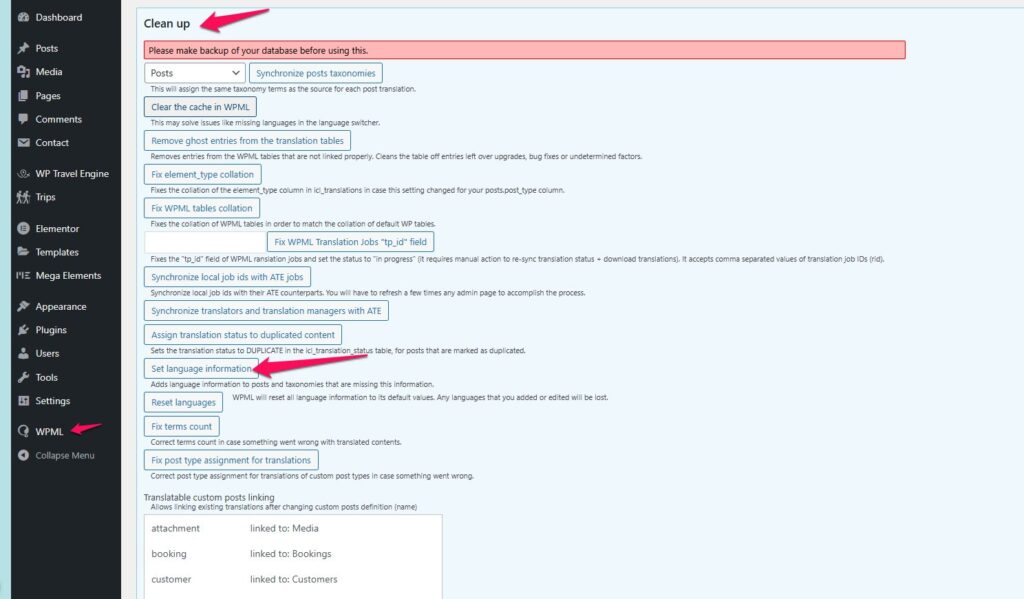
Once this is done, all previously created emails will be available, and you can translate existing emails or create new email templates for each language using WPML’s language assignment tools.
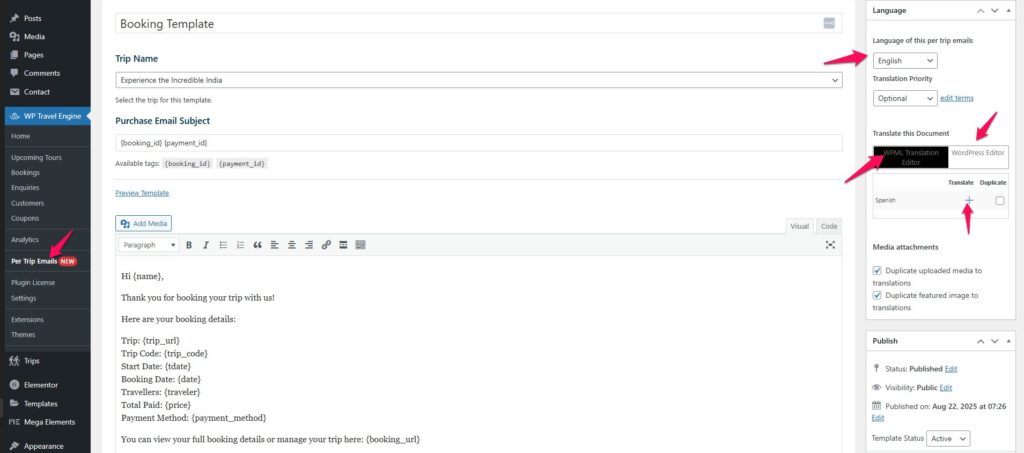
Step-by-Step Instruction
- In the WordPress admin toolbar, select the language you want to work with (e.g., Spanish).
- Go to WP Travel Engine → Per Trip Emails → Add New.
- Enter the email subject and content in the selected language.
- Select the trip you want the email to be sent for (ensure this trip is also created in the translation language).
- Create the email template in the respective language using the tags available.
- If you already have an email template in the default language:
- Click the “+” icon in the sidebar under WPML Translation.
- WPML will automatically copy the original content into the new language.
- Alternatively, you can manually translate the strings directly in the WordPress editor.
- Once the translation is ready, select the translated email template from the list.
- Edit it to assign the trip(s) that correspond to that language version.
- After creation or translation, click Publish to save the email template.
- Book the selected trip to trigger the per-trip email in that language.
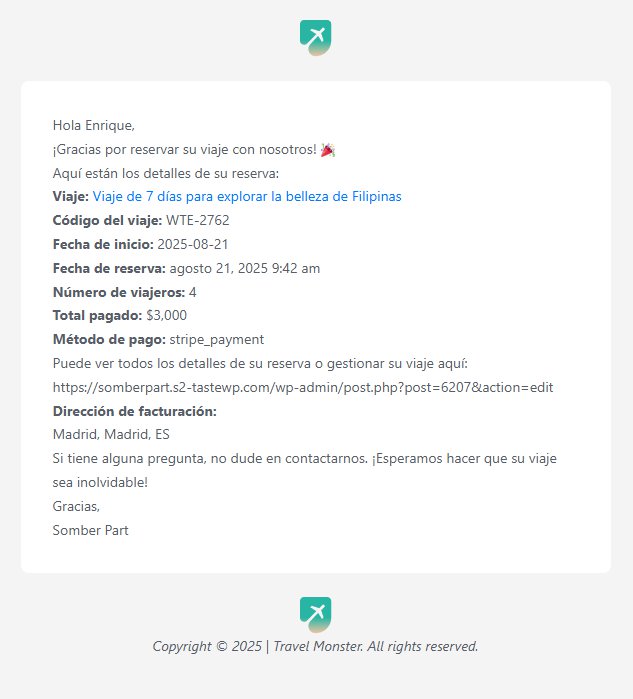
Translate Email Customizer Templates #
The Email Customizer add-on enables you to customize the booking and payment email layouts, designs, and content. You can also add dynamic content and personalize the emails to create a lasting impression for your brand.
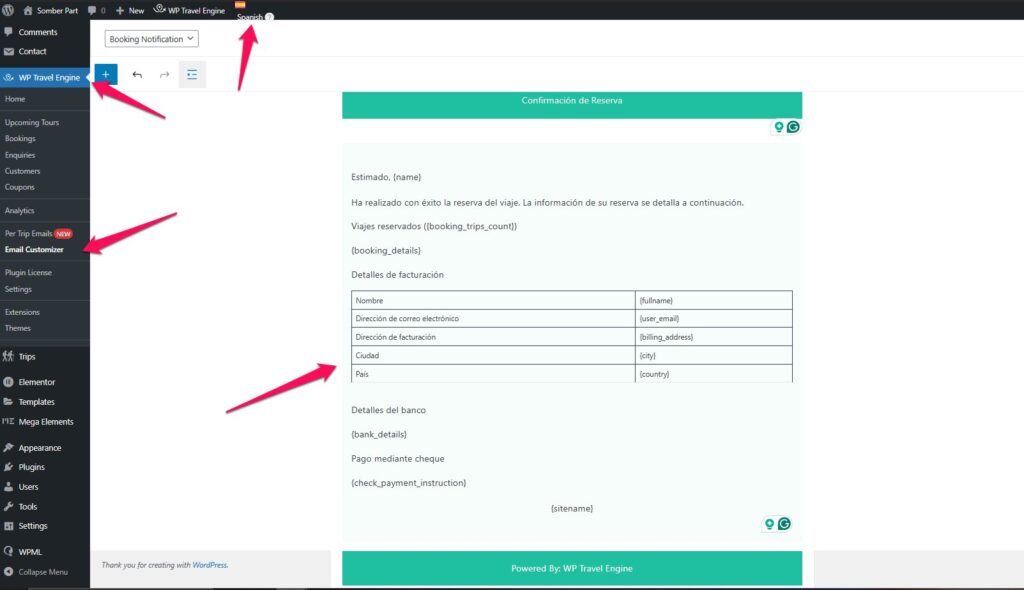
You can check the instructions below to translate the content of the email customizer
- Go to your WordPress dashboard.
- Select the language you want to translate into from the admin toolbar (e.g., Spanish).
- Navigate to WP Travel Engine > Email Customizer
- Select Booking Notification or Payment Notification.
- Write an email notification in the respective language.
- Customize layout, colors, images, and placeholders in the translation language
- Save changes.
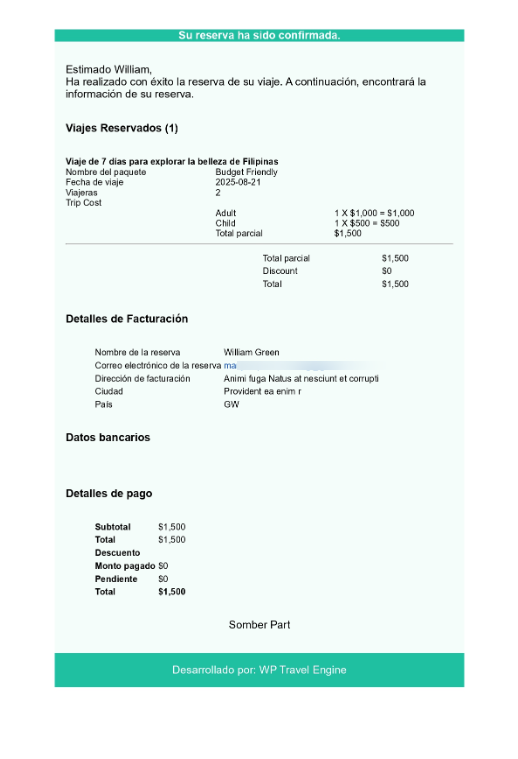
Translate Advanced Email Automator Notifications #
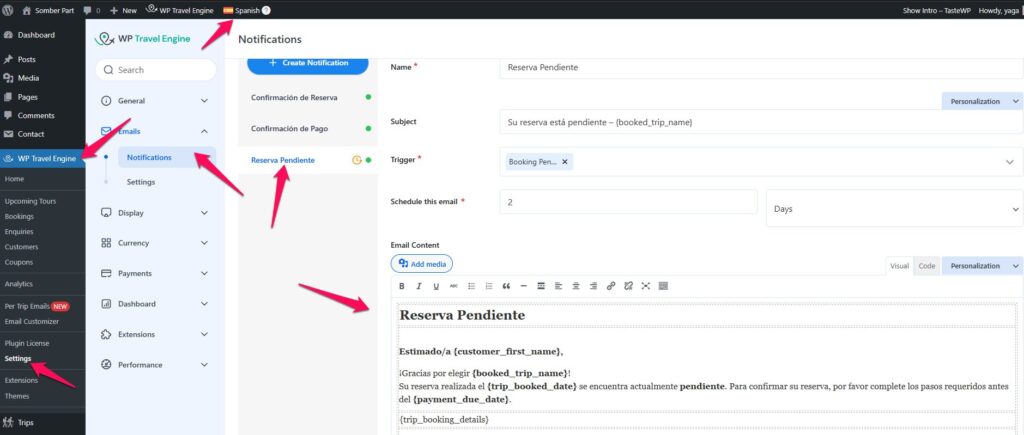
- Go to your WordPress dashboard.
- Select the language you want to translate into from the admin toolbar (e.g., Spanish).
- Navigate to WP Travel Engine > Settings > Emails > Notifications
- Edit an email template:
- Select a Trigger Event (New Booking, Before Trip, After Trip, Enquiry, Review, etc.).
- Set the schedule (e.g., 1 day before the trip).
- Add the subject line and content in the translation language.
- Save changes.
- Test by booking a trip or triggering the event.
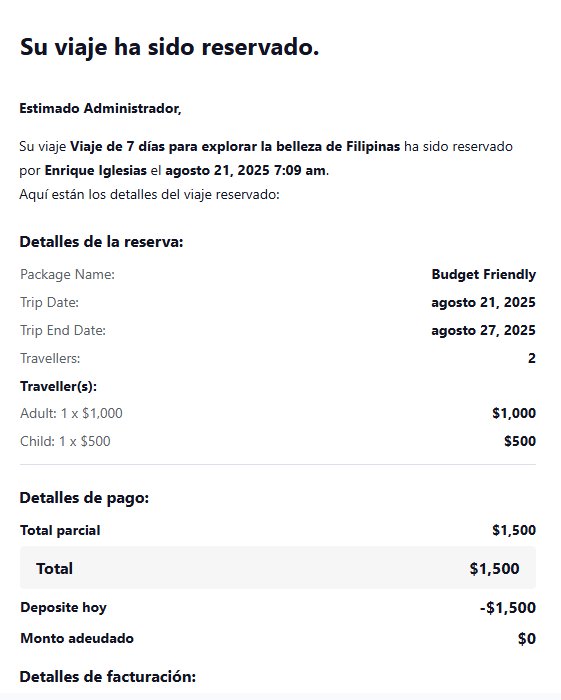
Translating rendered text of Email tags with WPML #
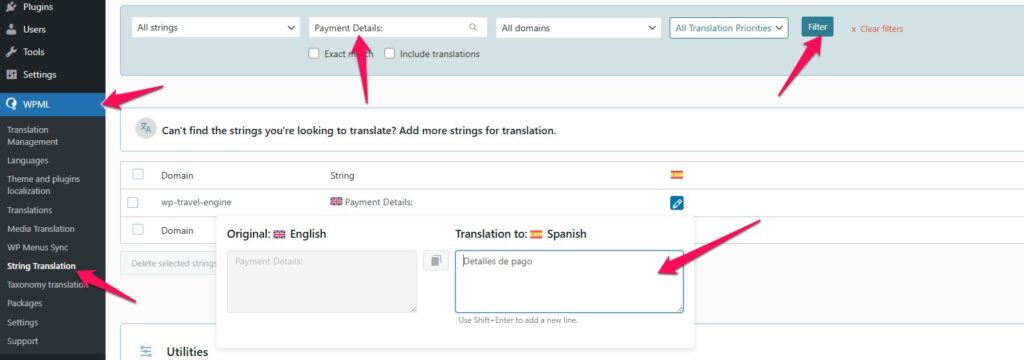
Since the tags themselves cannot be translated, the text that is rendered in place of the tags, such as Payment Details or Trip Name, can be translated. These texts can be translated using the settings and steps outlined below.
- Go to WPML > String Translation.
- Search for the string you want to translate (e.g.,
Payment Details,Subtotal). - Add the translation for your target language (e.g., Spanish).
- Save the translations.
Troubleshooting #
- Emails are still sent in the default language:
- Ensure the trip has been translated in WPML.
- Confirm the admin bar language was set correctly when editing the template.
- Verify that the translated template is published.
- Admin emails not matching customer language:
- Confirm all templates have translations for all active languages.
FAQs #
Do I need WPML to translate emails? #
Yes, WPML is required to send emails in multiple languages.
Do I need to create emails for all active languages? #
Yes, each template must be created or translated into each language.
Will customers always receive emails in their booking language? #
Yes. Email language matches the language of the booking or action.
Do admins receive translated emails? #
Yes. Admin notifications are sent in the language of the booking/action.
Feel free to contact our support team for any other assistance.