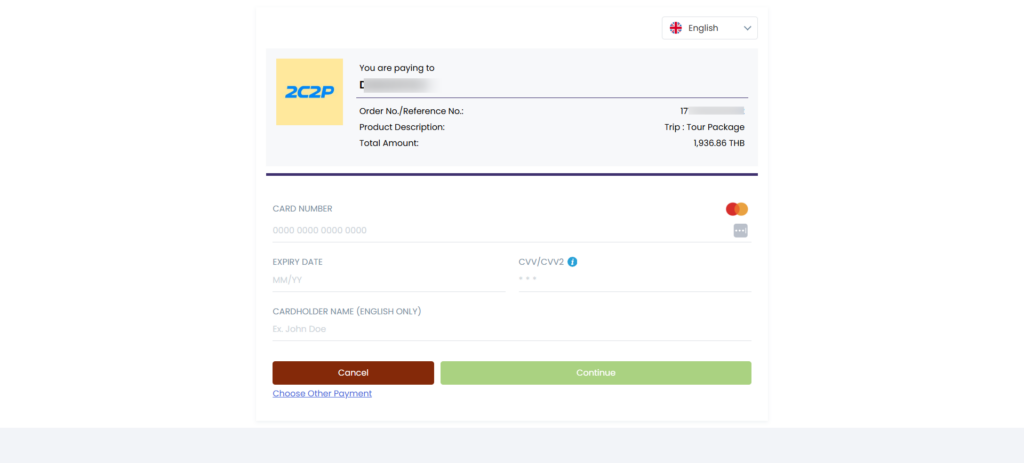
Himalayan Bank Payment Gateway is an extension for WP Travel Engine that enables you to accept trip and tour payments via Himalayan Bank, one of the leading banks in Nepal.
Himalayan Bank Payment Gateway works in Nepal with Nepali and US currency only. It incorporates Visa, MasterCard, American Express, and Union Pay cards.
The add-on works on the WordPress site and ONLY with the WP Travel Engine plugin.
How to Install the Himalayan Bank Payment Gateway Add-on #
How does it work? #
Tour operators and travel agencies in Nepal can enable the Himalayan Bank Payment gateway for trip booking by setting up Himalayan Account with key details – Merchant ID and Secret Key.
When a traveler books a trip via the Himalayan Bank Payment Gateway, the traveler is taken to the Himalayan Bank to make a secure payment. After payment, the trip booking is confirmed, and the traveler is redirected to your website.
For redirection, you should ask Himalayan Bank to set the Backend-URL and Frontend-URL of your site on their server. Backend-URL is the URL where you get the response of your payment from the server, and the Frontend-URL is the URL where the payer is redirected after a successful payment is made.
Note:
- WP Travel Engine recommends you set the Frontend URL to the TRAVELERS INFORMATION page and add the [WTE_HBL_PAYMENT_RESPONSE] shortcode to the page.
- In the case of other custom pages, add the shortcodes [WTE_HBL_PAYMENT_RESPONSE] and [WP_TRAVEL_ENGINE_BOOK_CONFIRMATION] to it and assign it to the Confirmation Page Settings.
Configuration #
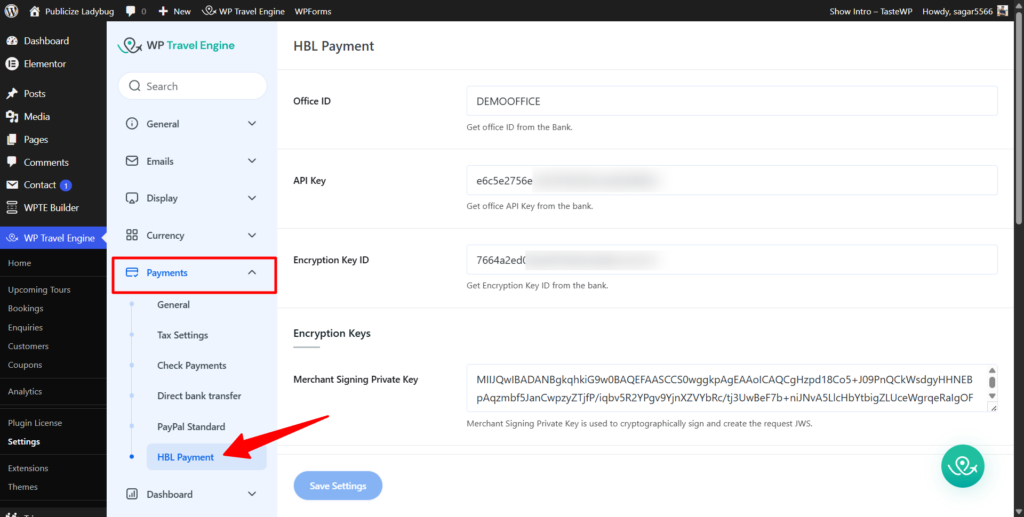
To configure the Himalayan Bank Payment Gateway Add-on,
- Go to WP Travel Engine > Settings > Payments > HBL Payment.
- Enter the Office ID, API Key, and Encryption Key ID. (You will need to contact the bank to get these ids)
- Enter a Merchant Signing Private Key and a Merchant Decryption Private Key.
For generating these keys, you will first need to follow the steps below:
- Generate 2 RSA key pairs using any available tool. For example, https://www.devglan.com/online-tools/rsa-encryption-decryption will generate ready to use RSA key pairs.
- The RSA key size must be 4096 bit
- You will have to generate 2 pairs of public and private keys
- Among the generated pairs of keys, provide the two public keys to the bank/service provider, one for signing and one for encryption.
- Save private keys under HBL Payment Settings inside the Merchant Signing Private Key and Merchant Decryption Private Key field.
- Enter the PACO Signing Public Key and PACO Encryption Public Key. You will need to contact the bank to get these keys.
- Keep the Notification URLs in their default values.
- Finally, click on Save Settings.
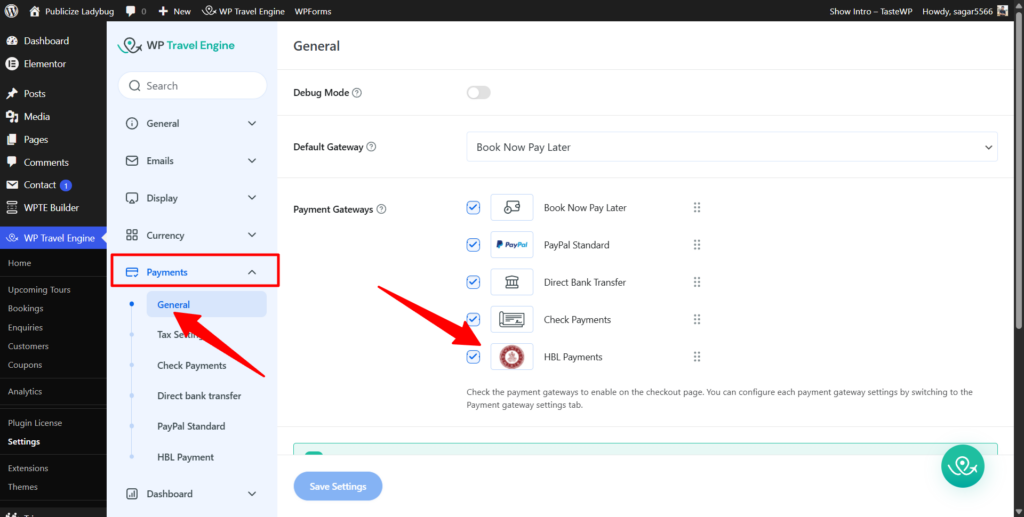
Make sure to enable the HBL Payment under Payment General Settings so that customers can make the payment through HBL Payment Gateway in checkout page.
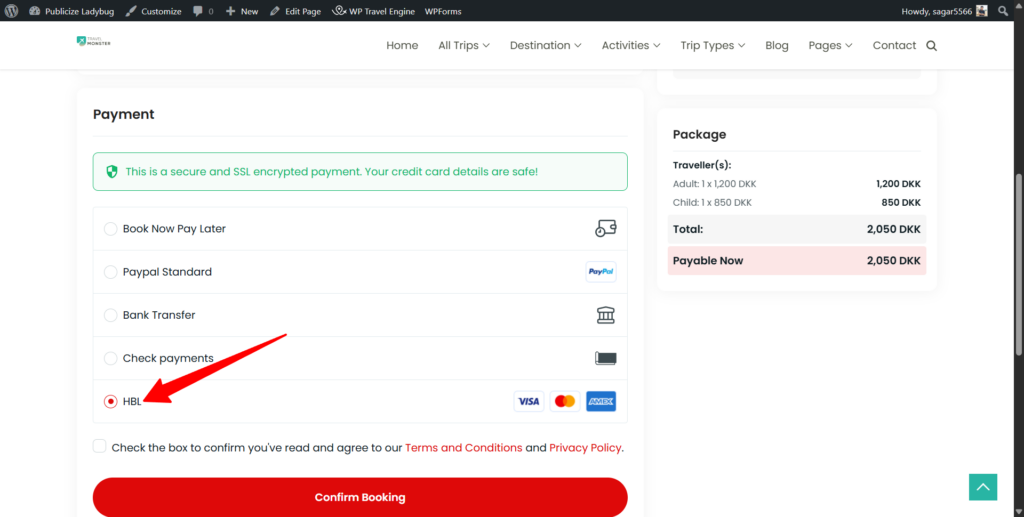
In the Checkout Page, the traveler has an option to choose the Himalayan Bank Payment Gateway as a Payment option.
Later, when a traveler books a trip via the Himalayan Bank Payment Gateway, the traveler is taken to the Himalayan Bank to make a secure payment.