
- 1. How Total Seat Capacity Works
- 2. Booking Seat Capacity per Package in the FSD Plugin
- 3. Seat Allocation by Time in the FSD Plugin
- Minimum Traveller Seats in WP Travel Engine
- FAQs
- Why does the booking popup start at a higher number instead of 1?
- Why can’t I book all the seats defined in packages if they add up to more than the General Seats?
- If one package has seats left but the General Seats are full, can I still book that package?
- What happens if two packages share the same date and time?
This documentation explains how seat allocation works in WP Travel Engine and the Trip Fixed Starting Dates (FSD) plugin. It covers General Settings, Package-based capacity, and Time-based allocation with examples for each scenario.
In the old version (before 6.6.7), there were several issues with seat allocation:
- Overbooking risk – Maximum Participants was applied per booking instead of per day, which allowed multiple customers to book more seats than were actually available.
- Package-level reset – In the FSD plugin, seat limits were resetting on every booking attempt, leading to overselling.
- No shared pool logic – Packages and time slots did not share a common seat pool, causing mismatched seat counts.
We’ve introduced major improvements to fix these problems. Please refer to the updated documentation below to learn more about the new system.
1. How Total Seat Capacity Works #
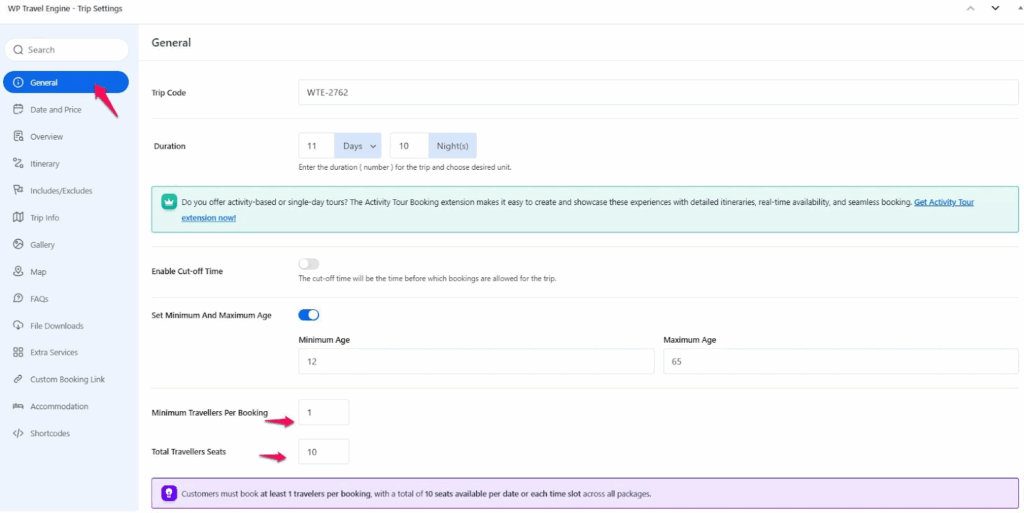
The Total Traveller Seats in General Settings define the maximum number of travellers that can book a trip on any given day.
How to Configure:
- Go to Dashboard > WP Travel Engine > Trips > Add New > General > Total Traveller Seat
- Enter the maximum number of seats available per day or per time slot for Multi-Day Trips. For Activity/Single-Day Trips, set the capacity for each time slot.
Note: The Total Traveller Seat limit is shared across all packages combined.
Example #
If you set Total Traveller Seats = 10, then only 10 travellers can book that trip for a day or each time slot of a day. Once all 10 are booked, no additional bookings can be made for that date.
Before and After Working #
Old System (Maximum Participants):
- Applied per booking, not per day.
- If you set 10 maximum participants, each new customer saw 10 seats available, even if others had already booked.
- This caused overbooking.
New System (Total Traveller Seats):
- Seats are counted per day or each time slot of a day.
- If one customer books 6 seats, only 4 remain for others on that day.
- Once the total is reached, the system stops bookings for that date.
- Important: The next day starts fresh with the same seat capacity again.
Example:
- Old: 3 customers booking on the same day could each book 10 → 30 seats sold instead of 10.
- New: Only 10 seats in total can be sold for that day.
2. Booking Seat Capacity per Package in the FSD Plugin #
The Trip Fixed Starting Dates (FSD) plugin is designed to let you add specific dates for your trips. It gives you the flexibility to assign dates to each package (for example, Standard or Premium), so travellers can choose the exact date they want to book.
In earlier versions, this plugin allowed you to set the Maximum Traveller Seats separately. With the new update, the system is improved:
- The Maximum seat capacity you set for a trip in General Settings is now automatically applied as Total Traveller Seats.
- This ensures that all seat calculations are consistent and based on the daily capacity defined in General Settings.
How to Configure: #
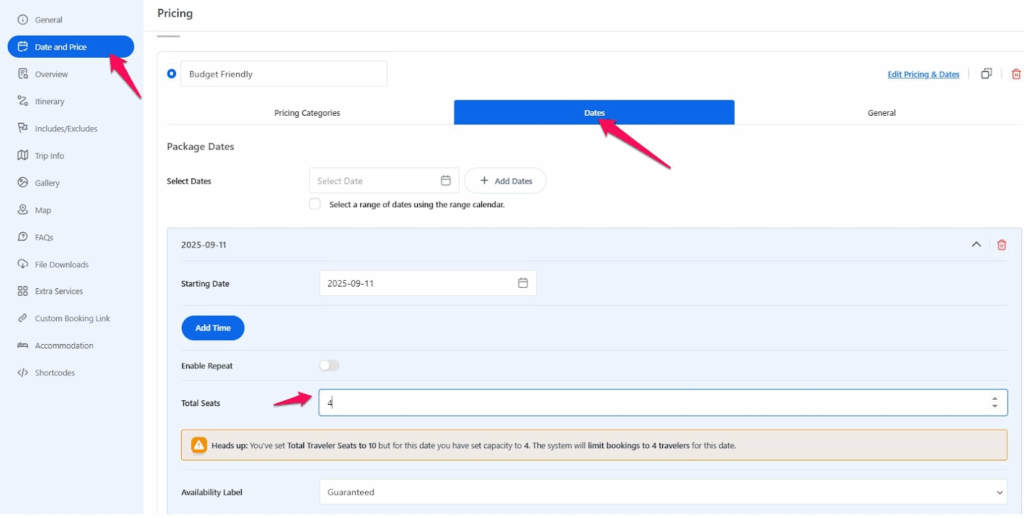
- From the Dashboard, go to WP Travel Engine → Trips → Add New → General → Date and Price. Under Packages, select a package and choose a date
- Here you can set the total number of seats available for that package on that date.
How It Works #
- General Settings set the maximum seats allowed per day in the Total Traveller seat.
- Package Dates in FSD define how many seats can be booked in that package for a date.
- Bookings will continue until the total seat capacity defined across the packages for that date is fully used.
- Example Scenario
Setup
- General Settings → 10 seats per day
- Standard Package → 31 August → 4 seats
- Premium Package → 31 August → 3 seats
How It Works
- The total seats from packages = 4 (Standard) + 3 (Premium) = 7.
- Since this is less than the Total Traveller Seat limit of 10, only 7 seats are available for booking on 31 August.
- Customers can book:
- Up to 4 seats in Standard per booking, or a maximum of 4 seats
- Up to 3 seats in Premium per booking, or a maximum of 3 seats
- Once all 7 seats are booked, the trip is closed for 31 August, even though the Total Traveller seat allows 10.
2. Alternate Case #
If the total seats defined in packages are higher than the Total Traveller Seats (General Settings), the system will still respect the General cap.
Example Setup:
- General Settings → 10 seats (this is the maximum allowed for the trip per day).
- Standard Package → 8 seats.
- Premium Package → 6 seats.
- Total from packages → 14 seats.
Even though packages add up to 14, only 10 seats can be booked in total because the General Settings cap is the ceiling.
How It Works (Step by Step Scenarios) #
Case 1: Booking in Premium Package #
- A customer books 4 seats in the Premium Package.
- Remaining seats in Premium = 2 (6 – 4)
- Standard Package shows 6 available seats (because only 6 seats remain under the 10 cap)
- Total seats left overall = 6 (10 – 4)
Case 2: Booking in Standard Package #
- A customer books 4 seats in the Standard Package.
- Remaining seats in Standard Package = 4 (8 – 4).
- Premium Package now shows 2 available seats, because the overall limit (10) reduces the availability.
- Total remaining seats = 6 (out of the 10 cap).
Case 3: Filling the Cap Across Packages #
- Suppose 8 seats are booked in Standard and 2 seats in Premium.
- Standard Package = 0 seats left.
- Premium Package = 0 seats left.
- Total = 10 seats booked → The system closes booking for that date (even though packages originally had 14).
Case 4: Mixed Bookings #
- A customer books 5 seats in Premium. Remaining Premium seats = 1.
- Another customer books 5 seats in Standard. Remaining Standard seats = 3.
- But total booked = 10 (5 Premium + 5 Standard).
- The system blocks further bookings, even though the Standard package still had 3 in its own pool.
Key Point to Remember #
- The General Settings cap is the ultimate ceiling.
- Package-level seats help you control distribution, but once the daily total is reached, no package can accept new bookings.
- This ensures fair allocation and prevents overselling.
Why This Matters #
- Old System: Package seats reset on every booking attempt, which could oversell.
- New System: Seats are reduced in real time, and all packages share the Maximum Travellers Seat.
3. Seat Allocation by Time in the FSD Plugin #
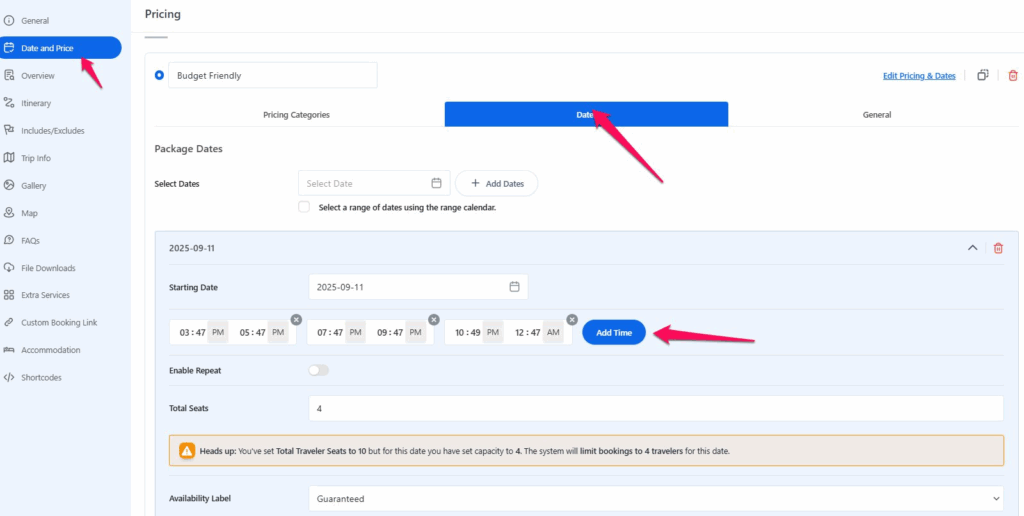
The Trip Fixed Starting Date (FSD) plugin also allows you to set specific times for bookings within a date. This allows for the same trip to be run multiple times in a single day.
How Time Allocation Works #
- Seats Per Date
- You set a seat limit for the date.
- That same seat limit is applied every time you create for that date.
- Seats Per Time
- Each time slot (morning, evening, night) gets the same seat number as the date.
- Bookings for one time slot do not affect other time slots.
Example 1: One Date with Multiple Times #
- Total Travellers Seats = 12 seats
- Date: 1 August → Seat limit = 10
- Times: Morning, Evening, Night
Result:
- Morning = 10 seats
- Evening = 10 seats
- Night = 10 seats
Example 2: Multiple Packages with Same Date and Time #
- Package A → 1 August (Morning) → 8 seats
- Package B → 1 August (Morning) → 8 seats
- A customer books 5 seats in Package A (Morning).
Result:
- Package A = 3 seats left
- Package B = 3 seats left
Key Points to Remember #
- The seat limit for a date applies to all times created under that date.
- Each time slot is separate; booking in the Morning does not reduce the Evening or Night.
- If multiple packages share the same date and time, they share the seat pool.
- The system always respects the General Settings cap, so the total bookings per day never exceed it.
Notes #
- The shift from per booking Maximum Traveller Seat to Total Traveller Seats prevents overbooking.
- Always remember: General Settings = ceiling, Packages and Times = distribution inside that ceiling.
Minimum Traveller Seats in WP Travel Engine #
The Minimum Traveller Seat setting ensures that each booking meets a minimum number of participants. This prevents situations where travellers try to book fewer people than you require for the trip to run.
For example, if you set the minimum to 3, every booking must include at least 3 travellers (whether they are adults, children, or a mix).
How to Set Minimum Traveller Seats #
- Go to your WordPress Dashboard.
- Navigate to Trips → Add New Trip (or Edit Trip).
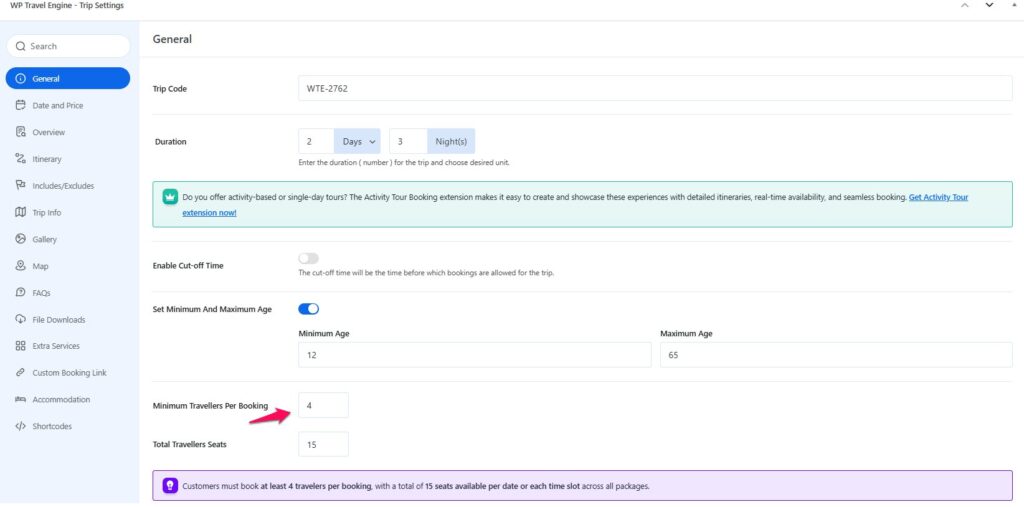
- Under WP Travel Engine – Trip Settings → General, find Minimum Travellers Per Booking.
- Enter the minimum number of travellers required.
Example: If you enter 4, then no booking can be completed unless at least 4 travellers are selected.
Minimum Seats in Pricing Categories #
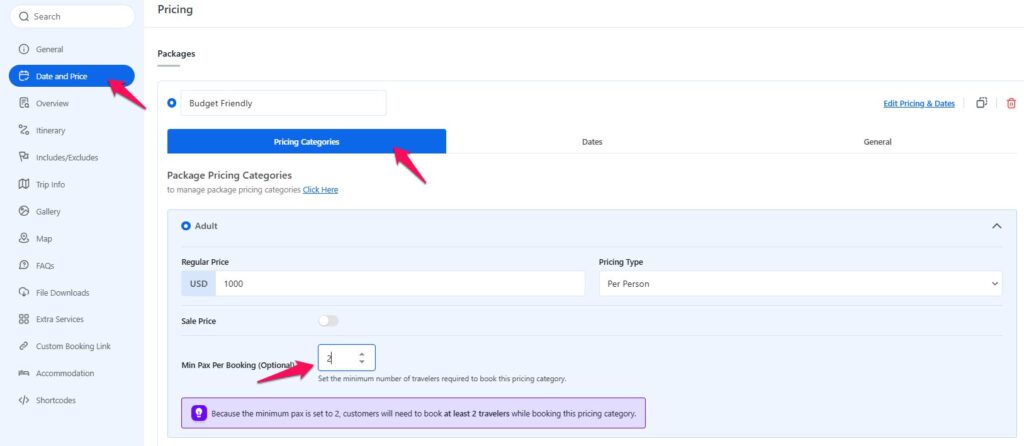
In addition to the general minimum, you can also set minimum seats for each pricing category (e.g., Adults, Children).
How to Set:
- Go to Dashboard → Trips → Add/Edit Trip → WP Travel Engine – Trip Settings → Date and Price.
- Select a package (e.g., Budget, Premium).
- Under Package Pricing Categories, set the minimum seats for each category, like Adult and Child.
How It Works with Examples #
Example 1: General Minimum Only #
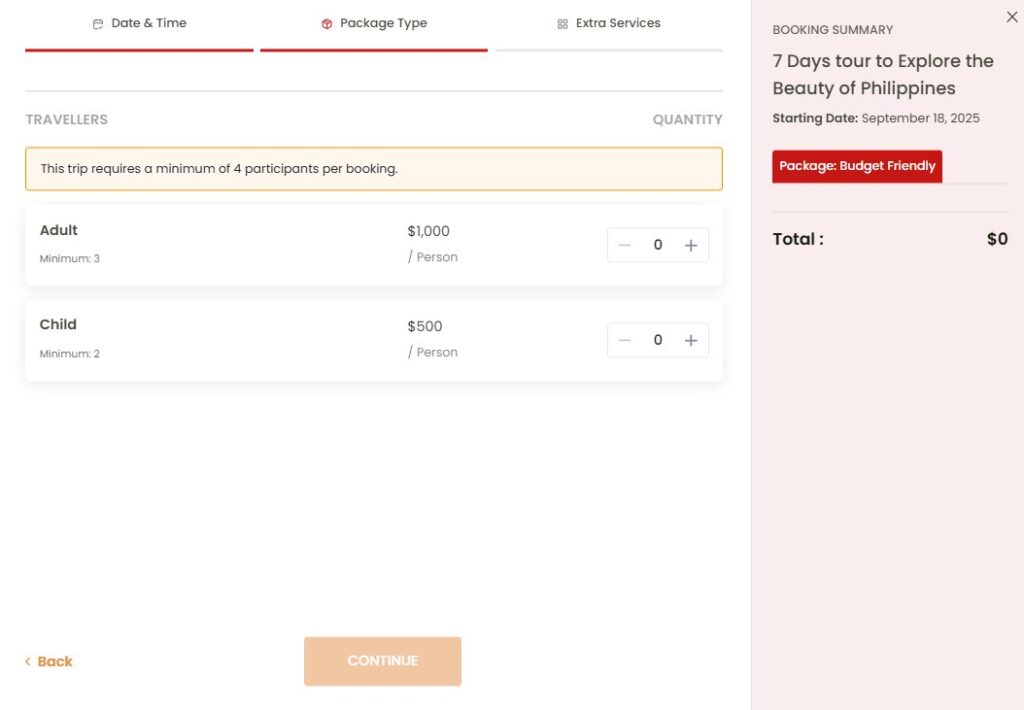
- Minimum Travellers per Booking (General)= 4
- No category-level minimums set.
A customer must book at least 4 travellers total (any combination of Adult/Child).
- Booking 2 Adults + 2 Children = Allowed
- Booking 3 Adults only = Not Allowed
Example 2: Conflict Between General and Category Minimums #
- Minimum Travellers per Booking (General) = 4
- Adult category = 2 minimum
- Child category = 1 minimum
If a customer selects only 3 travellers total (2 Adults + 1 Child), the booking fails.
Reason: The Minimum Traveller per Booking (General) requires at least 4 travellers, even though category minimums are satisfied.
To complete the booking, at least 4 travellers total must be added.
Notes #
- The General Minimum applies to the trip overall.
- The Category Minimums apply within each pricing group.
- Both rules must be met for a booking to be valid.
- The booking form automatically shows the defined minimums when selecting travellers (e.g., if Adult = 3, the first selectable number will be 3, not 1).
- Customers can increase the numbers but cannot go below the minimums you’ve defined.
FAQs #
Why does the booking popup start at a higher number instead of 1? #
Because the system automatically starts from the defined minimums. For example, if you set Adult = 3, the traveller selector begins at 3 Adults by default.
Why can’t I book all the seats defined in packages if they add up to more than the General Seats? #
Because the Total Travellers Seat (General) act as a hard ceiling. Even if your packages add up to 14 seats, if the General setting is 10, only 10 bookings are possible.
If one package has seats left but the General Seats are full, can I still book that package? #
No. Once the Total Travellers Seat (General) limit is reached, all packages for that date close, even if some package numbers still look available.
What happens if two packages share the same date and time? #
They share the same seat pool. For example, if Package A (8 seats) and Package B (8 seats) both run on August 1 (Morning), and someone books 5 in Package A, only 3 remain in both A and B combined.
Feel free to contact our support team for any other assistance.