
The WhatsApp Notification Addon for WP Travel Engine allows admins to instantly receive booking and enquiry details directly to their WhatsApp number.
Whether it’s a new trip booking or a customer enquiry, the admin will get real-time notifications, ensuring no lead or sale is missed.
This addon works independently of the WP Travel Engine Pro version, meaning even free WP Travel Engine plugin users can purchase and use it.
It operates on a credit-based system, where each message (booking or enquiry) consumes 1 credit. Once credits are used up, you can purchase additional credit top-ups to continue receiving notifications.
Prerequisites #
- Before installing and configuring the WhatsApp plugin, make sure you have:
- WP Travel Engine (latest version) installed and activated.
- WhatsApp Plugin for WP Travel Engine purchased and installed.
- WordPress (latest version) running on your site.
- An active WhatsApp number to receive alerts.
- A valid license key for the WhatsApp plugin.
Benefits of the WhatsApp Notification Addon #
- Instant Alerts: Get notified in real-time about new bookings and enquiries.
- Miss No Leads: Even when away from your computer, you’ll still get updates.
- Customizable Templates: Edit the message templates to include the booked trip name, customer name, trip, and more.
- Easy to Manage: View error logs and failed notifications directly from your WordPress admin.
How to Activate the License Key #
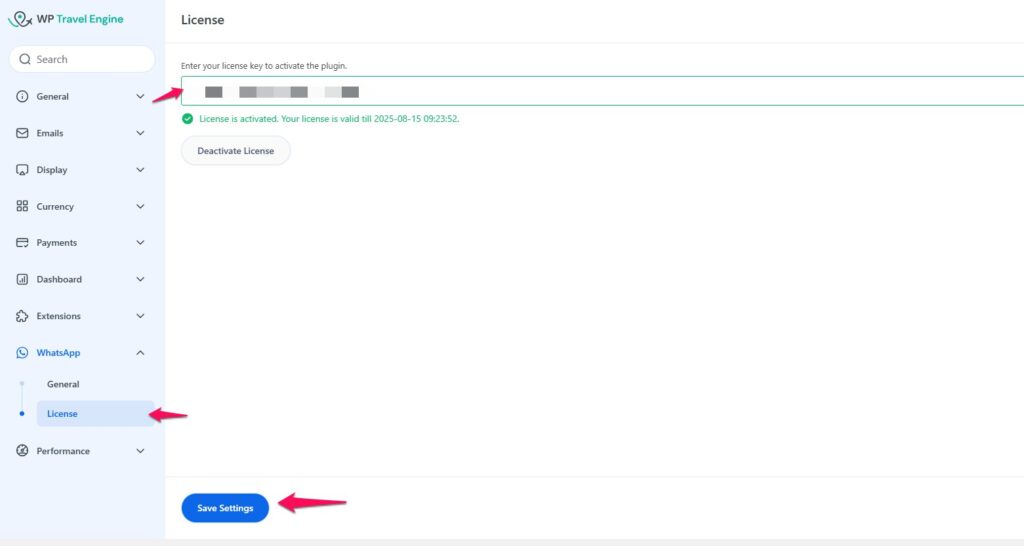
Once you have installed the plugin, you can activate the license key of the plugin.
To activate your WhatsApp plugin:
- Go to Dashboard > WP Travel Engine > Settings > WhatsApp > License.
- Enter the license key you received after purchasing the plugin and activate it.
- Click Save Settings to activate your license.
How to configure the WhatsApp plugin #
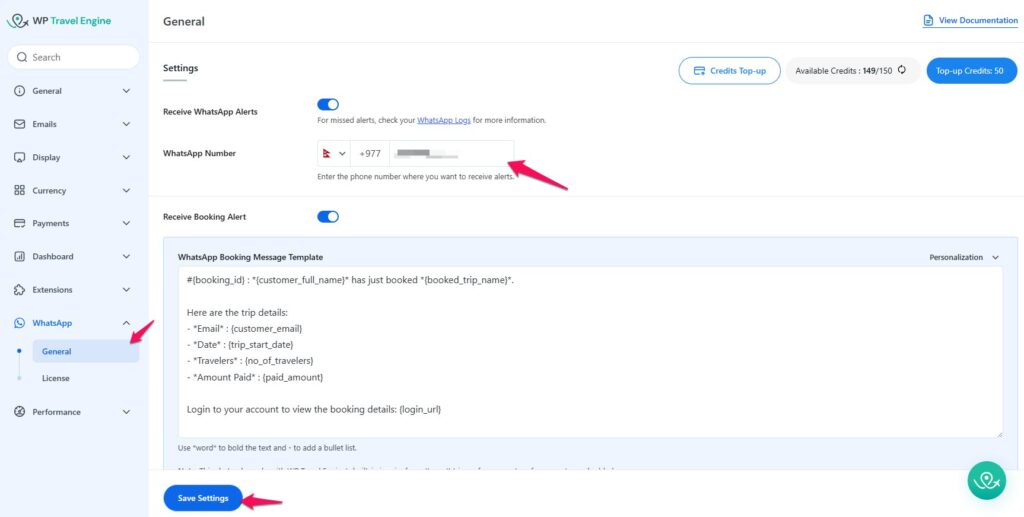
Once the license is activated, configure the plugin as follows:
- Go to Dashboard > WP Travel Engine > Settings > WhatsApp > General.
General Settings #
- Receive WhatsApp Alerts: Enable this toggle to send notifications via WhatsApp.
- You can view failed notification logs under Dashboard > Tools > WhatsApp Notification Log to see why a message wasn’t sent.
- WhatsApp Number: Enter the WhatsApp number where you want to receive messages.
- Receive Booking Alert: Enable this toggle to get a WhatsApp alert when a new booking is made.
- You can edit the booking message template. Refer to the documentation for available message tags.
- Receive Enquiry Alert: Enable this toggle to get alerts for new enquiries.
- You can also edit the enquiry message template.
- Click Save Settings once done.
List of Message Tags #
When customizing your Booking Alert Message or Enquiry Message, you can use the following tags. These tags will automatically be replaced with the actual booking details when the message is sent.
| Tag | Description |
| {booking_id} | The unique booking ID number assigned to the booking. |
| {customer_full_name} | The full name of the customer who made the booking. |
| {booked_trip_name} | The full name of the trip that has been booked. |
| {customer_email} | The email address of the customer. |
| {trip_name} | The name of the trip that is being enquired. |
| {trip_start_date} | The start date of the trip. |
| {no_of_travelers} | Total number of travelers for the booked trip. |
| {paid_amount} | Total amount paid for the booked trip. |
| {due_amount} | Shows the balance amount still left to pay. |
| {login_url} | The URL that provides the full details of the particular booking. |
| {customer_phone} | Displays the phone number the customer entered at booking. |
| {booked_trip_id} | Inserts the internal ID of the trip. Useful for admin reference |
| {trip_url} | The link to the trip page is related to the enquiry/booking. |
| {customer_country} | The country from which the user has made the enquiry. |
| {customer_contact_number} | The contact details of the user who submitted the enquiry. |
| {no_of_children} | The number of children included in the trip enquiry. |
| {no_of_adults} | The number of adults included in the trip enquiry. |
| {enquiry_subject} | The subject line of the message. |
| {enquiry_message} | The enquiry message. |
Testing the Setup #
To ensure everything works:
- Test Enquiry: Go to a single trip page and submit an enquiry form. You should receive a WhatsApp message instantly.
- Test Booking: Make a test trip booking on your site. The admin WhatsApp number should receive the booking details.
Troubleshooting #
- No message received: Check if Receive WhatsApp Alerts is enabled. You need to verify that your WhatsApp number is correct and in the correct international format.
- Credits are exhausted: If you’ve used all credits, purchase a credit top-up from your account to continue receiving messages or you can renew your subscription as well.
FAQS #
Do I need WP Travel Engine Pro to use this plugin? #
No, this addon works with both free and pro versions of WP Travel Engine.
How many credits do I get? #
Credits depend on the plan you purchase. Each booking or enquiry message consumes 1 credit.
What happens if I run out of credits? #
You won’t receive WhatsApp alerts until you purchase a credit top-up.
Can multiple admin numbers receive alerts? #
Currently, the plugin supports one WhatsApp number for receiving notifications.
Feel free to contact our support team for any other assistance.