
- Prerequisites
- Why Travel Insurance is Important for Travel Agencies
- How to Configure Travel Insurance in WP Travel Engine
- How to Configure Travel Insurance Global Settings
- FAQS
- What happens if I delete a plan that was used in previous bookings?
- Can I sell insurance through an affiliate and still show one of my own plans on a different trip?
- Will the insurance cost be included in the final tax calculation?
- What happens if I delete a global plan?
- Can I delete a plan for a single trip only?
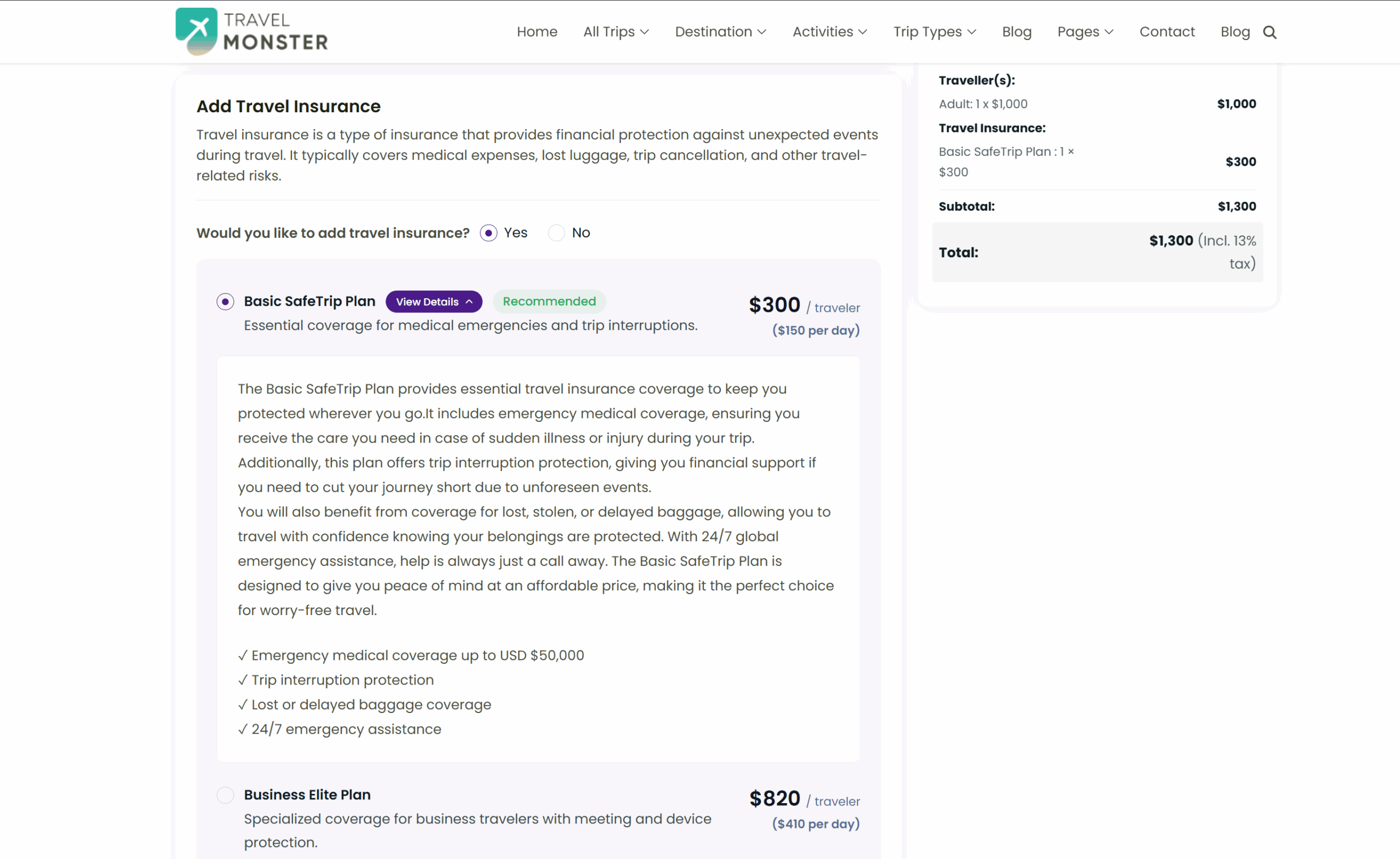
The Travel Insurance addon in WP Travel Engine is designed for trip operators who want to offer insurance directly within their booking process. This feature is available as a premium addon. It enables companies to create, manage, and attach insurance plans to trips, ensuring travelers are protected against unforeseen events. Travelers can see available Insurance Plans on the checkout page.
Prerequisites #
Before setting up the Travel Insurance Add-on with WP Travel Engine, make sure you have the following:
- A WordPress website with the premium version of the WP Travel Engine plugin installed and configured.
- The Travel Insurance Add-on installed and license key activated.
- At least one trip published (so you can see the checkout).
- Affiliate link details if you want to redirect travelers to a partner site (Optional).
Why Travel Insurance is Important for Travel Agencies #
Travel insurance provides peace of mind and financial protection for both travelers and trip companies.
- Risk Management – Protects travelers from unexpected incidents such as medical emergencies, trip cancellations, and lost luggage.
- Customer Trust – Offering insurance builds credibility and assures clients that you care about their safety.
- Revenue Opportunity – Insurance plans can generate additional income for your business.
- Reduced Liability – Helps limit the company’s responsibility in case of disruptions.
- Competitive Advantage – Differentiates your services from competitors that do not provide insurance.
How to Configure Travel Insurance in WP Travel Engine #
You can configure Travel Insurance globally by going to Dashboard > Settings > Extensions > Travel Insurance.
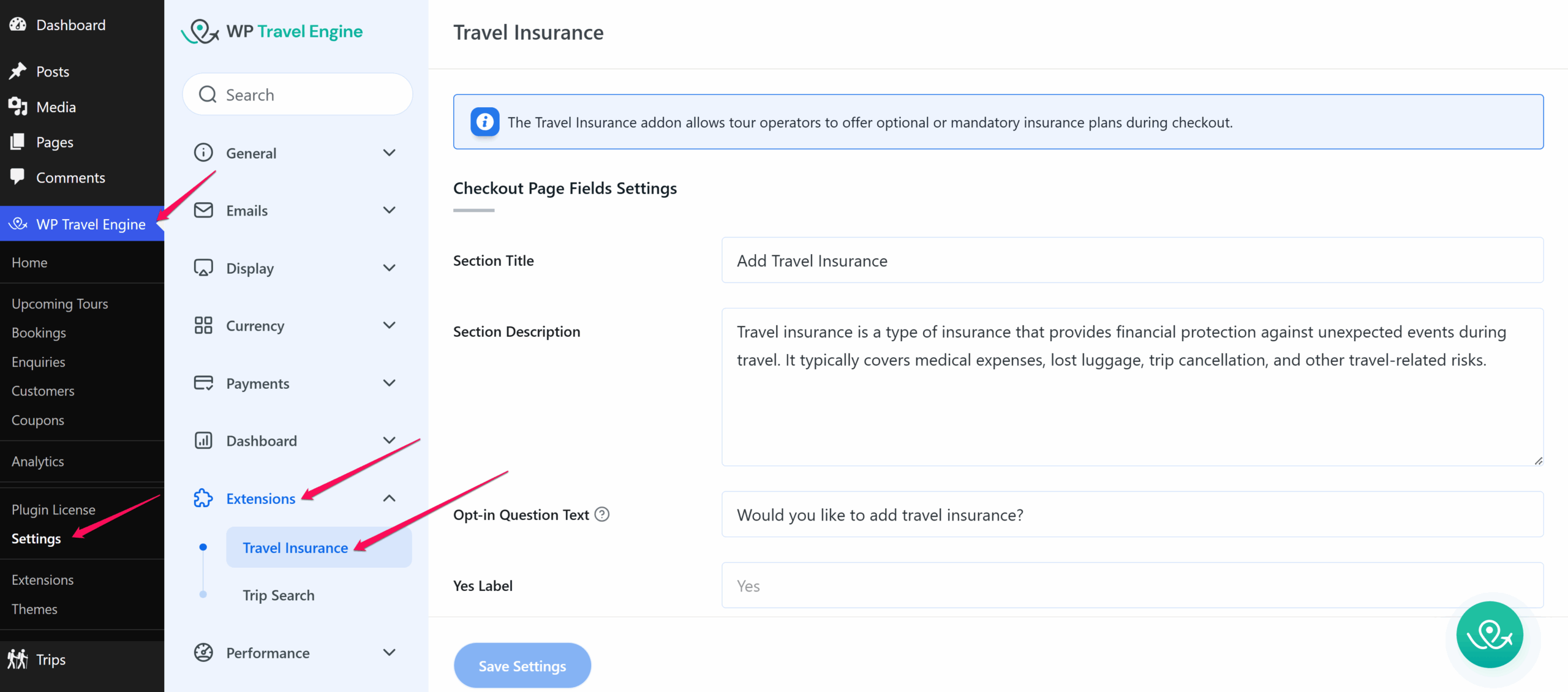
You can find the complete step-by-step tutorial for setting up the addon here.
How to Configure Travel Insurance Global Settings #
You will see a list of settings here. Each field comes with default content already added, but you can edit the content anytime to match your own requirements.
Checkout Page Fields Settings #
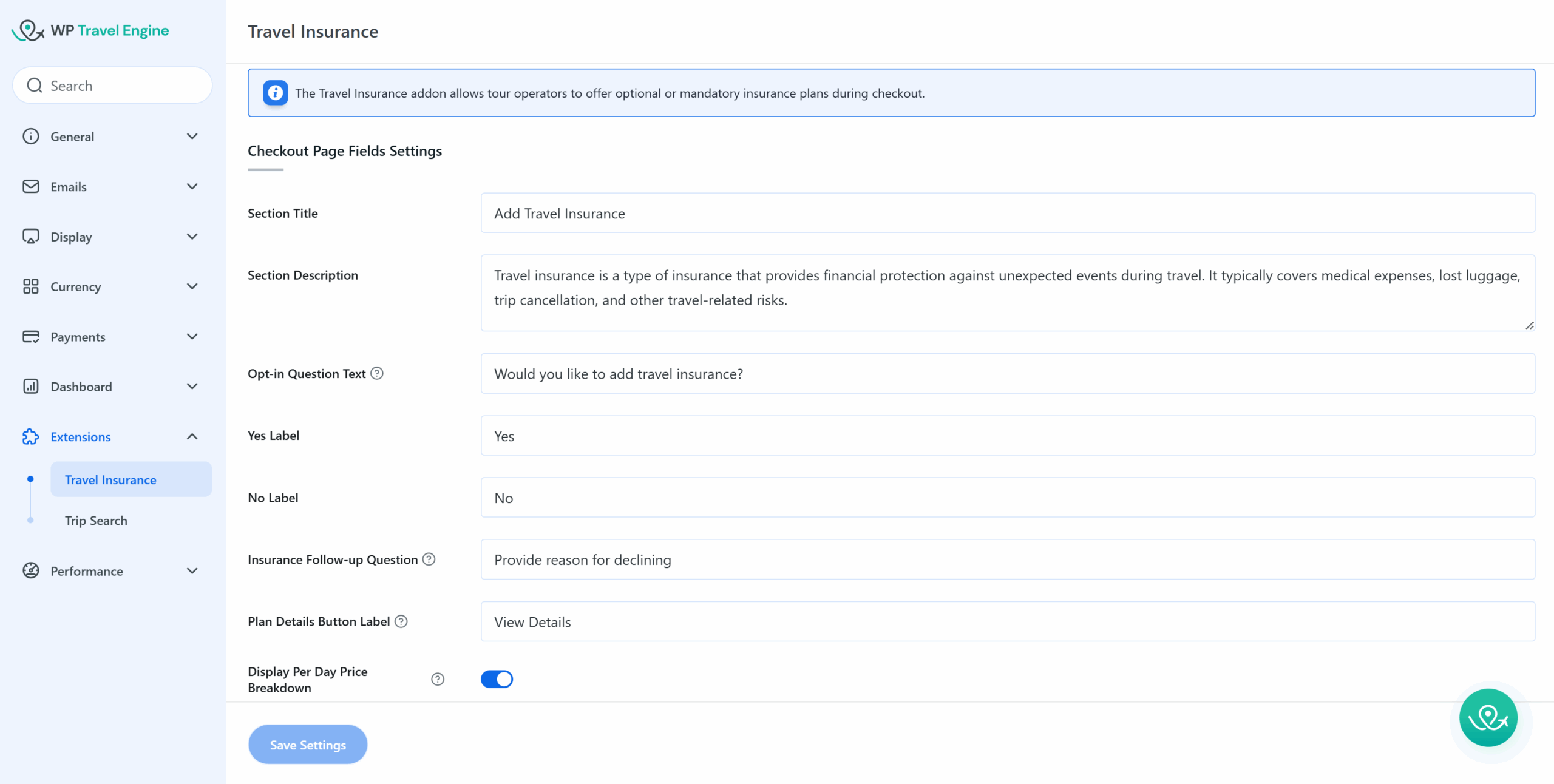
- Section Title: Add a clear and concise title for the Travel Insurance section, such as “Add Travel Insurance” or “Protect Your Trip”.
- Section Description: Provide a brief description explaining the importance of travel insurance. Example: “Travel insurance helps protect you from unexpected events such as trip cancellations, medical emergencies, and lost luggage.“
- Opt-in Question Text: Add a question to encourage users to opt in for travel insurance.
- Yes/No Radio Button Labels: Add labels for the Yes and No radio buttons.
- Insurance Follow-up Question: Add a follow-up question that appears when a traveler selects No.
Example: “Please provide a reason for declining travel insurance.” This field is mandatory, and the traveler cannot continue unless a reason is provided. - Plan Details Button Label: Provide a label for the button that shows more details about each plan. Examples: “View Plan Details“, “See Coverage Details“
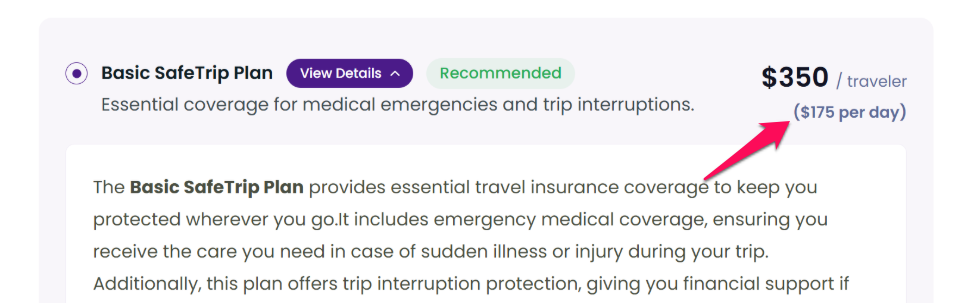
- Show Per-Day Pricing: Enable this option to show a pricing breakdown per day within the insurance details. This makes it easier for travelers to understand the cost.
- Travel Insurance Affiliate: Enable this toggle to configure a Global Affiliate Link for travel insurance.
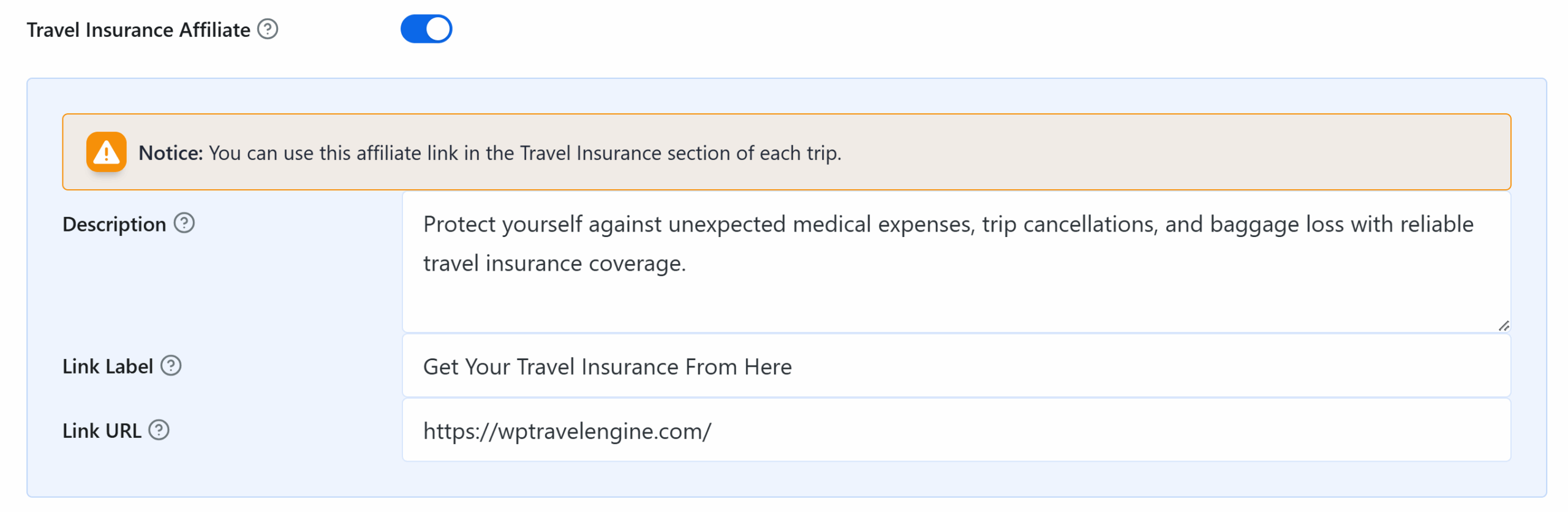
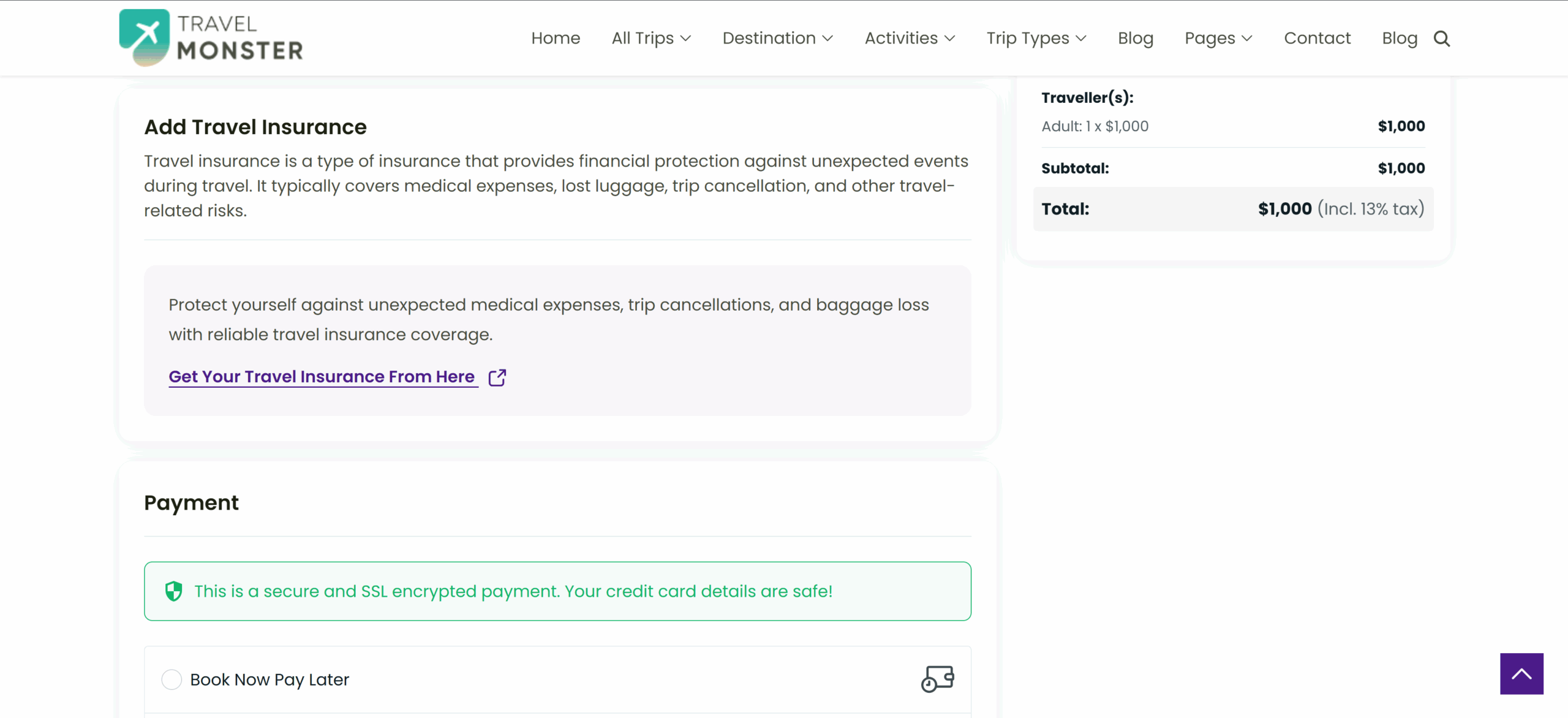
When ON: You can set Global Affiliate Link by entering the following details: Description, Link Label, URL which is displayed in the Checkout Page as shown below.
How to Add a Travel Insurance Plan #
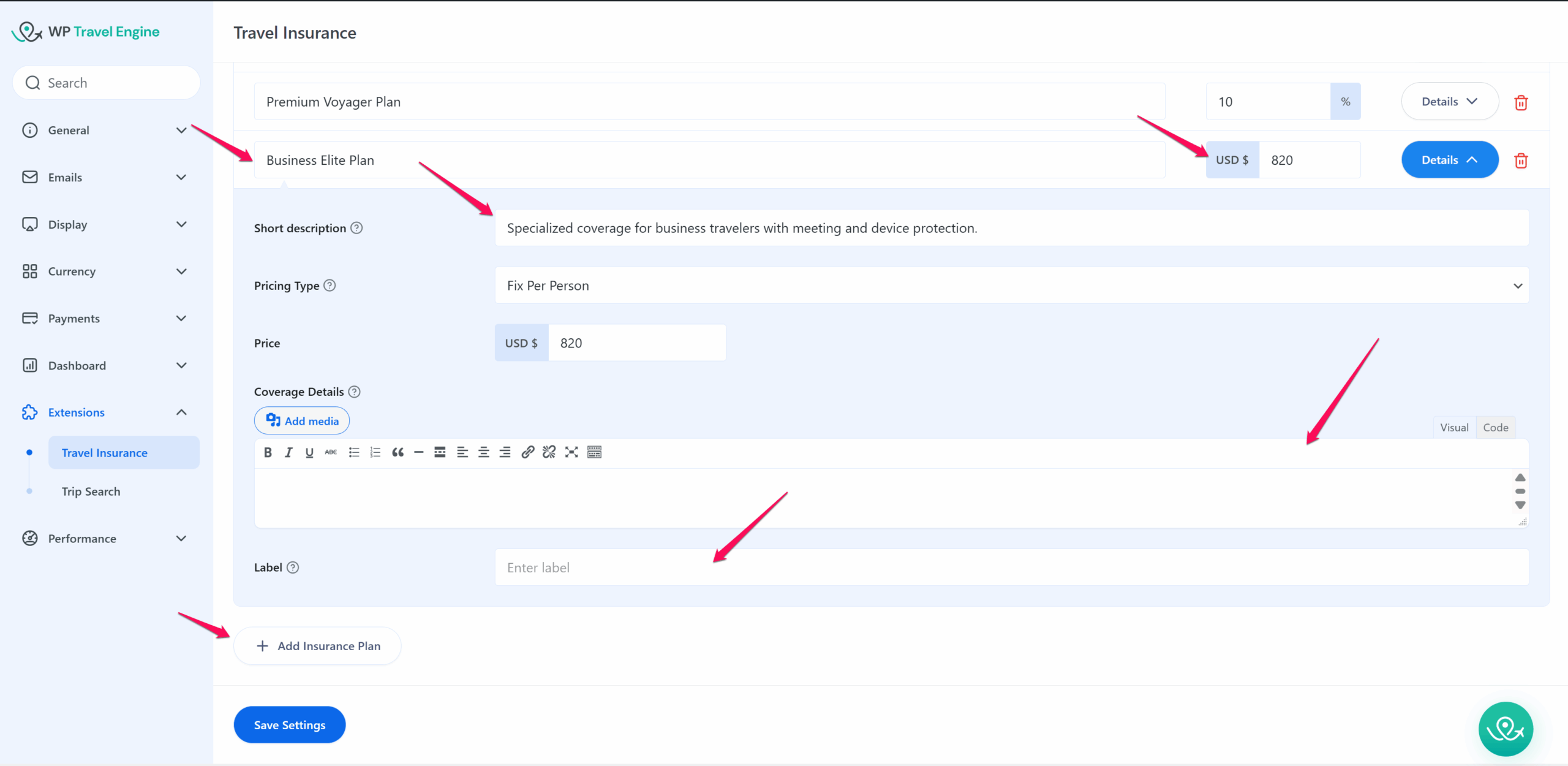
- Click Add New Insurance Plan.
- Enter the Plan Name (e.g., Basic, Premium).
- Click Edit to add details:
- Short Description – Highlight key plan features.
- Pricing Type:
- Fixed per person: The price you set applies to each individual traveler. For example, if there are multiple travelers, each one will be charged this fixed amount.
- Percentage of Tour Cost: The price is calculated as a percentage of the total trip cost, which includes all travelers as well as any accommodation or add-on costs you’ve purchased. This total is then divided among all travelers.
- Coverage Details – Use text, headings, and lists to outline coverage.
- Label – Highlight with tags like Best Plan or Recommended.
How to Add Travel Insurance to a Single Trip #
You can also configure insurance specifically for an individual trip.
- Custom: Fields editable, override global values. Empty fields inherit from global.
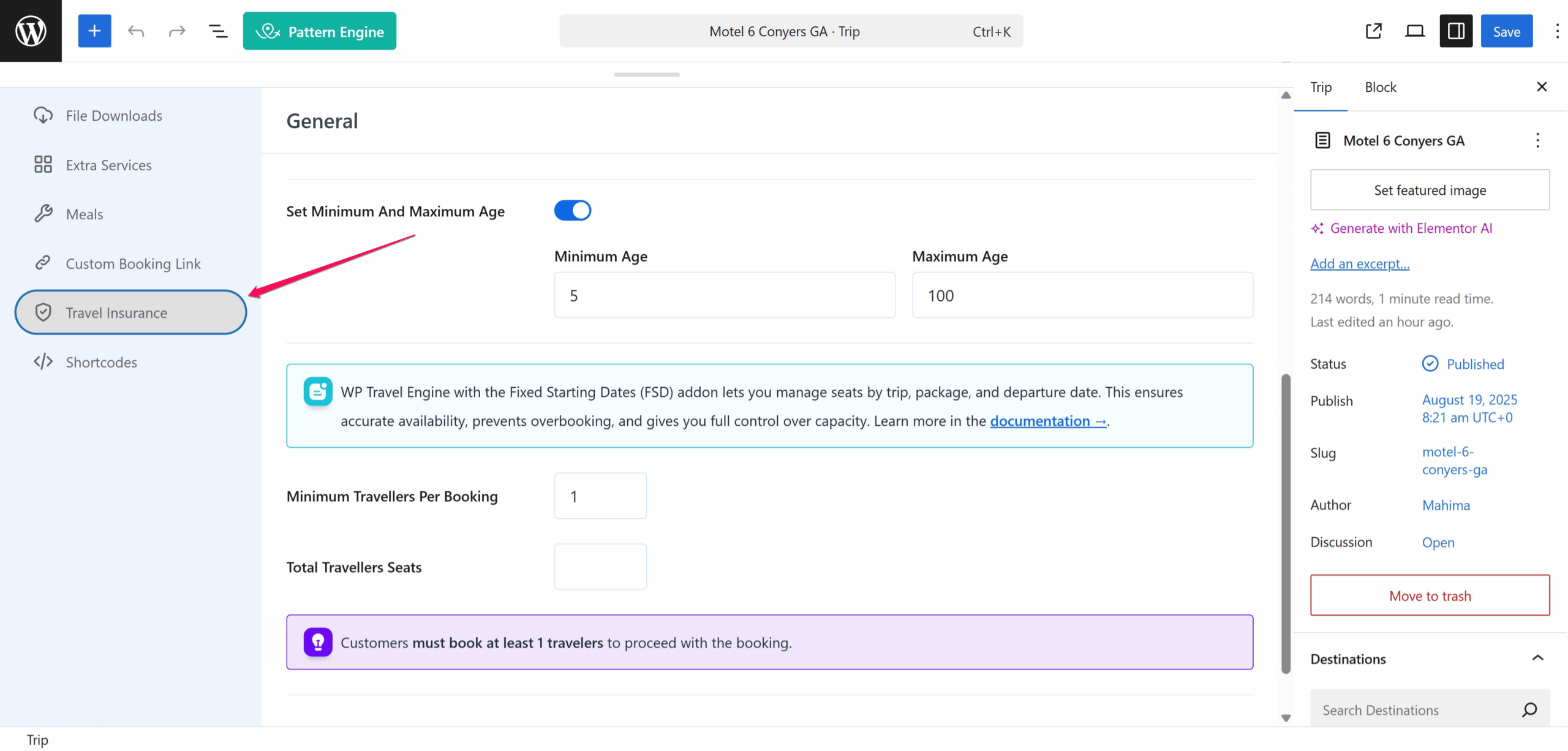
- Go to Dashboard > Trips > All Trips.
- Select the trip you want to edit.
- Open the Travel Insurance tab.
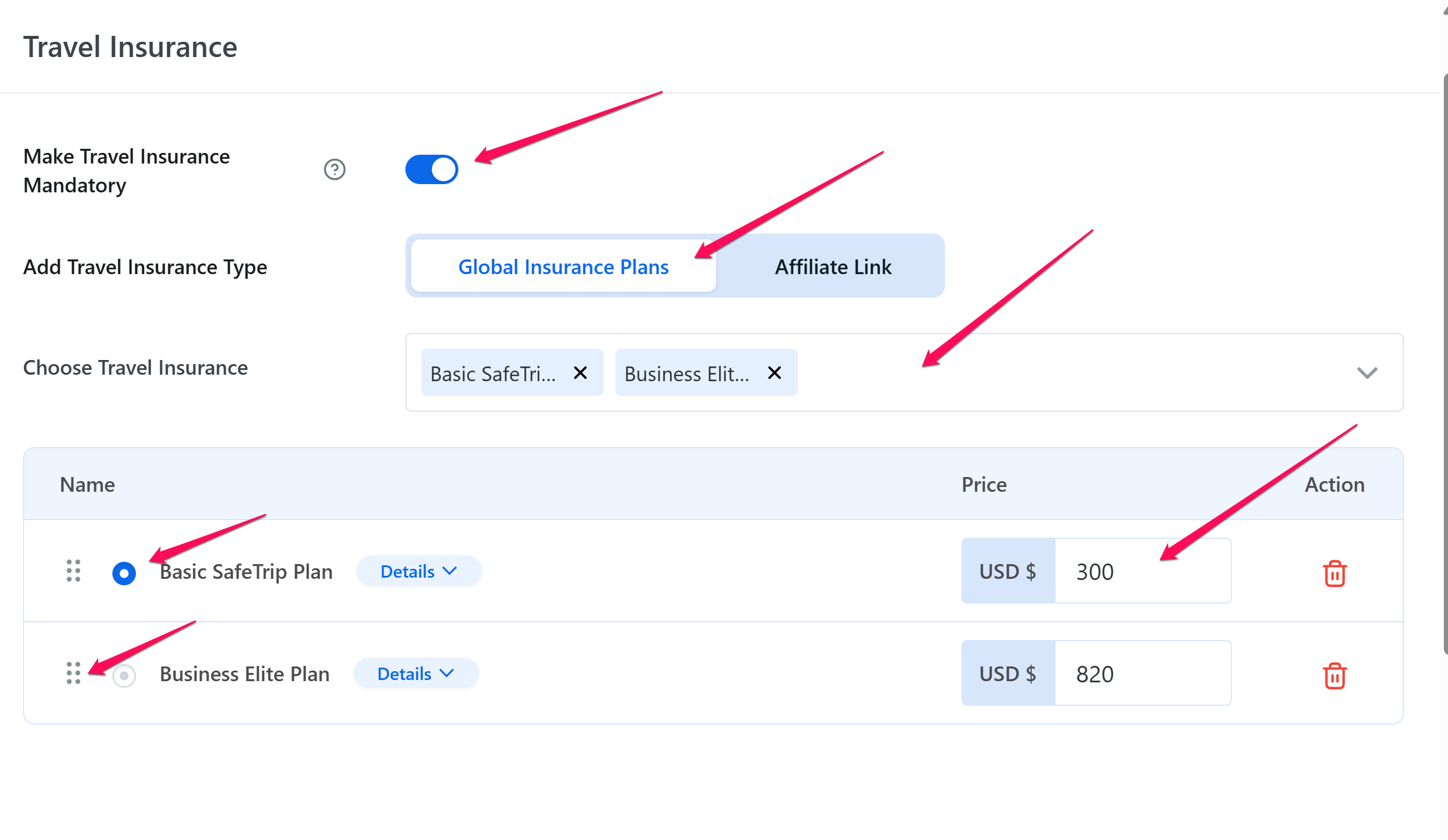
- Enable Travel Insurance:
- Toggle ON to make insurance mandatory for this trip.
- Toggle OFF to show the opt-in question at checkout.
- Choose Travel Insurance Type:
- Global Insurance Plans – Select from plans created in global settings.
- Multi-select dropdown; selected plans display as tags.
- Admin can override Price, Short Description, Coverage Details, Label for this trip only.
- Admin cannot override Plan Name or Pricing Type.
- Default plan can be selected and plan order sorted.
- Global Insurance Plans – Select from plans created in global settings.
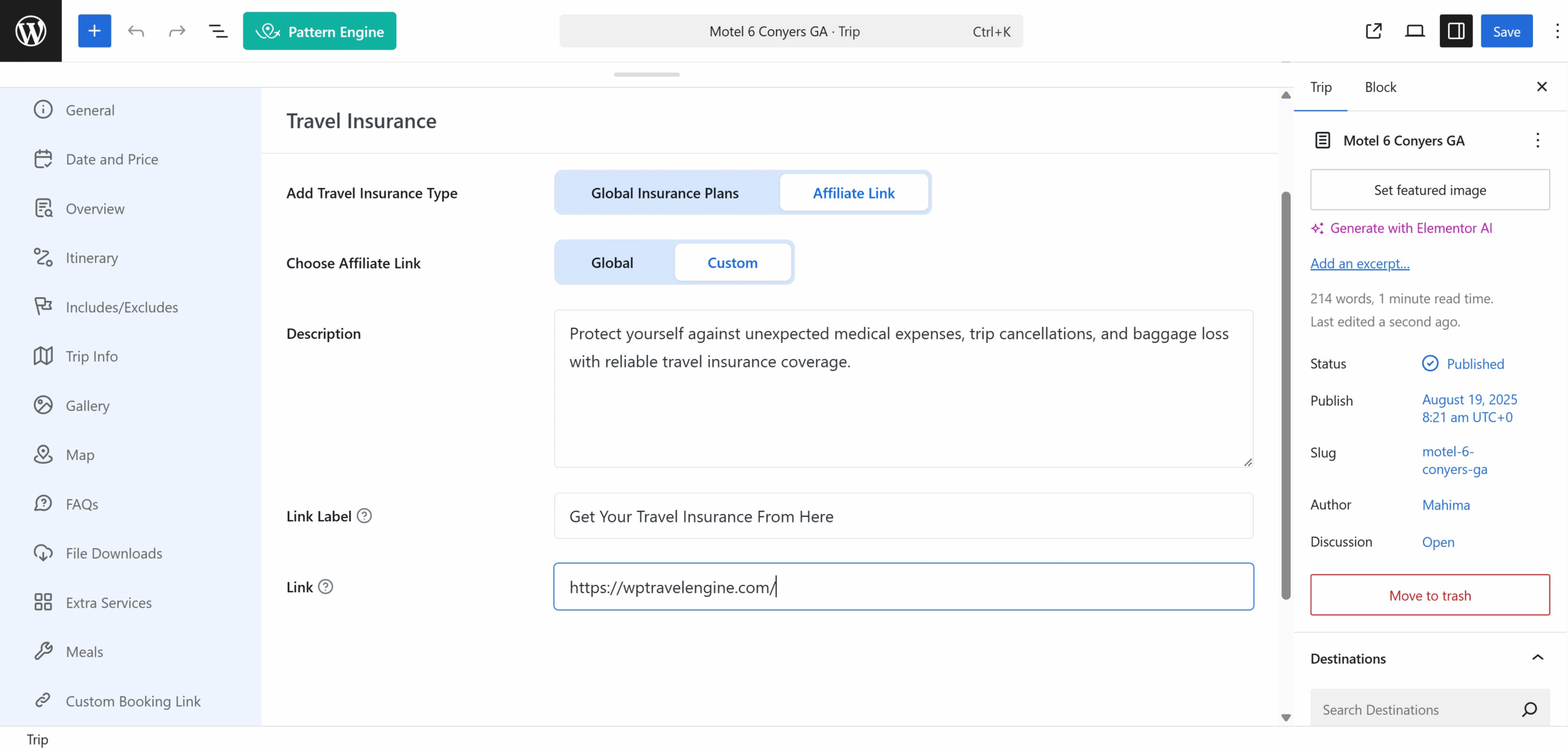
- Affiliate Link – Link to external insurance provider.
- Global: Inherit global settings and you can configure it from Global Affiliate Link.
- Custom: Fields editable, override global values.
FAQS #
What happens if I delete a plan that was used in previous bookings? #
The plan disappears from new bookings but remains visible in past bookings so your records stay accurate.
Can I sell insurance through an affiliate and still show one of my own plans on a different trip? #
Yes. Each trip chooses its source independently, so one package can use an affiliate link while another uses your own plans.
Will the insurance cost be included in the final tax calculation? #
Yes. Insurance is added to the subtotal before discount, booking fee, and tax so taxes are calculated on the full amount.
What happens if I delete a global plan? #
If you delete a global plan, it will be removed from all trips where it was applied and from future booking options, while past bookings that already used the plan remain unchanged.
Can I delete a plan for a single trip only? #
Yes, deleting a plan for a single trip removes it only from that trip while keeping it active globally and in other trips. Past bookings for the trip remain unchanged.