
Table of Contents
How do I send an email after a tour is booked? #
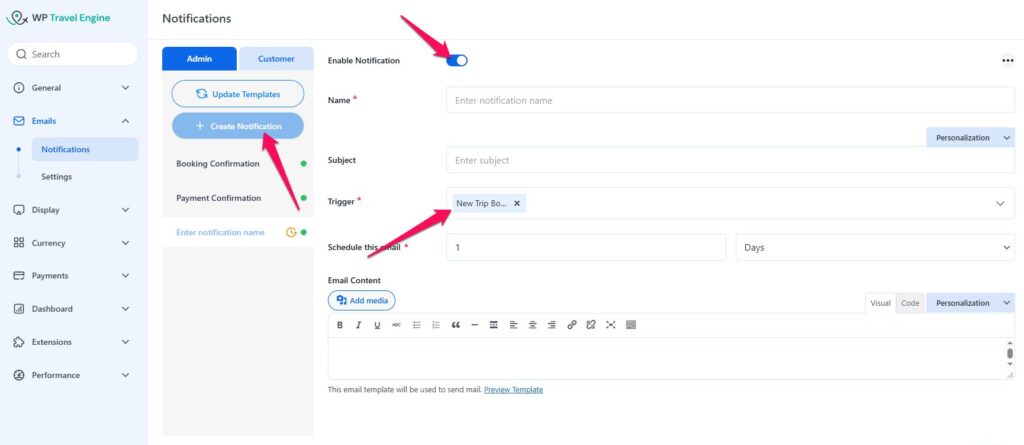
You can send a booking confirmation email using the New Trip Booked trigger.
Requirements:
- Advanced Email Automator Add-on must be installed and activated.
Steps:
- Go to Create Notification.
- Enable the notification and fill in the details:
- Name: e.g., “Booking Confirmation”
- Subject: Email subject line
- Trigger: Select New Trip Booked
- Schedule: Send immediately or after X minutes/days
- Write your Email Content (booking details, instructions, etc.).
- Click Save Notification.
How do I send a Due Payment Reminder? #
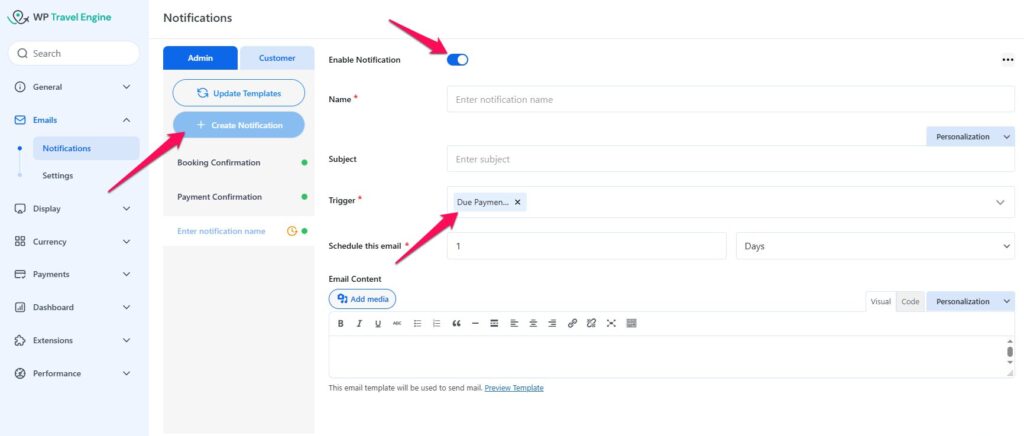
You can send a reminder for pending payments using the Due Payment Pending trigger.
Requirements:
- Advanced Email Automator Add-on must be installed and activated.
- Partial Payment Add-on must be installed and activated.
Steps:
- Create a new notification.
- Select Due Payment Pending as the trigger.
- Fill in Name, Subject, Schedule, and Email Content.
- Save the notification.
ℹ️ The trigger appears only after the Partial Payment Add-on is active.
How can I ask customers for a review after a trip ends? #
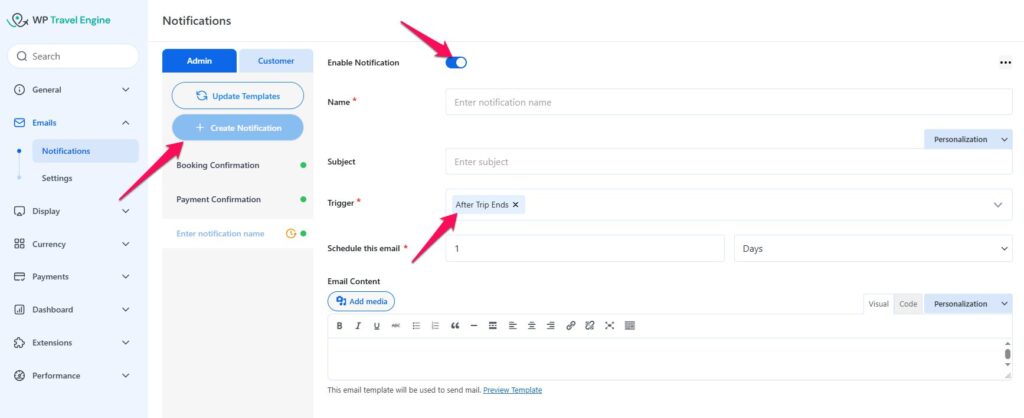
You can automatically send a review request using the After Trip End trigger.
Requirements:
- Advanced Email Automator Add-on must be installed and activated.
Steps:
- Create a new notification and select After Trip End as the trigger.
- Set the schedule (e.g., 1 day after trip completion).
- Include a thank you message and a link to the review form in the Email Content.
- Save the notification.
What are the best practices for follow-up emails? #
- Keep emails short, friendly, and clear.
- Use shortcodes (customer name, trip name, payment details) for personalization.
- Schedule strategically:
- Booking confirmations: immediately
- Payment reminders: a few days before due dates
- Review requests: 1–3 days after the trip ends
Troubleshooting Common Issues #
Emails are not being sent:
- Ensure Advanced Email Automator Add-on is installed and activated.
- Check that the notification is enabled and assigned the correct trigger.
- Confirm your WordPress site can send emails (use an SMTP plugin if needed).
Due Payment Reminder trigger not appearing:
- Make sure the Partial Payment Add-on is installed and activated.
Review emails not sending after the trip ends:
- Confirm the trip end date is correctly set.
- Check that the notification schedule is set for a future date.
Emails are being sent multiple times:
- Ensure there are no duplicate notifications with the same trigger.
- Check for caching or email plugin conflicts.
Feel free to contact our support team for any other assistance.