
Table of Contents
WP Travel Engine allows you to export your bookings into external files such as Excel sheets. This feature is useful for record-keeping, reporting, or analyzing your bookings outside of WordPress.
Step 1: Open the Bookings Page #
- Log in to your WordPress Admin Dashboard.
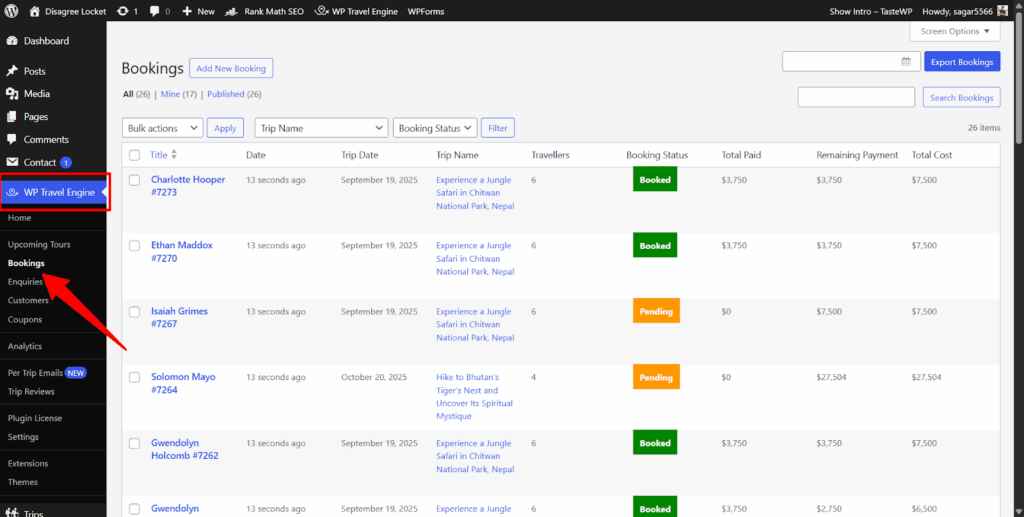
- Navigate to WP Travel Engine → Bookings.
- You will see a list of all your trip bookings displayed in a table format.
Step 2: Open the Export Bookings Popup #
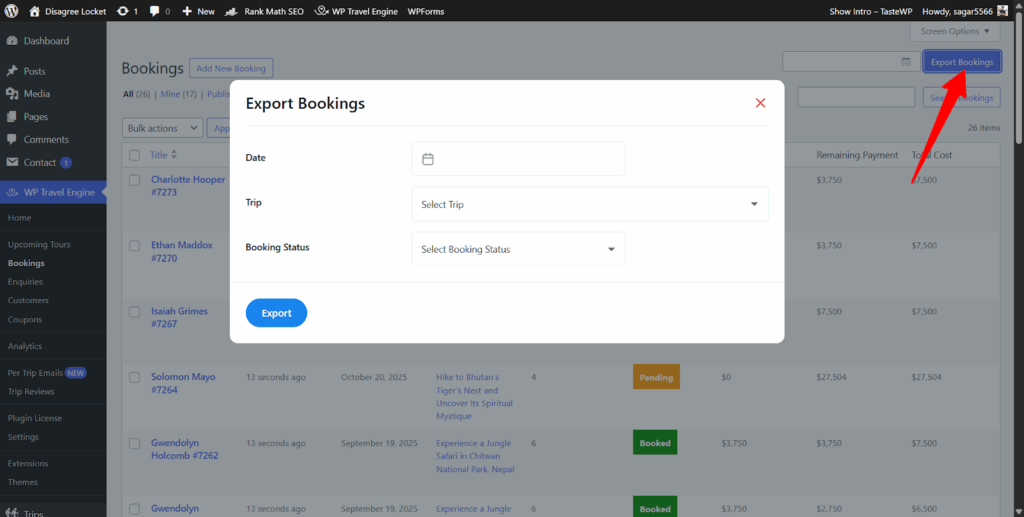
- At the top-right corner of the Bookings page, click the Export Bookings button.
- A popup module will appear with options to filter the bookings you want to export.
Step 3: Choose Your Export Options #
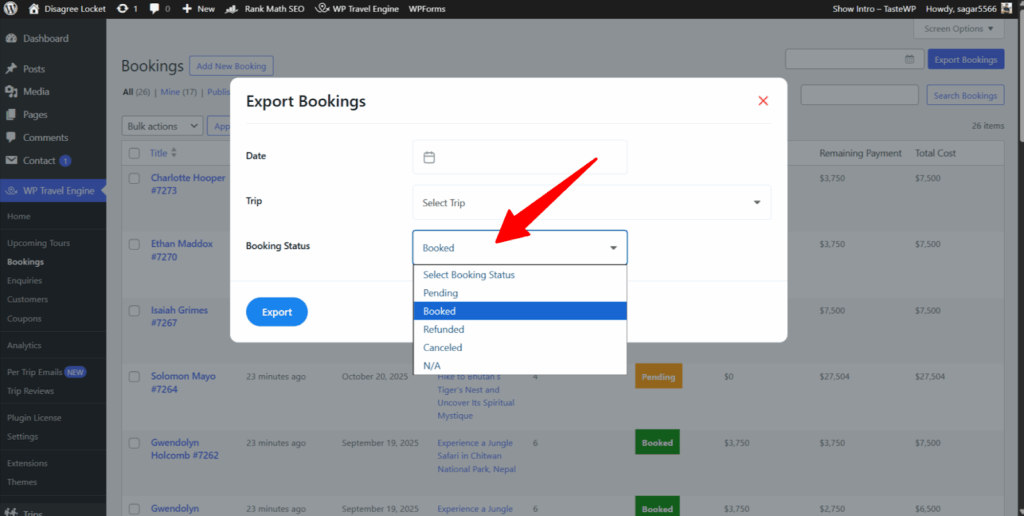
The popup allows you to filter bookings based on three options: Date, Trip, and Booking Status.
3.1 Filter by Date #
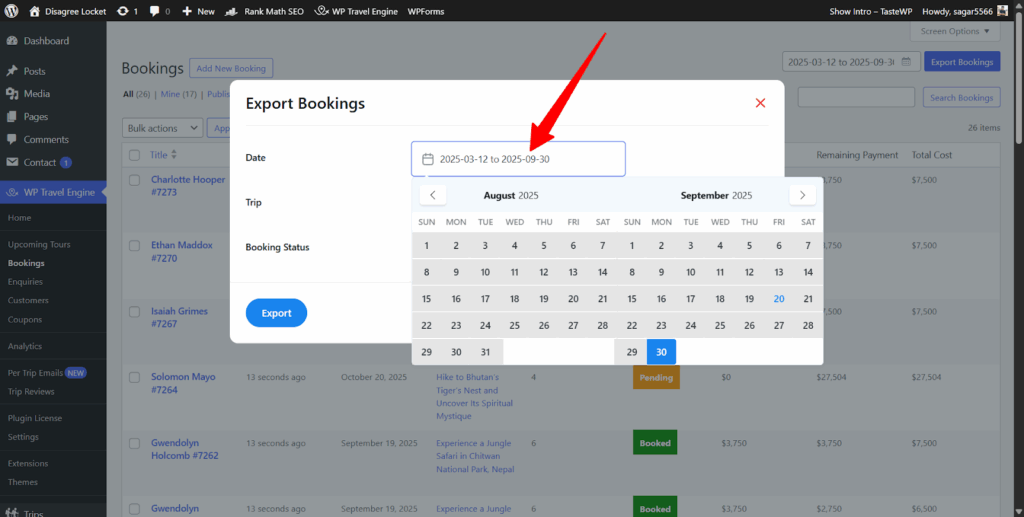
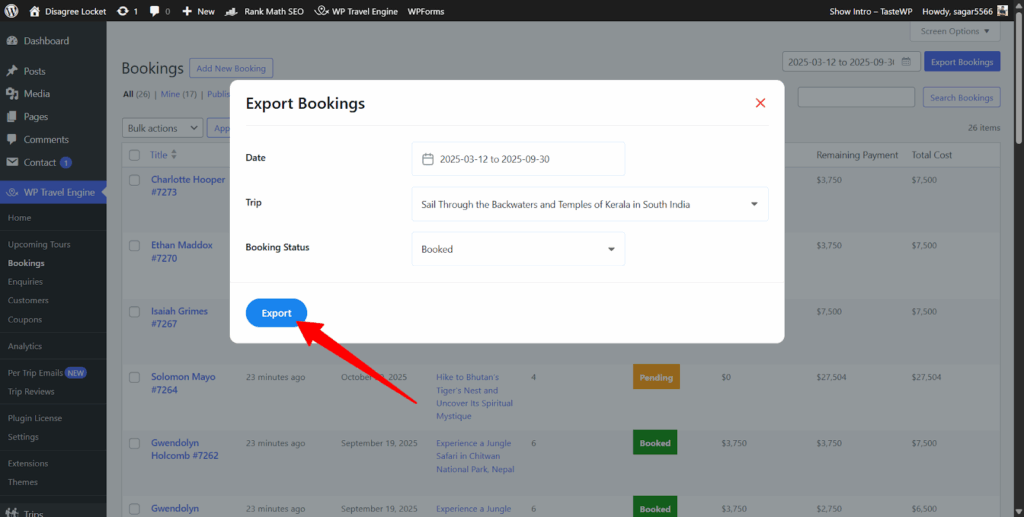
- Click on the Date field to select the start date and end date of the period for which you want bookings exported.
- To export bookings of all time, leave this field empty.
- Example: If you set Start Date as March 12 and End Date as September 30, only bookings received between these dates will be exported.
3.2 Filter by Trip #
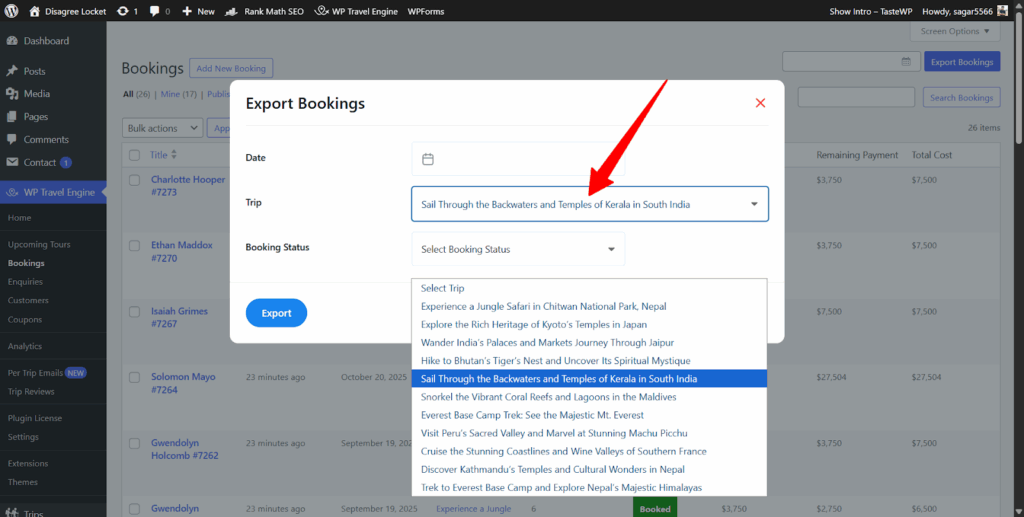
- Use the Trip dropdown to select a specific trip.
- Only bookings for that trip will be exported.
- To export bookings from all trips, leave this field empty.
3.3 Filter by Booking Status #
- Use the Booking Status dropdown to choose a status, such as Pending, Booked, Refunded, or Cancelled.
- Only bookings with the selected status will be exported.
- To export bookings of all statuses, leave this field empty.
Step 4: Export the Bookings #
- Once you have selected your filters, click the Export button in the popup.
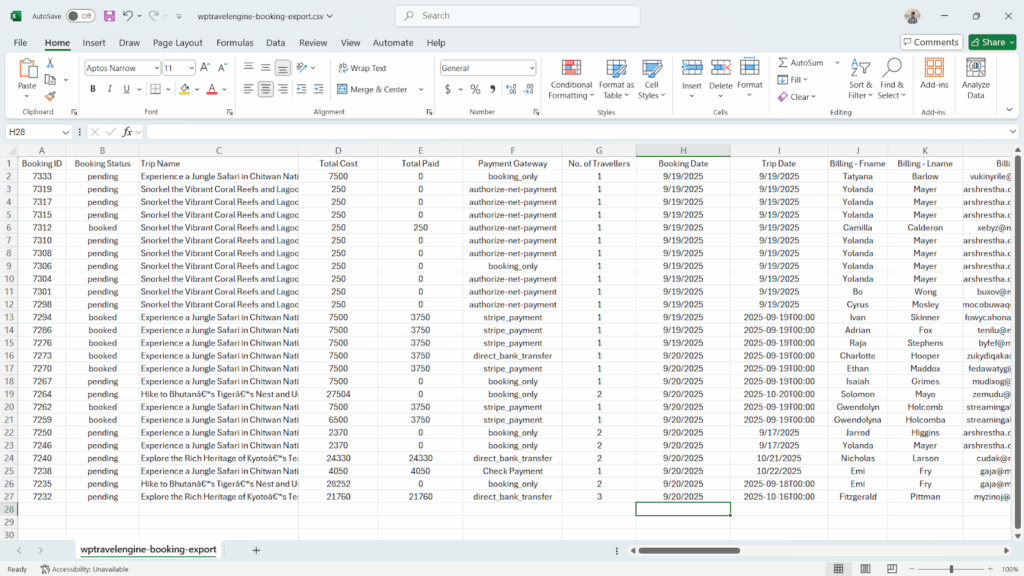
- The system will generate an Excel file containing all bookings matching your criteria.
- The file will automatically download to your computer.
Step 5: Export All Bookings #
- If you want to export all available bookings, you do not need to select any filters.
- Simply click Export Bookings → Export.
- All bookings from your site will be included in the Excel file.
- Below is a screenshot of the Excel File of exported bookings for the reference.
Tips for Smooth Exporting #
- Ensure your browser allows automatic downloads, otherwise the Excel file may not save automatically.
- If you have a large number of bookings, the export may take a few moments.
- Double-check the filters before exporting to avoid missing important data.
Summary #
The Export Bookings feature in WP Travel Engine is a fast and reliable way to get your booking data into Excel for accounting, reporting, or analytics. By using the filters, you can export exactly the data you need without manually sorting or copying records.
Feel free to contact our support team for any other assistance.