
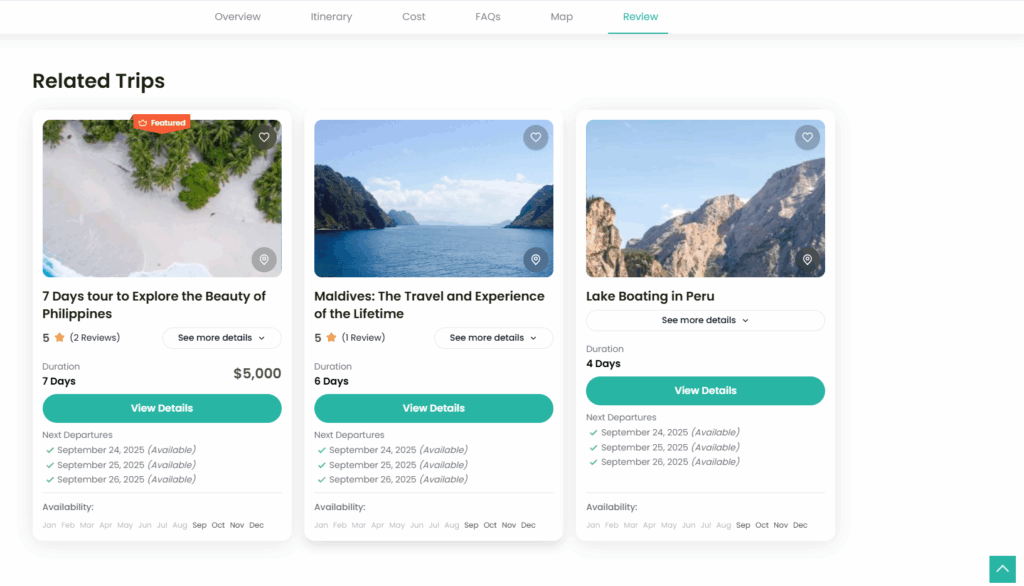
The Show Related Trips feature in WP Travel Engine allows you to showcase similar or complementary trips on a single trip page. This helps travelers explore more of your offerings and increases the chances of bookings. You can customize how the Related Trips appear on the single trip page using the WP Travel Engine settings.
Steps to Enable Show Related Trips #
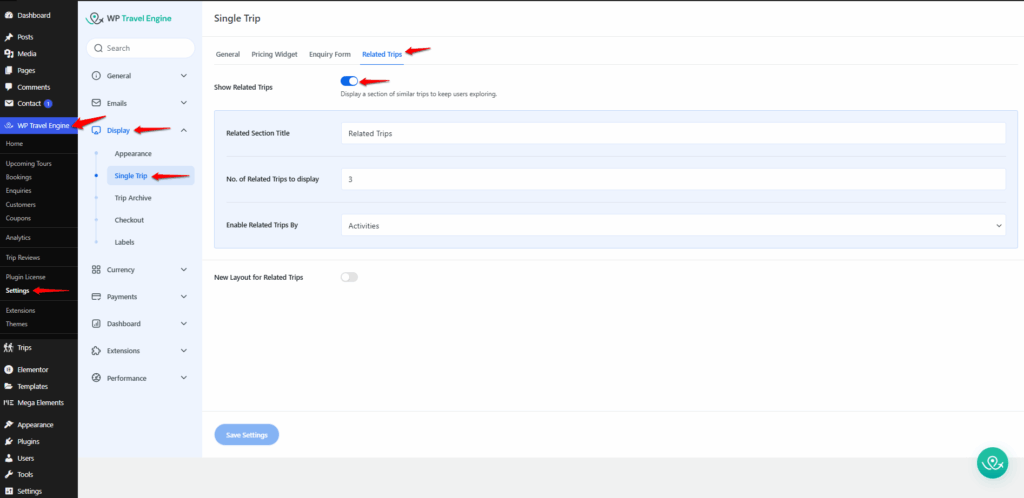
- Log in to your WordPress Dashboard.
- Go to WP Travel Engine → Settings → Display → Single Trips.
- Enable Related Trips.
- Toggle “Show Related Trips” to display related trips on single trip pages.
Use Cases & Benefits #
- Boosts engagement by encouraging visitors to explore more trips.
- Improves user experience by making it easier for travelers to find similar trips.
- Adds professionalism with a well-structured, visually appealing trip detail page.
How to Configure the Show Related Trips Feature #
Once you enable Show Related Trips in the WP Travel Engine settings, you’ll see several options that allow you to control how related trips appear on the single trip page:
Related Section Title #
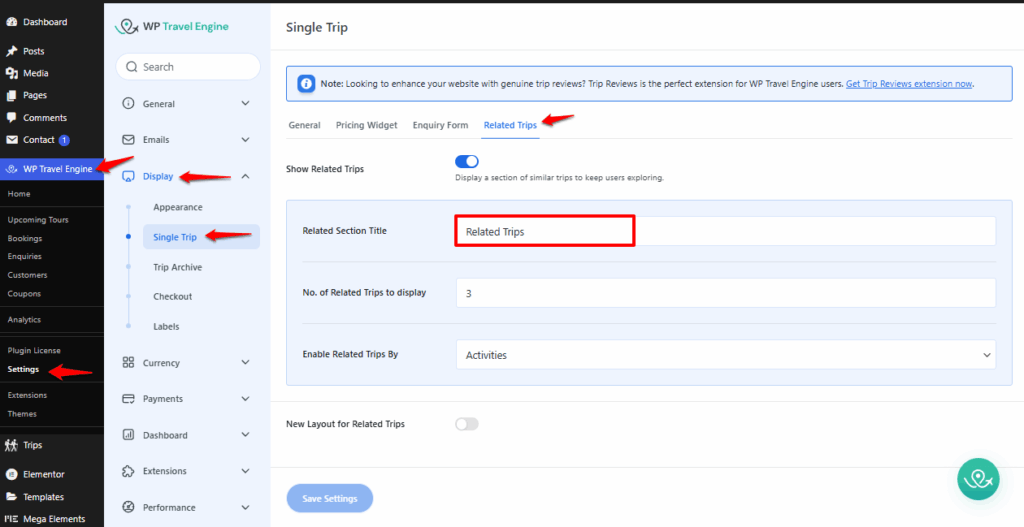
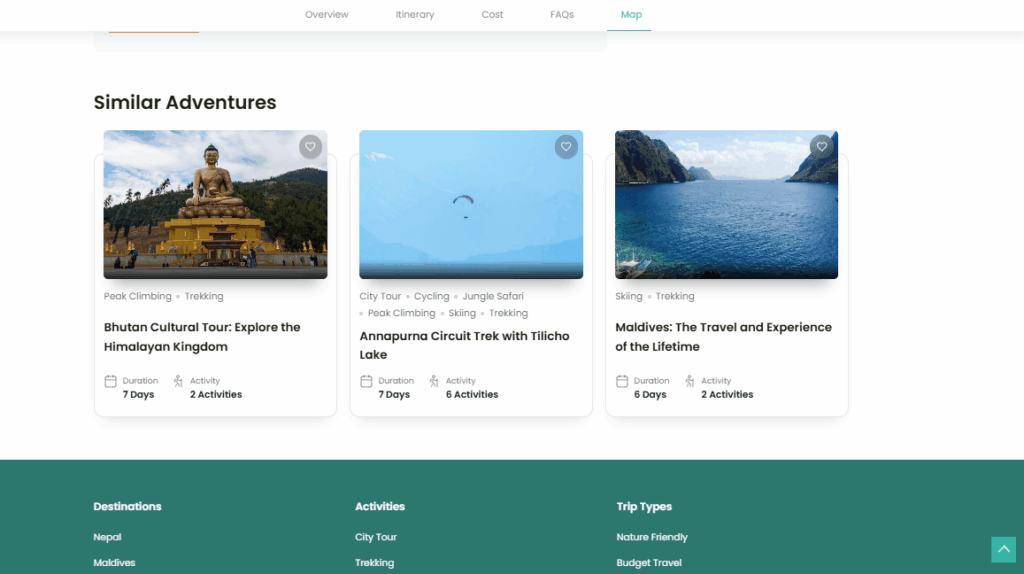
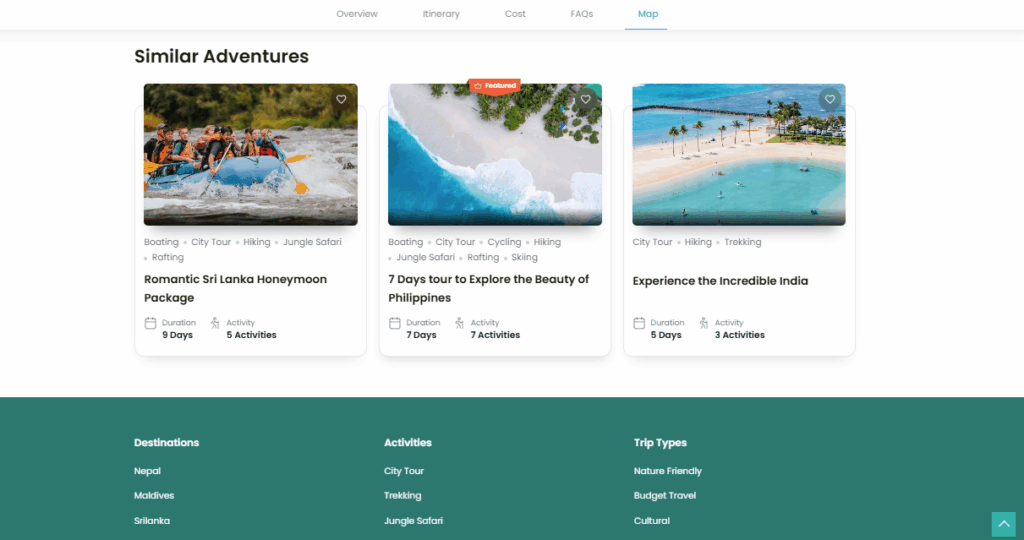
Set the heading text that appears above the related trips. The default is “Related Trips”, but you can change it to something more engaging like “You May Also Like” or “Similar Adventures”.
No. of Related Trips to Display #
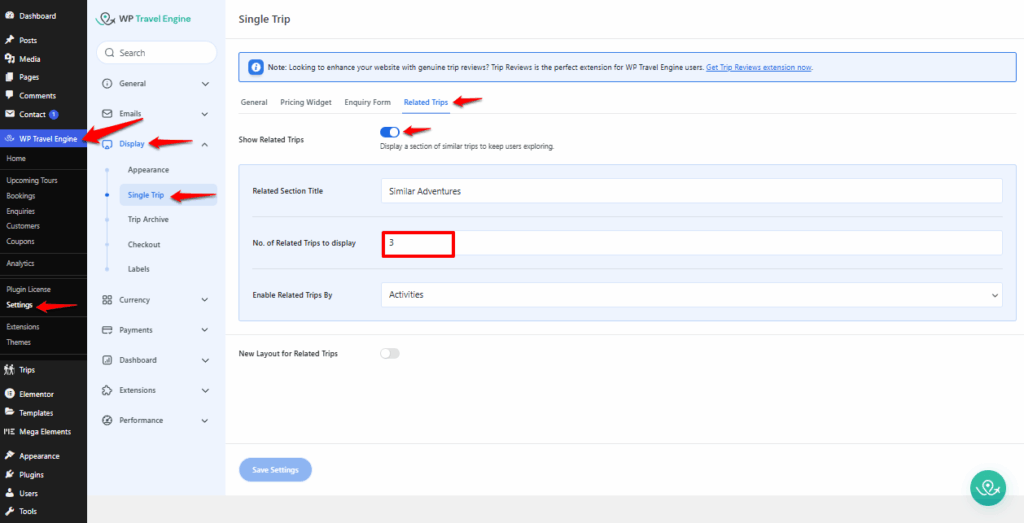
Decide how many related trips should be shown. By default, 3 trips are displayed, but you can increase or decrease this number depending on your design and user experience goals.
Enable Related Trips By #
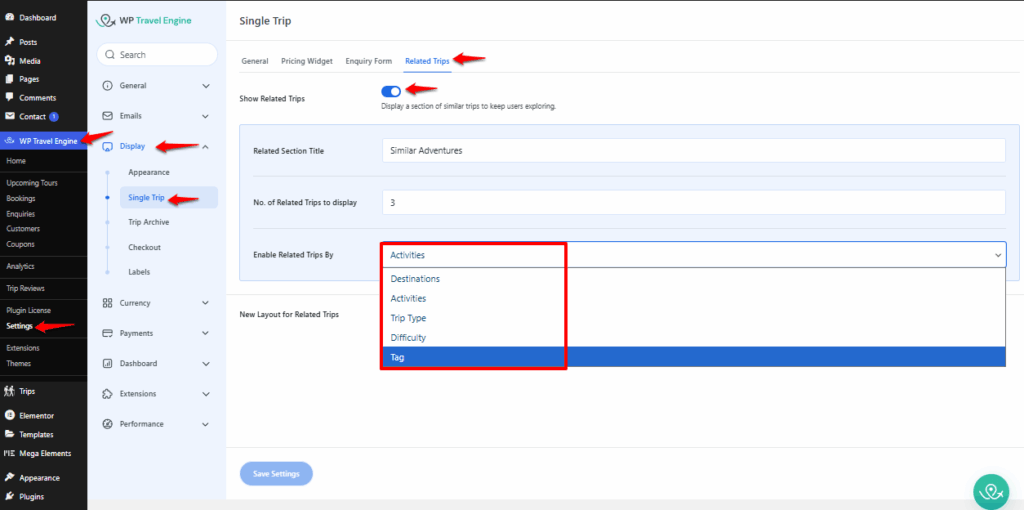
This function controls how related trips are displayed under the single trip page, rather than using the default behavior. You can filter related trips by:
- Destination: Trips from the same location.
- Activities: Trips with similar activities (e.g., Boating, City Tour).
- Trip Type: Grouped by type such as Adventure, Child-friendly or Home Stay
- Difficulty: Trips with the same difficulty level.
- Tag: Trips sharing the same tags.
- Package: Trips from the same package.
New Layout for Related Trips #
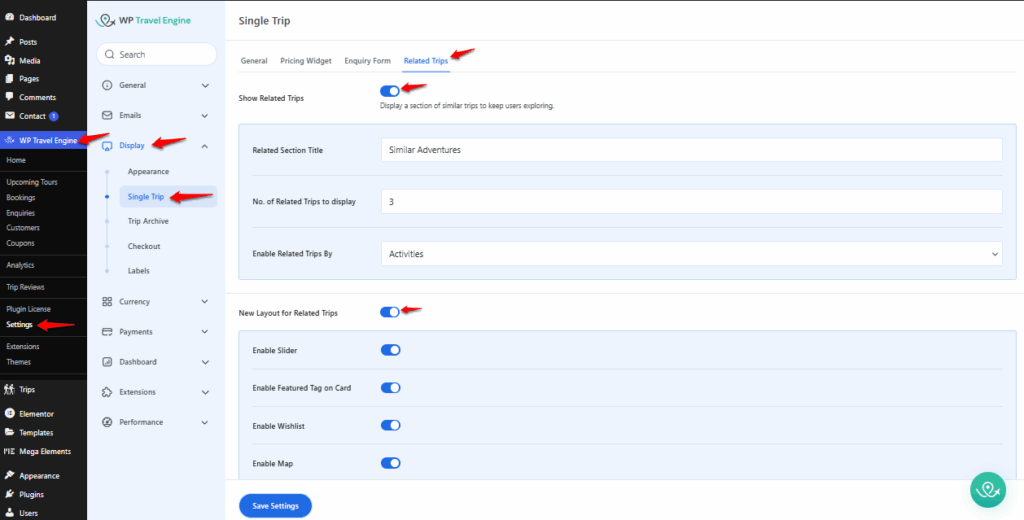
The New Layout for Related Trips provides an enhanced and modern design for displaying related trips on the single trip page. Once enabled, you can configure additional display options to make the section more informative and engaging.
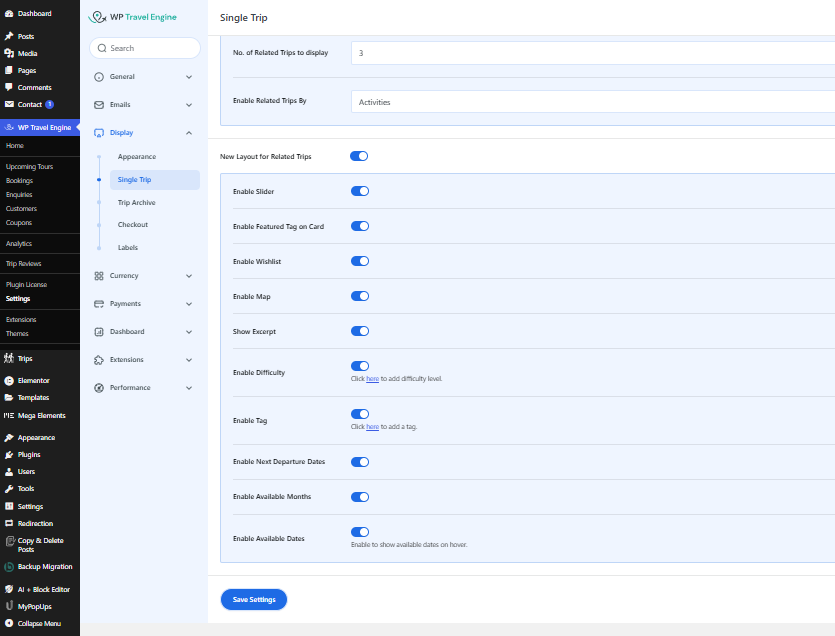
Available Options: #
- Enable Slider: Displays an image gallery in a slider format instead of a static grid, making it easier to view photos.
- Enable Featured Tag on Card: Adds a badge (e.g., Featured or Popular) to highlight selected trips.
- Enable Wishlist: Allows users to save trips to their Wishlist by adding a heart icon on each trip card.
- Enable Map: Displays a map or map link on the related trips section, showing the trip location.
- Show Excerpt: Shows a brief description (excerpt) beneath the trip title for quick reference.
- Enable Difficulty: Displays the difficulty level of the trip (e.g., Easy, Moderate, Challenging). Click here to add a difficulty level.
- Enable Tag: Shows trip tags for better categorization. Click here to add a tag.
- Enable Next Departure Dates: Highlights the next available departure date for each trip.
- Enable Available Months: Displays the months when the trip is available (e.g., Jan–Mar).
- Enable Available Dates: Shows the specific dates when the trip is available.