
Table of Contents
Using the Custom Filters feature, you can create your own filters (which act as custom taxonomies) to help organize and categorize trips beyond the default options like Destination, Activities, or Trip Type. This allows travelers to filter trips more precisely on the front end.
Where can I add new filters/taxonomies using Custom Filters #
You can easily add a new Custom Filter by navigating to Admin Dashboard → Trips → Custom Filters.
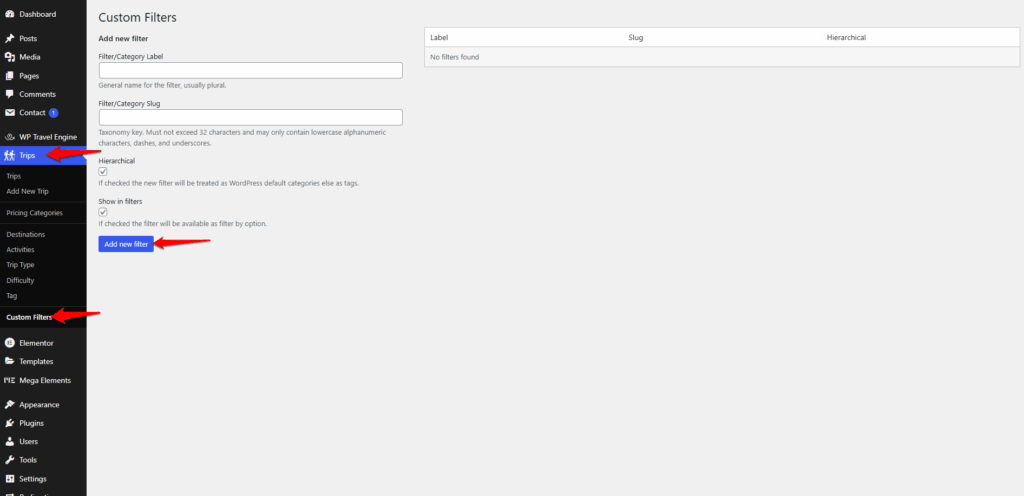
Fill out the fields to create your filter:
- Filter/Category Label: The readable name of the travel filter displayed to users when browsing or refining trips (e.g., “Trip Duration” or “Difficulty Level”).
- Filter/Category Slug: The simplified, URL-friendly version of the filter name. It must be lowercase, without spaces, and use hyphens to separate words (e.g., “trip-duration” or “difficulty-level”).
- Hierarchical (Checkbox): Determines whether the filter allows hierarchy.
- Checked: Acts like categories, with parent/child relationships (e.g., Continent > Country > City).
- Unchecked: Acts like tags, flat with no hierarchy.
- Show in Filters (Checkbox): Controls whether the filter is displayed on the trip archive page.
- Checked: The filter appears on the trip archive page and can be used by users to refine their search.
- Unchecked: The filter is only available in the backend for organizing trips but will not appear as a selectable option on the trip archive page.
Adding Categories/Tags to a Custom Filter #
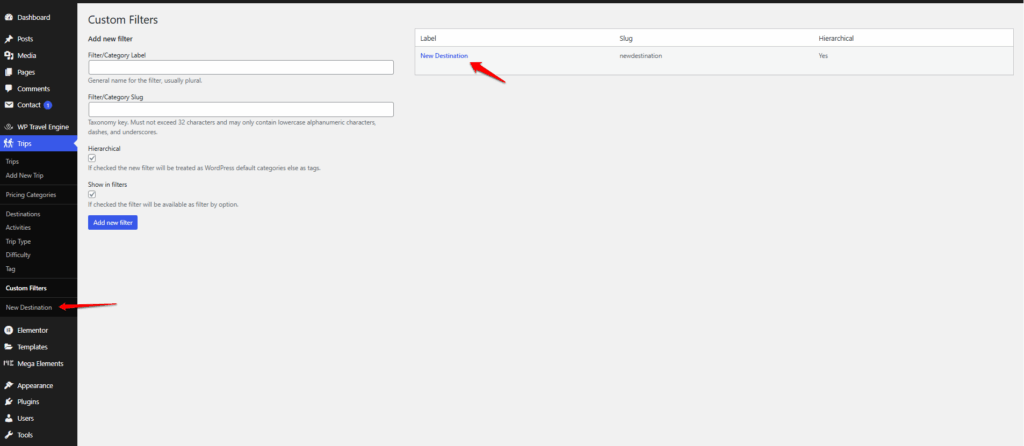
- Click on the Custom Filter you created.
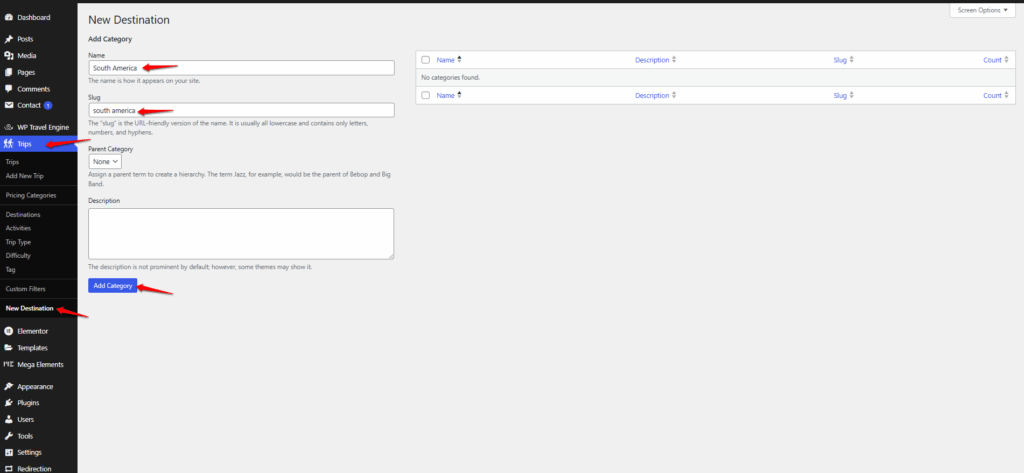
- Add the categories/tags you want to display under it.
- Important:
- Categories/tags must be added to the trip for the filter to appear on the Trip Archive page.
- The Custom Filter will not appear unless at least one trip is assigned to a category/tag.
Assigning Custom Filters to Trips #
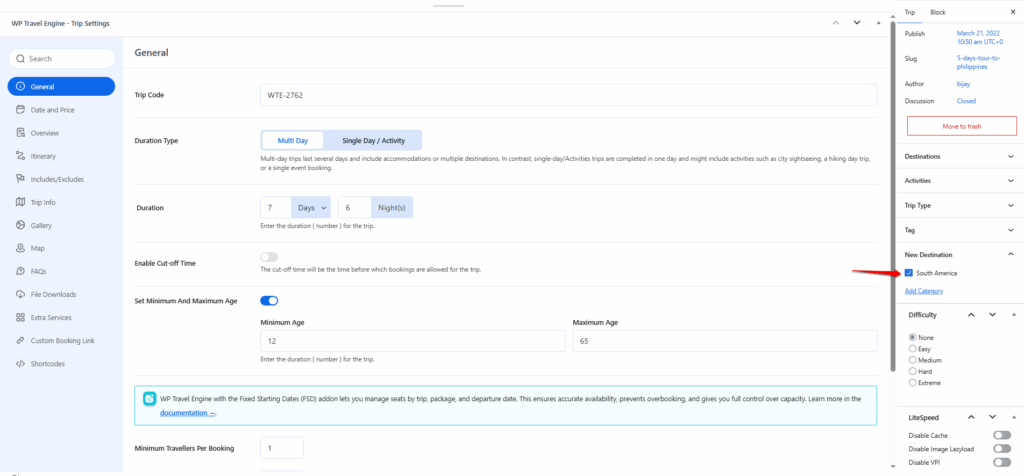
- Go to Trips → All Trips.
- Edit the trip you want to assign a filter to.
- On the right-hand side, you will see the Custom Filter alongside other taxonomies like Destination, Trip Type, and Pricing Categories.
- Select the appropriate category/tag for the trip.
- Save/Update the trip.
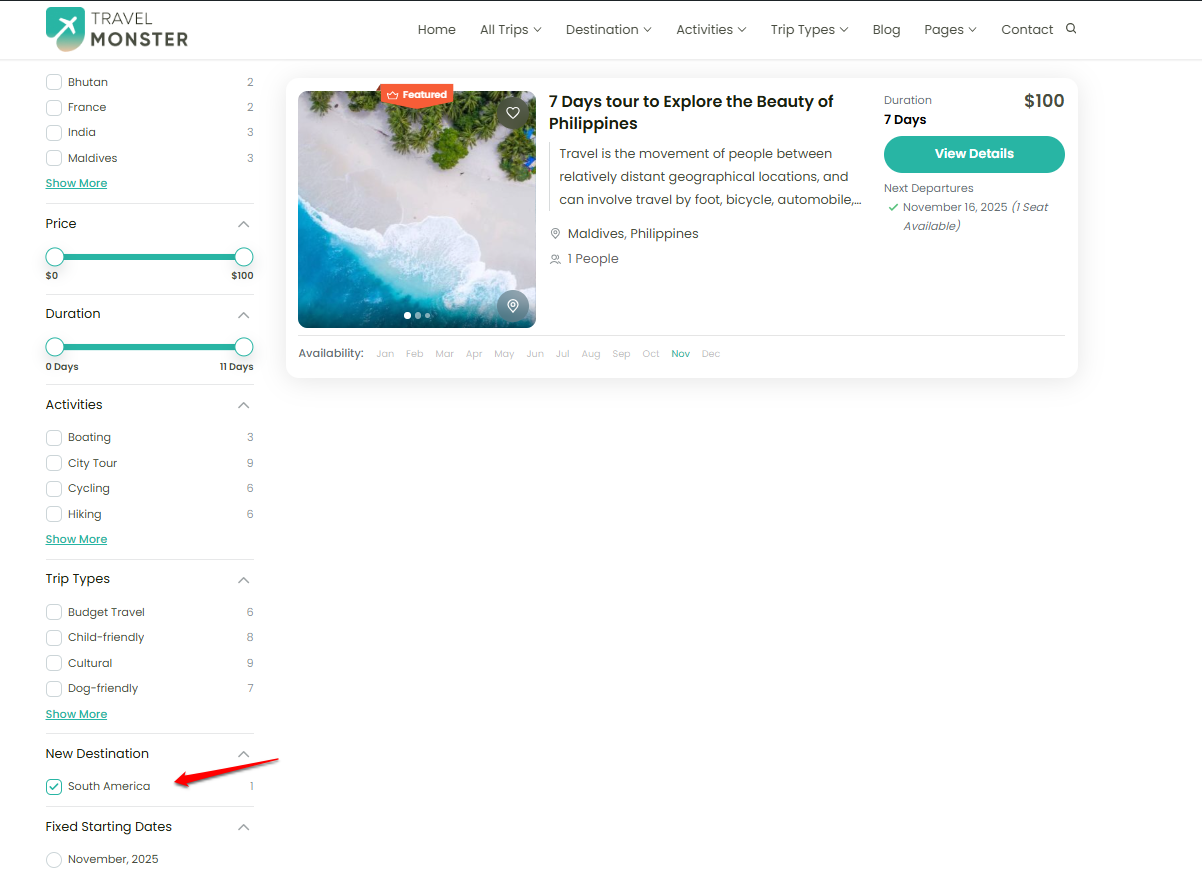
Once assigned, your Custom Filter will appear on the Trip Archive page, allowing travelers to refine their search using your custom categories.
Can I edit or remove a filter later? #
Yes, filters can be updated or deleted at any time through the dashboard.
- Edit: You can modify the filter’s name, slug, or settings if you need to make changes.
- Remove: You can delete the filter completely if it is no longer needed.
What are the Benefits of Using Custom Filters #
- Organize trips more effectively by adding your own categories (e.g., Difficulty, Season, Travel Style).
- Enhance user experience by making it easier for travelers to filter and find the right trips.
- Boost conversions since customers can quickly locate trips that match their preferences.
- Flexibility to customize filters to suit your business needs.
Feel free to contact our support team for any other assistance.