
- Why Use This Add-on?
- Prerequisites
- Key Features
- Quick Start
- Use Cases
- Use Case 1: Sync Bookings With CRM (HubSpot, Zoho, Salesforce)
- Use Case 2: Automated WhatsApp/SMS Notifications
- Use Case 3: Accounting/ERP Sync (QuickBooks, Xero, Odoo)
- Use Case 4: Internal Dashboard or BI Tool
- Use Case 5: Mobile App or Customer Portal
- Use Case 6: Partner Platform Integration (Channel Managers & Affiliates)
- Developer Guide
- Troubleshooting
- FAQs
The Webhooks & API add-on lets WP Travel Engine send data to external tools in real time and retrieve data securely through the REST API. Webhooks push events like enquiries, bookings, and payments to platforms such as Pabbly, Zapier, or your own systems, while the API allows external apps to access trips, bookings, customers, and more on demand.
It provides:
- Real-time Webhooks (push data out)
- REST API (pull data in)
Perfect For
- Travel companies using CRMs
- SaaS tools integrating travel data
- Agencies building automation flows
- Developers building customer dashboards
- Accounting, ERP, and BI integrations
Why Use This Add-on? #
- Sync bookings instantly with tools like Pabbly, Zapier, Make
- Automate WhatsApp/SMS/email notifications
- Integrate bookings with CRM or accounting tools
- Build customer portals or mobile apps using the API
- Ensure secure, real-time, structured data access
Prerequisites #
Core Requirements
- WordPress 5.0+
- PHP 7.4+
- HTTPS recommended
Plugin Requirements
- WP Travel Engine 6.7.0+
- WP Travel Engine – Cart 4.0+ (for complete booking/payment data)
- Webhooks & API add-on activated
For Webhooks
- A valid external URL (Pabbly webhook URL works)
- Must accept POST requests
- Must return HTTP 200
For API
- At least one API Key + Secret generated
- Permissions set (bookings, trips, etc.)
- Optional: Postman for easy testing
Key Features #
- Real-time Webhooks – Instant notifications for 7 different events
- Secure REST API – Read-only access to bookings, trips, customers, and payments
- Automatic Retries – Failed webhooks retry up to 5 times with smart backoff
- Email Alerts – Get notified when webhooks fail
- Rate Limiting – Protect your server from excessive requests
- Response Caching – Faster API performance with 1-hour cache
- Developer Friendly – Full documentation, WP-CLI support
Quick Start #
What are Webhooks?
Think of webhooks as automatic notifications. When something important happens in your booking system (like a new booking or payment), webhooks instantly send that information to another application you specify.
Real-World Example: You run a travel agency and use Slack for team communication. Set up a webhook to https://hooks.slack.com/your-webhook-url, and every time someone books a trip, your team gets an instant Slack message with the booking details.
Setting Up Your First Webhook (Pabbly Example) #
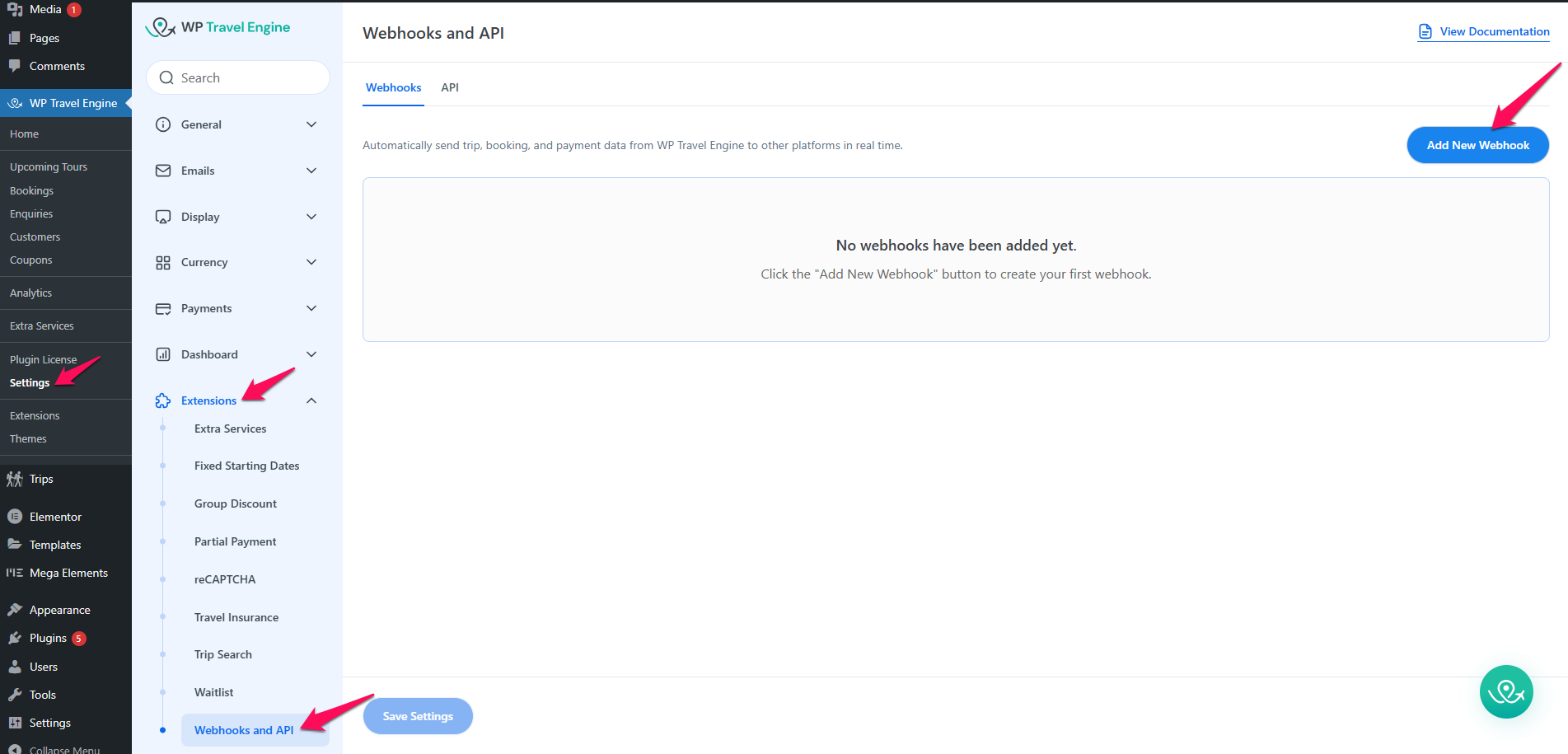
- Navigate to: WP Travel Engine → Settings → Webhooks & API
Or: Bookings → Settings → Webhooks & API - Click “Add New Webhook”
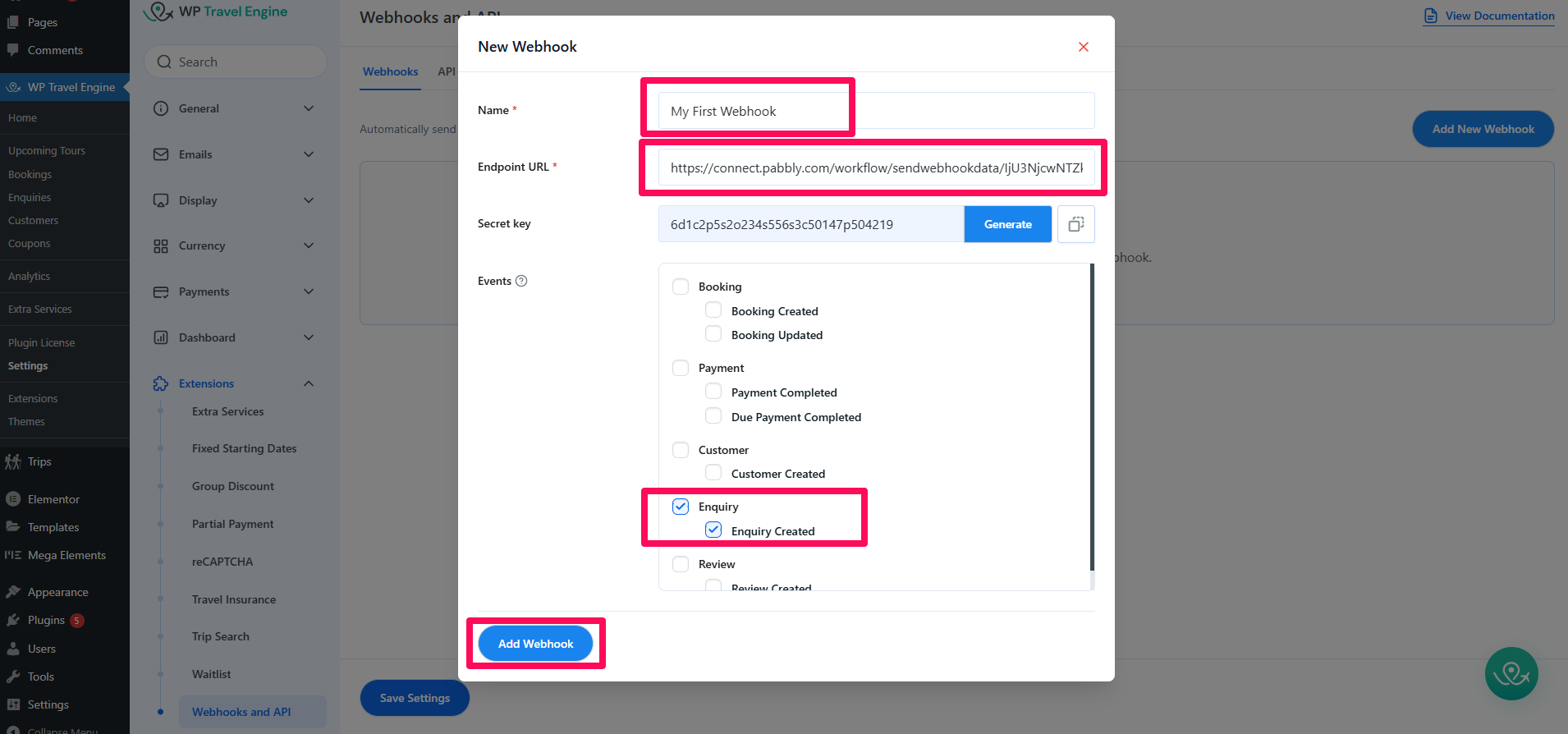
- Enter:
Name: “My First Webhook”
Endpoint URL: https://your-app.com/webhook-receiver
Events: Check “Enquiry Created” - Click “Add Webhook”
- A secret key will be generated automatically (save this for signature verification)
Testing the Webhook With Pabbly #
Steps after saving your webhook in WordPress:
- Open Pabbly Connect
- Go to Pabbly → Create a new workflow.
- Add a Webhook Trigger
- Choose Webhook as the trigger step.
- Click “Capture Webhook Response”
- Pabbly will now wait for the next incoming webhook request.
- You should see a message like: “Waiting for webhook response…”
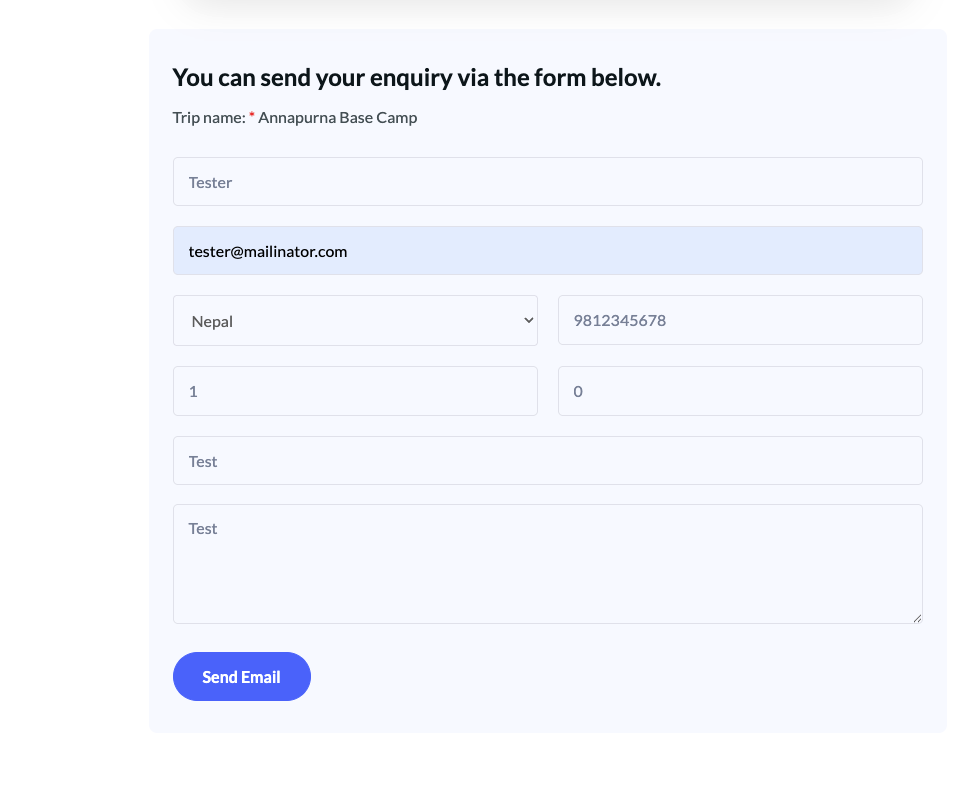
- Trigger the event in WordPress
- On your website, submit an enquiry form (or the event you selected for your webhook).
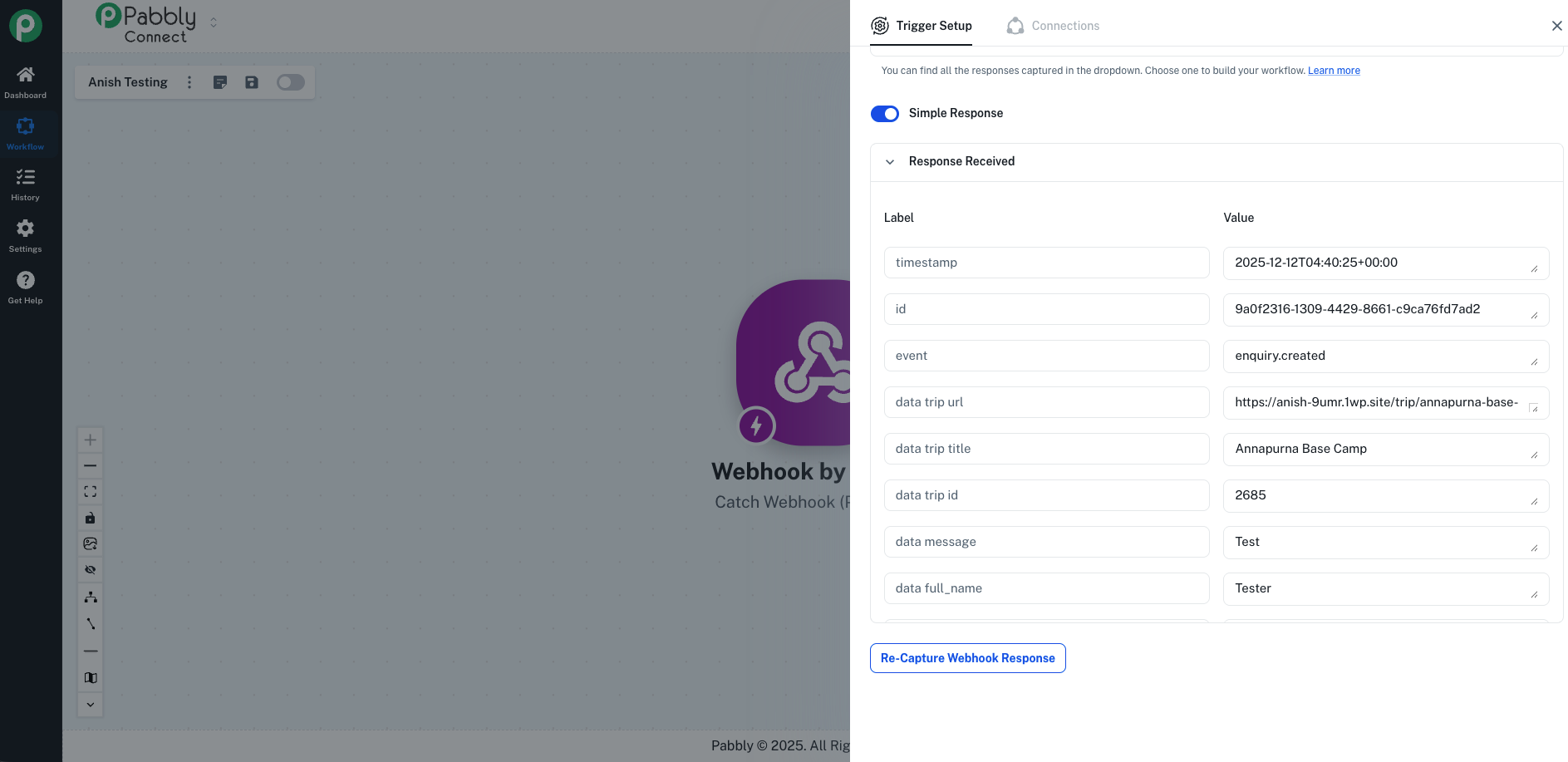
- Check the response in Pabbly
- If everything is correct, Pabbly will display: “Webhook Response Received”
- and show the full JSON payload sent by your site.
Security: Signature Verification
- All webhook requests include:
X-WTE-Signature: sha256=<hash>
Your existing examples (PHP + Node) remain correct.
Retry Logic
- Attempt 1 → immediate
- Attempt 2 → 1 min
- Attempt 3 → 5 min (warning email)
- Attempt 4 → 15 min (warning email)
- Attempt 5 → 30 min (critical email + auto-disable)
Setting Up Your First API (Postman Example) #
What is a REST API?
A REST API lets external applications read data from your WP Travel Engine system using standard web requests.
Real-World Example: You want to build a mobile app that shows customers their booking history. The app uses the REST API to fetch bookings for a specific customer and displays them in a nice mobile interface.
Generate API Keys
- Go to:
WP Travel Engine → Settings → Webhooks & API → API Keys
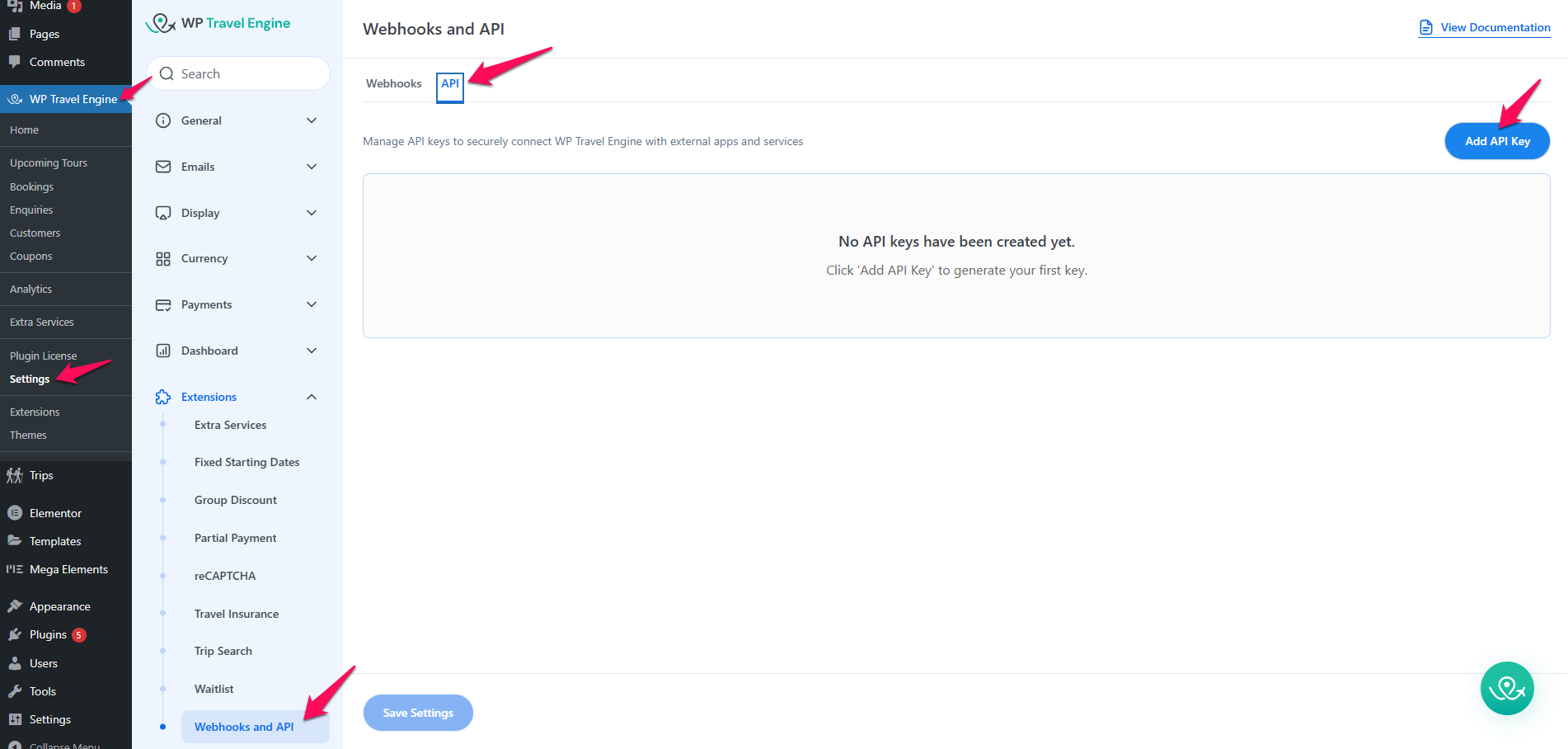
- Click Generate API Key
- Select permissions
- Copy Key + Secret
- Click on “Add API”
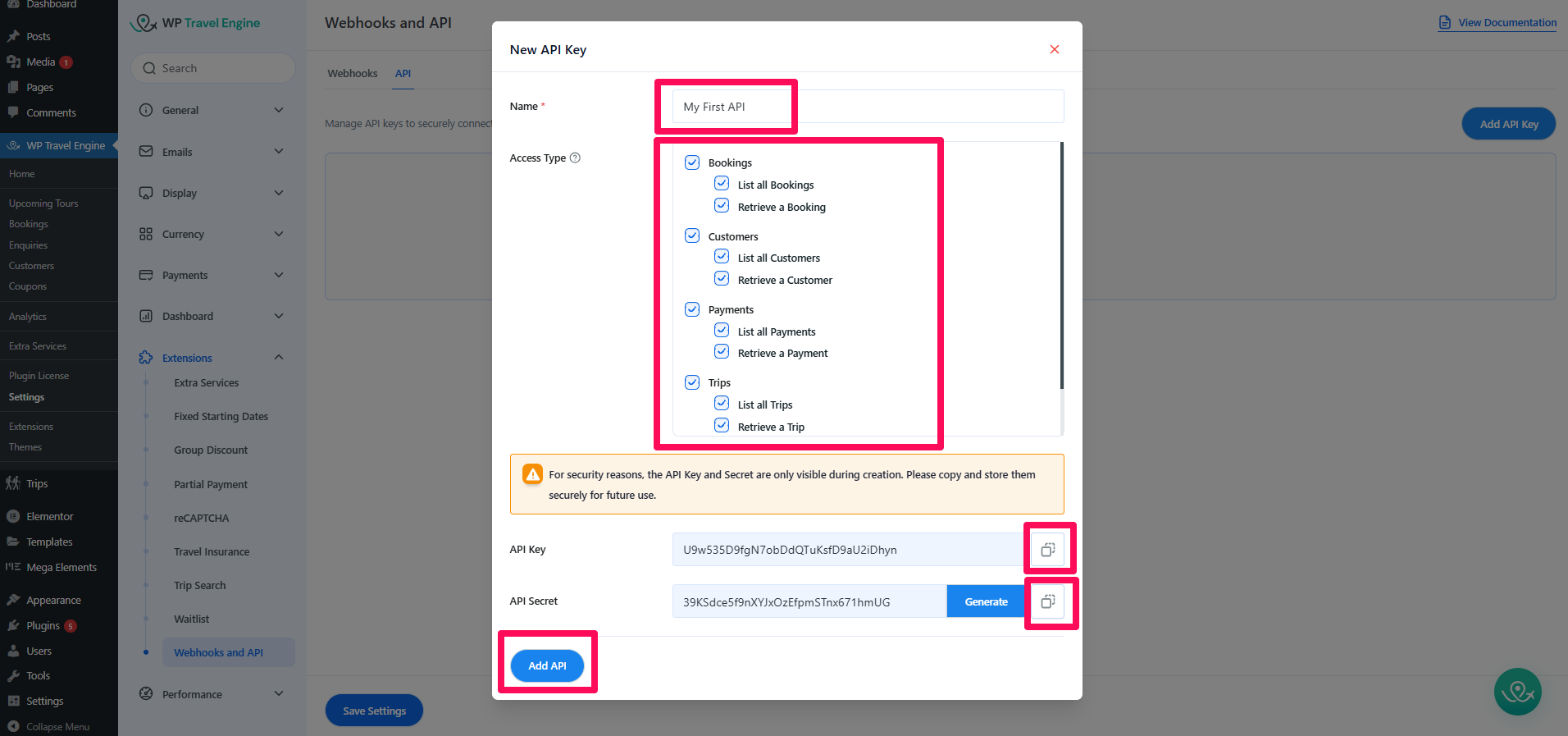
Testing the API With Postman #
Example 1 – List All Trips
Method A – Query Parameters (Not Recommended)
Use this only for quick testing or debugging.
Your credentials become visible in the URL, which makes this less secure.
curl "https://yoursite.com/wp-json/wptravelengine/api/v1/bookings?accesstoken=wte...&accesssecret=wtesec..."Postman Steps (Params Method)
To test using URL parameters:
- Open Postman → New → HTTP Request
- Set method to GET
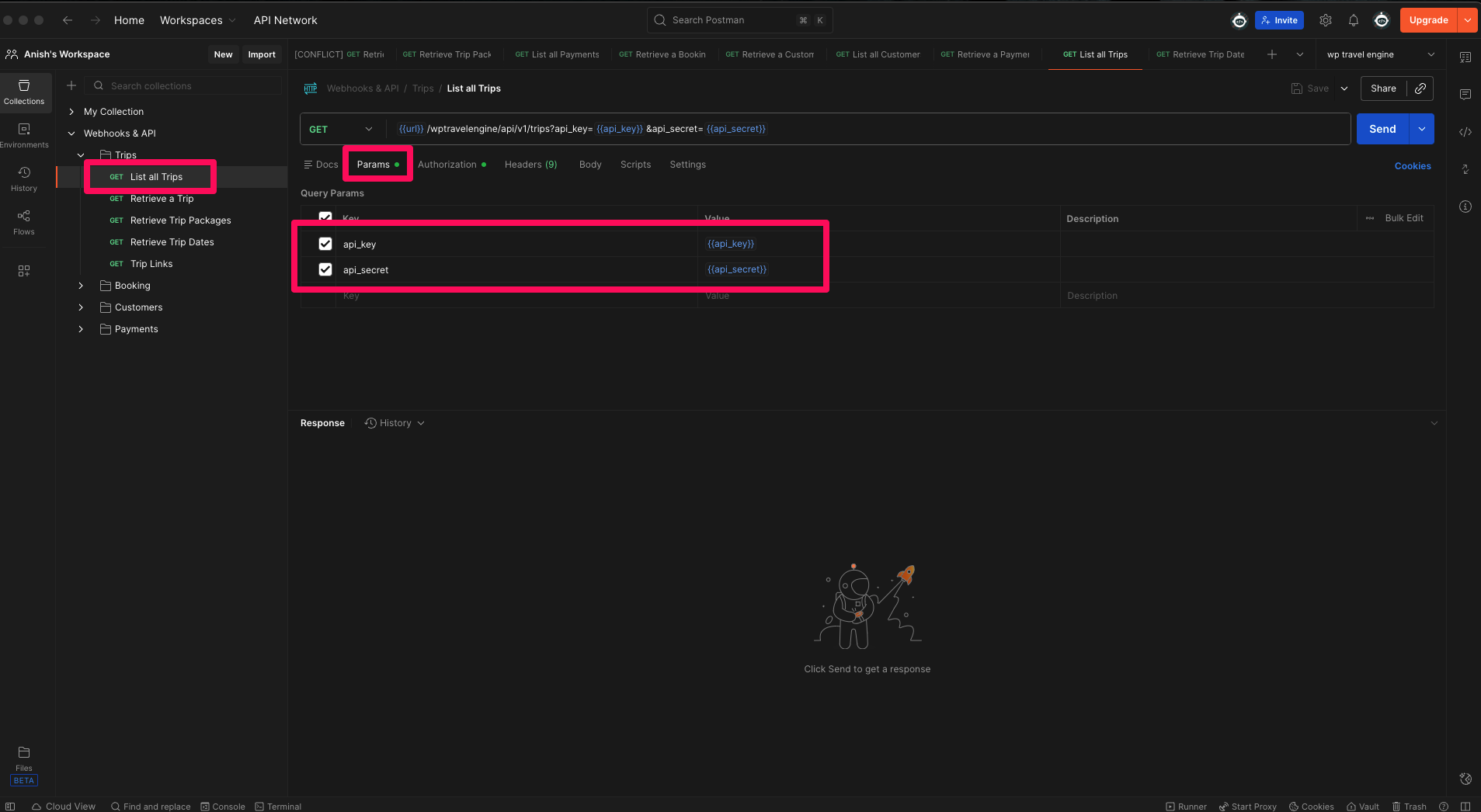
- Enter this URL without any parameters:
https://yoursite.com/wp-json/wptravelengine/api/v1/bookings- Go to the Params tab
- Add the following:
| Key | Value |
| Access-Token | YOUR_API_KEY |
| Access-Secret | YOUR_API_SECRET |
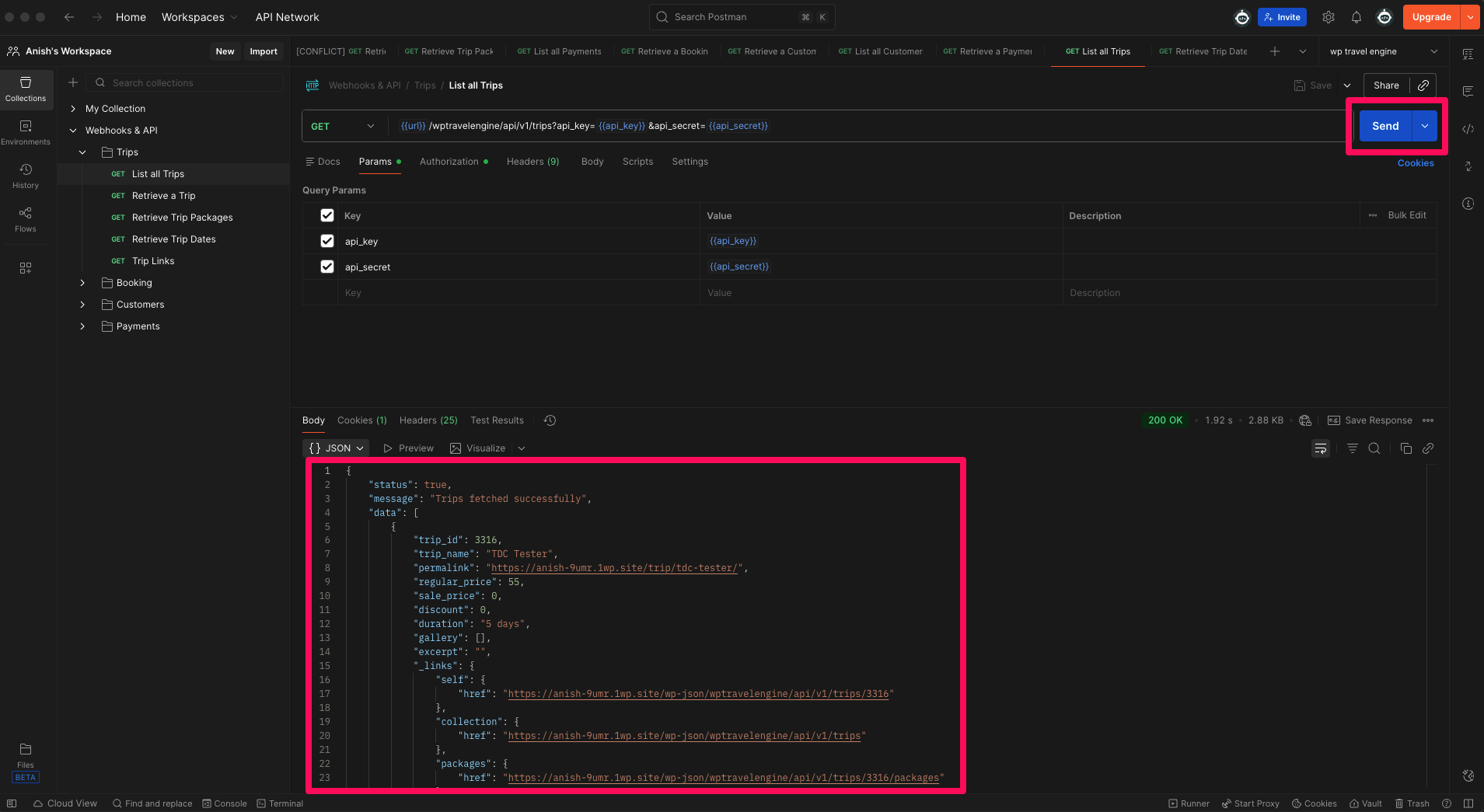
- Click Send
- View the JSON response below
Why This Method Is Not Secure
- Your API key and secret appear directly in browser history
- URLs are logged by servers, plugins, firewalls
- Exposed easily in analytics, CDN logs, reverse proxies
When to Use
- Fast debugging
- Testing for non-production sites
- When using a tool that doesn’t support headers
Method B – Authorization Headers (Recommended)
This is the preferred and secure method.
Your credentials are sent in headers, not visible in the URL.
curl -H "Access-Token: wteyourapikeyhere" \
         -H "Access-Secret: wtesecyoursecrethere" \
         "https://yoursite.com/wp-json/wptravelengine/api/v1/bookings"
Required Headers
Access-Token: YOUR_API_KEY
Access-Secret: YOUR_API_SECRET
Postman Steps (Headers Method – Recommended)
- Open Postman
- Click New → HTTP Request
- Set method to GET
- Enter the endpoint URL
https://yoursite.com/wp-json/wptravelengine/api/v1/bookings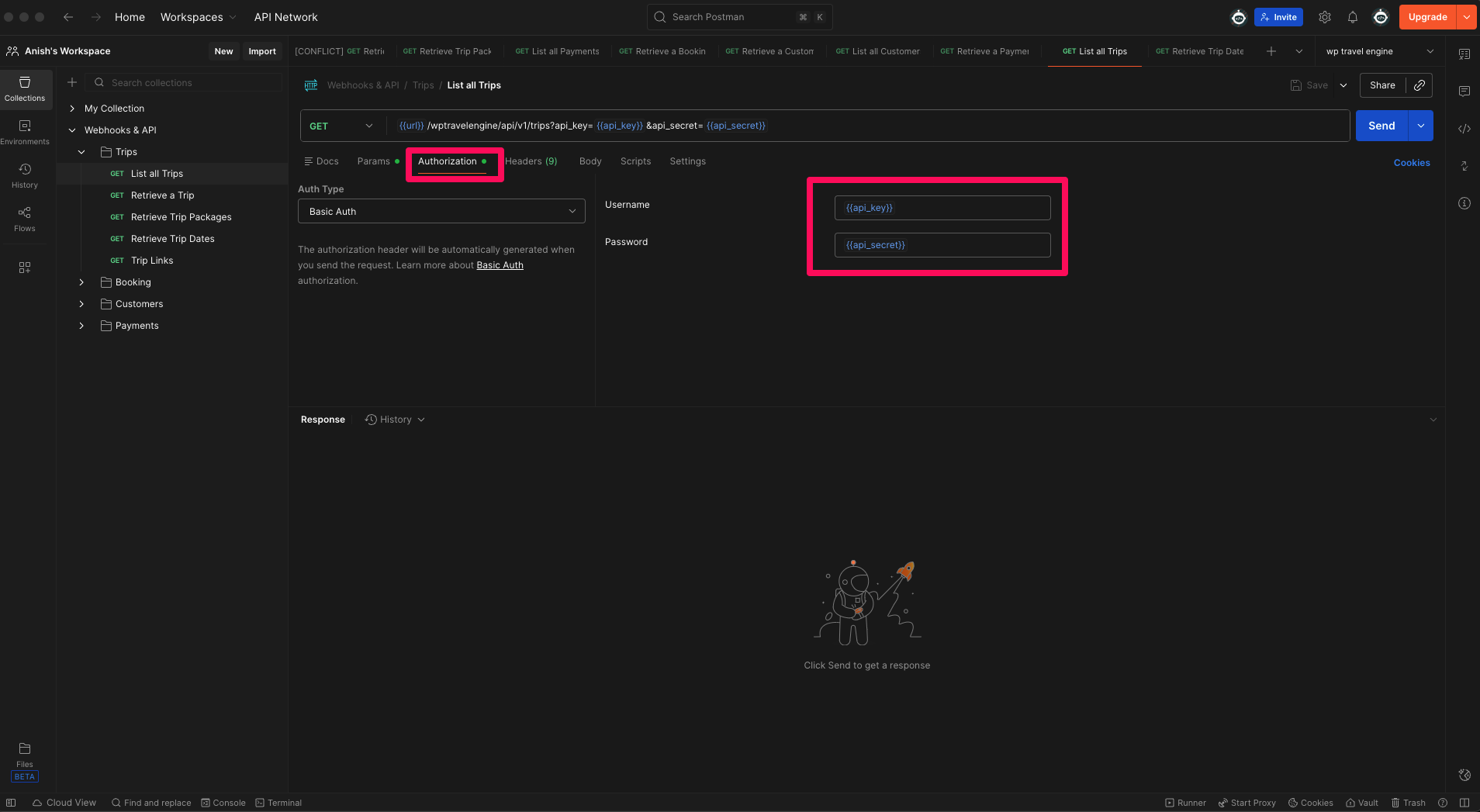
- Go to the Headers tab
- Add the following two headers:
| Key | Value |
| Access-Token | YOUR_API_KEY |
| Access-Secret | YOUR_API_SECRET |
- Click Send
- The JSON response will appear below
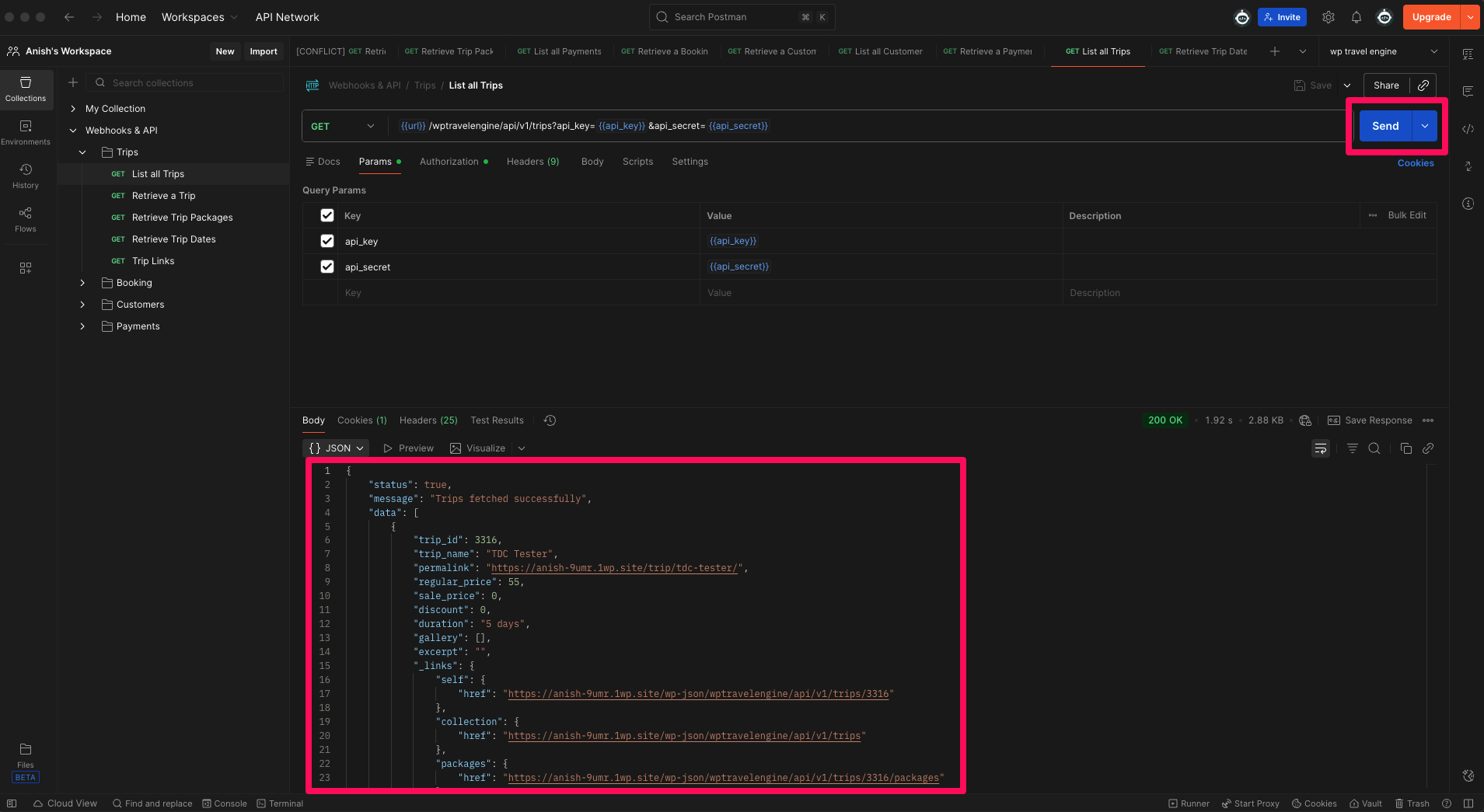
Which Method Should You Use?
- Params method → only for quick testing or verifying your keys
- Headers method → secure, recommended, required for production
Example 2 – Retrieve a Trip (Params Method)
Steps
- Open Postman
- Create new GET request
- Enter the endpoint URL, replace {trip_id} with your actual Trip ID:
https://yoursite.com/wp-json/wptravelengine/api/v1/trips/{trip_id}- Go to Params or Headers (depending on chosen method):
- Params → add accesstoken and accesssecret
- OR Headers → add Access-Token and Access-Secret
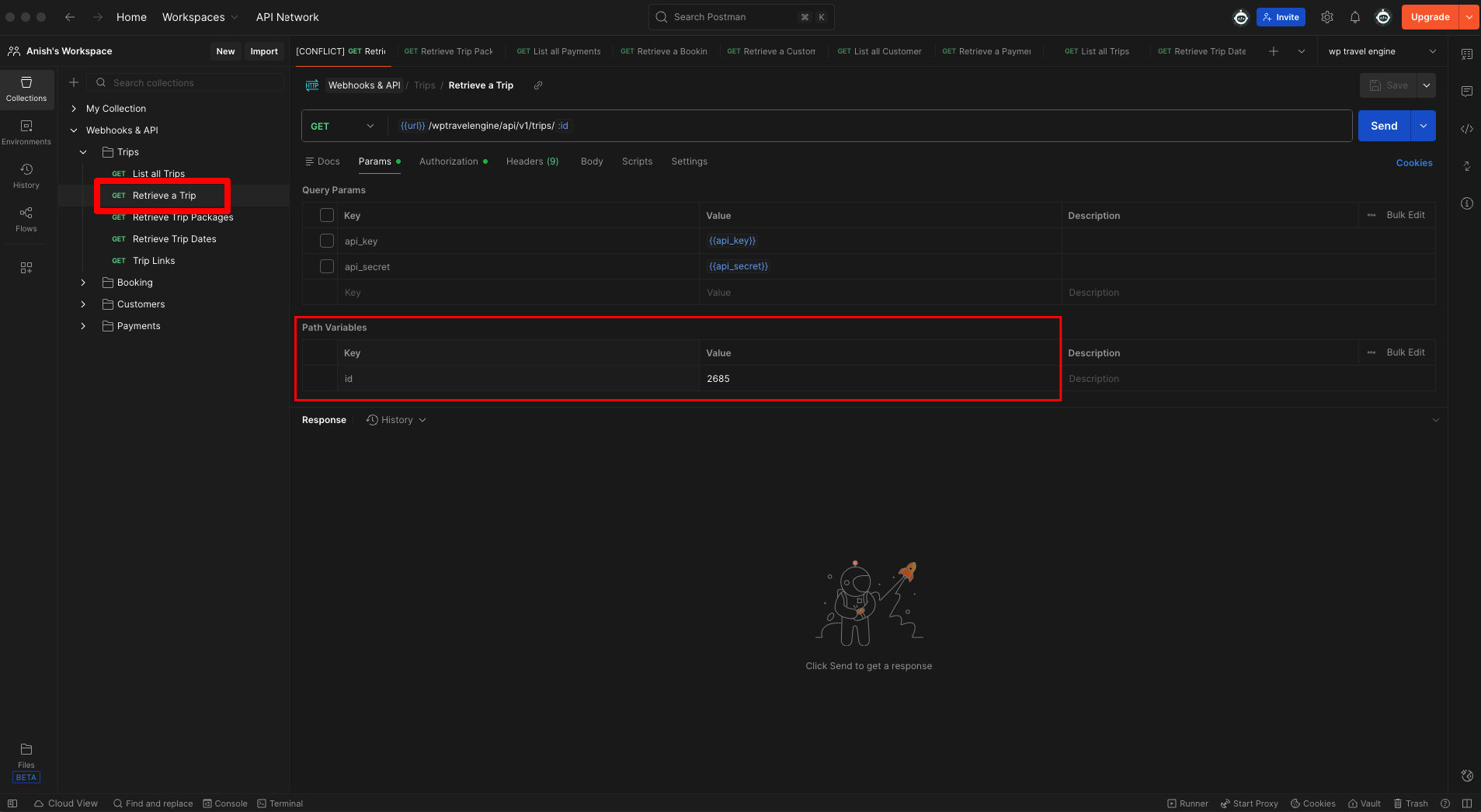
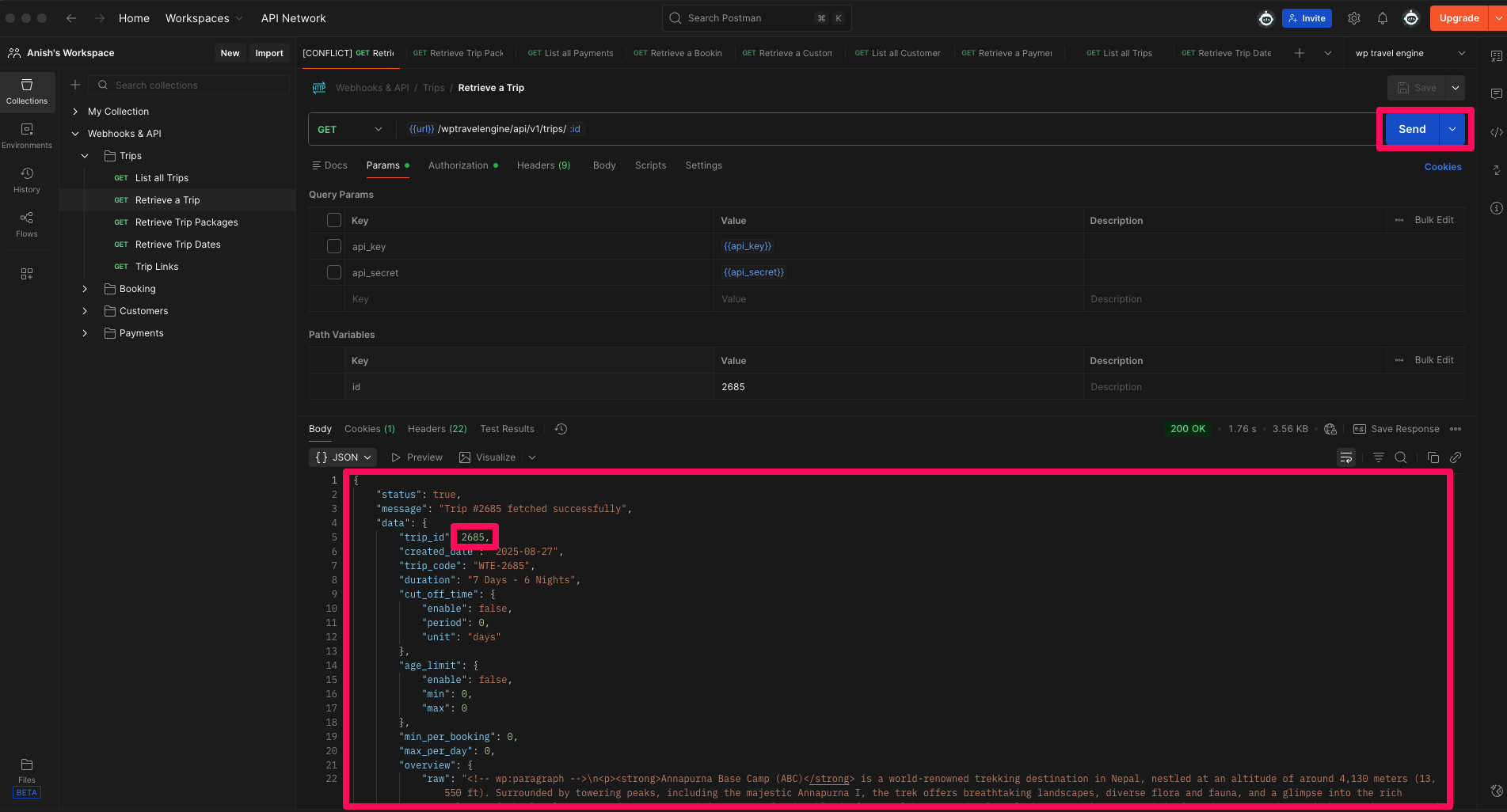
- Click Send
- View the JSON response for Trip ID 2685
Use Cases #
Use Case 1: Sync Bookings With CRM (HubSpot, Zoho, Salesforce) #
Situation: Business wants all new bookings to appear instantly in a CRM.
Implementation:
- Create webhook → select booking.created
- Send payload to CRM or middleware (Zapier/Make)
Benefit: Team sees leads + bookings immediately, improves follow-ups and reduces manual entry.
Use Case 2: Automated WhatsApp/SMS Notifications #
Situation: Customers want instant confirmations on WhatsApp or SMS.
Implementation:
- Create webhook for booking.payment.completed
- Connect endpoint to Twilio/WhatsApp API
Benefit: Customers receive automated messages with payment confirmation + itinerary details.
Use Case 3: Accounting/ERP Sync (QuickBooks, Xero, Odoo) #
Situation: Finance team wants payments automatically reflected in accounting software.
Implementation:
- Webhook event: booking.payment.completed
- Map payment amount → invoice → accounting entry
Benefit: Clean bookkeeping, no manual reconciliation, fewer errors.
Use Case 4: Internal Dashboard or BI Tool #
Situation: Company wants to visualize sales, bookings, revenue, destinations.
Implementation:
- Use API /bookings, /payments, /trips
- Pull data into Power BI, Looker Studio, Tableau
Benefit: Real-time revenue dashboards for management.
Use Case 5: Mobile App or Customer Portal #
Situation: Brand offers mobile app or external portal for travelers.
Implementation:
- API fetches booking history, trip details, payments
- Customer logs in → sees real-time data
Benefit: Consistent multi-platform experience.
Use Case 6: Partner Platform Integration (Channel Managers & Affiliates) #
Situation: A partner site needs trip data to show availability.
Implementation:
- API: /trips + /bookings
Sync inventory and departure dates
Benefit: Automated partner bookings → fewer overbookings.
Developer Guide #
Performance Tips
For Webhooks:
- Respond to webhook quickly (< 5 seconds) – process async if needed
- Return HTTP 200 immediately, process data in background
- Implement idempotency (handle duplicate webhooks gracefully)
For API:
- Use pagination (perpage) to avoid large result sets
- Cache responses on your end
- Make requests during off-peak hours for large data pulls
- Use search parameter to filter results server-side
Troubleshooting #
- Issue: Incomplete Booking Data in API Response
- Solution: Ensure Cart 4.0+ is installed and active. See Prerequisite section.
- Issue: Webhook Not Firing
- Symptoms: Events occur but webhook doesn’t trigger
- Solutions:
- Check webhook is Active (green toggle)
- Verify correct events are selected
- Confirm event is actually firing: wp eval “doaction(‘wptravelengine.booking.created’, 123);”
- Check WordPress debug log for errors
- Ensure base WP Travel Engine plugin is active
- Issue: Webhook Fails with “Invalid Signature”
- Symptoms: Endpoint receives webhook but rejects due to signature mismatch
- Solutions:
- Use the correct webhook secret (not API secret)
- Hash the raw POST body (before JSON parsing)
- Include sha256= prefix in comparison: sha256=abc123…
- Use hashequals() for comparison (prevents timing attacks)
- Issue: API Returns 401 Unauthorized
- Symptoms: API requests fail with authentication error
- Solutions:
- Verify API key and secret are correct (copy-paste carefully)
- Check API key is Active (not disabled)
- Confirm you have the required permission (e.g., bookings.list)
- Use headers (not query params) for credentials
- Test with /test endpoint first
- Issue: Rate Limit Errors
- Symptoms: API returns 429 Too Many Requests
- Solutions:
- Implement exponential backoff in your code
- Cache API responses on your end
- Check X-RateLimit-Reset header for reset time
- Request limit increase if needed (contact support)
- Issue: Webhook Auto-Disabled
- Symptoms: Webhook shows as disabled with red indicator
- Solutions:
- Check your endpoint is online and accessible
- Verify endpoint returns HTTP 200 on success
- Review webhook logs for specific error messages
- Test endpoint with curl: curl -X POST https://your-endpoint.com/webhook -d ‘{“test”:”data”}’
- Re-enable webhook in settings after fixing issue
FAQs #
Can I use webhooks and API together?
Yes! They serve different purposes:
- Webhooks: Push notifications (WP → External App)
- API: Pull data requests (External App → WP)
Are webhooks real-time?
Yes, webhooks fire immediately when events occur (within 1-2 seconds).
How many API keys can I create?
Unlimited. Create separate keys for each integration.
Can I customize webhook payloads?
Use the filter hook: addfilter(‘wptravelenginewebhookpayload’, function($payload, $event) { … }, 10, 2);
What happens if my endpoint is slow?
Webhook will timeout after 30 seconds and retry with exponential backoff.
Can I disable retry emails?
Not currently, but you can filter email sending: addfilter(‘wptravelenginesendwebhookfailureemail’, ‘returnfalse’);
How do I debug webhook delivery?
Check Settings → Webhooks & API → Logs tab for full delivery history.
What are the version requirements?
See the Prerequisite section. WP Travel Engine 6.7.0+ and Cart 4.0+ are mandatory.
Before Contacting Support:
- Check this documentation and Prerequisite section.
- Review webhook logs (Settings → Webhooks & API → Logs)
- Enable WordPress debug mode
- Test with /test endpoint
- Clear WordPress cache and try again