
Table of Contents
What is the Trip Expiry Date feature? #
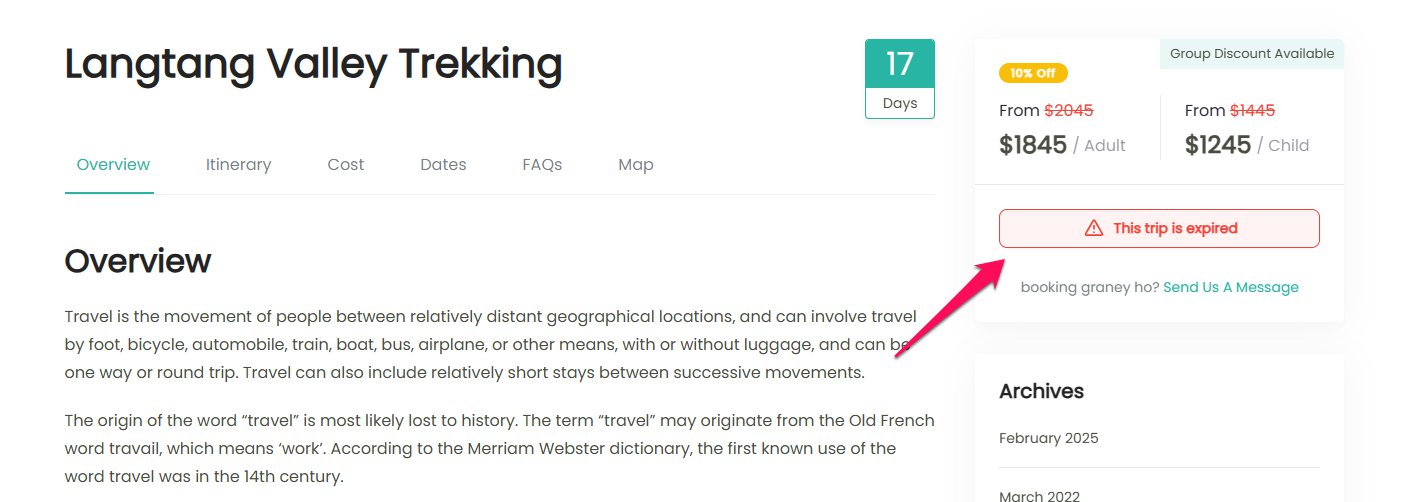
The Expiry Date feature allows you to control the availability of your trips by setting a specific end date. Once the date passes, the trip is automatically marked as expired and hidden from your website. This ensures your site only displays active and bookable trips.
What happens when a trip expires? #
When a trip reaches its expiry date:
- The trip becomes unavailable for booking.
- The trip is removed from the trip archive and search results.
- In the WordPress dashboard, the trip appears under the Expired tab (next to Published).
How do I set an expiry date for a trip? #
- Go to Trips → All Trips in your WordPress dashboard.
- Click Edit on the trip you want to update.
- Open the Date & Price tab.
- Under Date Settings, locate the Expiry Date field.
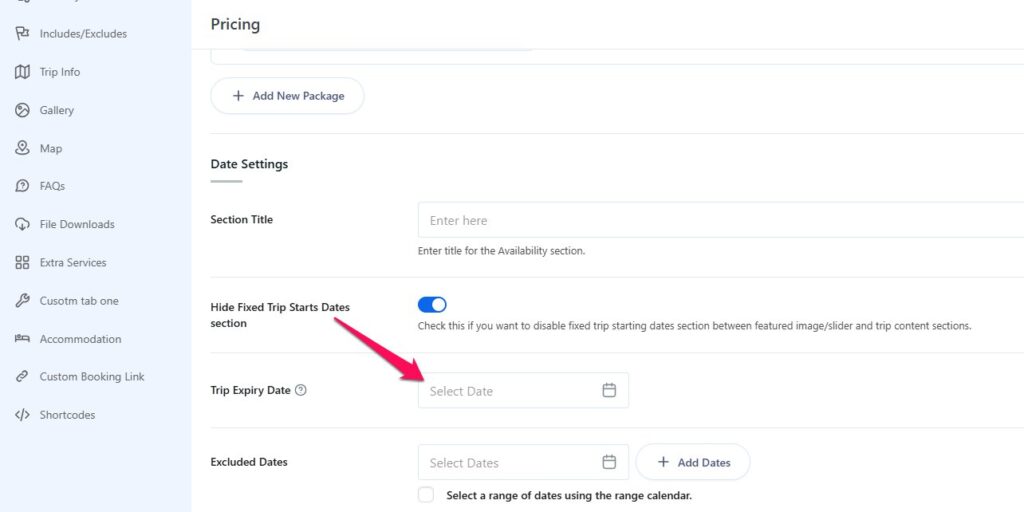
- Select the desired date from the date picker.
- Click Update (or Publish for new trips) to save your changes.
Can I change or remove an expiry date? #
- To change: Edit the trip, adjust the expiry date, and click Update.
- To remove: Clear the expiry date field and click Update. The trip will return to normal availability.
Where can I find expired trips? #
Expired trips are grouped under the Expired tab in the Trips dashboard. This makes it easy to manage, review, or republish them if needed.
To view them: Go to Trips → All Trips, then click the Expired tab to see the full list.

Best practices for using Expiry Date #
- Use expiry dates for seasonal trips, fixed-date tours, or limited-time offers.
- Set the expiry a few days after your last departure to allow pending inquiries to finish.
- Double-check your WordPress timezone settings to ensure trips expire at the expected time.
Troubleshooting #
- Trip still visible after expiry: Clear caching (browser, plugin, or CDN). Confirm the correct expiry date and timezone settings.
- Trip disappeared earlier than expected: Check the exact date you selected. If you need it visible through a certain day, set the expiry to that same day. The trip will be treated as expired starting the following day.
Feel free to contact our support team for any other assistance.