

Fix: Page Not Found Error on the Single Trip Page
Resolve a Page Not Found error on single trip pages by updating your WordPress Permalink structure to Post name.
If a single trip page opens to Page Not Found, the problem is usually your permalink structure in WordPress. A permalink is the web address WordPress creates for each page on your site.
Say you created a trip called "Everest Base Camp Trek" and sent the link to a customer. When they click it, they see "Page Not Found" instead of your trip details. That usually means WordPress is not using the right page link format for your trip pages.
This is a common issue. The fix is quick.
Solution
You'll need access to your WordPress dashboard. That's all you need for this fix.
Open your Permalink settings
This opens the place where WordPress controls how page links are created.
Go to Settings > Permalinks in your WordPress dashboard.
Select the Post name structure
This tells WordPress to use a cleaner page link format that works properly with single trip pages.
Under Permalink structure, select Post name.
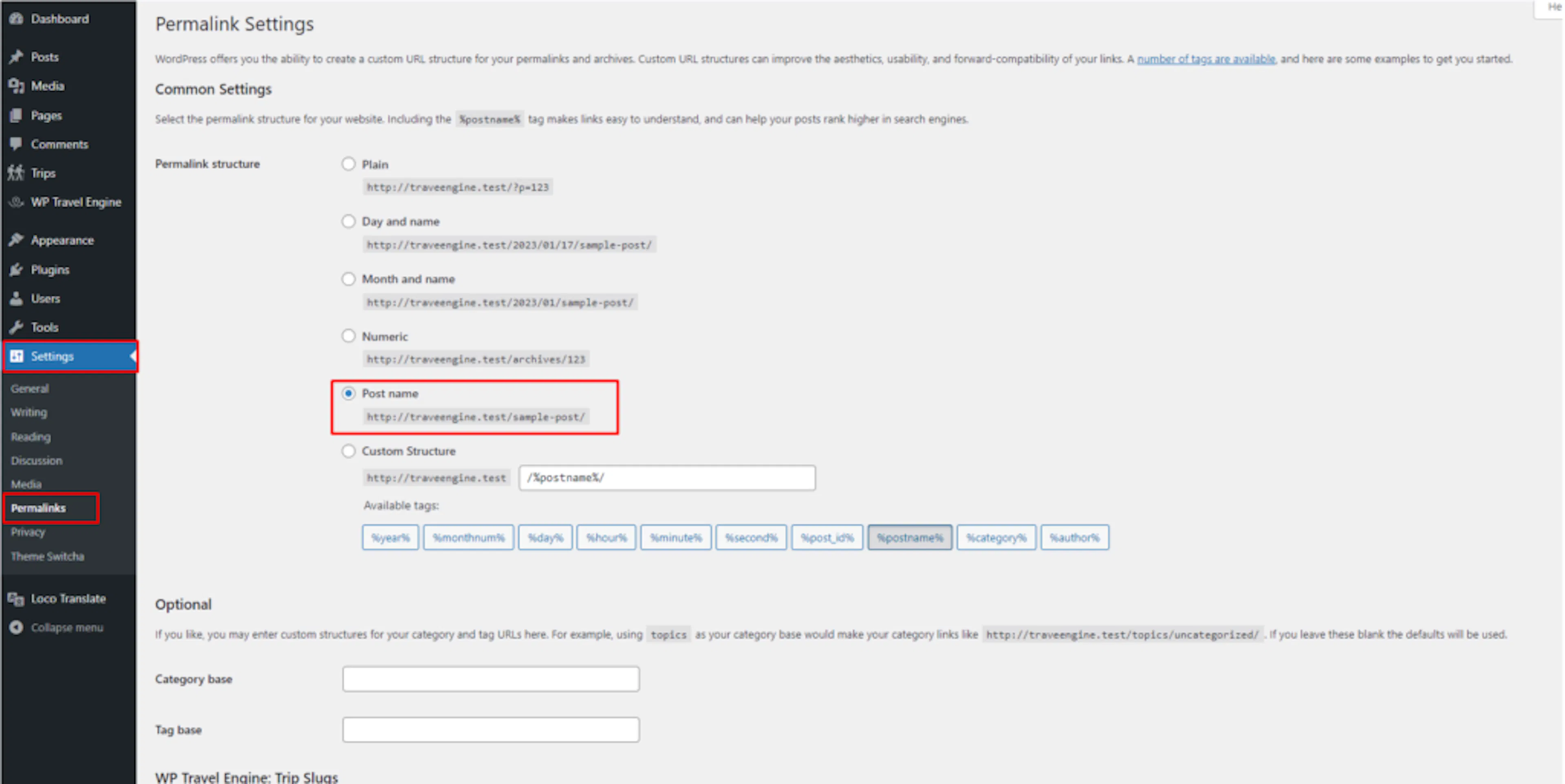
Save your changes
This updates the setting and helps WordPress point visitors to the right trip page.
Click Save Changes at the bottom of the page.
After you save, open the trip page again and check it one more time. In many cases, the page starts working right away.
If the post name is already selected, click Save Changes anyway. Re-saving the permalink settings tells WordPress to rebuild its internal page map. That is the internal map WordPress uses to send visitors to the right page. This often fixes the error on its own.
If you're still stuck or have a question we didn't cover, our support team is happy to help. Reach out at our support page and we'll get you sorted.