

Fixing Style Tag Leaks in REST API Responses
Fix the error where Elementor's styling code leaks into your trip and booking data, causing connected apps like Zapier or booking sync tools to stop working.
When your website sends trip or booking information to another app (like Zapier, a booking sync tool, or a mobile app), that information travels as text data. Apps use a format called JSON to read it. JSON is a simple text format that apps use to talk to each other.
Sometimes, a bit of styling code from Elementor (the page builder you may be using to design your trip pages) accidentally gets mixed into that data. Think of it like opening a letter and finding a piece of wrapping paper stuck inside the envelope. The app receiving the data doesn't know what to do with the wrapping paper, so it throws an error and stops working.
Say you run a 5-day Himalayan trek and you use Zapier to copy new bookings into a Google Sheet. If this problem is happening, Zapier can't read your booking data because it arrives with styling code mixed in. Your spreadsheet stops updating, and you might not realize until a customer asks why their booking confirmation hasn't come through.
You'll usually notice this because a connected tool or app suddenly stops receiving data from your site. The error message looks something like this:
Unexpected token '<', "<style id="... is not valid JSON
That error is telling you: "I found something that looks like web styling where I expected clean data."
Your site is actually sending the data successfully. That's the "HTTP 200" part, which means "success." But the mixed-in styling code makes the data unreadable to the app receiving it.
You can fix this yourself without touching any code. The steps below take about five minutes.
What You'll Need Before You Start
You'll need access to your WordPress dashboard and the Elementor page builder plugin installed on your site. If you're not sure whether you use Elementor, look for it in the left sidebar of your WordPress dashboard. If you don't see it there, this guide may not apply to your setup.
How to Fix It
The fix has three parts: clearing out old styling files, telling Elementor to store its styling separately, and clearing your site's cache so everything loads fresh. After that, you'll check that the problem is gone.
1. Clear Elementor's old styling files
Elementor builds styling files for your pages as you design them. Sometimes those files end up in places they shouldn't be, like your booking data. Clearing them gives Elementor a clean slate to rebuild from.
Open Elementor tools
In the left sidebar of your WordPress dashboard, find Elementor. Click it, then click Tools in the submenu that appears.
Clear the files
On the General tab, find the button labeled Clear Files & Data. Click it once.
Wait for the confirmation
You'll see a brief message confirming the files were cleared. That means Elementor has thrown away its old styling files and will rebuild them fresh the next time someone visits a page.
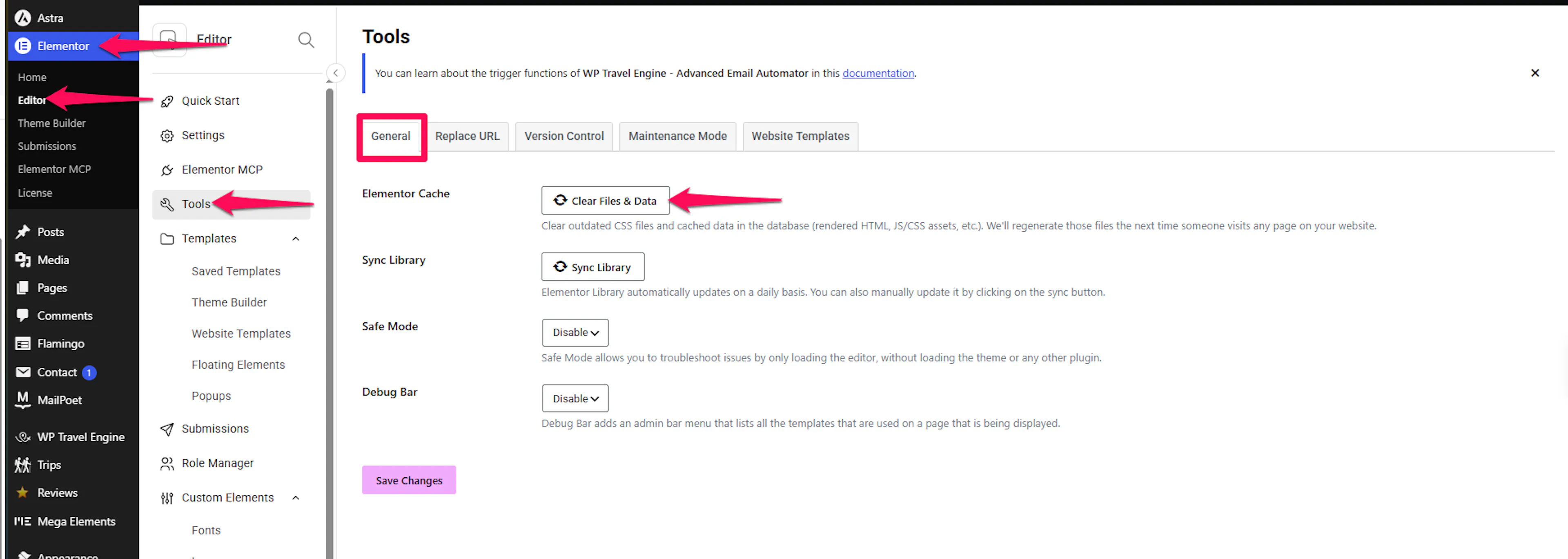
Don't worry about clearing these files. Elementor rebuilds them automatically the next time someone visits your trip pages.
2. Tell Elementor to store styling separately
Right now, Elementor might be putting its styling code directly into your pages in a way that can leak into your booking data. Changing one setting tells Elementor to store that styling in separate files instead. This keeps it out of your data entirely and prevents the problem from coming back.
Open Elementor settings
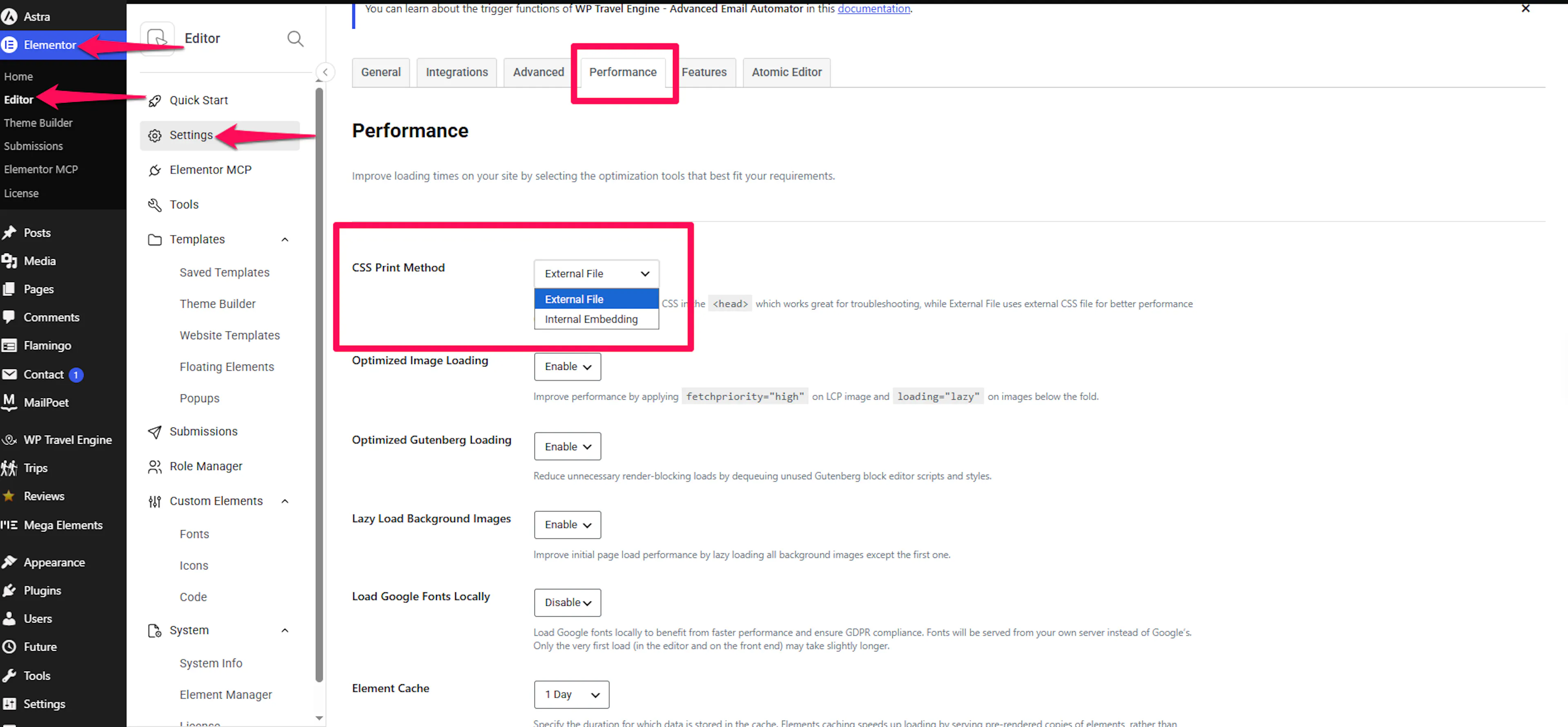
Go back to Elementor in your WordPress dashboard sidebar. This time, click Settings instead of Tools.
Find the Performance tab
Click on the Performance tab. On some versions of Elementor, this may be called Advanced instead.
Change the CSS Print Method
Look for the setting called CSS Print Method. Change it to External File.
CSS is the code that controls how your pages look: things like colors, fonts, and spacing. The CSS Print Method setting controls whether Elementor puts that styling code directly into your pages or stores it in separate files. External File means separate files, which is what you want here.
Save your changes
Click Save Changes at the bottom of the page.
3. Clear your site's cache
A cache (pronounced "cash") is a temporary copy of your pages that your site keeps around to load faster. After making the changes above, your cache might still hold old versions of your pages that include the styling code. Clearing it makes sure visitors and connected apps see the fixed version instead of the old one.
Clear your caching plugin
If you use a caching plugin (like WP Rocket, W3 Total Cache, or LiteSpeed Cache), look for it in your WordPress dashboard sidebar. Open it and find the option to clear or purge the cache.
Clear your server cache (if you have one)
If your hosting provider offers a cache clear option in your hosting control panel or cPanel, clear that too. Not all hosting setups have this, so don't worry if you can't find it.
Clear your CDN cache (if you use one)
A CDN (Content Delivery Network) is a service that speeds up your site by serving pages from servers around the world. If you use one (like Cloudflare), log into that service and purge or clear its cache.
Not sure if you have a caching plugin or CDN? That's completely fine. If you don't see a caching plugin in your dashboard, you can skip this step. The Elementor changes from the previous steps will still take effect on their own.
4. Check that the problem is gone
Now that you've cleared the old files, changed how Elementor stores its styling, and cleared your cache, it's time to confirm the fix worked.
Go back to whatever tool or app was showing the error. This could be your booking sync tool, Zapier connection, mobile app, or anything else you were using. Try the same action that failed before.
If the fix worked, the data will come through cleanly, and you won't see the <style error anymore. The response your site sends should start with { instead of <style>.
If the error is still showing up, wait a few minutes and try again. Sometimes it takes a short while for the cleared cache to fully refresh across all of your site's systems.
If you're still stuck or have a question we didn't cover, our support team is happy to help. Reach out at our support page and we'll get you sorted.