

Traveller and Booking Details in Notification Emails
This page answers common questions about using personalization tags in WP Travel Engine email notifications. Learn how to include traveller details, booking information, customer details, and other booking-related information automatically in your notification emails.
Can I see the traveller details customers submit when they book a trip?
Yes. Add the {traveller_details} tag to your admin notification email, and WP Travel Engine pulls in every field submitted through the traveller registration form.
To add the tag:
- Go to WP Admin > WP Travel Engine > Settings > Emails > Notifications.
- Select the Admin tab.
- Click the notification email you want to update.
- Place your cursor in the Email Content field, where you want the traveller information to appear.
- Open the Personalization dropdown above the editor and select {traveler_details}, or type the tag directly.
- Click Save Changes.
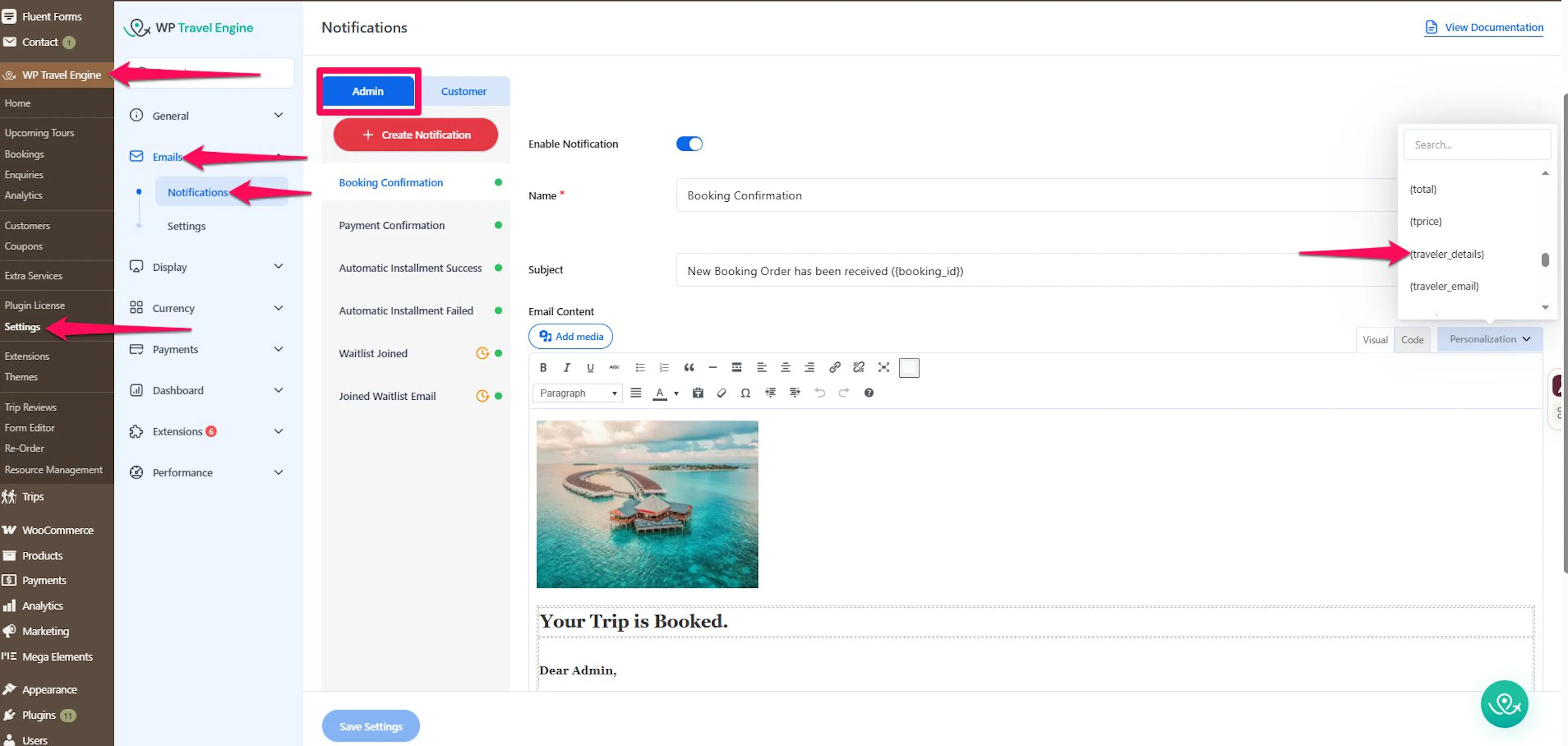
The {traveller_details} tag pulls in the full registration form, not just names and phone numbers. Any custom fields you've added to the traveller form come through too.
Once a booking comes in, the admin notification email arrives with all this information already filled in.
Can I add other booking information besides traveller details?
Yes. The Personalization dropdown holds more tags than {traveller_details} alone: booking ID, trip name, payment status, customer contact info, and others, depending on your setup.
- Go to WP Admin > WP Travel Engine > Settings > Emails > Notifications.
- Select the Customer tab (or stay on Admin, depending on which email you're editing).
- Click into the Subject or Email Content field of the notification you want to change.
- Open the Personalization dropdown and pick the tag you need from the list.
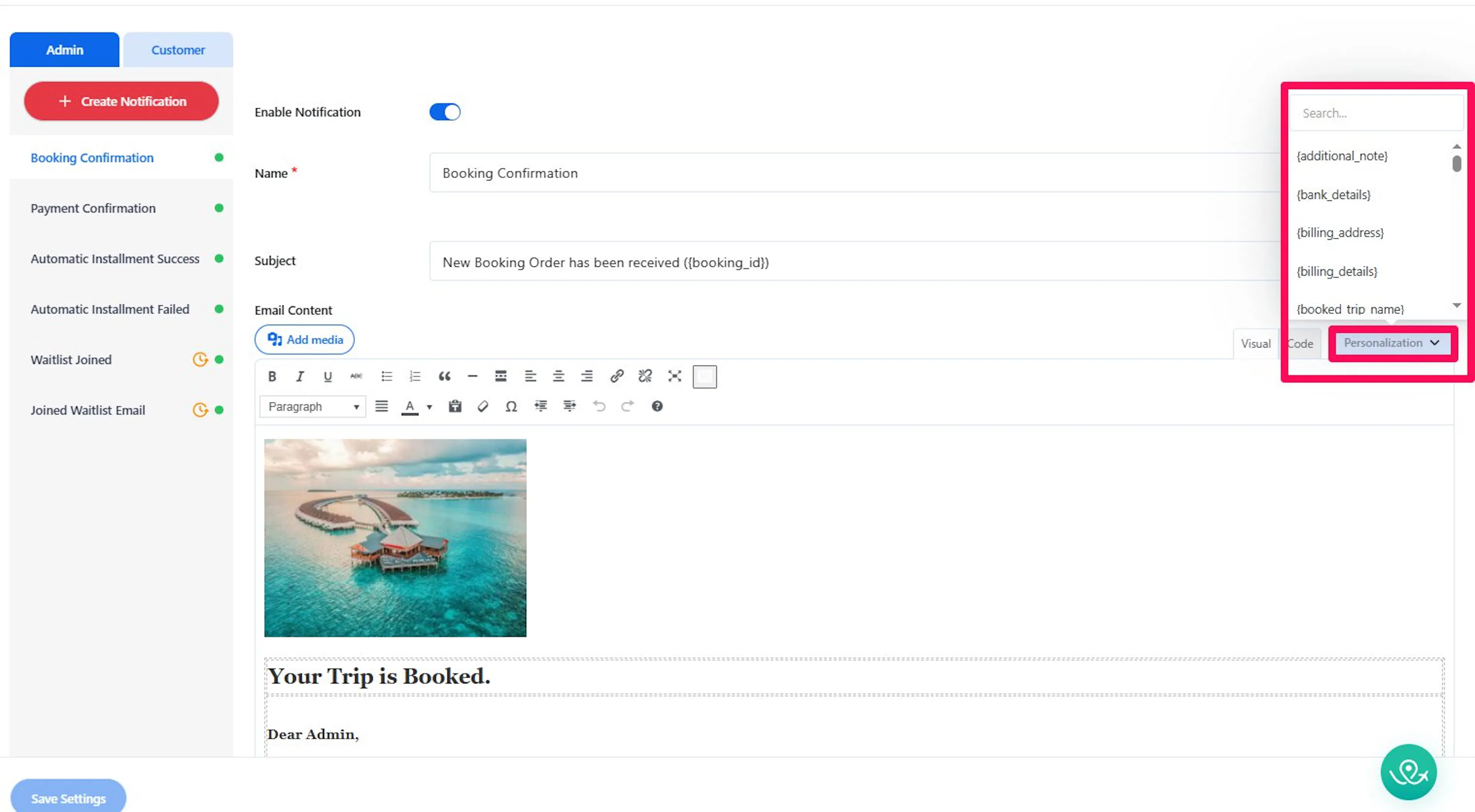
Tags work the same way in both the Admin and Customer tabs, so you can use them to build out customer-facing confirmation emails too, not just the emails you receive as the site owner.
If you're still stuck or have a question we didn't cover, our support team is happy to help. Reach out at our support page and we'll get you sorted.