

How to Sort Pricing Category in WP Travel Engine
Reorder your WP Travel Engine pricing categories using the free Simple Custom Post Order plugin, with drag-and-drop sorting support.
Pricing categories are the different price options you offer on a trip, like "Adult," "Child," or "Group Rate." By default, WP Travel Engine shows them in the order you created them. But what if you want "Adult" to appear first because that's what most travelers look at?
Say you run a 5-day Himalayan trek with three pricing categories: Adult ($1,200), Child ($800), and Solo Traveler ($1,500). You'd probably want Adult to show first on your trip page, since that's the option most customers click first. This guide shows you how to reorder your pricing categories so the most important one appears first.
WP Travel Engine doesn't have a built-in drag-and-drop feature for sorting pricing categories. But you can add this by using a free WordPress plugin called Simple Custom Post Order. Once it's set up, you can drag and drop your categories into any order you like.
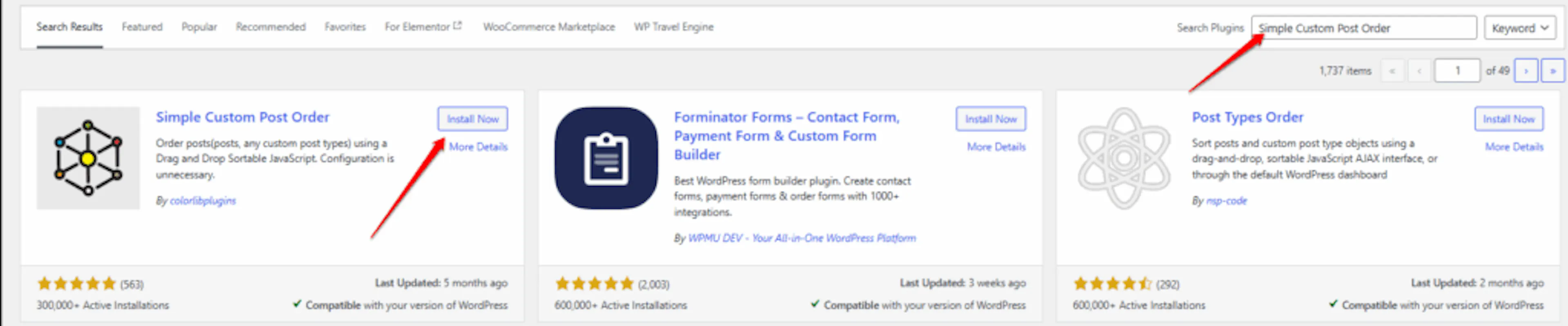
Simple Custom Post Order is a third-party plugin, not a WP Travel Engine add-on. It's a free tool built by another WordPress developer. It works by letting you manually reorder items like categories and posts on your site.
What you'll need before you start
You need to be logged in as an Administrator on your WordPress site. That's the account with full control over everything on your site. You also need at least one pricing category already created in WP Travel Engine. If you haven't created any yet, you can set them up under Trips > Pricing Categories.
Sorting your pricing categories
Install the Simple Custom Post Order plugin
A plugin is a small add-on that adds new features to WordPress. You'll need this one to enable drag-and-drop sorting.
Log in to your WordPress dashboard and go to Plugins > Add New on the left sidebar. In the search box at the top right, type Simple Custom Post Order. Click Install Now on the plugin card, then click Activate once the installation finishes.
You can also download it directly from the WordPress Plugin Directory if you prefer to upload it yourself.
Tell the plugin to sort pricing categories
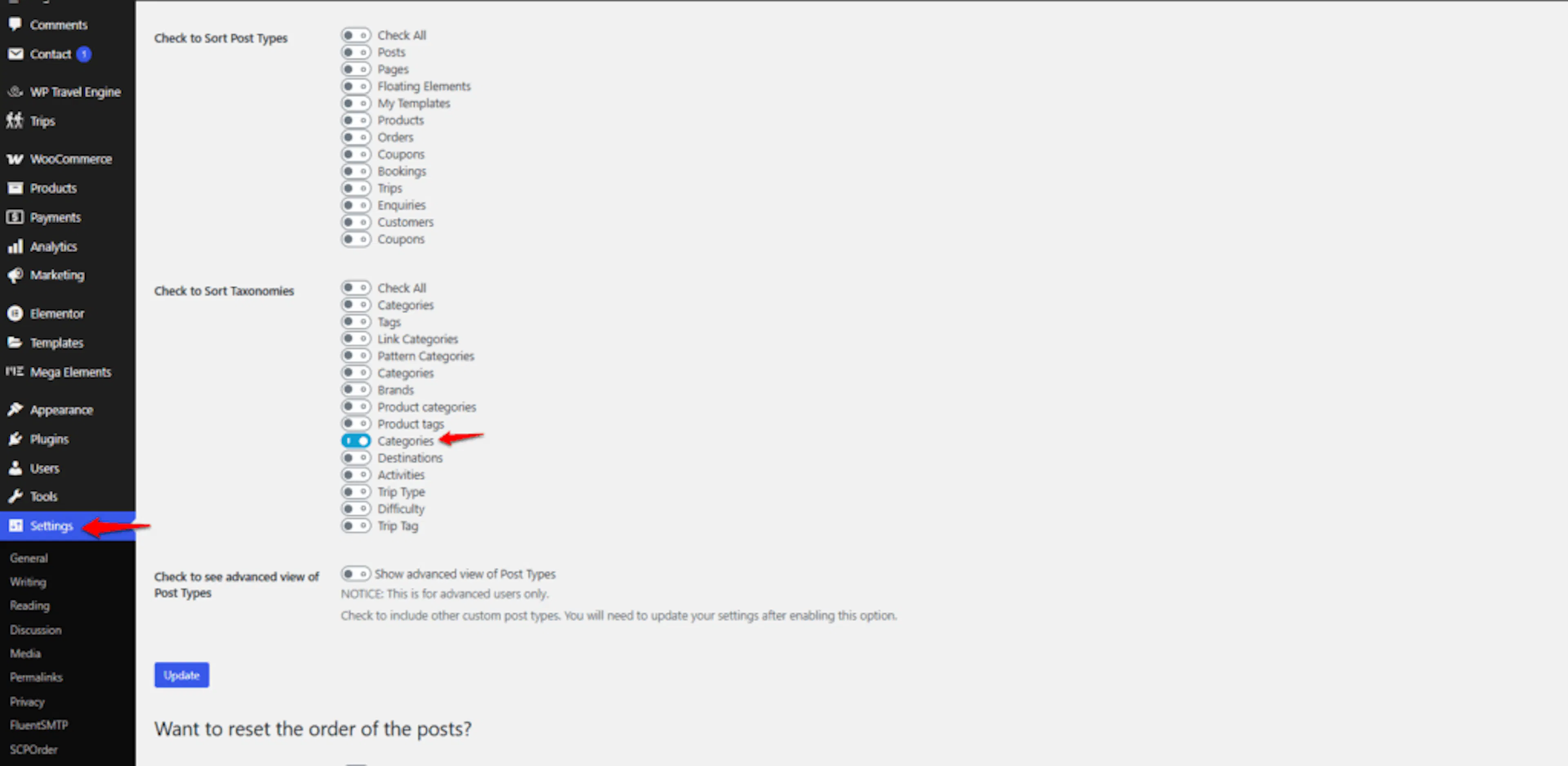
This step matters because the plugin can sort many things on your site. It only sorts what you tell it to, though. By selecting the right option here, you're turning on drag-and-drop sorting for your pricing categories.
Go to Settings > SCPOrder on the left sidebar of your dashboard. You'll see a list of all the different content types on your site. Look for Categories and check the box next to it. Then click Save Changes at the bottom.
This turns the feature on. Now you can move to the screen where you reorder the categories.
Drag and drop your pricing categories into order
This is the part you came here for - actually rearranging your categories.
Go to Trips > Pricing Categories on the left sidebar. You'll see your pricing categories listed in a table. Each one now has a small handle you can grab. Click and hold a category, then drag it up or down to where you want it. The new order saves automatically, so you don't need to click a save button.
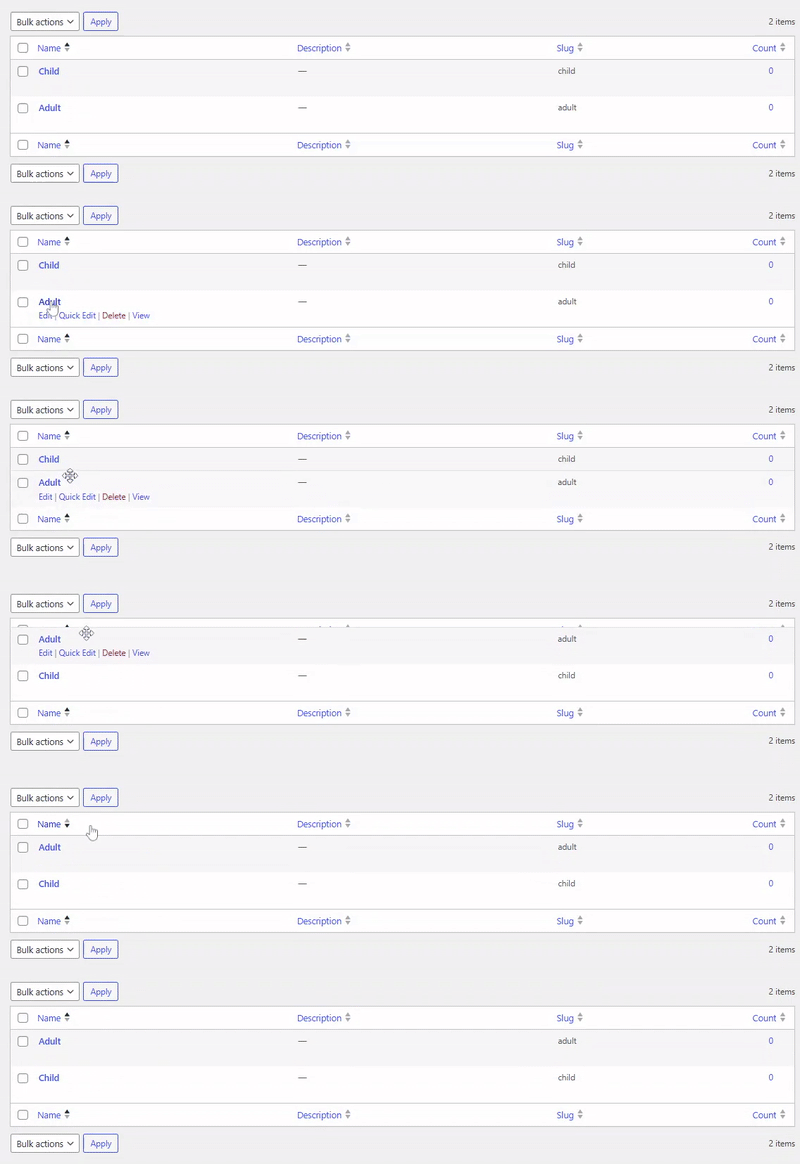
Once you finish moving them around, the order is set. The next step is to check how it looks on your website.
Checking that the new order looks right
Open one of your trip pages on your website. That's the part visitors see, not your dashboard. Look at the pricing section. Your categories should now appear in the order you set.
If everything looks good, you're all set. If the order hasn't changed, the next tip will help.
If the order doesn't update on your website, you may have a caching plugin active. A cache is a feature that saves a copy of your pages so they load faster. It can also show an older version of your page until it refreshes. Clear your cache. Most caching plugins have a Clear Cache or Purge Cache button somewhere in their settings. After clearing, refresh the trip page.
If you're still stuck or have a question we didn't cover, our support team is happy to help. Reach out at our support page and we'll get you sorted.