

Cut-Off Time
Stop customers from booking trips that start too soon. Set a cut-off per trip so dates inside your preparation window disappear from the booking calendar.
Keep last-minute bookings out of your schedule
Cut-Off Time hides the dates closest to today. Customers cannot book a trip that starts before you are ready.
For example, if you need two days to confirm guides, transport, or permits, set a cut-off of 2 days. The next two days then disappear from the booking calendar.
You set the cut-off separately for each trip. It works with standard trips and with trips that use the Fixed Starting Dates add-on.
What you'll need before you start
- WP Travel Engine installed and activated. A plugin is an add-on that gives your WordPress site extra features.
- WP Travel Engine updated to the latest version.
- At least one trip created.
- The Fixed Starting Dates add-on is installed and activated if your trip uses fixed departure dates. This optional plugin lets you set specific departure dates for a trip.
Turn on the cut-off
Turning on the setting makes the cut-off controls available for this trip. You need to repeat these steps for every trip that needs a booking window.
Open your trip in WordPress
The WordPress dashboard is the back office of your site where you manage everything.
Sign in to your WordPress dashboard. On the left sidebar, click Trips, then click the trip you want to edit.
You should now see the editing screen for your trip.
Open the General tab
The cut-off setting is stored with the trip's general booking settings.
Click the General tab.
Turn on the cut-off setting
Turning on this setting tells WP Travel Engine to hide dates that are too close to today.
Find Enable Cut-Off Time and turn it on.
The Cut-Off Time field appears below the setting.
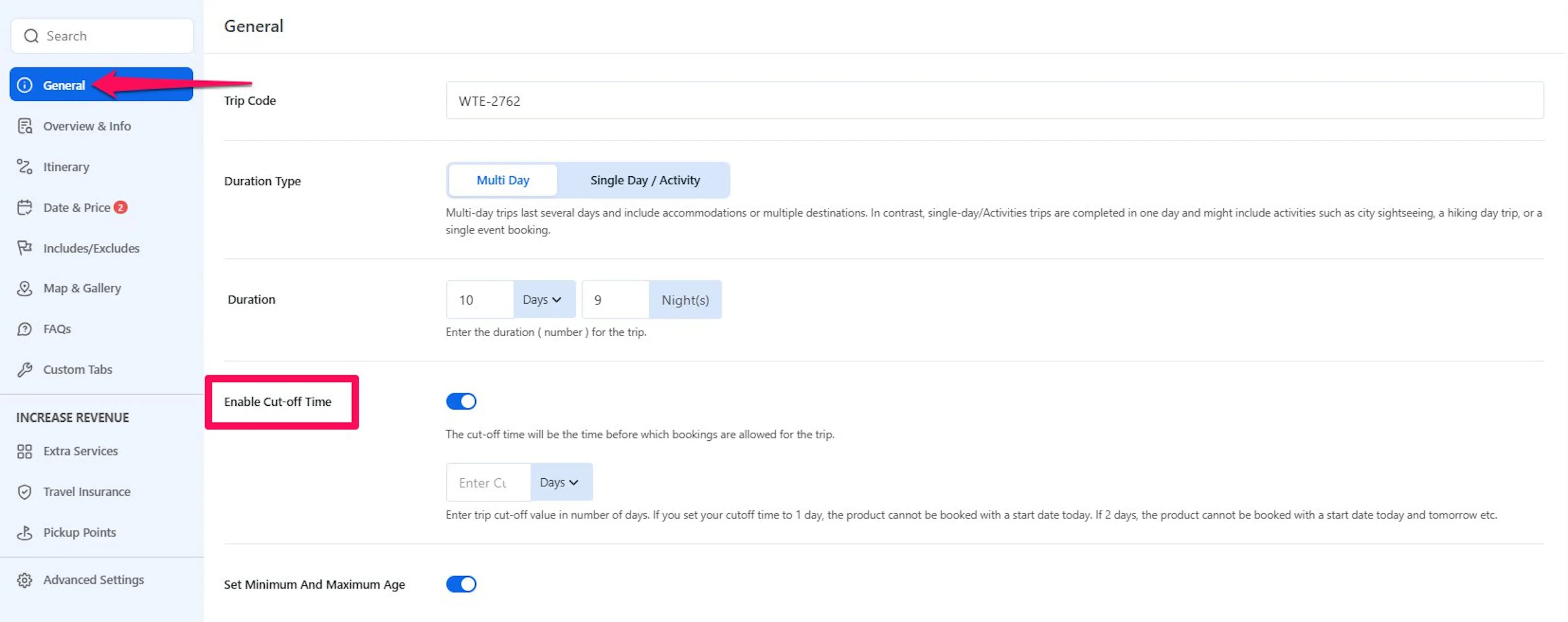
The setting is now ready. Next, choose how much preparation time you need.
Enter the cut-off value
The value controls how far ahead customers must book. A value of 5 means customers cannot choose dates inside the five-day window.
Enter the number of days or hours
Choose a number that gives you enough time to prepare the trip.
In the Cut-Off Time field, enter a whole number. For example, enter 5 if you need five days to prepare.
Choose the time unit
The unit tells WP Travel Engine how to measure your preparation window.
Use the dropdown next to the field. Select Days for a window measured in whole days. Select Hours for a window measured in hours.
Save the trip
Saving the trip applies the new booking rule to your customers.
Save the trip. The dates inside your cut-off window should no longer be available for new bookings.

Your trip editor may show Days as the only unit. If you do not see Hours, choose Days instead.
The Hours option accepts a value from 0 to 24. For a window longer than 24 hours, use days instead. For example, 48 hours equals 2 days, so enter 2 and choose Days.
Leave the field empty or set it to 0 if you do not want to block any dates. No dates are blocked even when Enable Cut-Off Time is turned on.
Your trip now has a preparation window. You can turn it off later without changing any existing bookings.
Turn off the cut-off
Turning off the setting makes the previously hidden dates available again.
Open the trip settings
You need to change the setting on the same trip where you enabled it.
In your WordPress dashboard, click Trips on the left sidebar. Open the trip, then click the General tab.
Turn off the setting and save
Saving the change brings the blocked dates back to the booking calendar.
Turn off Enable Cut-Off Time, then save the trip. The blocked dates return to the calendar right away.
The cut-off is now off for that trip.
How the cut-off is calculated
WP Travel Engine adds your cut-off value to today's date. That result becomes the first date a customer can book. Every earlier date is hidden.
The table uses Thursday as an example of today:
| Cut-off value | Dates blocked | First date customers can book |
|---|---|---|
| Cut-off off, or value 0 | None | Thursday (today) |
| 1 day | Thursday | Friday |
| 2 days | Thursday and Friday | Saturday |
| 3 days | Thursday, Friday, and Saturday | Sunday |
The window moves forward every day. On Friday, a 2-day cut-off makes Sunday the first bookable date.
Say you run a 3-day trek and need two days to arrange transport and gear. A 2-day cut-off prevents bookings for today and tomorrow. You get the preparation time you need before the trek starts.
For trips without time slots, the cut-off counts calendar days, not exact hours. A 2-day cut-off set on Thursday blocks all of Thursday and Friday, whatever time of day it is. If you need Sunday to be the first available date on a Thursday, set the cut-off to 3 days.
You can check the rule by looking at whether your trip uses days or hours.
Use hours for trips with set start times
Hours are useful when customers choose a specific start time. WP Travel Engine adds the number of hours to the current time.
- A 6-hour cut-off at 10:00 hides start times earlier than 16:00 today.
- A 12-hour cut-off at 15:00 pushes the first bookable date to tomorrow because the 12-hour window reaches into the next day.
Picture a half-day city tour with time slots every two hours. If it is 10:00 in the morning and you set a 6-hour cut-off, customers cannot book a slot before 16:00 today. Your guide has time to get ready.
The exact time matters for these trips. The next section explains which time WP Travel Engine uses.
Check your site's time zone
WP Travel Engine decides what "today" means from the time zone set in your WordPress site.
If the first available date looks one day early or late around midnight, check this setting. On the left sidebar of your WordPress dashboard, click Settings, then General, and find Timezone.
Choose the time zone where your tour business operates. Your cut-off will then follow your local time.
Use the cut-off with fixed starting dates
The Fixed Starting Dates add-on is an optional plugin that lets you set specific departure dates for a trip. If your trip uses this add-on, the cut-off also applies to those departure dates.
- Departures inside the cut-off window no longer appear for booking.
- The next available departure date skips those dates.
- Departures you add later are checked against the cut-off too. You do not need to edit them separately.
Use Days for trips with fixed departure dates. The departure date list counts the cut-off in days.
Imagine you run a fixed-departure trek that leaves on the 15th of every month. If today is the 13th and your cut-off is 3 days, the 15th disappears from the booking calendar because it falls inside the preparation window.
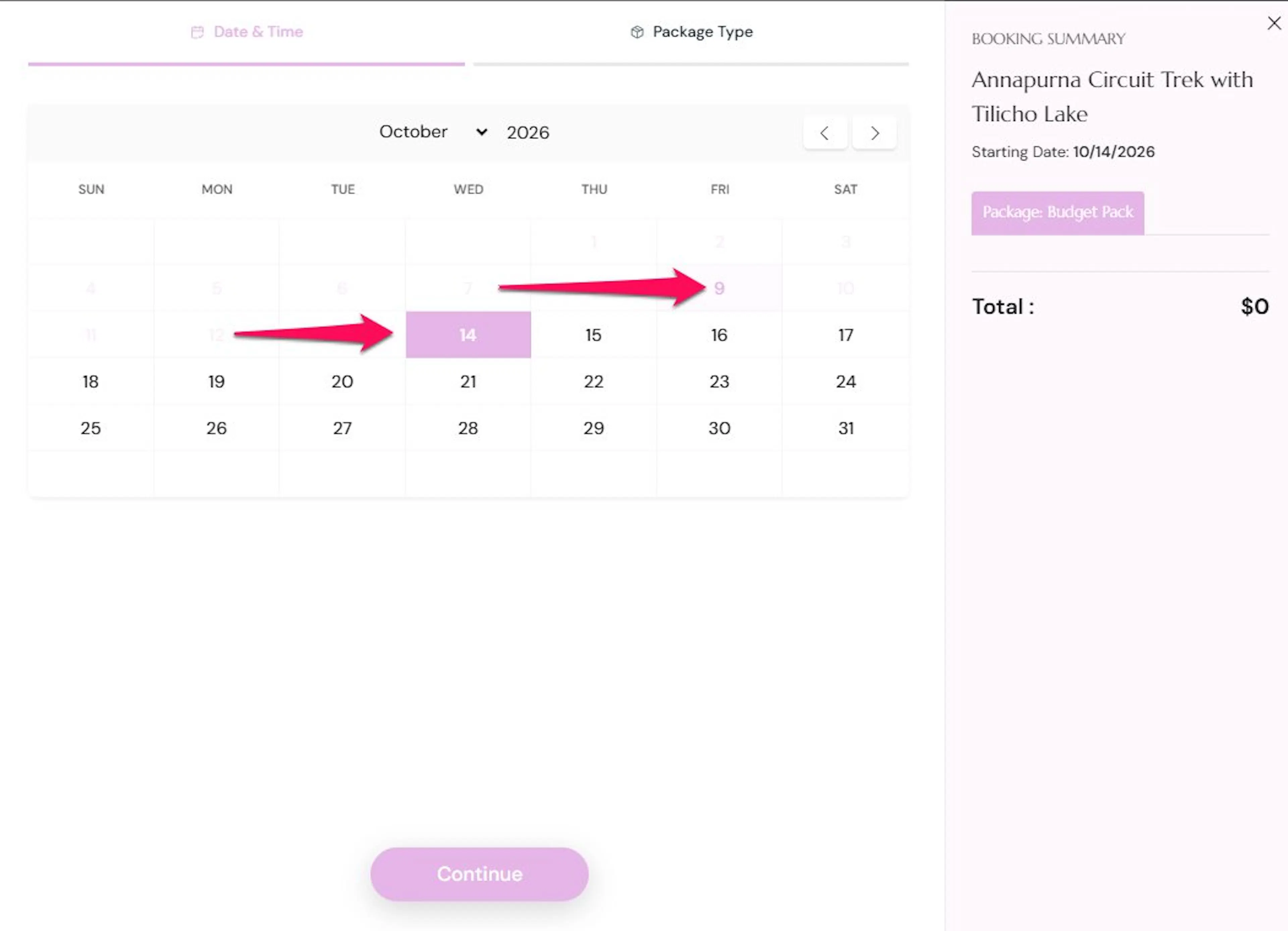
Your future departure dates will continue to follow the cut-off as the calendar moves forward.
Use the cut-off with time slots
For trips with weekly time slots, the cut-off checks the exact time, not only the date. WP Travel Engine adds your cut-off to the current time. Any start time before that result is hidden. Later times on the same day remain available.
For example, with a 2-day cut-off on Thursday at 10:00, Saturday slots before 10:00 are hidden. Saturday slots from 10:00 onward can still be booked.
With Hours, a 3-hour cut-off at 10:00 hides any slot starting before 13:00 today.
This time check covers the first few days inside the booking window. After those days, every slot on an open date is available.
Customers will now see only the dates and times that you can prepare for.
What your customers see
The cut-off changes the choices available to customers. It does not change the trip information they can read.
- Booking calendar: Dates inside the window appear unavailable, so customers cannot select them.
- Start times: Times inside the window do not appear on the day they fall.
- Trip lists: The next available date starts after the cut-off window.
Bookings customers already made are not changed. The cut-off only controls which dates customers can choose from now on.
Ways to use the cut-off
Choose a window that matches the work you need to do before each type of trip.
- Guide and vehicle planning: Set 2 days when your team needs time to assign a guide and book transport.
- Permit-based trips: Set 7 days for treks that need permits. This helps prevent bookings after the permit application window has closed.
- Same-day activities: Set 3 hours on a half-day tour with time slots. Customers cannot book a slot that starts before your guide can arrive.
- Weekend-only departures: Set 3 days on a Thursday to make Sunday the first bookable date.
The right value gives your team breathing room without closing bookings for longer than necessary.
Troubleshooting
The blocked dates are still showing on my site
Save the trip again, then clear your site cache. A cache is a stored copy of your page that helps it load faster, but it can show an older version until you clear it. Reload the trip page after clearing the cache.
I set a cut-off, but today is still bookable
Open the trip's General tab. Check that Enable Cut-Off Time is turned on and that the Cut-Off Time field contains a number greater than 0.
The first available date is one day later than I expected
The cut-off counts whole days from today. Today plus 2 days makes the day after tomorrow the first bookable date. Lower the value by 1 if you want an earlier start.
I can't find the Hours option
Some trip editors list Days only. Use Days and enter the number of days instead.
The cut-off works on one trip but not another
The setting belongs to each trip. Open the other trip, go to the General tab, and turn on Enable Cut-Off Time there.
Common questions
Does the cut-off cancel bookings that already exist?
No. The cut-off only changes which dates customers can choose going forward. Bookings that are already placed are not affected.
If you are still stuck, contact the WP Travel Engine support team. Share the trip name and what you see on the booking calendar so the team can help you check the setting.