

How to Add a Trip Search Filter on Another Page
Show the Trip Search Filter and your trip listing on any page of your site, using a shortcode or the Trip Listing Template.
Introduction
The Trip Search Filter lets visitors narrow your trips by destination, activity, duration, price, and more. You can show it on any page of your site, not just the default trip search page. This FAQ covers two ways to do it: pasting a shortcode into the page, or assigning the Trip Listing Template to the page.
Prerequisites
- You have WP Travel Engine installed and activated on your WordPress site.
- You have updated WP Travel Engine to its latest version.
- You have created the page where you want the filter to appear.
Option 1: Add the Trip Search Filter With a Shortcode
A shortcode is a short piece of text in square brackets that WordPress swaps for a feature when the page loads. Use this option when you want the filter on a page you have already designed, or when you want your own content above or below it.
- Go to your WordPress Dashboard.
- Navigate to Pages and open the page where you want the filter.
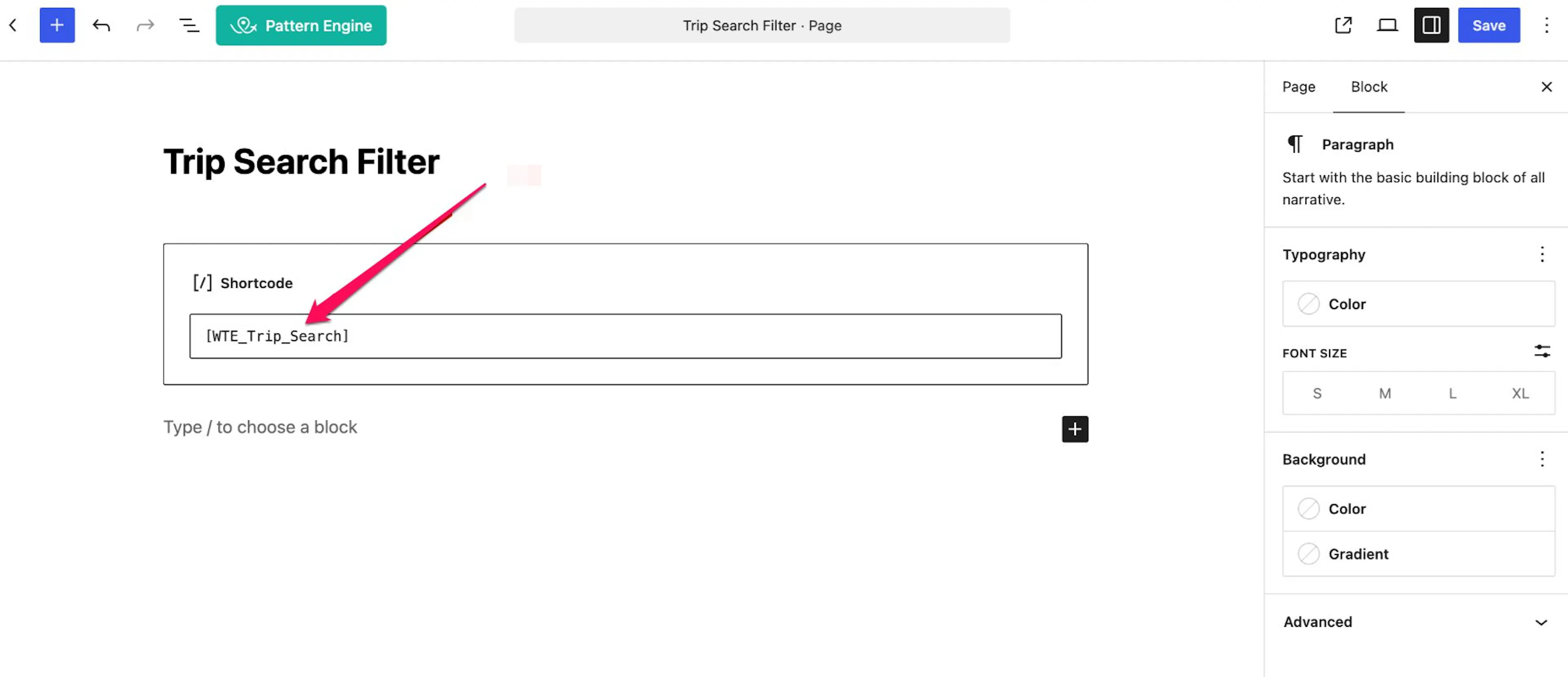
- Click the + button to add a new block, search for Shortcode, and select it.
- Paste the following into the Shortcode block:
[WTE_Trip_Search]
- Click Save.
- Open the page on your site to check the result. The Trip Search Filter and your trip list appear where you placed the block.
Paste the shortcode into a Shortcode block, not a Paragraph block. In a Paragraph block, visitors see the text in brackets instead of the filter.
If you use Elementor or another page builder, add its Shortcode widget and paste the same text there.
Option 2: Use the Trip Listing Template
Use this option when you want a full trip listing page, with the filter and trips laid out the same way as your main trips page, and you don't need to add your own content to it.
- Go to your WordPress Dashboard.
- Navigate to Pages and open the page you want to use for the trip listing.
- Open the Page tab in the settings sidebar. If the sidebar is hidden, click the settings icon in the top right corner of the editor.
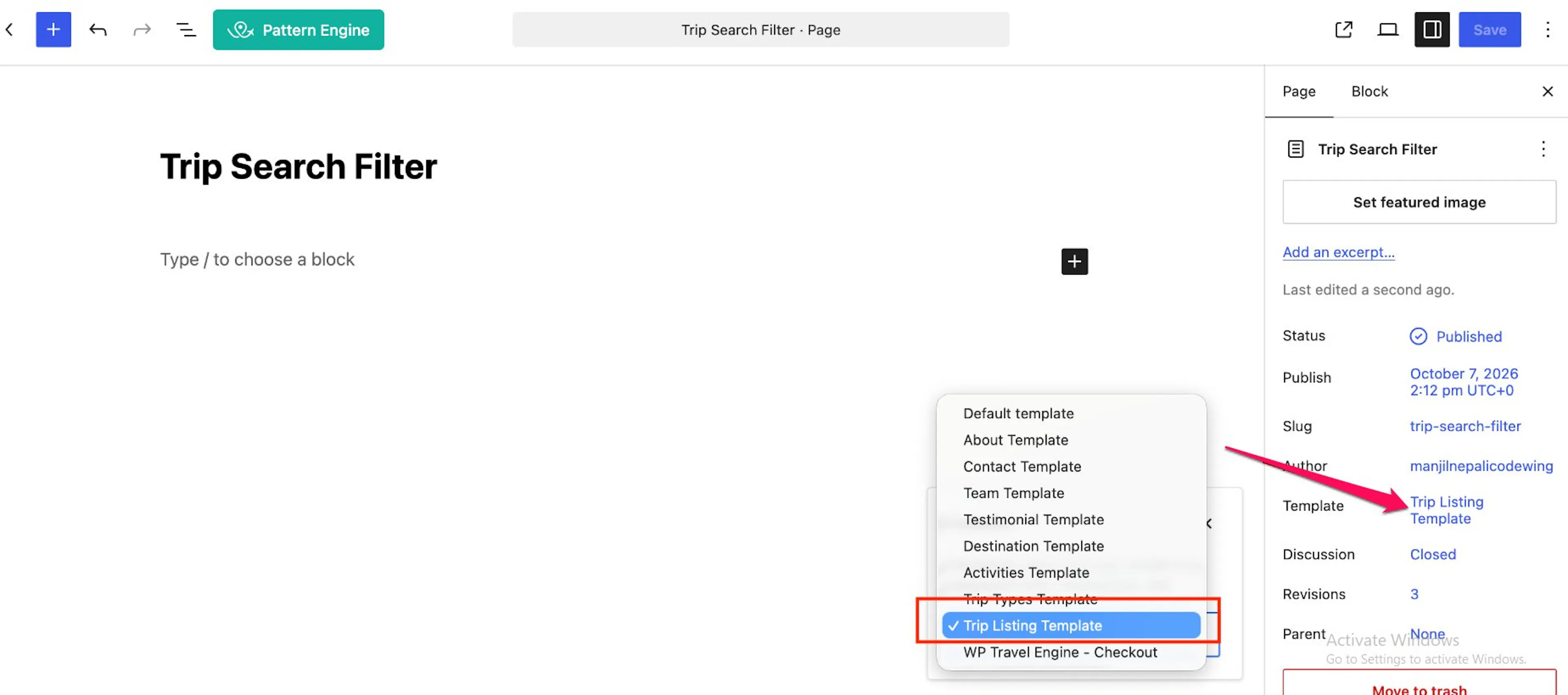
- Find Template in the list and click the template name next to it.
- Select Trip Listing Template from the dropdown.
- Click Save.
- Refresh the page on your site to see the trip listing.
This template builds the page from your trip archive layout, so text you type into the page editor doesn't appear on it. If you want your own content on the page, use the shortcode in Option 1.
Which Option Should You Use?
| Shortcode | Trip Listing Template | |
|---|---|---|
| Best for | A page with your own content plus the filter | A full trip listing page |
| Works with | Any page or page builder | The WordPress page editor |
| Your own page content | Shows on the page | Does not show |
Choosing Which Filters Appear
Both options show the same filter, and two settings control what it contains.
Showing or Hiding the Filter Sidebar
- Navigate to WP Travel Engine Dashboard > Settings > Display > Trip Archive.
- Toggle Show Sidebar Filters on to display the filters, or off to hide them.
- Click Save.
Choosing the Filter Fields
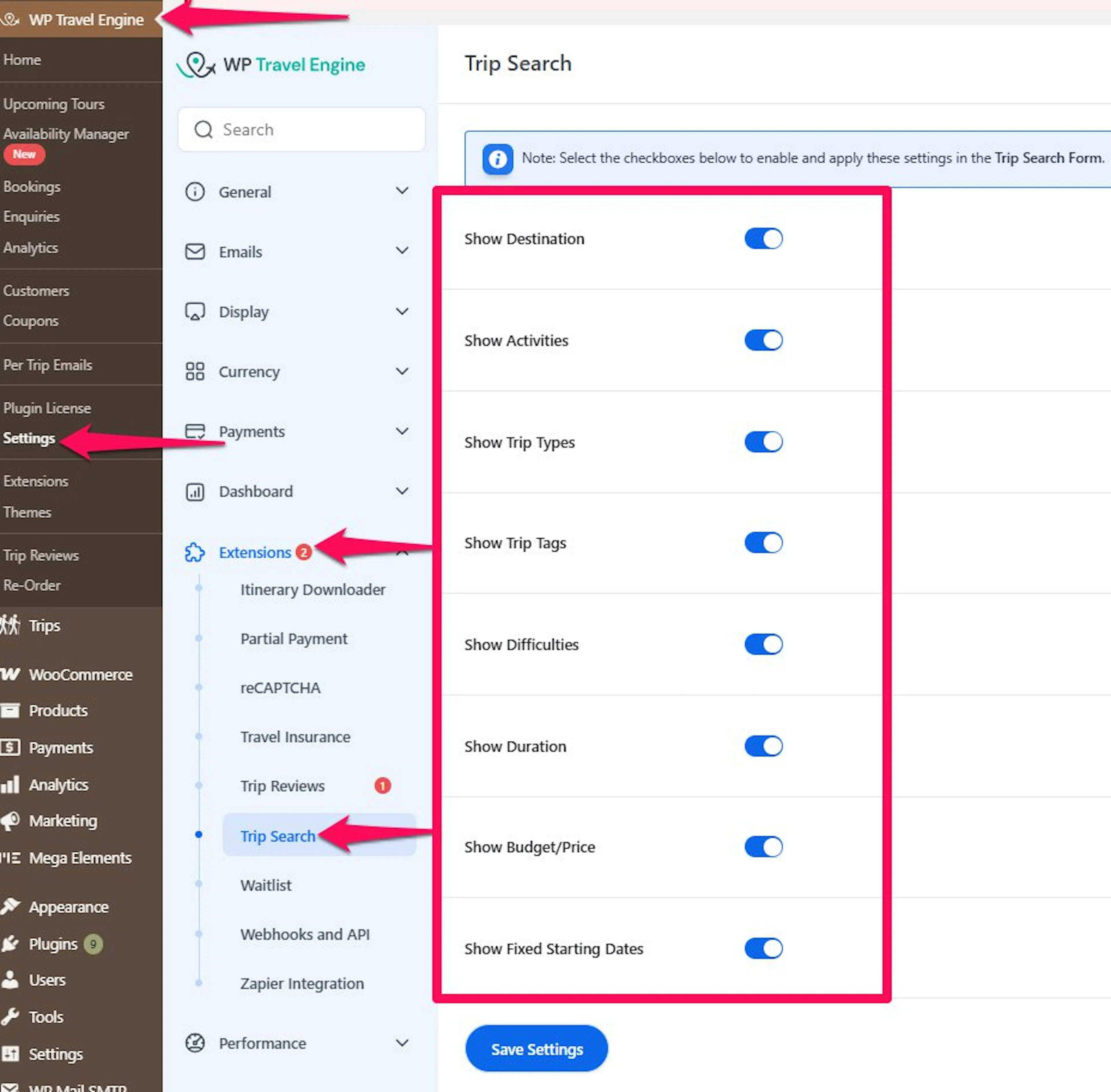
- Navigate to WP Travel Engine Dashboard > Settings > Extensions > Trip Search.
- Toggle on the fields you want visitors to filter by: Show Destination, Show Activities, Show Trip Types, Show Trip Tags, Show Difficulties, Show Duration, Show Budget/Price, and Show Fixed Starting Dates.
- Toggle on Apply in Search Page - FILTER BY Section if you want the same choices applied in the filter on the search results page.
- Click Save Settings.
Showing Only the Search Form
If you want a search bar on a page, such as your homepage, that sends visitors to a results page instead of showing the full trip list, use this shortcode:
[Wte_Advanced_Search_Form]
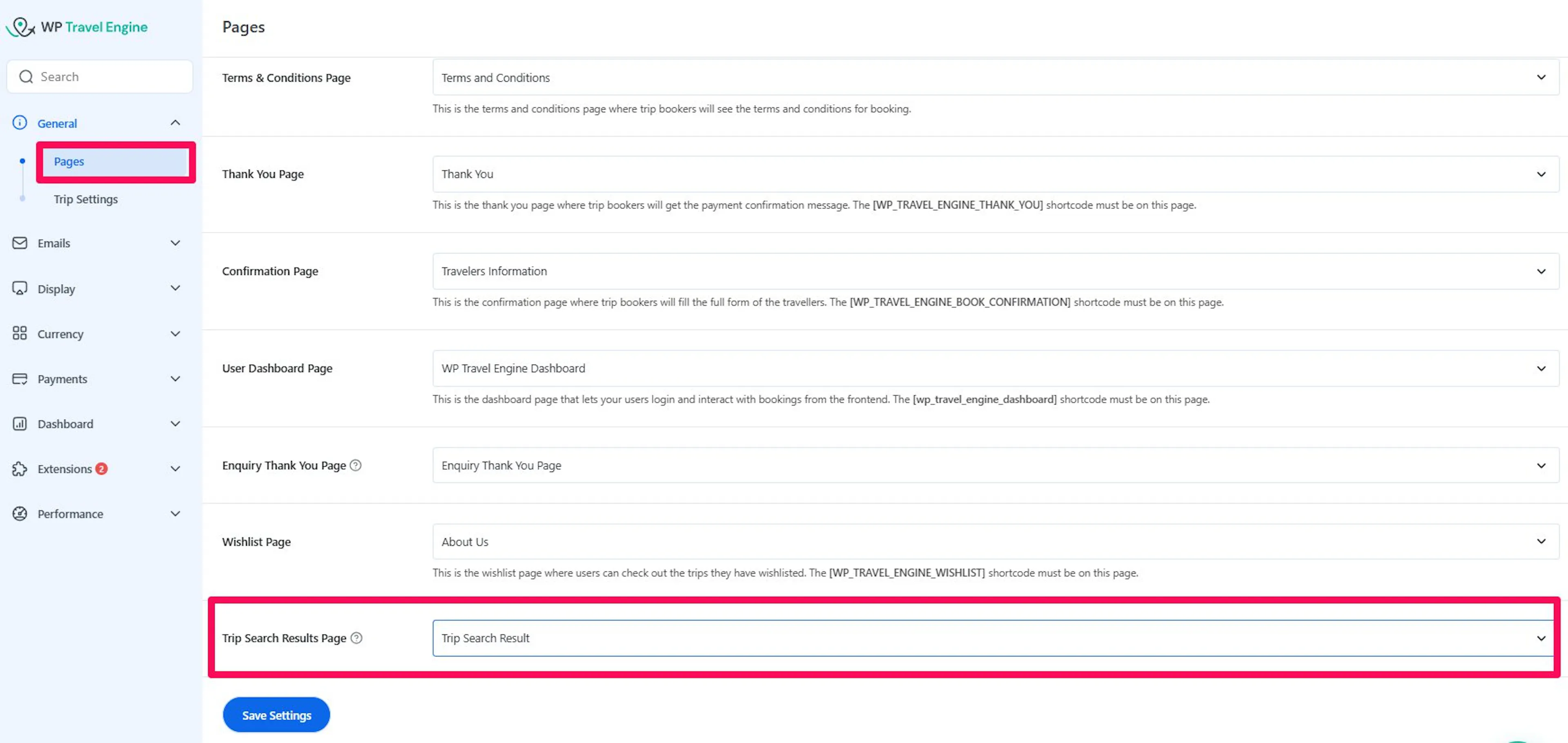
Visitors who submit the form land on your Trip Search Results Page. To choose which page that is, go to WP Travel Engine Dashboard > Settings > General > Pages and use the Trip Search Results Page dropdown.
Troubleshooting
The shortcode shows as plain text on my page. Check that you pasted it into a Shortcode block and that the square brackets are still in place.
The filter doesn't appear on the page. Open WP Travel Engine Dashboard > Settings > Display > Trip Archive and make sure Show Sidebar Filters is on. Then clear your site cache and any caching plugin, and reload the page.
The Trip Listing Template option is missing from the Template list. Update WP Travel Engine to its latest version, then reload the page editor. Some themes also hide page templates, so check that you are in the Page tab and not the Block tab.
The page shows the trip list but my text is missing.
That is how the Trip Listing Template works. Switch the page back to the Default template and use the shortcode from Option 1.[WTE_Trip_Search]).