

How to Display All Trip Reviews on One Page
Show approved reviews from all your tours on one WordPress page, add trip reviews to tabs, and manage ratings from one screen.
Show all your trip reviews on one page
Display approved reviews from every tour on one page. This gives new visitors one place to read feedback from people who joined your treks, day tours, and multi-day packages.
You will add a shortcode to your WordPress page. A shortcode is a short piece of text that tells WP Travel Engine what to display.
You can also use a different shortcode when you want to show reviews for one specific trip. This guide explains both options and shows you how to manage reviews afterward.
What you'll need before you start
Before you begin, make sure:
- WP Travel Engine is installed and active on your WordPress website. A plugin is an add-on that gives WordPress extra features.
- The Trip Reviews feature is active. You should see Trip Reviews under WP Travel Engine on the left sidebar of your WordPress dashboard.
- At least one review has the Approved status.
You are ready to choose the shortcode that matches what you want visitors to see.
Choose the right shortcode
WP Travel Engine provides two shortcodes for displaying reviews.
| Shortcode | What it displays | Where to use it |
|---|---|---|
[Wte_Trip_Review_List] | Reviews for one individual trip | Trip tabs or trip content |
[Wte_All_Trip_Review_List] | Reviews from all trips | Pages or trip tabs |
Use [Wte_All_Trip_Review_List] when you want one page to show reviews from every trip. For example, you might use it on a page that shares feedback about your guided trek, airport transfer, and family day tour.
[Wte_Trip_Review_List] belongs to one specific trip. If you add it to a regular page such as Trip Search Result, reviews may not appear there.
You now know which shortcode to use. The next step shows where to find both shortcodes in your dashboard.
Find the shortcodes in your dashboard
The Trip Reviews screen lists both shortcodes for you. Copying them from there helps prevent spelling mistakes or missing brackets.
Open your WordPress dashboard
Sign in to your WordPress website and open the dashboard. The dashboard is the control area for your website.
Open Trip Reviews
On the left sidebar, select WP Travel Engine. Then select Trip Reviews.
You should now see the Trip Reviews screen.
Read the shortcode note
Look at the note near the top of the screen. It lists [Wte_Trip_Review_List] and [Wte_All_Trip_Review_List].
Copy the shortcode you need
Copy [Wte_All_Trip_Review_List] if you want to show reviews from all trips. Copy [Wte_Trip_Review_List] if you want to show reviews for one trip.
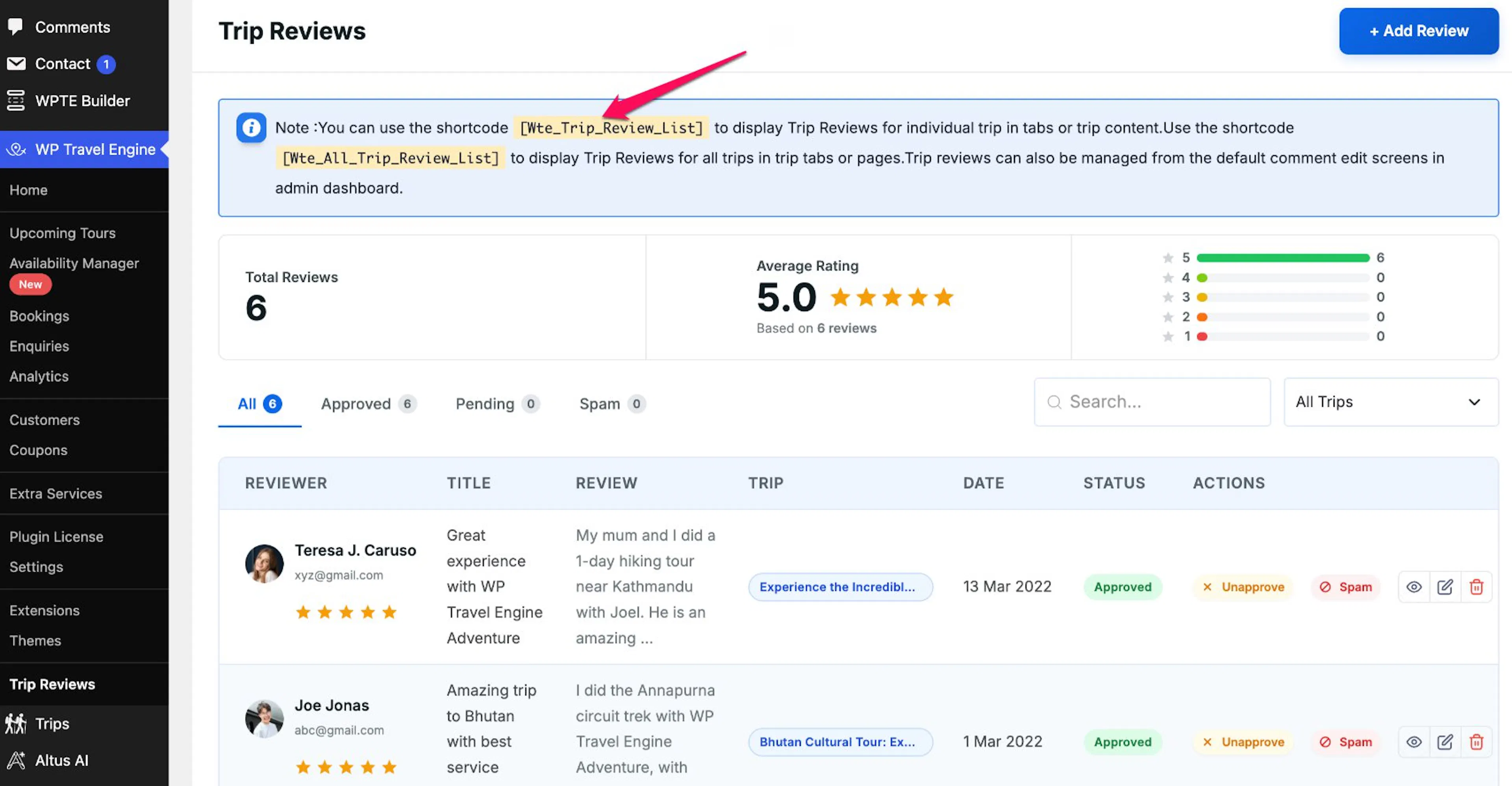
Copy the shortcode from the note instead of typing it. This avoids spelling mistakes and missing brackets.
The shortcode is ready to use. Next, add it to the page where visitors should read your reviews.
Add all trip reviews to a page
A WordPress page is a section of your website. You will add a Shortcode block to that page. A block is a section in the WordPress editor that holds text, images, buttons, or other content.
Open your Pages area
On the left sidebar of your WordPress dashboard, select Pages.
Open the page for your reviews
Select the page where you want the reviews to appear. For example, open the Trip Search Result page.
Add a Shortcode block
Click where you want the reviews to appear. Add a Shortcode block in the WordPress editor.
If you do not see the block, use the block search box and type Shortcode.
Paste the shortcode
Paste [Wte_All_Trip_Review_List] into the Shortcode block.
Save the page
Select Save or Publish in the upper-right corner of the editor.
Check the page on your website
Open the page as a visitor would see it. Confirm that approved reviews from your trips appear on the page.
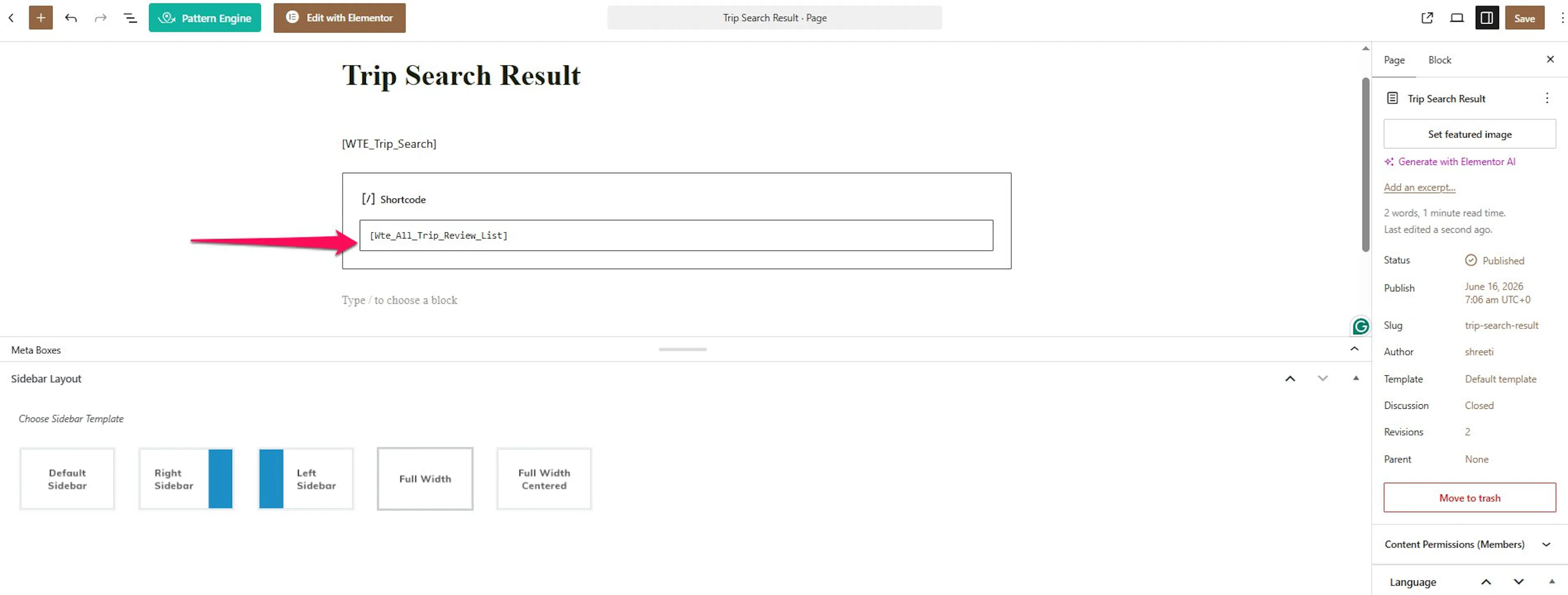
Your page should now show the reviews visitors are allowed to see. If you want to show reviews inside a specific trip, use the shortcode options below.
Adding All Trip Reviews with Elementor
If you use Elementor to build your pages, you can add the reviews the same way. Elementor is a page builder plugin that lets you design pages by dragging and dropping elements instead of using the standard WordPress editor.
A widget in Elementor is a building block you place on a page. It works the same way a block does in the standard WordPress editor.
Open your Pages area
On the left sidebar of your WordPress dashboard, select Pages.
Open the page in Elementor
Select the page where you want the reviews to appear. Then click Edit with Elementor.
Search for the Shortcode widget
In the Elementor panel on the left side of the screen, type Shortcode in the widget search box.
The search helps you find the right widget without scrolling through the full list.
Drag the Shortcode widget onto the page
Drag the Shortcode widget onto the page. Place it where you want the reviews to appear.
For example, you might place it below a heading that says "What our travelers say."
Paste the shortcode
In the widget's shortcode field, paste [Wte_All_Trip_Review_List].
Apply the shortcode
Click Apply so Elementor processes the shortcode.
Publish the page
Click Publish in the lower-left corner of the Elementor editor to save the page.
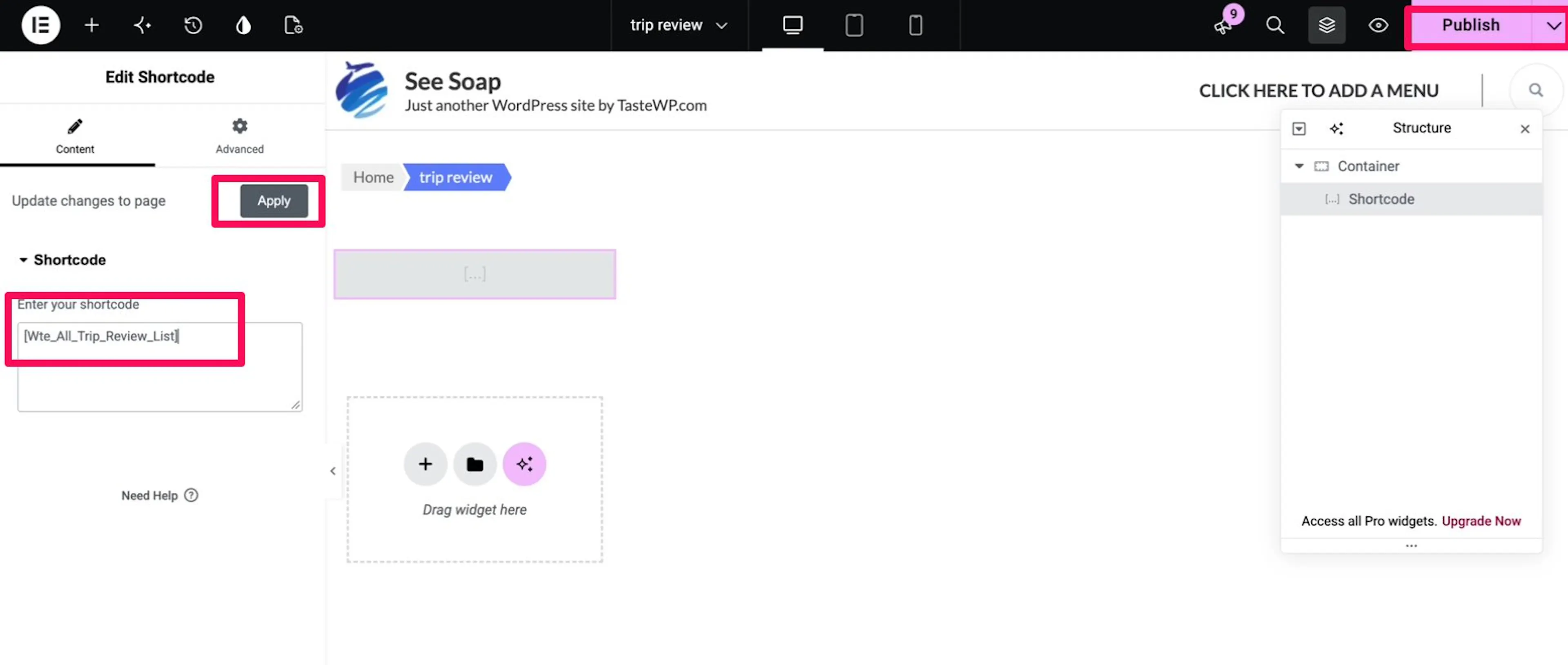
Elementor may show a placeholder or an empty area in the editor instead of the reviews. Open the page on your website to see the final result.
Use shortcodes in trip tabs
A trip tab is a separate section on a trip page. You might use one for Reviews, Gear rental, or Group discounts.
Show reviews for one trip
Open the trip you want to edit. Add [Wte_Trip_Review_List] to the trip tab or trip content when you want that trip to show its own reviews.
For example, add this shortcode to your Everest Base Camp trip if you want visitors to read reviews from that trek only.
Show reviews from every trip
Add [Wte_All_Trip_Review_List] to a trip tab or trip content when you want that section to show reviews from all trips.
Both shortcodes work inside trip tabs and trip content. Choose the one that matches the reviews you want visitors to read.
Manage your reviews
The Trip Reviews screen shows the information visitors can see and gives you control over each review. You can approve reviews, find reviews for a specific trip, mark unwanted reviews as spam, or add a review yourself.
Open the Trip Reviews screen
On the left sidebar of your WordPress dashboard, select WP Travel Engine, then select Trip Reviews.
Check your review totals and ratings
At the top of the screen, check Total Reviews and Average Rating. You can also see how many reviews you have for each rating from 5 stars to 1 star.
Filter reviews by status
Select All, Approved, Pending, or Spam to filter the review list.
Use Approved to see reviews that can appear on your website. Use Pending to find reviews that still need your attention.
Find a review
Type a name, title, or other text into the Search... box. You can also open the All Trips drop-down to find reviews for a specific trip.
For example, use the trip filter to find reviews for your three-day rafting package without looking through reviews for every other tour.
Review the information in the table
Read the reviewer, title, review, trip, date, and status in the review table.
Take action on a review
Use the Approved or Unapprove button to control whether a review is approved. Use the Spam button for unwanted reviews.
You can also use the view, edit, and delete icons in the Actions column.
Add a review yourself
Select + Add Review when you want to add a review manually. You might use this when a customer gives you feedback by email after a tour.
You can also manage trip reviews from the standard comment edit screens in your WordPress dashboard.
Your reviews are now available from one place, and you can control which ones appear on your website.
If you're still stuck or have a question we didn't cover, our support team is happy to help. Reach out at our support page and we'll get you sorted.