

Creating a Temporary Login for Your Site (No Password Needed)
Give a developer, support agent, or guest contributor short-term access to your WordPress dashboard without sharing your password.
Creating a Temporary Admin Login
A temporary login gives a support agent access to your WordPress dashboard for a limited time. The dashboard is the admin area of your website, usually found at yoursite.com/wp-admin.
A plugin is a small package that adds features to WordPress. The Temporary Login Without Password plugin creates a separate account with its own login link. You do not need to share your password.
For example, a traveler's booking might show the wrong price after a recent update. Our support team may need to check your dashboard to find out what happened.
Before you start: Make sure you can sign in to your WordPress dashboard and have the support agent's email, first name, and last name.
Install the temporary login plugin
You need the plugin before WordPress can create a password-free login link.
On the left sidebar of your WordPress dashboard, open Plugins » Add New. Search for and install the Temporary Login Without Password plugin. Activate it after the installation finishes.
When the plugin is active, you are ready to create the temporary account.
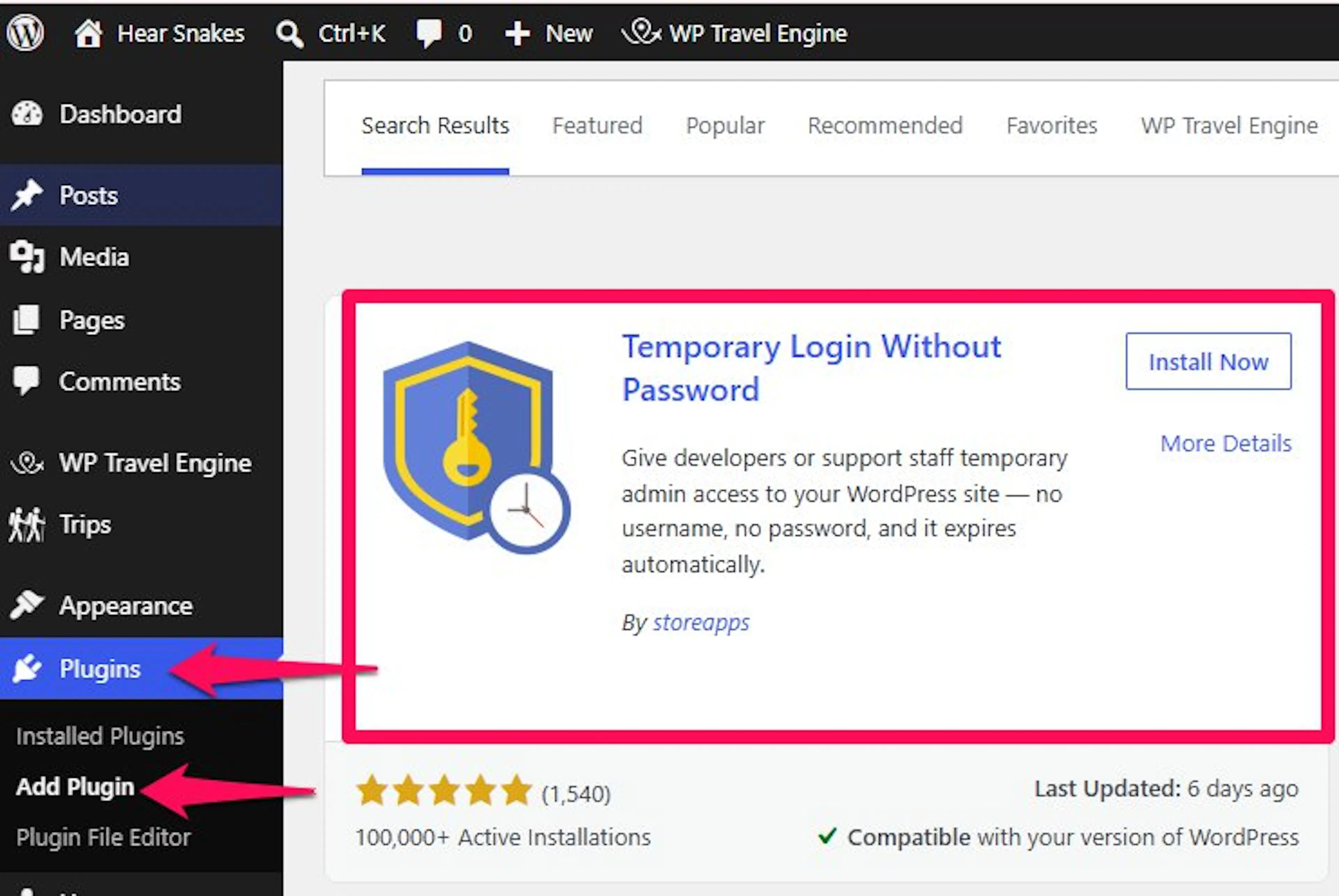
Create a new temporary login
The new account gives the support agent separate access without exposing your own password.
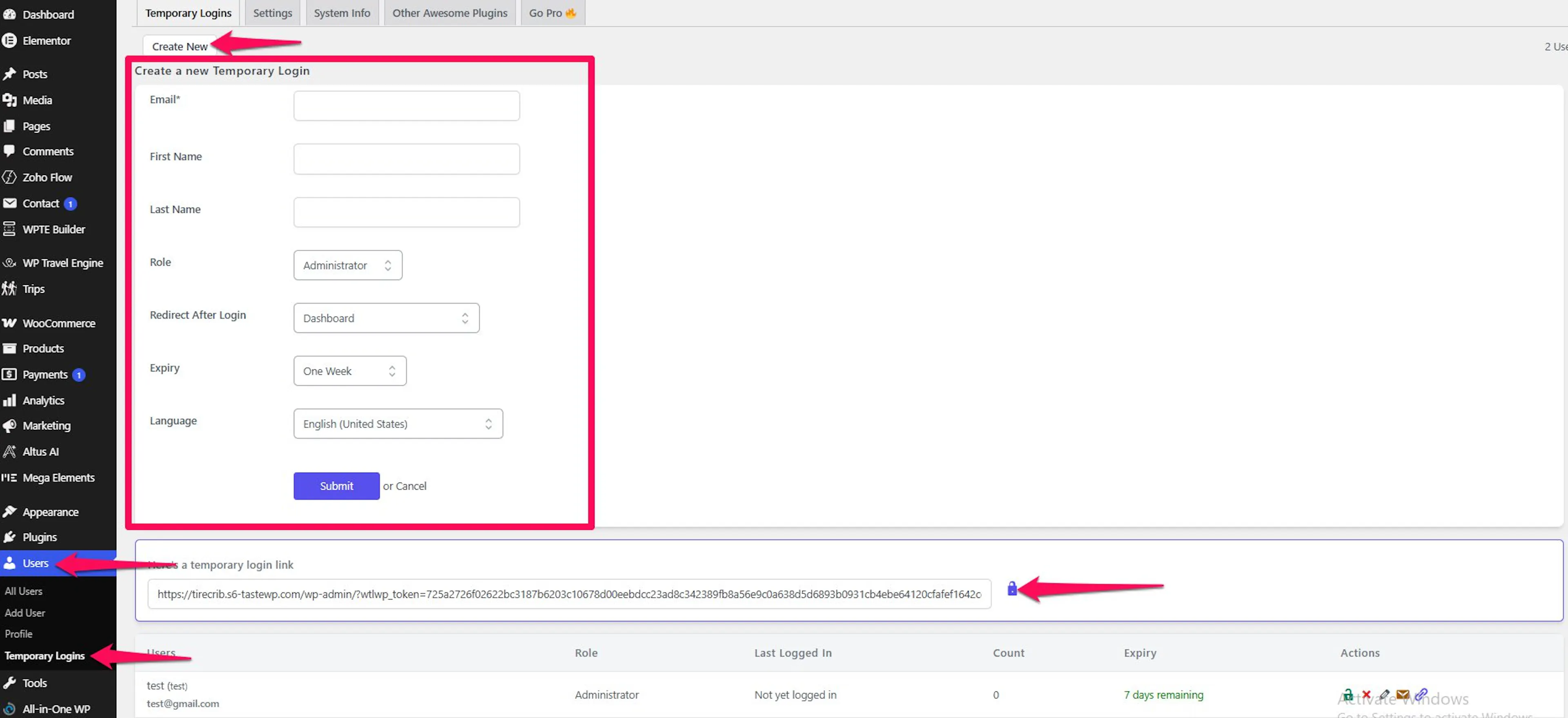
On the left sidebar, open Users » Temporary Logins. Select Create New.
The temporary login form opens. You can now add the support agent's details.
Enter the support agent's details
Use the support agent's real contact information so you know who the login belongs to.
Enter the support agent's email, first name, and last name.
Set the Role to Administrator. A role controls what the account can do in WordPress. An Administrator has access to all areas of the dashboard.
Choose a short Expiry, such as 3 to 7 days. The account will stop working after this period.
Create and share the login link
Submitting the form creates a unique link that the support agent can use without a password.
Select Submit. WordPress generates a unique login link.
Copy the link and send it to our support team. Keep the link private and share it only with the person who needs access.
When the account expires or you delete it, WordPress reassigns any changes it made to your main administrator account. Nothing gets lost.
Managing or Extending Access
You can review temporary accounts or end access from the same WordPress menu.
Open Users » Temporary Logins to see every account you have created. The list shows each account's role and the time remaining before it expires.
To extend access, select Edit for the account. Set a new expiry date and save the change.
To end access early, use Expire or Delete in the Actions column.
The temporary user cannot change the account password or email address. When the link expires, it stops working completely. Anyone who tries to use it will see the regular WordPress login screen instead of the dashboard.

If you are still stuck, reach out to the support team. We can help you create the temporary login or check that the link is working.